

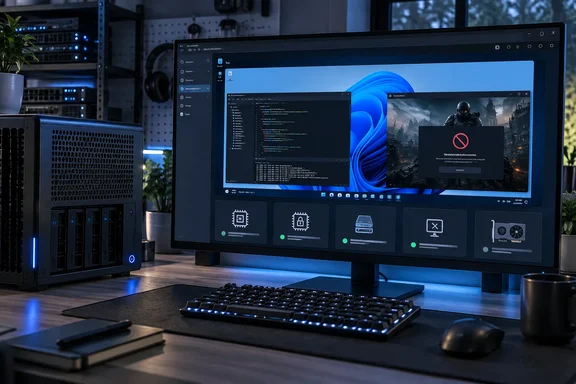
Why Windows 11 needs more setup than a Linux guest
On Proxmox, a typical Linux guest is easy: attach an ISO, assign resources and install. Pande says Windows 11 is different. He needs EFI and TPM state disks, and he also attaches the VirtIO driver package as an extra drive. Microsoft's documentation explains the first part. Microsoft requires UEFI firmware capable of Secure Boot, TPM 2.0, at least 4 GB of memory, two virtual processors, and 64 GB of storage, according to WunderTech's Proxmox walkthrough. Microsoft's TPM guidance adds a related point. Proxmox's own best-practices page targets Windows 11 guests on Proxmox VE 8.x, so check your version against it.
On the Microsoft side, TPM 2.0 is not supported in Legacy and CSM BIOS modes in the sense that devices need native UEFI. A Windows 11 VM therefore needs UEFI firmware and a virtual TPM 2.0 device. Secure Boot is a separate setting, so adding a TPM doesn't enable it.
VirtIO drivers: what they are and when you need them
Pande calls the VirtIO package "borderline necessary". Without a storage driver, the Windows installer can't see the virtual disk. He also says Windows 11 doesn't work with the emulated Ethernet adapter, so he installs NetKVM next.
One correction to his wording: he calls the key storage driver a "Red Hat SCSI passthrough driver." The VirtIO project doesn't use that name. Its repository lists separate paravirtualized drivers, including NetKVM for networking and viostor and vioscsi for storage. The guest-tools installer lists Windows 11 (w11) support for these. They are not physical-device passthrough. Which storage driver you load depends on the controller you choose for the VM.
Proxmox's own Windows 11 best-practices page gives a concrete recipe:
- Select "Microsoft Windows 11/2022/2025" as the guest OS and enable the QEMU Agent in the System tab.
- For the virtual disk, select SCSI as the bus with "VirtIO SCSI single" as the controller.
- Write back cache is faster, while the "No cache" default is safer. Tick Discard to use disk space (TRIM) well.
- Set "VirtIO (paravirtualized)" as the network device.
- Upload the driver ISO and add a new CD/DVD drive with bus IDE and number 0.
- In the installer, choose "Custom (advanced)" and click "Load driver" for the disk and network drivers.
Proxmox also covers memory ballooning. Select the "Balloon\w11\amd64" folder and install the VirtIO Balloon Driver. After setup, install the QEMU guest agent and the rest of the VirtIO tools.
Pande's folder description (amd64 under win11) fits the general layout. Don't treat any single path as universal, because the right folder depends on the controller and driver you select.
Remote Desktop instead of the console
Pande finds the QEMU console sluggish whatever resources he gives the VM. His fix is Remote Desktop, which is why he picks Windows 11 Pro. That choice has a real basis. Microsoft says Pro, Enterprise and Education editions can host incoming Remote Desktop connections, while Home cannot, though Home can act as a client.
To enable it, go to Settings, then System, then Remote Desktop, and turn on Enable Remote Desktop. Microsoft also gives security advice:
- Enable it only on trusted networks.
- Give every permitted account a strong, unique password.
- Keep Network Level Authentication on where you can.
- For access from outside your network, use port forwarding or a VPN. Pande uses Tailscale, which is his choice and not a requirement.
He mentions SPICE as an alternative but prefers RDP for coding and PowerShell.
The CPU type is a personal choice
Pande reports mixed results with host CPU passthrough and recommends the x86-64-AES model instead. Treat that as his experience, not a rule. A Proxmox forum reply suggests host CPU type is fine if you don't plan to migrate the VMs. One community guide notes that Windows 11 needs at least the v2 level, which requires SSE4.2 and POPCNT. The same guide says nested virtualization needs the vmx or svm flag. Without it, the guest can't run Hyper-V, WSL2 or VBS/HVCI.
That matters if your "daily driver" relies on WSL2 or Docker, because a generic CPU model could break them. Those are community sources and not official Proxmox guidance, so test your own workload.
GPU passthrough and remote gaming
Pande passes a GTX 1080 through to the VM. He says it handles lighter games, Adobe tools and Blender without compatibility problems. He streams to other devices with Apollo and Artemis at 1080p, with Tailscale for access outside the home. He says AAA titles can reach playable frame rates at medium or high settings. He gives no frame rates, host hardware or benchmarks, so these are anecdotes.
A distinction from Proxmox's documentation: its NVIDIA vGPU page covers virtual GPUs on data-center cards, not regular full-device passthrough. For that vGPU case, the built-in VNC and SPICE consoles can't display the vGPU's virtual display, so you need remote desktop software. A consumer card like the GTX 1080 uses ordinary PCIe passthrough, which is a different setup, and Proxmox's separate passthrough documentation covers it. The vGPU page also lists a Windows-specific issue: with Fast Startup enabled, the next boot after a hybrid shutdown can blue-screen and disable the vGPU. Whether that applies to your passthrough setup isn't established, but it's a useful thing to check if you see odd boot behavior.
The anti-cheat problem
Pande's biggest caveat is anti-cheat. He says Elden Ring: Nightreign and Arc Raiders refused to run, as did other anti-cheat-heavy esports titles. Community compatibility data for Arc Raiders agrees. VMDB shows three community reports, all rated "Borked", each involving GPU passthrough and EasyAntiCheat. Treat that as unofficial: the reports are unverified and don't come from the publisher or anti-cheat vendor. One reporter says other EAC games ran in the same setup, so the outcome varies by title.
If competitive multiplayer is part of your daily use, a VM is a poor fit. For productivity, development and single-player games it can work.
Is it a daily driver?
The evidence supports a conditional yes. A VM with UEFI, a virtual TPM, VirtIO storage and network drivers, the guest agent and Remote Desktop can be a comfortable workspace. The evidence doesn't establish measured performance or a recipe that works on every host.
A short checklist:
- Configure UEFI and a TPM 2.0 device before installing.
- Attach the VirtIO driver ISO and load the storage driver for your chosen controller.
- Install the network driver and guest agent after setup.
- Use Windows 11 Pro and Remote Desktop for daily work, and limit exposure to trusted networks or a VPN.
- Treat the CPU type as something to test, and enable nested-virtualization flags if you need WSL2 or Hyper-V.
- Add GPU passthrough only if you need it, and check your games' anti-cheat first.
The extra setup effort is the price. It buys snapshots, easy backups and the ability to put a Windows desktop on a home server.
References
- Windows 11 on Proxmox can replace your daily driver, if you know which settings to tweak XDA · 2026-10-06T17:30:17+00:00
- Proxmox Windows 11 VM Setup: Storage and Network Drivers wundertech.net
- Does ARC Raiders run in a VM? | VMDB vmdb.it