

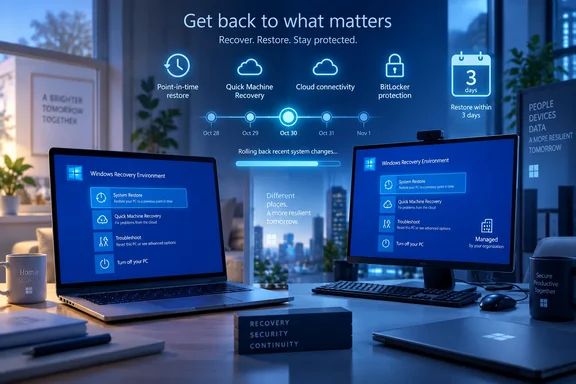
The change matters because Microsoft’s newer restore feature is far more invasive than the familiar System Restore tool, despite its reassuring name. Point-in-time restore rolls the operating system, installed apps, settings, credentials, certificates, and local personal files back to a recent snapshot. It is a fast recovery route for a broken update, driver, or configuration change, but it is not a substitute for a backup: anything changed after the chosen restore point can be erased.
Microsoft’s support article presents a sensible escalation path—troubleshoot, reinstall through Windows Update, remove an update, restore, then reset—but its shorter consumer-facing descriptions leave out several operational limits documented separately in Microsoft Learn. Most importantly, Windows 11 users and IT administrators should treat the feature as a three-day local rollback window, not durable recovery protection.
Point-in-time restore changes the meaning of “restore”
System Restore has long been Windows’ relatively conservative rollback option. It restores system files and selected configuration state while normally leaving a user’s documents alone. Point-in-time restore uses the Volume Shadow Copy Service, or VSS, to capture a substantially broader machine state, including local files.
Microsoft says snapshots are taken automatically, approximately every 24 hours by default, and are normally retained for up to 72 hours. The new Support page accurately says that only changes made after the selected restore point will be lost. The practical consequence is easy to underestimate: a document saved locally yesterday, a certificate imported after the snapshot, a password or credential added that morning, and an application’s recent local data can all revert with the PC.
Files held solely in OneDrive or another cloud service are not rolled back by the restore operation, according to Microsoft’s technical documentation. That reduces one category of risk, but it creates another routine support problem: cloud-synced files can be newer than the local machine state restored from the snapshot. Microsoft also documents a known issue in which Outlook’s local .ost cache may need to be rebuilt after a restore.
The support page calls Point-in-time restore the more comprehensive option when it is available. That is fair, but comprehensive is also why it demands a different pre-flight check from System Restore. Before selecting a snapshot in the Windows Recovery Environment, users should identify files that changed since the snapshot and ensure important work is synchronized or copied elsewhere. A restore point is a rollback boundary, not a safety net for work performed afterward.
Three days is a narrow rollback window
Microsoft’s updated recovery page tells users to fall back to System Restore if Point-in-time restore is unavailable or if they need a restore point older than three days. The fuller Microsoft Learn documentation explains why “unavailable” may be more common than the simple recovery flow suggests.
Snapshots are stored locally, and Windows may remove the oldest ones after they exceed their retention period, when VSS reaches its configured storage ceiling, or when free space on the OS volume falls to 20 GB or less. A failed VSS operation can also remove all restore points. The restore process itself requires free space at least equal to the total space used by the stored restore points, which means a machine short on disk capacity can lack the very rollback option its owner expects to use.
Microsoft sets the default VSS limit for this feature to 2% of the disk, with a minimum configurable allocation of 2 GB and a maximum equivalent to 50 GB. That space is not permanently pre-allocated, but it is shared with System Restore and other software that relies on VSS. Backup tools, rollback utilities, and point-in-time restore can therefore contend for the same underlying snapshot storage.
There are limits that the Support page does not surface prominently. Point-in-time restore affects the OS volume, not every attached or secondary volume. It cannot restore a snapshot made under a different Windows edition—for example, after a Home-to-Pro upgrade. Microsoft also warns that EFS-encrypted files prevent restoration, and that a shutdown during the procedure can leave the PC in a corrupt or unbootable state.
The clear advice for a Windows 11 PC with the option available is to keep adequate free storage, connect AC power before beginning the rollback, and have the BitLocker recovery key accessible. BitLocker is not an edge case in this workflow: Microsoft says it is required for local restore on encrypted volumes, which includes many modern Windows 11 devices.
Enterprise defaults are more cautious than the consumer guide implies
Microsoft’s Support page gives Point-in-time restore a Windows 11 version 24H2-or-later availability label. That identifies the supported operating-system generation, but it does not mean every 24H2 device will be producing snapshots.
Microsoft Learn says the feature is on by default for unmanaged Windows 11 Home systems and Windows 11 Pro devices that are neither domain joined nor enrolled in enterprise endpoint management—provided the OS volume is at least 200 GB. It is off by default on Windows Enterprise and Education, as well as managed or domain-joined Windows 11 Pro devices, until Windows 11 version 26H2.
That is an important distinction for help desks. A user on a corporate Windows 11 24H2 laptop may see the recovery guidance and expect Point-in-time restore in WinRE, only to find no usable checkpoint because the organization has not enabled it. Administrators can manage the feature through the Recovery configuration service provider, including whether it is enabled, how often snapshots are created, how long they are retained, and the storage limit.
Microsoft’s documentation says only Enterprise can configure the snapshot frequency and retention period. Home, Pro, and Enterprise can turn the capability on or off and adjust the storage ceiling. For organizations with an endpoint-management strategy, the relevant decision is not whether the feature sounds attractive in isolation; it is whether a short-lived local restore mechanism fits alongside existing VSS-dependent backup software, encryption policies, disk-space standards, and post-incident patch validation.
A restored PC may be functional but behind on security updates or device policy changes installed after its chosen restore point. Microsoft explicitly recommends validating critical applications, security agents, and policy posture after a rollback. In an enterprise incident, recovery should therefore be followed by management check-in, update assessment, and verification that endpoint protection is healthy—not merely a successful Windows sign-in.
Quick Machine Recovery is automated, but only for the right failure
For a PC that will not start, Microsoft now highlights Quick Machine Recovery before the manual WinRE options. This is the feature designed for a known widespread outage, such as a bad update or other critical issue that stops machines from booting.
Quick Machine Recovery starts after repeated boot failures, enters WinRE, establishes a network connection, and checks Windows Update for a Microsoft-provided remediation. If one exists and the feature is configured for automatic remediation, Windows can download the fix and restart without a user choosing Reset, uninstalling an update, or reaching for installation media.
Microsoft’s technical documentation places an additional floor beneath the broad “24H2 or later” guidance: Quick Machine Recovery requires Windows 11 version 24H2 build 26100.4700 or later. The feature is enabled by default with a one-time remediation scan on unmanaged Home and eligible unmanaged Pro PCs. On enterprise-managed machines, cloud remediation is disabled by default and must be intentionally configured.
The automation is not magic, and Microsoft does not claim it is. The company describes Quick Machine Recovery as best effort; it only helps if Microsoft has published an applicable cloud remediation and the device can connect from the recovery environment. If no fix is found under the default configuration, Windows sends the user to the ordinary recovery choices.
Network planning is the overlooked part. Microsoft’s current Quick Machine Recovery documentation says wired networks and WPA/WPA2 password-based Wi-Fi are supported for this recovery connection. Later Windows 11 Release Preview notes describe work to reuse eligible saved Wi-Fi profiles in WinRE, including certain certificate-based networks, but administrators should test their actual hardware, network authentication, and WinRE image rather than assume every corporate wireless setup will work before Windows loads.
For organizations using Windows Autopatch, Microsoft also provides a separate approval path for Quick Machine Recovery updates. An administrator can require manual approval or allow automatic approval with a deferral period. That prevents recovery remediation from becoming an uncontrolled channel, but it also means the organization’s update policy can delay a fix during a broad outage if it is configured too conservatively.
The recovery order is useful, with one exception for malware
Microsoft’s revised ordering is a practical response to a common support failure: escalating directly from “Windows feels broken” to an operating-system reset. Reinstalling the current Windows version through Windows Update can preserve files, apps, and settings on Windows 11 version 22H2 or later. Removing a recent update is a lower-impact choice when the failure clearly started after patching. Point-in-time restore offers a wider rollback when the damage is recent and a viable checkpoint exists.
Reset this PC remains useful, but it removes installed apps and settings even when personal files are retained. Installation media is the cleanest escalation when other measures fail or malware is suspected, because a clean installation removes the Windows installation, applications, settings, and data from the selected drive.
The exception is a suspected compromise. Microsoft advises scanning first with Windows Security, but a Point-in-time restore can return a machine to an earlier state without proving that malicious persistence, stolen credentials, or altered data are gone. For an enterprise endpoint with evidence of malware, incident-response procedures should take precedence over a convenient rollback, and clean reinstallation or sanctioned recovery tooling may be the appropriate containment path.
The immediate takeaway is straightforward: Windows 11’s new recovery options make a reset less likely to be the first answer, but they raise the value of preparation. Enable and test the features that match the device’s management model, record the BitLocker recovery key before an emergency, protect current work with cloud sync or backups, and make sure WinRE can reach the network if Quick Machine Recovery is expected to help.