

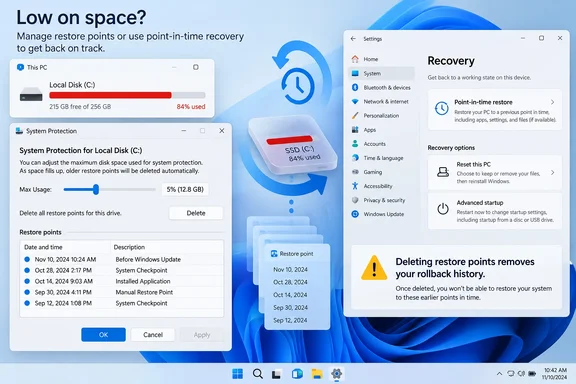
MakeUseOf’s report describes a familiar problem for small SSDs: System Protection can accumulate restore points until Volume Shadow Copy Service, or VSS, is using tens of gigabytes on the Windows drive. Its proposed remedy is sound for classic System Restore—set a maximum allocation in the System Protection dialog and delete obsolete points if space is urgently needed. Microsoft’s own System Protection documentation confirms that the feature is off by default and that the slider controls its maximum disk use.
The practical takeaway is straightforward. If classic restore points are occupying 45GB of a 256GB or 512GB C: drive, there is no need to choose between losing the safety net entirely and tolerating unchecked growth. Set a deliberate ceiling, understand what deleting points removes, and check whether the newer Windows 11 recovery feature is also using local storage.
The System Protection slider is the safe first control
On Windows 10 and Windows 11, open Start, search for Create a restore point, select the Windows system drive under Protection Settings, and choose Configure. The Max Usage slider is the supported graphical control for limiting classic System Restore storage.
Windows creates traditional restore points around system events such as some software installations, driver changes, and updates; users can also create one manually before editing the Registry, testing a driver, or changing low-level settings. When the configured storage pool fills, Windows should discard older restore points to make room for newer ones.
That is the balance MakeUseOf gets right. A restore point that predates a bad GPU driver or failed application installation can be far more useful than a few extra gigabytes of free disk capacity, particularly because System Restore remains available from the Windows Recovery Environment when the desktop no longer starts.
The recommended limit is not a universal 15GB. It depends on the amount of free storage, how frequently the PC’s system state changes, and how much rollback history the owner wants. On a capacity-constrained machine, a lower cap is defensible, but the tradeoff is fewer usable restore points and a greater chance that Windows has already retired the one needed when trouble appears.
Microsoft does not promise that a particular slider value will retain a particular number of restore points. VSS stores changed blocks rather than a simple series of equally sized full images, so consumption depends heavily on write activity. A major game install, feature update, application suite upgrade, or heavy driver churn can make a restore-point allocation disappear faster than its raw gigabyte figure suggests.
Deleting restore points buys space, but wipes the escape route
The same Configure window includes a Delete button that removes all classic restore points for the selected drive. It is an effective emergency measure when the system disk is full, but it is not routine housekeeping: after deletion, there is no way to use System Restore to return to any earlier state.
Create a fresh point immediately after clearing the old set—assuming Windows is currently healthy. This does not preserve the older recovery history; it simply establishes a new known-good baseline.
Administrators and advanced users can inspect the underlying VSS allocation from an elevated Command Prompt with:
vssadmin list shadowstorage
Microsoft documents a second way to impose a limit:
vssadmin resize shadowstorage /For=C: /On=C: /MaxSize=15GB
The command is useful for scripting, repeatable fleet configuration, or diagnosing a system whose graphical controls do not tell the whole story. But it deserves care: Microsoft warns that resizing a shadow-storage association can cause existing shadow copies to disappear. It should not be used casually as a way to “tidy” VSS.
The command also exposes a detail often lost in consumer storage advice. System Restore depends on VSS, and VSS can support other Windows or third-party backup activity. A suspiciously large shadow-storage figure is worth investigating before assuming every gigabyte belongs solely to restore points. Reducing it can affect any workflow relying on those shadow copies.
System Restore is still a system rollback tool, not a backup
Classic System Restore can roll back system files, Registry settings, installed applications, drivers, and related configuration. It does not roll back personal files such as documents, photos, local project folders, or email archives. Microsoft still positions it as a recovery option for Windows 10 and Windows 11, including through WinRE for unbootable PCs.
That makes it excellent for a narrow class of failures: a bad driver, an application installer that destabilized Windows, an ill-advised Registry change, or an update-related configuration problem. It is not protection against SSD failure, ransomware, accidental deletion, a lost laptop, or a corrupted work folder.
The distinction matters more now because Microsoft’s newer Point-in-time restore uses similar language while doing something substantially different. Treating the two as interchangeable can lead users to preserve data they expected to revert—or, worse, to lose recent local work they assumed was outside the rollback scope.
For a real backup plan, data needs a separate copy on storage that is not dependent on the same Windows installation and preferably not continuously writable by the PC. File History, a backup application writing to external storage, or a properly configured cloud backup can fill that role. System images can help with full-machine recovery, but they too need to live away from the disk being protected.
Point-in-time restore changes what “restore” means in Windows 11
Microsoft added Point-in-time restore to Windows 11 version 24H2 and later through the June 23, 2026 KB5095093 preview update for Windows 11 24H2 and 25H2, with related rollout work continuing across supported Windows 11 releases. Windows Central also reported on the feature’s consumer rollout and Microsoft’s recovery initiative.
Unlike classic System Restore, Point-in-time restore returns the entire local PC state to an automatic snapshot: operating system, applications, settings, and local personal files. That is a much more comprehensive recovery option, and it comes with a sharper warning. Files, passwords, app changes, and installations made after the selected restore point are lost. Files held in OneDrive or another cloud service are not rolled back by the local restore.
Microsoft says the feature creates snapshots approximately every 24 hours and normally retains them for up to 72 hours. It is designed for rapid recovery from a recent bad update, software conflict, or configuration change—not for historical archiving.
MakeUseOf correctly notes that Point-in-time restore has its own settings at Settings > System > Recovery and its own storage limit. Microsoft documents a default maximum usage limit of 2% of the system drive, with unused capacity remaining available rather than being permanently pre-allocated.
The article’s claim that the new feature cannot replace classic System Restore is partly right, but the reason is more precise than its description suggests. Point-in-time restore has only a short, automatic recovery window; classic System Restore can retain points longer, subject to its configured storage budget, and lets a user create a manual checkpoint immediately before a risky change. If a user needs a rollback target from last week—or needs to establish a point right now—classic System Restore remains useful.
Check both recovery stores before blaming System Restore
Users on recent Windows 11 builds should check both interfaces before concluding that classic System Protection is responsible for missing disk space.
Classic System Restore is managed through Create a restore point and is the place to set per-drive System Protection limits. Point-in-time restore is managed through Settings > System > Recovery > Point-in-time restore, where eligible devices can view or alter the newer feature’s configuration and see available restore points.
Availability is not identical across devices. Microsoft says Point-in-time restore is enabled by default on unmanaged systems, while IT-managed devices have different default behavior until Windows 11 version 26H2. Devices with an OS volume smaller than 200GB can enable the feature manually, but it is not enabled by default. Microsoft’s consumer recovery guidance identifies Windows 11 24H2 or later as the baseline for the feature; it should not be assumed to exist on Windows 10.
For managed endpoints, this is not merely a help-desk issue. Point-in-time restore can reverse local files as well as applications and settings, so IT teams need to consider it alongside OneDrive Known Folder Move, endpoint backup policies, BitLocker recovery-key procedures, patch management, and support guidance. A user restoring a device to yesterday’s snapshot may also revert recent security updates, requiring Windows Update to be checked again after recovery.
The durable configuration for a space-limited PC is therefore modest: retain classic System Restore with an intentional VSS cap, create a manual point before high-risk work, verify whether Point-in-time restore is enabled and consuming its own allowance, and keep independent backups of data that cannot be recreated. That preserves the fast recovery path without letting either Windows recovery feature silently decide how much of the system drive it may consume.
References
- Windows System Restore can easily eat gigabytes — I fixed it without turning it off - makeuseof.com makeuseof.com · 2026-09-16T16:00:15+00:00