

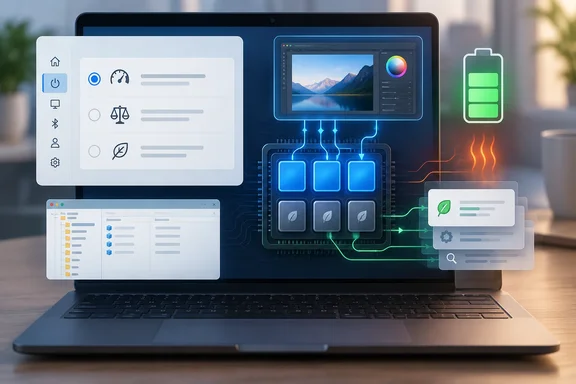
Guiding Tech's guide covers what power throttling is and offers two ways to reduce or remove it: change the Power mode in Settings, or create a registry value that turns the feature off completely. Both are real options. The more useful point, which Microsoft's own documentation makes clear, is that choosing Best performance is not the same as turning Power Throttling off. Those are separate controls with different scope, and knowing which one you're using helps you avoid a bigger change than you need.
What Power Throttling actually does
Guiding Tech describes it loosely as Windows "removing some power" from background processes. That's fine as shorthand, but Microsoft's developer documentation is more precise. Windows gives each thread a Quality of Service (QoS) level, and each level has its own balance of performance and power efficiency. Scheduling priority still decides which thread runs next. QoS influences two other things: which processor core the thread runs on and how processor power is managed. On CPUs with both performance and efficiency cores, QoS can keep a thread on a subset of cores or express a preference for one type.
Microsoft documents these levels:
| QoS level | What gets it | Effect (per Microsoft) |
|---|---|---|
| High | Windows that are in the foreground and in focus, apps playing audio, or work that software explicitly tags as High | Standard high performance |
| Medium | Windows that are visible but not in focus; can also apply to a foreground app after a period without input (battery only) | Varies by platform, between High and Low |
| Low | Windows that are neither visible nor audible | On battery, picks the most efficient CPU frequency and schedules on an efficient core |
| Utility | Background services (added in Windows 11 22H2) | On battery, most efficient frequency and efficient cores |
| Eco | Processes or threads that tag themselves | Always most efficient frequency and efficient cores |
| Media / Deadline | Threads tagged by the Multimedia Class Scheduler Service | Balances efficient media buffering against meeting audio deadlines |
Microsoft also says Windows ships default tuning for each level and that OEMs can change it through Windows provisioning. That's why the same task can behave differently on two laptops running identical builds.
Throttling isn't a fixed percentage cut that applies equally to every background task, either. Microsoft's table shows that Low and Utility work mainly gets the efficiency treatment on battery. Eco is different: Eco-tagged work always gets it.
Section summary: Power Throttling is Windows using QoS levels to run less important work at efficient CPU frequencies and on efficient cores. It's a sorting system, not a simple on/off switch.
Where Efficiency mode fits
If you've seen a small green leaf icon in Task Manager, that's related. Microsoft's Performance and Diagnostics team has explained that turning on Efficiency mode for a process reduces process base priority to low, and sets QoS mode to EcoQoS. In the team's words, EcoQoS can save thermal headroom for the foreground or 'important' work by keeping the CPU from working too hard on the background work, while the lowered priority ensures that the foreground work gets to run first.
Browsers use this too. Chrome and Edge have adapted this feature and integrated these APIs to utilize Efficiency Mode, which reduces background-process consumption. It's typically applied to the browser's sub-processes.
You can turn Efficiency mode off for a single process: right-click it in Task Manager and choose to disable Efficiency mode. An answer on Microsoft's Q&A forum warns that this change is temporary (lasting only for that session) and must be repeated each time the process restarts. That makes it handy for a quick check, but it won't fix anything permanently.
Option 1: Change Power mode (start here)
This is Microsoft's supported, user-facing control, and Guiding Tech's guide also puts it first. Here are the steps as Microsoft documents them for Windows 11:
- Open Start > Settings (or press Win + I).
- Go to System > Power & battery.
- Under Power mode, choose a setting for Plugged in and a separate one for On battery:
- Best power efficiency: saves battery life. Microsoft's Windows 11 power-settings page says this mode reduces power use by limiting background activity, both plugged in and on battery.
- Balanced: balances performance and battery life.
- Best performance: maximizes performance.
The separate plugged-in and battery settings are useful. A sensible setup for many laptop owners is Best performance when plugged in and Balanced on battery. You get more headroom at your desk and keep reasonable battery life away from it.
What success looks like: your choice stays selected in the dropdown, and work that was dragging should finish sooner, as long as power policy was the bottleneck.
Common failure points:
- The Power mode control is greyed out or won't change. Microsoft says a custom power plan may be active. Open Control Panel > System and Security > Power Options and select Balanced, then go back to Settings.
- The options are missing or look different. Both Microsoft and Guiding Tech note that availability and behavior depend on your PC's hardware and manufacturer. OEM utilities can add their own layer on top.
- It got hotter and the battery drained faster. That's expected. Microsoft's PC performance guidance says Best performance increases power use and that laptops will drain faster and may run warmer. Microsoft recommends it only when you need maximum performance and power isn't a concern.
Guiding Tech says Best performance cuts throttling "to an absolute minimum." That's the publication's description. Microsoft's own wording is only that the mode "maximizes performance," and it doesn't say whether QoS-based throttling of background work is fully lifted. Treat Best performance as a strong push toward performance, not a guaranteed off switch.
Section summary: Power mode is the reversible, supported first step, and you can set it separately for AC power and battery.
Option 2: Turn Power Throttling off in the registry
For a system-wide change, Guiding Tech's guide uses a registry value that Microsoft does document. Microsoft's ADMX_Power policy reference lists a policy called Turn off Power Throttling. It maps to the key HKEY_LOCAL_MACHINE\SYSTEM\CurrentControlSet\Control\Power\PowerThrottling and the value name PowerThrottlingOff. When the policy is enabled, Power Throttling is off. When it's disabled or not configured, users control the setting. The policy documentation applies to Windows 11 version 21H2 and later and lists the Pro, Enterprise, Education and IoT Enterprise editions.
Guiding Tech's procedure:
- Back up the registry first. Microsoft's QoS documentation warns that editing the registry incorrectly can make the system unstable.
- Open Registry Editor, paste
HKEY_LOCAL_MACHINE\SYSTEM\CurrentControlSet\Control\Powerinto the address bar, and press Enter. - Right-click Power in the left pane and choose New > Key. Name it PowerThrottling. If the key already exists, use it rather than creating a duplicate.
- Right-click PowerThrottling and choose New > DWORD (32-bit) Value. Name it PowerThrottlingOff.
- Double-click the value, change Value data from 0 to 1, and click OK.
- Restart the PC.
To undo it, Guiding Tech says to set the value back to 0. Deleting the value should return control to the user, which matches Microsoft's "not configured" behavior for the policy. Note that Microsoft's reference confirms the key, the value name and what the policy does. The click-by-click Registry Editor steps, the restart and the 0-to-revert instruction come from Guiding Tech's guide, not from Microsoft.
Admins: on managed PCs, do this through policy rather than hand edits. Microsoft exposes the same setting as the ADMX-backed Policy CSP path ./Device/Vendor/MSFT/Policy/Config/ADMX_Power/PowerThrottlingTurnOff, configured with SyncML.
Common failure points:
- The
PowerThrottlingkey already exists. It may, because Microsoft documents a separate value in that same key (more on it below). Add your DWORD to the existing key. - Nothing changed. Make sure you restarted, that the value type is DWORD (32-bit), and that a domain or MDM policy isn't overriding your local setting.
- Battery life dropped. That's the trade-off. Guiding Tech's own tip is that leaving throttling on helps battery life, and none of the sources measure how much battery you lose by turning it off.
Don't mix it up with DisableUserPresenceQos
In the same PowerThrottling key, Microsoft documents a narrower value called DisableUserPresenceQos (REG_DWORD, 1 = disabled). It doesn't turn off Power Throttling. It only stops Windows from lowering a foreground app to Medium QoS after a period with no input while on battery. Microsoft recommends disabling that behavior for battery benchmarks, because automated tests with no user input can trigger it and skew the results. It's a tool for testers, not a general fix for slow background tasks.
The verdict: try the small change first
Is Power Throttling the reason your download is slow? Maybe, but the sources don't prove it. Network limits, disk activity, malware, too many startup apps and old hardware can all cause slowdowns too, and Microsoft's own performance checklist covers each of them. Work through it in this order:
- Check Task Manager for green-leaf processes.
- Switch Power mode to Best performance when plugged in.
- Use
PowerThrottlingOffonly if you have a specific reason to disable throttling system-wide and you accept the cost in heat and battery life.
On a desktop that's always plugged in, the registry change costs little. On a thin-and-light laptop that's mostly on battery, it removes something Windows does deliberately to save power.
If you've measured a difference on your own hardware, please share before-and-after numbers in the forum's Windows 11 performance and battery-life threads. Real measurements are more useful than general advice here.
References
- What Is Power Throttling in Windows 11? - Guiding Tech Guiding Tech · 2026-10-02T01:30:00+00:00
- Reduce Process Interference with Task Manager Efficiency Mode - Performance and Diagnostics devblogs.microsoft.com
- ADMX_Power Policy CSP | Microsoft Learn learn.microsoft.com