

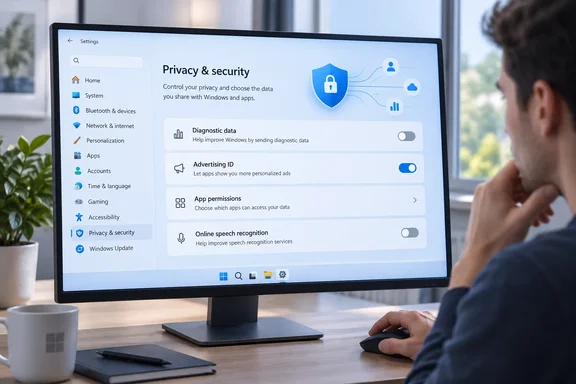
The conclusion is simple. Spend ten minutes on this. Just don't expect it to make Windows private. You get specific, reversible privacy trade-offs, and it helps to know exactly what each one covers.
Windows 11 Privacy Settings Have Moved to Recommendations & offers on Newer Builds
Before you flip anything, check which version of the Settings layout you have. Most privacy guides, MakeUseOf's included, send you to Privacy & security > General for the advertising ID and app-launch tracking. Microsoft now says the General privacy settings page is being replaced by the Recommendations & offers privacy settings page in more recent versions of Windows 11, and that if you haven't installed the latest Windows Update, you might still see the General page on your device.
A second rename affects the diagnostics page. MakeUseOf tells readers to switch off Tailored experiences under Diagnostics & feedback. Microsoft's diagnostics support page says Tailored experiences is being replaced by Personalized offers in newer Windows versions, and that PCs without the latest updates may still show the old name. Windows Latest spotted the change in Insider builds in 2024. It reported that the Tailored experiences option was missing from the diagnostic data page, and that searching for it led to the new Personalized offers switch. The same report said Microsoft renamed the "Let me show personalized ads by using Advertising ID" to "Advertising ID."
In practice, the same controls can show up under two different names depending on your build:
| Control | Older Windows 11 layout | Newer Windows 11 layout |
|---|---|---|
| Advertising ID, app-launch tracking, suggested content | Privacy & security > General | Privacy & security > Recommendations & offers |
| Diagnostic-data-based tips, ads and recommendations | Tailored experiences, under Diagnostics & feedback | Personalized offers, under Recommendations & offers |
| Optional diagnostic data, inking and typing | Diagnostics & feedback | Diagnostics & feedback |
If a path in any guide doesn't match your PC, type the setting's name into the Settings search box. Work or school PCs have one more complication. Microsoft says that if the diagnostic options are greyed out, the device is probably managed, and the page will say "Some settings are hidden or managed by your organization." Individual users can't override those settings. Your IT department's policy is what applies.
Optional Diagnostic Data in Windows 11 Is the Biggest Dial You Control
Under Privacy & security > Diagnostics & feedback, the most important choice is Send optional diagnostic data. Microsoft splits telemetry into two tiers. Required diagnostic data covers the device, its settings and capabilities, and whether it's working properly. Microsoft calls this the minimum it needs to keep Windows reliable, secure and updated, and you can't turn it off. That matches MakeUseOf's point that device information and software inventory keep flowing no matter what you choose.
Optional data goes a lot further. Microsoft's documentation says it can include the websites you visit in Microsoft browsers, device activity and enhanced error reporting. It can also include the memory state of your PC when a crash happens, which Microsoft admits may accidentally contain parts of a file you were working on. When optional data is on, Microsoft says it may combine Windows diagnostic data with data from its other products. Microsoft also says some optional items are collected from only a sample of devices, so turning the setting on doesn't guarantee everything listed is taken from your PC.
Microsoft states plainly that a PC sending only required data is just as secure and works normally. The trade-off is that Microsoft gets less information for fixing bugs. For anyone who isn't a Windows Insider sending detailed bug reports, that's a small price.
Two related controls are on the same page:
- Improve inking & typing sends samples of what you type or handwrite to improve handwriting recognition, autocomplete, next-word prediction and spell-check. Microsoft says those samples are broken up and stripped of identifiers, and that this data isn't used for personalized ads or tips.
- Tailored experiences or Personalized offers, depending on your build, uses diagnostic data to show you tips, ads and recommendations. With only required data enabled, that personalization is based on device information. With optional data enabled, it can also use how you use apps and features.
The Delete diagnostic data button does less than it sounds like. Microsoft says it removes diagnostic data stored for the device, but it doesn't delete diagnostic data tied to your Microsoft account, and it doesn't stop future data being sent. Account-linked data is handled separately through the Microsoft privacy dashboard. The Diagnostic Data Viewer has a similar limit: it shows only what is collected while it's running and has no history view.
There's also a regional detail. Since March 6, 2024, Microsoft Edge diagnostic data in the European Economic Area has been collected separately from Windows diagnostic data, on Windows 10 version 22H2 and later and Windows 11 version 23H2 and later. Edge has its own settings for that.
The Windows 11 Advertising ID Changes Ad Relevance, Not Ad Volume
MakeUseOf calls the advertising ID a cookie built into the operating system. Microsoft uses much the same comparison. Windows generates a unique advertising ID for each user on a device, which app developers and advertising networks can then use for their own purposes, and when the ID is enabled, apps can access and use it in much the same way that websites can access and use a unique identifier stored in a cookie. Ad networks can then link data they collect to that ID and personalize ads across apps.
The switch covers less than the cookie comparison suggests. Microsoft says the advertising ID setting applies to Windows apps using the Windows advertising identifier. It says the setting does not apply to other methods of interest-based advertising delivered by Microsoft or third parties, such as cookies used to provide interest-based display ads on websites. Browser tracking, ads inside third-party software, and Microsoft's own interest-based ads in its other products all have separate controls.
MakeUseOf noticed that ads didn't disappear after the ID was turned off. They just became less relevant. Microsoft's documentation says the same: turning the ID off doesn't reduce the number of ads you see, and turning it back on generates a new ID. The reset is useful in itself. If you want to wipe the profile tied to your current identifier, turning the switch off and on again gives apps a fresh ID.
Activity History and App-Launch Tracking Cover Specific, Local Ground
MakeUseOf recommends turning off Store my activity history on this device under Privacy & security > Activity history and clearing the saved history. It also warns that the page may be missing on newer builds. Microsoft's current accessibility guide for Windows 11 still describes the page, with a "Store my activity history on this device" switch and a Clear history button. Microsoft's diagnostics documentation also still lists Activity history as a separate control over whether app activity and browsing-history data are sent. So whether you see the page depends on your build. If it's there, turn it off and clear it. If it isn't, there's nothing to change.
The app-launch switch has a narrow job. Microsoft says these include the Windows Advertising ID, website access to your language list, and Start and search personalization settings, which use your activity and preferences to customize content and suggestions across Windows. Turning off "Let Windows improve Start and search results by tracking app launches" stops Windows using the apps you open to rank Start and Search. It doesn't disable Windows Search or remove web results.
Web and account results are managed elsewhere. MakeUseOf points readers to a "Search my accounts" switch under Privacy & security > Search. Microsoft's Windows 11 documentation calls the page Search permissions, and the relevant section is Cloud content search. It has separate switches for a personal Microsoft account (which surfaces OneDrive, Outlook and other Microsoft services) and a work or school account (which surfaces OneDrive for Business, SharePoint and Microsoft Search results). Microsoft also says web searches and suggestions in the Windows search box are powered by Bing, and that Bing personalizes those results when the Microsoft account connection is on. The same page has a Clear device search history button for search history saved locally. Search history stored in your Microsoft account is managed through the Microsoft privacy dashboard.
Keep those two account types separate. Turning off the Microsoft account switch affects personal cloud results. The work or school switch controls organizational results, and your employer may have its own rules for those.
Windows 11 App Permissions Don't Fully Cover Desktop Apps
MakeUseOf says reviewing app permissions is the most important change on its list and the most time-consuming. The process is easy. Under Privacy & security > App permissions, open each category (Location, Camera, Microphone, Contacts and so on) and switch off access for apps that don't need it. A mapping app has a reason to know your location. A calculator doesn't.
The catch is in Microsoft's documentation. Windows desktop apps may not appear in these lists at all, and these toggles can't control them in the same way. ExpressVPN's privacy guide says the same thing, noting that these controls apply mainly to Microsoft Store apps and that for some permissions, such as camera and microphone, Windows may include separate desktop-app access controls, but individual desktop apps can't always be managed from the privacy settings page.
So if an app isn't in the list, that doesn't mean it can't reach your camera or files. For traditional Win32 software, Microsoft suggests checking the app's product information or privacy policy, and deciding whether to install it at all if you don't trust the publisher. On camera and microphone pages that include a desktop-app switch, that switch is a broader control. It isn't a per-app one.
Online Speech Recognition Is the One Setting That Turns Off a Feature
MakeUseOf's opening promise that these changes "won't break any functionality" is true for almost all of them. Online speech recognition is the exception. The switch is under Privacy & security > Speech. WindowsLoop's guide gives the same route: open Settings, go to Privacy & Security, click the "Speech" option. Turn OFF the "Online speech recognition" option.
Microsoft's speech privacy documentation separates two modes. Device-based recognition processes your voice locally and sends nothing to Microsoft. Online recognition uses Microsoft's cloud to produce transcriptions. Microsoft says it doesn't store, sample or listen to those recordings without your permission.
MakeUseOf presents turning off online recognition as a loss of accuracy. Microsoft describes something bigger. It says Windows 11 voice typing, opened with Windows key + H, uses online speech recognition. With the setting off, only device-based speech features remain. If you dictate with Win+H, this switch decides whether voice typing works at all. Voice access, which Microsoft says replaced Windows Speech Recognition in Windows 11 version 22H2 and later in September 2024, is a separate feature, so don't assume every voice tool behaves the same way.
What this means for you
If your PC is personal, go through Settings > Privacy & security now. Change the settings that give you nothing useful in return, and leave alone the ones that power features you use. People on managed work or school PCs mostly can't change these settings, and a greyed-out diagnostics page is the organization's policy doing its job. Voice-typing users should keep online speech recognition on, or accept that Win+H dictation will stop working.
- Turn off Send optional diagnostic data under Diagnostics & feedback. Microsoft says the PC stays just as secure, and required diagnostic data continues to be sent no matter what.
- Look for the advertising ID and app-launch tracking switches under Recommendations & offers on newer Windows 11 builds, and under General on PCs that haven't picked up the latest updates.
- Turn off Tailored experiences or Personalized offers, whichever name your build uses, if you don't want tips, ads and recommendations based on your diagnostic data.
- Use the Microsoft privacy dashboard for account-linked diagnostic data and search history, because the Delete diagnostic data button only covers data stored for the device.
- Check app permissions category by category, and remember that traditional desktop apps may not appear there or follow those switches.
- Leave online speech recognition on if you rely on Windows key + H voice typing, because Microsoft says that feature depends on it.
Each of these changes can be reversed in seconds, and Microsoft keeps moving where they live. The General page has already become Recommendations & offers, and Tailored experiences has become Personalized offers. The best habit is to run through the Privacy & security page again after each major Windows 11 feature update. Settings get renamed or moved, and you want to confirm your choices carried over into the new layout.
References
- I turned off these Windows 11 settings to make Microsoft know less about me MakeUseOf · 2026-09-23T21:00:14+00:00
- Diagnostics, feedback, and privacy in Windows | Microsoft Support support.microsoft.com