

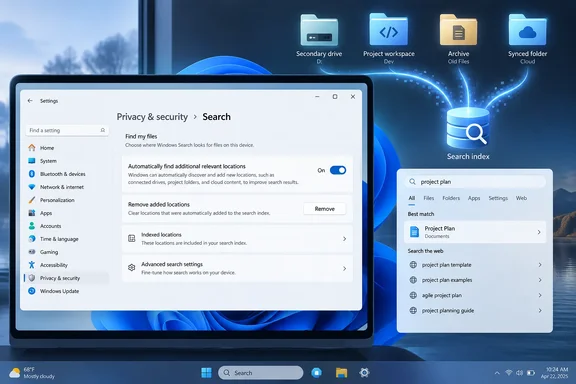
The change, first flagged by ghacks, is controlled by a new “Automatically find additional relevant locations” setting under Settings > Privacy & security > Search. Microsoft’s KB5120998 release notes say Windows will index a user’s most-used folders so their contents can appear in subsequent searches. The important operational detail is that this is a gradual rollout: a fully patched PC on build 26100.9445 or 26200.9445 may still lack both the control and the underlying behavior.
Microsoft’s update documentation confirms the feature originated in KB5120998, which raised Windows 11 24H2 to build 26100.9278 and 25H2 to build 26200.9278. KB5124008 subsequently incorporates the prior preview’s changes for devices that had not installed them. The September security update does not repeat the Search feature list in full, which may make the new indexing option easy to miss in a routine patch review.
The setting changes who chooses indexed locations
Windows Search has long supported two broad approaches. Classic search indexes the familiar user locations such as Desktop, Documents, Pictures, and Music, while allowing people to add folders through the legacy Indexing Options interface. Enhanced search broadens that scope to the entire PC, trading more complete local results for more indexing activity and potentially more resource use.
The new control sits between those two models. It does not turn on Enhanced indexing, and it does not simply index every local drive. Instead, Windows can enlarge the search index by selecting folders it considers relevant from a user’s activity. Microsoft says the result is that files in those locations become searchable by their names, properties, and—in supported file types—content.
That is a meaningful shift from an explicitly curated index. Under the traditional Classic model, an administrator or user chooses the folders Windows may scan. With automatic expansion enabled, the operating system makes an additional decision based on observed file activity.
Microsoft has not documented the selection criteria. Its release notes say “most used folders,” but do not specify whether the decision is driven by folder opens, recently accessed files, File Explorer history, pinned locations, or another signal. It also has not published a threshold, a maximum number of locations, a list of excluded folder types, or a schedule for reevaluating a folder once it has been added.
For users with project folders outside their profile—such as a source-code checkout on a secondary SSD, a local archive, or a work folder synced by a third-party client—the payoff could be immediate. Search results may begin finding material that previously required browsing directly to that path or manually modifying the search index.
Turning off discovery does not remove what Windows added
The most consequential detail is absent from Microsoft’s brief release note: switching off automatic discovery stops Windows from adding new locations, but it does not necessarily return the search index to the prior manual configuration by itself.
Windows 11 Forum’s Brink, whose documented walkthroughs track the new Settings experience, reports that the expanded setting includes a Remove button for clearing all automatically added locations. The removal action is separate from the toggle, and manually added indexing locations are not affected. That distinction matters for anyone disabling the feature after Windows has already expanded the index.
The cleanup path is:
- Open Settings > Privacy & security > Search.
- Under Find my files, open Automatically find additional relevant locations.
- Turn the setting off to prevent additional automatic discoveries.
- Select Remove to clear locations added by Windows automatically.
The Settings page reportedly displays a “Removed” confirmation once the automatic locations have been cleared. Users can later re-enable the feature without restoring the previous automatically selected folders; Windows would have to identify relevant locations again from subsequent activity.
This makes the feature less disruptive than a permanent conversion to Enhanced indexing, but it also means the off switch should not be interpreted as a retroactive cleanup command. Anyone responsible for a machine with sensitive local workspaces should use the removal control as well, rather than assuming that disabling discovery removes those paths from the index.
The feature is on by default where it appears
The new behavior is enabled by default on builds where Microsoft has made it available, according to the Windows 11 Forum documentation. That is consistent with the purpose Microsoft describes: the feature is designed to make local search more useful without asking the user to understand indexing scopes first.
The control is also backed by a machine-level Windows Search registry value: HKLM\SOFTWARE\Microsoft\Windows Search\ScopeExpansion\Enabled. A value of 1 enables expansion, while 0 disables it. Because the value is under HKEY_LOCAL_MACHINE, the setting appears to be device-wide rather than a preference each Windows account can independently set. That is an inference from the configuration location, not a policy statement Microsoft has published.
The forum documentation further says changing the setting requires administrator rights. That aligns with the system-wide nature of Windows Search indexing, but organizations should test the behavior on their own 24H2 and 25H2 images before treating it as a settled management interface. Microsoft has not published an Intune setting, Group Policy template, CSP reference, or documented enterprise deployment guidance specifically for automatic scope expansion.
For managed fleets, that gap is the practical issue. A company that deliberately limits the Windows Search index to reduce exposure of locally stored material in search results should not assume its existing “Classic” configuration preserves that intent once this feature arrives. An index is not a new permission boundary—users still need access to open a file—but it does change which file names, metadata, and indexed contents can surface in a local search.
Administrators should inventory whether systems using Classic mode now expose the new option, decide whether automatically discovered paths fit their data-handling rules, and disable and clear the automatically added locations where manual index control is required. Machines already using Enhanced mode may see less of a functional difference, since that mode is intended to index broadly across the PC.
Search results now identify where they came from
Automatic folder discovery arrived as part of a wider cleanup of the Windows Search experience. Microsoft says Search home has been simplified, and result entries now identify whether they came from an application, a setting, a local file, the web, or a Microsoft Store suggestion.
KB5120998 also adds a separate control for web and Microsoft Store suggestions beside local results. That setting is distinct from automatic folder indexing: disabling online and Store suggestions does not prevent Windows from discovering folders, and disabling folder discovery does not remove web recommendations from Search.
The grouping of these controls under Privacy & security > Search gives users more choices, but it also combines two very different concerns. The web and Store setting governs whether remote recommendations appear alongside local results. Automatic location discovery governs which local folders Windows may add to its search corpus. A user who wants a strictly local, manually defined search experience must review both.
Build number is necessary, but not sufficient
The cleanest availability test is not the update history alone. On Windows 11 24H2, the relevant baseline is build 26100.9278 or newer; on 25H2, it is build 26200.9278 or newer. PCs that installed KB5124008 should show build 26100.9445 or 26200.9445 respectively, depending on the release version.
Yet Microsoft explicitly labels the Search changes as a gradual rollout. A machine can be on the right build and still not display the option. That is expected behavior under Microsoft’s controlled feature rollout process, not evidence that Windows Update failed or that an edition such as Home is excluded.
For now, Microsoft has provided the feature but not the rules behind its folder choices or a public completion date for deployment. The immediate consequence is straightforward: Windows Search on 24H2 and 25H2 is becoming less manual by default, and the new Remove control—not only the on/off toggle—is what restores a deliberately limited index.
References
- Windows 11 Begins Automatically Indexing Your Most-Used Folders for Search gHacks · 2026-09-20T08:14:13+00:00