

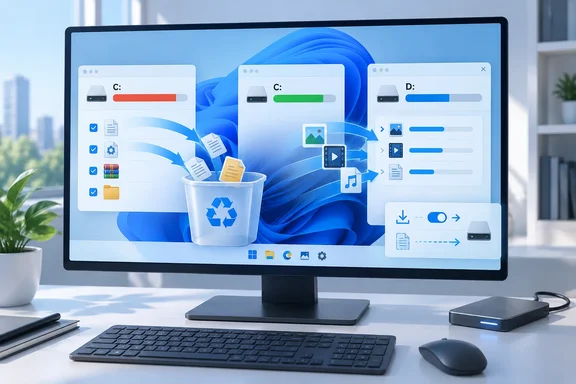
What actually ate the space
Khan blames five things: installed software, a Windows.old folder from the last update, the hibernation file, leftover update data, and the Downloads folder. His complaint is that Windows sends nearly everything to the system drive by default. That includes downloads, updates and documents, even when other drives have plenty of room.
His fix has two parts. First he cleared out what Windows had left behind. Then he changed where new data goes.
Step 1: Find the space hogs before you delete anything
Khan started in Settings > Storage to see what was using the space. Microsoft's documentation says the Storage page breaks usage into categories such as Installed apps, Temporary files and System & reserved. That is my paraphrase of Microsoft's description, not a quote.
Windows also offers Cleanup recommendations. Microsoft says it reviews categories including Temporary files, Large or unused files, Files synced to the cloud, and Unused apps. It shows the space each item would free. Check what you've ticked before you press Clean up.
Step 2: Remove the old Windows installation (with a caveat)
Khan deleted the previous Windows installation through Settings → System → Storage → Temporary files → Cleanup system files. Microsoft's guidance adds a warning. If it has been fewer than 10 days since the upgrade, the previous version is listed as a deletable system file. Deleting it removes the Windows.old folder, which is what lets you go back to the earlier version. Another source says the deletion is irreversible.
So this isn't generic junk cleanup. If you upgraded recently and might want to roll back, wait. If the upgrade is weeks old and everything works, it is usually one of the bigger single wins.
Step 3: Turn off hibernation only if you can live without it
Khan freed nearly 4GB by opening PowerShell as administrator and running powercfg /h off. He also disabled Fast Startup.
Microsoft's powercfg documentation confirms that /hibernate enables or disables the hibernate feature. It also lets you set the hiberfile size and type. Microsoft's example is powercfg /hibernate /type reduced, which supports only hiberboot, the fast-boot path.
Things to weigh:
- Turning hibernation off removes the Hibernate option. Fast Startup relies on a hibernation file, so it stops working too.
- The 4GB is Khan's figure. The hiberfile size depends on your system's memory and configuration.
- Laptop users who rely on Hibernate to save battery shouldn't treat this as free space.
- A reduced hiberfile is a middle option for people who want Fast Startup but a smaller file. Check Microsoft's powercfg documentation for the exact commands before using it.
Step 4: Redirect new content to another drive
Khan's biggest structural change was moving his Downloads folder to a secondary SSD and changing his browser's download location. He then set Windows to save new content to D:.
Microsoft's current path is Start > Settings > System > Storage > Advanced storage settings > Where new content is saved. You then pick a drive for each content type. If your drive isn't listed, make sure it's connected. A Windows Central walkthrough also notes an optional setting for the drive where future apps are installed by default.
What this setting does not do
This is where a quick read of the story could mislead you.
- It affects new items only. A Geek Rewind guide says it affects only new items and future app installations, so existing files stay where they are.
- To free space now, you still have to move existing files yourself. Microsoft suggests File Explorer, with the Videos, Music, Pictures and Downloads folders as the usual big ones.
- The app setting mainly affects Microsoft Store apps. Traditional desktop installers usually ask you for an install folder, so pick the right drive there.
- Browsers and game launchers have their own settings. That is why Khan changed his browser's download folder and reinstalled Steam and other launchers on a games drive.
- Labels can differ slightly between Windows 11 versions.
Step 5: Don't forget the other options
- Empty the Recycle Bin. Microsoft notes that deleted files don't free space until you do. This is my paraphrase of Microsoft's note.
- Use OneDrive Files On-Demand. It keeps only placeholders locally and pulls full files when needed.
- Uninstall apps you don't use. Khan mentions this too, including Microsoft-bundled apps.
- Turn on Storage Sense for automatic cleanup of temporary files and Recycle Bin contents.
Where the article oversimplifies
"Partitioning is counterproductive"
Khan's core point holds up. A partition is a logical division of a disk. Microsoft's developer documentation describes a volume as a partition formatted with a file system, and a partition is not a separate physical drive. Splitting one SSD into two partitions doesn't add capacity or give Windows faster flash. It can also leave you with a full C: and an empty D: on the same disk, which is exactly the trap he describes.
But "outdated" is too strong. Partitions are still used for recovery and for particular admin or deployment layouts. The narrower claim is the safe one. Partitioning one drive doesn't fix a shortage of total capacity.
The "30% free" rule
Khan says an SSD needs at least 30% free space for maximum performance. I found no authoritative source that sets 30% as a universal threshold. Free flash does help wear leveling and garbage collection. How much headroom a given drive needs depends on the model, its built-in over-provisioning and your workload. I couldn't retrieve vendor material to confirm a specific figure. The practical advice is to avoid running any drive nearly full, and to check your SSD maker's guidance for a number.
"Windows 11 needs 64GB"
Microsoft does list 64GB or greater of available disk space as the minimum to install or upgrade. Microsoft adds that updates and some features can need more over time. It's an eligibility floor and not a comfortable working size, so Khan's skepticism is fair.
Not everyone has spare drives
Khan admits he has several internal drives. If you don't, Microsoft's guidance supports external storage for files you rarely use. The catch is that those files are only available while the drive is connected.
A sensible order of operations
- Open Settings > System > Storage and see what's actually big.
- Run Cleanup recommendations, and review each category.
- Decide whether you still need the rollback option before deleting the previous Windows installation.
- Decide whether you use Hibernate or Fast Startup before running
powercfg /h off. - Move existing big files out of Downloads, Videos, Pictures and Music.
- Set Where new content is saved, and change your browser's download folder.
- Install future games and large apps on a different drive.
- Empty the Recycle Bin and check the free space again.
The bottom line
Khan's account holds up where it matches Microsoft's own guidance. The biggest wins come from clearing system leftovers, moving data, and sending future saves elsewhere. Don't expect 36GB. Your result depends on how much old-install data, hibernation file and downloaded content you have. Check the trade-offs on Windows.old and hibernation first. Remember that the save-location setting only affects new files.
References
- I stopped partitioning my drive and freed up 36GB just by reorganizing - MakeUseOf MakeUseOf · 2026-10-05T15:01:14+00:00
- Free up drive space in Windows | Microsoft Support support.microsoft.com
- Powercfg command-line options | Microsoft Learn learn.microsoft.com