

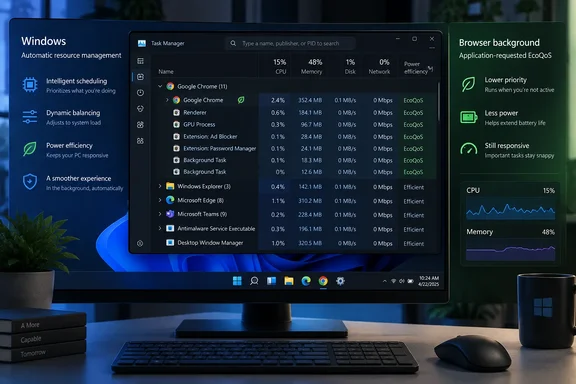
Microsoft documents two overlapping mechanisms under the same visible Task Manager label. Windows can automatically limit resources for a process or process group when it detects high CPU usage, reducing interference with foreground work. But applications can also explicitly ask Windows to run selected processes or threads under EcoQoS, the power-oriented quality-of-service setting that Task Manager associates with Efficiency mode. Chromium’s own source record shows Chrome enabled EcoQoS by default for background processes on Windows 11 in 2023.
So the practical problem some users see is real: a leaf-marked browser subprocess can perform poorly when it is doing work the user considers important. But the broad claim that Windows is routinely misjudging applications on its own conflates Windows scheduling decisions with app-requested background throttling. For administrators and power users, that changes where troubleshooting should start.
What the green leaf actually changes
Efficiency mode began as Eco mode in Windows 10 and arrived in Task Manager under its current name with Windows 11. Microsoft’s original explanation is straightforward: enabling it lowers a process’s base CPU priority and applies EcoQoS. The first setting lets higher-priority work run first; the second tells Windows to favor power-efficient processor behavior, which can include lower operating frequencies and placement on efficiency-oriented cores where hardware supports it.
That is deliberately conservative scheduling. It is meant for background or non-critical work that would otherwise contend with whatever the user is trying to do in the foreground. Microsoft’s own developer guidance is even more explicit: software makers should not use EcoQoS for foreground work or work with strict performance needs.
The leaf icon therefore describes a process state, not a diagnosis. It does not say whether:
- Windows automatically applied resource limits after detecting load.
- The user turned Efficiency mode on in Task Manager.
- The application itself requested EcoQoS through Windows APIs.
- A child process is intentionally categorized as background work by its parent application.
Those possibilities look very similar in Task Manager. A browser with several dozen processes makes this especially confusing because one entry may represent a visible tab while another handles a renderer, extension, GPU task, service worker, preloading job, or background page.
Chrome is the clearest case of the attribution problem
MakeUseOf describes Chrome consuming substantial CPU and memory, then being marked with Efficiency mode in a way that can make the browser feel less responsive. That can happen, but Chrome is not a clean example of Windows unilaterally throttling an application.
A Chromium change submitted in May 2023 enabled the UseEcoQoSForBackgroundProcess feature by default on Windows. The change specifically says that background processes run with EcoQoS on Windows 11. In other words, at least some Chrome leaf icons are the product of Chromium’s own process-management policy, using a Windows facility designed for precisely that purpose.
This does not make every bad Chrome experience intentional or acceptable. Browser process classification is complicated. A tab may be technically backgrounded while still producing audio, downloading a large file, running a web app, or supporting another workflow. Users with a video playing on a second screen, a cloud IDE in a non-focused tab, or a business dashboard processing live updates may reasonably expect more than an application’s generic “background” label provides.
But it does mean Task Manager alone cannot establish that Windows made the bad call. If a process is consistently leaf-marked after it has been expanded beneath Chrome, Edge, Firefox, or another multiprocess program, investigate the application’s own efficiency and backgrounding features before assuming the operating system is overriding the app.
Microsoft Edge adds another source of confusion. Edge has an Energy Saver feature, previously branded as Efficiency mode, that is separate from Task Manager’s Windows Efficiency mode. Turning off Edge’s browser-level setting does not automatically remove a Windows Task Manager leaf, and clearing a leaf in Task Manager does not necessarily disable Edge’s own energy-saving behavior.
Task Manager gives control, but only at the process level
MakeUseOf is right about the main limitation: Windows 11 does not expose a simple, supported global switch labeled “Disable Efficiency mode everywhere.” Microsoft’s current support guidance instead directs users to Task Manager’s Processes page.
Open Task Manager with Ctrl+Shift+Esc, find the affected app, and check whether it has an expansion arrow. For a grouped application, Windows often disables the Efficiency mode control on the group heading; expand it and inspect the individual child processes. Right-click an eligible process and toggle Efficiency mode, or use the command-bar control when it is available.
The distinction between a process group and a process is not a cosmetic quirk. Microsoft says the mode cannot be toggled for many grouped or core Windows processes because broad changes could destabilize the system. File Explorer is one example: the parent group may be unavailable while individual entries beneath it can be managed.
Do not treat a grayed-out control as confirmation that Windows is secretly forcing the setting. It frequently means the selected entry is a group, a protected component, or another process for which Task Manager does not support the toggle. Expanding the tree is the first useful step, not a workaround discovered by trial and error.
The limitation is persistence. Task Manager is a live process-management tool, not a per-application policy engine. Closing and relaunching software creates new processes, and app logic can request EcoQoS again. Microsoft has not published a supported Windows interface for permanently exempting a chosen executable from Efficiency mode across future launches.
Best performance is not an Efficiency mode override
Changing Settings > System > Power & battery > Power mode to Best performance is sensible when maximum responsiveness matters more than battery life or fan noise. Microsoft says that setting allows the CPU to operate at higher performance when needed, with the expected trade-off of greater power consumption and heat.
It is not, however, a master control for Task Manager Efficiency mode or EcoQoS. The two features work at different levels: power mode is a device-wide performance preference, while Efficiency mode and EcoQoS are process or thread scheduling signals. A process explicitly marked for EcoQoS may remain marked even when the PC’s power mode is set to Best performance.
MakeUseOf goes further, suggesting that Best performance can influence how quickly Windows decides to apply Efficiency mode. Microsoft’s published power-setting documentation does not make that promise. Readers should use Best performance to change the machine’s overall power/performance posture, not as a dependable fix for a specific leaf-marked process.
For managed devices, that distinction is important. An IT team can set power plans, battery policies, and OEM performance profiles, yet still encounter applications that set their own QoS state. A complaint that “Windows is throttling the browser” needs a process-level inspection before it becomes a fleet-wide Windows policy change.
Troubleshoot the workload before changing the scheduler
If an application feels slow while a green leaf is visible, first establish whether the leaf-marked process is actually the bottleneck. In Task Manager, compare CPU, memory, disk, GPU, and network activity, then expand the application to identify which child process is consuming resources. A leaf on an idle renderer is not likely to explain a stalled page if the GPU process, storage device, extension host, or endpoint security scanner is saturated elsewhere.
For Chrome and other Chromium-based browsers, test with extensions disabled and compare an affected tab in a clean profile. If the problem appears only when a tab loses focus, look for the browser’s tab-sleeping, memory-saving, or energy-saving settings. Those controls are closer to the behavior users are trying to change than Windows’ generic process toggle.
For line-of-business software, ask the vendor whether it marks background workers with EcoQoS or reduced priority. Microsoft exposes APIs that let developers set EcoQoS at either process or thread granularity. Its guidance favors the narrower thread-level approach when only part of an application is genuinely non-urgent. An application that labels an entire process as energy-sensitive can accidentally slow work that becomes user-visible later.
Avoid registry recipes and command-line flags copied from forum threads as a first response. Some browser-specific flags may alter the browser’s own experimental feature behavior, but they are not a supported Windows-wide cure, may be removed without notice, and do not explain leaf icons from unrelated software.
The real missing feature is attribution
The useful criticism in MakeUseOf’s piece is not that Windows should always let every process run flat out. A PC with CPU-hungry background tasks benefits from a mechanism that protects interactive work, reduces heat, and extends battery life. Microsoft’s testing has shown markedly better foreground responsiveness on deliberately CPU-contended systems when background load is placed in Efficiency mode.
The weakness is visibility. Task Manager identifies that a process is in Efficiency mode, but it does not clearly tell the user who requested it, whether it was automatic, or why the operating system considers that work suitable for reduced performance. That leaves a leaf icon to carry more meaning than it can support.
Until Windows exposes that attribution, the correct response to a sluggish leaf-marked app is narrower than “turn off Efficiency mode.” Check the child process, identify whether the application is opting into EcoQoS, verify the actual constrained resource, and disable the mode only for the specific running process when testing shows it is responsible.