

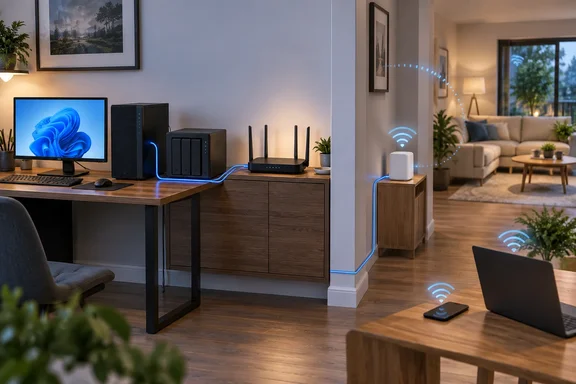
In practice, that makes the decision a triage exercise. Most homes do not need a full rewire. They need to know which few devices gain the most from a fixed connection and how to check that on a Windows PC before buying cable.
Wi-Fi 6E and Wi-Fi 7 have made Ethernet vs. Wi-Fi more than a speed contest
The old rule was that Ethernet is both faster and more stable. How-To Geek argues that only the stability half still holds reliably. Modern Wi-Fi, meaning 6E and 7, can reach multi-gigabit speeds under the right conditions. That can beat a plain 1Gbps Ethernet connection, although faster wired gear can put the cable back in front.
Other reporting supports the idea that Wi-Fi can win, as long as the conditions are spelled out. iTechGuides says a strong Wi-Fi 6E or Wi-Fi 7 connection can exceed 1-Gbps Ethernet at short range, provided the router, client, channel width, operating system, and local radio conditions all support it. It also notes the reverse case: a 100-Mbps Ethernet link can also be slower than modern Wi-Fi.
The headline numbers mislead. Wi-Fi 7 is marketed on a 46Gbps figure, but XDA Developers points out that the top speed of a Wi-Fi standard represents the absolute best it can perform under near-perfect conditions. The wired side is usually capped by hardware you already own. Typical Ethernet connections top out at 1, 2.5, 5, or 10 Gbps, depending on your cable and routers or switches.
The slowest part of the chain sets the ceiling. TP-Link, which sells Wi-Fi 7 routers, says if any one piece isn't keeping up, that component becomes your ceiling. It adds that a 1 Gbps plan caps your speed test at roughly 1 Gbps regardless of the router. The same vendor concedes that for most homes on gigabit or slower plans, Wi-Fi 6E is still sufficient. For most households, then, a faster wireless or wired link to the router makes no difference to internet speed tests. Where it can make a difference is traffic that stays inside the home, which comes up again with NAS boxes below.
A cable gives you a predictable path, and Wi-Fi performance depends on the room
With raw speed off the table, the How-To Geek column rests on one argument: Wi-Fi performance depends on circumstances. Distance from the router, walls, router placement, neighbouring networks, interference, client hardware and channel width all play a part. The result can be anything from constant disconnects to slow but usable to close to ideal. Ethernet asks much less: a working cable and two working devices.
Microsoft's Windows support guidance says the same thing from the other direction. Its article on Wi-Fi and home layout, written for Windows 10 and Windows 11, calls home layout one of the most overlooked causes of Wi-Fi problems. It recommends a router placed centrally and higher up, away from corners, desks and metal filing cabinets. Microsoft also notes that the 2.4GHz band is crowded because microwaves, cordless phones and Bluetooth devices use it. The 6GHz band gives the best performance close to the router, but only if the router, the Windows device and its adapter drivers all support Wi-Fi 6E.
Independent explanations put the benefit of wiring in terms of airtime rather than bandwidth. iTechGuides describes it this way: a cable avoids radio interference, walls, neighboring networks, and shared wireless airtime. It also sets an important limit. Ethernet can reduce local latency, jitter, and packet loss when Wi-Fi is the problem, but it cannot fix latency caused by ISP routing, a distant server, Internet congestion, or bufferbloat. If lag comes from your ISP or a distant game server, a cable across the living room will not fix it.
Ethernet can fail too. Microsoft's Windows troubleshooting guide for wired connections covers loose cables, cables plugged into the router's Internet port instead of a LAN port, faulty cables, adapter driver problems and ISP faults. A wired link has fewer variables than Wi-Fi, but it still has some.
Desktop PCs, consoles and NAS boxes are the devices most worth wiring
How-To Geek's rule is simple: if a device stays in one place and moves a lot of data, wire it. The author wires their desktop PC and every console except the portable Switch 2. They note that gaming uses little bandwidth but needs stable latency and a steady connection. That point is worth keeping: a cable earns its place on a console by being consistent, not by adding bandwidth the game never uses.
The NAS is the clearest case. Its whole job is moving data around the local network, so consistency matters even more than speed. This is also where the internet-plan ceiling stops applying. A file copy from a desktop to a NAS never touches the ISP, so its speed depends on the PC's network adapter, the router or switch, the link speed and the NAS's own storage. Nobody can promise a particular transfer rate without knowing that hardware. The direction is clear, though: a NAS on Wi-Fi puts your largest local transfers on a shared radio channel.
A desktop PC without an Ethernet jack can still be wired. Microsoft names a USB-to-Ethernet adapter as the option for Windows PCs without a port, which also suits a docked laptop at a desk. The adapter's rated speed then becomes part of the chain, so a slower adapter will limit a faster network.
The column also includes a disclaimer the author stresses: results vary, and readers should check whether Ethernet is actually faster on their own hardware before moving a device. The author's claim that the advice suits "99% of households" is opinion, not a measurement.
Wired backhaul for mesh nodes and access points helps every device on the network
How-To Geek says network hardware is where it would "fight hardest" to run a cable, and the reasoning holds up. Mesh nodes and extra access points fix dead zones in larger homes. They can run on wireless backhaul, but then each node uses Wi-Fi twice: once to serve your devices and again to reach the rest of the network. Wired backhaul moves that link onto a cable, which removes the extra wireless traffic and gives each node a predictable route back to the router.
This is the one place where a single cable helps devices that are not plugged into it. Every phone and laptop connected to a wired-backhaul node gets a node that is not competing with its own uplink. The same idea applies to security cameras and other fixed network gear: the fewer jobs Wi-Fi has to do, the better it works for everything else.
Microsoft's guidance offers a cheaper fallback. If moving the device or the router is not possible, a plug-in network extender can improve signal. An extender relays the connection over the air, though, which is exactly the double use of Wi-Fi that wired backhaul avoids. It fixes coverage, not contention.
Wired backhaul is a good choice where you can run the cable, not a requirement. Placement, node hardware and each device's own Wi-Fi link still matter, and a well-placed mesh system on wireless backhaul can be perfectly adequate.
TVs, laptops and phones can mostly stay on Wi-Fi
The TV is the column's conditional case. Streaming benefits from a dependable connection, but few people want a cable running across the living room. The advice is to use Ethernet if it is practical. If it isn't, keep the TV on Wi-Fi unless you see slowdowns, poor picture quality or disconnects, and try a cable only then. SpeedtestHQ is more enthusiastic about wiring TVs. It argues that smart TVs and streaming boxes sitting next to or near a router are prime Ethernet candidates because a cable is easy to hide behind furniture there. Both views point the same way: wire the TV if it sits near the router or if streaming is struggling, and leave it alone otherwise.
Laptops, phones, tablets and smart speakers belong on Wi-Fi. Many have no Ethernet port, and for anything that moves around, mobility matters more than the last bit of consistency.
The column's closing point is easy to overlook: it wires devices when there is a reason, not just because it can. If Wi-Fi is not causing problems, there is no reason to change it.
Testing Ethernet vs. Wi-Fi on a Windows 11 PC before running cable
The evidence supports testing first and wiring second. Microsoft's Windows support articles give enough to make that test meaningful on Windows 11. Some Windows 10 menu paths differ, and Microsoft ended Windows 10 support on October 14, 2025.
Establish a Wi-Fi baseline
- Before changing anything, run a network speed test (Microsoft points to speed-test apps in the Microsoft Store). Run it several times at the device's usual location and elsewhere in the home, and write down the results.
- Note the actual symptoms as well as the numbers: dropped connections, buffering, or performance that swings during the day.
- Try the cheap wireless fixes first. Move the router or the device to cut down on walls and obstacles, and make sure the router is not in a cabinet, in a corner or near metal furniture.
- On a 2.4GHz network, Microsoft recommends channels 1, 6 or 11, since these don't overlap. If the connection is unreliable even with a strong signal and a clear channel, it suggests changing the router's channel width from Auto or 20/40MHz to 20MHz, because some older adapters handle 40MHz poorly.
- Retest after each change so you know which one helped.
Compare a temporary wired connection
- Confirm the PC has the adapter you need. Open Device Manager and expand Network adapters. If there is no Ethernet port, Microsoft suggests a USB-to-Ethernet adapter.
- Plug the cable into a LAN port on the router, not the Internet port that connects to the modem, and make sure both ends are firmly seated.
- Open Settings > Network & internet. A working wired link shows Connected under the Ethernet connection name. If you see an error such as "Action needed," select Ethernet to see its settings.
- If the link won't come up, Microsoft's suggested order on Windows 11 is to run the Network and Internet troubleshooter in the Get Help app, then try another cable, then restart the modem and router.
- Run the same speed tests and repeat whatever task was causing trouble, whether that's a game session, a stream or a NAS copy. If the symptoms go away, the cable has earned its place. If they don't, the problem is probably upstream of your Wi-Fi.
Check the metered setting on the new connection
Windows lets you mark Wi-Fi and Ethernet connections as metered separately, via Settings > Network & internet > Ethernet > your network > Metered connection. On a metered connection, Microsoft says Windows Update downloads only priority updates, Microsoft Store downloads may pause and offline files may not sync automatically. If you set your Wi-Fi as metered because of a data cap, the new Ethernet connection will not inherit that setting. If the toggle is greyed out on a work-managed PC, your organisation may be controlling it.
Which home devices to wire first
Before buying anything, decide which devices actually have a problem and which ones never move. For most homes, the list of devices worth wiring is short.
- If you have a NAS, wire it first: its traffic stays on your local network, so your router, switch, adapters and storage decide its speed, not your internet plan.
- If you have mesh nodes or extra access points and can run cable to them, wired backhaul frees up Wi-Fi capacity for every wireless device in the home.
- Stationary desktop PCs and consoles benefit from Ethernet mainly through steadier latency and fewer interruptions; game bandwidth is small, so don't expect a big speed jump.
- Leave a TV on Wi-Fi if streaming works, and try Ethernet if you see buffering, poor picture quality or disconnects, especially if the TV is close to the router.
- On a gigabit or slower internet plan, neither Wi-Fi 7 nor multi-gig Ethernet will raise your internet speed-test results.
- Record a Wi-Fi baseline in Windows before and after any change, so you have evidence that the cable fixed something.
The case for Ethernet in 2026 is narrower than it used to be, and the evidence supports that. Wi-Fi 6E and Wi-Fi 7 have taken away raw speed as a reason to wire. What remains is a predictable path for the few devices that stay put and move lots of data, plus the network gear that everything else relies on. Wireless standards will keep getting faster, but that will not change the physics of a shared radio channel through walls. For most readers, the useful next step is a baseline speed test at the device that's giving trouble, not a spool of Cat6.
References
- Ethernet vs. Wi-Fi: Which devices still need to be plugged in? How-To Geek · 2026-09-23T15:30:16+00:00
- Fix Ethernet connection problems in Windows | Microsoft Support support.microsoft.com