

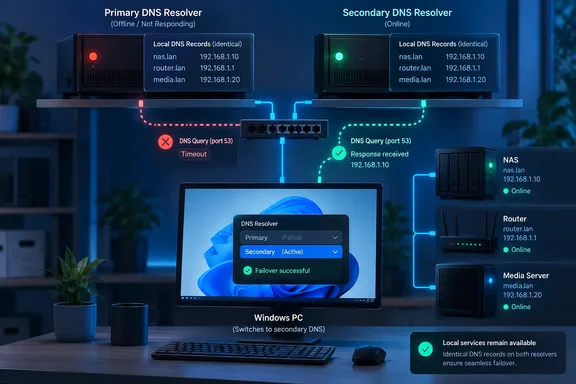
How a Single Local DNS Resolver Made a Healthy NAS Look Offline
The How-To Geek account starts with a familiar mistake: treating DNS failure as an internet problem. When websites stop loading, you blame the ISP. When a NAS stops responding, you blame the NAS, its cable or the switch. The writer did both before finding the real weak point, which was the DNS server they had put at the center of their own network on purpose.
The mechanism is simple once you see it. The Domain Name System translates names into IP addresses, and that includes local names. If you reach your NAS, media server, printer admin page or router dashboard by hostname, your PC still has to turn that hostname into an address before it can send any traffic. The NAS can be up, Ethernet can be fine and the service can be listening, yet the machine looks gone because the name lookup never finishes.
The writer set up the resolver to get more control, partly because of ISP trouble. The cost of that control was that every device on the network now depended on one machine being up. While the resolver worked, everything worked. When it didn't, the router kept routing, the WAN link stayed up, and anything that needed a lookup fell apart. The writer describes slow loading, or no loading at all, across apps, websites and local services. Restarting the client device didn't help because the fault was somewhere else.
Microsoft's own documentation describes the same pattern in general terms. Its guidance on Windows DNS client timeouts warns that failed name lookups may cause application or component hangs, resource outages waiting for dependent timeout expirations that directly or indirectly cause operational failures. That explains why a DNS outage rarely shows up as a clean "server not found" error. Applications wait on timeouts, then retry, then time out again, so the user sees sluggishness and inconsistency rather than a clear failure. The ambiguity the How-To Geek writer describes is how this kind of failure normally looks.
The key diagnostic step was separating the network path from name resolution. The service answered at its IP address but failed by hostname, so the path between PC and NAS was almost certainly fine and the lookup was what broke. That one comparison changes the question from "is my network broken?" to "is my resolver answering?", and it takes seconds. It's a strong indicator rather than proof. Some web applications, reverse proxies and TLS certificates behave differently depending on whether you use a name or an IP address, so a mismatch can occasionally come from something else. As a first split, though, it points you to the right layer.
Windows' DNS Client Treats the "Secondary" Server as a Live Participant
Once the writer found the single point of failure, the obvious fix was a second DNS server: if the first goes down, the second takes over. The writer's own verdict on that assumption was "In theory." The labels "primary" and "secondary", or "Preferred" and "Alternate" in Windows network settings, suggest one server does the work while the other waits. That isn't how the Windows DNS Client behaves, and knowing what it actually does explains both why a second server helps and how it can make things worse.
Microsoft states the recommendation plainly. Configuring DNS clients with more than one DNS Server IP adds additional fault tolerance to your DNS infrastructure. Adding multiple DNS Servers IPs allows DNS names to continue to be resolved if failures of the only configured DNS Server, of the underlying network link, or the supporting network infrastructure that connects a given client to a DNS Server. The same document adds that it's recommended to configure any Windows client with more than one DNS server, but it's important to be aware of the Windows client resolution process, as it's different based on how many DNS servers we've configured.
With a single server configured, Windows simply retries the same address. Microsoft's timing table shows queries at 0, 1, 2, 4 and 8 seconds, stopping at 10 seconds. In this scenario, the client is then trying to query the same DNS server five times before timing out. If that one server is down, every lookup can hang for up to ten seconds before failing, which fits the "everything is slow and nothing makes sense" behavior the How-To Geek writer describes.
With two servers, Microsoft documents this default sequence:
| Seconds since first query | What Windows does if it has no answer yet |
|---|---|
| 0 | Queries the first DNS server in the list |
| 1 | Queries the second DNS server |
| 2 | Queries the second DNS server again |
| 4 | Queries all configured servers at the same time |
| 8 | Queries all configured servers at the same time again |
| 10 | Stops querying and reports a timeout |
In practice, if your first resolver dies, a Windows client with two servers configured reaches the second after about a second instead of hanging for ten. The failover is real, but it isn't instant. In Microsoft's Q&A forum, a responder notes that the default resolver timeout is about one second per attempt, with multiple retries before switching to the next server in the list, so failover is not instantaneous. That responder also says the behavior is consistent across Windows Server 2019 and newer releases such as Server 2025, as the DNS client stack has not changed in this respect.
Microsoft's overview of DNS queries and lookups, which applies to Windows Server 2016 through Windows Server 2025, describes two refinements to this timing. The first is an adaptive timeout: instead of always waiting 1,000 milliseconds, the client sets the first timeout somewhere between 25 ms and 1,000 ms based on how the network has performed recently. The second is a nonresponsive server cache. Windows remembers servers that didn't answer and retries them only periodically, so it can keep using the best available server instead of waiting on a dead one every time. Microsoft adds that the DNS Client service tracks which servers answer fastest and moves them up or down the list accordingly.
That last point is the one the How-To Geek writer relies on when saying Windows can change which resolver it treats as primary. After a failover, a Windows PC may keep sending queries to what you think of as the backup server for some time. The Microsoft Q&A answer describes the client as preferring the first server, switching when it stops responding, and then reverting only reverts based on ServerPriorityTimeLimit or further failures. It also says that there is no documented client‑side round‑robin or equal load distribution across multiple DNS servers. The design is "primary‑then‑fallback," not "balanced use of all configured servers."
So the second server is neither a cold spare nor a load-balancing partner. It's a fallback that can become the working server at any moment and stay that way for a while. The writer's word for it, "adjacent" rather than secondary, fits. Once the client has switched, every answer the second server gives is the answer your PC acts on.
Why a Second DNS Server Without Your Local Records Breaks Name Resolution
This is where a well-meant fix goes wrong. The quickest way to "add a second DNS server" at home is to put a public resolver in the alternate slot behind the local one. That does give you internet resolution when the local resolver fails. It also creates a quieter failure: the public resolver has never heard of your NAS.
Microsoft's timeout documentation explains why this matters. Any Name Error response by the DNS server will cause the process to stop - client doesn't retry if the response was negative. For the multi-server case, it adds that the client doesn't try the next server after a negative response and moves on only when earlier servers are unreachable. Microsoft's DNS lookups overview goes further. If the DNS Client service gets a negative response from a server at any point, it removes every server on that adapter from consideration for the rest of that search.
Here is how that plays out. Your local resolver goes down for a few seconds during a reboot. Windows fails over to the second server and, because that server responds, may keep preferring it. Now you look up your NAS by name. The second server answers with a name error (often shown as NXDOMAIN) because it has no record for that name. Windows accepts that as a valid answer and stops. It doesn't go back to the first server, even though the first is running again and knows the answer. As the Microsoft Q&A answer puts it, only a non‑response (timeout) causes a switch to the alternate DNS server.
This is what the How-To Geek writer means by saying the second server had to know the same local hostnames and give the same kind of answers as the first. The requirement is strict. A second resolver that can reach the internet but lacks your local zone doesn't give you redundancy for local names. It swaps a clear outage for an intermittent one that depends on which server Windows happens to prefer at that moment.
An older Microsoft engineering post on DNS clients and timeouts makes the same design point as a best practice: Configure the clients to point to more than one DNS server for fault-tolerance. Do not list more than one server to overcome disjoint DNS namespaces. A disjoint namespace is one where different servers know different sets of names. A local resolver with your home records plus a public resolver without them is exactly that. Configuring both treats the client's server list as a way to combine two views of the world, and the client isn't built for that.
A second consideration is caching. Microsoft's lookups documentation says the DNS Client service caches responses whether they are positive or negative. A bad answer from a misconfigured second server can therefore stick around after you fix the configuration. Clearing the resolver cache with ipconfig /flushdns after changing DNS settings removes those stale entries, a step the troubleshooting guide from Webeyez also recommends. Flush the Windows DNS resolver cache with ipconfig /flushdns is its short version.
The practical rule follows directly. Both resolvers must be authoritative for, or at least able to answer, the same local names with the same addresses, and both must forward external queries in the same way. If your first resolver blocks certain domains, the second should block the same ones, or users will see filtering come and go depending on which server Windows is using.
Two DNS Server IP Addresses on One Box Is Still a Single Point of Failure
The How-To Geek writer's second catch is easy to miss because the configuration looks right. You can give clients two DNS server addresses and still have no redundancy if both resolvers run on the same device.
The writer's reasoning is short: if both resolvers live on one machine, their fates are tied to it. Reboot that machine, or let it crash, and both go down together. Windows will dutifully fail over from the first address to the second after about a second, only to find the second address unreachable too. Then it falls into the full query-everything retry sequence until the ten-second timeout, which is the same outcome as having one server, with extra steps.
The writer's fix was to move the second resolver somewhere else, with its own IP address and the same local records. The underlying principle is that redundancy only counts if the two copies don't share whatever is likely to fail. Microsoft frames the benefit of multiple DNS servers in terms of surviving failures of the server, the network link and the supporting network infrastructure. Two resolvers that share a host, or share whatever that host depends on, fail together.
The following is inference rather than something the source spells out, but it follows from the same logic. For a home network, the common shared dependencies are:
- Two resolver containers or virtual machines on the same Docker host or hypervisor fail together whenever that host reboots for updates.
- Two resolvers on devices plugged into the same power strip or UPS fail together when that circuit trips.
- A resolver on the NAS itself can't help you reach the NAS by name when the NAS is the device that's down, and it also disappears during every NAS firmware update.
- Two resolvers that both forward to the same single upstream provider will keep answering local names during an upstream outage, but both will fail for internet names.
None of this calls for enterprise-grade hardware. The goal is modest: no single reboot, maintenance window or hardware fault should take out every resolver your clients know about. In a home, that usually means a second small device, or putting the second resolver on hardware that stays up when the first host is being serviced.
Microsoft makes a related point about server-side forwarders, which is how most home resolvers reach the internet. Its guidance on forwarder timeouts says that similarly to DNS clients, configuring DNS servers with more than one Forwarder or Conditional Forwarder adds additional fault tolerance to your DNS infrastructure. It also explains why this matters more on the server side: there is potentially a transitive operation that some server is doing on behalf of a plurality of clients that are now hanging. A home resolver is exactly that kind of server. When it stalls on a dead upstream, every PC, phone and TV behind it stalls as well.
Proving DNS Failover on Windows With Resolve-DnsName and nslookup
The How-To Geek writer's most useful point is that you don't have to guess. Test names and addresses separately, then query each resolver directly. On Windows, the tools are nslookup and the PowerShell cmdlet Resolve-DnsName, and both can target a specific DNS server. The procedure below expands the writer's method using Microsoft's documentation for those tools. The IP addresses and hostnames are placeholders: 192.168.1.10 stands for your first resolver, 192.168.1.11 for your second, and nas.home.arpa for a local hostname. Replace them with your own.
Step 1: Split connectivity from name resolution
Open the local service by its IP address in a browser or client app, then by its hostname. If the IP works and the name fails, move on to DNS testing. If both fail, the problem is probably the network path or the service, and DNS tests won't find it.
Step 2: Query each resolver on its own
Resolve-DnsName is Microsoft's DNS query cmdlet in the DnsClient module, and Microsoft describes it as functionally similar to nslookup. Its -Server parameter specifies which DNS server or servers to query. Without it, the cmdlet queries the interface's configured servers. The -DnsOnly switch limits the lookup to the DNS protocol so that LLMNR and NetBIOS aren't used as fallbacks. This is important on a home network, where those older local-name protocols can sometimes resolve a name that DNS can't and hide the problem.
Run the local-name test against both resolvers:
Resolve-DnsName -Name nas.home.arpa -Server 192.168.1.10 -DnsOnly
Resolve-DnsName -Name nas.home.arpa -Server 192.168.1.11 -DnsOnly
Then repeat with a public name so you're testing forwarding as well:
Resolve-DnsName -Name [www.microsoft.com](http://www.microsoft.com) -Server 192.168.1.10 -DnsOnly
Resolve-DnsName -Name [www.microsoft.com](http://www.microsoft.com) -Server 192.168.1.11 -DnsOnly
Success means both servers return the same address for the local name and both return an answer for the public one. If the second server returns a name error for the local hostname, you've found the disjoint-namespace problem described earlier. Fix it before you rely on that server, because Windows will stop at that negative answer.
If a query hangs and ends with "This operation returned because the timeout period expired," that server isn't answering at all. Microsoft's client troubleshooting guide shows exactly this error when the configured DNS server is unreachable or when a firewall rule blocks outbound UDP port 53. In the firewall case, it advises reviewing Windows Firewall rules and any third-party security software for dropped packets on UDP or TCP port 53.
Step 3: Use nslookup with its limits in mind
nslookup is still useful, but it doesn't behave like the Windows resolver that applications use. Microsoft's timeout documentation notes that client resolution behavior differs when you use tools such as nslookup. Its troubleshooting guide is more direct. In a scenario where several configured servers are unreachable except the last one, it says nslookup "isn't applicable and will always fail" because it contacts only the primary configured DNS server.
In practice, run nslookup with an explicit server so you know which resolver answered. The command takes the name first and the server second, for example nslookup nas.home.arpa 192.168.1.11. A plain nslookup nas.home.arpa tells you only what the first listed server thinks. It won't show you how Windows failover behaves.
Step 4: Account for the Hosts file and local cache
Resolve-DnsName without -Server goes through the normal client path, so the Hosts file and local cache can answer before any DNS server is asked. Microsoft's troubleshooting guide gives the order as check the cache, check the Hosts file, then send the query to the DNS server. It shows a Hosts-file entry answering a lookup with no network traffic at all. The Hosts file is at C:\Windows\System32\drivers\etc. The cmdlet's -NoHostsFile switch skips it, and -CacheOnly shows what the local cache already holds.
If a lookup succeeds on one PC and fails on another, check the Hosts file on the working machine before you credit your resolver. An old manual entry can make a broken DNS setup look healthy on exactly one computer.
Step 5: Take the first resolver offline on purpose
This is the step that proves redundancy. With both servers confirmed to return the same local records, stop the first resolver's service or disconnect its host. Then run a normal lookup and a normal application test from a Windows client without -Server, so the client's own failover logic does the work:
ipconfig /flushdns
Resolve-DnsName -Name nas.home.arpa -DnsOnly
If the name resolves and the NAS opens by hostname while the first resolver is down, the second server is genuinely providing redundancy. The How-To Geek writer describes the same test: once both resolvers answer correctly on their own, take the first offline and repeat a normal lookup.
Step 6: Measure the delay as well as the result
A lookup that eventually succeeds can still be slow enough to break applications. Microsoft's troubleshooting guide gives a command to time a query against a specific server:
(Measure-Command {Resolve-DnsName -Name contoso.com -Server <IP Address> -DnsOnly}).TotalMilliseconds
Microsoft calls a result under one second acceptable. In one example, where every configured server but the last was unreachable, a query took nearly four seconds, which Microsoft says is long enough that some applications may time out. Timing the failover case in Step 5 by wrapping the plain Resolve-DnsName in Measure-Command shows what users will actually experience when the first resolver is down. With two servers, expect roughly the one-second failover step, at least until the client's adaptive timing and nonresponsive-server cache kick in.
Step 7: Bring the first resolver back and re-test
Restore the first resolver and run the lookups again. Because Windows may keep preferring the second server for a while after a failover, don't expect traffic to move straight back. Both servers should give identical answers, so which one Windows prefers shouldn't matter to you.
Configuring Two DNS Servers on Windows Without Undermining Them
Once both resolvers are independent and hold the same records, the remaining job is getting clients to use them. On most home networks, the router's DHCP server hands DNS addresses to every device. Putting both resolver addresses there covers Windows PCs, phones, consoles and TVs at once. Router interfaces vary too much to give one procedure, so the placement advice below applies whether the addresses come from DHCP or manual settings.
On a single Windows machine, you can enter a preferred and an alternate address in the network adapter's DNS settings, or set them in PowerShell with the Set-DnsClientServerAddress cmdlet in the DnsClient module. The general pattern, with your own adapter name and addresses, is:
Set-DnsClientServerAddress -InterfaceAlias "Ethernet" -ServerAddresses 192.168.1.10,192.168.1.11
Run it from an elevated PowerShell session. Get the exact adapter name from Get-NetAdapter rather than assuming "Ethernet" or "Wi-Fi". Setting addresses manually on the adapter overrides what DHCP provides. That's fine for a test machine but leaves you with per-device configuration to remember later. On work or school PCs managed through Group Policy or an MDM service, DNS may be set centrally, and local changes may be overwritten or may break access to company resources. Leave those machines to your IT department.
Several documented behaviors should shape how you order and scope the list:
- The order still matters. Windows queries the first server first, so put your most reliable resolver there.
- Keep the list short. Microsoft's timing table for three or more servers shows the third queried at two seconds. If the only reachable server is in position four or lower, there's an expected delay of at least four seconds before Windows tries it.
- Every server on the list must give the same answers for local names. Mixing a local resolver with a public one creates the disjoint-namespace trap, however convenient the public server looks as a backup.
- Machines with more than one active network adapter, such as a laptop on both Wi-Fi and a VPN, follow a somewhat different resolution sequence per adapter, according to Microsoft. Test those machines separately.
Hostnames themselves deserve a check. When you type a single-label name like nas, Windows appends DNS suffixes from the adapter's suffix search list, or its primary DNS suffix, before sending the query. Microsoft's troubleshooting guide shows a long suffix list producing a series of failed queries before the correct suffix is tried. It also notes that adding a trailing dot, as in internal.contoso.com., tests one exact name. Using fully qualified local names, and checking that both resolvers serve the same local domain, removes a whole class of "works on one PC, not the other" problems.
Firewalls on the resolver hosts also matter. The second server has to accept DNS traffic from your client subnet on port 53. Webeyez's guidance advises checking UDP and TCP port 53 accessibility from clients to DNS servers, which also covers larger responses that fall back to TCP. A second resolver that is up but firewalled off from clients looks, to Windows, the same as one that's down.
What this means for you
If your home network runs its own DNS resolver, check whether it's the only thing standing between your devices and every hostname they use. If you rely on your router's built-in DNS or your ISP's servers and don't host local names, the How-To Geek writer's specific failure mostly doesn't apply to you, though Microsoft's recommendation to configure more than one DNS server still does. The people who should act now are those who added Pi-hole, AdGuard Home or a similar resolver, pointed everything at it, and started seeing unexplained slowdowns and "offline" local services that fix themselves later.
For that group, the decision is whether to build real redundancy or accept the single point of failure knowingly. Real redundancy means a second resolver on separate hardware, holding the same local records and filtering rules, tested by actually shutting down the first one. A public resolver in the alternate slot is a compromise. It keeps the internet working during an outage, but it will return negative answers for local names, and Windows won't retry after those answers.
- Test a failing local service by IP address and by hostname. If only the hostname fails, investigate DNS before you blame the NAS, the router or the ISP.
- Use
Resolve-DnsName -Server <address> -DnsOnlyto query each resolver individually and confirm they return identical answers for your local hostnames. - Don't pair a local resolver with a public one if you rely on local names. Windows stops at a name-error response and won't try the other server.
- Run the second resolver on different hardware from the first, because two addresses on one host fail together at the next reboot.
- Prove failover by taking the first resolver offline, running
ipconfig /flushdns, and resolving a local name normally, then time the lookup withMeasure-Command. - Keep the DNS server list to two or three entries and put the most reliable resolver first, since Windows reaches later servers only after timeouts.
The writer's conclusion is that the troubleshooting only started to make sense once they stopped treating DNS as "website loads or doesn't" and started treating their resolver as a critical component that could fail. Microsoft's client documentation supports that approach: Windows falls back from an unresponsive server after about a second and trusts whatever answer it gets next. Redundancy is only as good as the second server's answers. Anyone who hosts their own DNS should build the second resolver as a copy of the first on separate hardware, not as a backup with a different view of the network. Taking the primary offline deliberately is the test that shows the setup works, and it's better to find out during a planned test than during the next surprise reboot.
References
- I added a second DNS server at home, and it fixed issues that had nothing to do with the internet How-To Geek · 2026-09-22T19:00:14+00:00
- DNS client resolution timeouts - Windows Server | Microsoft Learn learn.microsoft.com
- DNS Queries and Lookups in Windows and Windows Server | Microsoft Learn learn.microsoft.com