

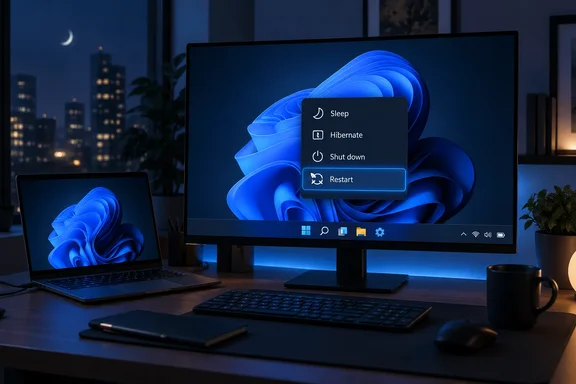
How-To Geek revisited the nightly-shutdown question on September 20, arguing against treating it as a necessary routine. Microsoft’s power-management documentation provides the more practical basis for deciding: sleep is intended for short absences, hibernation preserves your session while using less power, and a normal Windows shutdown can preserve the operating system’s kernel state.
There is no single best bedtime setting for every PC. Here is what each choice actually does, and how to match it to your work.
What happens when you choose each power option
A computer that looks off can be in several different states. Microsoft distinguishes between a working system, sleep, hibernation, Fast Startup shutdown, and full shutdown. The differences affect both power consumption and what Windows restores afterward.
| Choice | What Windows does | When it is useful |
|---|---|---|
| Leave it running | Windows and applications remain able to execute work; unused hardware components can enter lower-power states. | You have work that needs to continue unattended. |
| Sleep | Traditional sleep keeps memory powered to preserve the session. Supported PCs may instead use Modern Standby, which remains partially running. | You want a quick return after a short absence. |
| Hibernate | Windows saves the operating system, application, and device state to storage, allowing memory to power down. | You want to preserve your session during a longer absence with lower power use than sleep. |
| Shut down with Fast Startup | Windows logs you out but saves kernel state to a hibernation file for the next startup. | You are finished with your session and want the PC off between uses. |
| Restart | Windows follows the full shutdown-and-reboot path rather than restoring the Fast Startup kernel session. | You need a fresh operating-system start for troubleshooting. |
Microsoft’s support guidance for Windows 11 and Windows 10 recommends sleep for brief breaks and hibernation for an extended period away from a laptop or tablet when charging will not be available.
That makes hibernation a useful option for an overnight pause when preserving your workspace matters more than the fastest possible resume. It uses less power than sleep, although Microsoft notes that returning to work takes longer.
Shutting down is also a reasonable choice when you are done with the session. The documentation supports choosing a power state around your needs; it does not establish a nightly shutdown as a maintenance requirement.
Why Shut down may not reset Windows
The most consequential distinction is between ending your user session and restarting the underlying operating system.
With Fast Startup, Windows logs off user sessions, then writes the contents of the kernel session to a hibernation file. The kernel is the core of the operating system. Restoring its saved state allows Windows to avoid some of the initialization work involved in a fresh start.
Microsoft documents Fast Startup as the default shutdown transition where available. Although the machine appears to have fully shut down, this transition uses hibernation technology rather than the full shutdown state.
Ordinary Hibernate and Fast Startup therefore serve different purposes. Hibernate preserves your working session, including application state. Fast Startup logs you out and preserves the kernel session instead; it is not a way to keep unsaved application work through shutdown.
For troubleshooting, the practical consequence is straightforward: save your work and choose Restart from the Windows power menu. Microsoft documents that a restart takes the full shutdown path.
This does not mean every fault survives Fast Startup, or that restarting fixes every problem. It means that shutting down and turning the machine back on is not necessarily an equivalent test. A nightly shutdown also does not necessarily give Windows a fresh kernel session each morning.
Microsoft’s support guidance specifically recommends considering a restart when connected devices such as monitors, printers, or scanners do not work correctly after sleep or hibernation. It also identifies disconnecting and reconnecting the affected device, and keeping its drivers current, as possible remedies.
Leaving it on can help maintenance—but sleep is not a guarantee
Leaving a PC available while you are away can give Windows an opportunity to perform maintenance without competing with your active work. Microsoft’s Automatic Maintenance documentation includes operating-system and application updates, security checks, and malware scans among maintenance activities.
For tasks using that maintenance framework, Windows looks for periods when the machine is idle and connected to AC power. It generally defers maintenance while you are actively using the PC and suspends an executing maintenance task when you return. Tasks marked critical can continue.
This is more flexible than a rule that maintenance must happen overnight. An idle, plugged-in period during the day can also be useful. Conversely, a laptop that is almost always either busy or running on battery may give those tasks fewer opportunities.
Sleep introduces another distinction. Microsoft documents that some supported PCs use Modern Standby, a low-power state in which the system remains partially running and can respond to network or maintenance events. Traditional sleep uses different power states and wake mechanisms.
For that reason, two blanket claims are unreliable: that sleeping always prevents updates, and that Windows will always wake a sleeping PC to maintain itself. Wake behavior depends on the supported sleep state, power configuration, and task settings. Microsoft explicitly warns that the expected daily maintenance wakeup may not occur.
If an overnight job genuinely needs to run, choose the power arrangement that supports that job rather than assuming Sleep will handle it. For administrators, a task being scheduled is not by itself proof that the endpoint will wake and execute it.
How to make Hibernate available
Hibernate can be absent from the power menu, and Microsoft notes that it is not available on every PC. Where supported, its documented setup differs slightly between Windows 11 and Windows 10.
Windows 11
- Search for Control Panel from the taskbar and open it.
- Select System and Security, then under Power Options select Choose what the power buttons do.
- Select Change settings that are currently unavailable.
- Under Shutdown settings, select Hibernate.
- Select Save changes.
Hibernate should now appear under Start > Power.
Windows 10
- Open Start > Settings > System > Power & sleep.
- Select Additional power settings.
- Select Choose what the power button does, then Change settings that are currently unavailable.
- Under Shutdown settings, select the Hibernate checkbox if it is available.
- Select Save changes.
You can then select Start > Power > Hibernate. In both versions, the expected result is a lower-power pause that restores your previous session when the PC starts again, rather than a fresh login with the old session discarded.
If Hibernate is missing, do not assume that the menu is simply misconfigured. Microsoft documents that availability also depends on the system’s hibernation configuration. For example, a reduced hibernation file supports Fast Startup but not ordinary Hibernate.
For a diagnostic check, Microsoft documents running powercfg /a from an elevated PowerShell prompt. Its output identifies available sleep states and can report whether hibernation is available, unsupported under the current file configuration, or not enabled. This is a check, not a command that changes your power settings.
What about electricity use and component wear?
Sleep consumes little power, and hibernation consumes less. Beyond that, a universal overnight cost estimate is not justified without knowing the PC’s actual power draw, how long it remains in each state, and the electricity tariff.
Microsoft describes hibernation’s consumption as very low, almost the same as power off. It separately defines a mechanically off state as consuming no power. A dark screen or apparently off computer is therefore not, by itself, a measurement of zero consumption.
How-To Geek also argues that ordinary power cycling is not a significant wear concern. Its discussion does not supply a controlled lifespan comparison or component-specific manufacturer evidence that would establish a universal rule for modern PCs. There is consequently no basis here for promising that either nightly shutdowns or continuous operation will extend your particular computer’s life.
The useful decision is about operation, not an unmeasured longevity benefit. Use Sleep for a quick return, Hibernate for a longer pause that preserves your session, or Shut down when you are finished and do not need unattended work. Leave the machine running when there is a concrete task for it to perform—and choose Restart when the purpose is to give Windows a fresh start.
References
- Shut down, sleep, or hibernate your PC | Microsoft Support support.microsoft.com
- System power states - Win32 apps | Microsoft Learn learn.microsoft.com
- Automatic maintenance (Task Scheduler) - Win32 apps | Microsoft Learn learn.microsoft.com