

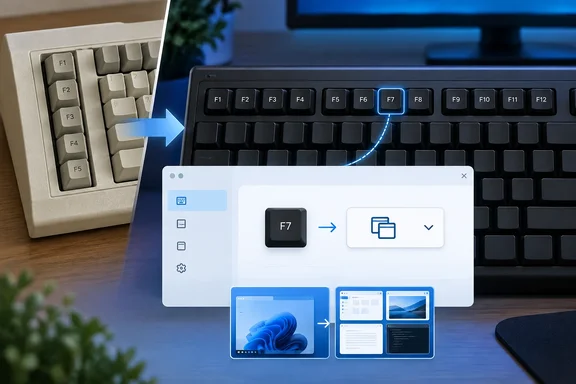
The 12-key row wasn't there at the start
The IBM Model M, or "Enhanced" layout, added a dedicated navigation block and put 12 F keys in a separate row along the top, grouped F1–4, F5–8 and F9–12. The original 1981 IBM PC was different. Wikipedia's account of the IBM PC keyboard describes F1 through F10 as two columns down the left side. The Model F keyboard from that period fits that description, and the 12-key top row came later.
So the usual shorthand needs a correction. The 1981 PC did not give the world 12 function keys. That arrived with IBM's redesign.
The timeline is also murkier than a single date. Hobbyist history site Sharktastica says IBM was developing the Enhanced Keyboard, internally "Keyboard G", by late 1984. It places the first discrete Enhanced Keyboards in May and June 1985, in industrial and terminal forms. How-To Geek, citing an IBM veteran, says it reached PC XT and AT machines in 1986. Other accounts give 1984 or 1987 depending on whether they mean the design, the terminal keyboard or the PS/2 launch.
Why 12 and not 24? One account on the Ardent Tool reference site says IBM moved the F keys above the main keys, like the programmable function keys on 3270 terminals, but kept only 12. That is a contributor's recollection, not IBM documentation. Treat it as a plausible lead.
Why function keys existed at all
The source article's explanation is that early computers had no menus. Users had to remember commands, and function keys gave each program a few quick, program-defined triggers. That is a reasonable account of why the keys were useful.
Be careful with the "no GUIs in the 1960s and 70s" framing. The Computer History Museum describes Xerox PARC's Alto, designed in the 1970s, as having a bit-mapped display and a mouse. PARC's Alto project began in 1972, so text terminals and graphical research machines coexisted. I could not verify two other claims in the source piece. One is that mainframes were interrupted on every keypress. The other is that keyboard shortcuts "as we know them" began at Xerox. I'd treat both as unproven.
What the keys do on Windows today
Nobody owns the row any more, so behavior depends on the app. Microsoft's own keyboard tips page lists only F1 (Help) and Alt+F4 (close program) from the F row among its common app shortcuts. It also warns that these shortcuts work most of the time but may not work in every app.
MakeUseOf's per-key rundown is a handy field guide, but it is not official documentation. Check these against the app you're in:
| Key | Commonly seen use |
|---|---|
| F1 | Help in the current program |
| F2 | Rename a selected file in File Explorer; edit a cell in Excel |
| F3 | Search; repeat the last command in Command Prompt (not PowerShell) |
| F4 | Focus the File Explorer address bar; Alt+F4 closes the window |
| F5 | Refresh in browsers and File Explorer; Ctrl+F5 hard-refreshes in browsers |
| F6 | Focus the browser address bar |
| F7 | Spell check in Office; command history in Command Prompt |
| F10 | Activate the menu bar; Shift+F10 acts as a right-click |
| F11 | Full-screen mode |
| F12 | Developer Tools in browsers; Save As in many apps |
Two small points are worth knowing. First, F2 and F12 are common keys to tap at boot to reach firmware setup, but the exact key varies by manufacturer, so check your PC's documentation. Second, F8 is no longer the dependable boot-time route to Safe Mode that it was on older Windows versions.
Laptops and the Fn layer
On many laptops the top row doubles as brightness, volume and media controls. Whether F-keys or media functions come first depends on the manufacturer and model, and there is no universal Windows setting for it. The behavior is usually controlled in firmware or a vendor utility.
Apple handles this one consistently, and the comparison is useful. Apple's documentation says Mac function keys default to system features, so you must hold Fn or Globe to use them as standard F keys. A Mac setting reverses this. In System Settings, go to Keyboard, then Keyboard Shortcuts, then Function Keys. There you turn on "Use F1, F2, etc. keys as standard function keys." That is Apple-specific and does not carry over to Windows.
Remapping the row with PowerToys
If a key does nothing for you, or does something you keep triggering by accident, Microsoft's PowerToys Keyboard Manager can change it. Microsoft's documentation says the F1–F12 and F13–F24 keys can be mapped. The Fn key generally cannot be remapped.
- Install PowerToys and open its Settings.
- Choose Keyboard Manager and select Remap a key.
- Select Add key remapping. In the "Select" column pick the key to change, for example F1.
- In the "To send" column pick a key, a shortcut or a text string, then confirm.
Microsoft's page notes that you can also remap a shortcut to launch an app or open a URI, so an F key can become a launcher.
Keep these limits in mind:
- PowerToys must be running. If it isn't, the remap stops applying. Closing it or disabling Keyboard Manager is also the quickest way to undo a mistake.
- Elevated windows can ignore your remap. Microsoft says this happens unless PowerToys itself runs as administrator.
- Password screens are out. Keyboard Manager doesn't work on the login screen.
- Keep it out of games. Microsoft suggests avoiding it while gaming because it can affect performance, and some keyboard APIs don't work with it.
- Watch for orphaned keys. If you remap one key onto another, the original function disappears from your keyboard, and PowerToys warns you.
A sensible first remap is the one the source article hints at. Turn an accidental-press key such as F1 into something harmless, since Win+F1 launches a Bing search for Windows help in Edge.
The takeaway
The function row is a layout convention that stuck, not a rulebook. The 12-key top row grew out of IBM's Enhanced keyboard redesign and spread through the clone market. Today each app decides what the keys do, and Microsoft itself only promises a couple of them. If you want a more predictable row, PowerToys is the tool, as long as you accept its limits.
References
- The real reason your keyboard has F1 through F12 MakeUseOf · 2026-10-05T13:45:14+00:00
- Use keyboard function keys on Mac - Apple Support (NG) support.apple.com
- Remap Keys and Shortcuts with PowerToys Keyboard Manager | Microsoft Learn learn.microsoft.com