

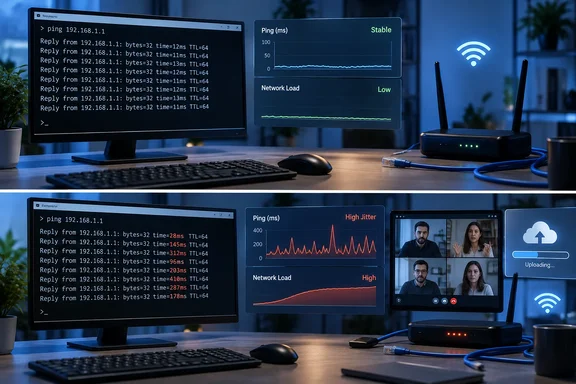
ping run is only a screening tool for the problem MakeUseOf calls “jitter.” The practical issue is delay variation: when the time needed to deliver packets rises and falls sharply, voice, video, remote desktops and online games have to absorb those swings in real time. A 15 ms average can therefore conceal brief spikes large enough to freeze a Teams call or make a game client rubber-band.
MakeUseOf’s account of a fast connection that still felt laggy gets the diagnosis broadly right: bandwidth and average latency do not describe whether latency stays stable. But its suggested test — ping google.com -n 50 on Windows — needs an important qualification. It can expose conspicuous latency swings, yet it does not calculate jitter, does not reproduce the traffic pattern of a video call or game, and cannot by itself say whether the culprit is Wi-Fi, the home router, an ISP access link, or the remote destination.
For Windows users and network administrators, the useful shift is not from “checking ping” to believing a single jitter number. It is from treating a speed test as a verdict to comparing latency when the network is idle with latency while it is busy. If delay only explodes during uploads or downloads, the likely problem is queuing — commonly called bufferbloat — rather than insufficient advertised broadband speed.
Ping reports round trips, not application quality
Microsoft’s documentation describes Windows ping as an ICMP Echo tool for checking IP connectivity, reachability and name resolution. Each reply includes a round-trip time, and the -n option controls how many requests Windows sends. That is valuable diagnostic information, especially when a device cannot reach a service at all or when packet loss is obvious.
It is not a direct measurement of the path used by an application. A Zoom or Teams session commonly uses real-time UDP media traffic; an online game can use different ports, servers and routing; a browser must also complete DNS lookups, TCP or QUIC setup, encryption and content delivery requests. ICMP traffic to Google is simply a different workload headed to a different destination.
The IETF’s RFC 3393 is even more precise about the terminology. It describes packet delay variation, the metric often casually called jitter, as a property of packets in a stream. The RFC warns that “jitter” has multiple meanings and recommends the more specific term delay variation. That distinction is more than academic: a minimum-to-maximum spread from an ICMP test can suggest instability, but it is not the same thing as a rigorously measured packet-delay-variation result.
Windows’ final ping summary usually gives minimum, maximum and average times. If the average is 18 ms but the maximum intermittently reaches 150 ms, there is a real reason to investigate. Yet the figures do not reveal how frequently those spikes occurred, whether they arrived in bursts, or whether they happened while the connection was under the load that triggers the user’s complaint.
A single isolated 150 ms reply over several minutes is different from a stream alternating between 15 ms and 150 ms during a call. Both can produce a large min/max range; only the latter points strongly toward a persistent real-time problem.
The most useful test is idle versus loaded
The missing step in the MakeUseOf procedure is controlled comparison. Start a longer Windows test while nobody is using the connection heavily:
ping -n 100 1.1.1.1
Then repeat it while the connection is deliberately busy — for example, during a substantial upload to cloud storage, a large download, or a software update. Use the same wired PC, the same destination and roughly the same time of day where possible. The point is not that Cloudflare’s 1.1.1.1 is a universal benchmark; it is a stable numeric target that avoids DNS lookup differences during the test.
Record packet loss, minimum, maximum and average round-trip times for both runs. More importantly, watch the individual replies scrolling past. An idle 12–20 ms connection that jumps repeatedly into triple-digit latency only under load has produced a much more actionable result than a standalone “jitter” score.
This test separates two common cases:
- A connection with high or erratic latency even while idle may point to weak Wi-Fi signal, radio interference, a faulty Ethernet link, modem or ISP-line trouble, or a route beyond the home network.
- A connection that remains stable while idle but deteriorates under upload or download pressure points toward congestion and queueing at the home gateway or the broadband bottleneck.
The second case is where a gigabit plan can mislead people. Raw download throughput may be excellent, while one saturated upstream queue makes every small interactive packet wait behind a bulk transfer. A large backup, security-camera upload, OneDrive sync or game download can produce the same subjective complaint: “The internet is fast, but everything feels delayed.”
Bufferbloat is a queueing problem, not a speed problem
Bufferbloat occurs when network equipment stores too many packets in queues instead of signaling senders to slow down soon enough. OPNsense’s documentation on FQ-CoDel describes the visible consequence plainly: large buffers can create extreme delay for all traffic, presenting as game lag, voice or video stutter, and a general feeling that the network is slow.
The critical detail is that this often becomes visible only when a link is saturated. If an internet connection provides 40 Mbps upstream and a backup job pushes a steady 40 Mbps or more toward the router, the router has nowhere to send excess packets except into a queue. Interactive traffic then joins that queue. The download speed test can still report impressive numbers after the fact; the person trying to speak on a call notices the delay immediately.
This is why blanket “QoS” advice is inadequate. Traditional quality-of-service controls can mean anything from crude application priorities to per-device caps. The better target is active queue management with fair queueing — technologies commonly labeled FQ-CoDel or CAKE — configured at the actual bottleneck. OpenWrt’s SQM documentation identifies CAKE as its preferred queue discipline for mitigating bufferbloat, while FQ-CoDel remains a widely used alternative.
A router interface that advertises “Smart Queue,” “SQM,” “anti-bufferbloat,” “traffic shaping,” or “adaptive QoS” may expose one of these mechanisms, but the label alone proves little. Administrators should determine which algorithm is in use, whether shaping applies in both upload and download directions, and whether the selected bandwidth limits leave headroom below the connection’s sustained real-world rate. Shaping at the line rate means the ISP-side or modem-side queue can still become the uncontrolled bottleneck.
There is a trade-off. Proper traffic shaping may reduce maximum throughput slightly during a large transfer. In exchange, it can prevent bulk traffic from monopolizing latency. For a household or small office that uses cloud backups, VPNs, voice calls and remote administration at the same time, the reduction in peak speed is often less consequential than the return of predictable responsiveness.
Wi-Fi can imitate a broadband fault
MakeUseOf correctly highlights wireless interference, but “use Ethernet” should be treated as a diagnostic step before it becomes a purchase recommendation. A direct Ethernet test to the router removes a large group of variables: weak signal, retries, roaming behavior, channel contention, power-saving quirks and radio interference from neighboring networks and local devices.
If the wired test stays clean while Wi-Fi shows wide latency variation, the internet service may be innocent. Focus on the access point location, the client’s signal quality, radio band selection, channel use, mesh backhaul and nearby interference. A mesh node connected wirelessly to another mesh node can add its own contention and retransmission problems; plugging that node into Ethernet changes the result substantially.
If Ethernet and Wi-Fi both spike only when the connection is busy, attention should move back to the gateway, modem and access link. If both spike at quiet times too, collect several tests at different hours before blaming the router. Recurrent evening degradation across wired clients can be useful evidence for an ISP support case; a screenshot of one mediocre speed test is not.
There is another reason to avoid treating all delay variation as a local fault. Remote servers can be overloaded, routes can change, and ICMP can be handled differently from ordinary application traffic. Testing more than one destination helps prevent a bad route to one provider from becoming an unnecessary router replacement.
Windows users should capture evidence before changing hardware
The proposed “upgrade the ISP router” conclusion is plausible only after the basic comparisons. Replacing equipment may help if the existing router cannot keep latency stable under load or lacks competent queue management, but it will not cure a congested neighborhood node, a failing cable line, or a poor Wi-Fi client driver.
A concise troubleshooting record should include the connection type, test target, time, whether the PC was wired, whether upload or download load was running, packet loss, and the observed range of reply times. Windows’ ping -n output is enough for a first pass; a packet-capture tool or application-specific telemetry is appropriate only if the simple tests establish a repeatable pattern.
For remote workers, the decisive test is often a real call while a second device performs an upload. For gamers, it is an in-game session or the game server’s own network graph under the same load. For a small business, it may be a voice-quality report from the VoIP system. Those tests place the measurement closer to the traffic that users actually need to work.
The practical conclusion is straightforward: stop treating a speed-test download figure and one average ping as a clean bill of health. Check whether latency remains stable when the line is loaded, isolate Wi-Fi with a wired comparison, and only then decide whether queue management, wireless remediation, a router replacement or an ISP escalation is warranted.
References
- I measured jitter instead of ping, and discovered why my connection felt laggy despite good speeds MakeUseOf · 2026-09-17T15:00:15+00:00