

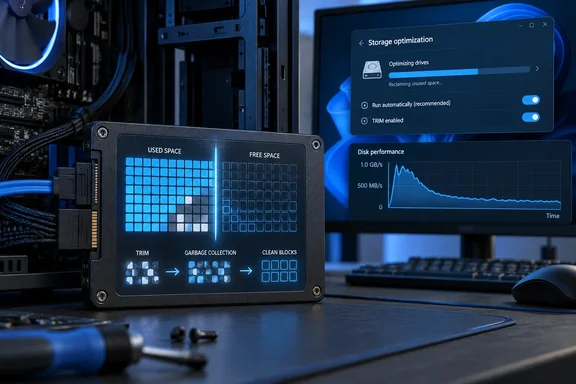
The underlying explanation in the report is sound. SSDs cannot overwrite NAND flash pages in place; they write new data elsewhere, then later consolidate still-valid data and erase whole blocks through garbage collection. When a drive is crowded, its controller has fewer clean blocks and less flexibility to do that housekeeping outside the path of incoming writes. The result is higher write amplification, more latency, and, on some inexpensive SATA models, transfer rates that can collapse during large copies.
For Windows users, this is a practical maintenance issue rather than a Linux-only trick. Windows 10 and Windows 11 already schedule SSD optimization, which sends TRIM commands to supported drives. The bigger question is whether the SSD has enough room to act on those commands—and whether a “slow SSD” diagnosis is actually about free capacity, an exhausted write cache, a USB enclosure, thermal throttling, or a deteriorating drive.
Free space and over-provisioning are related, but they are not identical
The submitted report treats unused filesystem capacity as over-provisioning, which is useful shorthand but technically imprecise.
Factory over-provisioning is NAND capacity deliberately withheld from the operating system. The SSD controller can always use it because the host never receives logical addresses for that area. Free space within an NTFS, ext4, or other filesystem is different: Windows has exposed that capacity to the user, and the drive only learns that deleted ranges are disposable after the operating system successfully issues TRIM.
That distinction matters most when a drive is heavily used. A 1TB SSD with 150GB of genuinely free space and healthy TRIM has more working room than one holding 990GB of active data. But shrinking an existing partition and leaving, for example, 100GB unallocated gives the controller a more dependable reserve than merely promising not to fill the visible volume. The unallocated area cannot be consumed by a stray game install, backup job, OneDrive sync, or Windows feature update.
The real-world payoff varies. Extra empty space most helps drives with sustained writes, fragmented free blocks, or workloads that constantly replace data: video ingest, game-library churn, virtual machines, software builds, backups, torrents, and sync folders. It will do little for a PC that is slow because of CPU pressure, low RAM, a failing SATA cable, antivirus scanning, or a hard drive elsewhere in the storage path.
A reasonable target for an aging consumer SATA SSD is 10% to 20% free capacity, especially if it routinely runs near full. That is a planning target, not a universal law. A 500GB drive with only 20GB left has a capacity-management problem; a 2TB drive with 200GB free is in a much safer position even if it is used for large transfers.
The SLC-cache slowdown is real—and SSD model names do not tell the whole story
How-To Geek uses Crucial’s BX500 as an example of a low-cost SATA SSD whose cache behavior can become painfully visible under long writes. Independent testing supports the broad point. PCWorld measured a 2TB BX500 that fell as low as roughly 40MB/s after its cache was exhausted, with housekeeping sometimes pulling performance lower still. That is slower than many mechanical hard drives in a sequential transfer.
But the report’s description of the BX500 as a TLC drive should not be treated as a stable product specification. PCWorld’s tested 2TB BX500 used QLC flash and warned that Crucial had changed components under the same BX500 name. Older reviews of other capacities and production runs describe different NAND configurations. This is a longstanding problem in the budget SSD market: the retail name can remain unchanged while the controller or flash changes underneath it.
That makes a model-specific benchmark useful only if it matches the capacity and manufacturing generation in the PC. A BX500 bought in 2019 may not behave like one bought years later, even with the same capacity printed on the label. It also means a drive’s advertised “up to 500MB/s” SATA write speed usually describes a short, cache-friendly benchmark—not the speed after a long copy has filled a dynamic SLC cache.
Samsung’s 870 EVO illustrates the opposite end of the SATA consumer market. Samsung specifies an Intelligent TurboWrite buffer of up to 42GB on the 1TB 870 EVO, and its documentation lists 530MB/s sequential performance after the TurboWrite region for the 1TB and larger capacities. That does not make the 870 EVO immune to performance changes as it fills, but it shows why two SATA drives with nearly identical headline specifications can behave very differently under a 100GB or 500GB write.
The reader takeaway is straightforward: freeing capacity can prevent cache behavior from getting worse, but it cannot turn a cache-limited QLC drive into a higher-end TLC drive with DRAM and stronger sustained-write performance. If large transfers are a regular workload, more free space is mitigation; a better SSD is the lasting solution.
Windows already handles TRIM, so do not turn this into a daily ritual
The Linux commands in the source report are appropriate for Linux, where fstrim and its systemd timer are common ways to verify or invoke periodic discard. Windows users should not copy those commands, nor should they install a third-party “SSD optimizer” that promises magical speed restoration.
Microsoft says Windows 10 and Windows 11 automatically optimize SSDs through TRIM, normally on a weekly schedule. The built-in interface is Defragment and Optimize Drives, despite the confusing legacy name. For an SSD, the normal operation is trim rather than the conventional file-moving defragmentation associated with hard disks.
To check the basics on a Windows PC:
- Open Start, search for Defragment and Optimize Drives, and confirm that the affected device is identified as a solid-state drive rather than a hard disk.
- Select the SSD and review whether scheduled optimization is enabled. Running Optimize once is a reasonable way to resend TRIM after clearing substantial space; repeatedly doing it is unlikely to produce a meaningful benefit.
- Use Settings > System > Storage to identify large applications, temporary files, old Windows installation files, game libraries, virtual-machine disks, and local cloud-sync copies consuming the volume.
- Keep enough space free that the capacity bar does not live in its red, low-space state. A drive that is continually above 90% used is a candidate for cleanup, a larger replacement, or moving bulk data elsewhere.
- Check the SSD vendor’s management utility or a SMART-monitoring tool for health warnings, uncorrectable errors, excessive media wear, or firmware updates before assuming the issue is only free space.
There is one important caveat for external SATA SSDs. TRIM support can be obscured by a USB-to-SATA bridge, RAID layer, or unusual storage controller. Windows may see the volume as removable or may not pass discard commands through in the way the internal SATA drive expects. An external SSD that remains slow after space is freed may therefore be limited by its enclosure or cable rather than the NAND itself.
Measure the workload that is actually slow
A nearly full SATA SSD can remain perfectly responsive during booting, launching apps, and reading game files while becoming miserable during a huge copy operation. That is because reads generally put less pressure on empty-block management than writes, and because SLC caches can absorb ordinary desktop bursts before their slower native NAND behavior appears.
Before reallocating partitions or replacing hardware, reproduce the failure. Copy a large file set—large enough to exceed the drive’s likely cache—from a source that is demonstrably faster than the SATA SSD. Watch the write rate in Task Manager’s Performance tab or Resource Monitor. If it starts around 450–550MB/s and later sinks sharply while the SSD reports near-100% active time, that pattern is consistent with cache exhaustion or garbage collection.
If the transfer is slow from the first second, look upstream. A USB hard drive, a 1Gbps network share, a failing source disk, a SATA II port, a weak USB enclosure, or a security scan can all cap the copy before the SSD’s cache is relevant. SATA itself also tops out well below modern NVMe speeds, so a stable 450MB/s transfer is normal for a healthy SATA SSD, not evidence of a problem.
And if ordinary reads, boots, and small file operations have become erratic alongside SMART warnings or repeated disk errors in Event Viewer, free space is not the fix to trust. Back up the drive immediately. NAND cleanup can explain slow sustained writes; it does not explain away a device reporting media errors.
Capacity is part of SSD performance planning
The useful lesson from How-To Geek’s report is that SSD capacity should not be treated as fully spendable. On a 1TB SATA SSD, reserving 100GB to 200GB for headroom is often more valuable than squeezing in one more installed game or a stack of old downloads. For a system drive, that reserve also leaves room for Windows updates, restore points, paging activity, browser caches, and temporary installer files.
For drives already approaching full, the first move is to clear or relocate data and let Windows perform its scheduled optimization. If the workload involves regular multi-hundred-gigabyte writes, leave unallocated space when practical and stop relying on a budget SATA model’s burst-speed rating as a promise of sustained performance.
The old SSD may not become new again. But reclaiming its working room can stop a crowded drive from making every large write feel like it has reverted to hard-disk speeds.
References
- This forgotten SATA trick made my cheap old SSD feel brand new How-To Geek · 2026-09-17T15:30:15+00:00