

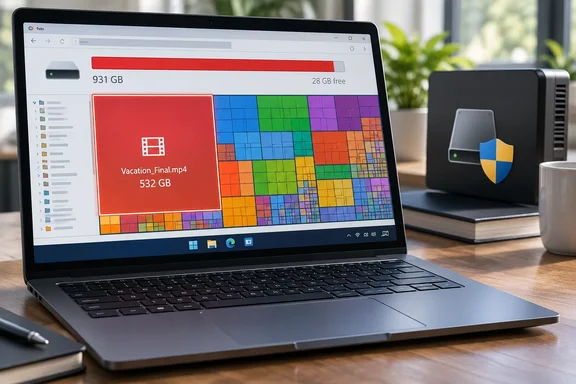
Windows 11 Storage Settings Name Categories, Not Culprits
The complaint is a familiar one. The MakeUseOf author says personal habits filled the drive: apps installed and used once, movies kept around, games rarely played. Windows added its own temporary files, update leftovers, caches and background app data. When the author opened Storage in the Settings app, they found a summary that was "all quite generalized." They could see that Temporary files used a certain amount of space, but not which files or folders were responsible.
That criticism is partly fair. Microsoft's support documentation says Storage settings in Windows 11 and Windows 10 break usage into categories such as Installed apps, Temporary files, System & reserved, and more. The page is at Settings > System > Storage. For a single file like a forgotten 30GB video, a category total is the wrong tool.
The author undersells what Windows already does, though. The same Storage page includes Cleanup recommendations, which Microsoft says identifies files and applications that you can safely remove, such as temporary files including previous Windows installation(s), large or unused files, and apps that you rarely use. For secondary drives, Microsoft says Storage used on other drives lets you pick a drive and see a breakdown of the storage usage, categorized by different types of files such as documents, pictures, videos, and more. Windows does have a large-file finder. What it lacks is a complete view of everything on the drive, and that is where WizTree comes in.
How WizTree's MFT Scan Gets Through 300,000 Files in 1.42 Seconds
The headline number comes from the author's own test: they scanned a C: drive holding about 300,000 files, and WizTree's built-in timer reported 1.42 seconds. That is one person's result on one laptop. It shows what the tool can do, not a speed every PC will match.
The mechanism comes from the developer. According to WizTree's official About page, when scanning NTFS formatted hard drives (most modern hard drives use this format), WizTree reads the hard drive's Master File Table (MFT) directly from the disk. The page describes the MFT as a special hidden file used by the NTFS file system to keep track of all files and folders on a hard drive. Antibody Software says reading it completely bypasses the operating system (Windows) and provides a huge performance boost. The developer compares the method to the way Everything Search Engine works, the voidtools file-search utility the MakeUseOf author also mentions.
The practical difference is how much work the scan has to do. A conventional analyzer walks the folder tree and asks Windows about each directory in turn, so scan time grows with the number of files. The MFT already works as a catalogue of the whole volume. Reading it gives WizTree names, sizes and locations in one pass. Because the MFT holds metadata rather than file contents, WizTree never has to open the files it measures.
Coverage beyond NTFS is real but slower. The developer says WizTree can scan all hard drive types supported by Windows (NTFS, FAT, FAT32, network, etc), and that MTP/PTP devices like smartphones and cameras can also be scanned when connected via USB. The MFT shortcut is an NTFS feature, so these other targets don't get the same speed. A review on Neat Net Tricks notes that on FAT32 USB sticks, exFAT drives, or network shares it falls back to normal scanning, still quick, but no longer magic.
The Administrator Prompt Controls WizTree's Speed
The one setting that decides whether you see seconds or minutes is elevation. WizTree's official FAQ states that high speed NTFS scanning is only possible when running with admin rights. On launch, WizTree asks for administrator permission through a UAC prompt. If you decline, the program still works, but it drops to the slower folder-by-folder method.
Other reviewers make the same point. FolderSizes, a competing analyzer, writes that when scanning network shares, non-NTFS drives, or running without admin rights, WizTree falls back to standard file enumeration - the same approach other tools use. The Neat Net Tricks review adds that the prompt is a requirement of how it reads the disk, not a red flag.
In managed environments, this is where the decision gets real. A standard user on a locked-down corporate PC may not be able to approve the elevation prompt, and will get the slower scan. If you don't want WizTree to elevate every time, the FAQ says to untick "Options->Always Run as Administrator". You can also set actRunAsAdmin_Checked=FALSE in WizTree3.ini, which is located in %appdata%\WizTree3 or in the same folder as Wiztree.exe if using the portable version.
Why the WizTree Treemap Beats a Percentage Bar
Speed caught the MakeUseOf author's attention, but the treemap is the feature they rate highest. Each file and folder appears as a colored block sized by the space it uses. Tiny files become slivers and big files become large rectangles. The author's point is that the worst space hogs stand out immediately because they take up more of the screen, with no need to open dozens of folders. They found that more useful than any percentage or category in Windows Settings.
This is the real difference from Windows' Storage page. Settings starts with categories and asks you to guess which one hides the problem. The treemap starts with what's physically on the disk, so a large file buried deep in a folder tree is as easy to spot as one at the top. Microsoft's Cleanup recommendations show a filtered shortlist of large or unused files. WizTree shows everything and lets size do the sorting.
WizTree has more than the map. AlternativeTo's summary of its features describes a treemap that can be zoomed in/out and exported to an image. It also lists a "File View" for finding the largest and duplicate files, a search filter by name or file type, and export of file data to CSV or an MFT dump. For admins, the developer notes that exports of CSV and MFT files can be done via command line parameters. Great for automated auditing of hard drives.
Deleting From Inside WizTree Needs a Pause First
The MakeUseOf author found a large video file they had forgotten about, right-clicked its block, and dealt with it without opening File Explorer. They describe renaming files, copying paths and deleting items from inside WizTree. The developer describes the tool the same way: quickly identify what's using up the space on your hard drive and optionally delete files and folders to free up space.
That convenience comes with risk. A treemap shows how big something is, not what it's for. As the MakeUseOf author says, a large Windows folder in the map is not automatically safe to delete, because system files and application data may be needed by Windows and your apps. WizTree only reads the disk until you tell it to delete something, so a scan is harmless. The right-click delete is where mistakes happen.
A reasonable rule, and it is our inference rather than documented guidance, is to delete personal files directly and let Windows or the owning app handle everything else. Microsoft gives a specific route for one of the biggest system-managed items. To remove Windows.old, the leftover copy of a previous Windows installation, go to Settings > System > Storage. There, under disk usage, select Temporary files, then ensure Previous Windows Installation(s) is checked and select Remove files. Deleting that folder by hand from a treemap is the wrong approach when Windows provides a supported cleanup path.
Storage Sense and Cleanup Recommendations Should Run Before WizTree
The best workflow combines the two tools instead of swapping one for the other. Storage Sense, Windows' automatic cleanup feature, can automatically free up drive space for you by getting rid of items that you don't need, like temporary files and items in your Recycle Bin. Many users have never switched it on. Microsoft states that Storage Sense is off by default, although Windows may turn it on to manage select temporary files when the PC runs low on space.
The defaults are narrower than many people assume. Microsoft says items in your Downloads folder and OneDrive (or any other cloud provider) will not be touched unless you set up Storage Sense to do so. It also covers only one drive: Storage Sense works on your system drive only, which contains the Windows operating system and is usually referred to as C:. For OneDrive users there's a useful detail. Microsoft notes that starting in Windows 11, version 22H2, the default for OneDrive cloud files is to make files online-only if not opened for more than 30 days. That setting frees local space without deleting anything.
Storage Sense runs on a per-user basis. Microsoft says any settings you choose will apply only for you. Other users on your device can manage their own settings. On a shared family PC, one account's cleanup rules won't clear another account's Downloads folder, but a WizTree scan of the whole C: drive will show every profile's contents.
Why WizTree's Total Won't Match Windows' Used Space
Don't expect the numbers to line up exactly. WizTree's FAQ explains that some NTFS file system data (such as directory indexes and file security information) are not considered to be files even though they take up space on the hard drive. The treemap's total can therefore come in a little below the used space Windows reports. A small gap is normal file-system overhead. It doesn't mean WizTree missed some hidden file.
Windows also sets space aside on purpose. Microsoft says Windows reserves a portion of storage space on your device for use by temporary files, caches, and other files, and when your device is low on space, Windows will clear reserved storage so it can be used for other processes, like a Windows update. To see this reserve, open Storage settings and select Show more categories. Part of what looks like missing space is Windows keeping room for its next update.
What this means for you
If your Windows 11 or Windows 10 system drive is nearly full, clean it up in two stages. Use Windows' own tools first, then WizTree for whatever they don't explain. Home users with one cluttered SSD get the most from this. Admins on locked-down machines should expect the slower non-elevated scan unless they can approve the UAC prompt. On licensing, AlternativeTo lists WizTree as Proprietary and Free Personal product, with paid perpetual licenses for other uses. Organizations should check those terms before rolling it out.
- Open Settings > System > Storage and go through Cleanup recommendations first. Windows already flags temporary files, previous Windows installations, large or unused files and rarely used apps.
- Turn on Storage Sense if you want ongoing automatic cleanup. Downloads and OneDrive content stay untouched unless you configure them, and it only manages the C: drive.
- Run WizTree as administrator on NTFS drives to get the fast MFT scan. Without elevation, or on FAT32, exFAT and network drives, it falls back to slower scanning.
- Treat the treemap as a list of candidates. Check each large item's full path before deleting, and use Windows' Temporary files cleanup or an app's own uninstaller for system and program content.
- Expect WizTree's total to fall slightly below Windows' used-space figure. NTFS directory indexes, file security data and Windows' reserved storage explain the gap.
The MakeUseOf author's conclusion holds: a 512GB SSD fills up fast, and a treemap gets you from "drive full" to a specific file in seconds instead of guesswork. That speed depends on NTFS and administrator rights. The safer approach is to use Windows' own cleanup first and WizTree after it. The next time Windows turns the capacity bar red, a one-second scan can point you to the forgotten file, but deleting anything Windows itself manages should still go through Settings.