

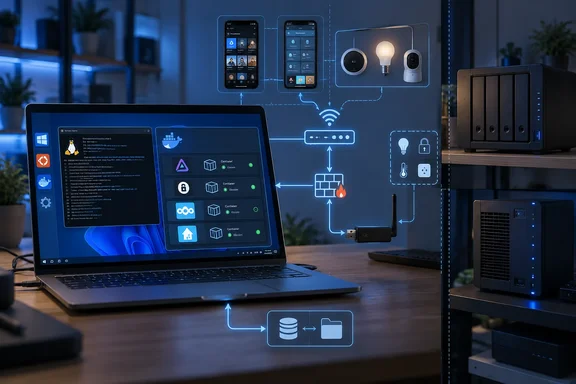
The setup also needs a terminology correction: Docker was still part of the stack. XDA describes installing Docker Engine inside an Ubuntu WSL distribution and using familiar Compose files, with a preference for that arrangement over Docker Desktop. The experiment concerns where Docker runs and how the host is managed—not replacing Docker with a separate “WSL containers” technology.
XDA’s week-long results remain a single-outlet account without independent corroboration of the trial. Microsoft’s WSL documentation does, however, explain the networking, USB, and filesystem boundaries behind several of the reported difficulties. Together, they support a more specific conclusion than “Windows is a poor server”: WSL can suit services that tolerate the desktop’s availability, while household infrastructure needs closer attention to its dependencies.
What worked—and what the trial establishes
According to XDA, Jellyfin, Vaultwarden, and Nextcloud ran successfully inside WSL containers without requiring unusual changes compared with a conventional Linux setup. The author also describes retaining the familiar Docker and Compose workflow, making experimentation convenient on the same computer used for development.
That is the central attraction for someone starting a homelab. An existing Windows machine can host the Linux environment and the services, avoiding an immediate purchase of another computer. The author’s account suggests the application layer was generally less troublesome than the surrounding host configuration.
The performance observations need narrower treatment. XDA says heavier applications such as Immich benefited from a laptop more powerful than the author’s NAS, but provides no measurements that isolate WSL’s performance. This is an anecdotal comparison between different machines, not evidence that WSL makes containers faster than a dedicated Linux host.
Likewise, the report does not establish a reproducible compatibility matrix. It gives no exact Windows build, WSL version, or complete configuration for the trial. Readers can reasonably take it as evidence of one workable arrangement, rather than assurance that every deployment of the named applications will behave identically.
Why a working localhost connection does not prove LAN access
Microsoft documents a distinction that directly explains XDA’s networking complaint: WSL2 uses network address translation, or NAT, by default. A Linux service can be reachable from a Windows browser through localhost while access from another machine on the home network still requires configuration.
Under that default architecture, WSL2 has a virtualized Ethernet adapter with its own IP address. Microsoft documents Windows port forwarding through netsh interface portproxy as one way to expose a WSL2 service to the LAN. The application must also accept connections from outside its own loopback interface.
These are separate checks. An application listening only on 127.0.0.1 is scoped differently from one accepting remote connections, and Microsoft explicitly warns that changing the listening address can allow LAN access. Opening a service should therefore be a deliberate access decision, not a blanket troubleshooting measure.
For a homelab owner, success means reaching the service from the devices that will actually use it, not merely opening it in a browser on the Windows host. This follows directly from Microsoft’s distinction between host-local and LAN connectivity.
Mirrored networking changes the options
Microsoft’s networking documentation says Windows 11 version 22H2 and later can enable mirrored networking by setting networkingMode=mirrored under [wsl2] in .wslconfig. The mode mirrors Windows network interfaces into Linux and supports direct LAN connections, IPv6, multicast, and improved VPN compatibility.
That gives eligible Windows 11 users an alternative to the default NAT arrangement. It also means XDA’s networking frustration should not be read as evidence that WSL2 cannot host LAN-accessible services.
Firewall configuration remains part of the job. Microsoft documents Hyper-V firewall configuration for inbound access and says that firewall is enabled by default on Windows 11 22H2 and later with WSL 2.0.9 and later. Its examples include a rule for a particular TCP port, so allowing every inbound connection is not the only documented approach.
The practical decision is consequently version- and configuration-specific: identify the networking mode, confirm that the application accepts the intended connections, and account for the applicable firewall rules. The Windows 11 mirrored-networking guidance should not be assumed to apply to a Windows 10 host.
Availability follows the Windows machine
XDA also flags Windows updates, crashes, and shutting down the laptop as availability concerns. The account does not provide an outage log or identify a particular update that interrupted the trial, so these are hosting dependencies rather than measured reliability results.
The consequence is straightforward: services inside WSL cannot remain available while their Windows host is shut down or restarting. Moving Docker Engine into Ubuntu does not separate the containers from the physical computer’s availability.
How serious that is depends on the service. As XDA notes, temporary downtime for a media server can be acceptable, while DNS or home automation can affect other household functions. The author therefore advises against using this setup for Pi-hole or AdGuard Home and prefers a dedicated Linux machine or NAS for important workloads.
That preference does not establish that DNS software is technically incapable of running in WSL. It reflects the cost of making household services depend on a machine also used as a personal computer. A dedicated host still needs maintenance, but choosing one separates that maintenance schedule from everyday desktop use.
USB access adds another management layer
According to XDA, Home Assistant’s container was workable, but integrating Zigbee, Z-Wave, Bluetooth, and other hardware made the arrangement too cumbersome. Microsoft’s USB documentation explains why peripheral access deserves a separate assessment from whether an application starts.
WSL does not provide native USB connectivity. Microsoft documents using the separate open-source usbipd-win project to share devices with WSL2. Its guide requires a compatible environment, including a WSL Linux kernel version of at least 5.10.60.1; the documented attachment commands assume usbipd-win 5.0.0 or later.
The workflow includes sharing a device with an administrator-level bind operation and then attaching it to WSL. Microsoft documents checking attachment with usbipd list and checking visibility inside Linux with lsusb. Depending on the application, additional udev rules may be needed for non-root access.
An important ownership boundary comes with that arrangement: Windows cannot use a USB device while it is attached to WSL. Microsoft documents detaching it through usbipd detach or physically disconnecting it.
This establishes a route for USB access, not universal support for every smart-home adapter. It also does not establish that a device visible in WSL is already correctly configured for the Home Assistant container. XDA’s experience supports treating peripheral-heavy deployments as a different hosting decision from ordinary web applications.
Storage placement deserves attention alongside capacity
XDA warns that media libraries and heavier applications can consume substantial disk space and memory on the shared Windows machine. The report supplies no resource measurements, so it cannot establish a particular RAM requirement or a threshold at which desktop responsiveness deteriorates.
Microsoft provides a more concrete storage recommendation: keep files in the filesystem associated with the tools processing them. For Linux workloads, its guidance favors the WSL filesystem over Windows-mounted paths such as /mnt/c.
Applied to this homelab arrangement, that makes the location of Linux application data worth reviewing—not just the available disk capacity. A convenient Windows folder and a directory inside the Linux filesystem are different choices for Linux-side file access.
Microsoft does not quantify the difference for XDA’s applications. The useful takeaway is to inspect storage paths before assuming a slow workload needs more powerful hardware. Windows access need not dictate Windows-side placement: Microsoft documents browsing WSL files through File Explorer using \\wsl$.
For readers deciding whether to follow the experiment, the evidence supports three concrete priorities:
- Confirm LAN access separately from access on the Windows host, using networking guidance appropriate to the installed Windows and WSL versions.
- Evaluate hardware-dependent services separately, because USB sharing introduces prerequisites and prevents simultaneous Windows use of an attached device.
- Choose workloads whose downtime is acceptable when the Windows computer restarts or shuts down, and review filesystem placement for Linux-heavy work.
WSL2 offers a credible starting point for Docker-based experimentation on hardware already available. XDA’s experience favors keeping that convenience for services that can share a desktop’s operating schedule, while placing essential household services on a host whose availability can be managed independently.
References
- I ditched Docker for WSL containers in my homelab, and here's what failed first XDA · 2026-09-20T17:30:17+00:00
- Accessing network applications with WSL | Microsoft Learn learn.microsoft.com