

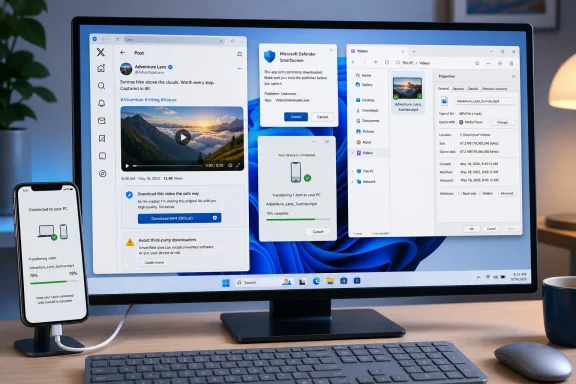
X’s video documentation gives three important eligibility limits: official downloads are available to Premium subscribers for eligible posts, uploaders can disable downloads, and videos posted before July 25, 2023 are excluded from this feature. The presence or absence of X’s official option—not whether an extraction site claims it can obtain the stream—should determine the first step.Direct answer
- Use X’s official video-download option when it is available for the post and your account.
- X documents this download route in its app interface, so a Windows PC user may need to download the video in the current X mobile app first, then transfer the resulting file to the PC using an existing approved sync or cable method.
- If X does not provide the official option, request the original file or an authorized copy from the creator.
- Do not provide your X password to a third-party downloader, install unfamiliar software or extensions, paste commands, or bypass Windows security warnings.
After obtaining a file, inspect it in File Explorer before opening it. Confirm that it has the name, size, and file type expected for a video. Use Properties to review the complete filename, reported type, size, and location. Do not run an application, installer, script, command, or unexplained archive when the intended result was a video. Keep Microsoft Defender SmartScreen and other Windows protections active.
This directly addresses the WindowsForum member who found three funny clips on X, tried several online tools without success, and wanted to save the videos on a Windows 11 PC. The safest solution is not another list of converter sites. It is to check X’s official route, move an officially downloaded file to the PC if necessary, or request it from the creator.
When X’s Official Download Is Available
X says Premium subscribers can download videos from certain posts. Its published instructions describe an app-interface procedure rather than guaranteeing that every eligible video will have an equivalent download command on the Windows desktop website.
For a PC user, that distinction produces a practical outcome. If an official download option is not visible in Edge, Chrome, or Firefox, check the same post in the current X mobile app using an account that has the required Premium access. If X offers the download there, save the file through the app and transfer it to the Windows PC using the sync service, USB cable, or other approved transfer method you already use.
This does not mean that opening the mobile app will make an ineligible video downloadable. X’s documented limits still apply:
- The viewer must meet X’s Premium requirement.
- The post must be eligible for the feature.
- The uploader can disable downloads.
- Videos posted before July 25, 2023 are not downloadable through this feature.
If the official option remains unavailable, the recommended next step is to ask the creator for the file. It is not to defeat the missing option with a technical workaround.
A temporary page or app problem is possible, so confirming that the post loads normally is reasonable. However, repeated refreshing, changing desktop browsers, or clearing caches should not be presented as a way to create eligibility. Those actions do not alter the documented age cutoff or an uploader’s decision to disable downloads.
One Decision Tree for Windows Users
- Check whether X offers its official download option for the video.
If it does, use it. - If the Windows website does not offer it, check X’s current mobile app.
X documents an app-based download route. If the option appears, download there and move the resulting file to the PC through your normal approved sync or cable method. - If X does not offer the option in the app, contact the creator.
Ask for the original file or an authorized copy and explain how you intend to use it. - If the creator cannot provide the file, reconsider whether you need a local copy.
Do not turn a missing official command into a reason to disclose credentials, install unknown software, paste commands, or weaken Windows protections.
This decision tree separates three questions that are often confused:
- Can the video be played?
- Does X or the creator provide a file?
- Do you have permission for the way you intend to use that file?
Successful playback answers only the first question. It does not guarantee an official download, permanent archive copy, editable source file, or permission to republish the work.
The Same Playback-versus-File Problem Appears Across WindowsForum
The X question reflects a recurring WindowsForum concern. Another member asked how to download videos shown on MSN when the site allowed viewing but did not provide an obvious way to save the videos for an archive.
WindowsForum discussions have also covered downloading TikTok videos on Windows 10 and Windows 11, downloading YouTube videos on a Mac, and converting YouTube videos that are already stored on a Windows 11 PC into MP3 files.
These questions concern different platforms and devices, but the relevant stages remain distinct:
- Playback is the delivery of media for viewing.
- Downloading produces a local file through a route provided by the platform, creator, or another source.
- Converting changes a file that has already been obtained into another format.
- Reusing includes editing, reposting, publishing, distributing, or incorporating the content into another project.
A browser may receive enough data to play a video without the service providing a user-facing download feature. That technical fact does not establish that the viewer has been offered a downloadable copy or has permission for later reuse.
This is why converter recommendations should not lead the answer. For the WindowsForum X report, the platform’s official route and the creator are the two recommended sources.
Requesting the File from the Creator
When X does not provide its official download option, contacting the uploader is often the most direct PC solution. Reply to the post or use an appropriate private contact method. Identify the clip clearly, explain why you want it, and ask whether the creator can send the original file or provide an authorized download location.
Make the request match the intended use:
- For a personal archive, ask for an offline copy for personal reference.
- For teaching or training, identify the audience and setting.
- For journalism or research, explain how the clip will be documented, quoted, or analyzed.
- For editing, reposting, or commercial use, request permission for those specific activities.
- If only the audio is needed, ask whether the creator can supply an audio file.
A creator-provided file may be more complete or less compressed than a social-platform copy. It can also preserve a clearer record of how the file was obtained and what the creator permitted.
Do not assume that receiving a file authorizes every later use. Permission for a personal archive is not necessarily permission to publish the video, and permission for one presentation is not necessarily permission to add it to a public media library.
Why Third-Party Downloaders Are Not the Recommended Fallback
The original WindowsForum report says several online tools did not work. That failure can encourage escalation from one site to another until a page requests account access, an extension, a “helper” program, or changes to Windows security.
Stop before reaching that point.
A browser-based service is not automatically trustworthy merely because it does not initially install software. Its ownership, privacy practices, reliability, data retention, advertising behavior, and authority to process the post may be unclear. A site’s visibility in search results does not settle those questions.
Most importantly, do not provide your X password to a third-party downloader. The same boundary applies to session cookies, account tokens, multifactor authentication codes, backup codes, or exported browser data. Do not enter those items into an unrelated site or send them to someone offering to retrieve the file.
Reject a downloader if it asks you to:
- Sign in through an X-like form hosted by the downloader.
- Export or paste cookies, tokens, or session values.
- Provide a multifactor authentication code.
- Install a browser extension for the download.
- Download a helper application, codec, update, or download manager.
- Paste a command into PowerShell, Command Prompt, Windows Terminal, or the Run dialog.
- Disable SmartScreen, antivirus scanning, browser warnings, or another protection.
- Grant access to an X account or Windows PC when the original task was only to save a video.
These are rejection criteria, not instructions for selecting a converter. If X does not offer an official download and the creator does not supply the file, going without a local copy may be the safest result.
Windows Safety Checklist
If you receive a file through X’s official route or directly from the creator, use one concise set of checks:
- Identify the download you intended to start.
Review the browser, app, or sync history so you know which action produced the file. - Locate the file in File Explorer without opening it.
Confirm that it arrived in the expected folder. - Inspect the complete name and reported file type.
Right-click the file, open Properties, and review its type, size, and location. - Confirm that the result is a video rather than software.
Do not run an application, installer, script, command file, or unexpected package when the requested result was media. - Treat unexplained archives cautiously.
Do not extract an unexpected archive merely to discover what it contains. Return to the source and determine why a direct video was not supplied. - Keep Windows security protections active.
Do not disable SmartScreen, browser protections, or antivirus scanning to complete a media download. - Open the file with a media player you already trust.
Do not install a player recommended by the same unfamiliar site that produced a questionable download. - Verify the content.
Confirm that it is the correct clip, that its duration is plausible, and that its video and audio play normally.
A filename or familiar-looking icon should not be the only basis for trust. The expected outcome is a playable video file—not a program that promises to retrieve, unlock, repair, or convert the video after it runs.
Take SmartScreen Warnings Seriously
Microsoft says Defender SmartScreen helps protect users from reported phishing and malicious-software sites and downloads. It also uses behavior and reputation information when evaluating downloaded files and applications. A warning may appear when an application is known to be malicious or does not have an established reputation. Microsoft’s SmartScreen documentation explains these site, download, behavior, and reputation checks.
A SmartScreen warning is risk information, not another installation screen to click through automatically. It does not by itself prove that every warned file is malicious, but it should not be dismissed because a downloader says the warning is normal.
If a site instructs you to bypass SmartScreen or run an unfamiliar program anyway, abandon the attempt. The site that supplied the file is not an independent authority on whether its own software should be trusted.
The same principle applies when a page asks you to disable antivirus protection, turn off browser warnings, or paste a command that changes security settings. The task was to obtain a video. Once the process requires running software or weakening protections, it has become a different and substantially riskier task.
Keep Permissions and Context with the Video
Downloading a video changes where a copy is stored. It does not automatically transfer ownership or grant unlimited reuse rights.
X’s copyright policy explains that the platform responds to complaints involving allegedly unauthorized copyrighted videos and other media and may remove or restrict access to reported content. The existence of an official download option should not be interpreted as automatic authorization for every later edit, redistribution, publication, or commercial use.
When the creator provides the file or grants permission, keep a short record beside it containing:
- The creator’s account or contact name.
- A reference to the original post.
- The date the file was obtained.
- How permission was received.
- The use the creator authorized.
- Any limits or conditions that were stated.
This context is useful even for a personal archive. A standalone video file may not preserve the post text, account details, replies, date, or explanation that originally surrounded it.
For work, school, journalism, research, or public communications, follow the organization’s approval process. Do not install an unapproved downloader or use a credential-sharing workflow on a managed PC. If the video is necessary and neither X nor the creator provides it, involve the appropriate IT, security, legal, records, or communications team.
Frequently Asked Questions
Can I download an X video directly to a Windows 11 PC?
Sometimes. Use X’s official download option if it appears for the post and your account. Because X documents an app-based procedure rather than guaranteeing a Windows desktop-web command, you may need to download the video in the current X mobile app and then transfer the resulting file to the PC using your existing approved sync or cable method.
What are X’s verified download limits?
According to X, the official feature is limited to Premium subscribers and eligible posts. Uploaders can disable downloads, and videos posted before July 25, 2023 are excluded from the feature.
Why is the official X download option missing?
The video may be older than the documented cutoff, the uploader may have disabled downloads, or the post or account may not qualify for the feature. The Windows desktop interface may also not expose the app-documented route. The available facts do not establish a specific reason in every case.
Should I clear my browser cache or try another browser?
You can verify that the post loads correctly, but browser troubleshooting does not change X’s documented date cutoff or an uploader’s download setting. After confirming that the page works, check the current X mobile app rather than repeatedly cycling through desktop browsers.
What should I do if X does not offer the download in its app?
Ask the creator for the original file or an authorized copy. Explain whether it is for a personal archive, classroom use, research, reporting, editing, publication, or another purpose. The recommended answer is a creator request, not a technical bypass.
Can I move an app-downloaded X video to my Windows PC?
If X provides the video as a file that can be transferred, use an existing sync service, USB cable, or another transfer method already approved for your device or organization. Check the resulting file in File Explorer before opening it.
Is an online X video downloader safe?
Do not assume that a browser-based downloader is safe. Its ownership, privacy practices, reliability, and handling of submitted links may be unclear. This article does not recommend third-party extraction as the normal fallback.
Should an X downloader require my password?
Do not provide your X password to a third-party downloader. Also refuse requests for cookies, session tokens, authentication codes, backup codes, or exported browser data.
Should I install a downloader extension or application?
Avoid installing unfamiliar extensions or programs to obtain a clip. If X does not provide the official option, request the file from the creator instead. Do not let an unsuccessful browser attempt escalate into an unknown software installation.
What should the downloaded result look like?
The expected result is a recognizable video file. It should not require you to run an application, installer, script, terminal command, or unexplained archive before the video becomes available. Inspect its complete name, reported type, size, and location through File Explorer and Properties before opening it.
What should I do if SmartScreen warns about the download?
Do not bypass the warning merely because the downloader tells you to. Stop and reassess the source and the type of file received. A normal media-download task should not require running unfamiliar software or weakening Windows protections.
Does downloading an X video give me permission to repost it?
Not automatically. Obtaining a file and obtaining reuse rights are separate events. Ask the creator specifically about editing, reposting, publication, distribution, or commercial use, and retain a record of any permission provided.