

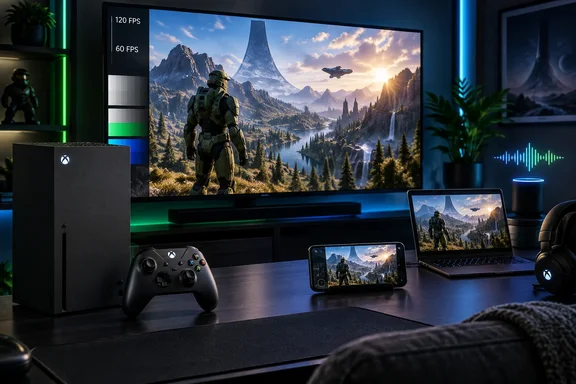
Xbox Series X HDR needs calibration and game compatibility checks
The first distinction is between HDR calibration and Auto HDR. High dynamic range allows supported content to use a wider range of brightness and color, while calibration helps match that presentation to your display. Auto HDR is a separate Xbox feature that adds HDR enhancements to supported older games originally released in standard dynamic range.
Neither is a guarantee that every game will look better after one switch. BGR itself notes that Auto HDR is already enabled by default in many supported games, despite presenting it among features requiring manual activation. Microsoft’s Xbox Wire guidance also documents both a system-level Auto HDR option and per-game compatibility controls. The practical question is whether your display supports the output and whether the particular game supports the enhancement.
Start with the display, using the procedure Microsoft describes in its Series X|S TV setup guidance:
- Open Settings > General > TV & Display Options > 4K TV details.
- Review the console’s assessment of the connected display, particularly HDR support. Microsoft specifies HDR10 compatibility for this HDR setup.
- Under TV & Display Options > Setup, select Calibrate HDR for Games.
- Complete the calibration screens using their displayed instructions rather than copying another television’s brightness values.
There is also a separate Calibrate TV tool in the same Setup area. Microsoft describes that tool as helping with picture settings such as brightness, sharpness, and contrast; it is not interchangeable with Calibrate HDR for Games.
For a supported older game, BGR describes selecting it in My Games & Apps, pressing the controller’s Menu button, and opening Manage Game and Add-Ons. Microsoft’s March 2021 Xbox update announcement identifies Compatibility Options within the game’s management settings as the place to toggle Auto HDR. Restart the game afterward. Microsoft says the Xbox guide can show an Auto HDR indicator beneath the clock, providing a check that the feature is active.
If the console does not recognize HDR support, repeated calibration is unlikely to solve the underlying connection problem. Microsoft’s guidance points to the television’s HDR-capable HDMI port, any required HDR mode on that input, and devices placed between the console and display. Connecting the Series X directly to the television with its supplied HDMI cable can help isolate an intermediary-device problem. Television setting names vary by model, so there is no single safe TV-menu instruction for every screen.
For strange colors that persist after those checks, Microsoft documents disabling Allow HDR10 and/or Auto HDR under Settings > General > TV & Display Options > Advanced > Video modes. That is a broader rollback than turning off Auto HDR for one game. Use the per-game control when the unwanted result is limited to that title.
Controller-linked sign-in suits dedicated controllers, not shared ones
Controller-linked sign-in is a convenience for households where each player has a particular controller. According to BGR, the console can associate that controller with an account and sign the account in when the controller connects. The benefit is straightforward: fewer profile-selection steps before playing.
BGR gives this setup path:
- Use the controller you intend to associate with your account.
- Press the Xbox button and open Profile & System > Settings > Account > Sign In, Security, & PIN.
- Select the option to use that controller to sign in.
The controller in your hands matters because, according to BGR, the setting links the one currently being used. Its exact menu wording and connection behavior are single-source details here; no second report available for this guide independently confirms them. Treat the path as dashboard-dependent rather than a promise that every console will display identical labels.
The decision is less about performance than household habits. If everyone has a dedicated controller, the association is useful. If controllers circulate between players, manual profile selection may remain clearer. A controller association should be treated as a sign-in convenience, not as proof of who is holding the device or a replacement for account-security decisions.
Xbox Remote Play depends on your console and the receiving device
Remote Play offers the most direct crossover for Windows readers: it lets a compatible PC become a screen for games running on an Xbox console. Microsoft’s Remote Play page describes streaming games installed on the console to supported PCs, phones, tablets, televisions, and headsets. It names LG and Samsung smart TVs, Amazon Fire TV devices, and Meta Quest among the supported device families, without implying that every model qualifies.
The important boundary is games running on your console. Remote Play should not be confused with Xbox Cloud Gaming, and enabling it does not make an arbitrary device compatible or make every game in your account remotely playable. Microsoft’s page includes game and device qualifications and notes that some games and online multiplayer may require Game Pass.
Microsoft lists these prerequisites:
- The Xbox Series X|S or Xbox One console must have remote features enabled.
- You need a Microsoft account with an Xbox profile.
- The receiving phone, tablet, PC, television, or headset must be compatible.
- The listed connection requirement is 5 GHz Wi-Fi or a mobile data connection with 10 Mbps download bandwidth.
- You need a compatible controller, although Microsoft also offers mobile on-screen touch controls.
The current Microsoft page lists Android 6.0 or later, iOS 15.1 or later, and Windows 10/11 with a “v. 22H2+” qualification. Those are stated compatibility requirements, not a claim that any device meeting an operating-system minimum will deliver equally good streaming performance. The 10 Mbps figure is likewise a listed requirement, not an independently measured guarantee of responsiveness.
For console setup, BGR reports opening the Xbox guide and going through Profile & System > Settings > Devices & Connections to the Remote Play controls, then checking Enable Remote Features. It also directs users to select Sleep under Power Options so the console does not fully power down. The section name may differ with dashboard revisions; the setting you are looking for is Enable Remote Features.
Microsoft’s current Remote Play page describes browser-supported access as well as the expanded range of receiving devices. BGR additionally describes Xbox-app access on Windows and supported TVs. Do not assume that the same application and connection sequence applies to a PC, a phone, and a television. The common requirements are the account, a compatible client, and a console configured for remote access.
Before relying on Remote Play away from home, establish that your intended receiving device can connect and start the game you want to use. That is a practical verification step, not a claim that WindowsForum has tested the service. It catches the consequential difference between successfully enabling a console setting and having a usable end-to-end streaming setup.
FPS Boost makes smoother older games a per-title choice
FPS Boost is the setting most likely to change how a supported older game feels. It increases the frame rate of selected backward-compatible games, but support is determined by title. Microsoft’s March 2021 Xbox update announcement explicitly warns that not every game supports FPS Boost or Auto HDR, and that Compatibility Options may therefore be unavailable.
BGR reports that supported games can reach 60 frames per second, with selected titles offering 120 fps when the display supports 120 Hz output. It also reports that some games lose resolution when FPS Boost is enabled, explaining why the feature is not always switched on by default. Those performance targets and resolution trade-offs are BGR’s reporting here, rather than results measured by WindowsForum.
The supported workflow is simple:
- Find the game in My Games & Apps.
- Press Menu and select Manage Game and Add-Ons.
- Open Compatibility Options.
- Enable FPS Boost if the option is available.
- Restart the game to apply the change.
Microsoft specifically requires the restart and describes checking the indicators beneath the clock in the Xbox guide to verify the selection. A missing FPS Boost checkbox does not establish a console fault; the title may simply lack support.
For a 120 fps option, the display path matters as well as the game. Microsoft’s TV guidance explains that some displays support 120 Hz only at particular resolutions or through particular HDMI ports. Owning a 4K television alone does not establish that it can display 4K at 120 Hz.
The sensible comparison is within the same game on your own screen. If smoother motion is worth any reduction in image detail, leave FPS Boost enabled. If you prefer the original presentation, disable it in Compatibility Options and restart again. There is no reason to treat one preference as the correct setting for an entire library.
Digital-assistant controls require setup beyond the Xbox checkbox
Digital-assistant integration is the least universal of these recommendations. According to BGR, Xbox Series X offers controls under Profile & System > Settings > Devices & Connections > Digital Assistants, where a checkbox enables the feature. The report also directs users to select Sleep in Settings > General > Power Options.
BGR describes completing setup by adding the Xbox through the Alexa or Google Home app, then using voice commands for functions such as launching games, changing volume, and taking screenshots. Those named assistant integrations and commands are not independently corroborated by the Microsoft records available for this guide. Their present availability should therefore be treated as reported, rather than guaranteed across assistants, regions, and dashboard versions.
The useful distinction is that enabling the console checkbox is only one part of the workflow. BGR’s procedure also requires an external assistant and device association. An enabled setting on the Xbox does not establish that a particular assistant currently supports every advertised command.
For someone who already uses a compatible assistant, this may remove a few controller interactions. For everyone else, the evidence does not justify buying assistant hardware specifically for Xbox control. Keep this as an optional convenience, with the external integration confirmed before changing your setup around it.
Choose Xbox Series X settings by the problem they solve
Start with display compatibility and the games you actually play; add automatic sign-in and remote controls only when they fit your routine. These are separate decisions, not a single optimization package.
- Check HDR10 recognition in 4K TV details before calibrating HDR, and distinguish system-wide HDR controls from a game’s Auto HDR option.
- Enable FPS Boost per supported game, restart afterward, and judge smoother motion against any reported resolution compromise.
- Link a controller to an account when that controller has a regular owner, rather than assuming the association improves account security.
- Configure Remote Play around the actual receiving device, account, connection, and installed game you intend to use.
- Treat digital-assistant support as an external integration to confirm, not a reason to enable every remote-control option.
The payoff is a Series X configured for its actual display, library, and household. HDR calibration and supported FPS Boost options deserve an early check because their results are visible while playing; Remote Play and account automation earn their place when they remove a recurring inconvenience. After changing a setting, verify the specific game or workflow it is supposed to improve—and keep the original configuration when the change offers no benefit.
References
- 5 Xbox Series X Features You'll Need To Manually Enable bgr.com · 2026-09-19T21:47:00+00:00
- March Xbox Update Rolls Out with the Upcoming Launch of the Xbox Wireless Headset - XBOX Wire news.xbox.com
- You're Ready to Power Your Dreams - Is Your TV? - XBOX Wire news.xbox.com