

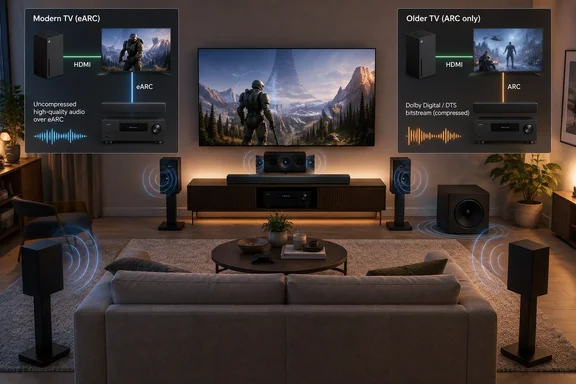
Xbox Series X|S Surround Starts With the TV's eARC Port
Microsoft recommends a TV-first layout. Xbox Wire's setup guide for Series X|S says you should route your Xbox directly into your TV or monitor with the supplied cable, then leverage ARC/eARC technology to send audio to your receiver or home theater setup. The idea is that the TV handles video and hands the audio on to the sound system. This layout suits most people, because many soundbars and older receivers can't pass the console's top video modes through to the TV.
Engadget says which HDMI port on your TV supports eARC depends on the manufacturer; the slot you're looking for should be branded with "eARC/ARC", and if it's not, check your TV's manual or the manufacturer's official listing online for precise specs. Once you find it, run a second HDMI cable from that port to the ARC or eARC HDMI input on the soundbar or receiver.
eARC stands for Enhanced Audio Return Channel. The HDMI Licensing Administrator says eARC enables the audio to a TV that originates from cable, satellite, streaming or source devices to be sent to an AVR or sound bar through a single HDMI cable. The Xbox is one of those source devices. Its audio reaches the TV over the input cable and goes back out to the speakers over the eARC link.
Why ARC and eARC Decide Between 5.1 Uncompressed and Bitstream
The Xbox's surround options fall into two groups. Uncompressed (multichannel PCM) sends every channel as raw lossless audio. Bitstream has the console encode the sound into a format such as Dolby Digital or DTS, and the receiver decodes it. Your TV's return channel decides which group will work.
eARC can carry the uncompressed kind. HDMI's description says eARC supports the latest high-bitrate audio formats up to192kHz, 24-bit, and uncompressed 5.1 and 7.1, and 32-channel uncompressed audio, along with DTS-HD Master Audio™, DTS:X®, Dolby® TrueHD, Dolby Atmos®.
Older ARC has much less room. An experienced member of the AVForums community explains that through ARC you are limited to either uncompressed stereo or lossy audio formats so if you want surround sound you need to select Bitstream then either Dolby Digital or DTS. That is why Engadget's fallback advice works. It says that if the uncompressed options fail, they may require more bandwidth than your setup offers. Try Bitstream out in that case. A 2020 Series X guide from Arcader describes the same limit: when audio goes to your speakers over optical or HDMI ARC, uncompressed may require too much bandwidth for your connection.
"Bandwidth" is a fair shorthand, but the real reason is usually easier to check: which return channel your TV has and which formats it tells the console it supports. A TV with eARC and a receiver that supports eARC should handle 5.1 uncompressed. A TV with ARC only generally can't, however good the cable.
Setting Xbox Speaker Audio for 5.1 Uncompressed
Once the wiring is done, the settings are all in one menu. Xbox Wire gives the path as Press the Xbox button to open the guide and select Profile & system > Settings > General > Volume & audio output. Engadget says that under Speaker audio, depending on what type of home theater setting you're working with, either the 5.1 uncompressed or 7.1 uncompressed option should provide immersive multi-channel audio.
Choose the setting that matches your speakers. A 5.1 system has five main speakers and a subwoofer, so it should use 5.1 uncompressed. 7.1 uncompressed is for systems with seven main channels. A Tom's Guide walkthrough agrees: if you can use surround sound and are using an HDMI ARC or eARC connection, select either 5.1 Uncompressed or 7.1 Uncompressed. That advice lumps ARC in with eARC, though. On an ARC-only TV, expect to need the bitstream route below.
Falling back to Bitstream out on ARC-only TVs
If you choose 5.1 uncompressed and get silence, stereo only, or a receiver that reports a two-channel signal, switch to bitstream. Arcader suggests you choose Bitstream Out and select DTS Digital Surround or Dolby Digital as your bitstream format to get proper surround audio. (Some systems may only support one or the other, but many will support both.) Select whichever format your soundbar or receiver lists as supported. If it supports both, try each one and see which your hardware handles more reliably.
Confirming surround is actually working
Don't assume the menu setting worked. Play a game or film you know has multichannel audio, then check the receiver or soundbar. Most show the incoming format on a front-panel display, a set of indicator lights, or an info screen. You're looking for a 5.1 PCM, Dolby Digital or DTS signal, not two-channel stereo. Checking the audio device's own readout is the most direct way to know the whole chain is carrying surround.
The Trade-Offs Between Uncompressed PCM and Dolby Digital or DTS
If both options work on your hardware, you have to pick one, and neither is better in every way.
The sound-quality case favours uncompressed. The AVForums poster notes that when you set it to Bitstream and select either DD or DTS then the Xbox will internally convert all audio to either of those formats and send that to the soundbar but these are in a lossy format. The same thread recommends connecting the Xbox to the receiver by HDMI and choosing uncompressed 5.1 for the best quality. Game audio is generated live by the console, so bitstream means compressing that mix in real time. Uncompressed skips that step.
Bitstream keeps some features on your audio hardware. Arcader points out that with 5.1 or 7.1 uncompressed, you'll get higher quality audio, but you might not be able to use certain features on your receiver (like Dolby's "Night Mode," which requires bitstreaming Dolby audio). If you rely on dynamic-range compression for late-night play, that may be worth the lossy step.
Stereo content is a third factor. Soundbar maker Nakamichi's support pages, written for the Xbox One S, say that for stereo sources such as YouTube, XBOX system is not able to upmix 2.0 to multiple channels audio when set to "Bitstream". Nakamichi's workaround is to set the console to stereo uncompressed and let the soundbar's own upmixing spread the sound across all the speakers. That advice covers older hardware and one brand of soundbar. Still, it shows the general issue: the best setting depends partly on what you usually play.
| Xbox speaker audio setting | Link it needs | What you gain | What you give up |
|---|---|---|---|
| 5.1 uncompressed | eARC, or HDMI straight into a receiver | Lossless multichannel game audio | Some receiver features that need a Dolby bitstream, such as Night Mode |
| Bitstream out, Dolby Digital or DTS | Works over legacy ARC | Surround on older TVs; keeps Dolby-dependent receiver features | Game audio is converted to a lossy format |
| Bitstream out, Dolby Atmos for home theater | eARC or direct HDMI with Atmos-capable hardware | Height effects in supported games and apps | Needs the Dolby Access app and Atmos-capable equipment |
Adding Dolby Atmos Through the Dolby Access App
For Atmos equipment, Engadget says to install the Dolby Access app, which is free unless you're using headphones, and choose Dolby Atmos for home theater. Tom's Guide confirms the licensing split. After downloading Dolby Access from the Microsoft Store, you can ignore any offers to buy a license once you open it, as this is only necessary for certain Atmos-enabled headphones, rather than sound systems.
Microsoft's own instructions cover the rest. If your connected HDMI device supports Dolby Atmos or DTS:X, Xbox Wire says to go to Volume & audio output, then under HDMI audio, select Bitstream out. Under Bitstream format, select Dolby Atmos for home theater or DTS:X for home theater depending on which one your HDMI device supports. Xbox Wire also lists DTS:X alongside Dolby Atmos, so owners of DTS:X receivers have an equivalent option.
Atmos adds height to the sound, but only if your hardware can play it. It needs content mixed in Atmos and a receiver or soundbar that can decode it. Selecting the setting on a standard 5.1 speaker layout doesn't create overhead channels. The Atmos setting can also misbehave with non-Atmos content. Nakamichi reports that on the Xbox One, streams non-Dolby Atmos content (e.g 5.1 channels) on Netflix, Amazon Prime or Vudu apps, Xbox One console will cause the console to send out blank Surround Left and Right audio channels. Its fix was switching bitstream output to Dolby Digital for those streams. That report is about the older console. If you're on a Series X|S and your rear speakers go quiet during streaming, it's a reasonable first thing to check.
4K/120 and HDMI 2.1 Are a Separate Checklist From Surround Sound
Engadget ties audio setup to video, advising owners to connect to a TV that supports HDMI 2.1, making sure the HDMI cable supports this standard as well. That way, supported games can run at 4K/120 with surround still working. eARC and HDMI 2.1 video are separate features, though. You don't need HDMI 2.1 to get 5.1 audio, and eARC doesn't enable 4K/120.
Getting the video side right has its own traps. Xbox Wire warns that some displays can only hit a 120 Hz refresh rate at certain resolutions (such as 1080p), or only by utilizing specific HDMI ports using an HDMI 2.1 connection. Often only one or two ports on a TV support HDMI 2.1, and that may or may not include the eARC port. The console can tell you whether the port you picked works. Xbox Wire says to open Settings, then General, TV & Display Options, 4K TV details, where you should see a series of green checkmarks across the board. If the checkmarks are missing, try a different port.
For cables, the HDMI Forum describes the certified Ultra High Speed HDMI cable as designed to support HDMI 2.1a features including uncompressed 8k@60 and 4K@120. Certified cables carry a certification label on the packaging, which can be scanned with the HDMI Cable Certification app. Microsoft ships an Ultra High Speed cable with the Series X.
The Receiver-in-the-Middle Alternative
Some people plug the Xbox into the receiver instead, then run HDMI from the receiver to the TV. The console's audio then goes straight to the receiver, and ARC-versus-eARC limits no longer apply. AVForums posters describe this layout as a way to get uncompressed 5.1 from a receiver that has HDMI inputs.
The catch is video. The receiver now has to pass through every video feature you care about. Microsoft's troubleshooting advice points you back to the TV-first layout: if a device is plugged in between your TV and Xbox, remove it and plug your TV directly into your Xbox, then use ARC or eARC. If you still want a passthrough setup, Xbox Wire says to use cables certified for Xbox Series X (Ultra High Speed HDMI) or Xbox Series S (HDMI High Speed or HDMI Premium) between both the Xbox and receiver and the receiver and TV. Microsoft also recommends keeping both the TV and AV receiver firmware up to date.
What This Means for Your Xbox Audio Setup
Your first step is to find out whether your TV has eARC or only ARC. That tells you which Xbox setting to use. If the TV and sound system both support eARC, wire the console to the TV, run eARC to the audio device and pick 5.1 uncompressed. If the TV only has ARC, don't keep fighting the uncompressed options. Use Bitstream out with Dolby Digital or DTS and accept a lossy but real 5.1 signal. A receiver-in-the-middle layout is worth it only if the receiver can pass the console's video modes you care about.
- Plug the Xbox Series X|S into an HDMI 2.1 input on the TV, and use the 4K TV details screen to confirm the port supports the video features you want.
- Connect the TV's port labeled eARC or ARC to the soundbar or receiver's matching HDMI port, and check the TV manual if the labeling is unclear.
- In Profile & system > Settings > General > Volume & audio output, set Speaker audio to 5.1 uncompressed for a 5.1 system and 7.1 uncompressed only for a real 7.1 system.
- On an ARC-only TV, or if uncompressed gives you stereo or silence, pick Bitstream out with Dolby Digital or DTS Digital Surround, whichever your audio hardware supports.
- For Atmos, install the free Dolby Access app, ignore the headphone license offer, and set the bitstream format to Dolby Atmos for home theater.
- Check the receiver or soundbar's format display with known multichannel content, because that readout is the only reliable proof that surround is reaching your speakers.
For most Series X|S owners with a TV from the last few years, 5.1 surround comes down to two HDMI cables and one menu setting. The eARC port carries lossless multichannel audio, and 5.1 uncompressed uses it fully. Owners of older ARC-only TVs lose some fidelity rather than surround itself, since Dolby Digital or DTS bitstream still delivers real 5.1. When it's time to replace the TV or receiver, check that both have eARC. That decides whether you have to put up with bitstream's lossy conversion.
References
- How to set up 5.1 surround sound system for your Xbox Engadget · 2026-09-22T20:00:00+00:00
- HDMI ARC - What is eARC? Audio Return Channel hdmi.org