

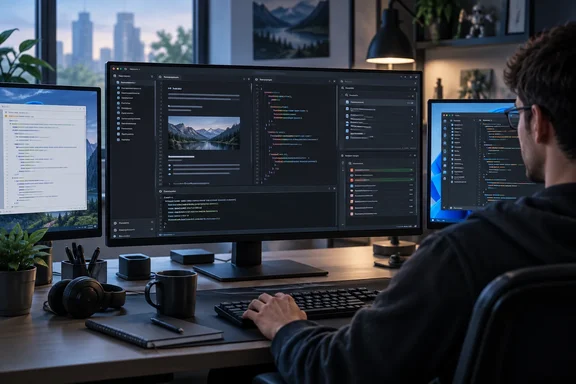
This is one developer's experience, not a benchmark. Still, it asks a question plenty of Windows users are asking now that Zed runs natively on Windows: can one app really replace both your scratchpad and your IDE?
The pitch: one editor, two jobs
The XDA author, Yash Patel, spent more than three years as a software engineer before he became a tech writer. He says he kept Notepad++ and VS Code installed side by side for years. He tried Zed to see if it could cover both roles without turning into "another bloated tool" on his PC. After a while, he says, he was opening Zed for nearly everything he used to split between the two apps.
His argument has two halves.
The Notepad++ half. Patel says he mostly used Notepad++ as a dependable place to open a file, change it and move on. He now does that in Zed. He regularly works with TXT, Markdown, JSON and XML files, and he highlights tabs, find-and-replace across repeated text, and comfortable navigation in long documents.
The VS Code half. The bigger change came when he started doing real development work in Zed. He points to:
- Language server support for autocomplete, diagnostics, go-to-definition and find-references
- Project-wide search for functions, variables and text across files
- An integrated terminal for running dev servers, installing packages and running scripts
- Git integration for seeing changes and reviewing diffs
- Extensions and debugging support
He also praises the interface. He expected a clutter of buttons and panels and found a focused layout driven mostly by the command palette. Compared with his VS Code setup, he says he doesn't have to arrange the editor before he can start working.
Section summary: The author reports that Zed took over his quick-edit work from Notepad++ and most of his daily VS Code work. That is a personal account, not a controlled comparison.
Is Zed actually a real Windows app now?
Yes, and it hasn't been for long. For years Zed was a macOS and Linux editor, and Windows users relied on community builds. One of those unofficial build projects now says that Zed is now officially available for Windows, both as stable and nightly builds, and it has archived itself.
Zed Industries announced the Windows launch on October 15, 2025. It stated that Windows is now a fully supported platform for Zed. We'll be shipping updates every week, like we do with Mac and Linux. The company also stresses that this is not a web wrapper: Zed isn't an Electron app; we integrate directly with the underlying platform for maximal control. The Windows build uses DirectX 11 for rendering, and DirectWrite for text rendering, to match the Windows look and feel.
That design choice matters for the "not bloated" argument. VS Code is built on Electron, which is essentially a bundled browser engine. Zed is written in Rust and draws its interface through native Windows graphics APIs. Zed is also not a newcomer from nowhere: it was started by Nathan Sobo, one of the creators of Atom, and is developed by Zed Industries. In other words, one of the people behind the editor that pioneered the Electron approach went on to build one without it.
Zed's own launch post also covers WSL. You can open a folder in Zed from a WSL terminal with the zed command-line script, or add a WSL distro from inside the editor through its remote-open flow. Zed's Windows documentation confirms that it supports remote development on Windows through both SSH and WSL.
The weekly release pace is visible in Windows-specific fixes. A recent stable point release fixed AltGr and diacritic input being swallowed by the integrated terminal on Windows. That matters to anyone typing on a non-US keyboard layout. A later release fixed ctrl-tab jumping to random documents when the mouse moved during a quick tab switch. A more recent one fixed compilation of development extensions on Windows ARM64, which is good news for Snapdragon laptop owners.
Section summary: Zed has been an officially supported native Windows app since October 2025, with DirectX 11 rendering, WSL integration and weekly updates.
"Free and open source": what that actually means
The headline's "free open-source" label holds up, with some detail worth knowing.
- Licensing: Zed announced it was open source on January 24, 2024. The editor is licensed under the GPL and its server-side components under the AGPL. GPUI, the UI framework underneath it, uses the Apache 2 license.
- Price: Zed's pricing page lists a Personal plan at $0 and calls the editor free forever. You can use the editor without an account and turn off AI features completely.
- The fine print is AI. The free plan includes 2,000 accepted edit predictions and unlimited use of your own API keys or external agents. Zed-hosted AI models need the $10-per-month Pro plan. A $30-per-seat Business tier adds organization-wide AI and data controls.
So the editor itself is free. The hosted AI services are not. Notepad++ users who have never wanted AI in their text editor can simply switch those features off.
Where the "replaces VS Code" claim runs out
Patel is candid that Zed hasn't fully replaced VS Code for him. His biggest complaint is the extension ecosystem. VS Code has extensions for almost every language, framework and workflow, and Zed's collection doesn't match that depth yet. He found framework-specific extensions, advanced debugging setups and testing tools easier to configure in VS Code. He kept VS Code installed for those jobs.
Zed's own documentation supports that caution. Its language support is split between two technologies. Tree-sitter handles syntax highlighting and structure. The Language Server Protocol (LSP) provides semantic features such as completion, diagnostics and go-to-definition. Zed downloads language servers automatically when you open a matching file type and may ask you to install an extension. Some servers also need a "toolchain", such as a Python virtual environment or a specific compiler. "Supports language servers" doesn't mean every language works perfectly out of the box.
Debugging works the same way. Zed uses the Debug Adapter Protocol. Its docs list built-in adapters for C, C++, Go, JavaScript, PHP, Python, Rust and TypeScript, while Java, Ruby and Swift support comes from extensions. Some setups need a hand-written .zed/debug.json configuration. If you work in .NET, C# or PowerShell, check support for your stack before you commit. The documentation reviewed for this article doesn't list those among the built-in debug adapters.
Git support is solid but not complete. Zed documents a Git Panel with staging, project diffs, file history, fetch, push, pull, stashing and merge-conflict buttons. The docs also say that for anything Zed doesn't support natively, you drop into the integrated terminal. That's a fair trade, not a gap you'd miss.
On the Notepad++ side, it's worth remembering what Zed is not. It's a project-oriented code editor, not a Windows-only utility with decades of plugins behind it. If you rely on a specific Notepad++ plugin or macro workflow, that's your VS Code extension problem all over again, just smaller.
Section summary: Zed covers the common development basics well. Language servers, debug adapters and toolchains still vary by language, so niche and heavily customized workflows may still belong in VS Code.
Should you switch? A practical trial plan for Windows
Don't uninstall anything on day one. Run a proper test drive instead:
- Install the official build. Zed's Windows docs say to get the latest stable builds via the download page, and after the first manual installation, Zed will periodically check for install updates. Skip the old community builds.
- Do a quick-edit test. Open a big log file, a JSON config and a Markdown file with no project loaded. Try find-and-replace and tab switching (Ctrl+Tab).
- Learn the core shortcuts. On Windows, Zed's documentation lists Ctrl+Shift+P for the command palette, Ctrl+P for the file finder, Ctrl+Shift+F for project search, F12 for go-to-definition, Alt+Shift+F12 for find references and Ctrl+Shift+X for the Extensions panel.
- Open a real project. Check that the right language server starts, that diagnostics appear and that your formatter runs on save. If something breaks, Zed's docs suggest running
zed: open logfrom the command palette and making sure external tools are on your PATH. - Test Git and the terminal. Stage a hunk, review the project diff and run your usual build command in the integrated terminal.
- Try your debugger and test runner. This is where the author ran into limits, so test it with your own stack.
- Decide what stays. If the test goes badly, removing Zed is easy. Zed's docs say that for installer builds you use Settings → Apps → Installed apps, search for Zed, and click Uninstall.
The bottom line
Patel's account is persuasive for the kind of user he describes: someone whose daily work is text files plus mainstream development. For that user, Zed can plausibly replace both the scratchpad and the IDE. The evidence behind that is Zed's native Windows build, its zero-cost editor and its documented LSP, Git, terminal and debugger features.
The author's own caveat still stands, though. VS Code's extension library remains the safety net for specialized frameworks, debugging setups and test tooling. For many Windows developers the realistic outcome isn't "one editor". It's Zed by default, with VS Code kept installed for the hard cases. Two editors on your PC isn't a crime, but only needing one is a nice place to end up.
Have you made Zed your default on Windows, or is an extension keeping you in VS Code? Tell the community in the developer tools forums, especially if you've tested it with .NET, PowerShell or WSL-heavy workflows.
References
- I replaced VS Code and Notepad++ with this one free open-source editor, and I haven't looked back XDA · 2026-09-29T14:30:20+00:00
- GitHub - pirafrank/zed_unofficial_win_builds: Unofficial stable and pre-release builds of the Zed editor for Windows, with version and release type matching. Easy install via scoop or pwsh script. Not affiliated with Zed Industries. · GitHub github.com
- Stable Releases — Zed zed.dev