

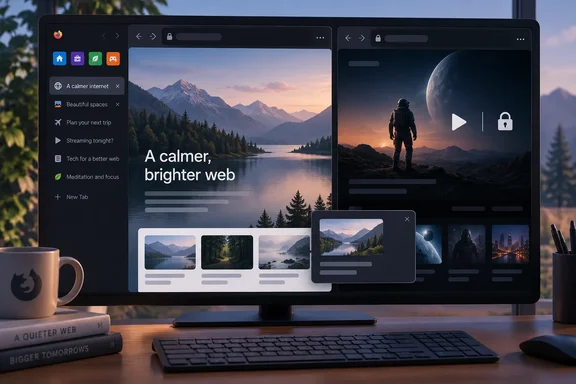
Here's what Zen does, what the official documentation confirms, and where the enthusiasm goes further than the evidence.
What Zen Browser Is
Zen is built on Firefox's code. That gives it the Gecko rendering engine, Firefox-style extension support and Firefox Sync, with Zen's own interface and workflow features added on top. For Windows users who worry about Chromium's growing dominance, a Gecko-based option that looks different from Firefox is worth a look.
The project ships regularly:
- Latest stable release: Zen's GitHub releases page lists 1.22.3b, dated September 22, 2026, as the current stable build. It updates Zen to Firefox 156.0.1 and makes searching tabs and folders from the command bar more efficient.
- Windows fix: The same release fixes a bug where Zen leaked system handles on Windows as content processes started and stopped.
- Hardware coverage: Downloads include Windows x64 and ARM64 installers, plus builds for macOS and Linux.
- Security updates: The previous release, 1.22.2b (September 15), moved Zen to Firefox 156.0 and linked a Mozilla security advisory. It also added hardware H.264 decoding for WebRTC video calls on Windows ARM64 devices and fixed a bug where Zen could stop an auto-hiding Windows taskbar from appearing.
The How-To Geek author says Zen updates arrive within 0–72 hours of each Firefox release. The recent release history fits that claim, but two release entries don't prove a guaranteed schedule. If you manage machines where patch timing matters, check the releases page yourself rather than assuming.
Summary: Zen is a Firefox fork that's under active development, has native Windows ARM64 builds and has recently shipped fixes aimed specifically at Windows.
The Interface: Built for Heavy Tab Users
Zen's biggest change is the layout. Tabs sit in a vertical sidebar on the left. The address bar can move into that sidebar, and the title bar and sidebar can hide themselves, so the web page fills the window. According to How-To Geek, you can make each of those elements permanently visible again in settings.
Zen's welcome page lists four main features: Workspaces, Compact Mode, Glance and Split View. Compact Mode hides the tab bar until you need it.
Why vertical tabs? With a normal horizontal tab strip and 40 tabs open, each tab shrinks until only its icon is visible. A vertical list keeps a fixed width, so you can still read part of each page title. Firefox now has its own vertical tabs, but the author prefers how Zen does it. That's a matter of taste, not something anyone has measured.
Workspaces and Containers
Workspaces work like virtual desktops for tabs. You might keep one for work, one for shopping and one for social media. Switch to a workspace and you only see its tabs.
Zen's manual adds a point the original article leaves out. Workspaces only organize your tabs. Keeping logins separate is the job of Container Tabs, a feature Zen inherits from Firefox. Containers keep separate cookie sessions inside one browser profile. Firefox provides four by default: Personal, Work, Banking and Shopping.
To set them up:
- On a fresh install, click "Default" in the sidebar, then the + icon to add a workspace.
- Manage or create containers under Settings > General > Container Tabs.
- Assign a default container to each workspace, so a work workspace can stay signed in to a different account than your personal one.
- Optionally, turn on "Switch to workspace where container is set as default when opening container tabs" under Settings > Tab Management > Workspaces.
There's a limit: the manual says containers separate cookies and browsing sessions, but not your browsing history or extensions. Don't treat them as full account isolation.
Split View and Glance
Split View shows several tabs in one window. Zen's FAQ gives the steps: select tabs with Ctrl+click (or a range with Shift+click), right-click and choose "Split x Tabs," then change the layout with the button in the address bar. The How-To Geek author tiled four tabs on a 34-inch ultrawide monitor. That's one person's setup, not a documented maximum.
Glance is the author's favorite feature. It opens a link in a floating preview over your current page, so you can check a reference without adding another tab. Zen's manual says:
- In a regular tab, hold Alt and click a link to open it in Glance.
- In Essentials and pinned tabs, links to other sites open in Glance automatically, without Alt.
- The preview has buttons to close it, expand it into a new tab or add it as a split tab.
- You can switch Glance off or change the trigger to Ctrl+Click or Shift+Click under Settings > Look and Feel > Glance.
The Ctrl+Click option is worth knowing about on Windows, where Alt already opens menus and apps often claim Alt shortcuts of their own.
Mods and Extensions
Because Zen is based on Firefox, it runs Firefox add-ons, including uBlock Origin. The author calls that a major advantage now that Chrome's move to Manifest V3 has weakened the original uBlock Origin. Zen also has a community Mods registry: one-click tweaks that change how the browser looks or behaves. The author recommends "Better Find Bar," which gives you a floating find bar, and "Better Unloaded Tabs," which greys out tabs that aren't loaded in memory. I haven't checked those two mods independently, so treat them as the author's picks.
The claim that every Firefox extension works "as expected" goes too far. Zen's changed interface can break extensions that rely on the standard Firefox toolbar or tab strip. Test the add-ons you depend on before you switch.
Privacy Claims
How-To Geek repeats Zen's own statements that it removes Firefox's telemetry, doesn't collect browser-specific data or personal information such as IP addresses and search queries, and blocks third-party trackers. Those are the project's claims, not the results of an independent audit. Zen's FAQ argues that the browser's codebase is derived from Firefox, a well-known and trusted open-source project, and that users can check its safety by reading the source code on GitHub. Being open source means the code can be checked. It doesn't mean anyone has audited it.
Zen's security documentation does list tracking protection levels (Standard, Strict, Custom) and DNS over HTTPS levels (Default, Increased, Max). Firefox offers similar settings, so "more private than Firefox" really comes down to default settings and telemetry, not a fundamentally different privacy design.
The Dealbreaker: No Netflix on Windows
This is the part most Windows users need to read. Zen's FAQ says Zen Browser currently lacks DRM support, as it does not yet have a Widevine license. This means DRM-protected media cannot be played in Zen Browser for the foreseeable future. The team says it is in the process of obtaining a Widevine license and are currently awaiting approval from Google. The FAQ names Netflix, Disney+, Amazon Prime Video, HBO Max, Spotify, Apple Music and Google Play Movies & TV as affected, and warns that other DRM services may not work either.
The fact that the Widevine component seems to be installed doesn't mean playback will work. A 2024 GitHub issue describes Udemy videos failing even though the "Widevine Content Decryption Module provided by Google Inc." is working correctly and is always enabled. A July 2026 discussion thread asks whether the project could pursue alternatives to Widevine so that Zen can stream and play DRM‑protected media sooner. So users are still asking for this, and there's no fix yet.
The official workarounds are to use a browser that has a Widevine license, such as Mozilla Firefox, when streaming DRM-protected content, or to use the service's own desktop app. On Windows, that's easy: keep Edge or Firefox for streaming, or install the Netflix, Disney+ or Spotify apps. The How-To Geek author streamed Netflix on Ubuntu without problems. That's one person's result on one setup, and Zen's FAQ doesn't promise that Linux works.
Should You Switch?
The article ends by calling Zen an open-source alternative to Arc, the Chromium-based browser known for its sidebar design, which is now in maintenance mode. That comparison is fair if what you want is Arc's style of tab organization on a Gecko engine that's still being updated.
A practical way to decide:
- Try Zen as your main browser if you keep dozens of tabs open, like vertical tabs and want Firefox add-ons such as uBlock Origin.
- Keep a second browser if you stream DRM-protected video or music on Windows.
- Wait if you manage a fleet of machines and need established enterprise tools. Zen's documentation covers individual users, not managed deployments.
Bottom line: Zen isn't objectively better than Chrome or Firefox. It's a well-maintained browser designed around a different way of working, and it can be a very good choice if that way of working suits you. Just keep another browser installed for Netflix until Google approves Zen's Widevine license.
References
- I ditched Chrome and Firefox for this modern, free, and open-source alternative How-To Geek · 2026-09-26T11:00:13+00:00
- DRM Videos is not playing and Play DRM-controlled content is check · Issue #715 · zen-browser/desktop github.com
- Releases: zen-browser/desktop github.com