

Windows 11 has improved a lot since launch, but it still ships with a handful of defaults that can make the desktop feel noisier, slower, or less personal than it should. The good news is that you do not need registry hacks or third-party tooling to fix most of that friction. A few built-in settings can make the system feel leaner, calmer, and more efficient in just minutes. These are not dramatic transformations, but they are the kind of small changes that compound into a noticeably better everyday experience.
Windows 11 was designed to feel modern, but “modern” has often meant opinionated. Microsoft leaned hard into recommendations, persistent taskbar features, background behaviors, and guided UI surfaces that help casual users but can annoy anyone who wants more control. That tension has become one of the defining stories of Windows 11: the operating system is polished, yet it still feels a little too eager to decide what is useful on your behalf.
That is why quick tweaks matter. They do not reinvent the platform. Instead, they strip away small irritations that accumulate through the day, especially for people who use Windows as a work tool rather than a showcase for Microsoft’s latest design language. A cleaner Start menu, a less cluttered taskbar, and a more predictable app setup workflow are not flashy features, but they improve the feel of the entire shell.
The broader appeal of these changes is that they are already built in. You do not need to install a launcher, a shell replacement, or a system optimizer. You just need to know where Microsoft hid the controls. That matters because built-in settings are usually safer, easier to reverse, and less likely to break after an update than aggressive tweaks or unsupported hacks.
There is also a subtle productivity argument here. Windows is at its best when it gets out of the way. The more your machine behaves like a calm utility instead of an attention engine, the more likely you are to stay focused. That is the real promise behind these small changes: not perfection, but less friction.
Turning it off is one of the fastest ways to make the shell feel less intrusive. The setting lives under Settings > Personalization > Start, and it gives you a simpler menu that focuses more on the apps you choose. That is a small change on paper, but in practice it reduces a constant source of visual noise.
You can toggle this in File Explorer by going to View > Show > File name extensions. After that, Windows stops hiding the final part of the filename, which gives you a lot more context. It is one of the most useful habits a Windows user can build, especially if you work with downloads or shared files.
Dark mode lives under Settings > Personalization > Colors, while Night Light can be enabled from the display or quick settings area depending on your build. Together, they can make long sessions more comfortable, especially if you work late or use your PC in a dim room. The difference is not just cosmetic; it can reduce eye fatigue and make the screen feel less harsh.
You can review them under Settings > Apps > Startup and decide what should actually launch with Windows. This is one of the most satisfying maintenance tasks because the effect is often immediate. Fewer startup programs usually means a cleaner boot and less CPU and memory pressure right after login.
You can manage this under Settings > Apps > Installed apps, then open an app’s Advanced options and adjust its background behavior. This is especially useful for apps you rarely need running all the time. If an app does not need to sync, notify, or update in the background, it probably does not need permission to do so.
What makes Snap Layouts so useful is that it reduces friction in multitasking. It is not a flashy feature, but it is one of those Windows tools that quietly changes how you work. Once you get used to it, arranging windows becomes almost automatic.
Right-click the taskbar, open Taskbar settings, and trim away the features that get in your way. The result is a cleaner strip at the bottom of the screen and fewer icons competing for your attention. That can make the desktop feel less crowded, especially on smaller displays.
For anyone who writes, edits, troubleshoots, or moves data around, this can be a huge time saver. It reduces the constant back-and-forth between windows when you need to reuse several snippets. It is one of those features that feels small until it becomes part of your daily rhythm.
You can manage this under Settings > Apps > Default apps. From there, you can assign file types and link types to the apps you actually want to use. It is a very simple step, but it can eliminate a surprising amount of friction over time.
This is one of the quickest ways to make Windows feel calmer. If your PC is constantly interrupting you with social updates, app reminders, or background prompts, the desktop stops feeling like a tool and starts feeling like a distraction machine. With a few tweaks, you can make notifications more deliberate and less intrusive.
The most likely direction is gradual improvement rather than dramatic reinvention. Over time, more of these settings may become easier to access or more intuitive to configure. Until then, knowing where to find them is enough to make a meaningful difference.
A few things are worth watching:
The most satisfying thing about these changes is how ordinary they are. They do not require a tutorial marathon, a registry backup, or a risky overhaul. They just make Windows a little less annoying, and that alone is enough to be worth doing.
Source: Neowin 10 quick tweaks that make Windows 11 a lot better
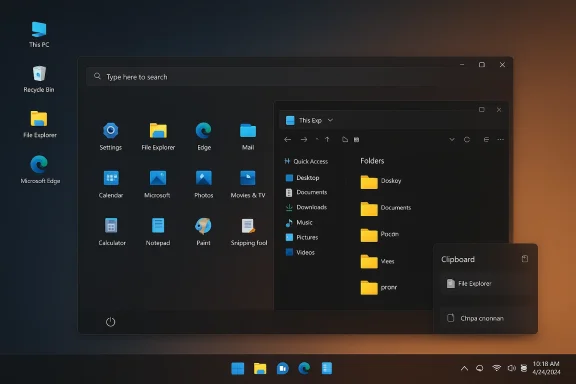 Overview
Windows 11 was designed to feel modern, but “modern” has often meant opinionated. Microsoft leaned hard into recommendations, persistent taskbar features, background behaviors, and guided UI surfaces that help casual users but can annoy anyone who wants more control. That tension has become one of the defining stories of Windows 11: the operating system is polished, yet it still feels a little too eager to decide what is useful on your behalf.That is why quick tweaks matter. They do not reinvent the platform. Instead, they strip away small irritations that accumulate through the day, especially for people who use Windows as a work tool rather than a showcase for Microsoft’s latest design language. A cleaner Start menu, a less cluttered taskbar, and a more predictable app setup workflow are not flashy features, but they improve the feel of the entire shell.
The broader appeal of these changes is that they are already built in. You do not need to install a launcher, a shell replacement, or a system optimizer. You just need to know where Microsoft hid the controls. That matters because built-in settings are usually safer, easier to reverse, and less likely to break after an update than aggressive tweaks or unsupported hacks.
There is also a subtle productivity argument here. Windows is at its best when it gets out of the way. The more your machine behaves like a calm utility instead of an attention engine, the more likely you are to stay focused. That is the real promise behind these small changes: not perfection, but less friction.
1. Turn off Start menu recommendations
The Windows 11 Start menu can feel busier than it needs to be, especially if you do not want Microsoft surfacing app and file suggestions every time you open it. The recommendations panel occupies valuable visual space, and for many users it feels more like a promotional lane than a helpful shortcut. That may be useful for some people, but for others it is just clutter.Turning it off is one of the fastest ways to make the shell feel less intrusive. The setting lives under Settings > Personalization > Start, and it gives you a simpler menu that focuses more on the apps you choose. That is a small change on paper, but in practice it reduces a constant source of visual noise.
Why it matters
A cleaner Start menu is not just about aesthetics. It is about trust and predictability. When the menu opens, many users want a launcher, not a feed of suggestions they did not ask for.- Less visual clutter
- Fewer “promoted” items
- Faster access to pinned apps
- A more predictable Start experience
2. Show file extensions
Showing file extensions is one of those tweaks that seems minor until you actually need it. Once enabled, you can immediately tell whether a file is a .png, .jpg, .pdf, .exe, or something more suspicious. That small bit of visibility can save time, prevent mistakes, and reduce the chance of opening something you did not intend to open.You can toggle this in File Explorer by going to View > Show > File name extensions. After that, Windows stops hiding the final part of the filename, which gives you a lot more context. It is one of the most useful habits a Windows user can build, especially if you work with downloads or shared files.
Security benefits
This is not just a convenience tweak; it is a defensive one. Malware authors have always relied on users not noticing that a file is executable or disguised behind a misleading name. Showing extensions makes that trick harder to pull off.- Helps identify file types instantly
- Reduces accidental execution of risky files
- Makes format mismatches easier to spot
- Improves confidence when renaming or moving files
3. Enable dark mode or Night Light
Windows 11 gives you two separate visual comfort settings that are worth using in different situations. Dark mode changes the overall theme of the interface, while Night Light shifts the display toward warmer tones to reduce blue light exposure later in the day. They solve different problems, but they can also work together very well.Dark mode lives under Settings > Personalization > Colors, while Night Light can be enabled from the display or quick settings area depending on your build. Together, they can make long sessions more comfortable, especially if you work late or use your PC in a dim room. The difference is not just cosmetic; it can reduce eye fatigue and make the screen feel less harsh.
When each one helps
Dark mode is the more obvious choice if you simply prefer a darker interface or want something easier on the eyes. Night Light is more situational and is especially useful at night when you want a warmer color temperature.- Dark mode reduces the visual intensity of Windows UI
- Night Light can feel easier on the eyes after sunset
- Both can be used together
- They are especially helpful on bright laptops and OLED displays
4. Disable unnecessary startup apps
Startup apps are one of the easiest ways for a Windows installation to become sluggish over time. Plenty of apps register themselves to launch automatically after installation, often without making a strong case for why they need to be there. The result is slower boot times, longer sign-in delays, and more background activity than necessary.You can review them under Settings > Apps > Startup and decide what should actually launch with Windows. This is one of the most satisfying maintenance tasks because the effect is often immediate. Fewer startup programs usually means a cleaner boot and less CPU and memory pressure right after login.
What to look for
Not every startup app is bad. Some are genuinely useful, especially security tools, driver utilities, or communication apps you rely on all day. The key is to separate convenience from habit.- Disable apps you rarely use right away
- Keep security tools if they are necessary
- Review impact ratings where available
- Revisit the list after major software installs
5. Turn off background permissions for apps
Windows 11 still allows many apps to run in the background, and that can matter more than users realize. Background permissions can drain battery, use memory, and keep services alive long after the app window has closed. On a desktop, that might be a mild annoyance; on a laptop, it can be a real drain.You can manage this under Settings > Apps > Installed apps, then open an app’s Advanced options and adjust its background behavior. This is especially useful for apps you rarely need running all the time. If an app does not need to sync, notify, or update in the background, it probably does not need permission to do so.
Why this pays off
This tweak improves both performance and battery life, and it also gives you a clearer picture of what is actually active on your machine. Windows can feel “busy” even when you are not doing anything if too many apps quietly keep working.- Reduces background CPU and memory use
- Can help battery life on laptops
- Limits unwanted syncing or notifications
- Makes the system easier to manage
6. Use Snap Layouts
Snap Layouts remains one of the smartest productivity features Microsoft has added to Windows 11. Hover over a window’s maximize button and you can instantly choose from a set of predefined arrangements. It is a fast way to organize multiple apps without dragging windows around manually or constantly resizing them.What makes Snap Layouts so useful is that it reduces friction in multitasking. It is not a flashy feature, but it is one of those Windows tools that quietly changes how you work. Once you get used to it, arranging windows becomes almost automatic.
Why it stands out
Snap Layouts is especially valuable on larger monitors, ultrawides, and multi-display setups, but it helps even on modest screens. It gives you a faster way to create a usable workspace without installing anything extra.- Speeds up window arrangement
- Works well for multitasking
- Helps keep app layouts consistent
- Makes better use of larger displays
7. Simplify the taskbar
The Windows 11 taskbar is still one of the most debated parts of the interface. Some users like the cleaner design. Others miss the control and flexibility of earlier versions. Fortunately, you can still simplify it by removing items you do not need, such as Search, Task View, Widgets, and Resume.Right-click the taskbar, open Taskbar settings, and trim away the features that get in your way. The result is a cleaner strip at the bottom of the screen and fewer icons competing for your attention. That can make the desktop feel less crowded, especially on smaller displays.
What to remove first
A good rule is to remove anything you never use. You can always bring it back later if you change your mind.- Hide Search if you prefer keyboard shortcuts
- Disable Widgets if you do not use the panel
- Remove Task View if you work with fewer desktops
- Turn off Resume if you do not need handoff-style behavior
8. Enable Clipboard History
Clipboard History is one of the most underrated Windows 11 features. Instead of being limited to a single copied item, you can store up to 25 recent entries, including text, images, and even emojis in many cases. Press Win + V to open it and you immediately get a much more capable copy-and-paste workflow.For anyone who writes, edits, troubleshoots, or moves data around, this can be a huge time saver. It reduces the constant back-and-forth between windows when you need to reuse several snippets. It is one of those features that feels small until it becomes part of your daily rhythm.
Why it changes the workflow
Clipboard History is especially useful for repetitive tasks. If you copy from emails, documents, browser pages, or support tools all day, the extra history can remove a lot of manual repetition.- Saves multiple copied items
- Works well for text-heavy workflows
- Can include rich content
- Helps reduce repetitive copy-paste cycles
9. Configure default apps
Windows 11 has improved a lot in this area, but default app handling is still one of those settings that deserves attention. If you prefer a certain browser, media player, PDF reader, mail client, or image app, setting it as the default helps Windows behave the way you expect. That consistency matters more than it sounds.You can manage this under Settings > Apps > Default apps. From there, you can assign file types and link types to the apps you actually want to use. It is a very simple step, but it can eliminate a surprising amount of friction over time.
Why defaults matter
The right defaults reduce interruption. You do not want to be constantly asked which app should handle a file type every time you double-click something. You also do not want Windows quietly redirecting common tasks to a different app than the one you prefer.- Keeps common workflows predictable
- Reduces prompts and interruptions
- Helps you avoid accidental app switching
- Makes the system feel more personal
10. Tune notification settings
Notifications can be useful, but they can also be exhausting. Windows 11 gives you a lot of control here, including Do not Disturb scheduling, priority notifications, sound controls, and per-app notification permissions. You can find all of this under Settings > System > Notifications.This is one of the quickest ways to make Windows feel calmer. If your PC is constantly interrupting you with social updates, app reminders, or background prompts, the desktop stops feeling like a tool and starts feeling like a distraction machine. With a few tweaks, you can make notifications more deliberate and less intrusive.
A smarter alert strategy
The goal is not to silence everything. The goal is to make sure the alerts you do receive are worth seeing.- Schedule Do not Disturb for focus time
- Disable notifications from unimportant apps
- Keep priority alerts limited to key apps
- Turn off notification sounds if they break concentration
Strengths and Opportunities
These tweaks work because they solve real friction instead of chasing novelty. They are quick to apply, easy to reverse, and available to every Windows 11 user without extra software. For a lot of people, that makes them more valuable than any flashy customization package.- Restores control over the Start menu
- Improves security awareness through file extensions
- Makes late-night use more comfortable
- Reduces boot-time and background overhead
- Helps multitasking with Snap Layouts
- Simplifies the taskbar and reduces clutter
- Makes clipboard work far more efficient
Risks and Concerns
These tweaks are generally safe, but they are not completely without tradeoffs. Some settings may not match every user’s workflow, and some features—especially clipboard sync or notification changes—depend on how you use your machine. A little judgment goes a long way.- Clipboard syncing may raise privacy concerns
- Background app restrictions can affect live updates
- Turning off notifications too aggressively can hide important alerts
- Default app changes may need to be rechecked after updates
- Startup app changes can affect support software or sync tools
- Dark mode and Night Light are preference-driven, not universal fixes
Looking Ahead
Windows 11 will probably continue to evolve in a way that mixes polish with opinionated defaults. Microsoft has shown a willingness to refine the platform, but it still tends to add layers faster than it removes friction. That means users will keep benefiting from the built-in controls that let them reclaim some of that simplicity for themselves.The most likely direction is gradual improvement rather than dramatic reinvention. Over time, more of these settings may become easier to access or more intuitive to configure. Until then, knowing where to find them is enough to make a meaningful difference.
A few things are worth watching:
- Whether Microsoft makes Start and taskbar customization easier
- Whether default app handling becomes more consistent
- Whether clipboard and notification features get better onboarding
- Whether background activity controls become clearer
- Whether more quality-of-life settings move into quicker-access panels
The most satisfying thing about these changes is how ordinary they are. They do not require a tutorial marathon, a registry backup, or a risky overhaul. They just make Windows a little less annoying, and that alone is enough to be worth doing.
Source: Neowin 10 quick tweaks that make Windows 11 a lot better
