The novelty of AI has faded into the everyday scramble of the blank prompt box — but the practical difference between a wasted Copilot session and one that saves hours is almost never the model and almost always the instruction you give it.
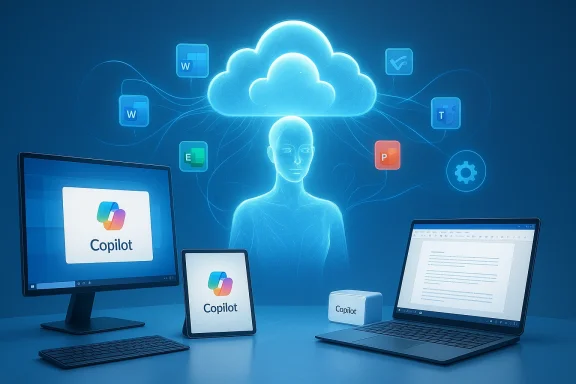
Microsoft has firmly positioned Copilot as a productivity layer inside the Microsoft 365 ecosystem, embedding generative AI across Word, Excel, PowerPoint, Outlook, Teams and other apps so the assistant can act on the data you already use at work. This in‑app model and the idea of “business grounding” — letting the assistant read your files, calendar, chats and meetings to produce work artifacts — is central to Microsoft’s design. The practical upshot is simple: Copilot is most useful when it has both context and constraints. Microsoft documents and product pages now expose multiple conversation modes (Quick, Think Deeper, Deep Research and Smart) so users can choose how much “cognitive budget” the assistant should spend on an answer. These modes change latency, depth, and how Copilot reasons about multi‑step tasks. This article synthesizes a widely circulated primer — a 14‑prompt toolkit that turned up in tech coverage — and expands it into a work-ready playbook: what each prompt actually does, how to beef it up, the privacy and governance tradeoffs to watch, and step‑by‑step templates you can drop into your Copilot workflow today. The goal is practical: take Copilot from novelty to reliable sidekick without creating more cleanup work for yourself.
Example rewrite:
Adopt one or two of the prompts above that match your biggest daily pain points. Turn those prompts into reusable templates. Map the data sources they touch and set simple governance rules. Over a few weeks you’ll find Copilot moves from novelty to dependable collaborator, trimming the administrative overhead and letting your team focus on judgment‑heavy tasks that still require a human in the loop.
Source: eWeek 14 Ways to Use Microsoft Copilot More Effectively at Work
 Background / Overview
Microsoft has firmly positioned Copilot as a productivity layer inside the Microsoft 365 ecosystem, embedding generative AI across Word, Excel, PowerPoint, Outlook, Teams and other apps so the assistant can act on the data you already use at work. This in‑app model and the idea of “business grounding” — letting the assistant read your files, calendar, chats and meetings to produce work artifacts — is central to Microsoft’s design. The practical upshot is simple: Copilot is most useful when it has both context and constraints. Microsoft documents and product pages now expose multiple conversation modes (Quick, Think Deeper, Deep Research and Smart) so users can choose how much “cognitive budget” the assistant should spend on an answer. These modes change latency, depth, and how Copilot reasons about multi‑step tasks. This article synthesizes a widely circulated primer — a 14‑prompt toolkit that turned up in tech coverage — and expands it into a work-ready playbook: what each prompt actually does, how to beef it up, the privacy and governance tradeoffs to watch, and step‑by‑step templates you can drop into your Copilot workflow today. The goal is practical: take Copilot from novelty to reliable sidekick without creating more cleanup work for yourself.Why these prompts matter
The common thread across effective Copilot prompts is specificity: role, input, goal, output format, tone and constraints. Vague prompts produce generic or “corporate-speak” results that need heavy editing; specific prompts convert Copilot into a literal, high‑performance assistant. Business leaders have begun sharing their own prompt recipes publicly — including a short list of prompts from Microsoft’s CEO that highlight using Copilot to scan prior interactions and synthesize actionable meeting prep — and the media has widely reported on this pattern. Use of these prompts is already showing up as a replicable productivity practice across teams. At the same time, product documentation and testing notes repeatedly flag the same caveats: hallucination risk, data residency and sharing concerns when connectors or vision/voice features are enabled, and subscription / feature gating (some capabilities are limited by license, region, or device). Those operational realities should shape how you roll out any Copilot‑driven workflows.The 14 prompts — what they do and how to improve them
Below are the 14 prompt archetypes (as described in the original primer), explained, improved, and given real‑world variants you can use immediately. Each entry includes: what the prompt buys you, why it works, risk flags, and a stronger prompt template.1) The pre‑meeting mind reader
- What it does: scans your prior interactions with a colleague and surfaces what’s likely to be top of mind heading into a meeting.
- Why it works: Copilot can surface patterns and unresolved open items across emails, chats and previous meeting notes so you arrive prepared.
- Risk / caution: If Copilot can access private or sensitive threads, it may surface items you shouldn’t summaryarize in a shared setting. Confirm the scope of data scanned.
- Stronger prompt template: “Based on my prior interactions with [Name] in the last 90 days (emails, Teams chats, and meeting notes), list five topics they’re most likely to raise in our next 30‑minute meeting, and for each topic include one suggested question I can ask and one potential follow‑up action.”
2) The presentation architect (Word → PowerPoint)
- What it does: turns an existing document into a slide outline with speaker notes and objection handling.
- Why it works: Grounding on a source document reduces content invention and gives your deck a coherent narrative.
- Risk / caution: Brand and design fidelity may require designer review; check accuracy for any data or claims pulled from the source.
- Stronger prompt template: “Using this attached document as the source, generate an 11‑slide executive presentation outline. For each slide provide (a) a one‑line heading, (b) three bullet points of content, (c) one sentence speaker notes addressing potential objections, and (d) a suggestion for a single, simple visual (chart, metric callout, or image). Use tone: concise, executive level.”
3) The diplomatic reply draft
- What it does: produces a measured, tone‑aware email reply for sensitive situations.
- Why it works: Tone, accountability and concrete next steps (dates, owners) are the difference between clumsy and useful email.
- Risk / caution: Don’t let Copilot include sensitive legal language or commit to contractual obligations without human legal review.
- Stronger prompt template: “Draft a 120–150‑word reply to [Sender] about the delayed timeline. Use an apologetic but confident tone, acknowledge the impact, propose these two alternative check‑in dates [date1, date2], assign a named owner for the next steps, and include a one‑line sentence about mitigation we’re implementing.”
4) The stress test for proposals
- What it does: acts as an internal devil’s‑advocate to identify weak logic or unproven claims.
- Why it works: Copilot can spot gaps or missing evidence that a fresh pair of eyes might catch faster than you.
- Risk / caution: Copilot might invent plausible but incorrect “facts” about competitors or data; always double‑check suggested evidence sources.
- Stronger prompt template: “Identify the three weakest arguments in this proposal and for each: (a) explain why it’s weak, (b) recommend one concrete data point or reference to strengthen it, and (c) suggest one reformulation that reduces risk.”
5) The image describer (accessibility & social captions)
- What it does: builds alt text and short social captions from an uploaded image.
- Why it works: Useful for accessibility compliance and quick marketing copy.
- Risk / caution: Vision features can expose image content; only upload images you have rights to and that aren’t sensitive.
- Stronger prompt template: “Describe this image in plain, accessible English for alt text (max 125 characters). Then propose three concise social media captions (max 100 characters each) with different tones: professional, playful, and inspirational.”
6) Visual concepting: presentation backgrounds
- What it does: requests a generated background image with constraints (palette, negative space).
- Why it works: Specifying negative space and palette keeps generated imagery usable behind text.
- Risk / caution: Generated images may need checks for trademarked logos or unintended likenesses.
- Stronger prompt template: “Create a high‑resolution minimalist background for a slide about [topic] using deep blues and dark grays, generous negative space on the right for text, subtle abstract texture, no logos or people.”
7) Creating custom brand assets
- What it does: generates simple illustrative assets (flat‑lay, 3D illustration) for internal use.
- Why it works: Saves small design tasks; good for internal comms where brand precision is relaxed.
- Risk / caution: For external-facing or branded marketing, have a designer verify brand guidelines and file formats.
- Stronger prompt template: “Generate a flat‑lay 3D illustration of a modern home office (laptop, coffee cup, small plant). Use bright modern colors, soft lighting, clean composition, no text, PNG with transparent background.”
8) The email thread tamer
- What it does: condenses long threads into decisions, unanswered questions and personal actions.
- Why it works: Focuses your attention on what matters instead of forcing you to read every “Re:”.
- Risk / caution: Thread summarization depends on the messages Copilot can access — if attachments hold a decision, ensure Copilot saw them.
- Stronger prompt template: “Summarize this 12‑message thread into three bullets: (1) decisions made, (2) unresolved questions, and (3) actions I must take (owner + due date if present). Keep it under 80 words.”
9) The project pulse‑check
- What it does: synthesizes status across notes, emails and chats and produces a one‑paragraph status with an estimated probability of on‑time delivery.
- Why it works: Automates the heavy lift of triaging across multiple sources for a quick status update.
- Risk / caution: The probability value is an estimate and depends on the recency and completeness of the scanned inputs; treat it as a conversation starter, not a contract.
- Stronger prompt template: “Assess whether we’re on track for the [Project Name] launch. Check my recent meeting notes, key emails, and project chat updates for engineering progress, pilot feedback and cited risks. Provide one paragraph status (3–4 sentences) and a percentage probability with one sentence explaining your main assumption.”
10) The ‘plain English’ data narrative
- What it does: converts spreadsheet trends into a human narrative plus suggested next steps.
- Why it works: Humans need stories, not raw pivot tables, to make decisions quickly.
- Risk / caution: Numerical interpretation errors can occur if headers are ambiguous or units aren’t clear; always verify.
- Stronger prompt template: “Explain trends in columns B–F over the last 6 months: highlight anomalies, top drivers, and three specific next steps in plain English (no jargon). Indicate any assumptions and one checkbox of items I should verify.”
11) The tone polish
- What it does: shortens and humanizes text while preserving meaning.
- Why it works: Keeps internal communication readable and less likely to trigger defensive reactions.
- Risk / caution: Trimming can drop nuance; keep original text handy and compare versions.
- Stronger prompt template: “Rewrite this section to be 30% shorter and more conversational while preserving the exact meaning. Keep technical terms and remove legalese.”
12) The ‘explain it to me simply’ card
- What it does: forces Copilot to avoid jargon and produce a plain‑language explanation for teammates.
- Why it works: Great for onboarding or cross‑functional discussions.
- Risk / caution: Simplicity should not oversimplify; ask Copilot for the “what, why, and one example” structure to preserve accuracy.
- Stronger prompt template: “Explain [Complex Concept] in three short paragraphs for a new teammate: (1) one‑sentence definition, (2) why it matters to our team, (3) a short example of how we use it.”
13) The calendar reality check
- What it does: groups calendar time into categories and shows rough percentages to reveal where time is spent.
- Why it works: Quick diagnostics for time allocation and to identify meeting bloat.
- Risk / caution: Private calendar items and cross‑tenant meetings won’t be fully visible if permissions are limited.
- Stronger prompt template: “Review my calendar for the last 30 days and produce five categories (e.g., focus work, recurring meetings, 1:1s) with approximate % of total time and a one‑line recommendation to rebalance each category.”
14) The executive summary shortcut
- What it does: extracts outcomes, risks and next steps from a long document.
- Why it works: Executives want the bottom line fast; Copilot can craft concise briefs if prompted to prioritize impact.
- Risk / caution: Long documents can hide qualification language; tell Copilot to flag any claims lacking supporting evidence.
- Stronger prompt template: “Create a short executive summary from this document (max 150 words) focused on: outcomes, three top risks (with likelihood), and three next steps with owners. Flag any claims that lack supporting data.”
Comparison: weak prompts vs. strong prompts (practical rewrite examples)
One of the most useful exercises is rewriting general prompts into contextualized or role‑based prompts. A weak prompt like “Write an email about the project” is ambiguous. A strong prompt replaces ambiguity with context, role, audience, tone and constraints.Example rewrite:
- Weak: “Write an email about the project.”
- Strong: “Draft a short, urgent update to the Marketing team about Project Titan’s delay. Explain the cause in one sentence, outline a revised schedule, propose two mitigation actions, and close with a call to action for the team to review updated collateral by Friday.”
Governance, privacy and the verification checklist
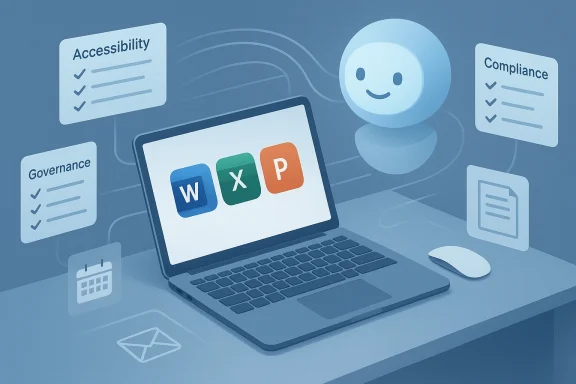
Copilot is powerful because it can access your work data. That same capability creates governance responsibilities. Practical safeguards include:- Audit connector settings and only enable access to the services Copilot genuinely needs for a task. Be explicit about what Copilot can read (calendar vs. full mailbox).
- Turn on model training opt‑outs where required by corporate policy to prevent your tenant’s prompts from contributing to model training, if compliance needs demand that.
- Treat probability outputs as estimations. When Copilot returns a percentage for project readiness, require a human verify the data sources and the assumptions Copilot used before publishing that figure externally.
- Use the appropriate conversation mode. For quick triage use Quick; for strategy or complex risk analysis, use Think Deeper or Deep Research and expect longer latency and more chain‑of‑thought detail.
- Redact sensitive PII or privileged legal language before uploading a file for analysis. Do not send SSNs, bank credentials or health data unless you have explicit, documented approval and an understanding of how that data is stored and logged.
- Confirm the documents, emails, or chats Copilot used for grounding.
- Cross‑check any numbers or probability scores against the source spreadsheet or system of record.
- Ensure tone and legal commitments are reviewed by a human (legal/PR) when the output could bind the company.
- Redact or anonymize sensitive identifiers before uploading to a shared or personal Copilot session.
- Log the Copilot output and the prompt used so the action is auditable.
How to build a small prompt library for your team
A high-impact rollout is not “teach everyone to prompt” but to provide a small, curated library of prompts that your team can reuse and adapt. Steps to create one:- Identify the top 3 repetitive tasks that steal time (e.g., weekly status, meeting prep, customer follow‑up).
- Draft a high‑precision prompt for each task (use the templates above).
- Test each prompt with 2–3 different documents and tune constraints (length, tone, evidence checks).
- Save prompts in a shared doc or the team’s Copilot Prompt Gallery and include a one‑line policy: “Do not use this on confidential customer data without redaction.”
- Schedule a 30‑minute training session showing before/after examples using your library.
Real‑world workflow examples
Below are two short, concrete workflows you can implement today.- Weekly status automation (marketing):
- Prompt: “Using the attached campaign tracker and last week’s meeting notes, produce a two‑paragraph status for the VP of Marketing: wins, KPIs vs target, top risk with mitigation, and one recommended ask (budget/person). Keep it under 200 words.”
- Mode: Think Deeper for nuance on risk.
- Post‑check: A human confirms the KPI numbers against the tracker.
- Meeting prep for sales exec:
- Prompt: “Based on my interactions with [Client Name] (last 60 days), list the five issues they’ve raised, the decision owners, and one recommended talking point for each. Include any outstanding commitments we made with due dates.”
- Mode: Quick for speed, followed by Think Deeper if the prepare needs risk analysis.
- Post‑check: Verify commitments by opening the original email threads.
Strengths, limitations and the practical ROI
Strengths:- Deep app integration turns what used to be manual context gathering into a single Copilot query, making it realistic to prepare faster and with more accuracy.
- Multimodal inputs (text, files, images, voice) let Copilot handle a range of tasks from alt text to slide generation, increasing day‑to‑day utility.
- Conversation modes allow you to trade off speed and depth, enabling both triage and deliberate analysis workflows.
- Hallucinations: confident but incorrect content remains the most dangerous failure mode; always validate facts and numbers.
- Data governance: connectors and vision/voice flows can transmit content to cloud services; enterprises must map these flows to DLP and compliance rules.
- Feature gating: some advanced Copilot features and performance tiers are limited by subscription, device or region, creating uneven user experiences.
Final rules of engagement: a concise prompt checklist
- Always name the role and the intended audience.
- Clearly state the input (document, thread, sheet) and what Copilot is allowed to read.
- Ask for an output format (word count, bullets, slide count) and tone (concise, diplomatic, technical).
- Add guardrails: dates, owners, and explicit calls-to-action.
- Include a one‑sentence verification instruction, e.g., “Flag any numbers you inferred or couldn’t confirm.”
Conclusion
Copilot’s promise isn’t that it will replace work; it’s that it will remove the boring and repetitive parts of work if you treat it like a literal, protocol‑following intern — not a mind reader. The difference between messy AI output and genuinely useful help is almost always the instruction: be specific, give context, define the output, and demand verification.Adopt one or two of the prompts above that match your biggest daily pain points. Turn those prompts into reusable templates. Map the data sources they touch and set simple governance rules. Over a few weeks you’ll find Copilot moves from novelty to dependable collaborator, trimming the administrative overhead and letting your team focus on judgment‑heavy tasks that still require a human in the loop.
Source: eWeek 14 Ways to Use Microsoft Copilot More Effectively at Work