

Microsoft released Windows 11 Insider Release Preview Build 28000.2333 on June 12, 2026, for testers on the Windows 11 26H1 track, bringing staged improvements to performance, search, accessibility, Task Manager, camera sharing, setup, personalization, and Windows Hello. The build is not a dramatic reinvention of Windows 11, and that is precisely why it matters. Microsoft is using 26H1 to sand down the operating system’s daily friction points while preparing Windows for a PC market increasingly defined by NPUs, on-device AI, and new silicon platforms.
The headline feature is not one toggle, one app, or one Copilot flourish. It is the cumulative sense that Microsoft is trying to make Windows 11 feel less like a UI wrapped around old assumptions and more like an operating system built for a generation of devices where cameras, biometrics, local AI acceleration, and accessibility tooling are always in play.
Windows 11 version 26H1 has always looked different from a classic feature update. It sits closer to a hardware-enablement release than the kind of annual Windows milestone that arrives with a marquee Start menu redesign or a sweeping Settings revamp. That does not make it unimportant; it means the work is happening closer to the plumbing.
Build 28000.2333 makes that strategy visible. The changes are scattered across the places where Windows users spend real time: launching apps, searching for files, signing in, joining calls, setting up a new PC, and diagnosing performance. None of those are glamorous on their own, but together they form the part of Windows that either disappears into the background or irritates you dozens of times a week.
The most interesting thing about this release is how practical it is. Microsoft is not asking Insiders to admire a new brand layer; it is asking them to notice that Start opens faster, Search responds better, Magnifier speaks more clearly, and Task Manager finally understands that AI hardware is no longer exotic. That is a quieter pitch, but it is also a more serious one.
There is also a timing story here. By June 2026, the first wave of Copilot+ PCs is no longer new, and the second wave of AI-focused PC hardware is becoming the battlefield. Microsoft cannot keep treating NPU usage as a black box if it expects developers, administrators, reviewers, and power users to trust Windows as the broker for local AI workloads.
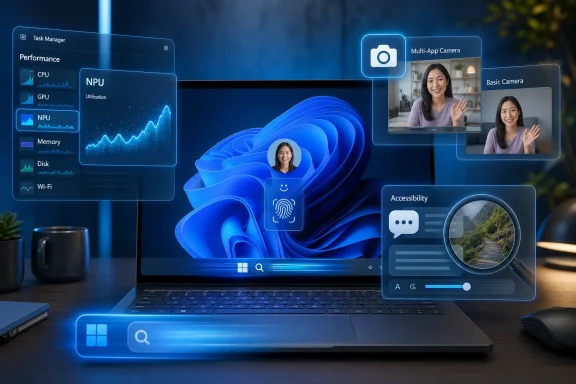
Build 28000.2333 lets users add columns for NPU utilization, NPU engine activity, dedicated NPU memory, and shared memory usage across areas such as Processes, Users, and Details. Neural engines integrated into GPUs can also appear on the Performance page. That matters because AI acceleration is no longer confined to a discrete component with a neat label on the box.
The PC industry has spent the last two years selling local AI performance in TOPS, badges, and launch-stage demos. But users need observability, not slogans. If Windows is going to shift transcription, image generation, recall-like indexing, camera effects, and background intelligence toward local accelerators, users need to know which workloads are running where.
For IT administrators, the benefit is even sharper. A business fleet full of AI-capable laptops is difficult to manage if the only visible symptoms are battery drain, fan noise, app lag, or user complaints that “Teams feels weird today.” Task Manager’s new NPU visibility will not replace enterprise telemetry, but it gives frontline troubleshooters a familiar starting point.
The new Isolation column also fits this larger trend. By showing whether applications are running inside an AppContainer environment, Windows gives technical users a clearer view of containment boundaries. In an era where app isolation, sandboxing, and endpoint hardening are part of the everyday security conversation, surfacing that state in Task Manager is useful rather than merely academic.
Multi-App Camera support is Microsoft’s answer to that reality. The feature allows multiple applications to access a camera stream at the same time, reducing the old frustration of one app monopolizing the device while another fails silently or throws a vague error. For users who live in video calls, record tutorials, stream, or rely on accessibility overlays, this is the kind of change that can feel overdue the moment it arrives.
The addition of Basic Camera mode is equally telling. It acknowledges that camera stacks are now complicated enough that troubleshooting needs a fallback path. When advanced functionality causes instability, administrators and users need a simpler mode that strips the experience down to something more predictable.
Enterprise policy support is the decisive detail. Multi-App Camera and Basic Camera mode are not just home-user conveniences; they are features that IT departments may need to permit, restrict, or standardize depending on privacy rules, compliance requirements, and app compatibility. The camera has become a managed endpoint resource, and Windows is beginning to treat it that way.
There is a privacy dimension Microsoft will need to handle carefully. More flexible camera sharing can be a genuine accessibility and productivity improvement, but it also raises the bar for transparency. Users should never have to guess which apps can see them, when, and under what system-level mediation.
Microsoft says Magnifier now offers clearer and more consistent spoken announcements when users adjust zoom, change views, toggle color inversion, or turn the tool on and off. That kind of feedback matters because accessibility tools must be predictable. If the system changes state without communicating it clearly, the user is left to infer what happened from an interface that may already be hard to perceive.
Support for magnifying permitted protected content is another practical improvement. Protected content has long been a source of tension between rights-management systems and accessibility needs. Microsoft is not removing protection; it is trying to make permitted scenarios work better for people who need magnification to use the machine at all.
Lens mode responsiveness also gets attention. That detail sounds small until you remember that accessibility is full of interactions where latency becomes fatigue. A lens that lags or resists precise movement is not merely annoying; it can make navigation slower, less comfortable, and less reliable.
This is where Microsoft’s broader performance work and its accessibility work overlap. A faster shell is nice for everyone, but responsiveness is especially critical for users depending on assistive technologies. The best accessibility improvements often look like ordinary quality improvements until you understand who pays the highest price when they are missing.
Windows 11’s performance debate has never been only about benchmark scores. On capable hardware, Windows 11 can be fast; the complaint has been latency in the places users touch. A Start menu that hesitates, a search box that takes too long to settle, an Action Center that feels heavier than it should — these are the micro-delays that shape an operating system’s reputation.
The apparent connection to Microsoft’s ongoing low-latency work is important. If the company is tuning the shell to prioritize responsiveness, then it is attacking the problem at the interaction layer rather than simply hoping faster CPUs and SSDs hide the rough edges. Windows cannot afford to feel sluggish on the very premium laptops being sold as the future of the PC.
Search is especially sensitive because it doubles as both a productivity tool and a trust signal. Users who cannot quickly find files, settings, apps, or recent documents tend to blame the operating system, not the indexing model. Build 28000.2333’s ability to find and prioritize files from as few as two characters suggests Microsoft is trying to make Windows Search feel more immediate in short, real-world queries.
There is a risk here, too. Shorter queries can produce more ambiguous results, and prioritization becomes more important as the query gets smaller. The test will not be whether Search returns something after two letters; it will be whether it returns the thing users meant often enough to build confidence.
This matters because the user folder is not just a label in File Explorer. It becomes part of file paths, scripts, development environments, backup assumptions, sync rules, and documentation. A bad or unexpected folder name can follow a machine for years.
Giving users control during setup is the correct place to fix it. Workarounds after the fact are risky, especially for nontechnical users, because renaming a profile folder after account creation can break references and create more trouble than the cosmetic annoyance justified. Setup is the moment when Windows should ask the question cleanly.
The change also reflects a broader problem with Microsoft account-driven setup. As Windows increasingly nudges users toward cloud-connected identity, local machine identity can become an afterthought. Letting users choose the folder name restores a small but meaningful bit of local control.
For developers and sysadmins, this is more than neatness. Predictable profile paths reduce friction in scripts, tutorials, lab machines, and development setups. Windows has spent years trying to be friendlier to developers; sometimes that means shipping terminals and package managers, and sometimes it means letting a user avoid a mangled home directory.
Microsoft has optimized the Windows Biometric Service after systems resume from Modern Standby. That is an important target because resume is one of the moments where users are least patient. If a laptop wakes but biometric authentication stalls, the entire premium-device experience feels cheaper.
The build also addresses issues involving secure enrollment metadata and unexpected authentication blocks related to Enhanced Sign-in Security. Those phrases may sound like enterprise boilerplate, but they describe the fragile boundary where convenience, hardware trust, identity, and policy meet. When that boundary misbehaves, users experience it as a lockout or a mysterious refusal to use the sign-in method they configured.
Microsoft is also refining default sign-in behavior. If face or fingerprint recognition is available, Windows should keep using it by default even after the user temporarily chooses another method. If a user chooses PIN three times in a row, Windows will continue offering the PIN until another method is selected.
That sounds small, but sign-in defaults are part of the operating system’s muscle memory. Users should not have to re-negotiate authentication preferences every time they unlock a PC. The best identity systems are secure, but they are also consistent.
Build 28000.2333 improves automatic accent color matching so the selected color more accurately reflects the active wallpaper. It also aims to preserve wallpapers more reliably after upgrades, avoid unwanted switches to solid-color backgrounds, and improve handling of high-resolution wallpapers. None of this will sell a PC, but all of it helps the machine feel like it remains yours after Windows services itself.
This is the emotional layer of OS reliability. Users may forgive a wallpaper glitch faster than a failed update, but the message is similar: Windows changed something without asking. When that happens often enough, the system begins to feel less like an environment and more like a landlord.
For enterprises, personalization reliability has a different edge. Organizations that deploy branded wallpapers, lock-screen assets, or accessibility-friendly visual configurations do not want those choices randomly broken during updates. Visual consistency can be part of usability, support, and compliance communication.
Microsoft’s challenge is that Windows now spans personal PCs, managed corporate fleets, school devices, cloud-joined laptops, gaming rigs, and developer workstations. Personalization logic has to survive that complexity without constantly surprising people. This build’s fixes are small steps toward that goal.
The engineering case is clear. Staged rollout lets Microsoft observe failures, compatibility problems, telemetry regressions, and unexpected interactions before exposing every tester. Windows runs on an absurd variety of hardware and software combinations, and the Insider Program is no longer just a playground for the adventurous; it is also a large-scale risk-management system.
The user experience is less elegant. A build arrives, release notes mention a feature, and the feature is missing. Enthusiasts then spend hours toggling settings, checking policies, comparing screenshots, and wondering whether they installed the wrong package.
This tension is now baked into Windows development. Microsoft wants the speed and safety of controlled feature flighting, while users want build numbers to mean something definitive. Both desires are reasonable, and they are increasingly incompatible.
For WindowsForum readers, the practical advice is simple: treat Build 28000.2333 as a staged platform update, not a guarantee that every documented feature appears immediately. If a feature is absent, that may be rollout timing rather than installation failure.
That is a healthier direction for Windows. For too long, the operating system has tried to simplify complex systems by hiding them. But modern PCs are too layered for that approach to work everywhere. Users do not need every kernel detail, but they do need the right windows into what their machine is doing.
The AI PC makes this especially urgent. If on-device AI becomes a normal part of Windows, then accelerators, memory pools, background tasks, privacy boundaries, and performance states all become part of day-to-day computing. Microsoft cannot ask users to trust local AI while leaving its operation invisible.
This does not mean Windows should become a dashboard for engineers. It means the operating system needs graduated transparency: simple defaults for ordinary users, richer controls for power users, and manageable policy surfaces for IT. Build 28000.2333 is not the full realization of that idea, but it points toward it.
The best version of Windows 11 26H1 would not be the one with the most visible new features. It would be the one where new hardware capabilities become legible without becoming noisy.
For administrators, the build is a reminder that Windows’ management surface is expanding around AI hardware and media devices. NPU utilization is becoming something to monitor, not just market. Camera behavior is becoming something to govern, not just permit or block.
For everyday users, the appeal is more tactile. Faster app launches, better Start responsiveness, smarter short-query search, steadier wallpapers, and more reliable Windows Hello are the sorts of improvements that make Windows feel less needy. They reduce interruptions rather than create new rituals.
For Microsoft, the stakes are larger. If Windows 11 is to remain the default environment for premium client computing, it must make new hardware useful without making the system feel experimental. That is a hard balance, and 26H1 is one of the places where Microsoft is trying to strike it.
The headline feature is not one toggle, one app, or one Copilot flourish. It is the cumulative sense that Microsoft is trying to make Windows 11 feel less like a UI wrapped around old assumptions and more like an operating system built for a generation of devices where cameras, biometrics, local AI acceleration, and accessibility tooling are always in play.
 Microsoft’s 26H1 Strategy Is Less Flash, More Platform Discipline
Windows 11 version 26H1 has always looked different from a classic feature update. It sits closer to a hardware-enablement release than the kind of annual Windows milestone that arrives with a marquee Start menu redesign or a sweeping Settings revamp. That does not make it unimportant; it means the work is happening closer to the plumbing.Build 28000.2333 makes that strategy visible. The changes are scattered across the places where Windows users spend real time: launching apps, searching for files, signing in, joining calls, setting up a new PC, and diagnosing performance. None of those are glamorous on their own, but together they form the part of Windows that either disappears into the background or irritates you dozens of times a week.
The most interesting thing about this release is how practical it is. Microsoft is not asking Insiders to admire a new brand layer; it is asking them to notice that Start opens faster, Search responds better, Magnifier speaks more clearly, and Task Manager finally understands that AI hardware is no longer exotic. That is a quieter pitch, but it is also a more serious one.
There is also a timing story here. By June 2026, the first wave of Copilot+ PCs is no longer new, and the second wave of AI-focused PC hardware is becoming the battlefield. Microsoft cannot keep treating NPU usage as a black box if it expects developers, administrators, reviewers, and power users to trust Windows as the broker for local AI workloads.
Task Manager Finally Starts Speaking the Language of AI PCs
Task Manager has always been Windows’ most democratic diagnostic tool. It is where casual users go to find the app eating their laptop, where admins confirm suspicions, and where enthusiasts validate whether a system is doing what the vendor promised. Adding NPU-focused columns is therefore more than a cosmetic update.Build 28000.2333 lets users add columns for NPU utilization, NPU engine activity, dedicated NPU memory, and shared memory usage across areas such as Processes, Users, and Details. Neural engines integrated into GPUs can also appear on the Performance page. That matters because AI acceleration is no longer confined to a discrete component with a neat label on the box.
The PC industry has spent the last two years selling local AI performance in TOPS, badges, and launch-stage demos. But users need observability, not slogans. If Windows is going to shift transcription, image generation, recall-like indexing, camera effects, and background intelligence toward local accelerators, users need to know which workloads are running where.
For IT administrators, the benefit is even sharper. A business fleet full of AI-capable laptops is difficult to manage if the only visible symptoms are battery drain, fan noise, app lag, or user complaints that “Teams feels weird today.” Task Manager’s new NPU visibility will not replace enterprise telemetry, but it gives frontline troubleshooters a familiar starting point.
The new Isolation column also fits this larger trend. By showing whether applications are running inside an AppContainer environment, Windows gives technical users a clearer view of containment boundaries. In an era where app isolation, sandboxing, and endpoint hardening are part of the everyday security conversation, surfacing that state in Task Manager is useful rather than merely academic.
The Camera Is Becoming a Shared System Resource, Not a Single-App Prize
Windows’ historic camera model has often felt like a leftover from a simpler era: one camera, one app, one stream. That made sense when webcams were mostly for Skype calls and the occasional profile photo. It makes far less sense when the same camera may be needed by a video meeting app, a streaming tool, an accessibility utility, a security workflow, and a background enhancement pipeline.Multi-App Camera support is Microsoft’s answer to that reality. The feature allows multiple applications to access a camera stream at the same time, reducing the old frustration of one app monopolizing the device while another fails silently or throws a vague error. For users who live in video calls, record tutorials, stream, or rely on accessibility overlays, this is the kind of change that can feel overdue the moment it arrives.
The addition of Basic Camera mode is equally telling. It acknowledges that camera stacks are now complicated enough that troubleshooting needs a fallback path. When advanced functionality causes instability, administrators and users need a simpler mode that strips the experience down to something more predictable.
Enterprise policy support is the decisive detail. Multi-App Camera and Basic Camera mode are not just home-user conveniences; they are features that IT departments may need to permit, restrict, or standardize depending on privacy rules, compliance requirements, and app compatibility. The camera has become a managed endpoint resource, and Windows is beginning to treat it that way.
There is a privacy dimension Microsoft will need to handle carefully. More flexible camera sharing can be a genuine accessibility and productivity improvement, but it also raises the bar for transparency. Users should never have to guess which apps can see them, when, and under what system-level mediation.
Magnifier’s Upgrade Shows Accessibility Is Also Infrastructure
The Magnifier changes in Build 28000.2333 are easy to overlook if you do not rely on Windows accessibility tools. That would be a mistake. Accessibility features are not side quests; they are operating-system infrastructure for millions of users and a stress test for how thoughtfully the platform handles display, input, protected content, and assistive feedback.Microsoft says Magnifier now offers clearer and more consistent spoken announcements when users adjust zoom, change views, toggle color inversion, or turn the tool on and off. That kind of feedback matters because accessibility tools must be predictable. If the system changes state without communicating it clearly, the user is left to infer what happened from an interface that may already be hard to perceive.
Support for magnifying permitted protected content is another practical improvement. Protected content has long been a source of tension between rights-management systems and accessibility needs. Microsoft is not removing protection; it is trying to make permitted scenarios work better for people who need magnification to use the machine at all.
Lens mode responsiveness also gets attention. That detail sounds small until you remember that accessibility is full of interactions where latency becomes fatigue. A lens that lags or resists precise movement is not merely annoying; it can make navigation slower, less comfortable, and less reliable.
This is where Microsoft’s broader performance work and its accessibility work overlap. A faster shell is nice for everyone, but responsiveness is especially critical for users depending on assistive technologies. The best accessibility improvements often look like ordinary quality improvements until you understand who pays the highest price when they are missing.
Faster Start, Search, and Action Center Are a Direct Reply to Windows 11’s Oldest Complaint
Microsoft says this build accelerates app launch and improves core shell experiences such as the Start menu, Windows Search, and Action Center. That is the sort of release-note sentence that usually invites skepticism, because every operating system vendor claims performance improvements all the time. Still, the targets are revealing.Windows 11’s performance debate has never been only about benchmark scores. On capable hardware, Windows 11 can be fast; the complaint has been latency in the places users touch. A Start menu that hesitates, a search box that takes too long to settle, an Action Center that feels heavier than it should — these are the micro-delays that shape an operating system’s reputation.
The apparent connection to Microsoft’s ongoing low-latency work is important. If the company is tuning the shell to prioritize responsiveness, then it is attacking the problem at the interaction layer rather than simply hoping faster CPUs and SSDs hide the rough edges. Windows cannot afford to feel sluggish on the very premium laptops being sold as the future of the PC.
Search is especially sensitive because it doubles as both a productivity tool and a trust signal. Users who cannot quickly find files, settings, apps, or recent documents tend to blame the operating system, not the indexing model. Build 28000.2333’s ability to find and prioritize files from as few as two characters suggests Microsoft is trying to make Windows Search feel more immediate in short, real-world queries.
There is a risk here, too. Shorter queries can produce more ambiguous results, and prioritization becomes more important as the query gets smaller. The test will not be whether Search returns something after two letters; it will be whether it returns the thing users meant often enough to build confidence.
Custom User Folder Names Fix a Petty Problem With Real Consequences
The ability to choose a custom user folder name during Windows setup sounds almost comically mundane. It is also one of those Windows irritations that has survived far too long. For years, users have watched Windows generate home-folder names that may be truncated, awkward, tied to account data, or simply not what the user wanted.This matters because the user folder is not just a label in File Explorer. It becomes part of file paths, scripts, development environments, backup assumptions, sync rules, and documentation. A bad or unexpected folder name can follow a machine for years.
Giving users control during setup is the correct place to fix it. Workarounds after the fact are risky, especially for nontechnical users, because renaming a profile folder after account creation can break references and create more trouble than the cosmetic annoyance justified. Setup is the moment when Windows should ask the question cleanly.
The change also reflects a broader problem with Microsoft account-driven setup. As Windows increasingly nudges users toward cloud-connected identity, local machine identity can become an afterthought. Letting users choose the folder name restores a small but meaningful bit of local control.
For developers and sysadmins, this is more than neatness. Predictable profile paths reduce friction in scripts, tutorials, lab machines, and development setups. Windows has spent years trying to be friendlier to developers; sometimes that means shipping terminals and package managers, and sometimes it means letting a user avoid a mangled home directory.
Windows Hello Gets the Kind of Fixes Users Only Notice When They Fail
Windows Hello is at its best when it vanishes. A good biometric sign-in system should feel boring: open the lid, look at the camera or touch the reader, and get to work. Build 28000.2333 focuses on the unglamorous reliability work needed to make that happen consistently.Microsoft has optimized the Windows Biometric Service after systems resume from Modern Standby. That is an important target because resume is one of the moments where users are least patient. If a laptop wakes but biometric authentication stalls, the entire premium-device experience feels cheaper.
The build also addresses issues involving secure enrollment metadata and unexpected authentication blocks related to Enhanced Sign-in Security. Those phrases may sound like enterprise boilerplate, but they describe the fragile boundary where convenience, hardware trust, identity, and policy meet. When that boundary misbehaves, users experience it as a lockout or a mysterious refusal to use the sign-in method they configured.
Microsoft is also refining default sign-in behavior. If face or fingerprint recognition is available, Windows should keep using it by default even after the user temporarily chooses another method. If a user chooses PIN three times in a row, Windows will continue offering the PIN until another method is selected.
That sounds small, but sign-in defaults are part of the operating system’s muscle memory. Users should not have to re-negotiate authentication preferences every time they unlock a PC. The best identity systems are secure, but they are also consistent.
Personalization Fixes Are Really Trust Fixes
Automatic accent colors and wallpaper persistence are not usually treated as serious system features. Yet the desktop is the first thing most users see, and Windows has a long history of making small personalization choices feel strangely fragile across upgrades, resets, sync events, and policy transitions.Build 28000.2333 improves automatic accent color matching so the selected color more accurately reflects the active wallpaper. It also aims to preserve wallpapers more reliably after upgrades, avoid unwanted switches to solid-color backgrounds, and improve handling of high-resolution wallpapers. None of this will sell a PC, but all of it helps the machine feel like it remains yours after Windows services itself.
This is the emotional layer of OS reliability. Users may forgive a wallpaper glitch faster than a failed update, but the message is similar: Windows changed something without asking. When that happens often enough, the system begins to feel less like an environment and more like a landlord.
For enterprises, personalization reliability has a different edge. Organizations that deploy branded wallpapers, lock-screen assets, or accessibility-friendly visual configurations do not want those choices randomly broken during updates. Visual consistency can be part of usability, support, and compliance communication.
Microsoft’s challenge is that Windows now spans personal PCs, managed corporate fleets, school devices, cloud-joined laptops, gaming rigs, and developer workstations. Personalization logic has to survive that complexity without constantly surprising people. This build’s fixes are small steps toward that goal.
Gradual Rollout Remains Microsoft’s Safety Net and Users’ Frustration
As usual, Microsoft is rolling out many of these features gradually. That means two Insiders on the same build number may not see the same functionality at the same time. This is rational engineering and maddening communication.The engineering case is clear. Staged rollout lets Microsoft observe failures, compatibility problems, telemetry regressions, and unexpected interactions before exposing every tester. Windows runs on an absurd variety of hardware and software combinations, and the Insider Program is no longer just a playground for the adventurous; it is also a large-scale risk-management system.
The user experience is less elegant. A build arrives, release notes mention a feature, and the feature is missing. Enthusiasts then spend hours toggling settings, checking policies, comparing screenshots, and wondering whether they installed the wrong package.
This tension is now baked into Windows development. Microsoft wants the speed and safety of controlled feature flighting, while users want build numbers to mean something definitive. Both desires are reasonable, and they are increasingly incompatible.
For WindowsForum readers, the practical advice is simple: treat Build 28000.2333 as a staged platform update, not a guarantee that every documented feature appears immediately. If a feature is absent, that may be rollout timing rather than installation failure.
The Real Story Is Windows Learning to Expose Its Modern Hardware
The through-line in this release is visibility. Task Manager exposes NPU usage. Camera settings expose shared and basic modes. Magnifier communicates state changes more clearly. Windows Hello behaves more predictably about preferred authentication. Setup exposes a profile-folder choice that used to be hidden behind automation.That is a healthier direction for Windows. For too long, the operating system has tried to simplify complex systems by hiding them. But modern PCs are too layered for that approach to work everywhere. Users do not need every kernel detail, but they do need the right windows into what their machine is doing.
The AI PC makes this especially urgent. If on-device AI becomes a normal part of Windows, then accelerators, memory pools, background tasks, privacy boundaries, and performance states all become part of day-to-day computing. Microsoft cannot ask users to trust local AI while leaving its operation invisible.
This does not mean Windows should become a dashboard for engineers. It means the operating system needs graduated transparency: simple defaults for ordinary users, richer controls for power users, and manageable policy surfaces for IT. Build 28000.2333 is not the full realization of that idea, but it points toward it.
The best version of Windows 11 26H1 would not be the one with the most visible new features. It would be the one where new hardware capabilities become legible without becoming noisy.
Where This Build Lands for Insiders, Admins, and AI-PC Buyers
Build 28000.2333 is worth installing for Release Preview testers who understand the usual caveats. It is close enough to the practical side of Windows development to be relevant, but still staged and unfinished enough that nobody should mistake it for a universal production baseline. The most valuable audience may be people testing newer laptops, accessibility workflows, camera-heavy setups, and early AI workloads.For administrators, the build is a reminder that Windows’ management surface is expanding around AI hardware and media devices. NPU utilization is becoming something to monitor, not just market. Camera behavior is becoming something to govern, not just permit or block.
For everyday users, the appeal is more tactile. Faster app launches, better Start responsiveness, smarter short-query search, steadier wallpapers, and more reliable Windows Hello are the sorts of improvements that make Windows feel less needy. They reduce interruptions rather than create new rituals.
For Microsoft, the stakes are larger. If Windows 11 is to remain the default environment for premium client computing, it must make new hardware useful without making the system feel experimental. That is a hard balance, and 26H1 is one of the places where Microsoft is trying to strike it.
The 26H1 Build That Makes the AI PC Less Mysterious
Build 28000.2333 is not a blockbuster, but it is concrete enough to matter. Its value lies in practical changes that make Windows more observable, more responsive, and less arbitrary.- Windows 11 26H1 Release Preview Build 28000.2333 began rolling out to Insiders on June 12, 2026, with features arriving gradually rather than all at once.
- Task Manager now offers more detailed NPU monitoring, making local AI workloads easier to observe on supported PCs.
- Multi-App Camera support and Basic Camera mode make webcam behavior more flexible and more manageable, especially for accessibility, streaming, and enterprise scenarios.
- Windows setup can now let users choose a custom user folder name, fixing a long-running annoyance with real path and scripting consequences.
- Microsoft is targeting everyday responsiveness in Start, Search, Action Center, and app launch rather than relying only on headline features.
- Magnifier, Windows Hello, wallpaper handling, and accent-color reliability all show Microsoft focusing on small failures that shape trust in daily use.
References
- Primary source: Windows Report
Published: 2026-06-14T12:10:10.100491
Loading…
windowsreport.com - Official source: learn.microsoft.com
Loading…
learn.microsoft.com - Related coverage: allthings.how
Loading…
allthings.how - Official source: blogs.windows.com
Announcing new builds for 12 June 2026
Hello Windows Insiders, We have a number of releases today with new builds across Beta, Experimental and Release Preview. Release notes for inbox Windows 11 apps Windows 11 inbox apps are now getting their own release notes sectioblogs.windows.com - Related coverage: elevenforum.com
Loading…
www.elevenforum.com - Related coverage: windowsforum.com
Loading…
windowsforum.com
- Related coverage: computerworld.com

Windows 11 Insider Previews: What’s in the latest build? – Computerworld
Get the latest info on new preview builds of Windows 11 as they roll out to Windows Insiders. Now updated for Build 26220.8575 for the Beta Channel, Build 28020.2236 for the Beta 26H1 Channel, and Build 28120.2242 for the Experimental 26H1 Channel, all released on June 8, 2026. www.computerworld.com
- Related coverage: windowscentral.com
Windows 11's November Insider update brings new features and reveals a new version
Microsoft introduces new features and a new operating system version during the first half of November 2025. www.windowscentral.com