

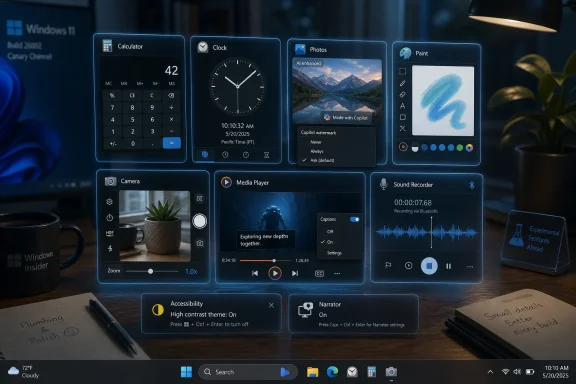
Microsoft is testing June 2026 updates for seven Windows 11 in-box apps — Calculator, Camera, Clock, Media Player, Paint, Photos, and Sound Recorder — in the Experimental, Experimental (26H1), and Experimental (Future Platforms) Windows Insider channels. The changelogs are not glamorous, but they are revealing. Microsoft is spending engineering time on the apps users normally notice only when they fail. That is precisely why this batch matters.
The most important thing about these updates is not that Calculator now handles rare square-root leftovers more cleanly or that Paint can make the eraser transparent. It is that Microsoft has treated the small stuff as worth documenting, testing, and shipping across a suite of bundled apps. For Windows, that is not a minor cultural signal.
Windows has always lived or died partly by its defaults. The browser, the image viewer, the recorder, the camera utility, the clock, and the calculator are not prestige software, but they are the software people use when they do not want to think about software. When those apps are slow, web-wrapped, inaccessible, inconsistent, or just weird, the operating system feels worse than its kernel, scheduler, driver model, and security architecture deserve.
This is the trap Microsoft has repeatedly fallen into. Windows can be technically modern while feeling neglected at the edges. A polished Settings page does not fully compensate for an image viewer that crashes during text recognition, a camera app that hides usable resolutions, or a media player that throws vague codec errors.
The June 12 Insider app updates look like housekeeping. In practice, they are a reminder that Windows 11’s experience is increasingly defined by dozens of small surfaces rather than one grand shell redesign.
Clock receives the most conspicuous pile of fixes. Timers can now keep counting upward after they expire, Focus Sessions can be used without setting a daily goal, alarms get a 15-minute snooze option, and the Countdown Widget supports three simultaneous countdowns instead of two. That reads like a modest feature update until you get to the rest of the notes: Newfoundland time zone correction, midnight sun icon fixes, screen reader announcements, focus visibility in High Contrast themes, disabled alarms staying visually disabled, and Focus Sessions no longer showing completed tasks.
That is the anatomy of a mature app update. The headline feature is not the whole thing; the actual value is in hundreds of edge cases being sanded down. Users may never consciously appreciate that World Clock comparison dates now load more smoothly as they scroll. They will notice if the old behavior made the app feel laggy, wrong, or hostile to assistive technologies.
Calculator’s update is smaller but arguably more symbolic. Fixing a rare case where an expression such as
These are not “massive upgrades” in the consumer-marketing sense. They are more like overdue maintenance on appliances built into the house. But Windows users do not live in press releases; they live in the appliances.
The new Outlook has become the emblem of that tension. Microsoft’s replacement for Mail and Calendar may make sense as part of a broader Microsoft 365 strategy, but to many Windows users it also represents a web-first compromise arriving where a lean native client used to live. Clipchamp has attracted similar criticism, not because web technology is inherently illegitimate, but because a bundled Windows app that behaves like a service portal instead of a local tool changes the psychological contract.
Windows users can be forgiving of complexity. They are much less forgiving of feeling that the operating system is outsourcing basic tasks to web containers, subscriptions, or cloud funnels. The in-box app is supposed to be there when the network is not, when a driver is misbehaving, when the user is setting up a new PC, or when an admin is building an image that needs predictable defaults.
That is why this batch of updates lands differently from an isolated Paint feature drop. Microsoft is not merely adding AI decoration or chasing social-media-friendly features. It is fixing launch reliability, accessibility contrast, memory leaks, Bluetooth waveform display, codec messaging, playlist naming, broken camera zoom ranges, and keyboard navigation.
Those are the details that separate a native utility from a branded placeholder.
That duality is not accidental. Microsoft wants Paint to remain familiar enough that decades of muscle memory still apply, while also making it a low-friction entry point for generative features. The June update adds adjustable eraser transparency, fixes stamp-brush artifacts, improves rotated JPEG save behavior, and prevents crashes from damaged or invalid image files. It also fixes layer-list inconsistency after deleting the active layer.
The striking thing is how practical most of this is. Paint is no longer merely the toy bitmap editor people used before installing something better. With layers, AI features, improved selection behavior, and incremental performance work, it is becoming a lightweight creative utility that Microsoft can keep evolving without breaking its identity.
But the AI panel note is a reminder that every Windows app is now a potential Copilot surface. That does not automatically make the app worse. It does mean Microsoft has to prove, repeatedly, that AI features are additive rather than invasive. Paint gets more goodwill when the same update also fixes crashes, startup speed, hover states, and classic behavior.
That default matters. If Microsoft had forced visible marks onto every AI-edited image, Photos would immediately become part of a wider debate over authenticity, provenance, and user control. By making the feature optional, Microsoft is treating watermarking as a user-facing policy choice rather than a universal mandate.
Still, this is more than a checkbox. The fact that watermarking is appearing in a built-in Windows image app shows how AI provenance is moving from specialist tools into default consumer software. In a world where users can generate, erase, restyle, and remix images with little friction, the image viewer becomes a governance point. The viewer is no longer just displaying the file; it is participating in how the file is understood.
Photos also gets improvements that have nothing to do with AI and may matter more day to day. Tiny images and pixel art can zoom much further while staying crisp. Detected text in images can be navigated and selected with the keyboard. A crash during text recognition has been fixed, and tabbing through the navigation bar should no longer stop on hidden controls.
That mix is encouraging. Microsoft is clearly pushing Photos into AI-adjacent territory, but the same release also improves accessibility, pixel-art handling, and crash recovery. The danger for Windows 11 has never been that Microsoft adds new capabilities. The danger is that the old expectations — fast viewing, predictable zooming, keyboard access, stable text recognition — get buried under them.
The Camera update addresses exactly that sort of mess. The zoom slider now works on more modern cameras, respects system zoom settings, and updates immediately when those settings change. It also exposes finer zoom ranges on devices where the app previously showed only a few steps, fixes front-facing camera problems on certain wide-angle devices, and allows users to select video resolutions that were previously hidden, with a warning instead of silent removal.
That last change is more important than it sounds. Hiding unsupported or risky options can make software look cleaner, but it can also make troubleshooting maddening. A warning respects the user’s agency; silent omission makes the system feel arbitrary. For IT pros dealing with mixed fleets of webcams, docks, firmware revisions, and conferencing apps, more transparency is usually better than more paternalism.
The QR-code behavior also improves. If a scanned QR code points to something with no matching app, the link is copied to the clipboard with a notification while the app still offers a Store search. That is a small fix to a familiar Windows irritation: assuming the Store is the answer when the user may simply need the underlying link.
Sound Recorder gets a quieter but very useful set of fixes. The live waveform now appears correctly with Bluetooth microphones, a useless horizontal scrollbar no longer appears unless zoomed in, the Mark button no longer looks disabled until hover, and repeated deletion should no longer trigger a false “file doesn’t exist” error. Microsoft also fixed a memory leak that occurred each time recording started.
Audio recording is one of those features users trust until the exact moment it betrays them. A memory leak in a recorder is not a cosmetic problem; it is a confidence problem. The same is true of markers being disabled for WAV files because that format cannot store them. Losing metadata silently is worse than being told a feature is unavailable.
The app now has custom captions tied to Windows caption settings, along with a direct route into those settings. It adds an indexing banner in the play queue so users understand why a library scan might not have surfaced everything yet. It improves recognition of supported file types, blocks blank playlist names, improves empty playlist presentation, fixes a crash during play queue edits, and provides clearer missing-codec guidance.
Codec errors are a classic example of technically accurate software being useless to normal people. A dialog that effectively says “you lack the thing” may be correct, but it does not help the user decide whether to install something, convert a file, use another app, or suspect corruption. Clearer guidance does not solve Windows’ sprawling media-format history, but it reduces the feeling that the user has hit a wall.
The indexing banner is similarly small but meaningful. Modern apps often do background work while pretending everything is immediate. When the library has not finished scanning, users need the app to say so. Otherwise they assume files are missing, permissions are broken, or the app is incompetent.
This is a recurring pattern across the June updates. Microsoft is not only fixing bugs; it is adding explanations where Windows previously behaved opaquely.
Accessibility work is often described as a compliance obligation, but for operating systems it is also a quality discipline. If focus disappears after pressing a reset button, that is not only a screen-reader problem. If hidden controls receive tab stops, that is not only a keyboard-user problem. If High Contrast themes render settings text poorly, that is not only an accessibility niche. These are signs that the UI model is leaky.
Windows has to serve a broader hardware and user base than almost any consumer platform. It runs on enterprise desktops, cheap laptops, gaming rigs, kiosks, classroom devices, lab machines, assistive setups, and forgotten family PCs that still receive updates. Built-in apps are part of that promise. They cannot assume a perfect display, a mouse, a broadband connection, a single language direction, or a user who interacts in exactly the way the designer expected.
The Clock update’s screen-reader fixes are especially instructive. The app no longer reads timer values twice, countdown names are announced properly, keyboard focus stays in place after timer reset, and alarm toggles are announced more clearly. None of this will lead a keynote. All of it matters to whether Windows feels professionally maintained.
Accessibility improvements also tend to expose whether an app is truly aligned with the platform. Native controls, consistent focus behavior, system caption settings, High Contrast support, and keyboard navigation are not decorative. They are part of why users and administrators still care whether an app is native in more than name.
This matters because app updates increasingly travel on a different rhythm from operating system builds. Windows 11 is not serviced as a single monolith. Store-delivered applications, WebView components, Copilot experiences, shell features, servicing stack updates, and full OS builds all move at different speeds. For enthusiasts, this is interesting. For administrators, it can be exhausting.
The upside is that Microsoft can improve Photos, Paint, or Media Player without waiting for a named annual release. The downside is that the Windows experience becomes harder to pin down. Two machines can both be “Windows 11” while differing materially in app versions, Store update state, feature flags, Insider channel, and Microsoft account conditions.
That is why release notes for apps deserve more attention than they often receive. If Microsoft is going to keep decoupling system components from the base OS, it needs transparent documentation of what changed, where it is rolling out, and which version carries the behavior. These new Microsoft Learn app release-note pages are a useful step in that direction.
For WindowsForum readers, the practical lesson is simple: app versioning now matters. Troubleshooting “Windows 11 Photos” or “Windows 11 Camera” is no longer specific enough. The relevant question is which app version, which channel, which feature rollout, and which Store update state.
That statement has been muddied over time. Some built-in apps have become promotional surfaces. Some have been replaced by web-based clients that feel less like Windows utilities and more like endpoints for Microsoft services. Some have improved dramatically, like Paint and Notepad, while others have seemed trapped between legacy expectations and modern design systems.
This June app batch does not resolve that tension, but it points in the right direction. It says that Microsoft still sees value in maintaining the everyday Windows toolkit. It also says that the company knows the critique: users want native-feeling apps that launch reliably, respect system settings, support accessibility features, and do not turn every basic workflow into a cloud-mediated upsell.
The word “massive” is doing a lot of work in the original headline. No single change here transforms Windows 11. But collectively, the updates are large in surface area: seven familiar apps, dozens of fixes, several accessibility improvements, multiple hardware-behavior corrections, and new AI-era policy choices inside Photos and Paint.
A platform earns trust in boring increments. That is what this looks like.
 Microsoft Rediscovers the Apps Sitting in Plain Sight
The most important thing about these updates is not that Calculator now handles rare square-root leftovers more cleanly or that Paint can make the eraser transparent. It is that Microsoft has treated the small stuff as worth documenting, testing, and shipping across a suite of bundled apps. For Windows, that is not a minor cultural signal.Windows has always lived or died partly by its defaults. The browser, the image viewer, the recorder, the camera utility, the clock, and the calculator are not prestige software, but they are the software people use when they do not want to think about software. When those apps are slow, web-wrapped, inaccessible, inconsistent, or just weird, the operating system feels worse than its kernel, scheduler, driver model, and security architecture deserve.
This is the trap Microsoft has repeatedly fallen into. Windows can be technically modern while feeling neglected at the edges. A polished Settings page does not fully compensate for an image viewer that crashes during text recognition, a camera app that hides usable resolutions, or a media player that throws vague codec errors.
The June 12 Insider app updates look like housekeeping. In practice, they are a reminder that Windows 11’s experience is increasingly defined by dozens of small surfaces rather than one grand shell redesign.
The Changelog Is Boring Because the Problems Were Real
There is a temptation to laugh at release notes that celebrate a timer no longer jumping back to 1926 when the user presses Back. The absurdity is part of the Windows charm, but it is also the point. These are the kinds of bugs that make an operating system feel unfinished long after the big-ticket features have been announced.Clock receives the most conspicuous pile of fixes. Timers can now keep counting upward after they expire, Focus Sessions can be used without setting a daily goal, alarms get a 15-minute snooze option, and the Countdown Widget supports three simultaneous countdowns instead of two. That reads like a modest feature update until you get to the rest of the notes: Newfoundland time zone correction, midnight sun icon fixes, screen reader announcements, focus visibility in High Contrast themes, disabled alarms staying visually disabled, and Focus Sessions no longer showing completed tasks.
That is the anatomy of a mature app update. The headline feature is not the whole thing; the actual value is in hundreds of edge cases being sanded down. Users may never consciously appreciate that World Clock comparison dates now load more smoothly as they scroll. They will notice if the old behavior made the app feel laggy, wrong, or hostile to assistive technologies.
Calculator’s update is smaller but arguably more symbolic. Fixing a rare case where an expression such as
sqrt(2.25) - 1.5 could leave a tiny residual value sounds like a punchline until you remember that calculators are supposed to be boringly trustworthy. Calculator also gets High Contrast improvements, right-to-left layout fixes for languages such as Arabic and Hebrew, and a fix for older upgrade paths that could leave the app unable to launch.These are not “massive upgrades” in the consumer-marketing sense. They are more like overdue maintenance on appliances built into the house. But Windows users do not live in press releases; they live in the appliances.
Native Apps Are Becoming a Trust Issue
The Windows Central framing points to a larger anxiety among Windows users: built-in apps need to feel native, fast, and respectful of the platform. That anxiety did not appear from nowhere. Microsoft has spent years blurring the line between local utilities, Store apps, web shells, cloud-connected experiences, and promotional surfaces.The new Outlook has become the emblem of that tension. Microsoft’s replacement for Mail and Calendar may make sense as part of a broader Microsoft 365 strategy, but to many Windows users it also represents a web-first compromise arriving where a lean native client used to live. Clipchamp has attracted similar criticism, not because web technology is inherently illegitimate, but because a bundled Windows app that behaves like a service portal instead of a local tool changes the psychological contract.
Windows users can be forgiving of complexity. They are much less forgiving of feeling that the operating system is outsourcing basic tasks to web containers, subscriptions, or cloud funnels. The in-box app is supposed to be there when the network is not, when a driver is misbehaving, when the user is setting up a new PC, or when an admin is building an image that needs predictable defaults.
That is why this batch of updates lands differently from an isolated Paint feature drop. Microsoft is not merely adding AI decoration or chasing social-media-friendly features. It is fixing launch reliability, accessibility contrast, memory leaks, Bluetooth waveform display, codec messaging, playlist naming, broken camera zoom ranges, and keyboard navigation.
Those are the details that separate a native utility from a branded placeholder.
Paint Shows the Tension Between Nostalgia and AI
Paint’s update is a neat miniature of Microsoft’s Windows strategy. On one side, the app restores behavior that longtime users associate with classic Paint, such as hiding the selection outline while a selection is moved, resized, or rotated. On the other, it tidies the AI image generation panel and continues to carry modern creative tooling into one of Windows’ most nostalgic apps.That duality is not accidental. Microsoft wants Paint to remain familiar enough that decades of muscle memory still apply, while also making it a low-friction entry point for generative features. The June update adds adjustable eraser transparency, fixes stamp-brush artifacts, improves rotated JPEG save behavior, and prevents crashes from damaged or invalid image files. It also fixes layer-list inconsistency after deleting the active layer.
The striking thing is how practical most of this is. Paint is no longer merely the toy bitmap editor people used before installing something better. With layers, AI features, improved selection behavior, and incremental performance work, it is becoming a lightweight creative utility that Microsoft can keep evolving without breaking its identity.
But the AI panel note is a reminder that every Windows app is now a potential Copilot surface. That does not automatically make the app worse. It does mean Microsoft has to prove, repeatedly, that AI features are additive rather than invasive. Paint gets more goodwill when the same update also fixes crashes, startup speed, hover states, and classic behavior.
Photos Turns Watermarking Into a Policy Surface
Photos receives one of the most consequential changes in the entire batch: AI-generated or AI-edited images can carry a visible Copilot watermark, controlled by a setting with Never, Always, and Ask Every Time options. Microsoft says the watermarking setting is off by default.That default matters. If Microsoft had forced visible marks onto every AI-edited image, Photos would immediately become part of a wider debate over authenticity, provenance, and user control. By making the feature optional, Microsoft is treating watermarking as a user-facing policy choice rather than a universal mandate.
Still, this is more than a checkbox. The fact that watermarking is appearing in a built-in Windows image app shows how AI provenance is moving from specialist tools into default consumer software. In a world where users can generate, erase, restyle, and remix images with little friction, the image viewer becomes a governance point. The viewer is no longer just displaying the file; it is participating in how the file is understood.
Photos also gets improvements that have nothing to do with AI and may matter more day to day. Tiny images and pixel art can zoom much further while staying crisp. Detected text in images can be navigated and selected with the keyboard. A crash during text recognition has been fixed, and tabbing through the navigation bar should no longer stop on hidden controls.
That mix is encouraging. Microsoft is clearly pushing Photos into AI-adjacent territory, but the same release also improves accessibility, pixel-art handling, and crash recovery. The danger for Windows 11 has never been that Microsoft adds new capabilities. The danger is that the old expectations — fast viewing, predictable zooming, keyboard access, stable text recognition — get buried under them.
Camera and Sound Recorder Get the Hardware Reality Check
Camera updates rarely excite anyone until a webcam fails five minutes before a meeting. Then the humble camera app becomes a diagnostic tool, a privacy check, and sometimes the only way to tell whether the problem is Teams, Zoom, the driver, the firmware, or Windows itself.The Camera update addresses exactly that sort of mess. The zoom slider now works on more modern cameras, respects system zoom settings, and updates immediately when those settings change. It also exposes finer zoom ranges on devices where the app previously showed only a few steps, fixes front-facing camera problems on certain wide-angle devices, and allows users to select video resolutions that were previously hidden, with a warning instead of silent removal.
That last change is more important than it sounds. Hiding unsupported or risky options can make software look cleaner, but it can also make troubleshooting maddening. A warning respects the user’s agency; silent omission makes the system feel arbitrary. For IT pros dealing with mixed fleets of webcams, docks, firmware revisions, and conferencing apps, more transparency is usually better than more paternalism.
The QR-code behavior also improves. If a scanned QR code points to something with no matching app, the link is copied to the clipboard with a notification while the app still offers a Store search. That is a small fix to a familiar Windows irritation: assuming the Store is the answer when the user may simply need the underlying link.
Sound Recorder gets a quieter but very useful set of fixes. The live waveform now appears correctly with Bluetooth microphones, a useless horizontal scrollbar no longer appears unless zoomed in, the Mark button no longer looks disabled until hover, and repeated deletion should no longer trigger a false “file doesn’t exist” error. Microsoft also fixed a memory leak that occurred each time recording started.
Audio recording is one of those features users trust until the exact moment it betrays them. A memory leak in a recorder is not a cosmetic problem; it is a confidence problem. The same is true of markers being disabled for WAV files because that format cannot store them. Losing metadata silently is worse than being told a feature is unavailable.
Media Player Gets Less Mysterious
Media Player’s June update is not a resurrection of the old Windows Media Player mythology, but it does address one of the oldest Windows annoyances: the gap between “this file should play” and “Windows says no.”The app now has custom captions tied to Windows caption settings, along with a direct route into those settings. It adds an indexing banner in the play queue so users understand why a library scan might not have surfaced everything yet. It improves recognition of supported file types, blocks blank playlist names, improves empty playlist presentation, fixes a crash during play queue edits, and provides clearer missing-codec guidance.
Codec errors are a classic example of technically accurate software being useless to normal people. A dialog that effectively says “you lack the thing” may be correct, but it does not help the user decide whether to install something, convert a file, use another app, or suspect corruption. Clearer guidance does not solve Windows’ sprawling media-format history, but it reduces the feeling that the user has hit a wall.
The indexing banner is similarly small but meaningful. Modern apps often do background work while pretending everything is immediate. When the library has not finished scanning, users need the app to say so. Otherwise they assume files are missing, permissions are broken, or the app is incompetent.
This is a recurring pattern across the June updates. Microsoft is not only fixing bugs; it is adding explanations where Windows previously behaved opaquely.
Accessibility Is the Thread Running Through the Whole Release
The least flashy parts of the changelog may be the strongest evidence that Microsoft is treating these apps as part of the operating system rather than disposable accessories. High Contrast fixes show up in Calculator and Clock. Screen reader behavior is cleaned up in Clock. Keyboard navigation improves in Photos. Right-to-left layouts are corrected in Calculator.Accessibility work is often described as a compliance obligation, but for operating systems it is also a quality discipline. If focus disappears after pressing a reset button, that is not only a screen-reader problem. If hidden controls receive tab stops, that is not only a keyboard-user problem. If High Contrast themes render settings text poorly, that is not only an accessibility niche. These are signs that the UI model is leaky.
Windows has to serve a broader hardware and user base than almost any consumer platform. It runs on enterprise desktops, cheap laptops, gaming rigs, kiosks, classroom devices, lab machines, assistive setups, and forgotten family PCs that still receive updates. Built-in apps are part of that promise. They cannot assume a perfect display, a mouse, a broadband connection, a single language direction, or a user who interacts in exactly the way the designer expected.
The Clock update’s screen-reader fixes are especially instructive. The app no longer reads timer values twice, countdown names are announced properly, keyboard focus stays in place after timer reset, and alarm toggles are announced more clearly. None of this will lead a keynote. All of it matters to whether Windows feels professionally maintained.
Accessibility improvements also tend to expose whether an app is truly aligned with the platform. Native controls, consistent focus behavior, system caption settings, High Contrast support, and keyboard navigation are not decorative. They are part of why users and administrators still care whether an app is native in more than name.
Insiders Are Now Testing the Plumbing, Not Just the Paint
The rollout targets Microsoft’s Experimental, Experimental (26H1), and Experimental (Future Platforms) channels. That channel naming itself is a sign of the current Windows Insider era: more segmented, more forward-looking, and more willing to place app work alongside platform work.This matters because app updates increasingly travel on a different rhythm from operating system builds. Windows 11 is not serviced as a single monolith. Store-delivered applications, WebView components, Copilot experiences, shell features, servicing stack updates, and full OS builds all move at different speeds. For enthusiasts, this is interesting. For administrators, it can be exhausting.
The upside is that Microsoft can improve Photos, Paint, or Media Player without waiting for a named annual release. The downside is that the Windows experience becomes harder to pin down. Two machines can both be “Windows 11” while differing materially in app versions, Store update state, feature flags, Insider channel, and Microsoft account conditions.
That is why release notes for apps deserve more attention than they often receive. If Microsoft is going to keep decoupling system components from the base OS, it needs transparent documentation of what changed, where it is rolling out, and which version carries the behavior. These new Microsoft Learn app release-note pages are a useful step in that direction.
For WindowsForum readers, the practical lesson is simple: app versioning now matters. Troubleshooting “Windows 11 Photos” or “Windows 11 Camera” is no longer specific enough. The relevant question is which app version, which channel, which feature rollout, and which Store update state.
The Biggest Upgrade Is Microsoft Acting Like Defaults Matter
There is a reason Windows users react strongly to in-box apps. They are not merely bundled conveniences; they are Microsoft’s statement of what a clean Windows installation should be able to do. A fresh PC should calculate, capture, record, view, play, annotate, time, scan, and troubleshoot without the user immediately hunting for replacements.That statement has been muddied over time. Some built-in apps have become promotional surfaces. Some have been replaced by web-based clients that feel less like Windows utilities and more like endpoints for Microsoft services. Some have improved dramatically, like Paint and Notepad, while others have seemed trapped between legacy expectations and modern design systems.
This June app batch does not resolve that tension, but it points in the right direction. It says that Microsoft still sees value in maintaining the everyday Windows toolkit. It also says that the company knows the critique: users want native-feeling apps that launch reliably, respect system settings, support accessibility features, and do not turn every basic workflow into a cloud-mediated upsell.
The word “massive” is doing a lot of work in the original headline. No single change here transforms Windows 11. But collectively, the updates are large in surface area: seven familiar apps, dozens of fixes, several accessibility improvements, multiple hardware-behavior corrections, and new AI-era policy choices inside Photos and Paint.
A platform earns trust in boring increments. That is what this looks like.
The June App Drop Rewards Users Who Notice Details
The lesson from these Insider updates is not that everyone should rush into Experimental channels. It is that Microsoft’s Windows app strategy is being tested in the places users usually take for granted. If these changes survive testing and roll out broadly, the practical effects will be felt in fewer crashes, clearer prompts, better hardware handling, and less friction in default workflows.- Microsoft is testing the updated in-box apps first with Insiders in Experimental, Experimental (26H1), and Experimental (Future Platforms) channels.
- Calculator, Clock, Photos, and Media Player include accessibility improvements that should matter beyond formal compliance checklists.
- Paint and Photos show Microsoft continuing to blend classic local utilities with AI-era features, including optional visible Copilot watermarking in Photos.
- Camera and Sound Recorder focus heavily on real-world device behavior, including webcam zoom, hidden resolutions, Bluetooth microphones, and recording-session memory use.
- The new app release-note pages on Microsoft Learn make Windows app servicing more visible, which is increasingly necessary as app updates move separately from OS builds.
- The update is less a feature explosion than a maintenance campaign, and that may be exactly what Windows 11’s default apps needed.
References
- Primary source: Windows Central
Published: Mon, 15 Jun 2026 12:28:07 GMT
Loading…
www.windowscentral.com