

For most people starting with self-hosted apps such as Jellyfin, Immich, Home Assistant, Nextcloud, or game servers in 2026, Linux is the better host operating system because it is lighter, better documented for server workflows, and the native target for most containerized self-hosting software. Windows can do the job, but it usually does it by standing up Linux somewhere underneath. That matters, because a home server is not a gaming rig or a workstation; it is infrastructure. The operating system that wins is the one you notice least.
The Windows-versus-Linux argument usually gets ruined by identity before it reaches evidence. Desktop users argue over polish, app availability, driver pain, gaming support, terminal culture, and decades of muscle memory. Self-hosting strips most of that away.
A server has a simpler job. It needs to boot reliably, run services predictably, expose them safely, update without drama, and consume as little power and memory as possible while doing it. By those measures, Linux is not merely the traditional answer; it is still the practical one.
That does not mean Windows is useless as a self-hosting platform. Windows is perfectly capable of running services, file shares, media tools, development stacks, and virtual machines. For some users, especially those already comfortable with the Windows desktop and remote access tools, it can be a familiar way to start.
But familiarity is not the same as fitness. The deeper a beginner goes into self-hosting, the more the ecosystem quietly assumes Linux: Docker Compose examples, package names, service managers, permissions models, reverse proxy guides, cron jobs, system logs, and hardware pass-through tutorials. Starting on Windows often means beginning in the comfortable place, then repeatedly crossing into Linux territory anyway.
Search for a guide to run Jellyfin with hardware acceleration, Immich with PostgreSQL and Redis, Home Assistant in a container, Paperless-ngx behind a reverse proxy, or Nextcloud with persistent storage. The commands, paths, assumptions, and troubleshooting steps usually begin with a Linux shell. Even when the guide is written for “Docker,” it often means Docker on Linux unless stated otherwise.
That matters because self-hosting is less about installing one app than maintaining a small ecosystem. A typical home server starts with one service and quickly grows into a stack: media streaming, photo backup, DNS filtering, password management, network monitoring, file sync, VPN access, dashboards, and backup automation. The value of the operating system is measured not just at install time, but at the tenth weird error message.
Linux gives beginners a larger map. It is where the examples are, where the forum answers are, where project maintainers test first, and where the defaults usually make sense. Windows users can translate those instructions, but translation is work, and work is where mistakes creep in.
The result is an odd inversion of the usual desktop debate. Windows is often friendlier for everyday personal computing, but Linux is friendlier for learning self-hosting because the community’s documentation already speaks its language. The beginner who chooses Linux is not choosing austerity for its own sake. They are choosing the path with fewer detours.
A headless Linux server can run comfortably without a desktop environment and without the memory footprint of a full graphical workstation. Official minimum requirements vary by distribution and installer, and modern desktop Linux has grown heavier over time, but the point for self-hosting is not whether GNOME can run on a low-end box. The point is that Debian, Ubuntu Server, Alpine, Fedora Server, and other server-focused options can be installed with a lean service profile and administered remotely.
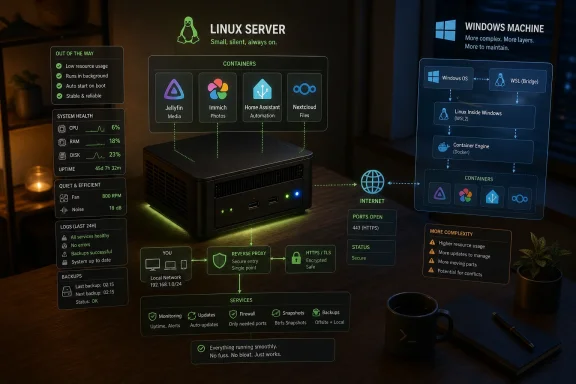
Windows brings more baseline machinery with it. A modern Windows installation expects to be a desktop operating system even when you are asking it to behave like an appliance. It carries a graphical shell, background services, Defender, telemetry components, update orchestration, driver services, and user-session assumptions that may be reasonable on a daily PC but are less attractive on a box whose main job is to run containers.
This is not just about RAM bragging rights. Self-hosters often build servers from leftover hardware because the economics are appealing. A retired office PC, a low-power N100 mini PC, or an old ThinkPad can become useful infrastructure instead of e-waste. Linux stretches that hardware further.
The same logic applies to power. A server that runs all day becomes part of the household’s electrical background noise. The operating system will not single-handedly determine the bill, but fewer unnecessary processes, fewer GUI demands, and better support for headless operation all help keep the machine closer to appliance behavior.
On a desktop, that is annoying. On a home server, it can break the illusion that your services are infrastructure. A photo backup failing overnight, a game server vanishing during a session, a streaming service rebooting during a movie, or Home Assistant going down when automations should run are not catastrophic events, but they erode confidence.
Linux is not magic here. Linux servers need security patches, kernels need updates, services need restarts, and unattended upgrades can be misconfigured. A neglected Linux box is not inherently safer than a patched Windows box.
The difference is control. Linux server maintenance generally starts from the assumption that the administrator decides when disruptive changes happen. You can enable unattended security updates for low-risk packages, hold kernel reboots until a maintenance window, restart individual services, and use systemd to bring failed services back without rebooting the host. That model fits the psychology of self-hosting: the server should be boring until you choose to touch it.
For beginners, this is one of Linux’s underrated teaching benefits. It forces the user to understand that uptime is not an accident. Services have states, logs, dependencies, and restart policies. Once that mental model clicks, the server feels less like a PC in the corner and more like a small platform.
The answer is that it matters less than it used to, but not as little as the marketing suggests. Docker Desktop on Windows commonly uses the WSL 2 backend for Linux containers. WSL 2 is powerful and useful, and Microsoft deserves credit for turning Windows into a credible Linux development environment. But architecturally, the joke writes itself: Windows runs Linux so Linux can run the containers.
That can be a perfectly good development setup. If you are writing code on a Windows laptop and need a local PostgreSQL container, Redis instance, or web app stack, Docker Desktop with WSL 2 is convenient. It integrates well enough that many developers forget how much is happening below the surface.
A self-hosted server is a different context. You are not spinning up disposable development dependencies for a workday; you are keeping personal infrastructure alive for months. The more layers involved, the more places there are for storage paths, networking, permissions, memory allocation, filesystem performance, and update behavior to become confusing.
Windows containers exist, but they are not the default target for the self-hosted apps most home users care about. The mainstream container images for media servers, photo libraries, dashboards, download clients, reverse proxies, and automation tools are Linux images. If the destination is Linux, running Linux as the host is not ideological purity. It is simplification.
Self-hosted apps are usually stateful. Jellyfin has media libraries and metadata. Immich has photos, thumbnails, machine-learning models, and databases. Nextcloud has user files and app data. Home Assistant has configuration, add-ons, backups, and device integrations. These are not toy workloads where losing a volume is a minor inconvenience.
On Linux, the container storage model aligns naturally with the host. Paths look like the paths in the documentation. Permissions are the Unix permissions the container expects. Bind mounts, named volumes, user IDs, group IDs, and filesystem events all live in the same conceptual universe.
On Windows, Docker Desktop and WSL 2 bridge two worlds. The bridge is impressive, but it is still a bridge. Files stored on the Windows side and mounted into Linux containers can behave differently from files stored inside the Linux filesystem. Path translation can confuse beginners. Antivirus scanning can affect performance. Backup tools may see layers without understanding the service semantics.
None of this makes Windows unusable. It does make the failure modes more exotic. A beginner already has to learn containers, ports, YAML indentation, reverse proxies, DNS, HTTPS certificates, backups, and updates. Asking them to learn Windows-Linux filesystem boundary behavior at the same time is a poor bargain.
Then there are appliance-like platforms built on Linux. Proxmox VE turns an old PC into a virtualization host. TrueNAS Scale brings storage management and apps to the foreground. Unraid wraps disks, containers, and VMs in a home-server-friendly interface. CasaOS and similar dashboards try to make Docker apps feel closer to an app store.
The important pattern is that even the user-friendly layers are usually Linux underneath. The polish varies, the abstractions vary, and the communities vary, but the base assumption remains the same. When something breaks, the lower level you eventually reach is a Linux shell, Linux logs, Linux permissions, and Linux networking.
That is why learning Linux early pays off. A beginner does not need to become a kernel developer or memorize every systemd unit directive. They do need enough fluency to SSH into the box, read logs, edit a Compose file, check disk space, restart a service, and understand where persistent data lives.
Windows can hide some of that at first, but self-hosting eventually reveals the machinery. Linux simply reveals the machinery that the rest of the ecosystem expects you to see.
For the next year of running a server, the GUI matters much less. Most administration happens through a web dashboard, SSH session, remote terminal, or configuration file. The services themselves are accessed from browsers, mobile apps, smart TVs, or client devices. The server’s local desktop is often unused.
This is where Windows carries a psychological advantage but a practical disadvantage. It gives beginners a familiar surface, then asks the machine to keep carrying that surface indefinitely. A headless Linux server feels stranger on day one but more natural by day thirty.
There is also a security argument, though it should not be overstated. Less exposed software can mean less attack surface. A server without a desktop environment, consumer apps, browser sessions, and interactive user habits is easier to reason about. The biggest risks in home labs still tend to be weak passwords, exposed admin panels, stale containers, bad port forwarding, and nonexistent backups, but a leaner base helps.
The GUI debate is really about what kind of confidence a beginner wants. Windows offers confidence by familiarity. Linux offers confidence by reducing the number of things that are irrelevant to the server’s mission.
If the service you need is Windows-only, the answer is obvious. If your home lab is partly about learning Windows Server, Active Directory, Group Policy, PowerShell remoting, Hyper-V, or Microsoft enterprise administration, then Windows is not a compromise; it is the curriculum. If the machine is already a Windows desktop that only occasionally hosts a lightweight service for personal use, installing Linux may be unnecessary friction.
Windows also remains a strong client operating system for managing a Linux server. Windows Terminal, PowerShell, OpenSSH, WSL, Visual Studio Code, and browser-based admin tools make the Windows desktop a very good cockpit for Linux infrastructure. The winning home setup for many people is not Windows or Linux everywhere. It is Windows on the desk, Linux in the closet.
There is also the Hyper-V angle. A Windows Pro or Windows Server host can run Linux virtual machines well, and for some users that is an acceptable middle ground. But that concession reinforces the larger point: when the self-hosted app stack becomes serious, Linux usually appears inside the architecture anyway.
The question is whether you want Linux to be the primary platform or the workaround inside another platform. For most beginners, the cleaner answer is to make it primary.
But Windows self-hosting does not eliminate complexity. It relocates it. Instead of learning systemd, users learn Task Scheduler, services.msc, Windows Firewall rules, WSL integration, Docker Desktop settings, Hyper-V switches, NTFS permissions, path translation, and update behavior. The vocabulary is more familiar to Windows users, but the server concepts remain.
The best reason to choose Linux is not that it is effortless. It is that the effort compounds. The commands you learn for one service help with the next. The file layout starts to make sense. Logs become less intimidating. Docker Compose examples become editable rather than mystical. SSH stops feeling like a hack and starts feeling like the normal way to administer a machine.
Self-hosting is a hobby that rewards durable knowledge. Linux gives that knowledge more places to land.
Proxmox is attractive if you want to experiment with VMs and containers while keeping services isolated. Ubuntu Server and Debian are attractive if you want a simple Docker host with a huge knowledge base. Unraid and TrueNAS Scale are attractive if storage management is the center of the build. The right choice depends on whether the server is mainly a lab, a NAS, a media box, or a household appliance.
What beginners should avoid is the fantasy that the operating system choice is temporary. “I’ll start on Windows and move later” often means the migration arrives after the server contains photos, databases, media metadata, certificates, user accounts, and half-remembered port mappings. Moving then is possible, but it is more stressful than starting on the platform the apps expected.
The better beginner move is to accept a little discomfort early. Install Linux before the data pile grows. Break things while the stakes are low. Learn backups before you need them. Treat the first server not as a monument, but as a draft.
That is where Linux’s alleged rough edges become virtues. Text files are easy to copy. Services are easy to inspect. Logs are centralized enough to follow. Remote administration is normal. Reboots are usually deliberate. Containers run where they were designed to run.
Windows has become much more capable for developers and tinkerers, and WSL is one of Microsoft’s most important platform decisions of the last decade. But WSL’s success does not make Windows the natural self-hosting base. It proves how indispensable Linux workflows have become, even on Microsoft’s own desktop.
For WindowsForum readers, that should not be read as an insult to Windows. It is a reminder to use tools where they are strongest. Windows is an excellent interactive operating system. Linux is the better default for a small server whose value is measured in uptime, thrift, and predictability.
The decision collapses into a few concrete points:
 The Best Self-Hosting OS Is the One That Gets Out of the Way
The Windows-versus-Linux argument usually gets ruined by identity before it reaches evidence. Desktop users argue over polish, app availability, driver pain, gaming support, terminal culture, and decades of muscle memory. Self-hosting strips most of that away.A server has a simpler job. It needs to boot reliably, run services predictably, expose them safely, update without drama, and consume as little power and memory as possible while doing it. By those measures, Linux is not merely the traditional answer; it is still the practical one.
That does not mean Windows is useless as a self-hosting platform. Windows is perfectly capable of running services, file shares, media tools, development stacks, and virtual machines. For some users, especially those already comfortable with the Windows desktop and remote access tools, it can be a familiar way to start.
But familiarity is not the same as fitness. The deeper a beginner goes into self-hosting, the more the ecosystem quietly assumes Linux: Docker Compose examples, package names, service managers, permissions models, reverse proxy guides, cron jobs, system logs, and hardware pass-through tutorials. Starting on Windows often means beginning in the comfortable place, then repeatedly crossing into Linux territory anyway.
Windows Can Host Apps, but Linux Hosts the Culture
The first surprise for many newcomers is not that Linux works well for self-hosting. It is that the self-hosting world overwhelmingly talks in Linux.Search for a guide to run Jellyfin with hardware acceleration, Immich with PostgreSQL and Redis, Home Assistant in a container, Paperless-ngx behind a reverse proxy, or Nextcloud with persistent storage. The commands, paths, assumptions, and troubleshooting steps usually begin with a Linux shell. Even when the guide is written for “Docker,” it often means Docker on Linux unless stated otherwise.
That matters because self-hosting is less about installing one app than maintaining a small ecosystem. A typical home server starts with one service and quickly grows into a stack: media streaming, photo backup, DNS filtering, password management, network monitoring, file sync, VPN access, dashboards, and backup automation. The value of the operating system is measured not just at install time, but at the tenth weird error message.
Linux gives beginners a larger map. It is where the examples are, where the forum answers are, where project maintainers test first, and where the defaults usually make sense. Windows users can translate those instructions, but translation is work, and work is where mistakes creep in.
The result is an odd inversion of the usual desktop debate. Windows is often friendlier for everyday personal computing, but Linux is friendlier for learning self-hosting because the community’s documentation already speaks its language. The beginner who chooses Linux is not choosing austerity for its own sake. They are choosing the path with fewer detours.
Idle Resources Are Not a Footnote on Cheap Hardware
Resource usage sounds like a benchmarker’s obsession until the server is an old laptop with 8GB of RAM, a fanless mini PC, or a Raspberry Pi-class board sitting in a closet. On that kind of hardware, every gigabyte you give the host is a gigabyte you cannot give your services.A headless Linux server can run comfortably without a desktop environment and without the memory footprint of a full graphical workstation. Official minimum requirements vary by distribution and installer, and modern desktop Linux has grown heavier over time, but the point for self-hosting is not whether GNOME can run on a low-end box. The point is that Debian, Ubuntu Server, Alpine, Fedora Server, and other server-focused options can be installed with a lean service profile and administered remotely.
Windows brings more baseline machinery with it. A modern Windows installation expects to be a desktop operating system even when you are asking it to behave like an appliance. It carries a graphical shell, background services, Defender, telemetry components, update orchestration, driver services, and user-session assumptions that may be reasonable on a daily PC but are less attractive on a box whose main job is to run containers.
This is not just about RAM bragging rights. Self-hosters often build servers from leftover hardware because the economics are appealing. A retired office PC, a low-power N100 mini PC, or an old ThinkPad can become useful infrastructure instead of e-waste. Linux stretches that hardware further.
The same logic applies to power. A server that runs all day becomes part of the household’s electrical background noise. The operating system will not single-handedly determine the bill, but fewer unnecessary processes, fewer GUI demands, and better support for headless operation all help keep the machine closer to appliance behavior.
The Reboot Problem Is Really a Trust Problem
The most emotionally charged complaint against Windows in server roles is the surprise reboot. Microsoft has improved update controls over the years, and Windows Server is a different beast from a consumer Windows 11 machine. Still, the reputation exists for a reason: Windows Update has trained users to expect that the operating system may eventually insist on finishing its business.On a desktop, that is annoying. On a home server, it can break the illusion that your services are infrastructure. A photo backup failing overnight, a game server vanishing during a session, a streaming service rebooting during a movie, or Home Assistant going down when automations should run are not catastrophic events, but they erode confidence.
Linux is not magic here. Linux servers need security patches, kernels need updates, services need restarts, and unattended upgrades can be misconfigured. A neglected Linux box is not inherently safer than a patched Windows box.
The difference is control. Linux server maintenance generally starts from the assumption that the administrator decides when disruptive changes happen. You can enable unattended security updates for low-risk packages, hold kernel reboots until a maintenance window, restart individual services, and use systemd to bring failed services back without rebooting the host. That model fits the psychology of self-hosting: the server should be boring until you choose to touch it.
For beginners, this is one of Linux’s underrated teaching benefits. It forces the user to understand that uptime is not an accident. Services have states, logs, dependencies, and restart policies. Once that mental model clicks, the server feels less like a PC in the corner and more like a small platform.
Docker on Windows Is Often Linux With Extra Steps
The strongest argument for Windows self-hosting is Docker Desktop. If the apps are containerized and Docker runs on Windows, why should the host OS matter?The answer is that it matters less than it used to, but not as little as the marketing suggests. Docker Desktop on Windows commonly uses the WSL 2 backend for Linux containers. WSL 2 is powerful and useful, and Microsoft deserves credit for turning Windows into a credible Linux development environment. But architecturally, the joke writes itself: Windows runs Linux so Linux can run the containers.
That can be a perfectly good development setup. If you are writing code on a Windows laptop and need a local PostgreSQL container, Redis instance, or web app stack, Docker Desktop with WSL 2 is convenient. It integrates well enough that many developers forget how much is happening below the surface.
A self-hosted server is a different context. You are not spinning up disposable development dependencies for a workday; you are keeping personal infrastructure alive for months. The more layers involved, the more places there are for storage paths, networking, permissions, memory allocation, filesystem performance, and update behavior to become confusing.
Windows containers exist, but they are not the default target for the self-hosted apps most home users care about. The mainstream container images for media servers, photo libraries, dashboards, download clients, reverse proxies, and automation tools are Linux images. If the destination is Linux, running Linux as the host is not ideological purity. It is simplification.
Filesystems and Paths Are Where the Abstraction Leaks
The cleanest Docker tutorials make containers look almost weightless. Define an image, map a port, mount a volume, and the service appears. The trouble begins when the data matters.Self-hosted apps are usually stateful. Jellyfin has media libraries and metadata. Immich has photos, thumbnails, machine-learning models, and databases. Nextcloud has user files and app data. Home Assistant has configuration, add-ons, backups, and device integrations. These are not toy workloads where losing a volume is a minor inconvenience.
On Linux, the container storage model aligns naturally with the host. Paths look like the paths in the documentation. Permissions are the Unix permissions the container expects. Bind mounts, named volumes, user IDs, group IDs, and filesystem events all live in the same conceptual universe.
On Windows, Docker Desktop and WSL 2 bridge two worlds. The bridge is impressive, but it is still a bridge. Files stored on the Windows side and mounted into Linux containers can behave differently from files stored inside the Linux filesystem. Path translation can confuse beginners. Antivirus scanning can affect performance. Backup tools may see layers without understanding the service semantics.
None of this makes Windows unusable. It does make the failure modes more exotic. A beginner already has to learn containers, ports, YAML indentation, reverse proxies, DNS, HTTPS certificates, backups, and updates. Asking them to learn Windows-Linux filesystem boundary behavior at the same time is a poor bargain.
The Server Distributions Are Not Just “Linux”; They Are Operating Models
Saying “use Linux” is imprecise, because the real recommendation is to use a server-oriented Linux environment that matches the job. Debian and Ubuntu Server are common because they are stable, widely documented, and boring in the best sense. Fedora Server, Rocky Linux, AlmaLinux, Arch, Alpine, and openSUSE all have audiences, but beginners benefit from the gravitational pull of Debian-family examples.Then there are appliance-like platforms built on Linux. Proxmox VE turns an old PC into a virtualization host. TrueNAS Scale brings storage management and apps to the foreground. Unraid wraps disks, containers, and VMs in a home-server-friendly interface. CasaOS and similar dashboards try to make Docker apps feel closer to an app store.
The important pattern is that even the user-friendly layers are usually Linux underneath. The polish varies, the abstractions vary, and the communities vary, but the base assumption remains the same. When something breaks, the lower level you eventually reach is a Linux shell, Linux logs, Linux permissions, and Linux networking.
That is why learning Linux early pays off. A beginner does not need to become a kernel developer or memorize every systemd unit directive. They do need enough fluency to SSH into the box, read logs, edit a Compose file, check disk space, restart a service, and understand where persistent data lives.
Windows can hide some of that at first, but self-hosting eventually reveals the machinery. Linux simply reveals the machinery that the rest of the ecosystem expects you to see.
The GUI Is Comforting Until It Becomes Dead Weight
A desktop interface feels reassuring to newcomers. You can click around, open a browser, drag files, and use familiar menus. For the first hour of a project, that can reduce anxiety.For the next year of running a server, the GUI matters much less. Most administration happens through a web dashboard, SSH session, remote terminal, or configuration file. The services themselves are accessed from browsers, mobile apps, smart TVs, or client devices. The server’s local desktop is often unused.
This is where Windows carries a psychological advantage but a practical disadvantage. It gives beginners a familiar surface, then asks the machine to keep carrying that surface indefinitely. A headless Linux server feels stranger on day one but more natural by day thirty.
There is also a security argument, though it should not be overstated. Less exposed software can mean less attack surface. A server without a desktop environment, consumer apps, browser sessions, and interactive user habits is easier to reason about. The biggest risks in home labs still tend to be weak passwords, exposed admin panels, stale containers, bad port forwarding, and nonexistent backups, but a leaner base helps.
The GUI debate is really about what kind of confidence a beginner wants. Windows offers confidence by familiarity. Linux offers confidence by reducing the number of things that are irrelevant to the server’s mission.
Windows Still Has Places Where It Makes Sense
A fair argument for Linux should not pretend Windows has no role. There are scenarios where Windows is the right host, or at least a defensible one.If the service you need is Windows-only, the answer is obvious. If your home lab is partly about learning Windows Server, Active Directory, Group Policy, PowerShell remoting, Hyper-V, or Microsoft enterprise administration, then Windows is not a compromise; it is the curriculum. If the machine is already a Windows desktop that only occasionally hosts a lightweight service for personal use, installing Linux may be unnecessary friction.
Windows also remains a strong client operating system for managing a Linux server. Windows Terminal, PowerShell, OpenSSH, WSL, Visual Studio Code, and browser-based admin tools make the Windows desktop a very good cockpit for Linux infrastructure. The winning home setup for many people is not Windows or Linux everywhere. It is Windows on the desk, Linux in the closet.
There is also the Hyper-V angle. A Windows Pro or Windows Server host can run Linux virtual machines well, and for some users that is an acceptable middle ground. But that concession reinforces the larger point: when the self-hosted app stack becomes serious, Linux usually appears inside the architecture anyway.
The question is whether you want Linux to be the primary platform or the workaround inside another platform. For most beginners, the cleaner answer is to make it primary.
The Real Barrier Is Not Difficulty; It Is Vocabulary
Linux’s reputation for difficulty is partly deserved and partly outdated. A minimal server install can still feel austere. Error messages can be blunt. Permissions can be maddening. Networking can send new users into a fog of interfaces, bridges, routes, ports, and firewall rules.But Windows self-hosting does not eliminate complexity. It relocates it. Instead of learning systemd, users learn Task Scheduler, services.msc, Windows Firewall rules, WSL integration, Docker Desktop settings, Hyper-V switches, NTFS permissions, path translation, and update behavior. The vocabulary is more familiar to Windows users, but the server concepts remain.
The best reason to choose Linux is not that it is effortless. It is that the effort compounds. The commands you learn for one service help with the next. The file layout starts to make sense. Logs become less intimidating. Docker Compose examples become editable rather than mystical. SSH stops feeling like a hack and starts feeling like the normal way to administer a machine.
Self-hosting is a hobby that rewards durable knowledge. Linux gives that knowledge more places to land.
The Beginner’s Shortcut Is to Stop Avoiding the Platform Everyone Else Uses
The practical starting point in 2026 is not exotic. Install a stable server distribution, or install a Linux-based home-server platform if you want a friendlier first layer. Put Docker Engine and Docker Compose on it, store service data in predictable directories, and learn how to back up those directories before you expose anything important to the internet.Proxmox is attractive if you want to experiment with VMs and containers while keeping services isolated. Ubuntu Server and Debian are attractive if you want a simple Docker host with a huge knowledge base. Unraid and TrueNAS Scale are attractive if storage management is the center of the build. The right choice depends on whether the server is mainly a lab, a NAS, a media box, or a household appliance.
What beginners should avoid is the fantasy that the operating system choice is temporary. “I’ll start on Windows and move later” often means the migration arrives after the server contains photos, databases, media metadata, certificates, user accounts, and half-remembered port mappings. Moving then is possible, but it is more stressful than starting on the platform the apps expected.
The better beginner move is to accept a little discomfort early. Install Linux before the data pile grows. Break things while the stakes are low. Learn backups before you need them. Treat the first server not as a monument, but as a draft.
The Small Box in the Closet Wants Boring Decisions
The case for Linux is strongest because self-hosting punishes cleverness. A home server should not be a daily negotiation with the host OS. It should be a quiet box that recovers from service crashes, applies routine patches, preserves data, and waits for instructions.That is where Linux’s alleged rough edges become virtues. Text files are easy to copy. Services are easy to inspect. Logs are centralized enough to follow. Remote administration is normal. Reboots are usually deliberate. Containers run where they were designed to run.
Windows has become much more capable for developers and tinkerers, and WSL is one of Microsoft’s most important platform decisions of the last decade. But WSL’s success does not make Windows the natural self-hosting base. It proves how indispensable Linux workflows have become, even on Microsoft’s own desktop.
For WindowsForum readers, that should not be read as an insult to Windows. It is a reminder to use tools where they are strongest. Windows is an excellent interactive operating system. Linux is the better default for a small server whose value is measured in uptime, thrift, and predictability.
The Choice Is Less Romantic Than the Debate
A new self-hoster does not need a manifesto. They need a machine that will run the apps they care about without wasting memory, inventing unusual troubleshooting paths, or forcing them to translate every guide they read.The decision collapses into a few concrete points:
- Linux is the better default host for Jellyfin, Immich, Home Assistant, Nextcloud, and most Docker-based self-hosted apps because the software and documentation usually target Linux first.
- Windows can run many of the same workloads, but Linux containers on Windows commonly depend on WSL 2 or a virtualized Linux environment.
- A headless Linux server makes better use of old PCs, mini PCs, and low-memory devices because it does not need to carry a full desktop operating system stack.
- Linux gives administrators more predictable control over service restarts, patching, remote access, and long-running uptime behavior.
- Windows still makes sense when the workload is Windows-specific, when the goal is to learn Microsoft infrastructure, or when it is used as the client machine for managing a Linux server.
- The smartest beginner investment is learning enough Linux to maintain Docker Compose files, inspect logs, manage permissions, and back up persistent data before the server becomes important.
References
- Primary source: How-To Geek
Published: 2026-06-15T12:10:08.220002
Loading…
www.howtogeek.com - Related coverage: docs.docker.com
Loading…
docs.docker.com - Official source: learn.microsoft.com
Loading…
learn.microsoft.com - Related coverage: docs.docker.jp
Loading…
docs.docker.jp - Related coverage: tomshardware.com
Loading…
www.tomshardware.com - Related coverage: windowscentral.com
I break down 4 new Windows 11 tools from Build 2026 that genuinely stood out and show where the OS is heading | Windows Central
Microsoft unveiled a lot of AI projects at Build 2026, but these four Windows 11 tools caught my attention the most.www.windowscentral.com