

A slow Windows 11 or Windows 10 PC can usually be improved in June 2026 by disabling unnecessary startup apps, clearing temporary caches, enabling Storage Sense, optimizing drives correctly, checking Task Manager, reducing visual effects, and choosing the right power mode before buying upgrades. That is the useful truth buried beneath years of “PC booster” marketing: Windows already ships with most of the maintenance tools ordinary users need. The real trick is knowing which knobs matter, which ones are placebo, and when the problem has stopped being software at all.
The first suspect on almost every slow Windows machine is not malware, registry rot, or some mysterious “system corruption.” It is the crowd of applications that invited themselves to the startup party. Chat clients, game launchers, printer utilities, cloud sync tools, update agents, browser helpers, and vendor dashboards all want a few seconds of CPU and a slice of memory before the desktop is even usable.
Task Manager remains the cleanest way to see the damage. Pressing Ctrl + Shift + Esc and opening the Startup apps view exposes not just what launches, but how heavily Windows thinks each entry affects startup. That “Startup impact” column is more useful than most tuning utilities because it tells the user where the boot-time tax is actually being collected.
The sensible rule is not to disable everything. Leave hardware, driver, security, audio, graphics, and manufacturer utilities alone unless you know exactly what they do. But Spotify, Steam, Discord, Teams, Adobe helpers, game overlays, and dormant printer software rarely need to launch at boot. They can start when the user actually asks for them.
This is why startup cleanup feels so dramatic on older laptops. A 4GB Windows 10 machine with an HDD cannot absorb ten background apps politely. It turns them into a queue, then asks the disk to pretend it is memory, and the familiar “my PC is frozen after login” experience begins.
The practical cleanup starts with the user temp folder. Running
The Microsoft Store cache is another low-risk reset point. Running
Then there is DNS cache flushing, which is often oversold.
The path is simple: Settings, System, Storage, then Storage Sense. Windows 11 also surfaces Cleanup Recommendations, which can point users toward large files, unused apps, temporary files, and old update material. Windows 10 presents similar storage cleanup concepts through slightly different labels, but the underlying idea is the same.
This is especially important because free space is performance headroom. A nearly full system drive gives Windows less room for updates, paging, temporary files, browser caches, application installs, and recovery operations. Once the C: drive gets cramped, the whole machine starts behaving as though every task requires negotiation.
The overlooked culprit is often the Desktop. Users treat the Desktop as a visual workbench, but Windows treats it as a folder on the system drive. Dumping gigabytes of videos, installers, screenshots, and project files there means quietly filling the same drive Windows depends on to breathe.
The important button is “Clean up system files.” That second pass can reveal old Windows Update files, upgrade logs, and previous Windows installation folders. On a system that has been upgraded in place or neglected for months, this can recover several gigabytes. On a small 128GB SSD, several gigabytes is not trivia; it can be the difference between a smooth update and a failed one.
Disk Cleanup and Storage Sense should not be treated as rivals. Storage Sense is the background janitor. Disk Cleanup is the deliberate monthly inspection. The former keeps routine clutter from becoming a crisis, while the latter lets the user make a more conscious pass at system-level leftovers.
There is one warning worth repeating: do not delete blindly if you rely on rollback files after a major Windows upgrade. Removing previous Windows installation files can eliminate the easy path back to the prior version. If the upgrade is stable and weeks have passed, that space is fair game. If the machine was upgraded yesterday, patience is cheaper than regret.
SSDs are different. They have no moving heads, and traditional defragmentation does not deliver the same benefit. More importantly, unnecessary writes are not something SSD owners should encourage. Windows understands this distinction better than many users do: its Optimize Drives tool generally defrags hard drives and sends TRIM or retrim operations to SSDs when appropriate.
That distinction is why the Media type column matters. If Windows identifies a drive as a solid-state drive, optimization is not the old XP-era defrag ritual. It is a maintenance operation suited to flash storage. If Windows identifies a drive as a hard disk drive, optimization can still mean defragmentation.
The best default for most users is to leave scheduled optimization enabled. Manually running it after a large cleanup is reasonable, but turning it into a daily superstition is not. Windows maintenance has improved enough that the operating system should be trusted to perform routine drive care unless there is evidence it is misidentifying hardware or failing scheduled tasks.
The Processes tab lets users sort by CPU, Memory, Disk, and Network. If a process sits at high CPU while the system is idle, something may be stuck, updating, indexing, scanning, or misbehaving. If memory usage is constantly above 85 or 90 percent during ordinary browsing, Windows is probably leaning on the page file, and the machine will feel much slower than its processor specifications suggest.
The Disk column is just as revealing on older machines. A hard drive pinned at 100 percent active time while moving only tiny amounts of data is a classic sign of a storage bottleneck. The causes vary: Windows Update, search indexing, antivirus scanning, low free space, fragmentation, or a failing drive. But the result is always the same. The machine feels frozen because the slowest component is being asked to do the most urgent work.
The Performance tab gives the broader view. CPU pinned near maximum with no obvious foreground task means investigation is needed. Memory pressure on a 4GB system is expected in 2026, not surprising. Disk saturation on an HDD is common, especially during updates. Task Manager does not fix these problems by itself, but it stops users from guessing.
This is also where security awareness enters the picture. Unknown processes should not be killed at random, especially if they resemble Windows components. The safer habit is to search the process name, inspect its file location, and check whether it is signed by a trustworthy publisher. Malware often borrows familiar-looking names; legitimate Windows processes usually live in predictable system folders and carry Microsoft signatures.
The blunt option is to search for “Adjust the appearance and performance of Windows” and choose “Adjust for best performance.” That switches off most effects in one move. Many users will want to re-enable smooth font edges, because jagged text is a miserable trade-off for a small performance gain.
The gentler option is to disable transparency effects. In Windows 11, that lives under Accessibility and Visual Effects. In Windows 10, it is under Personalization and Colors. This will not transform a failing HDD into an SSD, but it can make window switching, Start menu behavior, and general desktop interaction feel cleaner on low-end systems.
The key word is feel. Some optimizations improve benchmarkable throughput; others improve responsiveness. Users care about both. A machine that responds instantly to clicks feels faster even when its raw compute power has not changed.
When a laptop is plugged in and being used for heavier work, switching Power mode to Best performance can reduce some of that restraint. In Windows 11, the setting lives in System, Power & battery. In Windows 10, many systems expose a battery slider from the system tray, though OEM utilities and Control Panel power plans may also come into play.
This setting is not free. Best performance can increase fan noise, heat, and battery drain. On thin laptops, it may also run into thermal limits quickly, meaning the machine boosts harder for a while and then settles. Still, for users wondering why a plugged-in laptop feels sluggish during app launches or multitasking, power mode is worth checking early.
Administrators should be more cautious. Managed devices may receive power policies through Group Policy, Intune, OEM tools, or energy-saving mandates. A user-level tweak may be overwritten, and in some organizations that is exactly the point. Performance is not the only requirement in a fleet.
On compatible Windows 11 systems, memory integrity may be enabled by default, particularly on clean installations and Secured-core-class hardware. Microsoft’s intent is obvious: modern Windows should use modern silicon security features without requiring ordinary users to become platform-security engineers. That is a defensible position.
The performance argument is also real, especially on older or marginal hardware. Users may see impact in gaming, virtualization-heavy workflows, or systems with older CPUs and limited memory. But disabling VBS or memory integrity should not be treated like turning off animation effects. It is a security trade-off, not a housekeeping step.
The right advice is to check before acting.
For Windows 11 in 2026, 8GB should be treated as the practical floor, not a luxury. It is enough for ordinary use if the user is disciplined. For comfortable multitasking, 16GB is the better target. RAM upgrades are not always possible on thin laptops with soldered memory, but when they are possible, they deliver a kind of stability software tweaks cannot fake.
Storage is the other hard boundary. If Windows is still booting from a mechanical HDD, replacing it with even a basic SATA SSD will produce a bigger perceived improvement than almost any setting in this guide. Boot time, app launches, updates, indexing, antivirus scans, and paging all become less painful when the system drive stops being mechanical.
That does not mean every slow PC deserves new hardware. It means optimization should be used to reveal the bottleneck, not hide it. If Task Manager shows memory pressure all day, buy RAM if the machine allows it. If Disk active time is constantly pegged on an HDD, move Windows to an SSD. If the CPU is genuinely saturated by ordinary work, it may be time to retire the system.
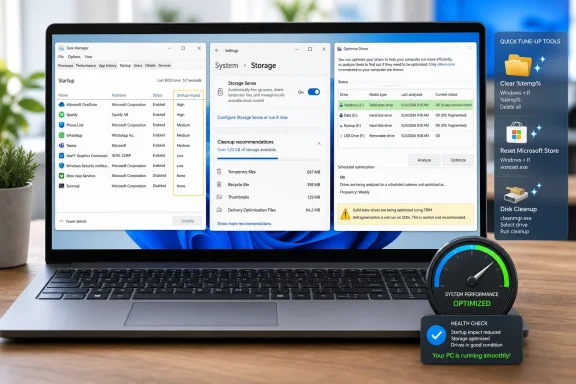 The Fastest Windows Fix Is Still the One Hiding in Plain Sight
The first suspect on almost every slow Windows machine is not malware, registry rot, or some mysterious “system corruption.” It is the crowd of applications that invited themselves to the startup party. Chat clients, game launchers, printer utilities, cloud sync tools, update agents, browser helpers, and vendor dashboards all want a few seconds of CPU and a slice of memory before the desktop is even usable.Task Manager remains the cleanest way to see the damage. Pressing Ctrl + Shift + Esc and opening the Startup apps view exposes not just what launches, but how heavily Windows thinks each entry affects startup. That “Startup impact” column is more useful than most tuning utilities because it tells the user where the boot-time tax is actually being collected.
The sensible rule is not to disable everything. Leave hardware, driver, security, audio, graphics, and manufacturer utilities alone unless you know exactly what they do. But Spotify, Steam, Discord, Teams, Adobe helpers, game overlays, and dormant printer software rarely need to launch at boot. They can start when the user actually asks for them.
This is why startup cleanup feels so dramatic on older laptops. A 4GB Windows 10 machine with an HDD cannot absorb ten background apps politely. It turns them into a queue, then asks the disk to pretend it is memory, and the familiar “my PC is frozen after login” experience begins.
Cache Clearing Works Best When It Is Treated as Housekeeping, Not Magic
Windows accumulates temporary files because modern software is messy by design. Browsers cache session data, installers leave unpacked payloads behind, apps create scratch files, and Windows itself stores transient material while updating and maintaining the system. None of this is scandalous; it is the cost of a general-purpose operating system.The practical cleanup starts with the user temp folder. Running
%temp% from the Run dialog opens a directory that can contain thousands of files from apps and services. Selecting the contents and deleting them will often leave a few locked files behind, which is normal. A running browser or service may still be using them, and Windows will skip what it cannot safely remove.The Microsoft Store cache is another low-risk reset point. Running
wsreset.exe clears Store cache state and relaunches the Store after the command finishes. It is not a broad performance cure, but it is a neat fix for sluggish Store behavior, stuck app updates, and weird download failures.Then there is DNS cache flushing, which is often oversold.
ipconfig /flushdns will not make a slow broadband connection fast, and it will not fix weak Wi-Fi. But if sites are resolving oddly, timing out after network changes, or clinging to stale address information, flushing the DNS resolver cache is a harmless first move before deeper network troubleshooting.Storage Sense Is Microsoft’s Quiet Admission That Manual Cleanup Was Never Enough
Storage Sense is one of the better examples of Microsoft modernizing an old Windows chore without making much noise about it. Instead of asking users to remember cleanup rituals, Windows can automatically remove temporary files and manage Recycle Bin behavior when space gets tight. On smaller SSDs, that automation matters.The path is simple: Settings, System, Storage, then Storage Sense. Windows 11 also surfaces Cleanup Recommendations, which can point users toward large files, unused apps, temporary files, and old update material. Windows 10 presents similar storage cleanup concepts through slightly different labels, but the underlying idea is the same.
This is especially important because free space is performance headroom. A nearly full system drive gives Windows less room for updates, paging, temporary files, browser caches, application installs, and recovery operations. Once the C: drive gets cramped, the whole machine starts behaving as though every task requires negotiation.
The overlooked culprit is often the Desktop. Users treat the Desktop as a visual workbench, but Windows treats it as a folder on the system drive. Dumping gigabytes of videos, installers, screenshots, and project files there means quietly filling the same drive Windows depends on to breathe.
Disk Cleanup Refuses to Die Because It Still Does One Job Well
Microsoft has nudged users toward Settings for years, but the old Disk Cleanup utility remains worth knowing. It is not glamorous, but it can still expose cleanup categories that users understand immediately: temporary files, thumbnails, DirectX shader cache, Recycle Bin contents, delivery optimization files, and system error logs.The important button is “Clean up system files.” That second pass can reveal old Windows Update files, upgrade logs, and previous Windows installation folders. On a system that has been upgraded in place or neglected for months, this can recover several gigabytes. On a small 128GB SSD, several gigabytes is not trivia; it can be the difference between a smooth update and a failed one.
Disk Cleanup and Storage Sense should not be treated as rivals. Storage Sense is the background janitor. Disk Cleanup is the deliberate monthly inspection. The former keeps routine clutter from becoming a crisis, while the latter lets the user make a more conscious pass at system-level leftovers.
There is one warning worth repeating: do not delete blindly if you rely on rollback files after a major Windows upgrade. Removing previous Windows installation files can eliminate the easy path back to the prior version. If the upgrade is stable and weeks have passed, that space is fair game. If the machine was upgraded yesterday, patience is cheaper than regret.
Drive Optimization Is Where Old Advice Becomes Dangerous
The phrase “defrag your drive” belongs to the hard-drive era, and that is why it still causes trouble. Mechanical HDDs benefit from defragmentation because scattered file fragments force physical read heads to jump around spinning platters. Reorganizing those fragments can reduce seek time and improve responsiveness.SSDs are different. They have no moving heads, and traditional defragmentation does not deliver the same benefit. More importantly, unnecessary writes are not something SSD owners should encourage. Windows understands this distinction better than many users do: its Optimize Drives tool generally defrags hard drives and sends TRIM or retrim operations to SSDs when appropriate.
That distinction is why the Media type column matters. If Windows identifies a drive as a solid-state drive, optimization is not the old XP-era defrag ritual. It is a maintenance operation suited to flash storage. If Windows identifies a drive as a hard disk drive, optimization can still mean defragmentation.
The best default for most users is to leave scheduled optimization enabled. Manually running it after a large cleanup is reasonable, but turning it into a daily superstition is not. Windows maintenance has improved enough that the operating system should be trusted to perform routine drive care unless there is evidence it is misidentifying hardware or failing scheduled tasks.
Task Manager Is the Slow-PC Lie Detector
A slow PC is not a diagnosis. It is a symptom. Task Manager is where that symptom starts becoming evidence.The Processes tab lets users sort by CPU, Memory, Disk, and Network. If a process sits at high CPU while the system is idle, something may be stuck, updating, indexing, scanning, or misbehaving. If memory usage is constantly above 85 or 90 percent during ordinary browsing, Windows is probably leaning on the page file, and the machine will feel much slower than its processor specifications suggest.
The Disk column is just as revealing on older machines. A hard drive pinned at 100 percent active time while moving only tiny amounts of data is a classic sign of a storage bottleneck. The causes vary: Windows Update, search indexing, antivirus scanning, low free space, fragmentation, or a failing drive. But the result is always the same. The machine feels frozen because the slowest component is being asked to do the most urgent work.
The Performance tab gives the broader view. CPU pinned near maximum with no obvious foreground task means investigation is needed. Memory pressure on a 4GB system is expected in 2026, not surprising. Disk saturation on an HDD is common, especially during updates. Task Manager does not fix these problems by itself, but it stops users from guessing.
This is also where security awareness enters the picture. Unknown processes should not be killed at random, especially if they resemble Windows components. The safer habit is to search the process name, inspect its file location, and check whether it is signed by a trustworthy publisher. Malware often borrows familiar-looking names; legitimate Windows processes usually live in predictable system folders and carry Microsoft signatures.
Windows 11’s Beauty Tax Is Real on Budget Hardware
Windows 11 looks more polished than Windows 10, and that polish is not free. Transparency, animation, shadows, and other visual effects consume graphics and CPU resources. On a modern desktop with a capable GPU, the cost is negligible. On a budget laptop with integrated graphics, weak cooling, and limited RAM, those flourishes can make the shell feel heavier than it needs to be.The blunt option is to search for “Adjust the appearance and performance of Windows” and choose “Adjust for best performance.” That switches off most effects in one move. Many users will want to re-enable smooth font edges, because jagged text is a miserable trade-off for a small performance gain.
The gentler option is to disable transparency effects. In Windows 11, that lives under Accessibility and Visual Effects. In Windows 10, it is under Personalization and Colors. This will not transform a failing HDD into an SSD, but it can make window switching, Start menu behavior, and general desktop interaction feel cleaner on low-end systems.
The key word is feel. Some optimizations improve benchmarkable throughput; others improve responsiveness. Users care about both. A machine that responds instantly to clicks feels faster even when its raw compute power has not changed.
Power Settings Can Make a Plugged-In Laptop Behave Like It Is Still Saving Battery
Windows power management is designed to balance performance, thermals, acoustics, and battery life. That is sensible for mobile computing, but it also means a laptop may feel oddly restrained when the user expects full speed. Balanced mode is not broken; it is doing what it was designed to do.When a laptop is plugged in and being used for heavier work, switching Power mode to Best performance can reduce some of that restraint. In Windows 11, the setting lives in System, Power & battery. In Windows 10, many systems expose a battery slider from the system tray, though OEM utilities and Control Panel power plans may also come into play.
This setting is not free. Best performance can increase fan noise, heat, and battery drain. On thin laptops, it may also run into thermal limits quickly, meaning the machine boosts harder for a while and then settles. Still, for users wondering why a plugged-in laptop feels sluggish during app launches or multitasking, power mode is worth checking early.
Administrators should be more cautious. Managed devices may receive power policies through Group Policy, Intune, OEM tools, or energy-saving mandates. A user-level tweak may be overwritten, and in some organizations that is exactly the point. Performance is not the only requirement in a fleet.
VBS Is the Performance Temptation That Comes With a Security Bill
Virtualization-based security is one of the more complicated entries in the Windows performance debate because it is not junk, bloat, or cosmetic overhead. VBS uses virtualization features to isolate sensitive security functions from the normal operating system environment. Memory integrity, also known as HVCI, is part of that world and is designed to harden Windows against kernel-level attacks.On compatible Windows 11 systems, memory integrity may be enabled by default, particularly on clean installations and Secured-core-class hardware. Microsoft’s intent is obvious: modern Windows should use modern silicon security features without requiring ordinary users to become platform-security engineers. That is a defensible position.
The performance argument is also real, especially on older or marginal hardware. Users may see impact in gaming, virtualization-heavy workflows, or systems with older CPUs and limited memory. But disabling VBS or memory integrity should not be treated like turning off animation effects. It is a security trade-off, not a housekeeping step.
The right advice is to check before acting.
msinfo32 can show whether virtualization-based security is running, and Windows Security exposes memory integrity under Core isolation. If the PC is used for banking, work credentials, development keys, or admin tasks, security protections deserve a higher presumption of value. If it is an older gaming box with no sensitive workload, the calculus may differ.The Upgrade Wall Arrives Earlier Than Users Want to Admit
There is a point where software tuning stops being the honest answer. A Windows 10 or Windows 11 machine with 4GB of RAM can be cleaned, trimmed, and disciplined, but it is still operating below the comfort line for modern browsers, messaging apps, Office workloads, and background security tools. Chrome alone can make a 4GB laptop feel like a hostage negotiation.For Windows 11 in 2026, 8GB should be treated as the practical floor, not a luxury. It is enough for ordinary use if the user is disciplined. For comfortable multitasking, 16GB is the better target. RAM upgrades are not always possible on thin laptops with soldered memory, but when they are possible, they deliver a kind of stability software tweaks cannot fake.
Storage is the other hard boundary. If Windows is still booting from a mechanical HDD, replacing it with even a basic SATA SSD will produce a bigger perceived improvement than almost any setting in this guide. Boot time, app launches, updates, indexing, antivirus scans, and paging all become less painful when the system drive stops being mechanical.
That does not mean every slow PC deserves new hardware. It means optimization should be used to reveal the bottleneck, not hide it. If Task Manager shows memory pressure all day, buy RAM if the machine allows it. If Disk active time is constantly pegged on an HDD, move Windows to an SSD. If the CPU is genuinely saturated by ordinary work, it may be time to retire the system.
The Windows Tune-Up That Actually Survives Contact With Real PCs
The durable lesson is not that every user should run every tweak every weekend. It is that slow Windows systems usually fail in predictable ways, and Windows already exposes the evidence.- Disable high-impact startup apps that do not need to run before you ask for them.
- Clear temporary files, Store cache, and DNS cache when symptoms point to clutter or stale state.
- Keep Storage Sense enabled, then use Disk Cleanup periodically for deeper system-file cleanup.
- Let Windows optimize drives according to media type instead of applying HDD-era defrag advice to SSDs.
- Use Task Manager to identify CPU, memory, disk, and network bottlenecks before blaming Windows generically.
- Treat VBS and memory integrity as security trade-offs, not casual performance switches.
References
- Primary source: TechMitra
Published: 2026-06-16T17:24:21.442851
Loading…
techmitra.in