
Files, the open-source Windows file manager for Windows 10 and Windows 11, has added Tree View in its 4.1.14 Preview release, letting users expand drives and nested folders from the sidebar before the feature reaches the stable channel. The change sounds small only if you have never lived inside a directory tree all day. For power users, developers, photographers, sysadmins, and anyone with more than a handful of project folders, it is the difference between a pretty Explorer replacement and a tool that finally understands muscle memory.
The story here is not that a third-party file manager has copied a familiar File Explorer behavior. The story is that Files has spent years building around modern Windows design while still missing one of the oldest navigational ideas in graphical file management, and its developers have now conceded that elegance cannot replace hierarchy. Windows users may grumble about File Explorer, but the tree on the left remains one of its most durable inventions: a compact, brutally practical map of where you are and where you can go next.
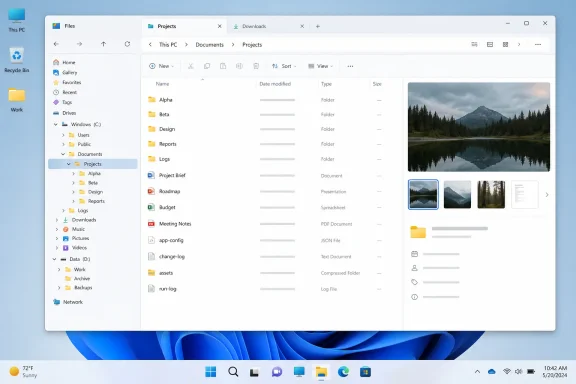
The new Tree View in Files 4.1.14 Preview gives the app an expandable folder hierarchy, starting with drives and unfolding into nested folders without forcing the main file pane to change location. Users can click the small arrow beside a drive, browse downward through the structure, and then open the folder they actually want in the main view. That is ordinary behavior in File Explorer, but it has been conspicuously absent from Files until now.
That absence mattered because Files has not marketed itself as a toy shell or a novelty interface. It is a serious, open-source alternative to File Explorer with tabs, dual-pane support, column view, tags, rich previews, Git integration, archive handling, customizable themes, and a growing list of power-user niceties. In many respects, it has looked more ambitious than Microsoft’s own file manager.
Yet file managers are unforgiving software. A browser can hide complexity behind search, recommendations, and history. A file manager has to respect the fact that users already know where things live, and that many of those locations are buried inside years of accumulated personal, corporate, and development structure. The folder tree is not nostalgic decoration; it is the visible skeleton of the machine.
Files’ earlier answer to hierarchy was to offer other navigation models. Column view can be excellent for moving through nested paths, especially for users who admire the Finder-like approach. Tabs and dual panes help when comparing or moving content across locations. The omnibar and command palette suit users who think in commands and paths. But none of those fully replaces the left-hand tree for people who want to keep one folder open while peeking into another branch of the system.
The delayed arrival of Tree View is therefore an admission of product maturity. Young apps often win attention by throwing away old conventions. Mature productivity apps learn which conventions survived because they solved a real problem.
The Preview release lets early adopters test the feature before it lands for everyone on the stable channel. That sequencing matters because a bad tree view can be worse than no tree view. If expansion lags, if selection jumps unexpectedly, if network shares freeze the UI, or if cloud-backed folders produce confusing placeholders, users will blame the whole file manager rather than the preview feature.
This is one of the less glamorous but more important realities of replacing File Explorer. Microsoft’s file manager is often criticized for sluggishness, design inconsistency, and conservative feature work, but it carries decades of compatibility debt. It has to survive the weird stuff: mapped drives from ancient servers, shell extensions from printer vendors, enterprise endpoint agents, backup tools, version-control overlays, and user profiles that have migrated across five PCs.
Files does not have to replicate every last quirk of Explorer, and in some cases it should not try. But if it wants to become a daily driver rather than a weekend experiment, it has to behave predictably around the file system’s messy edges. Tree View sits directly on that fault line. It is a usability feature on the surface and a reliability test underneath.
The developers’ decision to solicit feedback before promoting the feature to stable suggests they understand that distinction. A sidebar tree is easy to demo with a clean C: drive and a few folders. It is harder to ship to users whose “Documents” directory is redirected to OneDrive, whose work folders sit on a VPN share, and whose development trees contain hundreds of thousands of files.
That tension creates room for third-party file managers. Files can move faster because it does not have to satisfy every enterprise deployment scenario on day one. It can add a command palette, polish tags, experiment with layouts, and redesign settings without waiting for a Windows feature update train. It can make aesthetic decisions that Microsoft would likely run through years of compatibility and accessibility review.
But the same freedom creates a paradox. The more Files becomes genuinely useful, the more users expect it to match Explorer’s boring fundamentals. A beautiful file manager that lacks a dependable tree view will eventually collide with someone’s daily workflow. A fast preview pane is lovely, but if a sysadmin cannot quickly jump between
Tree View narrows that gap. It makes Files feel less like an alternative philosophy and more like a practical replacement. That is not a retreat from innovation; it is what lets innovation survive contact with habit.
There is also a quiet indictment of Microsoft here. Windows users often ask why small quality-of-life improvements take so long to appear in core apps, while independent projects seem to ship them at a quicker pace. The answer is partly scale, partly caution, and partly the organizational reality of Windows itself. File Explorer is not merely an app; it is an interface to the shell, the storage stack, cloud sync providers, context menu extensions, and enterprise policy.
Still, users do not live inside architecture diagrams. They live inside workflows. If a third-party app can make a common task feel cleaner, users will notice.
File Explorer users take this for granted. The left pane can be a map, a shortcut surface, and a staging area all at once. You can keep one folder open, expand another drive, drag files across branches, or orient yourself after landing deep inside a directory from a shortcut. Without that tree, file navigation becomes more linear: open, back, forward, up, search, jump, repeat.
Files already had tools to reduce that friction. Tabs let users keep several places open. Dual pane makes transfers and comparisons easier. Column view exposes hierarchy horizontally. But Tree View adds a different kind of spatial awareness. It lets users understand the neighborhood around a folder, not just the folder itself.
That is especially important on Windows because file organization remains more visible than on many modern platforms. Phones and tablets push users toward app-managed storage, recent files, cloud libraries, and share sheets. Windows still has drive letters, user profiles, project folders, installers, archives, portable apps, local repos, redirected folders, mounted ISOs, and a thousand tiny utilities that assume you know where the file went.
For enthusiasts, this is part of the appeal. For everyone else, it can be a tax. A good file manager reduces that tax by making structure legible. Tree View is one of the oldest ways to do that because it compresses a large amount of context into a narrow strip of screen real estate.
There is a reason developers, administrators, and content creators often cling to tree-based navigation even as software designers periodically try to abstract it away. Search is powerful when you know what something is called. Recents are useful when chronology matches intent. Tags are valuable when users invest in metadata. But the tree remains the fallback when the only reliable fact is: it is somewhere under this folder.
Preview is one of the areas where third-party file managers can make Windows feel dramatically better. The less often a user has to launch a separate app just to identify a file, the faster the file manager feels. A font preview in the Fonts folder is a good example because font names alone are often poor descriptions of what a user actually wants to see. Designers, document authors, and anyone cleaning up a font collection benefit from seeing the typeface directly.
This feature also highlights the difference between a file manager as a storage browser and a file manager as a work surface. Traditional file managers were built around operations: copy, move, delete, rename, open. Modern users expect more interpretation: previews, metadata, thumbnails, tags, hashes, cloud state, Git status, archive contents, media duration, and quick actions.
Files has leaned into that broader idea. Its feature set includes previews, tags, column view, dual pane, cloud drive support, archive tools, and customization that goes well beyond the stock Explorer toolbar. Tree View does not replace that identity. It anchors it.
The risk for Files is feature sprawl. Every new convenience increases the surface area for bugs, performance issues, and UI clutter. A file manager that tries to be everything can become the very thing users fled. The better reading of the 4.1.14 Preview update, however, is that Files is adding a foundational navigation mode while continuing to polish specific workflows.
The font preview improvement is not likely to change anyone’s default file manager by itself. But combined with Tree View, it says Files is still pushing on both ends of the problem: the big structural habits of Windows navigation and the small irritations that make everyday work feel slower than it should.
On-demand folder size calculation is a particularly sensible compromise. Windows users have complained for years that File Explorer does not simply show folder sizes the way it shows file sizes. The reason is not laziness; calculating folder sizes can be expensive, especially across large directories, network locations, or cloud-backed storage. Doing it constantly would punish performance.
Files’ approach, as described in recent coverage, is to expose a “View size” action when automatic folder size calculation is turned off. That gives users the answer when they need it without forcing the app to crawl every folder all the time. It is a small design decision that respects both curiosity and cost.
The tag improvements matter for a different reason. Folder hierarchies are useful, but they are rigid. Tags offer another layer of organization, especially for files that belong to multiple contexts. A screenshot might be part of a work report, a bug ticket, and a design reference. A folder can put it in only one place unless the user starts duplicating files or relying on shortcuts.
The best file management tools do not pretend that one organizational model solves everything. They combine hierarchy, metadata, search, previews, and shortcuts in ways that let users choose the right mental model for the moment. Files’ recent updates suggest an app moving toward that blend rather than chasing a single grand idea.
For stable users, the practical advice is simple: Tree View is not there yet unless they opt into Preview, but the stable build is still moving. That distinction is important because Windows enthusiasts often blur preview and release software in conversation. For a daily file manager, channel discipline matters. The thing you use to move, rename, and delete files should not be treated with the same recklessness as a theme pack.
Open source also changes the credibility equation. Users can inspect the project, report bugs, follow issues, and see development activity. That does not automatically make software secure or reliable, but it provides a level of transparency that proprietary utilities often lack. For a file manager, trust matters because the app is placed directly between the user and their data.
Still, open source does not erase the difficulty of building on Windows. The platform is full of extension points, legacy behaviors, and undocumented expectations. Explorer alternatives have existed for decades, from dual-pane power tools to Norton Commander descendants to lightweight Explorer replacements. Many win loyal audiences; few displace Explorer for the mainstream.
The reason is not only that Microsoft owns the default. It is that replacing a file manager requires boring excellence. Drag-and-drop must work. Context menus must work. Network paths must work. Recycle Bin behavior must be unsurprising. Permissions must be communicated clearly. File operations must be safe. Crashes must be rare. Performance must be consistent even on systems the developers do not personally own.
Files has the design language and feature ambition to attract Windows 11 users who are tired of Explorer’s compromises. Tree View helps it court the users who were interested but unwilling to give up a basic navigational habit. But the long campaign is not won by any one feature. It is won by making the app feel uneventful in the best sense: predictable, fast enough, and hard to break.
That is why Preview releases are both exciting and dangerous. Enthusiasts want the new thing immediately. Administrators and cautious users want to know when the new thing has stopped being new. Files needs both groups, but it must not confuse them.
File managers sit at the center of that argument because they are where abstraction meets possession. A file is not just content; it is an object with a name, a path, a size, a timestamp, permissions, associations, and history. The more operating systems try to soften those edges, the more some users insist on tools that expose them.
Files succeeds when it makes control feel modern rather than antiquated. Its Fluent-style design, tabs, previews, and customization make it feel native to Windows 11 in a way older power-user file managers sometimes do not. But its best features are not merely aesthetic. They give users more ways to see and act on their data.
Tree View is part of that control story. It says the app will not force users to choose between a modern interface and the map-like navigation they already understand. It also makes Files easier to recommend. Until now, an enthusiast recommending Files to an Explorer user had to explain the missing tree and offer alternatives. Now the pitch becomes cleaner: it has the modern extras, and it is finally getting the familiar spine.
The comparison with File Explorer will remain complicated. Explorer has improved, and for many users it is good enough. It is deeply integrated, already installed, and supported by Microsoft. That is a formidable set of advantages. Third-party alternatives have to be meaningfully better, not just different.
Files’ challenge is to avoid becoming a checklist app. If every complaint about Explorer turns into another toggle, Files could lose the coherence that made it attractive in the first place. The best version of Files is not “Explorer plus every forum request.” It is a file manager with a clear point of view: modern Windows design, fast multitasking, useful previews, flexible organization, and enough respect for old workflows that users do not have to relearn the file system.
But a file manager is not the place to ignore risk. Preview software can be entirely usable, but it is still preview software. Users who only browse and preview files may have a high tolerance for small glitches. Users who do bulk renaming, large moves, network operations, or work with business-critical directories should be more cautious.
The safer path is to run Preview alongside stable if the project supports that workflow, test Tree View against your real folder structures, and pay attention to the edges. Try cloud folders. Try removable drives. Try deep project trees. Try network shares if you use them. Try dragging between the tree and the main pane if that behavior is available. The goal is not just to see whether the feature exists; it is to see whether it behaves well under your habits.
For stable-channel users, Files 4.1.3 is the more conservative update. Its on-demand folder size feature and tag improvements are useful without requiring a leap into a preview channel. If you are evaluating Files for a family PC, a work machine, or a system where reliability matters more than novelty, stable remains the sensible default.
The larger point is that Windows users now have a healthier choice. You can stay with File Explorer and get the built-in reliability of the Windows shell. You can use Files stable and gain a modern alternative with a growing feature set. Or you can try Files Preview and help shape Tree View before it lands more broadly. That range of options is exactly what the Windows ecosystem is supposed to be good at.
The story here is not that a third-party file manager has copied a familiar File Explorer behavior. The story is that Files has spent years building around modern Windows design while still missing one of the oldest navigational ideas in graphical file management, and its developers have now conceded that elegance cannot replace hierarchy. Windows users may grumble about File Explorer, but the tree on the left remains one of its most durable inventions: a compact, brutally practical map of where you are and where you can go next.
 Files Discovers That the Old Sidebar Still Wins
The new Tree View in Files 4.1.14 Preview gives the app an expandable folder hierarchy, starting with drives and unfolding into nested folders without forcing the main file pane to change location. Users can click the small arrow beside a drive, browse downward through the structure, and then open the folder they actually want in the main view. That is ordinary behavior in File Explorer, but it has been conspicuously absent from Files until now.That absence mattered because Files has not marketed itself as a toy shell or a novelty interface. It is a serious, open-source alternative to File Explorer with tabs, dual-pane support, column view, tags, rich previews, Git integration, archive handling, customizable themes, and a growing list of power-user niceties. In many respects, it has looked more ambitious than Microsoft’s own file manager.
Yet file managers are unforgiving software. A browser can hide complexity behind search, recommendations, and history. A file manager has to respect the fact that users already know where things live, and that many of those locations are buried inside years of accumulated personal, corporate, and development structure. The folder tree is not nostalgic decoration; it is the visible skeleton of the machine.
Files’ earlier answer to hierarchy was to offer other navigation models. Column view can be excellent for moving through nested paths, especially for users who admire the Finder-like approach. Tabs and dual panes help when comparing or moving content across locations. The omnibar and command palette suit users who think in commands and paths. But none of those fully replaces the left-hand tree for people who want to keep one folder open while peeking into another branch of the system.
The delayed arrival of Tree View is therefore an admission of product maturity. Young apps often win attention by throwing away old conventions. Mature productivity apps learn which conventions survived because they solved a real problem.
The Preview Channel Becomes a Trial Court for Muscle Memory
Files is rolling out Tree View first in the Preview channel, which is the right place for a feature that sounds obvious but can go wrong in surprisingly subtle ways. A folder tree is not just a list with arrows. It has to handle slow drives, removable devices, network paths, permission failures, cloud placeholders, symbolic links, pinned locations, hidden folders, and the eternal Windows problem of paths that behave differently depending on which subsystem touched them.The Preview release lets early adopters test the feature before it lands for everyone on the stable channel. That sequencing matters because a bad tree view can be worse than no tree view. If expansion lags, if selection jumps unexpectedly, if network shares freeze the UI, or if cloud-backed folders produce confusing placeholders, users will blame the whole file manager rather than the preview feature.
This is one of the less glamorous but more important realities of replacing File Explorer. Microsoft’s file manager is often criticized for sluggishness, design inconsistency, and conservative feature work, but it carries decades of compatibility debt. It has to survive the weird stuff: mapped drives from ancient servers, shell extensions from printer vendors, enterprise endpoint agents, backup tools, version-control overlays, and user profiles that have migrated across five PCs.
Files does not have to replicate every last quirk of Explorer, and in some cases it should not try. But if it wants to become a daily driver rather than a weekend experiment, it has to behave predictably around the file system’s messy edges. Tree View sits directly on that fault line. It is a usability feature on the surface and a reliability test underneath.
The developers’ decision to solicit feedback before promoting the feature to stable suggests they understand that distinction. A sidebar tree is easy to demo with a clean C: drive and a few folders. It is harder to ship to users whose “Documents” directory is redirected to OneDrive, whose work folders sit on a VPN share, and whose development trees contain hundreds of thousands of files.
Microsoft’s File Explorer Still Owns the Default, Not the Imagination
The reason Files updates attract attention is that File Explorer occupies a strange place in Windows. It is essential, omnipresent, and deeply familiar, but rarely exciting. Microsoft has modernized pieces of it over the Windows 11 era, including tabs, a refreshed command bar, gallery-style views, and ongoing performance work. But the app still feels like a treaty between old shell infrastructure and new design ambition.That tension creates room for third-party file managers. Files can move faster because it does not have to satisfy every enterprise deployment scenario on day one. It can add a command palette, polish tags, experiment with layouts, and redesign settings without waiting for a Windows feature update train. It can make aesthetic decisions that Microsoft would likely run through years of compatibility and accessibility review.
But the same freedom creates a paradox. The more Files becomes genuinely useful, the more users expect it to match Explorer’s boring fundamentals. A beautiful file manager that lacks a dependable tree view will eventually collide with someone’s daily workflow. A fast preview pane is lovely, but if a sysadmin cannot quickly jump between
C:\Users, a tools directory, a logs folder, and a network share, the app loses the person most likely to appreciate its advanced features.Tree View narrows that gap. It makes Files feel less like an alternative philosophy and more like a practical replacement. That is not a retreat from innovation; it is what lets innovation survive contact with habit.
There is also a quiet indictment of Microsoft here. Windows users often ask why small quality-of-life improvements take so long to appear in core apps, while independent projects seem to ship them at a quicker pace. The answer is partly scale, partly caution, and partly the organizational reality of Windows itself. File Explorer is not merely an app; it is an interface to the shell, the storage stack, cloud sync providers, context menu extensions, and enterprise policy.
Still, users do not live inside architecture diagrams. They live inside workflows. If a third-party app can make a common task feel cleaner, users will notice.
Tree View Is Really About Working Without Losing Place
The practical value of Tree View is not just that folders become expandable. It is that navigation becomes non-destructive. Users can inspect nearby or distant locations without leaving the folder currently displayed in the main pane. That matters when you are comparing structures, deciding where to move files, or simply trying not to lose the context of a task.File Explorer users take this for granted. The left pane can be a map, a shortcut surface, and a staging area all at once. You can keep one folder open, expand another drive, drag files across branches, or orient yourself after landing deep inside a directory from a shortcut. Without that tree, file navigation becomes more linear: open, back, forward, up, search, jump, repeat.
Files already had tools to reduce that friction. Tabs let users keep several places open. Dual pane makes transfers and comparisons easier. Column view exposes hierarchy horizontally. But Tree View adds a different kind of spatial awareness. It lets users understand the neighborhood around a folder, not just the folder itself.
That is especially important on Windows because file organization remains more visible than on many modern platforms. Phones and tablets push users toward app-managed storage, recent files, cloud libraries, and share sheets. Windows still has drive letters, user profiles, project folders, installers, archives, portable apps, local repos, redirected folders, mounted ISOs, and a thousand tiny utilities that assume you know where the file went.
For enthusiasts, this is part of the appeal. For everyone else, it can be a tax. A good file manager reduces that tax by making structure legible. Tree View is one of the oldest ways to do that because it compresses a large amount of context into a narrow strip of screen real estate.
There is a reason developers, administrators, and content creators often cling to tree-based navigation even as software designers periodically try to abstract it away. Search is powerful when you know what something is called. Recents are useful when chronology matches intent. Tags are valuable when users invest in metadata. But the tree remains the fallback when the only reliable fact is: it is somewhere under this folder.
Fonts Preview Shows the Other Half of the Files Strategy
The same Preview update also improves the Windows Fonts folder by allowing users to preview each font directly inside Files, without opening the built-in font viewer. That is a smaller feature than Tree View, but it points to the app’s broader strategy. Files is not merely trying to expose folders; it is trying to make more file types understandable in place.Preview is one of the areas where third-party file managers can make Windows feel dramatically better. The less often a user has to launch a separate app just to identify a file, the faster the file manager feels. A font preview in the Fonts folder is a good example because font names alone are often poor descriptions of what a user actually wants to see. Designers, document authors, and anyone cleaning up a font collection benefit from seeing the typeface directly.
This feature also highlights the difference between a file manager as a storage browser and a file manager as a work surface. Traditional file managers were built around operations: copy, move, delete, rename, open. Modern users expect more interpretation: previews, metadata, thumbnails, tags, hashes, cloud state, Git status, archive contents, media duration, and quick actions.
Files has leaned into that broader idea. Its feature set includes previews, tags, column view, dual pane, cloud drive support, archive tools, and customization that goes well beyond the stock Explorer toolbar. Tree View does not replace that identity. It anchors it.
The risk for Files is feature sprawl. Every new convenience increases the surface area for bugs, performance issues, and UI clutter. A file manager that tries to be everything can become the very thing users fled. The better reading of the 4.1.14 Preview update, however, is that Files is adding a foundational navigation mode while continuing to polish specific workflows.
The font preview improvement is not likely to change anyone’s default file manager by itself. But combined with Tree View, it says Files is still pushing on both ends of the problem: the big structural habits of Windows navigation and the small irritations that make everyday work feel slower than it should.
Stable Users Get the Less Flashy Update That May Matter More Today
While Preview users get Tree View and font previews, stable-channel users recently received Files 4.1.3. That release focused on improvements to the built-in tag system, on-demand folder size calculation, selection retention across layouts, an updated OneDrive icon, and a collection of fixes. It is not as headline-friendly as Tree View, but it is arguably more representative of how file managers become trustworthy.On-demand folder size calculation is a particularly sensible compromise. Windows users have complained for years that File Explorer does not simply show folder sizes the way it shows file sizes. The reason is not laziness; calculating folder sizes can be expensive, especially across large directories, network locations, or cloud-backed storage. Doing it constantly would punish performance.
Files’ approach, as described in recent coverage, is to expose a “View size” action when automatic folder size calculation is turned off. That gives users the answer when they need it without forcing the app to crawl every folder all the time. It is a small design decision that respects both curiosity and cost.
The tag improvements matter for a different reason. Folder hierarchies are useful, but they are rigid. Tags offer another layer of organization, especially for files that belong to multiple contexts. A screenshot might be part of a work report, a bug ticket, and a design reference. A folder can put it in only one place unless the user starts duplicating files or relying on shortcuts.
The best file management tools do not pretend that one organizational model solves everything. They combine hierarchy, metadata, search, previews, and shortcuts in ways that let users choose the right mental model for the moment. Files’ recent updates suggest an app moving toward that blend rather than chasing a single grand idea.
For stable users, the practical advice is simple: Tree View is not there yet unless they opt into Preview, but the stable build is still moving. That distinction is important because Windows enthusiasts often blur preview and release software in conversation. For a daily file manager, channel discipline matters. The thing you use to move, rename, and delete files should not be treated with the same recklessness as a theme pack.
Open Source Gives Files Speed, but Windows Gives It Constraints
Files’ open-source model is central to its appeal. The project is built in public, accepts community feedback, and offers a free download from its official site while also selling a paid Microsoft Store version that supports development. That arrangement gives users a choice: pay for convenience and support, or install the classic version without treating basic file management as a subscription product.Open source also changes the credibility equation. Users can inspect the project, report bugs, follow issues, and see development activity. That does not automatically make software secure or reliable, but it provides a level of transparency that proprietary utilities often lack. For a file manager, trust matters because the app is placed directly between the user and their data.
Still, open source does not erase the difficulty of building on Windows. The platform is full of extension points, legacy behaviors, and undocumented expectations. Explorer alternatives have existed for decades, from dual-pane power tools to Norton Commander descendants to lightweight Explorer replacements. Many win loyal audiences; few displace Explorer for the mainstream.
The reason is not only that Microsoft owns the default. It is that replacing a file manager requires boring excellence. Drag-and-drop must work. Context menus must work. Network paths must work. Recycle Bin behavior must be unsurprising. Permissions must be communicated clearly. File operations must be safe. Crashes must be rare. Performance must be consistent even on systems the developers do not personally own.
Files has the design language and feature ambition to attract Windows 11 users who are tired of Explorer’s compromises. Tree View helps it court the users who were interested but unwilling to give up a basic navigational habit. But the long campaign is not won by any one feature. It is won by making the app feel uneventful in the best sense: predictable, fast enough, and hard to break.
That is why Preview releases are both exciting and dangerous. Enthusiasts want the new thing immediately. Administrators and cautious users want to know when the new thing has stopped being new. Files needs both groups, but it must not confuse them.
The File Manager Wars Are Really About Control
The renewed interest in Explorer alternatives reflects a broader unease with modern desktop software. Users want polished interfaces, but they do not want to be boxed into someone else’s workflow. They want cloud integration, but not cloud coercion. They want search and recents, but not at the expense of visible structure. They want simplification until simplification hides the switch they need.File managers sit at the center of that argument because they are where abstraction meets possession. A file is not just content; it is an object with a name, a path, a size, a timestamp, permissions, associations, and history. The more operating systems try to soften those edges, the more some users insist on tools that expose them.
Files succeeds when it makes control feel modern rather than antiquated. Its Fluent-style design, tabs, previews, and customization make it feel native to Windows 11 in a way older power-user file managers sometimes do not. But its best features are not merely aesthetic. They give users more ways to see and act on their data.
Tree View is part of that control story. It says the app will not force users to choose between a modern interface and the map-like navigation they already understand. It also makes Files easier to recommend. Until now, an enthusiast recommending Files to an Explorer user had to explain the missing tree and offer alternatives. Now the pitch becomes cleaner: it has the modern extras, and it is finally getting the familiar spine.
The comparison with File Explorer will remain complicated. Explorer has improved, and for many users it is good enough. It is deeply integrated, already installed, and supported by Microsoft. That is a formidable set of advantages. Third-party alternatives have to be meaningfully better, not just different.
Files’ challenge is to avoid becoming a checklist app. If every complaint about Explorer turns into another toggle, Files could lose the coherence that made it attractive in the first place. The best version of Files is not “Explorer plus every forum request.” It is a file manager with a clear point of view: modern Windows design, fast multitasking, useful previews, flexible organization, and enough respect for old workflows that users do not have to relearn the file system.
Where Power Users Should Draw the Line
There is a temptation among Windows enthusiasts to install a preview build the moment it adds the one feature they have been waiting for. In this case, that temptation is understandable. Tree View is not an experimental AI sidebar or a decorative animation. It is core navigation. If you have avoided Files because it lacked an expandable folder tree, 4.1.14 Preview is the first build that directly addresses your objection.But a file manager is not the place to ignore risk. Preview software can be entirely usable, but it is still preview software. Users who only browse and preview files may have a high tolerance for small glitches. Users who do bulk renaming, large moves, network operations, or work with business-critical directories should be more cautious.
The safer path is to run Preview alongside stable if the project supports that workflow, test Tree View against your real folder structures, and pay attention to the edges. Try cloud folders. Try removable drives. Try deep project trees. Try network shares if you use them. Try dragging between the tree and the main pane if that behavior is available. The goal is not just to see whether the feature exists; it is to see whether it behaves well under your habits.
For stable-channel users, Files 4.1.3 is the more conservative update. Its on-demand folder size feature and tag improvements are useful without requiring a leap into a preview channel. If you are evaluating Files for a family PC, a work machine, or a system where reliability matters more than novelty, stable remains the sensible default.
The larger point is that Windows users now have a healthier choice. You can stay with File Explorer and get the built-in reliability of the Windows shell. You can use Files stable and gain a modern alternative with a growing feature set. Or you can try Files Preview and help shape Tree View before it lands more broadly. That range of options is exactly what the Windows ecosystem is supposed to be good at.
This Is the Files Release That Finally Respects the Map
Tree View may not be the flashiest Files feature, but it is one of the most consequential because it fills a gap that kept the app from feeling complete to longtime Windows users. The update also arrives alongside smaller but meaningful improvements, including font previews in the Preview channel and recent stable work on tags and folder sizes.- Files 4.1.14 Preview adds an expandable Tree View that lets users browse drives and nested folders from the sidebar without immediately leaving the current location.
- The feature is being tested in Preview first so the developers can collect feedback before bringing it to the stable channel.
- The same Preview build improves the Windows Fonts folder by allowing direct font previews inside Files.
- Stable users are currently better served by Files 4.1.3, which improves tags, adds on-demand folder size calculation, and delivers assorted fixes.
- Tree View makes Files a more credible daily replacement for File Explorer because it restores a familiar navigation model while preserving the app’s modern extras.
- Cautious users should test the Preview build against real-world folders, cloud locations, removable drives, and network paths before trusting it for critical workflows.
References
- Primary source: Neowin
Published: Wed, 17 Jun 2026 16:40:00 GMT
My favorite file manager for Windows 11 finally gets a long-requested feature - Neowin
Files is a feature-packed file manager for Windows 11, and its latest update delivers a long-requested view that makes browsing folders much easier. www.neowin.net
- Related coverage: windowscentral.com
Microsoft refuses to add this File Explorer feature, so the Files app stepped up | Windows Central
A clever update adds on-demand folder sizes to the popular third-party file manager.www.windowscentral.com - Related coverage: windowsforum.com
Files 4.1 for Windows: Custom Toolbar, Better Tags, Previews & Fixes | Windows Forum
Files 4.1, released on May 11, 2026, updates the open-source Windows file manager with a customizable toolbar, rebuilt settings interface, better tag...windowsforum.com - Related coverage: qsupport.quantum.com