
Steam launch failures in 2026 usually happen when Steam hands off correctly but Windows, Proton, a driver, an anti-cheat service, or a damaged game install blocks the executable before it can draw a window. The annoying part is not that the problem is mysterious; it is that Steam’s failure mode is often silent. The Play button turns blue, then gray, then blue again, and the user is left to infer what broke from absence rather than evidence. That silence is why the right fix is not a reinstall-first panic, but a disciplined escalation from file integrity to drivers, overlays, runtimes, and anti-cheat.
Steam gets blamed because Steam is what the player touched last. In most launch failures, however, the client has already done its job by the time the game disappears. It has authenticated the account, located the install folder, prepared the app manifest, and attempted to start the executable.
The crash usually occurs in the handoff layer. A missing Visual C++ runtime, an overzealous antivirus rule, a broken shader cache, a stale GPU driver, or an anti-cheat service that cannot initialize will all produce the same user-facing result: nothing.
That sameness is the trap. A black screen followed by the desktop points toward graphics initialization. A “Running” state that lasts five seconds points toward permissions, overlays, or anti-cheat. A “missing executable” warning almost always means the file was quarantined or never restored properly.
The cure is to treat the symptom as a clue, not as a verdict. Steam’s own repair tools should come first because they are fast, reversible, and low-risk. Only after those fail should users reach for driver surgery, clean boots, or full reinstalls.
The path is simple: open the Steam Library, right-click the game, choose Properties, open Installed Files, and select Verify integrity of game files. For large games, this can take several minutes, but it is still faster than guessing through Windows settings.
The result does not need to be dramatic to matter. “One file failed to validate and will be reacquired” may sound minor, but that one file can be the launcher, anti-cheat bootstrapper, or runtime component that prevented the game from starting.
If verification keeps repairing the same file repeatedly, the repair is not failing; something else is removing the file after Steam restores it. That usually means antivirus or endpoint protection is quarantining a component, which moves the investigation from Steam to Windows Security or a third-party security suite.
Clearing the cache is safe. Steam will log the user out, restart, and rebuild the local download metadata. The setting lives under Steam, Settings, Downloads, Clear Download Cache.
This fix is especially useful after a failed update, a power outage, a forced reboot, or a network interruption during a patch. It also helps when a game appears stuck updating forever, because the local cache may be preserving the bad state.
Users who cannot open Steam reliably can close all Steam processes and remove the client’s package folder manually, but that is already a deeper intervention. Most players should use the built-in cache-clearing option first.
The obvious test is to right-click the Steam shortcut, open Properties, go to Compatibility, and enable “Run this program as an administrator.” If that works, the game was likely dying because it could not write where it wanted to write.
But administrator mode is not a universal upgrade. Some modern games and anti-cheat systems dislike unexpected elevation mismatches between Steam, the launcher, and the game executable. A title may fail because one component is elevated and another is not.
That is why permissions should be tested in both directions. If enabling administrator mode does not help, remove compatibility checkboxes from the game executable as well, especially for Unreal Engine titles with separate binaries under Binaries or Win64 folders. On a modern Windows 11 machine, random Windows 7 or Windows 8 compatibility settings are more likely to break a new game than fix it.
Windows Update is not enough here. It often delivers stable but older display drivers. For gaming failures, users should install directly from NVIDIA, AMD, or Intel, depending on the GPU.
A normal driver update may fix the issue, but a clean install is better when launch failures began after multiple upgrades or GPU swaps. Display Driver Uninstaller in Safe Mode remains a common enthusiast tool because it removes old driver remnants that ordinary installers may leave behind.
This is also where motherboard firmware can become relevant. Some game-launch bugs that look like GPU crashes are really firmware, chipset, or resizable BAR edge cases exposed by newer graphics drivers. Updating the GPU driver is step one; updating chipset drivers and BIOS becomes reasonable only when the failure is reproducible across multiple modern games.
For many games, forcing DirectX 11 with
The danger is accumulation. Players often paste several launch options from forum posts and forget they are there. Months later, those old flags become the reason a patched game no longer starts.
The correct method is controlled testing. Add one launch option, test, remove it if it fails, and document the one that works. If a game has been misbehaving for months, clearing the launch options field entirely is itself a valid fix.
The first test is to disable Steam Overlay for the affected game. If that fails, disable it globally. Then do the same for Discord, GPU software overlays, monitoring tools, and Xbox Game Bar.
This is not because overlays are inherently bad. It is because simultaneous overlays multiply the number of hooks being placed into a process at the most sensitive moment of startup. A game that tolerates one overlay may fail with three.
The cleanest troubleshooting approach is to turn them all off, launch the game, and then re-enable them one at a time. If the failure returns after enabling one tool, the culprit has identified itself.
Steam often stores these installers in a
The x86 package matters even on a 64-bit system. Some 64-bit games still load 32-bit helper components or legacy middleware. Missing that runtime can produce a launch failure that looks completely unrelated to architecture.
Reinstalling redistributables is low-risk. The installers detect existing versions and repair or update as needed. For a user who sees “Running” for a second and then nothing, runtimes should be checked before reinstalling a 120GB game.
A “missing executable” error is the giveaway, but antivirus interference can be subtler. Steam may verify the game, reacquire a file, and then fail again because the antivirus removes the same file immediately afterward.
The fix is not to turn protection off permanently. The fix is to add exclusions for the Steam installation directory and every secondary Steam library folder, then verify the game again. Excluding only
There is a caveat. If users install random mods directly into excluded game folders, those files may also avoid scanning. Workshop mods and reputable mod managers reduce that risk, but the trade-off should be understood rather than ignored.
The symptoms are familiar: “EAC initialization failed,” “BattlEye launcher not found,” or a Steam status that flips briefly to Running before reverting to Play. In those cases, verifying game files may not be sufficient because the files exist but the anti-cheat service registration is broken.
Most games include anti-cheat repair installers in their local folders. Running the Easy Anti-Cheat or BattlEye setup tool as administrator can recreate the service and restore the launcher handoff. If the service itself is stuck, removing and reinstalling it may be necessary.
On Windows 11, the bigger story is Microsoft’s ongoing hardening of the platform. Kernel-level anti-cheat sits in exactly the place Windows is trying to make safer and more resilient. That does not mean every anti-cheat failure is Microsoft’s fault, but it does mean game launch reliability increasingly depends on coordination among Windows, GPU vendors, anti-cheat providers, and game studios.
Changing Proton versions is the fastest test. In Steam, open the game’s Compatibility settings, force a specific Steam Play compatibility tool, and try Proton Experimental, the latest stable Proton, or a known-good older build. Proton-GE can also help when community patches beat Valve’s official release cadence.
Vulkan is the other pillar. Proton relies heavily on DXVK and VKD3D-Proton to translate DirectX into Vulkan. If the system’s Vulkan driver is missing or broken, Windows games may fail instantly.
Steam Deck adds one more layer: Gaming Mode uses Gamescope, Valve’s compositor. A title that launches in Desktop Mode but fails in Gaming Mode may be colliding with resolution, HDR, frame pacing, or compositor behavior rather than Proton itself. That is why Deck-specific reports matter; a generic Linux fix may not describe the handheld’s actual failure path.
This matters because modern gaming PCs are crowded. RGB software, headset utilities, mouse drivers, capture tools, overlays, fan controllers, cloud sync clients, and peripheral suites all want to start with Windows. Some inject into processes. Some monitor input. Some hook graphics APIs.
If the game launches after a clean boot, the user has proof that Steam and the game install are not the root cause. The remaining task is to re-enable services in batches until the conflict returns.
That process is tedious, but it prevents the worst kind of troubleshooting: reinstalling Windows or redownloading games when the actual culprit is a tray app that starts before the desktop finishes loading.
Before uninstalling, users should back up local saves. Steam Cloud is helpful, not infallible. Saves may live under Documents, AppData, the game folder, or Steam’s userdata directory depending on the title.
After uninstalling through Steam, the leftover folder under
The same caution applies to reinstalling Steam itself. Removing Steam without preserving
That chain explains why “nothing happens” is such a poor diagnostic phrase. Nothing visible happens, but plenty is happening underneath. The job is to identify which layer rejects the launch before the game reaches the screen.
The practical sequence is simple: repair what Steam owns, then repair what Windows owns, then repair what the game’s dependencies own. Only after that should the user reinstall the whole game.
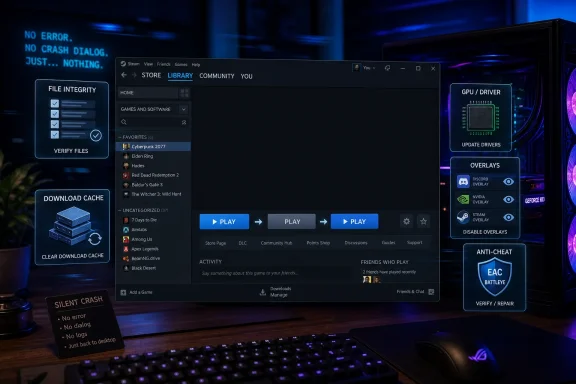 The Play Button Is Only the Messenger
Steam gets blamed because Steam is what the player touched last. In most launch failures, however, the client has already done its job by the time the game disappears. It has authenticated the account, located the install folder, prepared the app manifest, and attempted to start the executable.The crash usually occurs in the handoff layer. A missing Visual C++ runtime, an overzealous antivirus rule, a broken shader cache, a stale GPU driver, or an anti-cheat service that cannot initialize will all produce the same user-facing result: nothing.
That sameness is the trap. A black screen followed by the desktop points toward graphics initialization. A “Running” state that lasts five seconds points toward permissions, overlays, or anti-cheat. A “missing executable” warning almost always means the file was quarantined or never restored properly.
The cure is to treat the symptom as a clue, not as a verdict. Steam’s own repair tools should come first because they are fast, reversible, and low-risk. Only after those fail should users reach for driver surgery, clean boots, or full reinstalls.
File Verification Remains the Boring Fix That Wins
The first repair is still Steam’s “Verify integrity of game files” option, and it remains first because it solves the largest number of failures with the least collateral damage. A game can look installed while one DLL, executable, or asset archive is corrupt. Steam’s file check compares the local installation against the expected manifest and reacquires anything that does not match.The path is simple: open the Steam Library, right-click the game, choose Properties, open Installed Files, and select Verify integrity of game files. For large games, this can take several minutes, but it is still faster than guessing through Windows settings.
The result does not need to be dramatic to matter. “One file failed to validate and will be reacquired” may sound minor, but that one file can be the launcher, anti-cheat bootstrapper, or runtime component that prevented the game from starting.
If verification keeps repairing the same file repeatedly, the repair is not failing; something else is removing the file after Steam restores it. That usually means antivirus or endpoint protection is quarantining a component, which moves the investigation from Steam to Windows Security or a third-party security suite.
The Download Cache Can Strand a Game Between Installed and Ready
Steam’s download cache is supposed to make updates efficient. When it corrupts, it can leave a game in a half-believed state: installed according to the library, not fully prepared according to the update system. The user sees a normal Play button or an endless “Preparing to Launch,” but the client is waiting on metadata that no longer makes sense.Clearing the cache is safe. Steam will log the user out, restart, and rebuild the local download metadata. The setting lives under Steam, Settings, Downloads, Clear Download Cache.
This fix is especially useful after a failed update, a power outage, a forced reboot, or a network interruption during a patch. It also helps when a game appears stuck updating forever, because the local cache may be preserving the bad state.
Users who cannot open Steam reliably can close all Steam processes and remove the client’s package folder manually, but that is already a deeper intervention. Most players should use the built-in cache-clearing option first.
Permissions Fixes Cut Both Ways
Running Steam as administrator is a classic Windows troubleshooting step, and for older games it still works. Some titles expect to write into protected directories, create configuration files beside the executable, or touch legacy paths that modern Windows protects more aggressively. If those writes fail, the game may exit without an error.The obvious test is to right-click the Steam shortcut, open Properties, go to Compatibility, and enable “Run this program as an administrator.” If that works, the game was likely dying because it could not write where it wanted to write.
But administrator mode is not a universal upgrade. Some modern games and anti-cheat systems dislike unexpected elevation mismatches between Steam, the launcher, and the game executable. A title may fail because one component is elevated and another is not.
That is why permissions should be tested in both directions. If enabling administrator mode does not help, remove compatibility checkboxes from the game executable as well, especially for Unreal Engine titles with separate binaries under Binaries or Win64 folders. On a modern Windows 11 machine, random Windows 7 or Windows 8 compatibility settings are more likely to break a new game than fix it.
Drivers Are the Launch Layer Players Forget Until the Screen Goes Black
A silent crash after a momentary black screen is often a graphics problem, not a Steam problem. DirectX 12 and Vulkan initialization happen early. If the driver cannot satisfy the game’s feature-level expectations, the process may disappear before the menu appears.Windows Update is not enough here. It often delivers stable but older display drivers. For gaming failures, users should install directly from NVIDIA, AMD, or Intel, depending on the GPU.
A normal driver update may fix the issue, but a clean install is better when launch failures began after multiple upgrades or GPU swaps. Display Driver Uninstaller in Safe Mode remains a common enthusiast tool because it removes old driver remnants that ordinary installers may leave behind.
This is also where motherboard firmware can become relevant. Some game-launch bugs that look like GPU crashes are really firmware, chipset, or resizable BAR edge cases exposed by newer graphics drivers. Updating the GPU driver is step one; updating chipset drivers and BIOS becomes reasonable only when the failure is reproducible across multiple modern games.
Launch Options Are a Scalpel, Not a Spellbook
Steam launch options are useful because they change the game’s startup behavior before the engine fully initializes. The most valuable options are the ones that avoid fragile startup paths: DirectX 12, exclusive fullscreen, intro videos, and overlay injection.For many games, forcing DirectX 11 with
-dx11 is enough to get past a crash caused by a DX12 renderer. For others, -windowed bypasses fullscreen resolution detection and monitor handoff problems. If the game hangs on a startup video, -nointro or a similar game-specific flag may skip the broken codec path.The danger is accumulation. Players often paste several launch options from forum posts and forget they are there. Months later, those old flags become the reason a patched game no longer starts.
The correct method is controlled testing. Add one launch option, test, remove it if it fails, and document the one that works. If a game has been misbehaving for months, clearing the launch options field entirely is itself a valid fix.
Overlays Turn Helpful Features Into Injected Risk
Overlays are convenient until they collide. Steam Overlay, Discord Overlay, NVIDIA’s overlay, AMD’s overlay, MSI Afterburner’s on-screen display, and Xbox Game Bar all work by inserting themselves into the game’s rendering path. Anti-cheat and anti-tamper systems often treat that kind of injection with suspicion.The first test is to disable Steam Overlay for the affected game. If that fails, disable it globally. Then do the same for Discord, GPU software overlays, monitoring tools, and Xbox Game Bar.
This is not because overlays are inherently bad. It is because simultaneous overlays multiply the number of hooks being placed into a process at the most sensitive moment of startup. A game that tolerates one overlay may fail with three.
The cleanest troubleshooting approach is to turn them all off, launch the game, and then re-enable them one at a time. If the failure returns after enabling one tool, the culprit has identified itself.
Runtimes Are the Invisible Dependencies Behind “Nothing Happens”
Many Steam games still depend on Microsoft runtime packages that are not glamorous but are absolutely required. Visual C++ Redistributables, DirectX End-User Runtime components, and sometimes .NET installers sit underneath the game engine. If one is missing or damaged, the game may crash before it can show an error.Steam often stores these installers in a
_CommonRedist or similar folder inside the game directory. Running the DirectX setup and both x64 and x86 Visual C++ redistributables can repair an entire class of silent launch failures.The x86 package matters even on a 64-bit system. Some 64-bit games still load 32-bit helper components or legacy middleware. Missing that runtime can produce a launch failure that looks completely unrelated to architecture.
Reinstalling redistributables is low-risk. The installers detect existing versions and repair or update as needed. For a user who sees “Running” for a second and then nothing, runtimes should be checked before reinstalling a 120GB game.
Antivirus Is Now Part of the Gaming Stack Whether Players Like It or Not
Modern games look suspicious to security software because they often use techniques that security software is designed to inspect. Anti-cheat, DRM, packers, memory scanning, and self-updating launchers can all trigger heuristics. The result is a legitimate file being quarantined quietly.A “missing executable” error is the giveaway, but antivirus interference can be subtler. Steam may verify the game, reacquire a file, and then fail again because the antivirus removes the same file immediately afterward.
The fix is not to turn protection off permanently. The fix is to add exclusions for the Steam installation directory and every secondary Steam library folder, then verify the game again. Excluding only
steam.exe is not enough if the security product is scanning files under steamapps.There is a caveat. If users install random mods directly into excluded game folders, those files may also avoid scanning. Workshop mods and reputable mod managers reduce that risk, but the trade-off should be understood rather than ignored.
Anti-Cheat Is the Kernel-Sized Elephant in the Room
Easy Anti-Cheat, BattlEye, and similar systems complicate launch troubleshooting because they can fail before the game itself fails. The executable may be fine. Steam may be fine. The anti-cheat service may be the component that cannot start, authenticate, or load its driver.The symptoms are familiar: “EAC initialization failed,” “BattlEye launcher not found,” or a Steam status that flips briefly to Running before reverting to Play. In those cases, verifying game files may not be sufficient because the files exist but the anti-cheat service registration is broken.
Most games include anti-cheat repair installers in their local folders. Running the Easy Anti-Cheat or BattlEye setup tool as administrator can recreate the service and restore the launcher handoff. If the service itself is stuck, removing and reinstalling it may be necessary.
On Windows 11, the bigger story is Microsoft’s ongoing hardening of the platform. Kernel-level anti-cheat sits in exactly the place Windows is trying to make safer and more resilient. That does not mean every anti-cheat failure is Microsoft’s fault, but it does mean game launch reliability increasingly depends on coordination among Windows, GPU vendors, anti-cheat providers, and game studios.
Linux and Steam Deck Failures Belong to Proton First
On Linux desktops and Steam Deck, the launch stack is different. A Windows game is usually running through Proton, which translates Windows calls into something Linux can execute. When a game fails there, the first suspect is not administrator permissions or Windows redistributables; it is the Proton version, Vulkan support, or anti-cheat compatibility.Changing Proton versions is the fastest test. In Steam, open the game’s Compatibility settings, force a specific Steam Play compatibility tool, and try Proton Experimental, the latest stable Proton, or a known-good older build. Proton-GE can also help when community patches beat Valve’s official release cadence.
Vulkan is the other pillar. Proton relies heavily on DXVK and VKD3D-Proton to translate DirectX into Vulkan. If the system’s Vulkan driver is missing or broken, Windows games may fail instantly.
Steam Deck adds one more layer: Gaming Mode uses Gamescope, Valve’s compositor. A title that launches in Desktop Mode but fails in Gaming Mode may be colliding with resolution, HDR, frame pacing, or compositor behavior rather than Proton itself. That is why Deck-specific reports matter; a generic Linux fix may not describe the handheld’s actual failure path.
Clean Booting Separates Windows From Everything Riding Alongside It
A clean boot is not elegant, but it is clarifying. By disabling third-party startup services and leaving Microsoft services intact, Windows can answer a simple question: does the game fail on a mostly clean system, or does it fail only when the user’s normal background stack is present?This matters because modern gaming PCs are crowded. RGB software, headset utilities, mouse drivers, capture tools, overlays, fan controllers, cloud sync clients, and peripheral suites all want to start with Windows. Some inject into processes. Some monitor input. Some hook graphics APIs.
If the game launches after a clean boot, the user has proof that Steam and the game install are not the root cause. The remaining task is to re-enable services in batches until the conflict returns.
That process is tedious, but it prevents the worst kind of troubleshooting: reinstalling Windows or redownloading games when the actual culprit is a tray app that starts before the desktop finishes loading.
Reinstalling the Game Is a Last Resort, Not a Personality Trait
A full reinstall does fix some problems. It removes orphaned files, bad patches, corrupted folders, and broken local states that verification may not catch. But it is slow, bandwidth-heavy, and often unnecessary.Before uninstalling, users should back up local saves. Steam Cloud is helpful, not infallible. Saves may live under Documents, AppData, the game folder, or Steam’s userdata directory depending on the title.
After uninstalling through Steam, the leftover folder under
steamapps/common should be checked manually. If it remains, deleting it before reinstalling prevents Steam from inheriting the same damaged residue.The same caution applies to reinstalling Steam itself. Removing Steam without preserving
steamapps can erase installed games. Anyone reinstalling the client should back up or retain the library folder before touching the uninstaller.The Fixes That Actually Map to the Failure
The value in this troubleshooting tree is not that every step is new. It is that each step corresponds to a different layer of the launch chain. Steam starts the process, Windows permits it, drivers render it, runtimes support it, overlays invade it, and anti-cheat judges it.That chain explains why “nothing happens” is such a poor diagnostic phrase. Nothing visible happens, but plenty is happening underneath. The job is to identify which layer rejects the launch before the game reaches the screen.
The practical sequence is simple: repair what Steam owns, then repair what Windows owns, then repair what the game’s dependencies own. Only after that should the user reinstall the whole game.
The Short Path Through Steam’s Long Silence
Most players do not need twelve fixes; they need the first four or five in the right order. The following sequence is the shortest route through the problem without skipping the failures that matter.- Verify the game files first, because a single missing executable or DLL can produce a completely silent launch failure.
- Clear Steam’s download cache if the game is stuck preparing, updating, or behaving as though an install never quite finished.
- Disable overlays and test administrator settings when Steam says the game is running but no window appears.
- Update GPU drivers and try
-dx11or-windowedwhen the game briefly black-screens or crashes to desktop. - Add full Steam library folder exclusions before re-verifying if antivirus keeps removing the same repaired file.
- Repair or reinstall Easy Anti-Cheat or BattlEye when the launch failure mentions anti-cheat or dies immediately after startup.
References
- Primary source: tech-insider.org
Published: 2026-06-17T20:11:33.809624
Loading…
tech-insider.org - Related coverage: support.ageofempires.com
Loading…
support.ageofempires.com - Related coverage: thedroidguy.com
Loading…
thedroidguy.com - Related coverage: howtogeek.com
Loading…
www.howtogeek.com - Related coverage: tomshardware.com
Microsoft issues emergency update for Windows 11 — fixes broken March preview update rollout from last week | Tom's Hardware
Out-of-band patch addresses installation failures.www.tomshardware.com - Related coverage: techradar.com
Loading…
www.techradar.com