
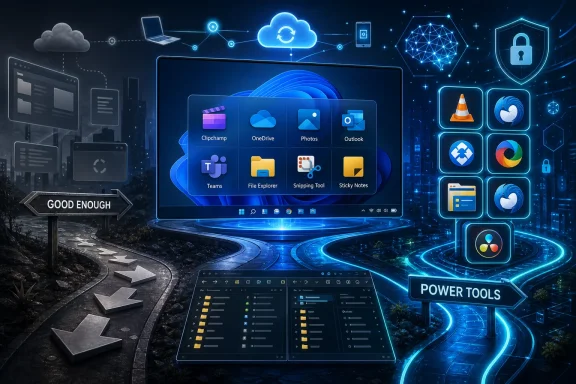
Windows 11 still ships with 11 everyday Microsoft apps that cover video editing, file management, media playback, chat, tasks, email, cloud sync, photos, remote support, screenshots, and sticky notes, but TechSpot’s replacement guide argues that many third-party tools now outperform those defaults for serious users. That is not just a listicle about personal preference. It is a useful snapshot of the larger Windows bargain in 2026: Microsoft gives everyone a working baseline, while the best Windows experience still comes from knowing when to walk away from the default. The real question is not whether Clipchamp, OneDrive, Photos, or the new Outlook are “bad,” but whether Windows users should accept “good enough” as the operating system’s design center.
There was a time when Windows bundled apps were mostly placeholders. Notepad opened text, Paint handled basic image edits, Media Player played a file if the codec gods were smiling, and Internet Explorer existed because Microsoft wanted the web to orbit Windows. The default app was the thing you used until you installed the thing you actually wanted.
Windows 11 has changed that bargain. Microsoft’s defaults are now service entry points, cloud hooks, AI delivery vehicles, and Microsoft 365 on-ramps. Clipchamp nudges users toward template-driven video creation; OneDrive turns the user profile into a sync surface; Photos is becoming an AI-assisted image browser; Teams inherited Skype’s consumer mission; and the new Outlook is a web-powered mail client whose architecture makes Microsoft’s cloud part of the mail flow even for many non-Microsoft accounts.
That makes replacement apps more than aesthetic choices. Picking VLC over Media Player, Thunderbird over new Outlook, RustDesk over Quick Assist, or ShareX over Snipping Tool is often a decision about control, local-first workflows, privacy exposure, automation, extensibility, or professional depth. Windows has always been strongest when it let users build their own stack on top of Microsoft’s platform. The concern is that the platform is increasingly optimized for the apps Microsoft wants you to keep.
TechSpot’s roundup lands because it does not treat default apps as moral failures. Many of them are better than they were five years ago. The critique is sharper: Microsoft’s built-ins are often useful enough to slow discovery, but not powerful enough to satisfy people who live in these workflows every day.
Microsoft has also aligned Clipchamp with the current software moment: AI-assisted assembly, text-to-speech, and automatic subtitles are exactly the features casual creators expect in 2026. For a student assembling a presentation, a small business owner cutting a product clip, or a family member trimming vacation footage, “included and understandable” beats “professional and intimidating.”
But that convenience has a ceiling, and TechSpot’s alternatives expose it. CapCut understands social video culture better than Microsoft does. It is built around the cadence of TikTok, Instagram, vertical video, trending audio, filters, and rapidly changing creator conventions. Microsoft can add features, but it is hard for a Windows inbox app to match a tool whose identity is inseparable from social-first publishing.
Shotcut and DaVinci Resolve pull in the other direction. Shotcut is the pragmatic open-source option for users who want format breadth, GPU-accelerated effects, and a more capable editing environment without opening their wallet. Resolve is the reminder that “free” no longer means “basic” in creative software. Its color grading, audio, and effects stack are so far beyond Clipchamp that the two products barely belong in the same category.
That is the pattern repeated throughout Windows 11. Microsoft gives the median user a friendly ramp. The ecosystem gives everyone else a road.
Microsoft has modernized File Explorer in Windows 11, adding tabs, a revised home view, OneDrive integration, performance fixes, and periodic interface changes. The company has also experimented with more cloud-aware and AI-adjacent surfaces, including recommendation areas and richer context-menu actions. But File Explorer is still pulled between two incompatible roles: it must be familiar enough for billions of users and flexible enough for power users who treat files, archives, metadata, network locations, and batch operations as daily work.
The result is an app that improves slowly and offends carefully. Tabs were welcome, but late. The command bar is cleaner, but not always faster. The simplified right-click menu looks less chaotic, but many experienced users still feel like it hides what they need behind an extra click. OneDrive integration helps users who want cloud continuity and annoys those who want a purely local namespace.
That is why third-party file managers continue to thrive. Directory Opus exists for people who know exactly how they want to move, compare, rename, filter, tag, and inspect files. Total Commander persists because its dual-pane logic and plugin culture are still faster for many technical workflows than Microsoft’s prettier defaults. Double Commander carries the same idea into free and open-source territory.
The more modern alternatives are just as revealing. Files aims to feel native to Windows 11 while adding tags and customization. One Commander chases speed and layout ideas that File Explorer is too cautious to adopt. File Pilot’s beta enthusiasm suggests that users are still hungry for file managers that treat panes, tabs, and multi-folder work as first-class concepts rather than specialist edge cases.
File Explorer’s challenge is that every change risks breaking muscle memory, enterprise training, or accessibility assumptions. But that is also why it may never satisfy the audience WindowsForum readers know well: the users who do not merely browse files, but operate on them.
The issue is that local media users are no longer average users. Streaming ate the mainstream, leaving dedicated media player apps to serve people with downloaded films, archived concert recordings, high-resolution music, subtitle requirements, unusual codecs, network shares, or home theater setups. That audience does not merely want a play button. It wants format resilience, rendering quality, subtitle control, hardware acceleration, and predictable behavior.
VLC remains the obvious Windows safety net because it plays almost everything without drama. Its value is not glamour; it is trust. When a file will not open elsewhere, VLC is the app most users try next, and often the last one they need.
MPV is the enthusiast counterpoint. Its minimalist interface can look almost hostile to casual users, but under the hood it appeals to people who care about rendering paths, GPU output, scripting, and precise playback behavior. PotPlayer, meanwhile, occupies the maximalist Windows tradition: highly configurable, sometimes overwhelming, but powerful in exactly the ways a built-in app rarely is.
MusicBee makes the same case for audio collectors. If your music life is Spotify, you do not need it. If you have a carefully tagged library, multiple devices, file organization rules, and strong opinions about metadata, Media Player is the wrong abstraction.
The lesson is not that Microsoft should turn Media Player into a home-theater laboratory. It is that “media playback” now means very different things to different users. The built-in app serves the casual remainder; the third-party tools serve the people who still care.
Windows 11 users inherit that strategy. Teams can handle personal and work accounts, chat, meetings, and video calls, and it fits neatly into Microsoft’s broader identity and productivity systems. For households already using Microsoft accounts or small groups that want a basic video-call app, it is serviceable.
But Teams still carries the smell of work. Its interface, concepts, and cultural posture were forged in offices, schools, and managed tenants. That matters because communication tools are social spaces before they are feature matrices. People do not pick a chat app only because it supports calls; they pick it because it matches the group’s norms.
Discord wins with gamers, hobby communities, and friend groups because it feels like a place to hang out rather than a meeting room waiting to happen. WhatsApp and Telegram win with families and international circles because they are already where the conversations are. Slack wins in many workplaces that do not want to live inside Microsoft 365. Zoom still wins plenty of meetings because guests understand the ritual: click, join, talk, leave.
The bundled Teams app is therefore less a universal communications solution than Microsoft’s preferred answer to a fragmented market. It is convenient when the other person is already there. The problem is that chat apps are only as useful as the people inside them, and Microsoft cannot bundle your social graph into Windows.
For many users, that is enough. A task manager that is too elaborate becomes another job. Microsoft To Do’s strength is that it does not demand a productivity philosophy before you can buy eggs, return a router, or remember a quarterly review.
Yet task management is intensely personal. Any.do’s guided daily planning works for people who want the app to nudge them into order. TickTick appeals to users who want tasks, calendar views, Pomodoro sessions, and habit tracking in one system. Todoist remains popular because it combines a clean interface, strong natural language parsing, and broad integrations without feeling bloated. Google Tasks is not the most powerful option, but for Gmail and Google Calendar users, proximity is the feature.
This is where Microsoft’s ecosystem bias cuts both ways. If Outlook, Planner, Teams, and Microsoft 365 define your workday, To Do fits naturally. If your life is in Gmail, Slack, Google Calendar, Notion, or a cross-platform mobile workflow, To Do may feel like a polite visitor from another office.
The task app market proves that defaults are not only about capability. They are about mental models. Some users want a blank list. Some want a calendar. Some want ritual. Some want automation. Microsoft To Do is good because it stays simple, but that simplicity is exactly why people outgrow it.
For users who live inside Microsoft 365, the benefits are obvious. Mail, calendar, contacts, Word, Excel, OneDrive, Teams, and Copilot-era features can all orbit the same account and cloud model. Collaboration from the inbox is not an add-on; it is the product’s reason to exist.
The tradeoff is equally obvious. New Outlook’s web-based architecture has drawn complaints about speed, offline behavior, missing classic Outlook features, and the feeling that a mature desktop client has been replaced by a wrapper around a service. More importantly, Microsoft’s cloud-sync model for non-Microsoft accounts has raised privacy and administrative concerns because email, calendar, and contact data from accounts such as Gmail, Yahoo, iCloud, and IMAP setups may be synchronized through Microsoft’s cloud to enable the new client experience.
That design may be defensible in Microsoft’s architecture, but it changes the trust equation. A local mail client used to mean your client connected to your mail provider. New Outlook can mean your mail provider, Microsoft’s cloud, and your desktop app become part of a larger chain. For some consumers, that distinction will be invisible. For businesses, regulated users, privacy-minded individuals, and anyone with an old-school understanding of mail clients, it matters.
That is why Thunderbird’s revival is so important. Mozilla’s mail client spent years with a reputation for being worthy but tired; its 2023 interface overhaul and later move toward faster release cadence helped change that perception. It remains free, open source, extensible, and local-client oriented in a way new Outlook is not.
The commercial alternatives each tell a different story. eM Client offers something close to the classic Outlook feel without fully surrendering to Microsoft’s new direction. Mailbird sells a polished hub model for users who want email alongside other apps. Proton Mail offers a privacy-first posture that is not merely a feature but a brand promise. New Outlook may be Microsoft’s future, but it is not automatically every user’s future.
The upside is real. Files follow users across PCs. Word, Excel, and PowerPoint documents support real-time collaboration. Desktop, Documents, and Pictures can be backed up in ways that save ordinary users from catastrophic device loss. For families and small offices that already pay for Microsoft 365, OneDrive storage can be one of the subscription’s best values.
But cloud sync is not the same thing as backup, and convenience is not the same thing as clarity. Users can become confused about whether files are local, online-only, duplicated, or protected. Admins may need to control sync behavior, tenant boundaries, and data loss exposure. Privacy-minded users may not want personal file locations tied so deeply to a Microsoft account.
Google Drive is the natural alternative for people who live in Google Workspace, with a more generous free storage tier and first-class collaboration across Docs, Sheets, and Slides. Dropbox remains the familiar cross-platform sync tool, though its free tier is now tight enough to feel like a trial. IDrive is a better match when the problem is multi-device backup rather than day-to-day file sync. Proton Drive, with its end-to-end encryption pitch, targets users who care less about Office collaboration and more about who can see the stored data.
OneDrive’s power is that it disappears into Windows. Its weakness is also that it disappears into Windows. When infrastructure becomes invisible, users stop noticing the policy decisions embedded inside it.
The question is what kind of photo problem you have. If your problem is “open this image and crop it,” Photos is fine. If your problem is “manage 90,000 images across cameras, trips, projects, tags, faces, ratings, duplicates, formats, and edits,” Photos is not the app.
That is where digiKam earns attention. It is free, open source, and built around digital asset management rather than casual viewing. Facial recognition, tagging, metadata editing, and library organization are not side quests; they are the point. It competes with ideas traditionally associated with paid tools, not with the Photos app’s quick-edit convenience.
FastStone, IrfanView, and XnView each represent a different Windows tradition. FastStone is for photographers who want to move quickly through folders, compare shots, batch convert, and cull without ceremony. IrfanView is the classic speed demon that opens nearly anything and stays out of the way. XnView sits between viewer and manager, offering broad format support, batch operations, and metadata tools without the heft of a full library system.
Microsoft’s AI additions may make Photos more impressive to casual users, but they do not erase the need for specialist tools. In fact, they clarify it. AI search and object removal are useful conveniences; they are not substitutes for a serious library workflow.
Its limitation is in the name. Quick Assist is for quick assistance. It is not a full remote administration platform, and it is not trying to be. Unattended access, cross-platform support, self-hosted relay infrastructure, advanced file transfer, session recording, and commercial fleet management live elsewhere.
RustDesk has gained attention because it combines the accessibility of TeamViewer-style remote access with an open-source model and the option to self-host relay infrastructure. That last point matters for technically capable users and organizations that dislike routing remote sessions through third-party systems they do not control. AnyDesk competes on low-latency feel. Chrome Remote Desktop wins when simplicity and Google-account ubiquity matter more than depth. Splashtop has a niche among users who care about smooth media performance. TeamViewer remains the heavyweight, especially for richer commercial feature sets, even if its licensing costs can sting.
For Windows enthusiasts, this category is a reminder that remote support is not one thing. Helping a parent find the printer settings is not the same as maintaining unattended machines across platforms. Quick Assist is a good Windows convenience, but its design assumptions are intentionally narrow.
That makes the case for alternatives more specific. Greenshot is for users who want a lightweight tray-based capture tool that behaves exactly the same way every time. ShareX is for people who want screenshots to trigger workflows: scrolling capture, GIF recording, uploads, scripts, custom destinations, and automation chains. Monosnap focuses on rapid capture-and-share behavior. Snagit earns its price for people who build documentation, tutorials, walkthroughs, and repeatable visual instruction.
This is where Microsoft’s minimalist instinct helps. Snipping Tool does not need to become ShareX. If it did, it would stop being the built-in tool that ordinary users can understand instantly. The existence of better power tools does not mean the default is bad; it means Microsoft correctly stopped before turning a capture utility into a control panel.
Still, screenshots are more central to work than they used to be. Support tickets, bug reports, documentation, training, classroom material, and social posts all depend on quick visual capture. The more often users do that work, the more likely they are to outgrow the default.
For users who want simple reminders on the desktop, that is enough. The app’s value is immediacy: type the thought before it disappears. The more structure it adds, the more it risks becoming a small notes database rather than a sticky note.
The alternatives are mostly about staying small or becoming context-aware. Simple Sticky Notes and Stickies preserve the lightweight, customizable desktop-note tradition. Notezilla takes the idea further by letting notes attach to documents, folders, or websites so they reappear when the relevant context returns. That is a subtle but important difference: a reminder is more useful when it lives near the work it describes.
Microsoft’s tie-in with OneNote is sensible, but it also means Sticky Notes participates in the broader Microsoft account and sync story. Some users want that. Others want a note to be local, disposable, and unambitious. Even the humble sticky note becomes a choice between ecosystem convenience and personal workflow.
That does not mean every Windows user should immediately uninstall or ignore Microsoft’s apps. Defaults matter because they establish a safe floor. A fresh Windows 11 install can edit a video, browse files, play media, join meetings, track tasks, read mail, sync documents, manage photos, provide remote help, capture screenshots, and store notes before the user installs a thing. That is a serious achievement.
The danger is confusing a safe floor with a high ceiling. Windows remains valuable precisely because users can choose VLC, Thunderbird, ShareX, Directory Opus, RustDesk, Proton Drive, digiKam, or DaVinci Resolve when the default stops fitting. The health of the platform should be measured not only by how good Microsoft’s inbox apps become, but by how easily users can replace them.
For administrators, this is more than desktop taste. Default app decisions affect data residency, support processes, licensing, user training, automation, endpoint management, and security review. A home user may replace Photos because IrfanView opens faster. An IT department may replace new Outlook because the cloud-sync model complicates policy. The same act—installing a different app—can be a convenience tweak or a governance decision.
 Microsoft’s Defaults Are No Longer Just Utilities
There was a time when Windows bundled apps were mostly placeholders. Notepad opened text, Paint handled basic image edits, Media Player played a file if the codec gods were smiling, and Internet Explorer existed because Microsoft wanted the web to orbit Windows. The default app was the thing you used until you installed the thing you actually wanted.Windows 11 has changed that bargain. Microsoft’s defaults are now service entry points, cloud hooks, AI delivery vehicles, and Microsoft 365 on-ramps. Clipchamp nudges users toward template-driven video creation; OneDrive turns the user profile into a sync surface; Photos is becoming an AI-assisted image browser; Teams inherited Skype’s consumer mission; and the new Outlook is a web-powered mail client whose architecture makes Microsoft’s cloud part of the mail flow even for many non-Microsoft accounts.
That makes replacement apps more than aesthetic choices. Picking VLC over Media Player, Thunderbird over new Outlook, RustDesk over Quick Assist, or ShareX over Snipping Tool is often a decision about control, local-first workflows, privacy exposure, automation, extensibility, or professional depth. Windows has always been strongest when it let users build their own stack on top of Microsoft’s platform. The concern is that the platform is increasingly optimized for the apps Microsoft wants you to keep.
TechSpot’s roundup lands because it does not treat default apps as moral failures. Many of them are better than they were five years ago. The critique is sharper: Microsoft’s built-ins are often useful enough to slow discovery, but not powerful enough to satisfy people who live in these workflows every day.
Clipchamp Shows the Promise and Ceiling of Microsoft’s Creator Push
Clipchamp is one of the clearer examples of Microsoft improving the default Windows experience while still leaving a large gap for ambitious users. On a clean Windows 11 machine, having a timeline-based video editor already installed is a meaningful upgrade over the old days of hunting for Windows Movie Maker replacements or installing whatever ad-heavy freeware search results surfaced first. For light edits, social clips, quick subtitles, and template-driven projects, Clipchamp lowers the barrier.Microsoft has also aligned Clipchamp with the current software moment: AI-assisted assembly, text-to-speech, and automatic subtitles are exactly the features casual creators expect in 2026. For a student assembling a presentation, a small business owner cutting a product clip, or a family member trimming vacation footage, “included and understandable” beats “professional and intimidating.”
But that convenience has a ceiling, and TechSpot’s alternatives expose it. CapCut understands social video culture better than Microsoft does. It is built around the cadence of TikTok, Instagram, vertical video, trending audio, filters, and rapidly changing creator conventions. Microsoft can add features, but it is hard for a Windows inbox app to match a tool whose identity is inseparable from social-first publishing.
Shotcut and DaVinci Resolve pull in the other direction. Shotcut is the pragmatic open-source option for users who want format breadth, GPU-accelerated effects, and a more capable editing environment without opening their wallet. Resolve is the reminder that “free” no longer means “basic” in creative software. Its color grading, audio, and effects stack are so far beyond Clipchamp that the two products barely belong in the same category.
That is the pattern repeated throughout Windows 11. Microsoft gives the median user a friendly ramp. The ecosystem gives everyone else a road.
File Explorer Remains the Most Important App Microsoft Cannot Fully Rethink
File Explorer is not just another bundled utility. It is the interface through which many users understand the PC itself. That makes its conservatism both understandable and frustrating.Microsoft has modernized File Explorer in Windows 11, adding tabs, a revised home view, OneDrive integration, performance fixes, and periodic interface changes. The company has also experimented with more cloud-aware and AI-adjacent surfaces, including recommendation areas and richer context-menu actions. But File Explorer is still pulled between two incompatible roles: it must be familiar enough for billions of users and flexible enough for power users who treat files, archives, metadata, network locations, and batch operations as daily work.
The result is an app that improves slowly and offends carefully. Tabs were welcome, but late. The command bar is cleaner, but not always faster. The simplified right-click menu looks less chaotic, but many experienced users still feel like it hides what they need behind an extra click. OneDrive integration helps users who want cloud continuity and annoys those who want a purely local namespace.
That is why third-party file managers continue to thrive. Directory Opus exists for people who know exactly how they want to move, compare, rename, filter, tag, and inspect files. Total Commander persists because its dual-pane logic and plugin culture are still faster for many technical workflows than Microsoft’s prettier defaults. Double Commander carries the same idea into free and open-source territory.
The more modern alternatives are just as revealing. Files aims to feel native to Windows 11 while adding tags and customization. One Commander chases speed and layout ideas that File Explorer is too cautious to adopt. File Pilot’s beta enthusiasm suggests that users are still hungry for file managers that treat panes, tabs, and multi-folder work as first-class concepts rather than specialist edge cases.
File Explorer’s challenge is that every change risks breaking muscle memory, enterprise training, or accessibility assumptions. But that is also why it may never satisfy the audience WindowsForum readers know well: the users who do not merely browse files, but operate on them.
Media Player Is Fine Until Your Library Starts to Matter
Microsoft’s current Media Player is not the disaster older Windows veterans might expect. It replaced both the legacy Windows Media Player role and the Groove Music era with a cleaner app that can organize local music and video libraries, show album art, run in mini-player mode, and even handle CD ripping. For occasional playback, it is competent.The issue is that local media users are no longer average users. Streaming ate the mainstream, leaving dedicated media player apps to serve people with downloaded films, archived concert recordings, high-resolution music, subtitle requirements, unusual codecs, network shares, or home theater setups. That audience does not merely want a play button. It wants format resilience, rendering quality, subtitle control, hardware acceleration, and predictable behavior.
VLC remains the obvious Windows safety net because it plays almost everything without drama. Its value is not glamour; it is trust. When a file will not open elsewhere, VLC is the app most users try next, and often the last one they need.
MPV is the enthusiast counterpoint. Its minimalist interface can look almost hostile to casual users, but under the hood it appeals to people who care about rendering paths, GPU output, scripting, and precise playback behavior. PotPlayer, meanwhile, occupies the maximalist Windows tradition: highly configurable, sometimes overwhelming, but powerful in exactly the ways a built-in app rarely is.
MusicBee makes the same case for audio collectors. If your music life is Spotify, you do not need it. If you have a carefully tagged library, multiple devices, file organization rules, and strong opinions about metadata, Media Player is the wrong abstraction.
The lesson is not that Microsoft should turn Media Player into a home-theater laboratory. It is that “media playback” now means very different things to different users. The built-in app serves the casual remainder; the third-party tools serve the people who still care.
Teams Replacing Skype Was a Product Strategy, Not a User Upgrade
Microsoft retiring Skype in May 2025 and steering users toward Teams Free was one of those decisions that made perfect corporate sense and still felt emotionally strange. Skype was messy, aging, and culturally displaced, but it was also a verb for an earlier internet. Teams is Microsoft’s collaboration platform, and Microsoft understandably wants one consumer and business communications story rather than a museum of overlapping chat products.Windows 11 users inherit that strategy. Teams can handle personal and work accounts, chat, meetings, and video calls, and it fits neatly into Microsoft’s broader identity and productivity systems. For households already using Microsoft accounts or small groups that want a basic video-call app, it is serviceable.
But Teams still carries the smell of work. Its interface, concepts, and cultural posture were forged in offices, schools, and managed tenants. That matters because communication tools are social spaces before they are feature matrices. People do not pick a chat app only because it supports calls; they pick it because it matches the group’s norms.
Discord wins with gamers, hobby communities, and friend groups because it feels like a place to hang out rather than a meeting room waiting to happen. WhatsApp and Telegram win with families and international circles because they are already where the conversations are. Slack wins in many workplaces that do not want to live inside Microsoft 365. Zoom still wins plenty of meetings because guests understand the ritual: click, join, talk, leave.
The bundled Teams app is therefore less a universal communications solution than Microsoft’s preferred answer to a fragmented market. It is convenient when the other person is already there. The problem is that chat apps are only as useful as the people inside them, and Microsoft cannot bundle your social graph into Windows.
Microsoft To Do Is Pleasant, But Task Managers Are Really About Temperament
Microsoft To Do has one of the more sympathetic stories among Windows defaults. It grew out of Microsoft’s 2015 Wunderlist acquisition, and although Wunderlist loyalists had reason to mourn, To Do has become a clean, capable task manager. It supports lists, due dates, reminders, subtasks, attachments, Outlook integration, Planner connections, and natural language date entry.For many users, that is enough. A task manager that is too elaborate becomes another job. Microsoft To Do’s strength is that it does not demand a productivity philosophy before you can buy eggs, return a router, or remember a quarterly review.
Yet task management is intensely personal. Any.do’s guided daily planning works for people who want the app to nudge them into order. TickTick appeals to users who want tasks, calendar views, Pomodoro sessions, and habit tracking in one system. Todoist remains popular because it combines a clean interface, strong natural language parsing, and broad integrations without feeling bloated. Google Tasks is not the most powerful option, but for Gmail and Google Calendar users, proximity is the feature.
This is where Microsoft’s ecosystem bias cuts both ways. If Outlook, Planner, Teams, and Microsoft 365 define your workday, To Do fits naturally. If your life is in Gmail, Slack, Google Calendar, Notion, or a cross-platform mobile workflow, To Do may feel like a polite visitor from another office.
The task app market proves that defaults are not only about capability. They are about mental models. Some users want a blank list. Some want a calendar. Some want ritual. Some want automation. Microsoft To Do is good because it stays simple, but that simplicity is exactly why people outgrow it.
New Outlook Is the Default-App Fight in Its Purest Form
No Windows 11 default app better captures the current tension than the new Outlook for Windows. Microsoft wants one modern Outlook experience that looks and behaves more consistently across the web, Windows, and the Microsoft 365 ecosystem. That makes sense from a development and services perspective. It also makes the app feel less like a traditional Windows mail client and more like Outlook.com wearing desktop clothes.For users who live inside Microsoft 365, the benefits are obvious. Mail, calendar, contacts, Word, Excel, OneDrive, Teams, and Copilot-era features can all orbit the same account and cloud model. Collaboration from the inbox is not an add-on; it is the product’s reason to exist.
The tradeoff is equally obvious. New Outlook’s web-based architecture has drawn complaints about speed, offline behavior, missing classic Outlook features, and the feeling that a mature desktop client has been replaced by a wrapper around a service. More importantly, Microsoft’s cloud-sync model for non-Microsoft accounts has raised privacy and administrative concerns because email, calendar, and contact data from accounts such as Gmail, Yahoo, iCloud, and IMAP setups may be synchronized through Microsoft’s cloud to enable the new client experience.
That design may be defensible in Microsoft’s architecture, but it changes the trust equation. A local mail client used to mean your client connected to your mail provider. New Outlook can mean your mail provider, Microsoft’s cloud, and your desktop app become part of a larger chain. For some consumers, that distinction will be invisible. For businesses, regulated users, privacy-minded individuals, and anyone with an old-school understanding of mail clients, it matters.
That is why Thunderbird’s revival is so important. Mozilla’s mail client spent years with a reputation for being worthy but tired; its 2023 interface overhaul and later move toward faster release cadence helped change that perception. It remains free, open source, extensible, and local-client oriented in a way new Outlook is not.
The commercial alternatives each tell a different story. eM Client offers something close to the classic Outlook feel without fully surrendering to Microsoft’s new direction. Mailbird sells a polished hub model for users who want email alongside other apps. Proton Mail offers a privacy-first posture that is not merely a feature but a brand promise. New Outlook may be Microsoft’s future, but it is not automatically every user’s future.
OneDrive Is Convenient Enough to Become Infrastructure
OneDrive is not merely a cloud storage app on Windows 11. It is woven into File Explorer, the Microsoft account setup flow, Office collaboration, backup prompts, and the user’s understanding of where files live. That integration is powerful. It is also why OneDrive can be one of the most polarizing parts of a fresh Windows install.The upside is real. Files follow users across PCs. Word, Excel, and PowerPoint documents support real-time collaboration. Desktop, Documents, and Pictures can be backed up in ways that save ordinary users from catastrophic device loss. For families and small offices that already pay for Microsoft 365, OneDrive storage can be one of the subscription’s best values.
But cloud sync is not the same thing as backup, and convenience is not the same thing as clarity. Users can become confused about whether files are local, online-only, duplicated, or protected. Admins may need to control sync behavior, tenant boundaries, and data loss exposure. Privacy-minded users may not want personal file locations tied so deeply to a Microsoft account.
Google Drive is the natural alternative for people who live in Google Workspace, with a more generous free storage tier and first-class collaboration across Docs, Sheets, and Slides. Dropbox remains the familiar cross-platform sync tool, though its free tier is now tight enough to feel like a trial. IDrive is a better match when the problem is multi-device backup rather than day-to-day file sync. Proton Drive, with its end-to-end encryption pitch, targets users who care less about Office collaboration and more about who can see the stored data.
OneDrive’s power is that it disappears into Windows. Its weakness is also that it disappears into Windows. When infrastructure becomes invisible, users stop noticing the policy decisions embedded inside it.
Photos Is Learning AI While Photo Nerds Still Need Control
The Windows Photos app has quietly become more ambitious. It is no longer just a viewer for JPEGs in the Pictures folder. Microsoft has added editing tools, comparison views, filmstrip navigation, AI-powered object removal, semantic search, and upscaling. For casual users, it is a cleaner and more capable default than Windows used to provide.The question is what kind of photo problem you have. If your problem is “open this image and crop it,” Photos is fine. If your problem is “manage 90,000 images across cameras, trips, projects, tags, faces, ratings, duplicates, formats, and edits,” Photos is not the app.
That is where digiKam earns attention. It is free, open source, and built around digital asset management rather than casual viewing. Facial recognition, tagging, metadata editing, and library organization are not side quests; they are the point. It competes with ideas traditionally associated with paid tools, not with the Photos app’s quick-edit convenience.
FastStone, IrfanView, and XnView each represent a different Windows tradition. FastStone is for photographers who want to move quickly through folders, compare shots, batch convert, and cull without ceremony. IrfanView is the classic speed demon that opens nearly anything and stays out of the way. XnView sits between viewer and manager, offering broad format support, batch operations, and metadata tools without the heft of a full library system.
Microsoft’s AI additions may make Photos more impressive to casual users, but they do not erase the need for specialist tools. In fact, they clarify it. AI search and object removal are useful conveniences; they are not substitutes for a serious library workflow.
Quick Assist Is Built for Helping Mom, Not Running Remote Operations
Quick Assist is one of the more underrated Windows tools because it solves a real everyday problem: helping someone else with their PC over the internet. It includes chat, annotation, and screen guidance features that are perfectly suited to walking a relative, coworker, or friend through a problem while both people are present.Its limitation is in the name. Quick Assist is for quick assistance. It is not a full remote administration platform, and it is not trying to be. Unattended access, cross-platform support, self-hosted relay infrastructure, advanced file transfer, session recording, and commercial fleet management live elsewhere.
RustDesk has gained attention because it combines the accessibility of TeamViewer-style remote access with an open-source model and the option to self-host relay infrastructure. That last point matters for technically capable users and organizations that dislike routing remote sessions through third-party systems they do not control. AnyDesk competes on low-latency feel. Chrome Remote Desktop wins when simplicity and Google-account ubiquity matter more than depth. Splashtop has a niche among users who care about smooth media performance. TeamViewer remains the heavyweight, especially for richer commercial feature sets, even if its licensing costs can sting.
For Windows enthusiasts, this category is a reminder that remote support is not one thing. Helping a parent find the printer settings is not the same as maintaining unattended machines across platforms. Quick Assist is a good Windows convenience, but its design assumptions are intentionally narrow.
Snipping Tool Is the Rare Default That Power Users May Keep
The modern Snipping Tool is one of Microsoft’s better default-app successes. It captures screenshots, records video, supports audio capture, includes OCR for copying text from images, and offers simple annotation without burying users in toolbars. For many workflows, it is not merely adequate; it is fast, clean, and already there.That makes the case for alternatives more specific. Greenshot is for users who want a lightweight tray-based capture tool that behaves exactly the same way every time. ShareX is for people who want screenshots to trigger workflows: scrolling capture, GIF recording, uploads, scripts, custom destinations, and automation chains. Monosnap focuses on rapid capture-and-share behavior. Snagit earns its price for people who build documentation, tutorials, walkthroughs, and repeatable visual instruction.
This is where Microsoft’s minimalist instinct helps. Snipping Tool does not need to become ShareX. If it did, it would stop being the built-in tool that ordinary users can understand instantly. The existence of better power tools does not mean the default is bad; it means Microsoft correctly stopped before turning a capture utility into a control panel.
Still, screenshots are more central to work than they used to be. Support tickets, bug reports, documentation, training, classroom material, and social posts all depend on quick visual capture. The more often users do that work, the more likely they are to outgrow the default.
Sticky Notes Is a Small App with a Big Ecosystem Shadow
Sticky Notes looks like the simplest app in this discussion, but it reveals the same Microsoft pattern in miniature. The current app handles quick desktop notes, richer formatting, images, pen input, and cloud sync through the OneNote ecosystem. It is no longer just digital paper rectangles.For users who want simple reminders on the desktop, that is enough. The app’s value is immediacy: type the thought before it disappears. The more structure it adds, the more it risks becoming a small notes database rather than a sticky note.
The alternatives are mostly about staying small or becoming context-aware. Simple Sticky Notes and Stickies preserve the lightweight, customizable desktop-note tradition. Notezilla takes the idea further by letting notes attach to documents, folders, or websites so they reappear when the relevant context returns. That is a subtle but important difference: a reminder is more useful when it lives near the work it describes.
Microsoft’s tie-in with OneNote is sensible, but it also means Sticky Notes participates in the broader Microsoft account and sync story. Some users want that. Others want a note to be local, disposable, and unambitious. Even the humble sticky note becomes a choice between ecosystem convenience and personal workflow.
The Replacement List Is Really a Map of Windows Power
TechSpot’s 11-app list works because each replacement category points to a different reason users leave defaults behind. Sometimes they want more power. Sometimes they want less cloud. Sometimes they want a different ecosystem. Sometimes they want an app built by people obsessed with one job rather than a product team balancing Windows strategy, Microsoft 365 alignment, AI roadmaps, and support burden.That does not mean every Windows user should immediately uninstall or ignore Microsoft’s apps. Defaults matter because they establish a safe floor. A fresh Windows 11 install can edit a video, browse files, play media, join meetings, track tasks, read mail, sync documents, manage photos, provide remote help, capture screenshots, and store notes before the user installs a thing. That is a serious achievement.
The danger is confusing a safe floor with a high ceiling. Windows remains valuable precisely because users can choose VLC, Thunderbird, ShareX, Directory Opus, RustDesk, Proton Drive, digiKam, or DaVinci Resolve when the default stops fitting. The health of the platform should be measured not only by how good Microsoft’s inbox apps become, but by how easily users can replace them.
For administrators, this is more than desktop taste. Default app decisions affect data residency, support processes, licensing, user training, automation, endpoint management, and security review. A home user may replace Photos because IrfanView opens faster. An IT department may replace new Outlook because the cloud-sync model complicates policy. The same act—installing a different app—can be a convenience tweak or a governance decision.
The Apps Worth Replacing First Are the Ones That Touch Your Data
The practical lesson is to start with the defaults that mediate important workflows rather than the ones that merely annoy you. A prettier media player is nice; an email client that changes where account data flows is a different order of decision. A better file manager can save hours; a remote desktop tool can change your security posture.- Users who only make occasional edits can keep Clipchamp, but anyone serious about video should look at CapCut, Shotcut, or DaVinci Resolve depending on whether the target is social speed, open-source flexibility, or professional depth.
- File Explorer remains acceptable for ordinary navigation, but power users who live in dual panes, batch renaming, metadata, archives, and multi-folder work should evaluate Directory Opus, Total Commander, Double Commander, Files, One Commander, or File Pilot.
- New Outlook deserves special scrutiny because its cloud-centered architecture is not just an interface change; it can alter privacy, compliance, and administrative assumptions around mail.
- OneDrive is excellent when Microsoft 365 collaboration is the goal, but Google Drive, Dropbox, IDrive, and Proton Drive serve different needs that Windows users should not collapse into a single “cloud storage” bucket.
- Snipping Tool is good enough that many users should keep it, while ShareX and Snagit are better reserved for people whose screenshot work has become documentation, automation, or publishing.
- Quick Assist is right for attended Windows-to-Windows help, but RustDesk, AnyDesk, Chrome Remote Desktop, Splashtop, and TeamViewer better fit unattended access, cross-platform support, or professional remote operations.
References
- Primary source: TechSpot
Published: Thu, 18 Jun 2026 11:03:00 GMT
Replace These 11 Default Apps in Windows 11 | TechSpot
Windows comes with a set of default apps that cover the basics – but for most of them, that's exactly their ceiling. Here are 11 better alternatives...www.techspot.com - Official source: learn.microsoft.com
Supported accounts in new Outlook for Windows | Microsoft Learn
Provides an overview of supported accounts in the new Outlook for Windowslearn.microsoft.com - Official source: support.microsoft.com
File Explorer in Windows - Microsoft Support
Find and open File Explorer in Windows, and customize Quick access by pinning and removing files and folders.support.microsoft.com - Related coverage: windowslatest.com
Windows 11 22H2 gets File Explorer tabs via KB5014770
Windows 11 KB5014770 (Build 22621.160) is now rolling out to users in the Beta Channel and it’s the first cumulative preview update for version 22H2 with a few new features, including tabs support in File Explorer. Microsoft previously said that they had nothing to share when users asked... www.windowslatest.com
- Related coverage: howtogeek.com
Windows 11's File Explorer Finally Has Tabs
Microsoft has been working on tabs in the Windows File Explorer off and on for years, but the company never fully rolled out the feature Finally, at long last, everyone (on Windows 11) is getting tabs in the File Explorer. www.howtogeek.com
- Official source: answers.microsoft.com
Why won't New Outlook for Windows let me configure my IMAP account? - Microsoft Q&A
I just switched to the New Outlook. It made me restart Outlook and then removed 2 of my email accounts. I was able to setup one (an Exchange account), but it fails to setup my IMAP account. After entering the servers, ports, and credentials for my IMAP…answers.microsoft.com
- Related coverage: windowscentral.com
Windows 11 version 22H2 just gained a load of sexy new features | Windows Central
Microsoft has released the first wave of new features, including tabbed file browsing, and more.www.windowscentral.com - Related coverage: techradar.com
Microsoft's improving Windows 11's File Explorer in many ways – and adding a 'highly requested' feature that might surprise you | TechRadar
New taskbar-related trick is certainly welcome - but not the change that a lot of folks really wantwww.techradar.com - Official source: adoption.microsoft.com