
Microsoft’s PowerToys 0.100 update, released on June 10, 2026, redesigns the Windows 11 Shortcut Guide as a context-aware side pane that detects the active app and shows relevant keyboard commands alongside Windows and enabled PowerToys shortcuts for users who invoke it while working. That sounds like a minor utility refresh, but it points at a larger truth about Windows productivity: Microsoft has spent decades accumulating power-user affordances that most people never discover. The new Shortcut Guide matters because it turns keyboard fluency from homework into ambient learning. It is less a cheat sheet than a quiet admission that discoverability has become one of Windows’ most persistent design debts.
The old Shortcut Guide was useful in the way laminated office posters are useful. It reminded you that Windows has a lot of keyboard shortcuts, many of them genuinely powerful, but it still expected you to stop, scan, remember, and return to work. That is not how most people learn software anymore.
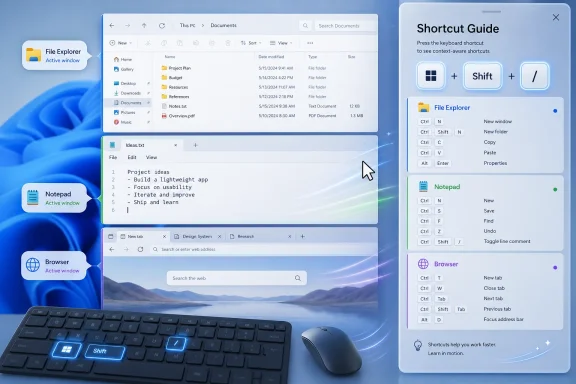
The redesigned guide changes the premise. Instead of behaving like a static reference page, it appears as a pane tied to the app in front of you. If File Explorer is active, the guide can surface File Explorer-relevant commands; if Notepad or Microsoft Edge is active, the panel can shift accordingly. The psychological difference is enormous, because the user is no longer asking, “What shortcuts exist?” The user is asking, “What can I do right now?”
That distinction is why this feature feels more important than its footprint suggests. Windows has always rewarded memorization, but memorization is a poor onboarding strategy. The best interfaces teach by proximity, showing capability at the moment of need rather than hiding it in documentation, menus, or blog posts.
PowerToys has historically been where Microsoft experiments with the Windows experience without having to declare every experiment part of the operating system. Shortcut Guide 0.100 fits that pattern. It is not rewriting the shell, but it is testing a model Windows itself could learn from: the OS should expose its depth without demanding that users become archivists of key combinations.
That is the central paradox of Windows productivity. The system is overflowing with small accelerators, yet the average user’s working set often stops at copy, paste, undo, Alt-Tab, and perhaps Windows key + E. Even among IT pros, knowledge tends to be uneven: one admin may fly through virtual desktops while another has mastered File Explorer selection tricks but never touches Snap Layout shortcuts.
The redesigned Shortcut Guide does not solve that entire problem, but it attacks the part Microsoft can realistically influence. It lowers the activation energy. Rather than asking users to read an article titled “every Windows 11 keyboard shortcut you need to know,” it lets them summon the answer from inside the task.
That is particularly valuable because shortcuts are not learned in bulk. Nobody becomes faster by memorizing 90 commands on a Tuesday afternoon. People learn one or two shortcuts at a time, usually after repeating the same mouse operation enough times to get annoyed. A context-aware guide meets that annoyance at the right moment.
That position gives PowerToys unusual freedom. It can be opinionated without carrying the political burden of changing Windows for a billion-plus users. It can introduce a new activation shortcut, a new pane, and app-specific shortcut data without forcing the Start menu team, the shell team, and third-party software vendors into a grand compatibility negotiation.
The trade-off is that PowerToys remains an optional layer. Users have to install it, enable the tool, and remember that the guide exists. The Windows Central walkthrough points readers toward the familiar installation paths: Microsoft Store, GitHub, or a winget command. That is easy for enthusiasts and admins, but it is still a barrier for the broader population that would benefit from exactly this kind of guidance.
This is the recurring tension with PowerToys. Microsoft often proves that a better Windows workflow is possible, then leaves it in a toolbox that only motivated users open. The redesigned Shortcut Guide is good enough to make that arrangement feel awkward.
This matters because modern desktop software has become increasingly fragmented. Windows users bounce between native apps, browser tabs, Electron apps, progressive web apps, remote desktops, and cloud consoles. In that environment, a universal keyboard memory is less realistic than it used to be. The question is not simply “What does Windows do?” It is “What does this particular surface support?”
A context-aware Shortcut Guide acknowledges that reality. It can show system-level commands when nothing specific is in focus, then narrow its view when a supported app is active. It also includes shortcuts from enabled PowerToys utilities, which is important because PowerToys itself has become large enough to need discovery help.
There is a meta quality to that. Microsoft has built a utility suite so full of accelerators that it now needs a utility to explain the accelerators. That could be read as bloat. More charitably, it is the natural result of a mature platform trying to expose advanced workflows without flattening them into one-size-fits-all UI.
There are advantages to that. A deliberate shortcut is less likely to appear accidentally, and it fits better with a pane that may display richer, app-specific content. It also makes Shortcut Guide behave more like the rest of PowerToys: a tool you summon when needed, not a teaching overlay that appears because you lingered on a modifier key.
But it also creates a discoverability loop. The guide helps users discover shortcuts, but users must first discover the shortcut for the guide. PowerToys partially mitigates that through its settings and system tray flyout, and the activation shortcut can be customized. Still, the irony is hard to miss.
For WindowsForum readers, the practical recommendation is straightforward: if you deploy or recommend PowerToys, surface the Shortcut Guide deliberately. Pin it in onboarding notes. Mention the activation chord in internal tips. If users do not know the guide exists, the redesign cannot do its job.
The initial coverage appears useful but not universal. The Windows Central piece observed support showing up for Notepad, Microsoft Edge, and File Explorer, while Microsoft’s release notes frame the feature as extensible and invite developers to add support for more apps. That is the right architecture, but it also shifts part of the burden to the ecosystem.
This is where enterprise and enthusiast realities diverge. Enthusiasts may be content with the built-in set and a few major apps. Enterprises often live inside a stranger mix: legacy Win32 tools, web apps, internal admin consoles, remote management utilities, IDEs, ticketing systems, and security dashboards. The more those apps can participate, the more valuable the guide becomes.
Microsoft’s developer-facing angle is therefore not a footnote. It is the difference between Shortcut Guide as a Windows novelty and Shortcut Guide as a platform convention. If app vendors can expose shortcut metadata in a predictable way, Windows could eventually treat shortcut discovery as a first-class capability rather than a pile of separate help pages.
PowerToys itself has had to reckon with shortcut conflicts. As the suite grows, so does the chance that one utility’s preferred key combination overlaps with another feature, another app, or a user’s muscle memory. Microsoft added conflict detection in earlier PowerToys releases, which tells us the company understands that keyboard productivity can become keyboard governance.
The new Shortcut Guide helps on the discovery side, but it does not eliminate the need for rationalization. A user may learn more shortcuts and still run into conflicts. An admin may standardize PowerToys across a team and still need to decide which utilities are enabled, which shortcuts are remapped, and which defaults are tolerable.
That makes the guide most useful when paired with Keyboard Manager and a little discipline. Discovery is step one. Coherence is step two. Without coherence, Windows risks teaching users shortcuts that behave differently across machines, apps, or privilege contexts.
That is not because keyboard shortcuts magically turn office workers into power users. It is because many small help desk irritations are really navigation problems. Users cannot find a window. They struggle to switch between apps. They do not know how to open File Explorer quickly. They waste time resizing windows manually. They copy and paste through context menus because nobody ever taught them alternatives beyond the basics.
A context-aware guide gives support teams a new phrase: press the guide shortcut and look at what is available. That is more scalable than sending a static shortcut PDF or maintaining a SharePoint page full of tips nobody reads. It also lets training become incremental, not ceremonial.
There are caveats. PowerToys is not part of every organization’s standard build, and some shops are conservative about optional utilities, background processes, Store delivery, or GitHub-sourced installers. Admins will want to test update behavior, policy controls, and compatibility with endpoint management practices before pushing the suite widely. But for organizations that already allow PowerToys, the new guide is one of the easiest productivity wins in the box.
That restraint is important. Windows has plenty of surfaces that already feel promotional, from Start menu recommendations to Edge prompts to Microsoft account nudges. A teaching layer that behaves like advertising would be dead on arrival with power users. Shortcut Guide works because it is user-invoked, practical, and quiet.
There is a lesson here for the rest of Windows 11. The OS does not need more pop-ups explaining features after an update. It needs more situational affordances that answer the question the user is already asking. How do I move this window? How do I switch desktops? How do I capture this region? How do I open the folder for this file? The answer should be discoverable without a search engine.
In that sense, Shortcut Guide is part of the same philosophical family as Command Palette. Both assume that keyboard-first interaction is not just for developers. Both try to make Windows feel less like a maze of surfaces and more like a commandable environment. The difference is that Command Palette helps you execute; Shortcut Guide helps you learn.
Microsoft does not need to install all of PowerToys by default to learn from this. Windows could expose a native shortcut learning surface tied to the shell, File Explorer, Settings, and Microsoft’s own inbox apps. It could give third-party developers a supported way to publish shortcut metadata. It could integrate shortcut discovery into accessibility and onboarding rather than burying it in articles and settings pages.
That would also align with Microsoft’s broader push toward AI-assisted and command-driven computing. Before users can trust an assistant to automate the desktop, they need the desktop’s own actions to be legible. Shortcut metadata is not just documentation; it is a map of what software can do.
The risk is that Microsoft treats this as a solved problem because PowerToys users are happy. That would be a mistake. The people who install PowerToys are already the people most likely to seek out better workflows. The bigger opportunity is helping everyone else climb the first rung.
For everyday users, the change turns shortcut learning into something closer to muscle-memory apprenticeship. For admins, it offers a practical training aid that does not require a scheduled session or a PDF. For developers, it hints at a future where app capabilities can be surfaced consistently by the platform. For Microsoft, it is proof that some of Windows’ best improvements do not require a redesign of the Start menu or another settings migration.
The feature is also modest enough to be trusted. It does not claim to reinvent Windows productivity. It just puts the right commands closer to the right moment. That is often how desktop software actually gets better: not through spectacle, but through tiny reductions in friction repeated hundreds of times a week.
 Microsoft Turns the Cheat Sheet Into a Live Instrument
The old Shortcut Guide was useful in the way laminated office posters are useful. It reminded you that Windows has a lot of keyboard shortcuts, many of them genuinely powerful, but it still expected you to stop, scan, remember, and return to work. That is not how most people learn software anymore.The redesigned guide changes the premise. Instead of behaving like a static reference page, it appears as a pane tied to the app in front of you. If File Explorer is active, the guide can surface File Explorer-relevant commands; if Notepad or Microsoft Edge is active, the panel can shift accordingly. The psychological difference is enormous, because the user is no longer asking, “What shortcuts exist?” The user is asking, “What can I do right now?”
That distinction is why this feature feels more important than its footprint suggests. Windows has always rewarded memorization, but memorization is a poor onboarding strategy. The best interfaces teach by proximity, showing capability at the moment of need rather than hiding it in documentation, menus, or blog posts.
PowerToys has historically been where Microsoft experiments with the Windows experience without having to declare every experiment part of the operating system. Shortcut Guide 0.100 fits that pattern. It is not rewriting the shell, but it is testing a model Windows itself could learn from: the OS should expose its depth without demanding that users become archivists of key combinations.
Windows Has Never Had a Shortage of Power, Only a Shortage of Memory
The Windows keyboard model is both a triumph and a mess. There are global shortcuts, shell shortcuts, app shortcuts, accessibility shortcuts, browser shortcuts, terminal shortcuts, and utility-specific shortcuts. Many are brilliant. Many collide. Many are invisible unless you already know the words to search for.That is the central paradox of Windows productivity. The system is overflowing with small accelerators, yet the average user’s working set often stops at copy, paste, undo, Alt-Tab, and perhaps Windows key + E. Even among IT pros, knowledge tends to be uneven: one admin may fly through virtual desktops while another has mastered File Explorer selection tricks but never touches Snap Layout shortcuts.
The redesigned Shortcut Guide does not solve that entire problem, but it attacks the part Microsoft can realistically influence. It lowers the activation energy. Rather than asking users to read an article titled “every Windows 11 keyboard shortcut you need to know,” it lets them summon the answer from inside the task.
That is particularly valuable because shortcuts are not learned in bulk. Nobody becomes faster by memorizing 90 commands on a Tuesday afternoon. People learn one or two shortcuts at a time, usually after repeating the same mouse operation enough times to get annoyed. A context-aware guide meets that annoyance at the right moment.
PowerToys Again Plays the Role Windows Proper Cannot
PowerToys has become Microsoft’s sanctioned side channel for features that are too niche, too experimental, or too enthusiast-facing for the default Windows install. FancyZones, PowerToys Run, Keyboard Manager, Text Extractor, Awake, Command Palette, and now the refreshed Shortcut Guide all share a common theme: they serve users who know the OS can be faster but do not want to wait for Windows itself to catch up.That position gives PowerToys unusual freedom. It can be opinionated without carrying the political burden of changing Windows for a billion-plus users. It can introduce a new activation shortcut, a new pane, and app-specific shortcut data without forcing the Start menu team, the shell team, and third-party software vendors into a grand compatibility negotiation.
The trade-off is that PowerToys remains an optional layer. Users have to install it, enable the tool, and remember that the guide exists. The Windows Central walkthrough points readers toward the familiar installation paths: Microsoft Store, GitHub, or a winget command. That is easy for enthusiasts and admins, but it is still a barrier for the broader population that would benefit from exactly this kind of guidance.
This is the recurring tension with PowerToys. Microsoft often proves that a better Windows workflow is possible, then leaves it in a toolbox that only motivated users open. The redesigned Shortcut Guide is good enough to make that arrangement feel awkward.
The New Guide Is Really About Context, Not Shortcuts
The headline feature is app awareness, but the deeper design move is contextual relevance. A list of every shortcut is an index. A list of shortcuts for the app you are using is instruction. That shift makes the guide feel less like documentation and more like a training layer.This matters because modern desktop software has become increasingly fragmented. Windows users bounce between native apps, browser tabs, Electron apps, progressive web apps, remote desktops, and cloud consoles. In that environment, a universal keyboard memory is less realistic than it used to be. The question is not simply “What does Windows do?” It is “What does this particular surface support?”
A context-aware Shortcut Guide acknowledges that reality. It can show system-level commands when nothing specific is in focus, then narrow its view when a supported app is active. It also includes shortcuts from enabled PowerToys utilities, which is important because PowerToys itself has become large enough to need discovery help.
There is a meta quality to that. Microsoft has built a utility suite so full of accelerators that it now needs a utility to explain the accelerators. That could be read as bloat. More charitably, it is the natural result of a mature platform trying to expose advanced workflows without flattening them into one-size-fits-all UI.
The Activation Shortcut Is a Small Design Choice With Big Consequences
The new guide uses Windows key + Shift + slash by default, and that matters. Older documentation and memory around Shortcut Guide often centered on holding the Windows key to reveal an overlay. The move to an explicit chord changes the feature from passive hint to intentional invocation.There are advantages to that. A deliberate shortcut is less likely to appear accidentally, and it fits better with a pane that may display richer, app-specific content. It also makes Shortcut Guide behave more like the rest of PowerToys: a tool you summon when needed, not a teaching overlay that appears because you lingered on a modifier key.
But it also creates a discoverability loop. The guide helps users discover shortcuts, but users must first discover the shortcut for the guide. PowerToys partially mitigates that through its settings and system tray flyout, and the activation shortcut can be customized. Still, the irony is hard to miss.
For WindowsForum readers, the practical recommendation is straightforward: if you deploy or recommend PowerToys, surface the Shortcut Guide deliberately. Pin it in onboarding notes. Mention the activation chord in internal tips. If users do not know the guide exists, the redesign cannot do its job.
The Supported-App Problem Will Decide Whether This Becomes a Habit
Context-aware tools live or die by coverage. If the Shortcut Guide works well in the apps a user touches every day, it becomes a habit. If it frequently falls back to generic Windows shortcuts, it becomes another nice idea that people forget.The initial coverage appears useful but not universal. The Windows Central piece observed support showing up for Notepad, Microsoft Edge, and File Explorer, while Microsoft’s release notes frame the feature as extensible and invite developers to add support for more apps. That is the right architecture, but it also shifts part of the burden to the ecosystem.
This is where enterprise and enthusiast realities diverge. Enthusiasts may be content with the built-in set and a few major apps. Enterprises often live inside a stranger mix: legacy Win32 tools, web apps, internal admin consoles, remote management utilities, IDEs, ticketing systems, and security dashboards. The more those apps can participate, the more valuable the guide becomes.
Microsoft’s developer-facing angle is therefore not a footnote. It is the difference between Shortcut Guide as a Windows novelty and Shortcut Guide as a platform convention. If app vendors can expose shortcut metadata in a predictable way, Windows could eventually treat shortcut discovery as a first-class capability rather than a pile of separate help pages.
The Feature Also Exposes Windows’ Longstanding Shortcut Sprawl
There is another reason the guide is useful: Windows shortcuts are not merely hidden; they are scattered across eras. Some date back to decades-old desktop conventions. Others arrived with Windows 10 and Windows 11. Others belong to Edge, Terminal, PowerToys, Microsoft 365, or accessibility features. The result is a keyboard landscape that feels organic in the geological sense: layered, compressed, and occasionally unstable.PowerToys itself has had to reckon with shortcut conflicts. As the suite grows, so does the chance that one utility’s preferred key combination overlaps with another feature, another app, or a user’s muscle memory. Microsoft added conflict detection in earlier PowerToys releases, which tells us the company understands that keyboard productivity can become keyboard governance.
The new Shortcut Guide helps on the discovery side, but it does not eliminate the need for rationalization. A user may learn more shortcuts and still run into conflicts. An admin may standardize PowerToys across a team and still need to decide which utilities are enabled, which shortcuts are remapped, and which defaults are tolerable.
That makes the guide most useful when paired with Keyboard Manager and a little discipline. Discovery is step one. Coherence is step two. Without coherence, Windows risks teaching users shortcuts that behave differently across machines, apps, or privilege contexts.
For IT Pros, the Story Is Onboarding and Support Deflection
The immediate appeal for enthusiasts is obvious: fewer clicks, faster navigation, more satisfying control over the desktop. For IT departments, the value is subtler. A better shortcut guide can reduce repetitive support friction by teaching users how to move around Windows more effectively.That is not because keyboard shortcuts magically turn office workers into power users. It is because many small help desk irritations are really navigation problems. Users cannot find a window. They struggle to switch between apps. They do not know how to open File Explorer quickly. They waste time resizing windows manually. They copy and paste through context menus because nobody ever taught them alternatives beyond the basics.
A context-aware guide gives support teams a new phrase: press the guide shortcut and look at what is available. That is more scalable than sending a static shortcut PDF or maintaining a SharePoint page full of tips nobody reads. It also lets training become incremental, not ceremonial.
There are caveats. PowerToys is not part of every organization’s standard build, and some shops are conservative about optional utilities, background processes, Store delivery, or GitHub-sourced installers. Admins will want to test update behavior, policy controls, and compatibility with endpoint management practices before pushing the suite widely. But for organizations that already allow PowerToys, the new guide is one of the easiest productivity wins in the box.
Microsoft’s Bigger Bet Is That Windows Can Teach Without Interrupting
The best thing about the redesigned Shortcut Guide is that it does not try to gamify productivity. It does not award badges for using Ctrl+Shift+N. It does not nag users to become more efficient. It simply makes useful knowledge appear near the work.That restraint is important. Windows has plenty of surfaces that already feel promotional, from Start menu recommendations to Edge prompts to Microsoft account nudges. A teaching layer that behaves like advertising would be dead on arrival with power users. Shortcut Guide works because it is user-invoked, practical, and quiet.
There is a lesson here for the rest of Windows 11. The OS does not need more pop-ups explaining features after an update. It needs more situational affordances that answer the question the user is already asking. How do I move this window? How do I switch desktops? How do I capture this region? How do I open the folder for this file? The answer should be discoverable without a search engine.
In that sense, Shortcut Guide is part of the same philosophical family as Command Palette. Both assume that keyboard-first interaction is not just for developers. Both try to make Windows feel less like a maze of surfaces and more like a commandable environment. The difference is that Command Palette helps you execute; Shortcut Guide helps you learn.
The Power User Feature That Should Not Stay Power-User-Only
There is a familiar pattern in Windows history: a feature starts as an enthusiast tool, proves its usefulness, and then either migrates into the OS or remains stranded just outside it. The new Shortcut Guide deserves the first fate. It is too broadly useful to be treated solely as a PowerToys curiosity.Microsoft does not need to install all of PowerToys by default to learn from this. Windows could expose a native shortcut learning surface tied to the shell, File Explorer, Settings, and Microsoft’s own inbox apps. It could give third-party developers a supported way to publish shortcut metadata. It could integrate shortcut discovery into accessibility and onboarding rather than burying it in articles and settings pages.
That would also align with Microsoft’s broader push toward AI-assisted and command-driven computing. Before users can trust an assistant to automate the desktop, they need the desktop’s own actions to be legible. Shortcut metadata is not just documentation; it is a map of what software can do.
The risk is that Microsoft treats this as a solved problem because PowerToys users are happy. That would be a mistake. The people who install PowerToys are already the people most likely to seek out better workflows. The bigger opportunity is helping everyone else climb the first rung.
A Small Pane Says a Lot About the Next Windows Workflow
The refreshed Shortcut Guide is not the flashiest part of PowerToys 0.100. The same release also brings Command Palette improvements, extension discovery, multi-monitor Dock support, Power Display refinements, ZoomIt updates, installer reductions, and platform modernization work. Yet the Shortcut Guide may be the most revealing feature because it addresses a universal weakness: Windows is powerful, but it often fails to explain itself.For everyday users, the change turns shortcut learning into something closer to muscle-memory apprenticeship. For admins, it offers a practical training aid that does not require a scheduled session or a PDF. For developers, it hints at a future where app capabilities can be surfaced consistently by the platform. For Microsoft, it is proof that some of Windows’ best improvements do not require a redesign of the Start menu or another settings migration.
The feature is also modest enough to be trusted. It does not claim to reinvent Windows productivity. It just puts the right commands closer to the right moment. That is often how desktop software actually gets better: not through spectacle, but through tiny reductions in friction repeated hundreds of times a week.
The Shortcut Guide’s Real Win Is Making Windows Feel Less Like Oral Tradition
The concrete lesson from PowerToys 0.100 is that Microsoft is finally treating shortcut discovery as a workflow problem rather than a documentation problem. That is a welcome shift, and it gives Windows users a practical reason to revisit a tool many may have ignored.- PowerToys 0.100 was released on June 10, 2026, and introduces a rebuilt Shortcut Guide alongside other major utility-suite improvements.
- The new Shortcut Guide appears as a side pane and can detect the active application to show more relevant shortcuts.
- The default activation shortcut is Windows key + Shift + slash, though users can change it in PowerToys settings.
- The guide includes app-specific shortcuts where supported, broader Windows shortcuts, and shortcuts from enabled PowerToys utilities.
- The feature is most valuable when users treat it as a habit-building tool rather than a one-time reference sheet.
- Its long-term usefulness will depend on app coverage, developer participation, and whether Microsoft eventually brings similar discovery into Windows itself.
References
- Primary source: Windows Central
Published: Thu, 18 Jun 2026 18:24:38 GMT
Loading…
www.windowscentral.com - Official source: learn.microsoft.com
Loading…
learn.microsoft.com - Related coverage: tomsguide.com
Loading…
www.tomsguide.com - Related coverage: pcworld.com
Loading…
www.pcworld.com - Official source: github.com
Releases · microsoft/PowerToys · GitHub
Microsoft PowerToys is a collection of utilities that supercharge productivity and customization on Windows - Releases · microsoft/PowerToys github.com
- Related coverage: howtogeek.com
Loading…
www.howtogeek.com
- Related coverage: gigazine.net
Loading…
gigazine.net - Related coverage: computerworld.com
Loading…
www.computerworld.com - Related coverage: makeuseof.com
Loading…
www.makeuseof.com - Related coverage: tutorialtactic.com
Loading…
tutorialtactic.com - Related coverage: cheatography.com
Loading…
cheatography.com - Related coverage: doccompiler.ai