
Microsoft’s Intelligent Terminal 0.1.1, released in June 2026 as the first servicing update to Microsoft’s experimental AI-enabled Windows Terminal fork, adds Bash and WSL error detection, a new
That matters because the terminal is where abstractions go to die. Build scripts fail, paths disagree, shells lie by omission, Linux tools meet Windows file systems, and the person at the keyboard is often left spelunking through stderr with a browser tab open. Intelligent Terminal 0.1.1 is Microsoft’s clearest signal yet that it wants the terminal itself to become part debugger, part explainer, and part operator.
The original Intelligent Terminal 0.1 announcement was notable less because it invented AI help in a shell than because Microsoft chose to embed that help directly into a fork of Windows Terminal. That is an important architectural choice. A chatbot in a browser can advise; an agent wired into the terminal can see context, observe failures, and potentially act where the problem occurred.
Version 0.1.1 broadens that promise. Automatic error detection now works in Bash and WSL Bash, not just PowerShell. For a Windows developer audience, that is the difference between a feature that looks good in a demo and one that meets the daily workflow of people juggling Node, Python, Git, Docker, Azure tooling, package managers, and Linux-first build systems.
PowerShell remains central to Windows administration, but WSL has become the bridge for a generation of developers who need Linux tooling without leaving Windows. Git Bash, Ubuntu under WSL, PowerShell, Command Prompt, and cloud CLIs often live side by side in the same terminal window. A troubleshooting agent that only understands one of those lanes is a curiosity; one that follows the user across shells starts to look like infrastructure.
The 0.1.1 update therefore reads as a course correction. Microsoft is acknowledging that Windows development is not neatly Windows-native anymore. It is Windows as a host for multiple execution cultures, and the terminal has become the switching yard.
The
Automatic error detection is seductive, but it is also a blunt instrument. Many of the most frustrating terminal failures are not clean failures at all. A command exits successfully but produces the wrong artifact, a package installs but lands in the wrong environment, a script runs but uses stale configuration, or WSL resolves a path differently from the tool that invoked it.
That is why the new
That distinction matters for trust. If AI assistance appears only when Microsoft’s detection logic decides the moment qualifies, users will either miss it when they need it or resent it when it guesses badly. A slash command is legible, repeatable, and easy to teach. It turns the agent pane into a tool rather than an apparition.
There is also a cultural point here. Developers already live with command-oriented workflows:
That is precisely where an integrated agent could be useful. If it can see enough context from the terminal session, it may be able to distinguish between a missing Linux package and a Windows-side WSL configuration issue. It may explain why a command works in PowerShell but fails inside Ubuntu, or why a path beginning with
But WSL is also where overconfident automation can do real damage. A suggested fix that edits shell startup files, rewrites permissions, installs packages globally, changes DNS configuration, or runs destructive cleanup commands must be treated with care. The more capable the terminal agent becomes, the more important it is that proposed actions are transparent before execution.
This is the central tension of Intelligent Terminal. The terminal is powerful because it is close to the system. An AI agent in that position inherits the same power, and the same risk.
Some users will want a fast, cheap model for quick explanations and a stronger model for multi-step debugging. Some organizations will prefer a particular approved model for compliance reasons. Some developers will test local or custom ACP-compatible agents against Microsoft’s defaults. The terminal, in this framing, becomes a workbench for agents rather than a fixed Copilot appliance.
That flexibility is important because AI-assisted development is still unsettled. Enterprises are evaluating cost, data handling, auditability, model quality, and vendor lock-in. Individual developers are doing the same thing less formally, often by feel: which model explains errors clearly, which one hallucinates flags, which one understands a project’s tooling, which one is worth waiting for.
By making model selection available inside the agent pane, Microsoft is leaving room for that experimentation. It is also avoiding a mistake that would make Intelligent Terminal feel like a walled garden before it has earned default-tool status.
By making the agent pane a first-class profile in settings, Microsoft is treating it less like an add-on and more like a terminal surface. That is the right move. If the agent is going to sit next to production logs, test output, SSH sessions, and build failures, it must be configurable with the same seriousness as any other pane.
This also matters for accessibility and enterprise standardization. A translucent default pane may look good in a launch screenshot, but many users will need predictable contrast, readable fonts, and profiles that match existing terminal themes. IT teams deploying a tool like this will care about whether it can be made boring, consistent, and supportable.
The best terminal features disappear into muscle memory. Intelligent Terminal cannot get there if the agent pane feels visually or behaviorally separate from the rest of the application.
Build 19041 is also a familiar dividing line in the modern Windows developer ecosystem. It corresponds to the Windows 10 2004 generation that underpins many Windows Terminal and WSL assumptions. By supporting that baseline, Intelligent Terminal aligns itself with machines that are old enough to be common but new enough to support the modern terminal stack.
The release notes also say the app no longer crashes on unsupported versions. That is the kind of fix that rarely earns headlines and often determines whether early adopters keep trying. Experimental software gets more forgiveness than production software, but crashing at launch is not experimentation; it is a failed handshake.
For WindowsForum readers, this compatibility point is especially relevant. Enthusiasts and sysadmins often run mixed environments: a Windows 11 daily driver, a Windows 10 test machine, a corporate laptop frozen on a sanctioned build, and a VM used for reproducing issues. Support across those contexts makes the tool easier to evaluate without turning evaluation into a platform migration.
Microsoft is trying to collapse that loop into the terminal window. The command fails, the agent sees the context, the user asks for an explanation or invokes
That is compelling for routine errors. Missing dependencies, typoed commands, invalid flags, expired credentials, wrong directories, and environment mismatches are exactly the sort of problems that waste time without being intellectually interesting. An assistant that handles the obvious cases well could save developers and admins a meaningful amount of friction.
But the feedback loop also needs boundaries. Not every error should be fixed immediately. Some failures are symptoms of a deeper design issue. Some commands fail because they are protecting the system. Some package conflicts should not be resolved by installing the first thing an AI suggests. The terminal must help the user think faster, not train the user to stop thinking.
That does not mean the idea is unworkable. It means organizations will want clear controls over which agents are allowed, which models can be used, what context is sent where, how execution is confirmed, and whether logs are retained. The same flexibility that makes per-pane model switching attractive to power users may look risky to administrators unless it is paired with policy enforcement.
There is also the issue of accountability. If an AI agent suggests a command that changes a system state, who owns the result? The user who approved it, the team that configured the agent, the vendor that supplied the model, or the administrator who permitted the tool? In practice, enterprises will answer that by limiting automation until audit trails and guardrails are mature.
This is where Intelligent Terminal’s experimental status is doing useful work. Microsoft can move quickly, learn from early adopters, and avoid pretending that an agentic terminal is ready to become the default shell for regulated environments. The danger would be moving from experiment to assumption too quickly.
But the command line has never been as pure as its mythology. Shell history, autocomplete, man pages, package-manager hints, Git’s increasingly verbose advice, syntax highlighting, fuzzy finders, and IDE-integrated terminals all exist because humans need assistance operating complex systems. AI is not the first layer of help to enter the shell; it is the most ambitious and the most error-prone.
The practical question is not whether terminals should remain untouched. They will not. The question is whether AI assistance in terminals becomes transparent, controllable, and context-aware enough to be useful without becoming reckless.
Intelligent Terminal 0.1.1 moves in the right direction by adding manual invocation, broader shell coverage, model choice, and customization. Those are signs of a tool trying to fit into existing workflows rather than forcing users into a new one.
Still, version 0.1.1 clarifies Microsoft’s bet. The company is not merely interested in AI code completion or chat-based documentation lookup. It is exploring a world where the operating system’s developer surfaces can observe intent, interpret failure, and propose action from inside the workflow.
That fits a broader pattern across Microsoft’s developer strategy. GitHub Copilot brought AI into the editor. Copilot in Windows brought AI into the desktop shell. Intelligent Terminal brings it to the place where developers and administrators issue commands that change real machines.
The terminal is a particularly consequential frontier because it is both universal and unforgiving. A good AI assistant there feels like a senior colleague looking over your shoulder. A bad one feels like autocomplete attached to a loaded nail gun.
/fix command, per-pane model switching, agent-pane customization, and official Windows 10 build 19041 support. The update is small by version number and large by implication. Microsoft is no longer treating the AI terminal as a PowerShell-flavored demo; it is moving the agent closer to the messy, polyglot command-line reality developers actually inhabit.That matters because the terminal is where abstractions go to die. Build scripts fail, paths disagree, shells lie by omission, Linux tools meet Windows file systems, and the person at the keyboard is often left spelunking through stderr with a browser tab open. Intelligent Terminal 0.1.1 is Microsoft’s clearest signal yet that it wants the terminal itself to become part debugger, part explainer, and part operator.
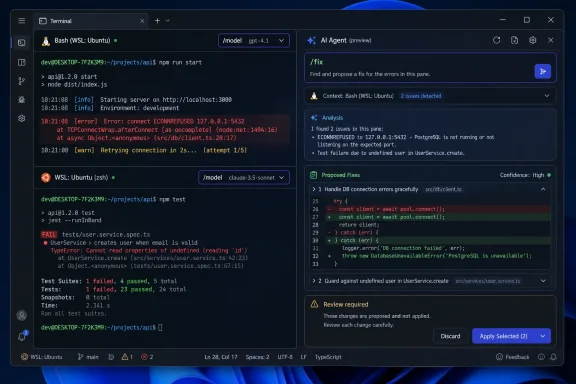 Microsoft Moves the Agent From PowerShell Showcase to Cross-Shell Tool
The original Intelligent Terminal 0.1 announcement was notable less because it invented AI help in a shell than because Microsoft chose to embed that help directly into a fork of Windows Terminal. That is an important architectural choice. A chatbot in a browser can advise; an agent wired into the terminal can see context, observe failures, and potentially act where the problem occurred.Version 0.1.1 broadens that promise. Automatic error detection now works in Bash and WSL Bash, not just PowerShell. For a Windows developer audience, that is the difference between a feature that looks good in a demo and one that meets the daily workflow of people juggling Node, Python, Git, Docker, Azure tooling, package managers, and Linux-first build systems.
PowerShell remains central to Windows administration, but WSL has become the bridge for a generation of developers who need Linux tooling without leaving Windows. Git Bash, Ubuntu under WSL, PowerShell, Command Prompt, and cloud CLIs often live side by side in the same terminal window. A troubleshooting agent that only understands one of those lanes is a curiosity; one that follows the user across shells starts to look like infrastructure.
The 0.1.1 update therefore reads as a course correction. Microsoft is acknowledging that Windows development is not neatly Windows-native anymore. It is Windows as a host for multiple execution cultures, and the terminal has become the switching yard.
The /fix Command Makes AI Help Explicit Instead of Magical
Automatic error detection is seductive, but it is also a blunt instrument. Many of the most frustrating terminal failures are not clean failures at all. A command exits successfully but produces the wrong artifact, a package installs but lands in the wrong environment, a script runs but uses stale configuration, or WSL resolves a path differently from the tool that invoked it.That is why the new
/fix command may be more important than the headline feature. It gives the user a manual way to ask the agent to inspect shell output or an error even when the automatic detector does not fire. In practice, this shifts the feature from “the terminal noticed something broke” to “the terminal can be summoned when the operator knows something is wrong.”That distinction matters for trust. If AI assistance appears only when Microsoft’s detection logic decides the moment qualifies, users will either miss it when they need it or resent it when it guesses badly. A slash command is legible, repeatable, and easy to teach. It turns the agent pane into a tool rather than an apparition.
There is also a cultural point here. Developers already live with command-oriented workflows:
git status, npm test, kubectl describe, winget install, wsl --status. A /fix command fits that grammar. It does not require the user to abandon terminal thinking for chatbot thinking.WSL Is Where the Feature Will Earn or Lose Credibility
WSL support is not just another checkbox. It is the hardest and most revealing environment for this kind of tool because WSL problems often straddle two operating systems at once. A failure may involve Linux permissions, Windows paths, DNS resolution, virtualization settings, distribution state, package versions, or a mismatch between where a command is run and where the user thinks it is running.That is precisely where an integrated agent could be useful. If it can see enough context from the terminal session, it may be able to distinguish between a missing Linux package and a Windows-side WSL configuration issue. It may explain why a command works in PowerShell but fails inside Ubuntu, or why a path beginning with
/mnt/c/ behaves differently from a native Linux home directory.But WSL is also where overconfident automation can do real damage. A suggested fix that edits shell startup files, rewrites permissions, installs packages globally, changes DNS configuration, or runs destructive cleanup commands must be treated with care. The more capable the terminal agent becomes, the more important it is that proposed actions are transparent before execution.
This is the central tension of Intelligent Terminal. The terminal is powerful because it is close to the system. An AI agent in that position inherits the same power, and the same risk.
Model Switching Turns the Agent Pane Into a Workbench
The new per-pane/model picker is a small feature with a revealing design philosophy. It allows users to change the AI model for an agent pane mid-session without restarting. That sounds like convenience, but it also recognizes that “the AI” is not one thing.Some users will want a fast, cheap model for quick explanations and a stronger model for multi-step debugging. Some organizations will prefer a particular approved model for compliance reasons. Some developers will test local or custom ACP-compatible agents against Microsoft’s defaults. The terminal, in this framing, becomes a workbench for agents rather than a fixed Copilot appliance.
That flexibility is important because AI-assisted development is still unsettled. Enterprises are evaluating cost, data handling, auditability, model quality, and vendor lock-in. Individual developers are doing the same thing less formally, often by feel: which model explains errors clearly, which one hallucinates flags, which one understands a project’s tooling, which one is worth waiting for.
By making model selection available inside the agent pane, Microsoft is leaving room for that experimentation. It is also avoiding a mistake that would make Intelligent Terminal feel like a walled garden before it has earned default-tool status.
Customization Is Not Cosmetic in a Terminal
Agent-pane customization sounds minor until you remember what terminal users are like. Font, opacity, color scheme, pane placement, contrast, and density are not ornamental preferences in a command-line environment. They are part of how people maintain focus and reduce cognitive load across long sessions.By making the agent pane a first-class profile in settings, Microsoft is treating it less like an add-on and more like a terminal surface. That is the right move. If the agent is going to sit next to production logs, test output, SSH sessions, and build failures, it must be configurable with the same seriousness as any other pane.
This also matters for accessibility and enterprise standardization. A translucent default pane may look good in a launch screenshot, but many users will need predictable contrast, readable fonts, and profiles that match existing terminal themes. IT teams deploying a tool like this will care about whether it can be made boring, consistent, and supportable.
The best terminal features disappear into muscle memory. Intelligent Terminal cannot get there if the agent pane feels visually or behaviorally separate from the rest of the application.
Windows 10 Support Keeps the Experiment Grounded in Reality
Official support for Windows 10 build 19041 and later is another practical addition. Windows 11 may be Microsoft’s preferred client platform, but Windows 10 remains deeply entrenched across fleets, labs, developer laptops, and long-lived enterprise images. Any developer tool that ignores that installed base narrows its own testing ground.Build 19041 is also a familiar dividing line in the modern Windows developer ecosystem. It corresponds to the Windows 10 2004 generation that underpins many Windows Terminal and WSL assumptions. By supporting that baseline, Intelligent Terminal aligns itself with machines that are old enough to be common but new enough to support the modern terminal stack.
The release notes also say the app no longer crashes on unsupported versions. That is the kind of fix that rarely earns headlines and often determines whether early adopters keep trying. Experimental software gets more forgiveness than production software, but crashing at launch is not experimentation; it is a failed handshake.
For WindowsForum readers, this compatibility point is especially relevant. Enthusiasts and sysadmins often run mixed environments: a Windows 11 daily driver, a Windows 10 test machine, a corporate laptop frozen on a sanctioned build, and a VM used for reproducing issues. Support across those contexts makes the tool easier to evaluate without turning evaluation into a platform migration.
The Real Product Is Not the Terminal, It Is the Feedback Loop
Intelligent Terminal’s underlying ambition is not simply to add a chatbot to Windows Terminal. It is to shorten the loop between failure, diagnosis, and remediation. That is the same loop that has powered decades of command-line work, except the traditional loop involves copying output, searching documentation, reading forum posts, comparing Stack Overflow answers, and returning to the shell with a possible fix.Microsoft is trying to collapse that loop into the terminal window. The command fails, the agent sees the context, the user asks for an explanation or invokes
/fix, and the proposed remediation appears where the next command will be run. If it works, the flow continues. If it fails, the agent has the next piece of evidence.That is compelling for routine errors. Missing dependencies, typoed commands, invalid flags, expired credentials, wrong directories, and environment mismatches are exactly the sort of problems that waste time without being intellectually interesting. An assistant that handles the obvious cases well could save developers and admins a meaningful amount of friction.
But the feedback loop also needs boundaries. Not every error should be fixed immediately. Some failures are symptoms of a deeper design issue. Some commands fail because they are protecting the system. Some package conflicts should not be resolved by installing the first thing an AI suggests. The terminal must help the user think faster, not train the user to stop thinking.
Enterprise IT Will See Both a Support Tool and a Policy Problem
For individual developers, Intelligent Terminal 0.1.1 is an intriguing productivity experiment. For enterprise IT, it is also a governance question. An agent in the terminal may see command output, file paths, hostnames, repository names, internal package feeds, error logs, and occasionally secrets that should never have been printed but were.That does not mean the idea is unworkable. It means organizations will want clear controls over which agents are allowed, which models can be used, what context is sent where, how execution is confirmed, and whether logs are retained. The same flexibility that makes per-pane model switching attractive to power users may look risky to administrators unless it is paired with policy enforcement.
There is also the issue of accountability. If an AI agent suggests a command that changes a system state, who owns the result? The user who approved it, the team that configured the agent, the vendor that supplied the model, or the administrator who permitted the tool? In practice, enterprises will answer that by limiting automation until audit trails and guardrails are mature.
This is where Intelligent Terminal’s experimental status is doing useful work. Microsoft can move quickly, learn from early adopters, and avoid pretending that an agentic terminal is ready to become the default shell for regulated environments. The danger would be moving from experiment to assumption too quickly.
The Command Line Is Becoming an AI Interface Whether Purists Like It or Not
There will be predictable resistance to AI in the terminal, and some of it is justified. The command line has historically rewarded precision, explicitness, and understanding. An assistant that papers over errors with plausible-sounding explanations can undermine those virtues if it becomes a crutch.But the command line has never been as pure as its mythology. Shell history, autocomplete, man pages, package-manager hints, Git’s increasingly verbose advice, syntax highlighting, fuzzy finders, and IDE-integrated terminals all exist because humans need assistance operating complex systems. AI is not the first layer of help to enter the shell; it is the most ambitious and the most error-prone.
The practical question is not whether terminals should remain untouched. They will not. The question is whether AI assistance in terminals becomes transparent, controllable, and context-aware enough to be useful without becoming reckless.
Intelligent Terminal 0.1.1 moves in the right direction by adding manual invocation, broader shell coverage, model choice, and customization. Those are signs of a tool trying to fit into existing workflows rather than forcing users into a new one.
The Small Release That Shows the Shape of the Bet
This update is not a revolution. It is a servicing release for an experimental app, and anyone deploying it broadly should treat it accordingly. Bugs, incomplete shell coverage, uneven model behavior, and rough edges are to be expected.Still, version 0.1.1 clarifies Microsoft’s bet. The company is not merely interested in AI code completion or chat-based documentation lookup. It is exploring a world where the operating system’s developer surfaces can observe intent, interpret failure, and propose action from inside the workflow.
That fits a broader pattern across Microsoft’s developer strategy. GitHub Copilot brought AI into the editor. Copilot in Windows brought AI into the desktop shell. Intelligent Terminal brings it to the place where developers and administrators issue commands that change real machines.
The terminal is a particularly consequential frontier because it is both universal and unforgiving. A good AI assistant there feels like a senior colleague looking over your shoulder. A bad one feels like autocomplete attached to a loaded nail gun.
The Practical Read for Windows Power Users
For now, the right way to view Intelligent Terminal 0.1.1 is as an early-access diagnostic companion, not a replacement for knowing your tools. It is worth testing precisely because the new Bash and WSL support puts it in the path of real Windows development work. It is also worth testing cautiously because a terminal agent’s usefulness depends on the quality of its context and the discipline of its user.- Intelligent Terminal 0.1.1 expands automatic error detection beyond PowerShell to Bash and WSL Bash, which makes the experiment much more relevant to modern Windows development.
- The new
/fixcommand is important because it lets users request help even when a command technically succeeds or when automatic detection misses the problem. - Per-pane model switching gives developers and organizations room to compare AI backends without restarting an agent session.
- Agent-pane customization makes the feature easier to live with during long terminal sessions and less like a bolt-on demo.
- Official Windows 10 build 19041-and-newer support broadens the testing audience beyond Windows 11 early adopters.
- The feature should be treated as assistive rather than authoritative, especially when proposed fixes would alter packages, permissions, shell configuration, or system state.
References
- Primary source: techgig.com
Published: 2026-06-20T04:20:51.800042
Intelligent Terminal 0.1.1 Gains Bash, WSL Error Detection, New /fix Command, TechGig
Microsoft has released Intelligent Terminal 0.1.1, introducing automatic error detection and fix suggestions for Bash and Windows Subsystem for Linux (WSL). This update significantly enhances troubleshooting capabilities for developers working across different shell environments.techgig.com
- Official source: devblogs.microsoft.com
Announcing Intelligent Terminal 0.1 - Windows Command Line
Today we're announcing Intelligent Terminal version 0.1, an open-source experimental fork of Windows Terminal with native agent integration. Get starteddevblogs.microsoft.com - Related coverage: newreleases.io
microsoft/intelligent-terminal v0.1.1 on GitHub
New release microsoft/intelligent-terminal version v0.1.1 Intelligent Terminal v0.1.1681 on GitHub. newreleases.io
- Official source: learn.microsoft.com
Windows Terminal Troubleshooting | Microsoft Learn
Learn fixes to common obstacles in Windows Terminal.learn.microsoft.com - Related coverage: byteiota.com
Microsoft Intelligent Terminal 0.1: AI Agents in Your Shell | byteiota
Microsoft shipped Intelligent Terminal 0.1 — a fork of Windows Terminal with a built-in AI agent pane, error detection, and support for Claude Code, Copilot, Codex, and Gemini. Here is what changed.byteiota.com - Related coverage: unix.stackexchange.com
bash - Command line / prompt is broken, cannot edit (WSL2) - Unix & Linux Stack Exchange
I'm using Windows 10 with WSL2. In all the terminals I have tried so far, I quickly encounter a broken command line. After pressing ENTER, the actual command appears differently, parts of the commandunix.stackexchange.com
- Related coverage: stackoverflow.com
visual studio code - VSCode: Execute command automatically on WSL terminal opening - Stack Overflow
I'd like to execute a command automatically every time I open the WSL terminal on Visual Studio Code (Windows 10).
I'm not using the Remote WSL extension, just the WSL terminal with this setting:
&...stackoverflow.com
- Related coverage: devops.com
Microsoft Brings AI Agents Directly Into the Windows Terminal - DevOps.com
Microsoft's Intelligent Terminal 0.1 brings native AI agent integration to the Windows Terminal. Here's what DevOps engineers need to know.devops.com - Related coverage: windowscentral.com
How to fix Internet connectivity issues in WSL | Windows Central
If you're suddenly having issues connecting to the internet through WSL, then this easy fix will hopefully get you back online.www.windowscentral.com - Related coverage: techyorker.com
- Official source: github.com
GitHub - microsoft/terminal: The new Windows Terminal and the original Windows console host, all in the same place! · GitHub
The new Windows Terminal and the original Windows console host, all in the same place! - microsoft/terminal github.com
- Related coverage: pasqualepillitteri.it
Intelligent Terminal 0.1: Microsoft Forks Windows Terminal and Puts AI Agents Inside It
Microsoft ships Intelligent Terminal 0.1 at Build 2026: an open-source fork of Windows Terminal with a built-in AI agent and Agent Client Protocol support.pasqualepillitteri.it

