
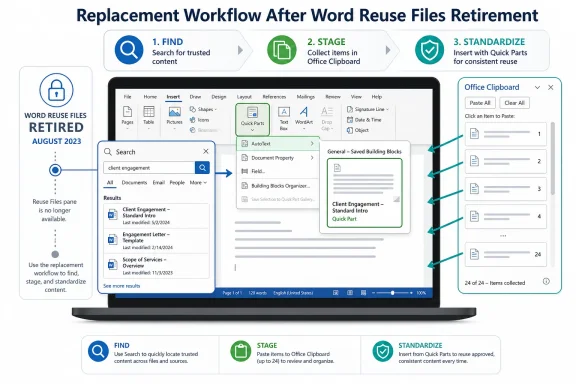
Microsoft retired Word’s Reuse Files feature in August 2023, and the practical replacement is not one button but a three-part workflow: use Search in Word to find prior material, Quick Parts or AutoText to store reusable blocks, and the Office Clipboard to temporarily assemble content across Office apps. That is the answer users actually need, because Microsoft did not replace Reuse Files with an identical feature. It replaced a pane with a decision tree.
If you came here looking for the old Reuse Files command, stop looking for a hidden ribbon toggle. Microsoft says the feature is gone, and if your Microsoft 365 installation is old enough to still show the pane, opening it will not bring the workflow back. The better move is to rebuild the behavior according to the task: find old content with Search, standardize repeatable language with Quick Parts, and collect short-lived snippets with the Office Clipboard.
Here is the practical replacement stack.
To find and reuse content from an older Word file, open Word, use Search, locate the document or content you need, preview it, and copy what belongs in the current document. This is the closest Microsoft-endorsed replacement for Reuse Files, but it is a retrieval tool, not a reusable-content system.
To create a reusable block in Word, select the text you want to save, go to Insert > Quick Parts > Save Selection to Quick Part Gallery, give it a recognizable name, and save it. To insert it later, go to Insert > Quick Parts and choose the saved item. In classic Outlook for Windows, the same Quick Parts idea works for repeatable email language.
To collect several snippets during a writing session, open the Office Clipboard pane and copy items as you work. The Office Clipboard can hold up to 24 copied items from Office documents or other programs, letting you paste them into Word, Excel, PowerPoint, Outlook, or another Office document in the order you need.
Reuse Files was useful because it sat in a psychological sweet spot between search and copy-paste. It gave Word users a pane for finding older files, previewing them, and pulling content forward without fully breaking the writing flow. For people who build reports, proposals, policy documents, lesson plans, minutes, or recurring status updates, that mattered.
The feature was never the center of Office, and that is partly why its disappearance feels oddly under-explained. It was not a beloved brand-name app. It was the sort of quiet productivity affordance that becomes visible only when Microsoft removes it and users discover that “just search for it” is not the same as “reuse it cleanly.”
Microsoft’s own framing is tidy: Reuse Files duplicated equivalent offerings available to subscribers. That may be true at the product-management level, but it hides the operational reality. The old pane collapsed several jobs into one surface; the replacement tools split those jobs apart.
That split is the real story. Search, Quick Parts, and the Office Clipboard are not interchangeable substitutes. Treating them that way is how users end up with messy templates, outdated boilerplate, and a personal archaeology project every time they need last quarter’s paragraph.
The procedure is simple: open Word, use the Search box, look for the document or phrase you remember, preview or open the result, then copy the section you need into the current file. This is best for content that exists somewhere but is not standardized enough to deserve its own reusable building block.
That distinction matters. Search is for discovery. It is not for governance, consistency, or repeatability.
If your organization has five versions of a legal disclaimer scattered across old documents, Search will happily help users find all five. It will not tell them which one is current. It will not stop someone from copying a paragraph that marketing retired two years ago. It will not turn an approved answer into a managed snippet.
This is where many “hidden Office feature” writeups stop too early. They note that Reuse Files was removed, point to Search, and move on. For enthusiasts, that is trivia. For IT pros, it is a weak migration plan.
The workflow is direct. In Word, select the clause, paragraph, signature block, instructions, disclaimer, response, or other reusable content. Go to Insert > Quick Parts > Save Selection to Quick Part Gallery, then name it in a way that future-you or your team can understand. Later, insert it from Insert > Quick Parts instead of hunting through an old document.
This is a better model for content that should remain stable: standard responses, address instructions, project language, report sections, policy fragments, or internal explanations that recur across documents. In classic Outlook for Windows, Quick Parts can serve the same role for repeated email replies and canned language.
The word “classic” is important. Microsoft’s Outlook transition has already trained administrators to ask whether a feature exists in classic Outlook, the new Outlook, Outlook on the web, or all three. Reusable content is no exception, and admins should test the exact client their users are expected to use before building a workflow around Quick Parts.
For users who like Office’s older productivity corners, this is familiar territory. WindowsForum readers have long traded tips around Office features that hide in plain sight, and Quick Parts belongs in that category: old enough to be overlooked, useful enough to survive, and specific enough to solve a real problem when Search is too loose.
Think of AutoText as muscle memory for approved language. If you repeatedly insert the same paragraph, table heading, instruction, salutation, or response, saving it as AutoText removes the need to remember where it lived last time. The point is not discovery; the point is recall.
That makes it different from Reuse Files. The old feature was useful when you remembered that some prior file contained the thing you needed. AutoText is useful when you already know the thing belongs in your writing process and want it ready on demand.
For small teams, this can be the difference between organic productivity and quiet inconsistency. A department may not need a document-management system to standardize ten common responses. It may simply need someone to stop copying from a random old proposal and create proper reusable blocks.
That is its virtue. Microsoft says it can store up to 24 copied items from Office documents or other programs, and those items can be pasted into another Office document. If you are assembling a report from an email, a workbook, a presentation, and an older Word document, the Office Clipboard is often more useful than repeatedly switching windows.
The workflow is practical: open the Clipboard task pane in an Office app, copy the pieces you need as you move through source material, then paste them into the destination document one by one or as a group. It is the right tool for temporary collection, not long-term reuse.
This is the place where the replacement stack becomes clearest. Search helps you find the source. The Office Clipboard helps you stage multiple pieces. Quick Parts helps you preserve the pieces that should become permanent.
If you treat the Office Clipboard as a substitute for Quick Parts, you will lose content when the session ends or the clipboard rolls over. If you treat Quick Parts as a substitute for the Clipboard, you will pollute your reusable gallery with one-off fragments. The tools overlap only if you ignore why they exist.
But pane-based magic has a maintenance cost. It needs indexing, permissions awareness, preview logic, app integration, and user-interface real estate. If another system can surface the same documents through Search, the specialized pane becomes a candidate for retirement.
That does not mean users experience the retirement as neutral. A feature can be redundant on a roadmap and still useful in daily work. Product teams see duplicate capability; users see a familiar path disappearing.
This is a recurring theme in Office’s evolution. Microsoft often rationalizes the suite around broader platforms, while long-time users remember individual behaviors. The forum’s recurring nostalgia for classic Office is not just sentimentality; it is a record of workflows that were once visible and later became scattered across newer surfaces.
A sysadmin writing standard operating procedures has different needs from a student writing a one-off paper. A consultant assembling proposals has different needs from someone drafting a birthday invitation. A support manager answering recurring customer questions needs a system, not a scavenger hunt.
That is why the replacement stack should be taught as a workflow, not a trivia answer. Users do not need to know merely that Reuse Files died in August 2023. They need to know what to do the next time they reach for it.
The failure mode is predictable. Without guidance, users will copy from old documents because that is the fastest visible path. Over time, old language becomes new language, stale assumptions become current practice, and formatting cruft travels from file to file like pollen.
The sensible response is not to mourn the pane. It is to identify who relied on it and what kind of reuse they were doing. If users were finding old examples, teach Search. If they were reusing approved language, create Quick Parts or AutoText guidance. If they were gathering fragments across apps, teach the Office Clipboard.
This is also a good moment to clean up shared document habits. If users are constantly searching old files to reuse boilerplate, the organization may have a content hygiene problem rather than a feature problem. The missing pane exposes the disorder that was already there.
Admins should also be careful with “still visible” reports. Microsoft says some Microsoft 365 users who have not installed the most recent Office update may still see Reuse Files in Word, but the pane will not work. That means the presence of the UI is not evidence that the feature can be preserved.
A policy writer might Search Word documents for last year’s wording, use the Office Clipboard to collect supporting text from Outlook and a PowerPoint deck, then save the final approved paragraph as a Quick Part. A sales team might pull a table description from Excel, a customer summary from Outlook, and a product paragraph from an older proposal before turning the stable pieces into reusable blocks. A trainer might collect screenshots, captions, and standard instructions temporarily, then preserve only the parts that recur in every handout.
That is not a one-for-one replacement. It is a better mental model.
The old pane encouraged users to think in terms of files. The replacement stack encourages users to think in terms of content lifecycle: find it, stage it, standardize it, reuse it. That is more work up front, but it produces cleaner habits.
This is where Microsoft’s “equivalent offerings” argument becomes more defensible. Search, Quick Parts, and the Office Clipboard together can cover more scenarios than Reuse Files alone. The catch is that Microsoft has left users to assemble that map themselves.
Training should present the decision in plain English. If you need something from an old file, Search. If you need the same block again next week, Quick Parts or AutoText. If you need to gather several copied items right now, Office Clipboard. This is the kind of simple rule that prevents tool sprawl.
It also gives help desks a cleaner script. When a user asks where Reuse Files went, the answer should not be a shrug and a link to Microsoft Support. The answer should be, “What were you trying to reuse?” That question routes the user to the right replacement.
For enthusiasts, the lesson is broader. Office is full of overlapping features that seem redundant until one disappears. The people who get the most from the suite are not the people who memorize every command; they are the people who know which old tools still solve modern problems.
Here is the practical map to keep:
If you came here looking for the old Reuse Files command, stop looking for a hidden ribbon toggle. Microsoft says the feature is gone, and if your Microsoft 365 installation is old enough to still show the pane, opening it will not bring the workflow back. The better move is to rebuild the behavior according to the task: find old content with Search, standardize repeatable language with Quick Parts, and collect short-lived snippets with the Office Clipboard.
Here is the practical replacement stack.
To find and reuse content from an older Word file, open Word, use Search, locate the document or content you need, preview it, and copy what belongs in the current document. This is the closest Microsoft-endorsed replacement for Reuse Files, but it is a retrieval tool, not a reusable-content system.
To create a reusable block in Word, select the text you want to save, go to Insert > Quick Parts > Save Selection to Quick Part Gallery, give it a recognizable name, and save it. To insert it later, go to Insert > Quick Parts and choose the saved item. In classic Outlook for Windows, the same Quick Parts idea works for repeatable email language.
To collect several snippets during a writing session, open the Office Clipboard pane and copy items as you work. The Office Clipboard can hold up to 24 copied items from Office documents or other programs, letting you paste them into Word, Excel, PowerPoint, Outlook, or another Office document in the order you need.
 Microsoft Removed a Finder, Not a Writing System
Reuse Files was useful because it sat in a psychological sweet spot between search and copy-paste. It gave Word users a pane for finding older files, previewing them, and pulling content forward without fully breaking the writing flow. For people who build reports, proposals, policy documents, lesson plans, minutes, or recurring status updates, that mattered.The feature was never the center of Office, and that is partly why its disappearance feels oddly under-explained. It was not a beloved brand-name app. It was the sort of quiet productivity affordance that becomes visible only when Microsoft removes it and users discover that “just search for it” is not the same as “reuse it cleanly.”
Microsoft’s own framing is tidy: Reuse Files duplicated equivalent offerings available to subscribers. That may be true at the product-management level, but it hides the operational reality. The old pane collapsed several jobs into one surface; the replacement tools split those jobs apart.
That split is the real story. Search, Quick Parts, and the Office Clipboard are not interchangeable substitutes. Treating them that way is how users end up with messy templates, outdated boilerplate, and a personal archaeology project every time they need last quarter’s paragraph.
The First Replacement Is Search, but Search Is Only the Front Door
Microsoft now points users to Search in Word for finding, previewing, and reusing content from files. That makes sense for the first half of the old Reuse Files job. If the task is “Where did I write that explanation before?” Search is the right starting point.The procedure is simple: open Word, use the Search box, look for the document or phrase you remember, preview or open the result, then copy the section you need into the current file. This is best for content that exists somewhere but is not standardized enough to deserve its own reusable building block.
That distinction matters. Search is for discovery. It is not for governance, consistency, or repeatability.
If your organization has five versions of a legal disclaimer scattered across old documents, Search will happily help users find all five. It will not tell them which one is current. It will not stop someone from copying a paragraph that marketing retired two years ago. It will not turn an approved answer into a managed snippet.
This is where many “hidden Office feature” writeups stop too early. They note that Reuse Files was removed, point to Search, and move on. For enthusiasts, that is trivia. For IT pros, it is a weak migration plan.
Quick Parts Is the Replacement When the Words Are Supposed to Stay the Same
Quick Parts is the tool to use when the reused content is not just something you found, but something you expect to use again. It is still supported in Word and Outlook, and Microsoft positions it for reusable pieces of content, including AutoText and custom text blocks.The workflow is direct. In Word, select the clause, paragraph, signature block, instructions, disclaimer, response, or other reusable content. Go to Insert > Quick Parts > Save Selection to Quick Part Gallery, then name it in a way that future-you or your team can understand. Later, insert it from Insert > Quick Parts instead of hunting through an old document.
This is a better model for content that should remain stable: standard responses, address instructions, project language, report sections, policy fragments, or internal explanations that recur across documents. In classic Outlook for Windows, Quick Parts can serve the same role for repeated email replies and canned language.
The word “classic” is important. Microsoft’s Outlook transition has already trained administrators to ask whether a feature exists in classic Outlook, the new Outlook, Outlook on the web, or all three. Reusable content is no exception, and admins should test the exact client their users are expected to use before building a workflow around Quick Parts.
For users who like Office’s older productivity corners, this is familiar territory. WindowsForum readers have long traded tips around Office features that hide in plain sight, and Quick Parts belongs in that category: old enough to be overlooked, useful enough to survive, and specific enough to solve a real problem when Search is too loose.
AutoText Still Has a Job in a World Obsessed With Search
AutoText is easy to dismiss as a relic, but that is a mistake. It remains one of the cleanest ways to turn a recurring phrase or block into a reusable asset without pretending every document needs a full template.Think of AutoText as muscle memory for approved language. If you repeatedly insert the same paragraph, table heading, instruction, salutation, or response, saving it as AutoText removes the need to remember where it lived last time. The point is not discovery; the point is recall.
That makes it different from Reuse Files. The old feature was useful when you remembered that some prior file contained the thing you needed. AutoText is useful when you already know the thing belongs in your writing process and want it ready on demand.
For small teams, this can be the difference between organic productivity and quiet inconsistency. A department may not need a document-management system to standardize ten common responses. It may simply need someone to stop copying from a random old proposal and create proper reusable blocks.
The Office Clipboard Is the Replacement When the Work Is Temporary
The Office Clipboard is not a library. It is a tray.That is its virtue. Microsoft says it can store up to 24 copied items from Office documents or other programs, and those items can be pasted into another Office document. If you are assembling a report from an email, a workbook, a presentation, and an older Word document, the Office Clipboard is often more useful than repeatedly switching windows.
The workflow is practical: open the Clipboard task pane in an Office app, copy the pieces you need as you move through source material, then paste them into the destination document one by one or as a group. It is the right tool for temporary collection, not long-term reuse.
This is the place where the replacement stack becomes clearest. Search helps you find the source. The Office Clipboard helps you stage multiple pieces. Quick Parts helps you preserve the pieces that should become permanent.
If you treat the Office Clipboard as a substitute for Quick Parts, you will lose content when the session ends or the clipboard rolls over. If you treat Quick Parts as a substitute for the Clipboard, you will pollute your reusable gallery with one-off fragments. The tools overlap only if you ignore why they exist.
The Missing Context Is That Office Has Been Moving Away From Pane-Based Magic
Reuse Files belonged to an Office era that tried to make the suite feel like it could infer your intent from nearby work. That made sense when Microsoft was trying to weave local files, cloud storage, Office intelligence, and Microsoft 365 subscriptions into a single productivity story.But pane-based magic has a maintenance cost. It needs indexing, permissions awareness, preview logic, app integration, and user-interface real estate. If another system can surface the same documents through Search, the specialized pane becomes a candidate for retirement.
That does not mean users experience the retirement as neutral. A feature can be redundant on a roadmap and still useful in daily work. Product teams see duplicate capability; users see a familiar path disappearing.
This is a recurring theme in Office’s evolution. Microsoft often rationalizes the suite around broader platforms, while long-time users remember individual behaviors. The forum’s recurring nostalgia for classic Office is not just sentimentality; it is a record of workflows that were once visible and later became scattered across newer surfaces.
The Workflow Gap Hits Power Users Before It Hits Casual Users
A casual Word user may never notice Reuse Files is gone. If you write one document from scratch, send it, and move on, Search and copy-paste are enough. The pain appears when document work becomes repetitive, regulated, collaborative, or deadline-driven.A sysadmin writing standard operating procedures has different needs from a student writing a one-off paper. A consultant assembling proposals has different needs from someone drafting a birthday invitation. A support manager answering recurring customer questions needs a system, not a scavenger hunt.
That is why the replacement stack should be taught as a workflow, not a trivia answer. Users do not need to know merely that Reuse Files died in August 2023. They need to know what to do the next time they reach for it.
The failure mode is predictable. Without guidance, users will copy from old documents because that is the fastest visible path. Over time, old language becomes new language, stale assumptions become current practice, and formatting cruft travels from file to file like pollen.
The Admin Playbook Is Boring, Which Is Why It Works
For IT teams, the retirement of Reuse Files is not a crisis. It is a reminder that small Office features can be load-bearing in ways telemetry and release notes do not capture.The sensible response is not to mourn the pane. It is to identify who relied on it and what kind of reuse they were doing. If users were finding old examples, teach Search. If they were reusing approved language, create Quick Parts or AutoText guidance. If they were gathering fragments across apps, teach the Office Clipboard.
This is also a good moment to clean up shared document habits. If users are constantly searching old files to reuse boilerplate, the organization may have a content hygiene problem rather than a feature problem. The missing pane exposes the disorder that was already there.
Admins should also be careful with “still visible” reports. Microsoft says some Microsoft 365 users who have not installed the most recent Office update may still see Reuse Files in Word, but the pane will not work. That means the presence of the UI is not evidence that the feature can be preserved.
The Cross-App Story Is Stronger Than the Old Feature
Reuse Files was mainly remembered as a Word convenience, but the replacement stack becomes more interesting when you think across Office.A policy writer might Search Word documents for last year’s wording, use the Office Clipboard to collect supporting text from Outlook and a PowerPoint deck, then save the final approved paragraph as a Quick Part. A sales team might pull a table description from Excel, a customer summary from Outlook, and a product paragraph from an older proposal before turning the stable pieces into reusable blocks. A trainer might collect screenshots, captions, and standard instructions temporarily, then preserve only the parts that recur in every handout.
That is not a one-for-one replacement. It is a better mental model.
The old pane encouraged users to think in terms of files. The replacement stack encourages users to think in terms of content lifecycle: find it, stage it, standardize it, reuse it. That is more work up front, but it produces cleaner habits.
This is where Microsoft’s “equivalent offerings” argument becomes more defensible. Search, Quick Parts, and the Office Clipboard together can cover more scenarios than Reuse Files alone. The catch is that Microsoft has left users to assemble that map themselves.
The Replacement Stack Belongs in Training, Not in Release Notes
The least useful advice is “use Search instead.” That is technically accurate and operationally incomplete.Training should present the decision in plain English. If you need something from an old file, Search. If you need the same block again next week, Quick Parts or AutoText. If you need to gather several copied items right now, Office Clipboard. This is the kind of simple rule that prevents tool sprawl.
It also gives help desks a cleaner script. When a user asks where Reuse Files went, the answer should not be a shrug and a link to Microsoft Support. The answer should be, “What were you trying to reuse?” That question routes the user to the right replacement.
For enthusiasts, the lesson is broader. Office is full of overlapping features that seem redundant until one disappears. The people who get the most from the suite are not the people who memorize every command; they are the people who know which old tools still solve modern problems.
Microsoft’s Forgotten Feature Leaves a Useful Map Behind
The retirement of Reuse Files is not a disaster, but it is a small case study in how productivity software changes. A feature can disappear quietly while the work it supported remains very real.Here is the practical map to keep:
- Use Search in Word when you need to locate prior content from existing files and bring part of it into the current document.
- Use Quick Parts when the content is approved, repeatable, and worth saving as a reusable block in Word or classic Outlook.
- Use AutoText when a phrase, paragraph, or small content block should be inserted repeatedly with minimal friction.
- Use the Office Clipboard when you are collecting up to 24 temporary snippets from Office documents or other programs during one work session.
- Do not treat an old visible Reuse Files pane as recoverable functionality, because Microsoft says the pane may still appear on older Microsoft 365 updates but will not work.
- Do not copy from random old documents when the content should be standardized; that is a governance problem disguised as a shortcut.
References
- Primary source: support.microsoft.com
Word Options (Display) | Microsoft Support
Choose settings for page display, showing formatting marks, and printing options.support.microsoft.com - Primary source: WindowsForum
Master Microsoft Office's Hidden Features to Boost Productivity and Work Smarter | Windows Forum
Microsoft Office has matured into a versatile and surprisingly sophisticated productivity suite, yet few appreciate the depth of features lurking just...windowsforum.com