
Microsoft has put context-based redirections for Windows App into public preview for Windows 365 and Azure Virtual Desktop in June 2026, letting administrators condition clipboard, drive, printer, and USB redirection on Entra Conditional Access signals such as device compliance, user membership, and network location. The feature sounds narrow, but it lands on one of the hardest problems in cloud desktop adoption: the boundary between a protected Windows session and the unmanaged device used to reach it. Microsoft is not merely adding another toggle to Intune; it is trying to make remote-session trust dynamic enough for modern BYOD. The catch is that public preview still means uneven rollout, incomplete visibility, and a new policy layer that administrators will have to test with unusual care.
For years, the basic bargain of Windows 365 has been easy to explain: keep the Windows desktop in Microsoft’s cloud, stream it to whatever endpoint the user has, and reduce the amount of corporate data living on the physical device. That story is compelling for contractors, frontline staff, developers, temporary workers, and bring-your-own-device programs. But anyone who has administered Remote Desktop at scale knows the uncomfortable truth: the remote desktop is only as contained as its redirection paths.
Clipboard redirection, drive mapping, printer access, and USB passthrough are not conveniences in the abstract. They are data channels. A user copying a customer list from a Cloud PC to a personal laptop clipboard, saving a file to a local removable drive, printing to a home device, or attaching a USB storage device to a virtual session can all turn a “secure cloud desktop” into a leaky abstraction.
Microsoft’s new preview tries to stop treating those channels as static yes-or-no settings. Instead, it lets the organization say, in effect: allow the clipboard when the connecting device is managed and compliant, but restrict it when the session is launched from an unmanaged laptop; permit local printing for a known corporate endpoint, but not from a risky network; allow drive redirection for one group, but not another. That is the real significance of the announcement.
This is also why the feature matters beyond Windows 365. Azure Virtual Desktop has long been the more flexible sibling for organizations that want host-pool control and custom session infrastructure. By extending the same idea into AVD host pool RDP properties, Microsoft is trying to normalize a common policy model across its cloud desktop estate, even if the administrative surfaces still differ.
BYOD broke that assumption. A user may connect to the same Cloud PC from a managed Windows 11 laptop on Monday, a personal MacBook on Tuesday, an iPad on Wednesday, and a hotel network on Thursday. A single static redirection policy has to choose between productivity and containment, and the least painful default often wins until an incident forces a lockdown.
That is the gap context-based redirections are designed to fill. The feature uses Microsoft Entra Conditional Access authentication context as the policy hinge. Conditional Access already evaluates identity, device compliance, risk, group assignment, and network conditions. Authentication context lets an application or service ask for a particular policy condition at the point where a sensitive action or resource is accessed.
In this case, the “sensitive action” is not opening a payroll application or approving a wire transfer. It is crossing the seam between local endpoint and remote Windows session. That is a subtle but important shift: Microsoft is treating session redirection itself as a privileged capability.
It is the kind of control security teams have wanted for years, but it also places more weight on the accuracy of device compliance and identity policy. If a device is incorrectly marked compliant, redirection may be broader than intended. If a legitimate endpoint falls out of compliance because of a stale check-in, the user may suddenly lose access to a printer, a mapped drive, or clipboard flow. Dynamic policy is only as good as the signals feeding it.
The preview documentation warns administrators to set the redirections they want to test as “Not Configured” or “Enabled” before expecting context-based behavior to appear. That warning should not be treated as boilerplate. Many enterprises already have years of redirection settings scattered across Group Policy, Intune configuration profiles, Windows 365 policies, AVD host pool properties, security baselines, custom scripts, and legacy RDS hardening guides.
If any one of those layers says “no,” the new context-aware layer does not get to say “yes.” That is a feature when you are defending against data loss. It is a support ticket when the pilot team cannot work out why a compliant test device still cannot paste into a Cloud PC.
The absence of a finished RSOP feature is therefore not a footnote. It is one of the main constraints on serious deployment. Microsoft says it is developing a way for users and IT admins to determine which redirection settings were applied to a connection and which policy source produced the winning value. Until that arrives, early adopters will have to rely on disciplined scoping, clean test groups, and old-fashioned policy archaeology.
That is why Microsoft’s recommendation to create a dedicated device group for pilot Cloud PCs is more than a convenience. It is the difference between a controlled preview and an organization-wide guessing game. Context-based redirection should begin in a small, boring, well-documented environment, not in the same policy thicket that has accumulated every emergency lockdown since 2020.
That simplicity is deceptive. Clipboard is one of the most important data exfiltration paths in remote computing because it is fast, silent, and ordinary. It does not look like a file transfer. It does not require a mapped drive. It is how people work.
A blanket clipboard ban can make a cloud desktop feel punitive, especially for developers, support staff, analysts, and anyone moving snippets between systems. A blanket clipboard allow can undermine the whole premise of isolating the desktop. Context-aware clipboard control offers the middle ground: allow it when the connecting endpoint meets the organization’s standard, restrict it when it does not.
But organizations should resist the temptation to frame this only as a security win. Clipboard restrictions change workflows, and users will route around bad workflows. If copying a ticket number, command, or error message becomes painful, people will use email drafts, messaging apps, screenshots, phone cameras, or personal notes. The right policy is not necessarily the strictest policy; it is the policy that reduces meaningful risk without creating worse shadow behavior.
Drive and storage redirection present a more obvious risk. Local fixed drives, removable drives, and network storage can all become bridges between corporate and personal environments. In a Windows 365 BYOD story, allowing a Cloud PC to see a personal device’s local storage is convenient, but it weakens the clean separation Microsoft is selling.
Printer redirection sits in a different category. It is less fashionable to talk about printing in 2026, but regulated industries still care about where documents physically emerge. Printing from a remote corporate session to an unmanaged home printer may be unacceptable for legal, health, finance, or government data. Context-based control gives administrators a way to allow printing on trusted endpoints without pretending every kitchen printer is part of the corporate perimeter.
USB redirection is the sharpest edge. It can be necessary for specialized peripherals, smart cards, scanners, test equipment, or industry-specific devices. It can also be a security nightmare if applied too broadly. The preview’s inclusion of USB is important because it acknowledges that real desktop virtualization cannot survive on web-app assumptions alone; people still need hardware. The challenge is to keep that hardware from becoming a universal exception.
The preview is slated for Windows App clients on Windows, web, Android, iOS and iPadOS, and macOS for full desktop sessions. That breadth matters. A BYOD policy that works only on Windows endpoints would be a partial answer to a cross-platform problem. The whole point of Windows 365 is that the endpoint may not be Windows at all.
Still, cross-platform support should be read carefully. A feature being supported across clients does not mean every edge case behaves identically on day one of public preview. Browser sessions, mobile clients, macOS, and Windows clients each have different local OS constraints, device access models, clipboard behaviors, and permission prompts. Administrators should validate the actual combinations their users rely on rather than assuming policy symmetry.
There is also a licensing and service boundary to watch. Microsoft’s Windows 365 documentation indicates current support for Windows 365 Enterprise and Windows 365 Flex dedicated scenarios, while Azure Virtual Desktop has its own host-pool configuration path. That matters for customers running mixed estates or hoping the preview covers every Cloud PC SKU and every AVD pattern they have in production.
The Windows App angle also raises a larger point: Microsoft is making the remote desktop more dependent on cloud identity policy. That is directionally consistent with the company’s zero-trust messaging, but it adds another layer of failure modes. If Entra policy assignment, device compliance state, authentication context publication, or Intune targeting is wrong, the user experience changes at connection time.
For administrators, this means the client is no longer just a client. It is the visible end of a policy chain that starts in Entra, runs through Conditional Access, passes through Intune or AVD configuration, and lands in the user’s session as a missing clipboard, unavailable drive, absent printer, or blocked USB device.
The user comment attached to Microsoft’s announcement highlights the practical problem with previews: the option labeled “Dynamically configure using authentication context” is reportedly missing from multiple tenants for AVD host pool properties. That is exactly the sort of inconsistency administrators hate, because the documentation and the announcement create an expectation the portal may not yet satisfy.
There is no public timeline in the material available here that answers when every tenant will see that control. The safest reading is that this is a staged public preview rollout, with portal availability and tenant exposure lagging the announcement for at least some customers. Microsoft often rolls out service features gradually across regions, tenants, rings, and clouds, but that general pattern is not the same thing as a committed date.
For AVD admins, the lesson is not to build a production migration plan around a missing dropdown. If the control is absent, document the tenant, region, host pool type, and portal experience, then open a support channel or track Microsoft’s documentation updates. The feature may be public preview, but the operational contract is still preview-grade.
That uncertainty also argues for separating Windows 365 and AVD testing. Windows 365 policies are configured through the Remote Connection Experience policy in Intune and assigned to Cloud PC device groups. AVD uses host pool RDP properties. They share the authentication-context concept, but they do not share the exact administrative workflow. Treating them as one deployment because the marketing story is unified would be a mistake.
The larger implication is that Microsoft is converging the policy model while leaving the product surfaces partly fragmented. That is normal for a company with overlapping virtualization offerings, but it is also why IT pros need to read the fine print. The future may be unified. The portal you are using today may not be.
That is powerful because it lets administrators reuse the language of trust they already use elsewhere. Is the user in the right group? Is the device compliant? Is the network location acceptable? Has the session met the required control? Those questions are familiar to Entra and Intune administrators, and applying them to redirection makes intuitive sense.
It is also risky because Conditional Access policies are already complex in many tenants. A mature organization may have exclusions for break-glass accounts, location-based rules, device-platform conditions, app-specific controls, sign-in risk policies, authentication strength requirements, and pilot rings. Adding redirection behavior to that policy graph increases the importance of naming, documentation, and change control.
Authentication context can be elegant when it is used sparingly. It can become opaque when every team creates its own context labels, every application asks for different conditions, and administrators cannot easily explain what policy applied to a user’s session. Microsoft’s forthcoming RSOP work will help, but it will not replace governance.
The best early deployments will probably define a small number of trust patterns rather than a sprawling matrix. For example, one authentication context might represent a managed, compliant endpoint. Another might represent a higher-trust administrative workstation. The redirection policies can then follow those patterns without turning each clipboard, drive, printer, and USB setting into a bespoke snowflake.
This is where the feature connects to zero trust in a useful way. Zero trust is often reduced to slogans about “never trust, always verify.” Context-based redirection is a concrete implementation of that idea: the session does not simply trust the endpoint because the user authenticated. It adjusts the available data paths based on the current conditions.
That matters because redirection policy affects user productivity immediately. A misconfigured security setting may not be noticed until an audit. A broken clipboard is noticed in seconds. A missing local printer can derail a field workflow. A blocked USB device can make a specialized role unable to work.
Admins should therefore test from the user perspective, not only from the policy console. Microsoft’s validation guidance points in that direction: connect from a managed compliant device, verify the expected redirections are available, then connect from a BYOD or noncompliant device and verify they are restricted. That sounds basic, but it is exactly the test that catches false assumptions.
The pilot should include the real client platforms in use. If contractors use personal Macs, test macOS. If executives use iPads, test iPadOS. If support staff use browser access from locked-down kiosks, test web sessions. The policy may be centrally defined, but the experience is local.
The pilot should also include failure cases. What happens when a device falls out of compliance? How quickly does the redirection behavior change? What message does the user see, if any? Can the help desk distinguish a deliberate policy restriction from a client bug? Does the organization have a documented exception process for users who need a peripheral temporarily?
These questions are not glamorous, but they determine whether the feature becomes a durable control or another preview toggle that gets disabled after the first wave of complaints.
That does not make the feature unimportant. Security controls are often valuable because they close common, low-friction paths. Blocking drive redirection from unmanaged devices does not make exfiltration impossible, but it removes one of the easiest methods. Restricting clipboard flow in lower-trust sessions does not eliminate leakage, but it raises the cost of casual copying.
The right way to view this preview is as one layer in a broader Windows 365 containment model. Cloud PCs can reduce endpoint data residency. Intune can enforce compliance on managed devices. Entra can govern access. Purview can classify and protect data. Defender can monitor risk. Context-based redirection sits at the session edge, where user convenience and data movement collide.
For regulated organizations, this may become a useful compensating control. A company that wants to allow personal devices for access but cannot allow local storage or printing from those devices now has a more nuanced path. The organization can preserve BYOD access while making the remote session less porous when the endpoint is not trusted.
For smaller organizations, the calculus is different. The feature may be attractive, but the administrative dependencies are nontrivial. If a tenant does not already have reliable device compliance, clean group structure, and Conditional Access discipline, context-based redirection may expose those weaknesses rather than solve them.
This preview is an implicit admission of that reality. Microsoft is not saying the endpoint disappears. It is saying the endpoint’s trust level should shape what the remote session is allowed to do. That is a more honest BYOD story.
It also aligns with how enterprises actually behave. Few organizations want to ban personal devices entirely. Few security teams are comfortable treating personal devices like corporate workstations. The operational need is conditional access not just to the desktop, but to the desktop’s escape hatches.
The phrase adaptive data protection can sound like marketing varnish, but here it describes a meaningful shift. Static policy assumes the same user and the same Cloud PC should behave the same way regardless of where the session starts. Adaptive policy assumes the path into the session matters.
That said, Microsoft must avoid turning adaptive protection into adaptive confusion. Administrators need clear reporting. Users need understandable behavior. Help desks need diagnostics. Security teams need auditability. Preview features often arrive with the control before the observability, and this one appears to be following that pattern.
For context-based redirection, that question is especially important because multiple policy sources can interact. A clipboard setting could be affected by Windows 365 policy, AVD host pool configuration, RDP properties, Group Policy, Intune configuration profiles, security baselines, and authentication context. The most restrictive setting wins, but without a clear view of the winning source, the admin is left reconstructing the chain.
This is not a new Microsoft problem. Windows management has always had layers, and cloud management has added more. What makes this case sharper is that Conditional Access introduces a dynamic element. The answer may differ by user, device, compliance state, network, client platform, and time.
A finished RSOP experience should ideally show the redirection, the requested authentication context, the Conditional Access result, the device compliance signal, the policy source, and the final allow-or-block outcome. Anything less will still help, but the closer Microsoft gets to an end-to-end explanation, the more deployable this feature becomes.
Until then, administrators should create their own lightweight RSOP discipline. Name authentication contexts clearly. Name Conditional Access policies clearly. Keep pilot device groups narrow. Record baseline redirection settings before enabling the preview. Test from known compliant and known noncompliant devices. Most importantly, do not assume the portal state is the session state.
The hard part is not clicking through the wizard. The hard part is deciding what the organization means by trust.
A managed and compliant device is an obvious first condition, but it is not the only one. User or group membership may matter for privileged teams. Network conditions may matter for organizations with defined corporate egress points. Device platform may matter if a capability behaves differently across clients. Risk signals may matter for higher-security environments, though preview documentation should be followed carefully before relying on unsupported combinations.
There is also a policy-design question around directionality. Some organizations may want to block data moving from the Cloud PC to the local device while allowing local-to-remote copy for productivity. The preview material, as presented, is centered on controlling redirection categories rather than promising every directional nuance administrators might imagine. That distinction matters for expectation-setting.
Enterprises should also revisit old assumptions about “allowed” redirections. A setting that was acceptable when all endpoints were corporate-owned may not be acceptable when the same Cloud PC is reachable from personal devices. Conversely, a setting that was disabled globally may be safely reintroduced for high-trust sessions. The opportunity here is not just to lock down more. It is to stop punishing trusted sessions for the sins of untrusted ones.
A contractor connecting from an unmanaged laptop might get a Cloud PC with no local drive mapping, no USB passthrough, no local printing, and restricted clipboard. The same internal employee on a managed compliant device might get a more permissive experience. That is precisely the kind of differentiated policy BYOD programs need.
Developers are another major test case, especially as Microsoft pushes Windows 365 and Dev Box-like experiences for secure development. Developers often need clipboard, local tools, device access, and file movement. They also handle source code, secrets, build artifacts, and production-adjacent credentials. A crude lockdown can kill productivity; a crude allow policy can create real exposure.
Context-based redirection lets organizations design higher-trust development paths. A managed workstation could be allowed more session integration. An unmanaged device could be limited to the core cloud environment. That does not solve every developer security problem, but it gives platform teams another lever.
The tricky part is that developers and contractors are also the groups most likely to hit edge cases. They use nonstandard peripherals, multiple operating systems, nested remote sessions, local editors, terminal workflows, browser clients, VPNs, and automation. If Microsoft wants this feature to become more than a compliance checkbox, it needs to survive those messy workflows.
The feature does not change what a Cloud PC is. It changes what the Cloud PC is allowed to exchange with the world outside it. That is where the security model becomes practical.
For Windows enthusiasts, this may look like another enterprise-only policy feature buried in Intune. For sysadmins, it is more consequential. It is Microsoft acknowledging that remote desktops are not isolated by default simply because they are remote. Isolation has to be enforced at the seams.
For IT leaders, the preview offers a path toward more flexible device programs without surrendering every data path. It also adds complexity to an already complex stack. The organizations that benefit most will be those that treat the feature as part of a coherent endpoint, identity, and data-protection strategy rather than a magic BYOD switch.
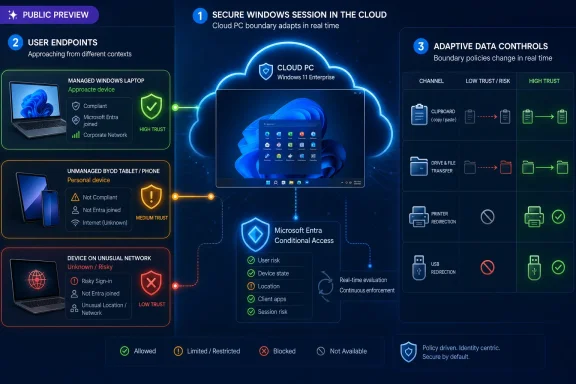 Microsoft Moves the Data Boundary From the Device to the Session
For years, the basic bargain of Windows 365 has been easy to explain: keep the Windows desktop in Microsoft’s cloud, stream it to whatever endpoint the user has, and reduce the amount of corporate data living on the physical device. That story is compelling for contractors, frontline staff, developers, temporary workers, and bring-your-own-device programs. But anyone who has administered Remote Desktop at scale knows the uncomfortable truth: the remote desktop is only as contained as its redirection paths.Clipboard redirection, drive mapping, printer access, and USB passthrough are not conveniences in the abstract. They are data channels. A user copying a customer list from a Cloud PC to a personal laptop clipboard, saving a file to a local removable drive, printing to a home device, or attaching a USB storage device to a virtual session can all turn a “secure cloud desktop” into a leaky abstraction.
Microsoft’s new preview tries to stop treating those channels as static yes-or-no settings. Instead, it lets the organization say, in effect: allow the clipboard when the connecting device is managed and compliant, but restrict it when the session is launched from an unmanaged laptop; permit local printing for a known corporate endpoint, but not from a risky network; allow drive redirection for one group, but not another. That is the real significance of the announcement.
This is also why the feature matters beyond Windows 365. Azure Virtual Desktop has long been the more flexible sibling for organizations that want host-pool control and custom session infrastructure. By extending the same idea into AVD host pool RDP properties, Microsoft is trying to normalize a common policy model across its cloud desktop estate, even if the administrative surfaces still differ.
The Old Redirection Model Was Too Blunt for BYOD
Traditional RDP redirection policy has always been good at prohibition and less good at nuance. Administrators could disable clipboard, drives, printers, or USB redirection through Group Policy, Intune settings, host pool properties, or service-level controls. That worked well enough when the endpoint fleet was mostly corporate-owned, domain-joined, predictable, and physically inside a managed network.BYOD broke that assumption. A user may connect to the same Cloud PC from a managed Windows 11 laptop on Monday, a personal MacBook on Tuesday, an iPad on Wednesday, and a hotel network on Thursday. A single static redirection policy has to choose between productivity and containment, and the least painful default often wins until an incident forces a lockdown.
That is the gap context-based redirections are designed to fill. The feature uses Microsoft Entra Conditional Access authentication context as the policy hinge. Conditional Access already evaluates identity, device compliance, risk, group assignment, and network conditions. Authentication context lets an application or service ask for a particular policy condition at the point where a sensitive action or resource is accessed.
In this case, the “sensitive action” is not opening a payroll application or approving a wire transfer. It is crossing the seam between local endpoint and remote Windows session. That is a subtle but important shift: Microsoft is treating session redirection itself as a privileged capability.
It is the kind of control security teams have wanted for years, but it also places more weight on the accuracy of device compliance and identity policy. If a device is incorrectly marked compliant, redirection may be broader than intended. If a legitimate endpoint falls out of compliance because of a stale check-in, the user may suddenly lose access to a printer, a mapped drive, or clipboard flow. Dynamic policy is only as good as the signals feeding it.
The Most Restrictive Setting Still Wins, and That Is Both Comforting and Annoying
Microsoft is explicitly preserving the familiar RDP security principle that the most restrictive policy wins. If one layer allows a redirection but another layer disables it, the redirection stays disabled. In security terms, that is the right default. In operational terms, it means troubleshooting will be messy until Microsoft finishes the promised Resultant Set of Policy experience.The preview documentation warns administrators to set the redirections they want to test as “Not Configured” or “Enabled” before expecting context-based behavior to appear. That warning should not be treated as boilerplate. Many enterprises already have years of redirection settings scattered across Group Policy, Intune configuration profiles, Windows 365 policies, AVD host pool properties, security baselines, custom scripts, and legacy RDS hardening guides.
If any one of those layers says “no,” the new context-aware layer does not get to say “yes.” That is a feature when you are defending against data loss. It is a support ticket when the pilot team cannot work out why a compliant test device still cannot paste into a Cloud PC.
The absence of a finished RSOP feature is therefore not a footnote. It is one of the main constraints on serious deployment. Microsoft says it is developing a way for users and IT admins to determine which redirection settings were applied to a connection and which policy source produced the winning value. Until that arrives, early adopters will have to rely on disciplined scoping, clean test groups, and old-fashioned policy archaeology.
That is why Microsoft’s recommendation to create a dedicated device group for pilot Cloud PCs is more than a convenience. It is the difference between a controlled preview and an organization-wide guessing game. Context-based redirection should begin in a small, boring, well-documented environment, not in the same policy thicket that has accumulated every emergency lockdown since 2020.
The Clipboard Is the Smallest Feature With the Biggest Blast Radius
Clipboard redirection will probably be the first setting most admins test, because it is easy to validate and easy for users to understand. Copy text from the local machine to the Cloud PC. Copy text from the Cloud PC back to the local machine. If the policy is working, the behavior changes based on the trust context of the session.That simplicity is deceptive. Clipboard is one of the most important data exfiltration paths in remote computing because it is fast, silent, and ordinary. It does not look like a file transfer. It does not require a mapped drive. It is how people work.
A blanket clipboard ban can make a cloud desktop feel punitive, especially for developers, support staff, analysts, and anyone moving snippets between systems. A blanket clipboard allow can undermine the whole premise of isolating the desktop. Context-aware clipboard control offers the middle ground: allow it when the connecting endpoint meets the organization’s standard, restrict it when it does not.
But organizations should resist the temptation to frame this only as a security win. Clipboard restrictions change workflows, and users will route around bad workflows. If copying a ticket number, command, or error message becomes painful, people will use email drafts, messaging apps, screenshots, phone cameras, or personal notes. The right policy is not necessarily the strictest policy; it is the policy that reduces meaningful risk without creating worse shadow behavior.
Drive and storage redirection present a more obvious risk. Local fixed drives, removable drives, and network storage can all become bridges between corporate and personal environments. In a Windows 365 BYOD story, allowing a Cloud PC to see a personal device’s local storage is convenient, but it weakens the clean separation Microsoft is selling.
Printer redirection sits in a different category. It is less fashionable to talk about printing in 2026, but regulated industries still care about where documents physically emerge. Printing from a remote corporate session to an unmanaged home printer may be unacceptable for legal, health, finance, or government data. Context-based control gives administrators a way to allow printing on trusted endpoints without pretending every kitchen printer is part of the corporate perimeter.
USB redirection is the sharpest edge. It can be necessary for specialized peripherals, smart cards, scanners, test equipment, or industry-specific devices. It can also be a security nightmare if applied too broadly. The preview’s inclusion of USB is important because it acknowledges that real desktop virtualization cannot survive on web-app assumptions alone; people still need hardware. The challenge is to keep that hardware from becoming a universal exception.
Windows App Becomes the Policy Enforcement Front Door
Microsoft’s branding around Windows App has been awkward, but the strategic direction is clear. Windows App is becoming the cross-platform front door for Windows 365, Azure Virtual Desktop, Microsoft Dev Box, and related cloud-hosted Windows experiences. Context-based redirections reinforce that direction by making the client part of a broader conditional access story.The preview is slated for Windows App clients on Windows, web, Android, iOS and iPadOS, and macOS for full desktop sessions. That breadth matters. A BYOD policy that works only on Windows endpoints would be a partial answer to a cross-platform problem. The whole point of Windows 365 is that the endpoint may not be Windows at all.
Still, cross-platform support should be read carefully. A feature being supported across clients does not mean every edge case behaves identically on day one of public preview. Browser sessions, mobile clients, macOS, and Windows clients each have different local OS constraints, device access models, clipboard behaviors, and permission prompts. Administrators should validate the actual combinations their users rely on rather than assuming policy symmetry.
There is also a licensing and service boundary to watch. Microsoft’s Windows 365 documentation indicates current support for Windows 365 Enterprise and Windows 365 Flex dedicated scenarios, while Azure Virtual Desktop has its own host-pool configuration path. That matters for customers running mixed estates or hoping the preview covers every Cloud PC SKU and every AVD pattern they have in production.
The Windows App angle also raises a larger point: Microsoft is making the remote desktop more dependent on cloud identity policy. That is directionally consistent with the company’s zero-trust messaging, but it adds another layer of failure modes. If Entra policy assignment, device compliance state, authentication context publication, or Intune targeting is wrong, the user experience changes at connection time.
For administrators, this means the client is no longer just a client. It is the visible end of a policy chain that starts in Entra, runs through Conditional Access, passes through Intune or AVD configuration, and lands in the user’s session as a missing clipboard, unavailable drive, absent printer, or blocked USB device.
Azure Virtual Desktop Gets the Same Idea Through a Different Door
The Azure Virtual Desktop implementation is conceptually similar but operationally distinct. For AVD, Microsoft’s documentation describes configuring the authentication context through host pool RDP properties, with settings applied at the host-pool level and affecting session hosts inside that pool. That makes sense for AVD’s architecture, where host pools are the primary administrative unit for many connection behaviors.The user comment attached to Microsoft’s announcement highlights the practical problem with previews: the option labeled “Dynamically configure using authentication context” is reportedly missing from multiple tenants for AVD host pool properties. That is exactly the sort of inconsistency administrators hate, because the documentation and the announcement create an expectation the portal may not yet satisfy.
There is no public timeline in the material available here that answers when every tenant will see that control. The safest reading is that this is a staged public preview rollout, with portal availability and tenant exposure lagging the announcement for at least some customers. Microsoft often rolls out service features gradually across regions, tenants, rings, and clouds, but that general pattern is not the same thing as a committed date.
For AVD admins, the lesson is not to build a production migration plan around a missing dropdown. If the control is absent, document the tenant, region, host pool type, and portal experience, then open a support channel or track Microsoft’s documentation updates. The feature may be public preview, but the operational contract is still preview-grade.
That uncertainty also argues for separating Windows 365 and AVD testing. Windows 365 policies are configured through the Remote Connection Experience policy in Intune and assigned to Cloud PC device groups. AVD uses host pool RDP properties. They share the authentication-context concept, but they do not share the exact administrative workflow. Treating them as one deployment because the marketing story is unified would be a mistake.
The larger implication is that Microsoft is converging the policy model while leaving the product surfaces partly fragmented. That is normal for a company with overlapping virtualization offerings, but it is also why IT pros need to read the fine print. The future may be unified. The portal you are using today may not be.
Conditional Access Is Becoming the Control Plane for Everything
The most important phrase in Microsoft’s announcement is not “redirection.” It is “authentication context.” Conditional Access began as a way to decide whether a user could sign in under certain conditions. It has increasingly become a general-purpose policy engine for Microsoft cloud experiences. This preview extends that trajectory into the mechanics of the remote desktop itself.That is powerful because it lets administrators reuse the language of trust they already use elsewhere. Is the user in the right group? Is the device compliant? Is the network location acceptable? Has the session met the required control? Those questions are familiar to Entra and Intune administrators, and applying them to redirection makes intuitive sense.
It is also risky because Conditional Access policies are already complex in many tenants. A mature organization may have exclusions for break-glass accounts, location-based rules, device-platform conditions, app-specific controls, sign-in risk policies, authentication strength requirements, and pilot rings. Adding redirection behavior to that policy graph increases the importance of naming, documentation, and change control.
Authentication context can be elegant when it is used sparingly. It can become opaque when every team creates its own context labels, every application asks for different conditions, and administrators cannot easily explain what policy applied to a user’s session. Microsoft’s forthcoming RSOP work will help, but it will not replace governance.
The best early deployments will probably define a small number of trust patterns rather than a sprawling matrix. For example, one authentication context might represent a managed, compliant endpoint. Another might represent a higher-trust administrative workstation. The redirection policies can then follow those patterns without turning each clipboard, drive, printer, and USB setting into a bespoke snowflake.
This is where the feature connects to zero trust in a useful way. Zero trust is often reduced to slogans about “never trust, always verify.” Context-based redirection is a concrete implementation of that idea: the session does not simply trust the endpoint because the user authenticated. It adjusts the available data paths based on the current conditions.
Preview Status Makes This a Lab Feature Before It Is a Governance Standard
Public preview is an invitation, not a mandate. Microsoft wants customers to test the feature, validate scenarios, and provide feedback. It does not mean every tenant has every control, every client behaves perfectly, or every diagnostic tool is complete.That matters because redirection policy affects user productivity immediately. A misconfigured security setting may not be noticed until an audit. A broken clipboard is noticed in seconds. A missing local printer can derail a field workflow. A blocked USB device can make a specialized role unable to work.
Admins should therefore test from the user perspective, not only from the policy console. Microsoft’s validation guidance points in that direction: connect from a managed compliant device, verify the expected redirections are available, then connect from a BYOD or noncompliant device and verify they are restricted. That sounds basic, but it is exactly the test that catches false assumptions.
The pilot should include the real client platforms in use. If contractors use personal Macs, test macOS. If executives use iPads, test iPadOS. If support staff use browser access from locked-down kiosks, test web sessions. The policy may be centrally defined, but the experience is local.
The pilot should also include failure cases. What happens when a device falls out of compliance? How quickly does the redirection behavior change? What message does the user see, if any? Can the help desk distinguish a deliberate policy restriction from a client bug? Does the organization have a documented exception process for users who need a peripheral temporarily?
These questions are not glamorous, but they determine whether the feature becomes a durable control or another preview toggle that gets disabled after the first wave of complaints.
The Security Win Is Real, but It Is Not a Substitute for Data Governance
Context-based redirections reduce risk at an important boundary, but they do not classify data, understand intent, or replace broader data loss prevention. If a user can access sensitive data inside a Cloud PC, they can still mishandle it in ways that redirection controls do not solve. Screenshots, photos of screens, sanctioned cloud storage, email, Teams messages, and application-level exports all remain part of the data-protection picture.That does not make the feature unimportant. Security controls are often valuable because they close common, low-friction paths. Blocking drive redirection from unmanaged devices does not make exfiltration impossible, but it removes one of the easiest methods. Restricting clipboard flow in lower-trust sessions does not eliminate leakage, but it raises the cost of casual copying.
The right way to view this preview is as one layer in a broader Windows 365 containment model. Cloud PCs can reduce endpoint data residency. Intune can enforce compliance on managed devices. Entra can govern access. Purview can classify and protect data. Defender can monitor risk. Context-based redirection sits at the session edge, where user convenience and data movement collide.
For regulated organizations, this may become a useful compensating control. A company that wants to allow personal devices for access but cannot allow local storage or printing from those devices now has a more nuanced path. The organization can preserve BYOD access while making the remote session less porous when the endpoint is not trusted.
For smaller organizations, the calculus is different. The feature may be attractive, but the administrative dependencies are nontrivial. If a tenant does not already have reliable device compliance, clean group structure, and Conditional Access discipline, context-based redirection may expose those weaknesses rather than solve them.
Microsoft’s BYOD Pitch Is Getting More Honest
The cloud desktop market has always had a tendency to oversell simplicity. Put the desktop in the cloud, the pitch goes, and the endpoint stops mattering. In reality, the endpoint still matters because it supplies the screen, keyboard, clipboard, file paths, printers, peripherals, browser, network, and human context.This preview is an implicit admission of that reality. Microsoft is not saying the endpoint disappears. It is saying the endpoint’s trust level should shape what the remote session is allowed to do. That is a more honest BYOD story.
It also aligns with how enterprises actually behave. Few organizations want to ban personal devices entirely. Few security teams are comfortable treating personal devices like corporate workstations. The operational need is conditional access not just to the desktop, but to the desktop’s escape hatches.
The phrase adaptive data protection can sound like marketing varnish, but here it describes a meaningful shift. Static policy assumes the same user and the same Cloud PC should behave the same way regardless of where the session starts. Adaptive policy assumes the path into the session matters.
That said, Microsoft must avoid turning adaptive protection into adaptive confusion. Administrators need clear reporting. Users need understandable behavior. Help desks need diagnostics. Security teams need auditability. Preview features often arrive with the control before the observability, and this one appears to be following that pattern.
The Missing RSOP Piece Is the Tell
Microsoft’s note about developing Resultant Set of Policy support deserves more attention than the announcement gives it. In Windows administration, RSOP is the difference between theoretical configuration and operational truth. It answers the question every admin eventually asks: what actually applied?For context-based redirection, that question is especially important because multiple policy sources can interact. A clipboard setting could be affected by Windows 365 policy, AVD host pool configuration, RDP properties, Group Policy, Intune configuration profiles, security baselines, and authentication context. The most restrictive setting wins, but without a clear view of the winning source, the admin is left reconstructing the chain.
This is not a new Microsoft problem. Windows management has always had layers, and cloud management has added more. What makes this case sharper is that Conditional Access introduces a dynamic element. The answer may differ by user, device, compliance state, network, client platform, and time.
A finished RSOP experience should ideally show the redirection, the requested authentication context, the Conditional Access result, the device compliance signal, the policy source, and the final allow-or-block outcome. Anything less will still help, but the closer Microsoft gets to an end-to-end explanation, the more deployable this feature becomes.
Until then, administrators should create their own lightweight RSOP discipline. Name authentication contexts clearly. Name Conditional Access policies clearly. Keep pilot device groups narrow. Record baseline redirection settings before enabling the preview. Test from known compliant and known noncompliant devices. Most importantly, do not assume the portal state is the session state.
The Admin Work Is Mostly Policy Hygiene
The setup flow is not conceptually difficult. Create an Entra authentication context. Create a Conditional Access policy that issues or requires that context under the desired conditions. Configure Windows 365 Remote Connection Experience settings in Intune, or AVD host pool RDP properties where available, to map that context to specific redirections. Validate the result.The hard part is not clicking through the wizard. The hard part is deciding what the organization means by trust.
A managed and compliant device is an obvious first condition, but it is not the only one. User or group membership may matter for privileged teams. Network conditions may matter for organizations with defined corporate egress points. Device platform may matter if a capability behaves differently across clients. Risk signals may matter for higher-security environments, though preview documentation should be followed carefully before relying on unsupported combinations.
There is also a policy-design question around directionality. Some organizations may want to block data moving from the Cloud PC to the local device while allowing local-to-remote copy for productivity. The preview material, as presented, is centered on controlling redirection categories rather than promising every directional nuance administrators might imagine. That distinction matters for expectation-setting.
Enterprises should also revisit old assumptions about “allowed” redirections. A setting that was acceptable when all endpoints were corporate-owned may not be acceptable when the same Cloud PC is reachable from personal devices. Conversely, a setting that was disabled globally may be safely reintroduced for high-trust sessions. The opportunity here is not just to lock down more. It is to stop punishing trusted sessions for the sins of untrusted ones.
The Preview’s Real Test Will Be Contractor and Developer Desktops
The most natural proving ground for context-based redirection is the contractor desktop. Contractors often need access to corporate apps and data, but organizations may not want to enroll their personal devices or ship hardware for short engagements. Windows 365 already fits that scenario. Context-based redirection makes the containment story more credible.A contractor connecting from an unmanaged laptop might get a Cloud PC with no local drive mapping, no USB passthrough, no local printing, and restricted clipboard. The same internal employee on a managed compliant device might get a more permissive experience. That is precisely the kind of differentiated policy BYOD programs need.
Developers are another major test case, especially as Microsoft pushes Windows 365 and Dev Box-like experiences for secure development. Developers often need clipboard, local tools, device access, and file movement. They also handle source code, secrets, build artifacts, and production-adjacent credentials. A crude lockdown can kill productivity; a crude allow policy can create real exposure.
Context-based redirection lets organizations design higher-trust development paths. A managed workstation could be allowed more session integration. An unmanaged device could be limited to the core cloud environment. That does not solve every developer security problem, but it gives platform teams another lever.
The tricky part is that developers and contractors are also the groups most likely to hit edge cases. They use nonstandard peripherals, multiple operating systems, nested remote sessions, local editors, terminal workflows, browser clients, VPNs, and automation. If Microsoft wants this feature to become more than a compliance checkbox, it needs to survive those messy workflows.
A Small Control Says Something Big About Windows 365
Windows 365 has been marketed as a cloud PC, but its future depends on becoming more than a streamed desktop. It has to become a managed security boundary that enterprises can reason about. Context-based redirections are a small but telling step in that direction.The feature does not change what a Cloud PC is. It changes what the Cloud PC is allowed to exchange with the world outside it. That is where the security model becomes practical.
For Windows enthusiasts, this may look like another enterprise-only policy feature buried in Intune. For sysadmins, it is more consequential. It is Microsoft acknowledging that remote desktops are not isolated by default simply because they are remote. Isolation has to be enforced at the seams.
For IT leaders, the preview offers a path toward more flexible device programs without surrendering every data path. It also adds complexity to an already complex stack. The organizations that benefit most will be those that treat the feature as part of a coherent endpoint, identity, and data-protection strategy rather than a magic BYOD switch.
The Cloud PC Boundary Now Has Conditions Attached
Context-based redirections are worth testing now, but not worth rushing blindly into production. The early value is in learning how the policy behaves in your tenant, with your clients, your compliance rules, and your users’ real workflows.- Organizations should pilot the feature with dedicated Cloud PC device groups before touching broad production assignments.
- Administrators should verify that existing redirection policies are not silently overriding the new context-based settings.
- Azure Virtual Desktop customers should expect preview rollout unevenness and should not assume the host pool option is visible in every tenant immediately.
- Help desks should be prepared for user-facing symptoms such as missing clipboard, unavailable printers, blocked drives, or USB devices that no longer redirect.
- Security teams should treat the feature as a session-boundary control, not as a replacement for data classification, DLP, or endpoint governance.
- The forthcoming RSOP capability will be critical for making the feature manageable at scale.
References
- Primary source: Windows IT Pro Blog
Published: Mon, 15 Jun 2026 20:31:33 GMT
Adaptive data protection with context-based redirections in Windows 365, now in public preview
New contextual policy controls to help organizations better protect their data in Windows 365 techcommunity.microsoft.com
- Official source: learn.microsoft.com
Redireccionamientos basados en contexto (versión preliminar) | Microsoft Learn
El redireccionamiento basado en contexto es una funcionalidad que implementa directivas de acceso pormenorizadas para el Portapapeles, la unidad, la impresora y los redireccionamientos USB en función del contexto de autenticación.learn.microsoft.com - Related coverage: bighatgroup.com
Windows 365 Context-Based Redirections, GPU Options, 32 vCPU, and Dev-Ready Images — June 2026 Update | Big Hat Group Inc.
Microsoft announces context-based redirections, GPU Flex shared support, GPU Select SKU, 32 vCPU Cloud PCs, and a dev-ready Windows 11 image — the biggest Cloud PC release yet.www.bighatgroup.com - Official source: blogs.windows.com
Build 2026: Furthering Windows as the trusted platform for development
Build is one of our favorite moments each year - a chance to connect with the global developer community and share what we’ve been building. Over the past year, we have connected with many developers pushing the boundaries of what’s possible onblogs.windows.com - Official source: adoption.microsoft.com
- Related coverage: jornada365.cloud
