
Microsoft Excel’s sparklines are one-cell mini charts that let users show trends directly inside worksheet cells, and Microsoft’s current Excel versions support line, column, and win/loss sparkline types across Microsoft 365, Excel 2024, Excel 2021, Excel 2019, and Excel 2016. That makes them one of the most underused productivity features in the spreadsheet world: small enough to disappear into the grid, but useful enough to replace a surprising number of full charts. The trick is not that sparklines are new; it is that they solve a modern spreadsheet problem that conventional charts often make worse. Excel users are drowning in dashboards, floating objects, and ornamental visuals when what they often need is a compact signal next to the number.
For years, the default answer to “I need to see the trend” in Excel has been to insert a chart. That is understandable. Charts are one of Excel’s marquee features, and for presentations, executive dashboards, and analytical reports, a properly built chart is still the right tool.
But many spreadsheets are not presentations. They are working documents: sales trackers, inventory sheets, budget logs, project scorecards, support queues, uptime reports, habit trackers, and recurring operational reviews. In those files, a full chart can be less like insight and more like furniture: useful in the right room, awkward when wedged into a hallway.
Sparklines succeed because they behave like spreadsheet-native visuals rather than imported objects. They live inside cells, move with the grid, and sit beside the data they summarize. That sounds modest, but anyone who has wrestled with chart objects drifting across a worksheet after a row insert knows why modesty matters.
The deeper point is that sparklines change the unit of visual analysis. A traditional chart usually asks the reader to leave the table and inspect a separate object. A sparkline lets the reader stay in the row, compare the number, the label, and the trend in one glance, then keep moving.
That overhead is justified when the chart is the deliverable. If a finance team is presenting quarterly revenue by region, or an analyst is showing correlations across multiple series, a full chart earns its space. It provides scale, context, annotation, and room for interpretation.
The problem begins when users reach for that same tool to answer smaller questions. Did this product trend up over the last six months? Is this server’s incident count stabilizing? Which branch has the roughest weekly performance pattern? Those are not always chart-worthy questions. They are scan-worthy questions.
Sparklines are built for that scanning posture. They do not demand a legend, occupy a page, or interrupt the table’s structure. They turn a row of numbers into a tiny visual summary, which is often all the reader needed in the first place.
There is an old data-visualization lesson hiding here: not every visual needs to be a destination. Some visuals are wayfinding signs. Sparklines are Excel’s wayfinding signs for trends.
That design comes with tradeoffs. A sparkline usually will not tell you precise values, explain causality, or support a detailed argument by itself. It needs labels, numbers, and a clean dataset around it. In exchange, it gives back space, speed, and comparative density.
That density is the real advantage. A worksheet can show dozens or hundreds of sparklines in a single column, each one aligned with a product, department, endpoint, ticket queue, or account. A full chart cannot scale that way without becoming a dashboard engineering project.
This is why sparklines fit naturally into operational spreadsheets. They are not trying to replace the quarterly deck. They are trying to make the weekly tracker more readable.
Excel’s implementation reinforces that role. Users can insert line, column, or win/loss sparklines from the Insert tab, place them in a destination range, and then adjust them from the Sparkline tab. The workflow is short because the feature is meant to be used often, not ceremonially.
Uneven time intervals are a common example. If one row contains monthly figures and another mixes months with missing quarters, the sparkline may still draw something, but the visual rhythm can mislead. The line looks continuous even when the business cadence is not.
Mixed data types are another trap. Sparklines are compact visualizations of numeric values, and text entries, blanks, placeholder strings, or inconsistent formatting can distort what the reader thinks they are seeing. A cell that says “N/A” may make sense to a human, but the charting layer needs an explicit decision about whether that means zero, missing, unavailable, or excluded.
That is why the best sparkline sheets start with boring discipline. Put categories in the first column, time periods across the top, and values in a rectangular numeric range. If the data is going to grow, format it as an Excel table so the structure is more likely to survive new rows and recurring updates.
This is not merely housekeeping. Sparklines compress interpretation into a tiny space, so the underlying data has to be more trustworthy, not less. When a visual is that small, ambiguity gets amplified.
Line sparklines are the natural choice for time-based movement. They imply continuity and direction, which makes them useful for monthly revenue, weekly incidents, recurring usage, or any measure where the shape of change matters. A rising line is instantly legible in a way that six adjacent numbers rarely are.
Column sparklines work better when magnitude is the story. Their vertical bars make relative size easier to scan, especially when the user wants to see spikes, dips, or lumpy distribution across periods. They are less elegant than line sparklines for smooth trend reading, but often more honest when values jump around.
Win/loss sparklines are the blunt instrument, and that is their virtue. They ignore magnitude and show whether values are positive, negative, or zero. For binary outcomes, streaks, pass/fail sequences, or up/down periods, that lack of nuance is not a limitation; it is the point.
The mistake is to pick the sparkline that looks best rather than the one that matches the decision being made. If the user needs direction, use a line. If the user needs relative size, use columns. If the user needs outcome state, use win/loss.
By default, sparklines can scale independently, which makes each row visually readable on its own but potentially misleading when rows are compared with one another. A product moving from 5 to 10 units can look as dramatic as one moving from 5,000 to 10,000 units, even though the business meaning may be wildly different. The shape is similar because each sparkline is normalized around its own local range.
That behavior is defensible. If the goal is to show whether each row improved or declined relative to itself, independent scaling is useful. It lets small categories have visible patterns instead of being flattened by larger ones.
But when the goal is cross-row comparison, independent scaling can turn the worksheet into a hall of mirrors. Two identical-looking sparklines may represent completely different levels of activity. The reader sees similar shapes and may infer similar scale.
Excel gives users a way to address this through axis settings, including options to use the same minimum and maximum values across sparkline groups. That setting is easy to overlook because it sits behind the formatting surface, but it is central to whether the visual comparison is fair.
This is where sparklines become less of a “trick” and more of a real visualization tool. The responsible user has to decide what the visual is saying: “this row’s pattern over time” or “this row compared with every other row.” Those are different claims, and they need different scaling choices.
In a budget tracker, a blank might mean no spending. In a data pipeline report, it might mean the metric failed to arrive. In a sales sheet, it might mean the period has not closed. Those are three different stories, but a tiny line can make them look deceptively similar if the user does not define the behavior.
Excel’s hidden and empty cell settings matter because they determine whether blanks appear as gaps, zeros, or connected points in line sparklines. Each choice carries an interpretation. A gap says the data is missing. A zero says the value was zero. A connected line says the missing point should not interrupt the trend.
None of those choices is universally correct. In fact, the wrong choice can be worse than no sparkline at all. A missing monitoring value displayed as zero may imply an outage; a zero displayed as a gap may hide one.
This is the quiet maturity test for spreadsheet design. Good sparklines do not begin with Insert. They begin with deciding what the data means when it is absent.
Highlighting high and low points can be useful in performance sheets where peaks and troughs matter. Negative point formatting is valuable when declines or losses need to jump out. Markers can help line sparklines when individual periods matter, especially in short series.
But the guiding principle should be restraint. A sparkline with every marker enabled is not more informative; it is more anxious. The eye has to work harder to separate the trend from the decoration.
Color deserves the same skepticism. A muted line in a consistent column often works better than a rainbow of local meanings. If color is used, it should map to a rule the reader can understand: negative values in red, high points in green, or one standard sparkline color throughout the sheet.
The best sparkline formatting looks almost invisible until the moment it helps. That is a higher bar than making the worksheet look “designed.”
A well-structured table gives the worksheet a durable shape. New rows inherit formulas and formatting more predictably, and the sparkline column becomes part of the tracking system rather than an afterthought. For recurring reports, that difference matters.
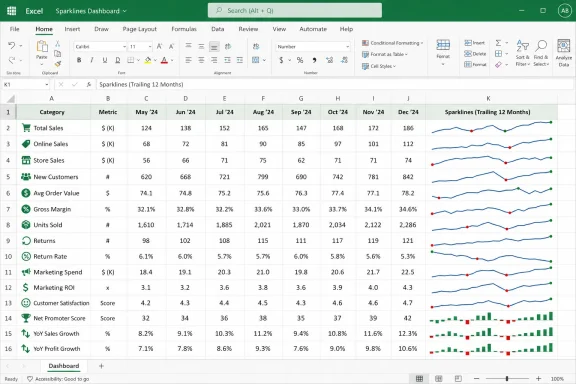
Imagine a product performance table with months across the columns and one sparkline column at the end. Each new product row can carry the same visual pattern without the user rebuilding a chart object or adjusting a dashboard. The trend becomes another field in the table.
This is also where sparklines beat many lightweight dashboard habits. Users often create small charts for each row or group, then spend time aligning, resizing, and repairing them. A sparkline column gives them a repeatable visual slot instead.
For IT pros and administrators, the same principle applies to asset health, ticket volume, patch compliance, storage growth, or backup success patterns. If the metric fits a row, the sparkline can become part of the row’s identity.
That behavior is not catastrophic, but it is revealing. Sparklines feel like cell content because they live inside cells. Yet they are not ordinary values, formulas, or formatting. They occupy a middle layer in Excel’s object model that is both grid-native and object-like.
For casual users, this can be confusing. You can click the cell, see the visual, press Delete, and wonder why the tiny chart survives. The answer is not intuitive, even if it is technically consistent with how Excel manages sparkline groups.
It is a reminder that Excel often carries power through interface exceptions. The feature is simple enough to use quickly, but not quite simple enough to behave exactly like a value. The more users depend on sparklines in production workbooks, the more they should learn the Sparkline tab’s Clear Selected Sparklines command.
That command also matters for cleanup. Old reports accumulate visual residue, and a cell-level chart that is no longer tied to the right purpose can be misleading. Sparklines should be removed as deliberately as they are inserted.
A sparkline cannot carry the burden of detailed comparison across multiple variables. It does not give the reader a full axis, annotations, tooltips, slicers, or explanatory context. It is not the right place to show a complex relationship or defend a business recommendation.
This matters because Excel users have a habit of turning every useful feature into a universal design language. Conditional formatting becomes a heat-map explosion. PivotTables become unreadable nested hierarchies. Charts become dashboard wallpaper. Sparklines can suffer the same fate if every row gets a tiny graphic whether it needs one or not.
The right test is simple: does the sparkline answer a quick visual question that the adjacent numbers make too slow to answer? If yes, it belongs. If not, it is ornament.
In many files, sparklines should coexist with other Excel tools. Conditional formatting can flag thresholds. PivotTables can summarize large datasets. Full charts can explain larger patterns. Sparklines fill the space between raw numbers and formal visualization.
Spreadsheet theater is what happens when a file performs sophistication instead of improving understanding. It shows up as oversized charts for tiny datasets, elaborate formatting for routine trackers, and dashboards that look impressive until someone has to maintain them. Excel makes that easy because it gives users powerful visual tools without forcing design discipline.
Sparklines push in the other direction. They ask the user to make a smaller claim: here is the shape of this row. Not the whole story, not a presentation centerpiece, not a managerial performance. Just the trend, where the reader already is.
That modesty can be liberating. A team does not need a floating chart to see which support queues are worsening. A home budget does not need a dashboard to show which spending categories are creeping up. A sysadmin does not need a separate visualization layer to notice that storage growth is accelerating across a group of servers.
The one-cell trick works because it respects the worksheet as a working surface. It does not drag the user into chart management when the job is trend recognition.
 Excel’s Smallest Chart Solves a Big Spreadsheet Problem
For years, the default answer to “I need to see the trend” in Excel has been to insert a chart. That is understandable. Charts are one of Excel’s marquee features, and for presentations, executive dashboards, and analytical reports, a properly built chart is still the right tool.But many spreadsheets are not presentations. They are working documents: sales trackers, inventory sheets, budget logs, project scorecards, support queues, uptime reports, habit trackers, and recurring operational reviews. In those files, a full chart can be less like insight and more like furniture: useful in the right room, awkward when wedged into a hallway.
Sparklines succeed because they behave like spreadsheet-native visuals rather than imported objects. They live inside cells, move with the grid, and sit beside the data they summarize. That sounds modest, but anyone who has wrestled with chart objects drifting across a worksheet after a row insert knows why modesty matters.
The deeper point is that sparklines change the unit of visual analysis. A traditional chart usually asks the reader to leave the table and inspect a separate object. A sparkline lets the reader stay in the row, compare the number, the label, and the trend in one glance, then keep moving.
The Chart Object Was Always Too Heavy for Routine Tracking
Excel charts are powerful because they separate visualization from the cell grid. That separation is exactly why they can become cumbersome in routine tracking sheets. Once a chart floats above cells, it brings along placement, sizing, formatting, legends, axes, titles, and the small but real risk that the object no longer lines up with the data it is meant to explain.That overhead is justified when the chart is the deliverable. If a finance team is presenting quarterly revenue by region, or an analyst is showing correlations across multiple series, a full chart earns its space. It provides scale, context, annotation, and room for interpretation.
The problem begins when users reach for that same tool to answer smaller questions. Did this product trend up over the last six months? Is this server’s incident count stabilizing? Which branch has the roughest weekly performance pattern? Those are not always chart-worthy questions. They are scan-worthy questions.
Sparklines are built for that scanning posture. They do not demand a legend, occupy a page, or interrupt the table’s structure. They turn a row of numbers into a tiny visual summary, which is often all the reader needed in the first place.
There is an old data-visualization lesson hiding here: not every visual needs to be a destination. Some visuals are wayfinding signs. Sparklines are Excel’s wayfinding signs for trends.
The One-Cell Visual Is a Design Choice, Not a Gimmick
The easiest way to misunderstand sparklines is to treat them as miniature versions of ordinary charts. They are not. They are intentionally compressed, intentionally stripped down, and intentionally dependent on the surrounding table for context.That design comes with tradeoffs. A sparkline usually will not tell you precise values, explain causality, or support a detailed argument by itself. It needs labels, numbers, and a clean dataset around it. In exchange, it gives back space, speed, and comparative density.
That density is the real advantage. A worksheet can show dozens or hundreds of sparklines in a single column, each one aligned with a product, department, endpoint, ticket queue, or account. A full chart cannot scale that way without becoming a dashboard engineering project.
This is why sparklines fit naturally into operational spreadsheets. They are not trying to replace the quarterly deck. They are trying to make the weekly tracker more readable.
Excel’s implementation reinforces that role. Users can insert line, column, or win/loss sparklines from the Insert tab, place them in a destination range, and then adjust them from the Sparkline tab. The workflow is short because the feature is meant to be used often, not ceremonially.
Clean Data Matters More When the Chart Has Nowhere to Hide
A full-size chart can sometimes disguise a messy sheet. It has room for axis labels, explanatory titles, and formatting tricks that soften weak structure. A sparkline has no such luxury. Because it lives inside one cell, it exposes sloppy data preparation quickly.Uneven time intervals are a common example. If one row contains monthly figures and another mixes months with missing quarters, the sparkline may still draw something, but the visual rhythm can mislead. The line looks continuous even when the business cadence is not.
Mixed data types are another trap. Sparklines are compact visualizations of numeric values, and text entries, blanks, placeholder strings, or inconsistent formatting can distort what the reader thinks they are seeing. A cell that says “N/A” may make sense to a human, but the charting layer needs an explicit decision about whether that means zero, missing, unavailable, or excluded.
That is why the best sparkline sheets start with boring discipline. Put categories in the first column, time periods across the top, and values in a rectangular numeric range. If the data is going to grow, format it as an Excel table so the structure is more likely to survive new rows and recurring updates.
This is not merely housekeeping. Sparklines compress interpretation into a tiny space, so the underlying data has to be more trustworthy, not less. When a visual is that small, ambiguity gets amplified.
The Three Sparkline Types Carry Three Different Editorial Messages
Excel’s three sparkline types are not interchangeable cosmetics. Each one frames the data differently, and choosing the wrong one can make a sheet tidier while making its message worse.Line sparklines are the natural choice for time-based movement. They imply continuity and direction, which makes them useful for monthly revenue, weekly incidents, recurring usage, or any measure where the shape of change matters. A rising line is instantly legible in a way that six adjacent numbers rarely are.
Column sparklines work better when magnitude is the story. Their vertical bars make relative size easier to scan, especially when the user wants to see spikes, dips, or lumpy distribution across periods. They are less elegant than line sparklines for smooth trend reading, but often more honest when values jump around.
Win/loss sparklines are the blunt instrument, and that is their virtue. They ignore magnitude and show whether values are positive, negative, or zero. For binary outcomes, streaks, pass/fail sequences, or up/down periods, that lack of nuance is not a limitation; it is the point.
The mistake is to pick the sparkline that looks best rather than the one that matches the decision being made. If the user needs direction, use a line. If the user needs relative size, use columns. If the user needs outcome state, use win/loss.
The Hidden Axis Problem Can Quietly Undermine Comparison
The most important sparkline setting is not color. It is scale.By default, sparklines can scale independently, which makes each row visually readable on its own but potentially misleading when rows are compared with one another. A product moving from 5 to 10 units can look as dramatic as one moving from 5,000 to 10,000 units, even though the business meaning may be wildly different. The shape is similar because each sparkline is normalized around its own local range.
That behavior is defensible. If the goal is to show whether each row improved or declined relative to itself, independent scaling is useful. It lets small categories have visible patterns instead of being flattened by larger ones.
But when the goal is cross-row comparison, independent scaling can turn the worksheet into a hall of mirrors. Two identical-looking sparklines may represent completely different levels of activity. The reader sees similar shapes and may infer similar scale.
Excel gives users a way to address this through axis settings, including options to use the same minimum and maximum values across sparkline groups. That setting is easy to overlook because it sits behind the formatting surface, but it is central to whether the visual comparison is fair.
This is where sparklines become less of a “trick” and more of a real visualization tool. The responsible user has to decide what the visual is saying: “this row’s pattern over time” or “this row compared with every other row.” Those are different claims, and they need different scaling choices.
Missing Data Is a Decision, Not an Empty Cell
Sparklines also force a second question that many spreadsheets postpone: what should a blank mean?In a budget tracker, a blank might mean no spending. In a data pipeline report, it might mean the metric failed to arrive. In a sales sheet, it might mean the period has not closed. Those are three different stories, but a tiny line can make them look deceptively similar if the user does not define the behavior.
Excel’s hidden and empty cell settings matter because they determine whether blanks appear as gaps, zeros, or connected points in line sparklines. Each choice carries an interpretation. A gap says the data is missing. A zero says the value was zero. A connected line says the missing point should not interrupt the trend.
None of those choices is universally correct. In fact, the wrong choice can be worse than no sparkline at all. A missing monitoring value displayed as zero may imply an outage; a zero displayed as a gap may hide one.
This is the quiet maturity test for spreadsheet design. Good sparklines do not begin with Insert. They begin with deciding what the data means when it is absent.
Formatting Should Clarify the Signal, Not Decorate the Cell
Because sparklines are visually small, Excel offers tempting formatting options: high points, low points, first points, last points, negative points, markers, colors, and line weights. Used carefully, these options make a compact visual more legible. Used excessively, they turn the cell into confetti.Highlighting high and low points can be useful in performance sheets where peaks and troughs matter. Negative point formatting is valuable when declines or losses need to jump out. Markers can help line sparklines when individual periods matter, especially in short series.
But the guiding principle should be restraint. A sparkline with every marker enabled is not more informative; it is more anxious. The eye has to work harder to separate the trend from the decoration.
Color deserves the same skepticism. A muted line in a consistent column often works better than a rainbow of local meanings. If color is used, it should map to a rule the reader can understand: negative values in red, high points in green, or one standard sparkline color throughout the sheet.
The best sparkline formatting looks almost invisible until the moment it helps. That is a higher bar than making the worksheet look “designed.”
Tables Turn Sparklines From a One-Off Trick Into a Workflow
One reason sparklines remain underused is that many people discover them as a manual feature: select data, insert sparkline, choose destination, repeat. That is fine for a quick file, but the feature becomes much more compelling when paired with Excel tables.A well-structured table gives the worksheet a durable shape. New rows inherit formulas and formatting more predictably, and the sparkline column becomes part of the tracking system rather than an afterthought. For recurring reports, that difference matters.
Imagine a product performance table with months across the columns and one sparkline column at the end. Each new product row can carry the same visual pattern without the user rebuilding a chart object or adjusting a dashboard. The trend becomes another field in the table.
This is also where sparklines beat many lightweight dashboard habits. Users often create small charts for each row or group, then spend time aligning, resizing, and repairing them. A sparkline column gives them a repeatable visual slot instead.
For IT pros and administrators, the same principle applies to asset health, ticket volume, patch compliance, storage growth, or backup success patterns. If the metric fits a row, the sparkline can become part of the row’s identity.
The Delete Key Trap Reveals Excel’s Split Personality
One small annoyance captures the weirdness of sparklines in Excel: selecting a sparkline cell and pressing Delete does not remove the sparkline in the way many users expect. Sparklines are stored as special cell-bound objects, so removing them requires the dedicated Clear command on the Sparkline tab.That behavior is not catastrophic, but it is revealing. Sparklines feel like cell content because they live inside cells. Yet they are not ordinary values, formulas, or formatting. They occupy a middle layer in Excel’s object model that is both grid-native and object-like.
For casual users, this can be confusing. You can click the cell, see the visual, press Delete, and wonder why the tiny chart survives. The answer is not intuitive, even if it is technically consistent with how Excel manages sparkline groups.
It is a reminder that Excel often carries power through interface exceptions. The feature is simple enough to use quickly, but not quite simple enough to behave exactly like a value. The more users depend on sparklines in production workbooks, the more they should learn the Sparkline tab’s Clear Selected Sparklines command.
That command also matters for cleanup. Old reports accumulate visual residue, and a cell-level chart that is no longer tied to the right purpose can be misleading. Sparklines should be removed as deliberately as they are inserted.
Sparklines Are Not a Dashboard Strategy
The enthusiasm around sparklines should not turn into a new kind of overuse. They are excellent for compact trend scanning, but they are not substitutes for analytical charts, PivotCharts, Power BI reports, or proper statistical views.A sparkline cannot carry the burden of detailed comparison across multiple variables. It does not give the reader a full axis, annotations, tooltips, slicers, or explanatory context. It is not the right place to show a complex relationship or defend a business recommendation.
This matters because Excel users have a habit of turning every useful feature into a universal design language. Conditional formatting becomes a heat-map explosion. PivotTables become unreadable nested hierarchies. Charts become dashboard wallpaper. Sparklines can suffer the same fate if every row gets a tiny graphic whether it needs one or not.
The right test is simple: does the sparkline answer a quick visual question that the adjacent numbers make too slow to answer? If yes, it belongs. If not, it is ornament.
In many files, sparklines should coexist with other Excel tools. Conditional formatting can flag thresholds. PivotTables can summarize large datasets. Full charts can explain larger patterns. Sparklines fill the space between raw numbers and formal visualization.
The Real Win Is Less Spreadsheet Theater
The strongest argument for sparklines is not that they are faster than charts, though they usually are. It is that they reduce spreadsheet theater.Spreadsheet theater is what happens when a file performs sophistication instead of improving understanding. It shows up as oversized charts for tiny datasets, elaborate formatting for routine trackers, and dashboards that look impressive until someone has to maintain them. Excel makes that easy because it gives users powerful visual tools without forcing design discipline.
Sparklines push in the other direction. They ask the user to make a smaller claim: here is the shape of this row. Not the whole story, not a presentation centerpiece, not a managerial performance. Just the trend, where the reader already is.
That modesty can be liberating. A team does not need a floating chart to see which support queues are worsening. A home budget does not need a dashboard to show which spending categories are creeping up. A sysadmin does not need a separate visualization layer to notice that storage growth is accelerating across a group of servers.
The one-cell trick works because it respects the worksheet as a working surface. It does not drag the user into chart management when the job is trend recognition.
The Tiny Line That Earns Its Place in the Grid
Sparklines are most useful when treated as part of spreadsheet design rather than a novelty feature. They reward clean tables, consistent time periods, careful blank handling, and honest scaling. They also punish lazy assumptions, because a misleading one-cell chart is still misleading.- Sparklines are best for quick trend scanning inside operational worksheets, not for replacing full analytical charts.
- Line, column, and win/loss sparklines each communicate a different kind of pattern, so the chart type should match the decision the sheet supports.
- Cross-row comparisons require careful axis settings, because independently scaled sparklines can make very different value ranges look deceptively similar.
- Blank cells should be treated deliberately as gaps, zeros, or connected points depending on what missing data actually means.
- A dedicated sparkline column in a structured Excel table turns the feature from a one-off visual trick into a maintainable workflow.
- Formatting should highlight the signal sparingly, because overdecorated sparklines are harder to scan than plain ones.
References
- Primary source: How-To Geek
Published: 2026-06-20T17:12:07.246252
Loading…
www.howtogeek.com - Official source: support.microsoft.com
Loading…
support.microsoft.com - Related coverage: help.libreoffice.org
Loading…
help.libreoffice.org - Official source: learn.microsoft.com
Loading…
learn.microsoft.com - Related coverage: geeksforgeeks.org
Loading…
www.geeksforgeeks.org - Related coverage: bettersolutions.com
Loading…
bettersolutions.com
- Related coverage: makeuseof.com
Loading…
www.makeuseof.com - Related coverage: exceldemy.com
Loading…
www.exceldemy.com - Related coverage: excelquick.com
Loading…
excelquick.com - Related coverage: trumpexcel.com
Loading…
trumpexcel.com - Official source: cdn-dynmedia-1.microsoft.com
Loading…
cdn-dynmedia-1.microsoft.com - Related coverage: www2.westsussex.gov.uk
Loading…
www2.westsussex.gov.uk - Related coverage: cdn6.f-cdn.com
Loading…
cdn6.f-cdn.com - Related coverage: dickinson.edu
Loading…
www.dickinson.edu