
Microsoft PC Manager can reduce visible RAM usage on Windows 11 by using its Boost feature to close selected background activity and clear temporary resources, but high memory usage in Task Manager is often normal Windows caching rather than evidence of a slow or broken PC. The bigger story is that Microsoft is selling reassurance in a place where Windows has never been especially good at explaining itself. A lower percentage can feel like progress, even when the operating system was already doing the right thing. That gap between what Windows shows and what users think it means is where the real performance problem begins.
Task Manager has become the modern PC owner’s anxiety dashboard. Open it at the wrong moment and the numbers can look accusatory: 78 percent memory, 86 percent memory, sometimes more than 90 percent before a user has launched anything that seems remotely demanding. For many people, the diagnosis feels obvious. Windows is bloated, an app is misbehaving, or the machine has outgrown its installed RAM.
That conclusion is sometimes right, but it is often incomplete. Modern Windows is not designed to leave RAM empty as a badge of discipline. It is designed to use available memory as a performance tool, caching recently used files, keeping app components warm, and reducing the number of times the system has to go back to slower storage.
This is the part that gets lost in the Task Manager screenshot economy. The number looks simple, but memory management is not. Windows is constantly moving pages between active use, standby lists, compressed memory, cache, and the page file. The user sees a percentage. The kernel sees a negotiation.
Microsoft PC Manager enters that negotiation with a very consumer-friendly promise: press a button, free memory, make the PC feel better. That promise is not fraudulent. It is just dangerously easy to misread.
The Boost feature is the star because it does something instantly visible. It can terminate unnecessary background processes, clear some temporary files, and reduce the memory percentage shown to the user. That creates the satisfying little before-and-after moment that system utilities have sold for decades.
The irony is that PC Manager exists partly because Windows itself has failed to teach users what its own resource usage means. Task Manager is a powerful diagnostic tool, but it is also a blunt emotional instrument. A graph that turns orange or red invites action, even when the system is not actually struggling.
Microsoft has spent years making Windows more self-managing while still exposing enough raw telemetry to alarm anyone who does not live in performance counters. PC Manager smooths over that contradiction by offering an answer before the user understands the question. It is less a cure for Windows 11 memory usage than a cure for Windows 11 memory anxiety.
A system with 32GB of RAM that uses only 4GB at idle is not necessarily lean. It may simply be failing to exploit hardware that could be accelerating the user’s next action. When Windows caches data in memory, it is making a bet that recently used or frequently used content may be needed again. If that bet is right, apps open faster and files load with less delay.
The key distinction is whether the memory is reclaimable. Cached memory is not the same as a runaway browser tab or a leaky driver. Windows can give cache back when another process needs it. A badly behaved application, by contrast, may hold memory in a way that creates genuine pressure.
This is why the same 85 percent reading can mean two very different things. On one machine, it may reflect a healthy workload and useful cache. On another, it may mean a browser profile has become a memory bonfire, a game launcher is sitting in the background doing too much, or a driver has started leaking resources after days of uptime.
The number is the beginning of the investigation, not the verdict.
The same is true when a user has simply accumulated too much session debris. Windows is good at memory management, but it is not magic. If an application keeps resources allocated, if background apps are constantly waking up, or if a user has left heavy workloads half-open all day, a one-click cleanup can be a practical reset.
Where Boost becomes misleading is when it is used as a ritual. Pressing it every time Task Manager shows a large number trains users to chase the wrong target. It makes performance feel like a cleanliness contest, where lower memory usage equals better computing hygiene.
That is not how Windows works. In some cases, clearing memory can make the next few actions slower because Windows must rebuild caches it had already prepared. The user wins a prettier percentage and loses a little of the responsiveness that percentage was helping to provide.
This is the uncomfortable truth behind many optimizer tools, even the respectable ones: the visible win is not always the practical win.
Windows 11 lives in a different world. It is expected to support modern browsers that behave like operating systems, real-time security scanning, virtualization-based security on supported systems, cloud sync, Teams and Office integration, widgets, game overlays, device management agents, and a growing list of background intelligence features. Some of that is useful. Some of it is annoying. All of it changes the baseline.
The operating system also assumes that most mainstream PCs have solid-state storage, multiple cores, and more memory than machines from a decade ago. That assumption is not always fair, especially on budget laptops still shipping with 8GB of RAM. But it does explain why Windows will use more memory when more memory is available.
This behavior confuses users who compare idle usage across machines. A 16GB PC may appear to use more memory at idle than an 8GB PC, and a 32GB PC may use more still. That does not automatically mean the bigger machine is less efficient. It may mean Windows is expanding into the space it has been given.
The operating system is not trying to preserve an empty room. It is trying to keep useful things close at hand.
The story changes on 8GB PCs. Windows 11 can run on 8GB, but the user experience depends heavily on workload, storage speed, startup apps, integrated graphics memory sharing, browser habits, and vendor-installed software. There is simply less room for error.
On a low-memory laptop, 85 percent usage is not automatically a disaster, but it is a warning that the system has limited headroom. Open a few more tabs, launch a video call, start a game, or sync a large folder, and Windows may lean harder on memory compression and the page file. Once the system is frequently moving data between RAM and storage, performance can fall off quickly.
Fast NVMe storage can soften that penalty, but it cannot erase the difference between RAM and disk. The moment a PC begins paging heavily, the user may notice app switching delays, tab reloads, audio glitches, input lag, or brief freezes that feel disproportionate to the task at hand.
This is where PC Manager can help, but it cannot change the physics. Boost may buy breathing room. It does not turn an 8GB laptop into a 16GB laptop.
Browsers are the obvious example because they are no longer single applications in any meaningful sense. A modern browser session can include dozens of renderer processes, extensions, sandboxed tabs, media playback, web apps, service workers, and cached content. A user may think they have “just the browser” open while Windows sees a small city of processes.
Then there are startup apps. Hardware utilities, update agents, cloud sync clients, chat apps, game launchers, RGB tools, printer helpers, VPN clients, and vendor dashboards all want to run early and stay resident. Each one may be defensible in isolation. Together, they create a background tax.
Memory leaks are more insidious. A leaky app or driver may slowly consume memory over hours or days, leaving the user with a system that feels fine after reboot and sluggish by the end of the week. Task Manager can reveal some of this, but not all of it neatly. Drivers, kernel allocations, and cached or compressed memory can complicate the picture.
This is why “use Boost” is not the same as troubleshooting. If Boost improves performance briefly but the problem returns, the useful question is not how often to press the button. It is what keeps filling the room.
That percentage compresses several realities into one emotional signal. It can reflect active working sets, cache behavior, compression, hardware reservation, and the cumulative effect of background software. Without context, the user sees only pressure.
The better approach is to look for corroborating symptoms. Is the system slow to switch apps? Are browser tabs reloading constantly? Is the storage light or disk activity high during simple multitasking? Does performance degrade over time? Are specific processes consuming abnormal memory? Does a reboot reset the problem for a while?
Those questions matter more than whether the number starts with a seven, eight, or nine. Windows can run comfortably at high usage if the memory is being used productively and reclaimed when needed. It can also feel terrible at a lower percentage if storage, CPU, thermals, or a broken background process is the actual bottleneck.
Performance is a system, not a single gauge.
Now Microsoft has an official tool with a Boost button. That may be useful, but it also lends institutional credibility to an old instinct: if a number looks high, click something that makes it lower.
The difference is that PC Manager is not trying to sell snake oil in the classic sense. Its features overlap with real Windows maintenance: clearing temporary files, managing startup apps, reviewing processes, and surfacing security tools. The concern is not that the app is fake. The concern is that its most satisfying interaction can teach the wrong lesson.
A memory cleanup tool should be framed as a pressure valve, not a daily vitamin. Users should reach for it when the machine is struggling, before a demanding workload, or when background clutter has clearly accumulated. They should not be conditioned to treat Windows’ use of RAM as a moral failure.
If Microsoft wants PC Manager to be more than a comfort button, it needs to explain why memory is being freed and whether freeing it is likely to help. The difference between “we cleared cache” and “we closed three high-impact background apps” matters.
Sometimes that is exactly right. A user editing large photos, running virtual machines, compiling code, gaming while streaming, or keeping hundreds of browser tabs alive may be under-provisioned. A machine with soldered 8GB RAM and a modern Windows workload can feel boxed in quickly.
But a smooth system with high memory usage is not crying for an upgrade. If apps launch quickly, multitasking feels fluid, games are not stuttering, and the system is not constantly paging, the user may gain little from chasing a lower number. More RAM might increase cache and headroom, but it may not change the experience in a way worth the money.
The practical test is lived friction. If the PC regularly hesitates when switching apps, reloads tabs you expected to remain alive, struggles during video calls, stutters when launching games, or becomes worse the longer it stays on, memory deserves a closer look. If none of that is happening, the high number is probably just Windows using the hardware it has.
That distinction matters even more as memory prices fluctuate and laptops become harder to upgrade. On many thin-and-light PCs, the RAM decision was made at purchase. Users need better guidance than “panic at 85 percent.”
Used selectively, PC Manager can be a sensible tool. Before launching a demanding game on an 8GB or 16GB system, Boost may clear background noise and reduce the chance of a rough start. After a long session with many apps open, it can provide a quicker reset than manually hunting down processes. On shared family PCs, it can make cleanup less intimidating.
But it should not replace diagnosis. If one app always balloons to several gigabytes, fix the app, update it, remove an extension, or change behavior. If startup apps consume memory before work begins, disable the ones that do not need to launch. If the system is constantly under pressure during normal use, consider more RAM or a lighter workload.
The point is not to distrust PC Manager. The point is to distrust the idea that lower RAM usage is automatically better.
If memory usage is high and the machine is responsive, Windows is probably doing its job. If memory usage is high and the machine is dragging, the number is a useful clue. If memory usage is moderate and the machine is still slow, the bottleneck may be elsewhere entirely.
Thermal throttling can make a modern laptop feel ancient. A nearly full SSD can create ugly pauses. A weak CPU can struggle under background updates. A failing drive, bad driver, malware, overactive security software, or bloated OEM image can all masquerade as “too much RAM usage” in casual troubleshooting.
That is why the right question is not “How do I make memory usage lower?” The right question is “What is preventing the machine from responding quickly?” Sometimes the answer is memory. Often it is not.
That model leads to a more disciplined way to read Task Manager. High memory usage is a prompt to ask better questions, not a command to clean. PC Manager is a tool for specific moments, not proof that Windows is always wasting resources.
The forum version of the story is even more direct. If someone posts an 85 percent memory screenshot, the first reply should not be “upgrade.” It should be “is the machine slow, and what is using the memory?” That small change would prevent a lot of bad advice.
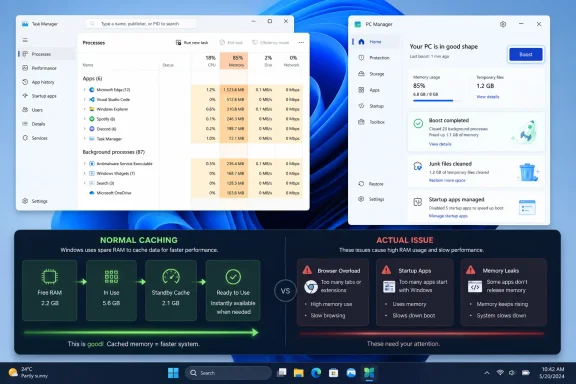 The RAM Panic Starts With a Number Windows Never Fully Explains
Task Manager has become the modern PC owner’s anxiety dashboard. Open it at the wrong moment and the numbers can look accusatory: 78 percent memory, 86 percent memory, sometimes more than 90 percent before a user has launched anything that seems remotely demanding. For many people, the diagnosis feels obvious. Windows is bloated, an app is misbehaving, or the machine has outgrown its installed RAM.That conclusion is sometimes right, but it is often incomplete. Modern Windows is not designed to leave RAM empty as a badge of discipline. It is designed to use available memory as a performance tool, caching recently used files, keeping app components warm, and reducing the number of times the system has to go back to slower storage.
This is the part that gets lost in the Task Manager screenshot economy. The number looks simple, but memory management is not. Windows is constantly moving pages between active use, standby lists, compressed memory, cache, and the page file. The user sees a percentage. The kernel sees a negotiation.
Microsoft PC Manager enters that negotiation with a very consumer-friendly promise: press a button, free memory, make the PC feel better. That promise is not fraudulent. It is just dangerously easy to misread.
PC Manager Is a Symptom of Windows’ Communication Problem
Microsoft PC Manager is not some mysterious third-party optimizer with a fake progress bar and a registry-cleaning addiction. It is Microsoft’s own utility for Windows 10 and Windows 11, and it bundles familiar maintenance ideas into a friendlier shell: storage cleanup, startup management, security shortcuts, process controls, and the headline-grabbing Boost button.The Boost feature is the star because it does something instantly visible. It can terminate unnecessary background processes, clear some temporary files, and reduce the memory percentage shown to the user. That creates the satisfying little before-and-after moment that system utilities have sold for decades.
The irony is that PC Manager exists partly because Windows itself has failed to teach users what its own resource usage means. Task Manager is a powerful diagnostic tool, but it is also a blunt emotional instrument. A graph that turns orange or red invites action, even when the system is not actually struggling.
Microsoft has spent years making Windows more self-managing while still exposing enough raw telemetry to alarm anyone who does not live in performance counters. PC Manager smooths over that contradiction by offering an answer before the user understands the question. It is less a cure for Windows 11 memory usage than a cure for Windows 11 memory anxiety.
Empty RAM Is Not a Performance Strategy
The oldest bad habit in PC optimization is treating unused RAM as a virtue. It feels intuitive: if the system is using less memory, it must have more room to breathe. But computers are not kitchen counters, and RAM is not more useful because it is clear.A system with 32GB of RAM that uses only 4GB at idle is not necessarily lean. It may simply be failing to exploit hardware that could be accelerating the user’s next action. When Windows caches data in memory, it is making a bet that recently used or frequently used content may be needed again. If that bet is right, apps open faster and files load with less delay.
The key distinction is whether the memory is reclaimable. Cached memory is not the same as a runaway browser tab or a leaky driver. Windows can give cache back when another process needs it. A badly behaved application, by contrast, may hold memory in a way that creates genuine pressure.
This is why the same 85 percent reading can mean two very different things. On one machine, it may reflect a healthy workload and useful cache. On another, it may mean a browser profile has become a memory bonfire, a game launcher is sitting in the background doing too much, or a driver has started leaking resources after days of uptime.
The number is the beginning of the investigation, not the verdict.
The Boost Button Works Best When Something Is Actually in the Way
PC Manager’s Boost feature has legitimate uses. If a machine has 8GB of RAM, a pile of startup apps, several Electron-based chat clients, a browser session with dozens of tabs, and a user about to launch a game, clearing background clutter can produce a real improvement. On low-memory PCs, the margin between “fine” and “stuttering” can be thin.The same is true when a user has simply accumulated too much session debris. Windows is good at memory management, but it is not magic. If an application keeps resources allocated, if background apps are constantly waking up, or if a user has left heavy workloads half-open all day, a one-click cleanup can be a practical reset.
Where Boost becomes misleading is when it is used as a ritual. Pressing it every time Task Manager shows a large number trains users to chase the wrong target. It makes performance feel like a cleanliness contest, where lower memory usage equals better computing hygiene.
That is not how Windows works. In some cases, clearing memory can make the next few actions slower because Windows must rebuild caches it had already prepared. The user wins a prettier percentage and loses a little of the responsiveness that percentage was helping to provide.
This is the uncomfortable truth behind many optimizer tools, even the respectable ones: the visible win is not always the practical win.
Windows 11 Is More Aggressive Because Hardware Has Changed
The argument that Windows uses “too much RAM” is partly a nostalgia problem. Older versions of Windows ran in smaller memory footprints because they had to. Storage was slower, apps were simpler, background services were fewer, security layers were thinner, and users expected less from the operating system.Windows 11 lives in a different world. It is expected to support modern browsers that behave like operating systems, real-time security scanning, virtualization-based security on supported systems, cloud sync, Teams and Office integration, widgets, game overlays, device management agents, and a growing list of background intelligence features. Some of that is useful. Some of it is annoying. All of it changes the baseline.
The operating system also assumes that most mainstream PCs have solid-state storage, multiple cores, and more memory than machines from a decade ago. That assumption is not always fair, especially on budget laptops still shipping with 8GB of RAM. But it does explain why Windows will use more memory when more memory is available.
This behavior confuses users who compare idle usage across machines. A 16GB PC may appear to use more memory at idle than an 8GB PC, and a 32GB PC may use more still. That does not automatically mean the bigger machine is less efficient. It may mean Windows is expanding into the space it has been given.
The operating system is not trying to preserve an empty room. It is trying to keep useful things close at hand.
The 8GB PC Is Where the Theory Gets Messy
It is easy to defend high memory usage on a workstation with 32GB, 64GB, or 96GB of RAM. A user can run a heavyweight browser session, a photo editor, a game launcher, a code editor, and a virtual machine host without immediately feeling the walls close in. On those systems, high usage may be little more than Windows doing what modern operating systems do.The story changes on 8GB PCs. Windows 11 can run on 8GB, but the user experience depends heavily on workload, storage speed, startup apps, integrated graphics memory sharing, browser habits, and vendor-installed software. There is simply less room for error.
On a low-memory laptop, 85 percent usage is not automatically a disaster, but it is a warning that the system has limited headroom. Open a few more tabs, launch a video call, start a game, or sync a large folder, and Windows may lean harder on memory compression and the page file. Once the system is frequently moving data between RAM and storage, performance can fall off quickly.
Fast NVMe storage can soften that penalty, but it cannot erase the difference between RAM and disk. The moment a PC begins paging heavily, the user may notice app switching delays, tab reloads, audio glitches, input lag, or brief freezes that feel disproportionate to the task at hand.
This is where PC Manager can help, but it cannot change the physics. Boost may buy breathing room. It does not turn an 8GB laptop into a 16GB laptop.
The Real Villains Are Leaks, Startup Sprawl, and Browser Gravity
High memory usage becomes a problem when it stops being productive. The most common culprit is not Windows caching files for the user’s benefit. It is software that quietly expands until the system has to compensate.Browsers are the obvious example because they are no longer single applications in any meaningful sense. A modern browser session can include dozens of renderer processes, extensions, sandboxed tabs, media playback, web apps, service workers, and cached content. A user may think they have “just the browser” open while Windows sees a small city of processes.
Then there are startup apps. Hardware utilities, update agents, cloud sync clients, chat apps, game launchers, RGB tools, printer helpers, VPN clients, and vendor dashboards all want to run early and stay resident. Each one may be defensible in isolation. Together, they create a background tax.
Memory leaks are more insidious. A leaky app or driver may slowly consume memory over hours or days, leaving the user with a system that feels fine after reboot and sluggish by the end of the week. Task Manager can reveal some of this, but not all of it neatly. Drivers, kernel allocations, and cached or compressed memory can complicate the picture.
This is why “use Boost” is not the same as troubleshooting. If Boost improves performance briefly but the problem returns, the useful question is not how often to press the button. It is what keeps filling the room.
Task Manager Tells the Truth, But Not the Whole Truth
Task Manager is better than it used to be, but it still asks users to interpret technical categories through a consumer interface. The Memory page exposes useful clues: in use, available, committed, cached, paged pool, non-paged pool, speed, slots used, and hardware reserved. But the headline percentage remains the number most people remember.That percentage compresses several realities into one emotional signal. It can reflect active working sets, cache behavior, compression, hardware reservation, and the cumulative effect of background software. Without context, the user sees only pressure.
The better approach is to look for corroborating symptoms. Is the system slow to switch apps? Are browser tabs reloading constantly? Is the storage light or disk activity high during simple multitasking? Does performance degrade over time? Are specific processes consuming abnormal memory? Does a reboot reset the problem for a while?
Those questions matter more than whether the number starts with a seven, eight, or nine. Windows can run comfortably at high usage if the memory is being used productively and reclaimed when needed. It can also feel terrible at a lower percentage if storage, CPU, thermals, or a broken background process is the actual bottleneck.
Performance is a system, not a single gauge.
Microsoft’s Own Utility Risks Reviving the Optimizer Era
There is a cultural problem with PC Manager that has little to do with whether the app works. For years, Windows users were trained by dubious utilities to believe a healthy PC is one that has been cleaned, boosted, defragmented, swept, scanned, optimized, and generally bullied into submission. Microsoft spent much of the modern Windows era making those habits less necessary.Now Microsoft has an official tool with a Boost button. That may be useful, but it also lends institutional credibility to an old instinct: if a number looks high, click something that makes it lower.
The difference is that PC Manager is not trying to sell snake oil in the classic sense. Its features overlap with real Windows maintenance: clearing temporary files, managing startup apps, reviewing processes, and surfacing security tools. The concern is not that the app is fake. The concern is that its most satisfying interaction can teach the wrong lesson.
A memory cleanup tool should be framed as a pressure valve, not a daily vitamin. Users should reach for it when the machine is struggling, before a demanding workload, or when background clutter has clearly accumulated. They should not be conditioned to treat Windows’ use of RAM as a moral failure.
If Microsoft wants PC Manager to be more than a comfort button, it needs to explain why memory is being freed and whether freeing it is likely to help. The difference between “we cleared cache” and “we closed three high-impact background apps” matters.
The Upgrade Decision Should Follow Friction, Not Fear
RAM upgrades are still one of the most effective ways to extend the life of a PC, but only when memory is the limiting factor. The trouble is that Task Manager screenshots often turn upgrade advice into reflex. Someone posts 88 percent memory usage, and the internet replies: buy more RAM.Sometimes that is exactly right. A user editing large photos, running virtual machines, compiling code, gaming while streaming, or keeping hundreds of browser tabs alive may be under-provisioned. A machine with soldered 8GB RAM and a modern Windows workload can feel boxed in quickly.
But a smooth system with high memory usage is not crying for an upgrade. If apps launch quickly, multitasking feels fluid, games are not stuttering, and the system is not constantly paging, the user may gain little from chasing a lower number. More RAM might increase cache and headroom, but it may not change the experience in a way worth the money.
The practical test is lived friction. If the PC regularly hesitates when switching apps, reloads tabs you expected to remain alive, struggles during video calls, stutters when launching games, or becomes worse the longer it stays on, memory deserves a closer look. If none of that is happening, the high number is probably just Windows using the hardware it has.
That distinction matters even more as memory prices fluctuate and laptops become harder to upgrade. On many thin-and-light PCs, the RAM decision was made at purchase. Users need better guidance than “panic at 85 percent.”
The Better Use of PC Manager Is Selective, Not Superstitious
The strongest case for PC Manager is not that every Windows 11 user should keep it open and smash Boost whenever the graph looks tall. It is that Microsoft has packaged several maintenance chores into an interface normal users can understand. That has value, especially for people who will never dig through Startup Apps, Settings, Storage Sense, and Task Manager’s process tree.Used selectively, PC Manager can be a sensible tool. Before launching a demanding game on an 8GB or 16GB system, Boost may clear background noise and reduce the chance of a rough start. After a long session with many apps open, it can provide a quicker reset than manually hunting down processes. On shared family PCs, it can make cleanup less intimidating.
But it should not replace diagnosis. If one app always balloons to several gigabytes, fix the app, update it, remove an extension, or change behavior. If startup apps consume memory before work begins, disable the ones that do not need to launch. If the system is constantly under pressure during normal use, consider more RAM or a lighter workload.
The point is not to distrust PC Manager. The point is to distrust the idea that lower RAM usage is automatically better.
The Number to Watch Is the One You Can Feel
The most useful performance metric is still the user experience. That sounds unscientific, but it is not. A PC is not a benchmark table in isolation; it is an interactive system where responsiveness matters more than an abstract percentage.If memory usage is high and the machine is responsive, Windows is probably doing its job. If memory usage is high and the machine is dragging, the number is a useful clue. If memory usage is moderate and the machine is still slow, the bottleneck may be elsewhere entirely.
Thermal throttling can make a modern laptop feel ancient. A nearly full SSD can create ugly pauses. A weak CPU can struggle under background updates. A failing drive, bad driver, malware, overactive security software, or bloated OEM image can all masquerade as “too much RAM usage” in casual troubleshooting.
That is why the right question is not “How do I make memory usage lower?” The right question is “What is preventing the machine from responding quickly?” Sometimes the answer is memory. Often it is not.
The Windows 11 Memory Lesson Microsoft Should Have Taught Years Ago
The useful mental model is simple: RAM is a workspace, not a trophy case. Windows should use it when it helps, release it when something more important needs it, and avoid letting broken or unnecessary software monopolize it. Users should intervene when the system shows symptoms, not when a percentage offends them.That model leads to a more disciplined way to read Task Manager. High memory usage is a prompt to ask better questions, not a command to clean. PC Manager is a tool for specific moments, not proof that Windows is always wasting resources.
The forum version of the story is even more direct. If someone posts an 85 percent memory screenshot, the first reply should not be “upgrade.” It should be “is the machine slow, and what is using the memory?” That small change would prevent a lot of bad advice.
The Boost Button Is Useful Only After the Panic Passes
The practical lesson from Microsoft PC Manager is not that memory cleanup is useless. It is that cleanup without context can become theater. A lower percentage can be comforting while telling you very little about whether the PC is faster, healthier, or better configured.- Windows 11 can show high memory usage because it is caching useful data and keeping the system responsive.
- Microsoft PC Manager’s Boost feature can help when background processes, session clutter, or low installed RAM are creating real pressure.
- A lower RAM percentage after using Boost does not automatically mean the computer is performing better.
- Users should worry more about symptoms such as stuttering, slow app switching, tab reloads, heavy paging, and performance degradation over time.
- On 8GB systems, high memory usage deserves closer attention because there is less headroom for modern Windows workloads.
- A RAM upgrade makes sense when normal work regularly causes friction, not merely when Task Manager displays a large number.
References
- Primary source: Windows Central
Published: 2026-06-22T16:26:07.170356
I tested Microsoft PC Manager’s RAM-freeing tool and learned why high memory usage isn’t always a problem | Windows Central
Windows 11 loves using available RAM, but knowing when high memory usage is normal and when it's a warning sign makes all the difference.www.windowscentral.com - Official source: pcmanager.microsoft.com
Cleanup PC, protection for your computer | Microsoft PC Manager
Official Microsoft PC Manage website; thorough analysis, thorough cleaning, toolkit. Releasing occupied resources and cleaning system fragments will make your Windows run like new.pcmanager.microsoft.com
- Official source: support.microsoft.com
Storage settings in Windows - Microsoft Support
Learn about storage settings in Windows and how reserved storage works to conserve disk space for temporary files, caches, and other files.support.microsoft.com - Official source: learn.microsoft.com
Troubleshoot processes by using Task Manager - Windows Server | Microsoft Learn
Describes the features of Task Manager and provides examples of how to apply those features when troubleshooting.learn.microsoft.com - Related coverage: howtogeek.com
How to Enable or Disable Memory Compression in Windows 11
Let your RAM store more data than its normal capacity! www.howtogeek.com
- Related coverage: pureinfotech.com
How to reduce RAM usage with PC Manager’s one-click feature on Windows 11 - Pureinfotech
Reduce RAM usage on Windows 11 using Microsoft PC Manager, using the Boost feature to instantly free memory and improve performance. pureinfotech.com
- Related coverage: windowslatest.com
Microsoft PC Manager performance booster for Windows 11 gets Files Cleanup
Microsoft's "PC Manager" app received an update that improves its "Files Cleanup" feature, making it easier to free up space. www.windowslatest.com
- Official source: cdn-dynmedia-1.microsoft.com