
Brother HL-L2350DW owners in 2026 are still most likely to fix Wi-Fi and “offline” failures by checking the printer’s status, reconnecting it to a named 2.4 GHz network, clearing stalled print queues, and reinstalling Brother’s current software before resorting to a network reset. The useful story here is not that one small laser printer is fragile. It is that home and small-office networks have become more complicated than the devices many people still depend on. The HL-L2350DW is a good printer living in a router market that has moved on without asking whether every endpoint came along.
The Brother HL-L2350DW has the kind of reputation vendors envy: cheap to run, physically compact, fast enough for home offices, and boring in the best possible way. It is a monochrome laser printer, not a cloud appliance pretending to be a lifestyle platform. That simplicity is exactly why users are surprised when it suddenly drops off Wi-Fi or shows as offline after working fine for months.
But “offline” is a misleading word. In many cases, the printer is not dead, not broken, and not even disconnected in the way the user imagines. It may be asleep, blocked by an error message, parked behind a stale Windows queue, or attached to a network identity that changed under it.
That distinction matters because printer troubleshooting has trained people to take drastic action too early. They delete drivers, reset routers, and factory-wipe devices before checking whether the LCD is showing a jam, whether Windows has toggled “Use Printer Offline,” or whether the router quietly merged the 2.4 GHz and 5 GHz bands under one fashionable mesh-network name.
The first fix, then, is almost insultingly analog: look at the printer. If the HL-L2350DW is asleep, wake it. If it has an error on the display, clear it. If the toner, paper path, or job state is blocked, Wi-Fi troubleshooting will not help because the machine is not ready to accept work.
The problem is that routers stopped presenting networks in the simple way printers expect. Dual-band and mesh systems increasingly prefer one shared SSID, band steering, automatic channel selection, and roaming logic designed for phones and laptops. A printer with a small LCD and conservative wireless stack does not negotiate that world with the same grace as a MacBook or Android handset.
That is why the advice to separate the bands is not superstition. Giving the 2.4 GHz and 5 GHz radios different names removes ambiguity. The printer sees the network it can actually use, joins it directly, and is less likely to be pushed around by router-side “smart” features that are smart mostly for devices that support them well.
For IT pros, this is familiar. The consumer router market sells invisible complexity as convenience, and then legacy endpoints pay the price. The HL-L2350DW is not alone here; smart plugs, older cameras, scanners, label printers, and industrial handhelds often share the same 2.4 GHz dependency. The printer is just the device that makes the failure visible because somebody is waiting for paper.
The “Use Printer Offline” setting is the classic example. It can be enabled intentionally, toggled by accident, or left behind after a temporary communication failure. Once checked, it continues to hold jobs even if the printer itself is now awake, connected, and reachable.
“Pause Printing” is another trap. A paused queue can make the printer appear unavailable while nothing is wrong with the radio link. A stuck document can do much the same thing, especially if a malformed job is blocking everything behind it.
The practical fix is to treat the print queue as part of the device. On Windows 11, that means going through Settings, Bluetooth & devices, Printers & scanners, and opening the queue for the Brother printer. On Windows 10 and earlier, the older Devices and Printers route still exposes the familiar “See what’s printing” menu, where “Use Printer Offline,” “Pause Printing,” and queued jobs can be cleared.
The default-printer setting deserves equal suspicion. Windows can create duplicate printer entries after driver reinstalls, USB port changes, or repeated setup attempts. Users then print to the ghost while the actual Brother sits idle, apparently offline, apparently useless, and completely innocent.
That sequence gives the HL-L2350DW a stable access point to join and gives the computer a fresh network environment in which to discover it. Turning everything off and back on randomly can still work, but it also creates timing races. The printer may come up before the router is ready, the PC may cache an old address, or the user may test too quickly and conclude nothing changed.
The five-minute pause after restarting the printer is another small instruction with a large failure rate. Printers are not phones. They do not always rejoin, advertise, and become visible at human impatience speed.
Moving the printer closer to the router during this test is not an admission of defeat. It is a diagnostic control. If the machine reconnects at close range and fails in its usual location, the problem is signal quality, interference, placement, or router behavior. If it fails even next to the router, the likely causes narrow to credentials, band selection, configuration, or firmware.
That report matters because it changes the exercise from ritual to evidence. Instead of repeatedly entering the Wi-Fi password and hoping, the user can see whether the connection succeeded and, if it failed, which error code Brother assigns to the failure. That code then points toward the actual problem.
The control-panel path is simple enough: Print Reports, WLAN Report, then Go. It is not a beautiful interface, but it is local, durable, and independent of whether Windows or macOS currently believes the printer exists.
This is also where the HL-L2350DW shows its age in a useful way. Many modern devices hide diagnostics behind apps or online accounts. Brother’s older small-office design assumes the device should be able to explain itself without a subscription or companion cloud service. That does not make troubleshooting pleasant, but it keeps it possible.
Brother’s Network Connection Repair Tool exists for exactly this class of failure on Windows. Its purpose is not magical repair; it corrects the machine’s network settings so the computer and printer agree on how to reach each other. In the real world, that often means resolving a bad IP address or subnet mask relationship after a router change, DHCP lease shift, or reinstall.
This is where many home users accidentally become network administrators. They did not ask to learn about addressing; they just wanted to print a shipping label. But printers sit at the intersection of operating system assumptions and router decisions, and that intersection is where “offline” lives.
For small offices, the lesson is sharper. If a printer is shared by multiple workstations, a casual router replacement can create a morning of lost productivity. Reserving an address for the printer in the router, keeping SSIDs stable, and documenting the setup are not enterprise overkill. They are the cheapest insurance against the next “nothing prints” incident.
The Mac path is more about selection and rebuilding. Open Printers & Scanners, confirm the Brother is the intended printer, clear stuck jobs, and remove and re-add the printer if the system appears to have stale information. That last step can be surprisingly effective because it forces macOS to rediscover the device and rebuild the print path.
AirPrint support helps, especially for Apple-heavy households, but it is not a substitute for network health. AirPrint depends on the printer being visible and reachable on the local network. If the router’s band steering or multicast behavior gets in the way, the experience can still feel random.
Brother iPrint&Scan gives mobile users another route for printing and maintenance, including firmware workflows in some cases. But the app should be understood as a tool, not a cure-all. If the printer cannot stay attached to the 2.4 GHz network, every client—Windows, macOS, iOS, Android—will eventually feel the same failure.
The sensible move is to install Brother’s current full driver and software package for the operating system in use. On Windows, that can clear corrupted installations, duplicate entries, and broken port mappings. On macOS, it can replace a generic or stale setup with one that better matches the device.
Router firmware belongs in the same conversation. A printer owner may blame Brother after a Wi-Fi failure that was actually introduced by a mesh update, a changed band-steering policy, or a security-mode default. Updating the router can fix bugs, but changing router firmware can also create new behavior. That is why the SSID and band setup should be checked after major router changes, not assumed.
The caution is not to treat updates as a substitute for diagnosis. If the printer is trying to join a 5 GHz-only SSID, no driver package will fix it. If Windows is paused, firmware will not unpause it. Software maintenance is necessary, but it works best after the basic state and network facts are known.
But WPS is not always available, not always enabled, and not always welcome in security-conscious environments. Some routers hide it, some mesh systems abstract it away, and some administrators disable it. That leaves the Wireless Setup Wizard as the more universal method.
Manual setup is also better at exposing the real problem. If the SSID does not appear, the printer may not see the 2.4 GHz network. If the hidden network must be entered manually, the user learns that stealth SSIDs add friction without much practical security benefit. If the password fails, the issue is credentials, not Windows.
The strongest setup is the least ambiguous one: a visible, named 2.4 GHz SSID; a known password; a printer placed within reliable range; and client devices connected to the same local network. That sounds old-fashioned because it is. It also works.
That is exactly why it should come late in the sequence. Resetting too early destroys useful evidence. If the problem was a paused Windows queue, the reset adds work without solving the root cause. If the router band is wrong, the printer will simply fail to reconnect after the wipe.
There are cases where reset is the right answer. A printer that has accumulated old network settings, moved between homes or offices, or been repeatedly configured against changing routers may benefit from a clean slate. Once simpler fixes fail, wiping the network settings and rebuilding the setup can be faster than guessing what state remains inside the device.
Even then, the reset should be paired with a plan. Separate the 2.4 GHz SSID first. Confirm the password. Download the current driver. Keep the printer close to the router during setup. Then reset, reconnect, and reinstall with the fewest variables possible.
That limitation is not automatically a flaw. Ethernet would make the printer more reliable in a fixed office, but this model was designed as a compact, inexpensive home and small-office laser. Brother made the trade-off many buyers accepted: low cost and wireless convenience over a physical LAN port.
The absence of Ethernet does, however, make USB a more important fallback. If a mesh router refuses to behave, or if a workstation absolutely must print reliably, direct USB removes the wireless network from the equation. It is not elegant, but neither is losing print capability every time a router decides to “optimize” the network.
For administrators, the missing Ethernet port should inform purchasing more than troubleshooting. If a printer is business-critical, shared by several users, or expected to live for years across router upgrades, buying a model with Ethernet may be the wiser choice. The HL-L2350DW can be a workhorse, but it is not a network-infrastructure appliance.
That expectation is understandable. A printer should not require a networking lesson. But wireless printing is not magic; it is a chain of dependencies that includes radio compatibility, authentication, addressing, discovery, drivers, queues, and user permissions.
Vendors do not always help. Router makers optimize for seamless onboarding of modern devices and rarely explain what “smart connect” means for older 2.4 GHz clients. Printer makers publish correct guidance, but often in fragmented support articles that read like a maze rather than a diagnosis. Operating systems collapse multiple failure modes into one emotionally loaded label: offline.
Technobezz’s paired guides are useful because they restore order to that mess. Start with the device. Check the queue. Respect the 2.4 GHz limitation. Print the WLAN report. Repair the Windows address path. Reinstall software only when appropriate. Reset only when the evidence points there.
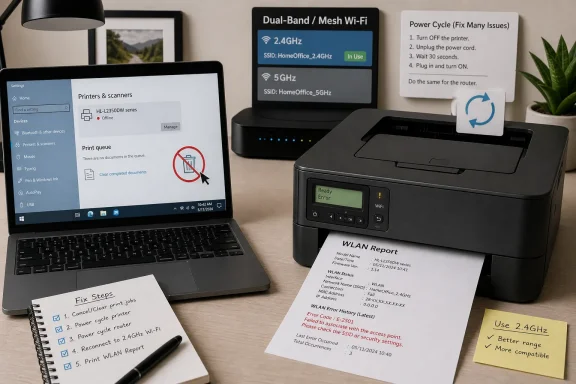 The Printer Is Usually Not the Villain
The Brother HL-L2350DW has the kind of reputation vendors envy: cheap to run, physically compact, fast enough for home offices, and boring in the best possible way. It is a monochrome laser printer, not a cloud appliance pretending to be a lifestyle platform. That simplicity is exactly why users are surprised when it suddenly drops off Wi-Fi or shows as offline after working fine for months.But “offline” is a misleading word. In many cases, the printer is not dead, not broken, and not even disconnected in the way the user imagines. It may be asleep, blocked by an error message, parked behind a stale Windows queue, or attached to a network identity that changed under it.
That distinction matters because printer troubleshooting has trained people to take drastic action too early. They delete drivers, reset routers, and factory-wipe devices before checking whether the LCD is showing a jam, whether Windows has toggled “Use Printer Offline,” or whether the router quietly merged the 2.4 GHz and 5 GHz bands under one fashionable mesh-network name.
The first fix, then, is almost insultingly analog: look at the printer. If the HL-L2350DW is asleep, wake it. If it has an error on the display, clear it. If the toner, paper path, or job state is blocked, Wi-Fi troubleshooting will not help because the machine is not ready to accept work.
Modern Routers Broke the Old Assumption
The most consequential fact about the HL-L2350DW is also the one many owners discover only after buying a new router: it is a 2.4 GHz Wi-Fi printer. Its wireless interface is built around 802.11 b/g/n behavior, plus Wi-Fi Direct, not 5 GHz networking. That was ordinary for inexpensive printers when the model arrived, and it remains sufficient for sending black-and-white documents across a room.The problem is that routers stopped presenting networks in the simple way printers expect. Dual-band and mesh systems increasingly prefer one shared SSID, band steering, automatic channel selection, and roaming logic designed for phones and laptops. A printer with a small LCD and conservative wireless stack does not negotiate that world with the same grace as a MacBook or Android handset.
That is why the advice to separate the bands is not superstition. Giving the 2.4 GHz and 5 GHz radios different names removes ambiguity. The printer sees the network it can actually use, joins it directly, and is less likely to be pushed around by router-side “smart” features that are smart mostly for devices that support them well.
For IT pros, this is familiar. The consumer router market sells invisible complexity as convenience, and then legacy endpoints pay the price. The HL-L2350DW is not alone here; smart plugs, older cameras, scanners, label printers, and industrial handhelds often share the same 2.4 GHz dependency. The printer is just the device that makes the failure visible because somebody is waiting for paper.
“Offline” Is a State, Not a Diagnosis
Windows has long treated printers as a stack of abstractions: device, driver, port, queue, default target, spooler, and status flag. When that stack gets out of sync, the user sees one word: offline. It is efficient as a warning and terrible as a diagnosis.The “Use Printer Offline” setting is the classic example. It can be enabled intentionally, toggled by accident, or left behind after a temporary communication failure. Once checked, it continues to hold jobs even if the printer itself is now awake, connected, and reachable.
“Pause Printing” is another trap. A paused queue can make the printer appear unavailable while nothing is wrong with the radio link. A stuck document can do much the same thing, especially if a malformed job is blocking everything behind it.
The practical fix is to treat the print queue as part of the device. On Windows 11, that means going through Settings, Bluetooth & devices, Printers & scanners, and opening the queue for the Brother printer. On Windows 10 and earlier, the older Devices and Printers route still exposes the familiar “See what’s printing” menu, where “Use Printer Offline,” “Pause Printing,” and queued jobs can be cleared.
The default-printer setting deserves equal suspicion. Windows can create duplicate printer entries after driver reinstalls, USB port changes, or repeated setup attempts. Users then print to the ghost while the actual Brother sits idle, apparently offline, apparently useless, and completely innocent.
The Five-Minute Wait Is Not Folklore
Power-cycling is the least glamorous fix in computing, but for wireless printers it often works because it forces three state machines to renegotiate: router, computer, and printer. The order matters more than people think. Restart the router first, let it fully boot, then restart the computer, and bring the printer back last.That sequence gives the HL-L2350DW a stable access point to join and gives the computer a fresh network environment in which to discover it. Turning everything off and back on randomly can still work, but it also creates timing races. The printer may come up before the router is ready, the PC may cache an old address, or the user may test too quickly and conclude nothing changed.
The five-minute pause after restarting the printer is another small instruction with a large failure rate. Printers are not phones. They do not always rejoin, advertise, and become visible at human impatience speed.
Moving the printer closer to the router during this test is not an admission of defeat. It is a diagnostic control. If the machine reconnects at close range and fails in its usual location, the problem is signal quality, interference, placement, or router behavior. If it fails even next to the router, the likely causes narrow to credentials, band selection, configuration, or firmware.
Brother’s Best Diagnostic Tool Is Paper
There is a satisfying irony in the HL-L2350DW’s most useful wireless diagnostic: it prints a WLAN report. In a world of apps, cloud dashboards, and animated setup screens, the printer can still tell you what happened by putting the network result on a sheet of paper.That report matters because it changes the exercise from ritual to evidence. Instead of repeatedly entering the Wi-Fi password and hoping, the user can see whether the connection succeeded and, if it failed, which error code Brother assigns to the failure. That code then points toward the actual problem.
The control-panel path is simple enough: Print Reports, WLAN Report, then Go. It is not a beautiful interface, but it is local, durable, and independent of whether Windows or macOS currently believes the printer exists.
This is also where the HL-L2350DW shows its age in a useful way. Many modern devices hide diagnostics behind apps or online accounts. Brother’s older small-office design assumes the device should be able to explain itself without a subscription or companion cloud service. That does not make troubleshooting pleasant, but it keeps it possible.
Windows Needs the Right Address, Not Just the Right Printer Name
A wireless printer can be connected to the router and still be unreachable from a PC. That sounds contradictory until you remember that discovery, addressing, and printing are separate layers. If Windows has the wrong IP address, the wrong port, a stale WSD entry, or a mismatched subnet expectation, the printer’s Wi-Fi icon is not enough.Brother’s Network Connection Repair Tool exists for exactly this class of failure on Windows. Its purpose is not magical repair; it corrects the machine’s network settings so the computer and printer agree on how to reach each other. In the real world, that often means resolving a bad IP address or subnet mask relationship after a router change, DHCP lease shift, or reinstall.
This is where many home users accidentally become network administrators. They did not ask to learn about addressing; they just wanted to print a shipping label. But printers sit at the intersection of operating system assumptions and router decisions, and that intersection is where “offline” lives.
For small offices, the lesson is sharper. If a printer is shared by multiple workstations, a casual router replacement can create a morning of lost productivity. Reserving an address for the printer in the router, keeping SSIDs stable, and documenting the setup are not enterprise overkill. They are the cheapest insurance against the next “nothing prints” incident.
macOS Has Fewer Toggles but the Same Failure Modes
Mac users avoid some of Windows’ more infamous printer-status quirks, but they do not escape the network problem. The HL-L2350DW still needs the same 2.4 GHz network, the same usable signal, and the same clean driver relationship. If the printer dropped off the router, macOS elegance will not save it.The Mac path is more about selection and rebuilding. Open Printers & Scanners, confirm the Brother is the intended printer, clear stuck jobs, and remove and re-add the printer if the system appears to have stale information. That last step can be surprisingly effective because it forces macOS to rediscover the device and rebuild the print path.
AirPrint support helps, especially for Apple-heavy households, but it is not a substitute for network health. AirPrint depends on the printer being visible and reachable on the local network. If the router’s band steering or multicast behavior gets in the way, the experience can still feel random.
Brother iPrint&Scan gives mobile users another route for printing and maintenance, including firmware workflows in some cases. But the app should be understood as a tool, not a cure-all. If the printer cannot stay attached to the 2.4 GHz network, every client—Windows, macOS, iOS, Android—will eventually feel the same failure.
Firmware and Drivers Are the Boring Fix That Still Matters
Printer firmware does not inspire excitement, and driver packages are nobody’s idea of a good afternoon. Still, stale software remains one of the more plausible reasons a setup that worked last year misbehaves this year. Operating systems change, routers update, security defaults shift, and old assumptions become brittle.The sensible move is to install Brother’s current full driver and software package for the operating system in use. On Windows, that can clear corrupted installations, duplicate entries, and broken port mappings. On macOS, it can replace a generic or stale setup with one that better matches the device.
Router firmware belongs in the same conversation. A printer owner may blame Brother after a Wi-Fi failure that was actually introduced by a mesh update, a changed band-steering policy, or a security-mode default. Updating the router can fix bugs, but changing router firmware can also create new behavior. That is why the SSID and band setup should be checked after major router changes, not assumed.
The caution is not to treat updates as a substitute for diagnosis. If the printer is trying to join a 5 GHz-only SSID, no driver package will fix it. If Windows is paused, firmware will not unpause it. Software maintenance is necessary, but it works best after the basic state and network facts are known.
WPS Is Convenient, but Manual Setup Is the More Durable Skill
The HL-L2350DW supports WPS one-push setup, and in many homes that is the fastest way to get the printer back on Wi-Fi. Select the WLAN WPS option on the printer, press the router’s WPS button when prompted, and wait for the printer to report that it connected. For users who do not want to enter a long WPA password on a small printer panel, WPS can be a mercy.But WPS is not always available, not always enabled, and not always welcome in security-conscious environments. Some routers hide it, some mesh systems abstract it away, and some administrators disable it. That leaves the Wireless Setup Wizard as the more universal method.
Manual setup is also better at exposing the real problem. If the SSID does not appear, the printer may not see the 2.4 GHz network. If the hidden network must be entered manually, the user learns that stealth SSIDs add friction without much practical security benefit. If the password fails, the issue is credentials, not Windows.
The strongest setup is the least ambiguous one: a visible, named 2.4 GHz SSID; a known password; a printer placed within reliable range; and client devices connected to the same local network. That sounds old-fashioned because it is. It also works.
Resetting the Network Is a Last Resort, Not a First Move
Brother’s network reset is effective because it wipes the printer’s saved network configuration and returns wired and wireless network settings to factory defaults. That includes the saved Wi-Fi password and IP address. Afterward, the printer must be set up again.That is exactly why it should come late in the sequence. Resetting too early destroys useful evidence. If the problem was a paused Windows queue, the reset adds work without solving the root cause. If the router band is wrong, the printer will simply fail to reconnect after the wipe.
There are cases where reset is the right answer. A printer that has accumulated old network settings, moved between homes or offices, or been repeatedly configured against changing routers may benefit from a clean slate. Once simpler fixes fail, wiping the network settings and rebuilding the setup can be faster than guessing what state remains inside the device.
Even then, the reset should be paired with a plan. Separate the 2.4 GHz SSID first. Confirm the password. Download the current driver. Keep the printer close to the router during setup. Then reset, reconnect, and reinstall with the fewest variables possible.
The Missing Ethernet Port Changes the Troubleshooting Playbook
One detail in the Technobezz material deserves emphasis because it prevents a lot of bad advice: the HL-L2350DW does not have an Ethernet port. It is USB or wireless, with Wi-Fi Direct available, but there is no wired network jack to inspect. Advice written for nearby Brother models can easily mislead owners here.That limitation is not automatically a flaw. Ethernet would make the printer more reliable in a fixed office, but this model was designed as a compact, inexpensive home and small-office laser. Brother made the trade-off many buyers accepted: low cost and wireless convenience over a physical LAN port.
The absence of Ethernet does, however, make USB a more important fallback. If a mesh router refuses to behave, or if a workstation absolutely must print reliably, direct USB removes the wireless network from the equation. It is not elegant, but neither is losing print capability every time a router decides to “optimize” the network.
For administrators, the missing Ethernet port should inform purchasing more than troubleshooting. If a printer is business-critical, shared by several users, or expected to live for years across router upgrades, buying a model with Ethernet may be the wiser choice. The HL-L2350DW can be a workhorse, but it is not a network-infrastructure appliance.
The Real Pattern Is Consumer IT Becoming Enterprise IT
The HL-L2350DW story is small, but it reflects a larger shift. Home users now run networks that would have sounded exotic in a small business two decades ago: dual-band radios, mesh nodes, guest networks, WPA transitions, app-managed routers, automatic firmware updates, and client isolation features. They also expect old endpoints to survive every change without attention.That expectation is understandable. A printer should not require a networking lesson. But wireless printing is not magic; it is a chain of dependencies that includes radio compatibility, authentication, addressing, discovery, drivers, queues, and user permissions.
Vendors do not always help. Router makers optimize for seamless onboarding of modern devices and rarely explain what “smart connect” means for older 2.4 GHz clients. Printer makers publish correct guidance, but often in fragmented support articles that read like a maze rather than a diagnosis. Operating systems collapse multiple failure modes into one emotionally loaded label: offline.
Technobezz’s paired guides are useful because they restore order to that mess. Start with the device. Check the queue. Respect the 2.4 GHz limitation. Print the WLAN report. Repair the Windows address path. Reinstall software only when appropriate. Reset only when the evidence points there.
The Fixes That Matter Most for This Brother Workhorse
The recurring lesson is that the HL-L2350DW is rarely mysterious once the owner stops treating “offline” as a single problem. It is a symptom produced by several layers, and the quickest repair is the one that tests those layers in the right order.- Make sure the printer is powered on, awake, and free of LCD errors before changing router or computer settings.
- Put the printer on a clearly named 2.4 GHz Wi-Fi network, especially after installing a dual-band or mesh router.
- Clear Windows’ “Use Printer Offline” and “Pause Printing” states, remove stuck jobs, and confirm the real Brother entry is the default printer.
- Print the WLAN report when Wi-Fi setup fails, because the error code is better evidence than repeated guessing.
- Use Brother’s current driver package, firmware updates, and Windows repair tool before wiping the printer’s network configuration.
- Treat Network Reset as the clean-slate option after simpler checks fail, because it erases saved Wi-Fi settings and requires setup again.
References
- Primary source: Technobezz
Published: 2026-06-23T02:20:41.591251
Brother HL-L2350DW Not Connecting to WiFi? 10 Fixes (2026) | Technobezz
You send a document to your Brother HL-L2350DW and nothing happens, or the printer shows up as offline even though it was working fine last week.www.technobezz.com - Related coverage: support.brother.com
- Related coverage: brother-usa.com
Brother HL-L2350DW| Monochrome Laser Printer with Duplex
The compact Brother HL-L2350DW laser printer is a great choice for the busy home or small office. It delivers class leading print speeds of up to 32 pages per minut and automatic duplex www.brother-usa.com
- Related coverage: printerofflinefix.com
Brother HL-L2350DW Offline Fix for Windows 10/11
Brother HL-L2350DW offline? Fix not printing, WiFi, and driver issues on Windows 10 and 11 with proven troubleshooting steps from Printer Offline Fix experts.printerofflinefix.com - Related coverage: brother.com.au
- Related coverage: support.brother.com.edgesuite.net
- Related coverage: brother.se
HL-L2350DW | Skrivarens status är Offline eller Pausad. | Brother Sverige
Brother HL-L2350DW Vanliga frågor. Skrivarens status är Offline eller Pausad.www.brother.se - Related coverage: brother.de
HL-L2350DW FAQs | Brother DE Support
www.brother.de - Related coverage: brother.lv
HL-L2350DW FAQs | The printer status is Offline or Paused. | Brother Support
Atbildes uz tava Brother HL-L2350DW biežāk uzdotajiem jautājumiem. The printer status is Offline or Paused.www.brother.lv - Related coverage: sos.state.co.us