
The Epson WorkForce Pro WF-7820 usually stops printing because Windows or macOS has lost the queue, port, driver, or network path to the printer, not because the wide-format machine itself has failed. The fix is less glamorous than the symptom: prove the printer can print on its own, then work outward through the queue, driver, Wi-Fi, firmware, and reset path. That order matters, because random troubleshooting is how a five-minute offline flag becomes an afternoon of reinstalling software. In 2026, the old printer rule still holds: isolate the failure before you start “fixing” everything around it.
The WorkForce Pro WF-7820 sits in an awkward but useful category: a home-office and small-office all-in-one that can handle wide-format jobs up to 13 by 19 inches, but still behaves like a conventional cartridge inkjet when something goes wrong. That means a stalled print job can feel more consequential than it really is. A poster, plan sheet, proof, or spreadsheet tabloid print may be waiting, but the underlying cause is often a paused queue or a dropped Wi-Fi lease.
That is the first trap with this printer. Because it is physically large and sold as a productivity device, users tend to assume the failure must be equally large. In practice, the WF-7820’s print path is still a chain of ordinary dependencies: power, paper, ink, local printer state, operating-system queue, driver, port, network, firmware, and finally hardware.
The second trap is treating every no-print event as the same problem. A blank page, a missing job, a grayed-out printer, and a job stuck in “printing” are different clues. A disciplined repair sequence starts at the printer itself, not at Windows Settings or the router’s admin console.
That is why the most important fix is not a fix at all. It is a test.
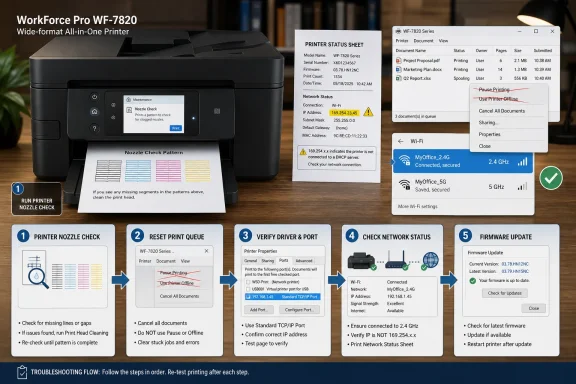
From the home screen, the path is Settings, then Maintenance, then Print Head Nozzle Check. Load plain paper first, then start the check from the panel. If the pattern prints cleanly, the problem is almost certainly upstream: the operating system, driver, connection, port, queue, or app.
If the pattern prints with gaps, the issue is more likely ink delivery or the print head, and the next move is cleaning the print head rather than reinstalling the printer on your PC. If the printer cannot print the nozzle check at all, software troubleshooting becomes less promising. At that point, the machine itself may be reporting a jam, an ink problem, a hardware fault, or a service condition.
This is the step too many users skip. They spend an hour deleting printers in Windows when the control panel would have told them in two minutes that the printer could not print independently. The nozzle check is the dividing line between a printer problem and a host problem.
The quickest Windows pass is in Settings. On Windows 11, open Bluetooth & devices, then Printers & scanners. On Windows 10, open Devices, then Printers & scanners. Select the WF-7820, open its queue, and use the Printer menu to clear “Use Printer Offline” and “Pause Printing” if either is selected.
The same pass should also make the WF-7820 the default printer, at least while you troubleshoot. Windows can automatically manage the default printer based on recent use, which is convenient until a duplicate, old, or virtual printer catches the next job. A PDF printer, a retired office printer, or an older WF-7820 instance can quietly become the destination.
Then empty the queue. A single corrupt or half-sent job can block every later document behind it, especially when a machine has gone to sleep or changed network addresses mid-print. Cancel the stuck jobs, close the queue, reopen it, and send a simple one-page test before retrying the real wide-format file.
For most home and small-office users, canceling jobs from the queue is enough. If jobs refuse to cancel, or if the queue empties visually but immediately gets stuck again, restarting the PC is often the safest spooler reset. IT pros can go further by restarting the Print Spooler service directly, but that is a heavier-handed move on shared systems because it can interrupt other printers too.
The more interesting failure is not the spooler itself but the relationship between the spooler and the printer port. A WF-7820 added through one discovery method may use a WSD-style port, while another install may use a standard TCP/IP port. If the printer’s IP address changes or Windows loses track of the discovery endpoint, the queue may look valid while jobs disappear into a dead path.
That is why “reinstall the driver” is not always the magic phrase. The better phrase is “make sure the driver and port describe the printer that actually exists today.” If the WF-7820 moved networks, the router changed, or the printer was re-added several times, stale instances are likely.
Using Epson’s driver package gives you access to the printer settings window, the Maintenance tab, the Epson print queue view, and the software updater path. Those are not decorative extras. They are the tools that let you inspect stuck jobs, run maintenance, update firmware, and confirm the system is talking to the right device.
This is especially important after a major Windows update, a macOS upgrade, or a migration to a new PC. Operating systems often preserve enough of the old printer setup to look familiar, but not enough to work reliably. The symptom is a queue that accepts jobs without complaint and then does nothing.
The fix is not to install every Epson utility in sight, but to restore a coherent stack: the current Epson driver for the WF-7820, the correct printer instance, and the port that matches how the printer is connected. USB should go to USB. Network printing should go to the printer’s current network address or discovery endpoint. Anything else is wishful routing.
Open System Settings, then Printers & Scanners, select the WF-7820, and open the print queue. If jobs are paused, resume them. If one job is showing an error while everything else waits behind it, remove the bad job and send a fresh test page.
If the WF-7820 is not listed at all, there is no mystery: the Mac has nowhere to send the job. Re-add the printer from Printers & Scanners and choose the Epson driver if it is available. If macOS offers multiple entries for the same printer, avoid blindly picking the first one without checking whether it corresponds to the expected connection.
The last-resort Mac move is resetting the printing system and adding the printer again. That can clear deeply confused printer state, but it also removes other printers from the Mac’s configuration. In a household, that may be a nuisance. In an office, it may be a ticket-generating event.
The WF-7820 can be reconnected from its control panel by using the network icon, selecting Wi-Fi setup, choosing the Wi-Fi Setup Wizard, and entering the network password. That is the cleanest first move when the printer has been moved, the router has been replaced, the Wi-Fi password has changed, or the device simply disappeared from the network.
Band steering can complicate the picture. The WF-7820 supports both 2.4 GHz and 5 GHz Wi-Fi in supported regions, but a router that presents both bands under one network name may move clients around in ways that are not always printer-friendly. If the connection is unstable, separating the SSIDs into recognizable 2.4 GHz and 5 GHz names can remove one layer of ambiguity.
Physical placement still matters. Printers are often shoved into corners, under desks, next to filing cabinets, or near other electronics because nobody wants a large all-in-one in the middle of the room. That is understandable, but it is also how a perfectly adequate router signal becomes marginal. Metal furniture, distance, microwaves, cordless phones, and dense walls remain the enemies of reliable wireless printing.
The key clue is the IP address. If the printer has an address beginning with 169.254 and a 255.255.0.0 subnet, it did not receive a normal address from the router. That usually points to a DHCP problem, a connection problem, or a network setup failure rather than a driver failure.
Restarting the router can resolve a bad lease or stale network state, but it should not be treated as magic. After the router comes back, confirm the printer and computer are on the same network. This is where modern households get messy: guest networks, mesh satellites, VPNs, phone hotspots, and “smart home” SSIDs can all put devices near each other physically but apart logically.
For IT pros, the lesson is familiar. Name resolution and discovery are conveniences, not guarantees. If a printer is business-critical, a stable IP assignment and a standard TCP/IP port can be more predictable than hoping consumer network discovery behaves forever.
The order still matters. Firmware should not be the first thing you do when a printer stops responding, because it does not fix a paused queue, a missing IP address, or an empty paper tray. But once the physical checks, nozzle check, queue cleanup, and connection tests are done, firmware becomes part of restoring a known-good baseline.
The rule during a firmware update is simple: do not interrupt it. Do not unplug the printer. Do not power it off. Do not treat a long pause as permission to restart everything. A failed print job is annoying; a botched firmware update can turn a routine problem into a service problem.
There is also a broader 2026 reality here. Printers live for years, while operating systems, routers, Wi-Fi security defaults, and application print pipelines keep changing around them. Firmware updates are one way vendors keep older hardware aligned with that moving environment. They are not glamorous, but neither is losing an hour to an invisible compatibility mismatch.
That convenience has a catch. The setup must be allowed to finish. Users often see the printer appear in the app or on the network and immediately jump back to the document they wanted to print. If the setup sequence has not fully completed, the result can be a half-configured state that looks successful but fails under actual printing.
The app also helps less technical users avoid the wrong-menu problem. Printer control panels have improved, but they still ask too much of people who only touch them during a failure. A guided setup on a phone is simply a better interface for many households.
For administrators, however, app-based setup is not a substitute for documentation. If the printer is used in a business setting, record the network name, IP address strategy, driver source, and firmware state. The person fixing the next outage should not have to reverse-engineer how the printer was added.
The narrower reset is the better first reset. If the evidence points to Wi-Fi, restore network settings and set the wireless connection up again. That keeps the escalation proportional to the failure. Only consider clearing all data and settings after the printer-side test, queue cleanup, driver validation, network status sheet, firmware update, and re-add attempts have failed.
In managed environments, the reset menu may be locked by an administrator. That is not needless obstruction; it is protection against a well-meaning user erasing configuration that other people rely on. If the printer belongs to an office, school, or shared workspace, check before resetting it.
After a reset, test in layers. First confirm the printer is error-free. Then run the nozzle check. Then reconnect Wi-Fi. Then add the printer to one computer. Then print a simple page. Only after that should you return to the original complex document, especially if it is a wide-format file with custom paper settings.
That sequence is what separates effective troubleshooting from ritual. It also protects users from making the situation worse. Printer problems are uniquely good at tempting people into unnecessary driver installs, duplicate queues, reset attempts, and router changes.
The sensible path looks like this:
 The WF-7820 Is a Big Printer With Very Ordinary Failure Modes
The WorkForce Pro WF-7820 sits in an awkward but useful category: a home-office and small-office all-in-one that can handle wide-format jobs up to 13 by 19 inches, but still behaves like a conventional cartridge inkjet when something goes wrong. That means a stalled print job can feel more consequential than it really is. A poster, plan sheet, proof, or spreadsheet tabloid print may be waiting, but the underlying cause is often a paused queue or a dropped Wi-Fi lease.That is the first trap with this printer. Because it is physically large and sold as a productivity device, users tend to assume the failure must be equally large. In practice, the WF-7820’s print path is still a chain of ordinary dependencies: power, paper, ink, local printer state, operating-system queue, driver, port, network, firmware, and finally hardware.
The second trap is treating every no-print event as the same problem. A blank page, a missing job, a grayed-out printer, and a job stuck in “printing” are different clues. A disciplined repair sequence starts at the printer itself, not at Windows Settings or the router’s admin console.
That is why the most important fix is not a fix at all. It is a test.
The Nozzle Check Separates Printer Failure From Computer Failure
The WF-7820’s built-in nozzle check is the fastest way to stop guessing. Because it runs from the printer’s control panel, it bypasses the computer, the USB cable, the Wi-Fi link, the print queue, and the application that created the document. If the printer can produce its own nozzle-check pattern, the print engine is alive.From the home screen, the path is Settings, then Maintenance, then Print Head Nozzle Check. Load plain paper first, then start the check from the panel. If the pattern prints cleanly, the problem is almost certainly upstream: the operating system, driver, connection, port, queue, or app.
If the pattern prints with gaps, the issue is more likely ink delivery or the print head, and the next move is cleaning the print head rather than reinstalling the printer on your PC. If the printer cannot print the nozzle check at all, software troubleshooting becomes less promising. At that point, the machine itself may be reporting a jam, an ink problem, a hardware fault, or a service condition.
This is the step too many users skip. They spend an hour deleting printers in Windows when the control panel would have told them in two minutes that the printer could not print independently. The nozzle check is the dividing line between a printer problem and a host problem.
Windows Still Makes “Offline” More Confusing Than It Should Be
On Windows 10 and Windows 11, “offline” does not always mean the printer is powered off or disconnected. It can mean the queue has been manually placed into an offline state, printing has been paused, Windows is targeting a stale duplicate printer, or the driver is watching the wrong port. The result is maddeningly familiar: the WF-7820 is awake, the Wi-Fi icon looks fine, and Windows still refuses to send the job.The quickest Windows pass is in Settings. On Windows 11, open Bluetooth & devices, then Printers & scanners. On Windows 10, open Devices, then Printers & scanners. Select the WF-7820, open its queue, and use the Printer menu to clear “Use Printer Offline” and “Pause Printing” if either is selected.
The same pass should also make the WF-7820 the default printer, at least while you troubleshoot. Windows can automatically manage the default printer based on recent use, which is convenient until a duplicate, old, or virtual printer catches the next job. A PDF printer, a retired office printer, or an older WF-7820 instance can quietly become the destination.
Then empty the queue. A single corrupt or half-sent job can block every later document behind it, especially when a machine has gone to sleep or changed network addresses mid-print. Cancel the stuck jobs, close the queue, reopen it, and send a simple one-page test before retrying the real wide-format file.
The Spooler Is the Middleman Nobody Notices Until It Fails
The print spooler is one of those old Windows components that remains invisible until it becomes the entire story. It collects jobs, stages them, and hands them off to the driver. When it wedges, the printer may be perfectly healthy and the network may be perfectly reachable, but no job moves.For most home and small-office users, canceling jobs from the queue is enough. If jobs refuse to cancel, or if the queue empties visually but immediately gets stuck again, restarting the PC is often the safest spooler reset. IT pros can go further by restarting the Print Spooler service directly, but that is a heavier-handed move on shared systems because it can interrupt other printers too.
The more interesting failure is not the spooler itself but the relationship between the spooler and the printer port. A WF-7820 added through one discovery method may use a WSD-style port, while another install may use a standard TCP/IP port. If the printer’s IP address changes or Windows loses track of the discovery endpoint, the queue may look valid while jobs disappear into a dead path.
That is why “reinstall the driver” is not always the magic phrase. The better phrase is “make sure the driver and port describe the printer that actually exists today.” If the WF-7820 moved networks, the router changed, or the printer was re-added several times, stale instances are likely.
The Correct Epson Driver Matters More Than Windows Pretends
Windows is very good at making printers appear to work with generic or automatically installed drivers. That convenience is useful for basic output, but it can become a liability when a model-specific feature or port mapping goes sideways. The WF-7820 is not just a generic inkjet; it has wide-format paper handling, scanner functions, maintenance utilities, firmware tooling, and Epson-specific status reporting.Using Epson’s driver package gives you access to the printer settings window, the Maintenance tab, the Epson print queue view, and the software updater path. Those are not decorative extras. They are the tools that let you inspect stuck jobs, run maintenance, update firmware, and confirm the system is talking to the right device.
This is especially important after a major Windows update, a macOS upgrade, or a migration to a new PC. Operating systems often preserve enough of the old printer setup to look familiar, but not enough to work reliably. The symptom is a queue that accepts jobs without complaint and then does nothing.
The fix is not to install every Epson utility in sight, but to restore a coherent stack: the current Epson driver for the WF-7820, the correct printer instance, and the port that matches how the printer is connected. USB should go to USB. Network printing should go to the printer’s current network address or discovery endpoint. Anything else is wishful routing.
macOS Failures Are Quieter, But the Queue Still Rules
On the Mac, the same basic logic applies with less visible drama. A printer can be added, visible, and selected, while its queue is paused or blocked by an error job. Users often assume macOS has fewer printer problems because the interface is cleaner. In reality, it simply hides some of the ugliness better.Open System Settings, then Printers & Scanners, select the WF-7820, and open the print queue. If jobs are paused, resume them. If one job is showing an error while everything else waits behind it, remove the bad job and send a fresh test page.
If the WF-7820 is not listed at all, there is no mystery: the Mac has nowhere to send the job. Re-add the printer from Printers & Scanners and choose the Epson driver if it is available. If macOS offers multiple entries for the same printer, avoid blindly picking the first one without checking whether it corresponds to the expected connection.
The last-resort Mac move is resetting the printing system and adding the printer again. That can clear deeply confused printer state, but it also removes other printers from the Mac’s configuration. In a household, that may be a nuisance. In an office, it may be a ticket-generating event.
Wi-Fi Is Where Printer Troubleshooting Becomes Network Troubleshooting
A WF-7820 that prints over USB but not over Wi-Fi is not failing as a printer. It is failing as a network endpoint. That distinction matters because the right tools are different: the printer’s network setup wizard, the network status sheet, the router, and the computer’s current network.The WF-7820 can be reconnected from its control panel by using the network icon, selecting Wi-Fi setup, choosing the Wi-Fi Setup Wizard, and entering the network password. That is the cleanest first move when the printer has been moved, the router has been replaced, the Wi-Fi password has changed, or the device simply disappeared from the network.
Band steering can complicate the picture. The WF-7820 supports both 2.4 GHz and 5 GHz Wi-Fi in supported regions, but a router that presents both bands under one network name may move clients around in ways that are not always printer-friendly. If the connection is unstable, separating the SSIDs into recognizable 2.4 GHz and 5 GHz names can remove one layer of ambiguity.
Physical placement still matters. Printers are often shoved into corners, under desks, next to filing cabinets, or near other electronics because nobody wants a large all-in-one in the middle of the room. That is understandable, but it is also how a perfectly adequate router signal becomes marginal. Metal furniture, distance, microwaves, cordless phones, and dense walls remain the enemies of reliable wireless printing.
The Network Status Sheet Is the Printer’s Confession
When Wi-Fi looks configured but jobs still do not arrive, print a network status sheet from the WF-7820. This sheet is boring in exactly the way useful diagnostics are boring. It tells you what network the printer believes it is on, what address it has, and whether the settings line up with reality.The key clue is the IP address. If the printer has an address beginning with 169.254 and a 255.255.0.0 subnet, it did not receive a normal address from the router. That usually points to a DHCP problem, a connection problem, or a network setup failure rather than a driver failure.
Restarting the router can resolve a bad lease or stale network state, but it should not be treated as magic. After the router comes back, confirm the printer and computer are on the same network. This is where modern households get messy: guest networks, mesh satellites, VPNs, phone hotspots, and “smart home” SSIDs can all put devices near each other physically but apart logically.
For IT pros, the lesson is familiar. Name resolution and discovery are conveniences, not guarantees. If a printer is business-critical, a stable IP assignment and a standard TCP/IP port can be more predictable than hoping consumer network discovery behaves forever.
Firmware Updates Are a Maintenance Step, Not a Panic Button
Epson Software Updater exists for a reason: printers are embedded computers with firmware, network stacks, and compatibility assumptions. A driver update on the PC side or an operating-system change can expose bugs that were not visible when the printer was first installed. Updating the printer’s firmware and software stack is a reasonable troubleshooting step after basic queue and network checks.The order still matters. Firmware should not be the first thing you do when a printer stops responding, because it does not fix a paused queue, a missing IP address, or an empty paper tray. But once the physical checks, nozzle check, queue cleanup, and connection tests are done, firmware becomes part of restoring a known-good baseline.
The rule during a firmware update is simple: do not interrupt it. Do not unplug the printer. Do not power it off. Do not treat a long pause as permission to restart everything. A failed print job is annoying; a botched firmware update can turn a routine problem into a service problem.
There is also a broader 2026 reality here. Printers live for years, while operating systems, routers, Wi-Fi security defaults, and application print pipelines keep changing around them. Firmware updates are one way vendors keep older hardware aligned with that moving environment. They are not glamorous, but neither is losing an hour to an invisible compatibility mismatch.
Epson Smart Panel Is the Consumer-Friendly Path Through a Messy Setup
The Epson Smart Panel app is not just for people who dislike control-panel menus. It is a practical workaround for one of the worst parts of wireless printer setup: entering credentials and confirming networks on a small printer screen. If the phone is already on the correct Wi-Fi network and Bluetooth is enabled, the app can walk the printer onto that network more comfortably.That convenience has a catch. The setup must be allowed to finish. Users often see the printer appear in the app or on the network and immediately jump back to the document they wanted to print. If the setup sequence has not fully completed, the result can be a half-configured state that looks successful but fails under actual printing.
The app also helps less technical users avoid the wrong-menu problem. Printer control panels have improved, but they still ask too much of people who only touch them during a failure. A guided setup on a phone is simply a better interface for many households.
For administrators, however, app-based setup is not a substitute for documentation. If the printer is used in a business setting, record the network name, IP address strategy, driver source, and firmware state. The person fixing the next outage should not have to reverse-engineer how the printer was added.
Resetting the WF-7820 Should Be the End of the Escalation, Not the Beginning
Factory reset has a seductive quality because it feels decisive. It also destroys useful state. On the WF-7820, restoring defaults can clear network settings, and the broader “clear all data and settings” path can remove stored information such as contacts. That is a big hammer for a problem that may be no more than a paused Windows queue.The narrower reset is the better first reset. If the evidence points to Wi-Fi, restore network settings and set the wireless connection up again. That keeps the escalation proportional to the failure. Only consider clearing all data and settings after the printer-side test, queue cleanup, driver validation, network status sheet, firmware update, and re-add attempts have failed.
In managed environments, the reset menu may be locked by an administrator. That is not needless obstruction; it is protection against a well-meaning user erasing configuration that other people rely on. If the printer belongs to an office, school, or shared workspace, check before resetting it.
After a reset, test in layers. First confirm the printer is error-free. Then run the nozzle check. Then reconnect Wi-Fi. Then add the printer to one computer. Then print a simple page. Only after that should you return to the original complex document, especially if it is a wide-format file with custom paper settings.
The Real Fix Is a Sequence, Not a Silver Bullet
The most useful way to troubleshoot the WF-7820 is to stop thinking in terms of “the fix” and start thinking in terms of narrowing the fault domain. A printer that passes a nozzle check does not need random head cleaning. A computer that is on a guest Wi-Fi network does not need a new ink cartridge. A queue stuck in offline mode does not need a factory reset.That sequence is what separates effective troubleshooting from ritual. It also protects users from making the situation worse. Printer problems are uniquely good at tempting people into unnecessary driver installs, duplicate queues, reset attempts, and router changes.
The sensible path looks like this:
- The built-in nozzle check should be the first diagnostic because it proves whether the WF-7820 can print without help from the computer.
- Windows users should clear offline mode, pause mode, wrong-default selection, and stuck jobs before reinstalling anything.
- Mac users should inspect the print queue and remove error jobs before resetting the entire printing system.
- Wireless users should print a network status sheet and check the IP address before blaming the driver.
- Firmware and driver updates are worthwhile after basic state and connection problems have been ruled out.
- A network-only reset is the right first reset when the evidence points to Wi-Fi, while a full factory reset should remain the last self-service step.
References
- Primary source: Technobezz
Published: 2026-06-23T03:20:41.590776
Loading…
www.technobezz.com - Related coverage: files.support.epson.com
Loading…
files.support.epson.com - Related coverage: bhphotovideo.com
Loading…
www.bhphotovideo.com - Related coverage: epson.com
Loading…
epson.com - Related coverage: techyorker.com
Loading…
techyorker.com - Related coverage: support2.epson.net
Loading…
support2.epson.net
- Related coverage: manuals.plus
Loading…
manuals.plus