
Paul Thurrott’s June 23, 2026 “cellular-08” attachment on Thurrott.com is a Windows 11 Field Guide image tied to Internet connectivity, highlighting the Cellular area of Windows 11’s Settings app and the increasingly important role of SIM, eSIM, carrier, and metered-data controls on modern PCs. It is a tiny artifact, the sort of screenshot most readers scroll past, but it points to a larger shift in how Windows machines are expected to stay online. The PC is no longer merely a Wi-Fi client with an Ethernet jack for grown-ups; it is being nudged toward the always-connected expectations that smartphones made normal. That shift is useful, overdue, and still more fragile than Microsoft’s clean Settings interface suggests.
The interesting thing about a Windows 11 cellular settings screen is not that it exists. Windows has supported mobile broadband for years, and Microsoft has been chasing the “connected PC” idea since long before Arm-based Windows laptops became respectable. The interesting thing is that cellular connectivity is now presented less like an exotic hardware feature and more like an ordinary network path.
That matters because Windows has historically treated mobility as an accessory to the real PC experience. Wi-Fi was the default, Ethernet was the reliable fallback, and cellular was something for a narrow slice of Surface, ThinkPad, Dell Latitude, and rugged-device buyers. In 2026, that hierarchy looks increasingly old-fashioned.
The Windows laptop is now competing not just against Macs, but against phones, tablets, Chromebooks, and cloud-first workflows where “offline” feels like a defect. A PC that cannot authenticate, sync, update, join a meeting, receive policy, or reach a cloud desktop until the user finds trusted Wi-Fi is no longer merely inconvenient. It is out of step with how work actually happens.
The cellular settings page therefore carries more weight than its modest UI suggests. It is where Microsoft’s old desktop assumptions meet the mobile-network reality that users already live with everywhere else.
But Windows is not a phone OS, and that difference still matters. A phone is designed around carrier activation, radio state, app background limits, and data-plan constraints. Windows carries decades of assumptions about large downloads, chatty services, device drivers, user profiles, VPN clients, sync engines, endpoint security agents, and update mechanisms that may not behave gently on a constrained mobile plan.
This is why Microsoft’s cellular controls cannot simply be a toggle that says “connect.” They have to mediate between carrier provisioning, user expectations, enterprise policy, roaming cost, metered networking, and the fact that Windows still wants to do a lot when it sees the Internet. The Settings app may have become cleaner, but the underlying problem is anything but simple.
The tension is visible in the way cellular is paired with data usage and metered-connection behavior. Windows has to know not only whether it is online, but how expensive that online state might be. That distinction is central to making cellular practical on a PC.
With eSIM, the subscription becomes a profile rather than a piece of plastic. That lets a device download carrier credentials, switch profiles, and be provisioned through management tooling. In consumer terms, that means a traveler can add a data plan without hunting for a tiny tray pin. In enterprise terms, it means cellular access can become part of device lifecycle management.
That is a much bigger deal than it sounds. Once cellular access can be assigned, removed, audited, and reprovisioned alongside the device, it stops being a one-off perk for executives and becomes a fleet capability. The PC can be shipped, enrolled, activated, and kept reachable without assuming that the user has already solved the network problem.
Microsoft’s Intune story around eSIM makes the direction clear. Windows 11 supports managed eSIM deployment using a carrier download server, while older activation-code workflows remain more cumbersome. The administrative goal is obvious: avoid manually distributing one-time carrier codes and let the managed PC retrieve the profile intended for that device.
That still requires coordination with mobile operators, device identifiers, compatible hardware, and MDM policy. eSIM does not magically remove the carrier from the equation. It does, however, move cellular setup closer to the world IT already understands: identity, assignment, policy, and lifecycle.
This is the part of the connected-PC dream that rarely fits in marketing. Smartphones hide much of this complexity because carriers, handset makers, and OS vendors have spent years smoothing the path. PCs have a more fragmented hardware base, a smaller cellular attach rate, and less consistent carrier retail and support expertise.
That leaves users in an awkward middle ground. The Windows Settings app can show a friendly cellular page, but troubleshooting may still require knowing whether the device has a physical SIM, an eSIM, an enabled profile, a valid APN, supported bands, current modem firmware, and an active plan. A familiar Windows interface can make the feature feel simpler than it is.
For IT departments, the carrier dependency is strategic, not incidental. Mobile broadband becomes another supplier relationship, another support boundary, and another place where procurement choices surface as technical problems later. Choosing the cheapest data plan or a poorly supported MVNO may look fine in a spreadsheet until field workers cannot connect.
The Settings screenshot therefore understates the real architecture. Windows is the front end, but the experience is co-produced by Microsoft, the OEM, the modem vendor, the carrier, and the administrator. When it works, it feels obvious. When it fails, it can feel like every party owns just enough of the problem to deny owning all of it.
Microsoft’s metered-connection behavior is therefore more than a courtesy. It is the guardrail that prevents cellular PCs from becoming invoice generators. When Windows understands that a connection is metered, it can defer some background activity, warn users, and help enforce data limits.
But metered mode is also an imperfect compromise. Hold back too much and the PC becomes stale, insecure, or less useful. Allow too much and the user gets a surprise bill or throttled connection. The operating system has to make policy decisions that are partly technical, partly financial, and partly contextual.
That context is hard. A five-gigabyte update over cellular may be unacceptable for a traveler on a prepaid plan, but perfectly reasonable for a field-service laptop with an unlimited enterprise plan that has no other network path. A single Windows default cannot know the business logic behind the SIM.
This is where management policy becomes important. Consumer Windows can make reasonable assumptions. Enterprise Windows needs knobs, reporting, and enforcement. Cellular connectivity is not just a user convenience; it is a policy surface.
A managed cellular connection gives IT a more predictable path to the device. It can help ensure that the machine reaches update services, management platforms, endpoint detection tools, certificate services, and VPN infrastructure without relying on whatever network the user happens to find. That does not eliminate risk, but it changes the baseline.
For zero-trust architectures, cellular also complicates the old perimeter story in a useful way. The device should be evaluated by identity, posture, compliance, and conditional access controls rather than by whether it appears to be sitting on a corporate LAN. A laptop that is always reachable but never implicitly trusted fits that model better than a machine that periodically vanishes until it finds Wi-Fi.
There is also a resilience angle. In an outage, office move, travel disruption, retail deployment, construction site, or emergency response scenario, cellular can keep machines operational when fixed networks are unavailable. That is not glamorous, but it is exactly the sort of operational continuity that sysadmins learn to value after the first bad incident.
The caution is that cellular should not be romanticized as inherently secure. The device still needs patching, encryption, identity controls, VPN or secure access service edge policy where appropriate, and sane application behavior. Cellular is a better network option in many situations, not a magic cloak.
That calculus has changed. Emulation improved, native Arm64 software became more common, and the Copilot+ PC wave made Windows on Arm feel less like a science project and more like a mainstream premium-laptop category. Cellular is a natural companion to that shift because the same buyers attracted to long battery life and standby behavior are likely to value persistent connectivity.
Still, Microsoft has not yet made cellular feel as universal on PCs as Wi-Fi. Many premium laptops omit it. Some models reserve it for business SKUs. Some carriers support laptops awkwardly. Some buyers discover too late that “5G-ready” is not the same as having a supported plan, antenna configuration, or region-appropriate modem.
That gap between the promise and the SKU matrix is where the PC industry often loses the plot. If cellular is truly part of the modern laptop experience, it cannot remain a checkbox hidden in enterprise purchasing portals. It needs to be easy to buy, easy to activate, and easy to support.
The Windows Settings page is ready for a broader world than the hardware market consistently delivers. That mismatch is not Microsoft’s alone to solve, but Microsoft has the most to gain if the experience becomes ordinary.
That story is compelling, but it is not where the deepest platform implications live. The bigger prize is managed fleets. Schools, healthcare organizations, utilities, logistics companies, government agencies, insurance adjusters, field sales teams, and contractors all have users who cannot assume reliable Wi-Fi.
In those environments, cellular is not a luxury. It is the difference between a device that works where the job happens and a device that requires the job to move somewhere else. A Windows laptop with managed eSIM can become more like a company phone: assigned, provisioned, tracked, wiped, reissued, and kept online through policy.
The challenge is cost governance. Mobile data plans multiply quickly, and unused subscriptions are easy to overlook. IT needs lifecycle discipline: who gets cellular, which devices remain active, what happens when a device is retired, and whether removing an eSIM profile also terminates the billing relationship. That last detail is not academic; technical deprovisioning and carrier billing do not always mean the same thing.
This is why the cellular page in Settings is both empowering and dangerous. It gives users and admins a visible place to manage connectivity, but the money trail often lives elsewhere. The PC can remove a profile; the carrier may still expect payment until the account is changed.
But the modern Settings layer also creates a risk of oversimplification. Cellular configuration still depends on drivers, firmware, radio hardware, SIM state, APN data, carrier authentication, roaming, MDM profiles, and Windows services. A clean page can expose the most common actions while hiding the messy chain underneath.
That tradeoff is not unique to cellular. Windows has spent years trying to make complex subsystems feel approachable without removing the complexity that professionals still need to inspect. Networking is especially hard because casual users and sysadmins enter the same UI with wildly different expectations.
A consumer wants to know whether cellular is on. An administrator wants to know why a managed eSIM profile did not download, which APN was applied, whether the modem is enabled in firmware, whether the device is enrolled correctly, and whether a carrier backend rejected the EID. One screen cannot satisfy both audiences equally.
Microsoft’s best answer is layered design: simple controls up front, richer diagnostics and policy channels underneath. Windows has improved on the first half. The second half remains where IT pros spend their time when the cheerful toggle fails.
But tethering is a workaround with hidden costs. It depends on the phone being charged, nearby, permitted by the carrier plan, correctly configured, and not already busy with its own connectivity problems. It also turns the phone into a personal infrastructure component, which is a poor foundation for enterprise operations.
Built-in cellular changes the ownership model. The laptop has its own connection, its own policy, its own data plan, and its own management state. That matters when the device belongs to an employer, serves a regulated workflow, or needs to remain reachable independent of the user’s personal phone.
There is also a user-experience distinction. The less a person has to think about the network, the more the PC behaves like a modern device. The moment a worker has to unlock a phone, enable hotspot, troubleshoot pairing, approve a captive prompt, or explain why a personal data plan is being used for company work, the convenience case collapses.
Tethering will remain useful. It should not be confused with a platform capability.
We are not there yet. The industry still makes buyers navigate regional modem variants, carrier support matrices, business-only configurations, unclear eSIM flows, inconsistent retail activation, and support scripts written as if cellular PCs are rare. Enthusiasts can tolerate that. Normal users should not have to.
OEMs need to stop treating cellular as a boutique option on otherwise mainstream laptops. Carriers need PC activation flows that do not assume every connected device is a phone or tablet. Microsoft needs to keep tightening the Windows experience so that failures are explainable rather than mysterious.
The prize is not merely nicer travel. It is a Windows ecosystem where connectivity becomes part of the device contract. If a PC is portable, cloud-connected, AI-assisted, and managed, then network access cannot remain an exercise left to the user at the worst possible moment.
That is why a screenshot attachment in a field guide can be more revealing than it first appears. Documentation follows product reality, and product reality follows user pain. The presence of a clear cellular experience in Windows 11 is not news by itself; the fact that it now deserves ordinary documentation is.
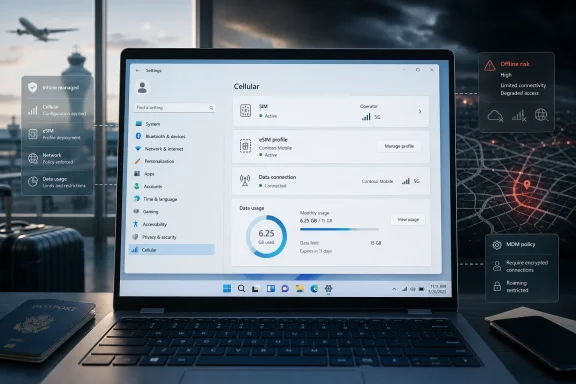 The Screenshot Is Small Because the Strategy Is Not
The interesting thing about a Windows 11 cellular settings screen is not that it exists. Windows has supported mobile broadband for years, and Microsoft has been chasing the “connected PC” idea since long before Arm-based Windows laptops became respectable. The interesting thing is that cellular connectivity is now presented less like an exotic hardware feature and more like an ordinary network path.That matters because Windows has historically treated mobility as an accessory to the real PC experience. Wi-Fi was the default, Ethernet was the reliable fallback, and cellular was something for a narrow slice of Surface, ThinkPad, Dell Latitude, and rugged-device buyers. In 2026, that hierarchy looks increasingly old-fashioned.
The Windows laptop is now competing not just against Macs, but against phones, tablets, Chromebooks, and cloud-first workflows where “offline” feels like a defect. A PC that cannot authenticate, sync, update, join a meeting, receive policy, or reach a cloud desktop until the user finds trusted Wi-Fi is no longer merely inconvenient. It is out of step with how work actually happens.
The cellular settings page therefore carries more weight than its modest UI suggests. It is where Microsoft’s old desktop assumptions meet the mobile-network reality that users already live with everywhere else.
Windows Wants to Be Always Connected, but the PC Still Has Baggage
The always-connected PC pitch has never been hard to understand. Put a cellular modem in a laptop, add a SIM or eSIM, and the machine becomes useful in taxis, airports, field sites, client offices, coffee shops, warehouses, and disaster-recovery scenarios where Wi-Fi is untrusted or absent. For users, it turns connectivity from a ritual into a background condition.But Windows is not a phone OS, and that difference still matters. A phone is designed around carrier activation, radio state, app background limits, and data-plan constraints. Windows carries decades of assumptions about large downloads, chatty services, device drivers, user profiles, VPN clients, sync engines, endpoint security agents, and update mechanisms that may not behave gently on a constrained mobile plan.
This is why Microsoft’s cellular controls cannot simply be a toggle that says “connect.” They have to mediate between carrier provisioning, user expectations, enterprise policy, roaming cost, metered networking, and the fact that Windows still wants to do a lot when it sees the Internet. The Settings app may have become cleaner, but the underlying problem is anything but simple.
The tension is visible in the way cellular is paired with data usage and metered-connection behavior. Windows has to know not only whether it is online, but how expensive that online state might be. That distinction is central to making cellular practical on a PC.
eSIM Turns Connectivity Into Inventory, Not Plastic
The most important change is not 5G branding or a faster modem. It is eSIM. Physical SIM cards made sense when a connected PC fleet meant a small number of specialized machines, but they become operational clutter when an organization wants hundreds or thousands of laptops to arrive ready for mobile broadband.With eSIM, the subscription becomes a profile rather than a piece of plastic. That lets a device download carrier credentials, switch profiles, and be provisioned through management tooling. In consumer terms, that means a traveler can add a data plan without hunting for a tiny tray pin. In enterprise terms, it means cellular access can become part of device lifecycle management.
That is a much bigger deal than it sounds. Once cellular access can be assigned, removed, audited, and reprovisioned alongside the device, it stops being a one-off perk for executives and becomes a fleet capability. The PC can be shipped, enrolled, activated, and kept reachable without assuming that the user has already solved the network problem.
Microsoft’s Intune story around eSIM makes the direction clear. Windows 11 supports managed eSIM deployment using a carrier download server, while older activation-code workflows remain more cumbersome. The administrative goal is obvious: avoid manually distributing one-time carrier codes and let the managed PC retrieve the profile intended for that device.
That still requires coordination with mobile operators, device identifiers, compatible hardware, and MDM policy. eSIM does not magically remove the carrier from the equation. It does, however, move cellular setup closer to the world IT already understands: identity, assignment, policy, and lifecycle.
The Carrier Is Still in the Room
PC buyers are used to blaming Microsoft, OEMs, or IT when something does not work. Cellular adds another actor with veto power: the mobile operator. A Windows device may have the right modem, the right driver, the right OS support, and the right management profile, but the experience can still fail if the carrier profile, APN configuration, account state, roaming rules, or activation backend is wrong.This is the part of the connected-PC dream that rarely fits in marketing. Smartphones hide much of this complexity because carriers, handset makers, and OS vendors have spent years smoothing the path. PCs have a more fragmented hardware base, a smaller cellular attach rate, and less consistent carrier retail and support expertise.
That leaves users in an awkward middle ground. The Windows Settings app can show a friendly cellular page, but troubleshooting may still require knowing whether the device has a physical SIM, an eSIM, an enabled profile, a valid APN, supported bands, current modem firmware, and an active plan. A familiar Windows interface can make the feature feel simpler than it is.
For IT departments, the carrier dependency is strategic, not incidental. Mobile broadband becomes another supplier relationship, another support boundary, and another place where procurement choices surface as technical problems later. Choosing the cheapest data plan or a poorly supported MVNO may look fine in a spreadsheet until field workers cannot connect.
The Settings screenshot therefore understates the real architecture. Windows is the front end, but the experience is co-produced by Microsoft, the OEM, the modem vendor, the carrier, and the administrator. When it works, it feels obvious. When it fails, it can feel like every party owns just enough of the problem to deny owning all of it.
Metered Networking Is the Feature That Keeps Windows Honest
Cellular on Windows only becomes credible if the operating system respects the meter. A laptop can burn through data in ways a phone usually will not: cumulative updates, OneDrive sync, Teams media, Outlook cache rebuilds, Store app updates, browser profile sync, game launchers, telemetry, VPN reconnect storms, and endpoint protection downloads. The radio is only half the story; the budget is the other half.Microsoft’s metered-connection behavior is therefore more than a courtesy. It is the guardrail that prevents cellular PCs from becoming invoice generators. When Windows understands that a connection is metered, it can defer some background activity, warn users, and help enforce data limits.
But metered mode is also an imperfect compromise. Hold back too much and the PC becomes stale, insecure, or less useful. Allow too much and the user gets a surprise bill or throttled connection. The operating system has to make policy decisions that are partly technical, partly financial, and partly contextual.
That context is hard. A five-gigabyte update over cellular may be unacceptable for a traveler on a prepaid plan, but perfectly reasonable for a field-service laptop with an unlimited enterprise plan that has no other network path. A single Windows default cannot know the business logic behind the SIM.
This is where management policy becomes important. Consumer Windows can make reasonable assumptions. Enterprise Windows needs knobs, reporting, and enforcement. Cellular connectivity is not just a user convenience; it is a policy surface.
The Security Case Is Stronger Than the Convenience Case
The most obvious argument for built-in cellular is convenience, but the stronger argument is security. Public Wi-Fi is better than it used to be, yet it remains an unpredictable trust environment. Captive portals, rogue access points, weak venue networks, and user confusion all create risk that cellular can reduce.A managed cellular connection gives IT a more predictable path to the device. It can help ensure that the machine reaches update services, management platforms, endpoint detection tools, certificate services, and VPN infrastructure without relying on whatever network the user happens to find. That does not eliminate risk, but it changes the baseline.
For zero-trust architectures, cellular also complicates the old perimeter story in a useful way. The device should be evaluated by identity, posture, compliance, and conditional access controls rather than by whether it appears to be sitting on a corporate LAN. A laptop that is always reachable but never implicitly trusted fits that model better than a machine that periodically vanishes until it finds Wi-Fi.
There is also a resilience angle. In an outage, office move, travel disruption, retail deployment, construction site, or emergency response scenario, cellular can keep machines operational when fixed networks are unavailable. That is not glamorous, but it is exactly the sort of operational continuity that sysadmins learn to value after the first bad incident.
The caution is that cellular should not be romanticized as inherently secure. The device still needs patching, encryption, identity controls, VPN or secure access service edge policy where appropriate, and sane application behavior. Cellular is a better network option in many situations, not a magic cloak.
Windows on Arm Finally Makes the Pitch Less Theoretical
The connected-PC idea has always been entangled with Windows on Arm. Qualcomm-powered Windows machines promised long battery life, instant-on behavior, fanless designs, and integrated cellular modems years before the broader ecosystem was ready. The problem was that the software compromises were too visible.That calculus has changed. Emulation improved, native Arm64 software became more common, and the Copilot+ PC wave made Windows on Arm feel less like a science project and more like a mainstream premium-laptop category. Cellular is a natural companion to that shift because the same buyers attracted to long battery life and standby behavior are likely to value persistent connectivity.
Still, Microsoft has not yet made cellular feel as universal on PCs as Wi-Fi. Many premium laptops omit it. Some models reserve it for business SKUs. Some carriers support laptops awkwardly. Some buyers discover too late that “5G-ready” is not the same as having a supported plan, antenna configuration, or region-appropriate modem.
That gap between the promise and the SKU matrix is where the PC industry often loses the plot. If cellular is truly part of the modern laptop experience, it cannot remain a checkbox hidden in enterprise purchasing portals. It needs to be easy to buy, easy to activate, and easy to support.
The Windows Settings page is ready for a broader world than the hardware market consistently delivers. That mismatch is not Microsoft’s alone to solve, but Microsoft has the most to gain if the experience becomes ordinary.
The Consumer Story Is Travel, but the Real Money Is Fleet Management
For consumers, cellular on a Windows PC is easiest to explain through travel. Open the laptop, connect without café Wi-Fi, avoid tethering, and keep the phone battery intact. Add eSIM support and the story gets better: buy a data plan when needed, switch profiles when traveling, and treat connectivity as a service rather than a store visit.That story is compelling, but it is not where the deepest platform implications live. The bigger prize is managed fleets. Schools, healthcare organizations, utilities, logistics companies, government agencies, insurance adjusters, field sales teams, and contractors all have users who cannot assume reliable Wi-Fi.
In those environments, cellular is not a luxury. It is the difference between a device that works where the job happens and a device that requires the job to move somewhere else. A Windows laptop with managed eSIM can become more like a company phone: assigned, provisioned, tracked, wiped, reissued, and kept online through policy.
The challenge is cost governance. Mobile data plans multiply quickly, and unused subscriptions are easy to overlook. IT needs lifecycle discipline: who gets cellular, which devices remain active, what happens when a device is retired, and whether removing an eSIM profile also terminates the billing relationship. That last detail is not academic; technical deprovisioning and carrier billing do not always mean the same thing.
This is why the cellular page in Settings is both empowering and dangerous. It gives users and admins a visible place to manage connectivity, but the money trail often lives elsewhere. The PC can remove a profile; the carrier may still expect payment until the account is changed.
The Old Networking Stack Meets the New Settings App
Windows 11 has steadily pushed more networking controls into the modern Settings app, and cellular benefits from that consolidation. Users should not have to dive through legacy Control Panel surfaces, modem utilities, carrier bloatware, and device-manager rituals just to see whether a laptop is online. The UI matters because connectivity failures are stressful and often happen away from help.But the modern Settings layer also creates a risk of oversimplification. Cellular configuration still depends on drivers, firmware, radio hardware, SIM state, APN data, carrier authentication, roaming, MDM profiles, and Windows services. A clean page can expose the most common actions while hiding the messy chain underneath.
That tradeoff is not unique to cellular. Windows has spent years trying to make complex subsystems feel approachable without removing the complexity that professionals still need to inspect. Networking is especially hard because casual users and sysadmins enter the same UI with wildly different expectations.
A consumer wants to know whether cellular is on. An administrator wants to know why a managed eSIM profile did not download, which APN was applied, whether the modem is enabled in firmware, whether the device is enrolled correctly, and whether a carrier backend rejected the EID. One screen cannot satisfy both audiences equally.
Microsoft’s best answer is layered design: simple controls up front, richer diagnostics and policy channels underneath. Windows has improved on the first half. The second half remains where IT pros spend their time when the cheerful toggle fails.
Tethering Was a Workaround, Not a Strategy
Many users will ask why any of this matters when phone tethering exists. That is a fair question. Tethering is good enough for occasional use, and for some people it will remain the more economical choice.But tethering is a workaround with hidden costs. It depends on the phone being charged, nearby, permitted by the carrier plan, correctly configured, and not already busy with its own connectivity problems. It also turns the phone into a personal infrastructure component, which is a poor foundation for enterprise operations.
Built-in cellular changes the ownership model. The laptop has its own connection, its own policy, its own data plan, and its own management state. That matters when the device belongs to an employer, serves a regulated workflow, or needs to remain reachable independent of the user’s personal phone.
There is also a user-experience distinction. The less a person has to think about the network, the more the PC behaves like a modern device. The moment a worker has to unlock a phone, enable hotspot, troubleshoot pairing, approve a captive prompt, or explain why a personal data plan is being used for company work, the convenience case collapses.
Tethering will remain useful. It should not be confused with a platform capability.
The Industry Still Has to Make Cellular Boring
The end state for PC cellular should be boredom. A buyer selects a laptop, chooses a connectivity option, signs into Windows, and the device quietly obtains the right profile and policy. Users do not learn the difference between ICCID, EID, APN, and SM-DP+ because they do not need to.We are not there yet. The industry still makes buyers navigate regional modem variants, carrier support matrices, business-only configurations, unclear eSIM flows, inconsistent retail activation, and support scripts written as if cellular PCs are rare. Enthusiasts can tolerate that. Normal users should not have to.
OEMs need to stop treating cellular as a boutique option on otherwise mainstream laptops. Carriers need PC activation flows that do not assume every connected device is a phone or tablet. Microsoft needs to keep tightening the Windows experience so that failures are explainable rather than mysterious.
The prize is not merely nicer travel. It is a Windows ecosystem where connectivity becomes part of the device contract. If a PC is portable, cloud-connected, AI-assisted, and managed, then network access cannot remain an exercise left to the user at the worst possible moment.
That is why a screenshot attachment in a field guide can be more revealing than it first appears. Documentation follows product reality, and product reality follows user pain. The presence of a clear cellular experience in Windows 11 is not news by itself; the fact that it now deserves ordinary documentation is.
The Cellular Page Is a Promise Windows Must Keep
The practical lesson is that Windows 11 cellular support should be judged less by whether the Settings page looks tidy and more by whether the whole chain works under pressure. A connected PC is only as good as activation, policy, carrier cooperation, data governance, and troubleshooting allow it to be.- Windows 11 treats cellular as a first-class network path, but the experience still depends heavily on compatible hardware, modem firmware, carrier support, and correct provisioning.
- eSIM is the most important enterprise shift because it turns mobile broadband from a physical-card logistics problem into a managed device-lifecycle problem.
- Metered-connection behavior is essential because Windows PCs can consume far more background data than users expect from a mobile device.
- Built-in cellular offers a stronger security and resilience case than public Wi-Fi or phone tethering, especially for managed fleets and field work.
- The remaining weak points are not merely in Windows; they sit across OEM purchasing, carrier activation, Intune or MDM policy, and billing operations.
- The feature will only feel mainstream when buying and activating a cellular PC becomes as boring as joining Wi-Fi.
References
- Primary source: thurrott.com
Published: 2026-06-23T23:10:16.457770
cellular-08 - Thurrott.com
 www.thurrott.com
- Official source: support.microsoft.com
Cellular settings in Windows - Microsoft Support
Learn how to find cellular settings on your Windows PC and change them if you need to.support.microsoft.com - Official source: learn.microsoft.com
Configure cellular settings | Microsoft Learn
Learn how to provision cellular settings for devices with built-in modems or plug-in USB modem dongles.learn.microsoft.com - Related coverage: windowscentral.com
How to check network connection details on Windows 11 | Windows Central
On Windows 1, you can check the network connection details using the Settings app, Task Manager, Control Panel, Command Prompt, and PowerShell, and in this guide, I will show you how.www.windowscentral.com - Related coverage: dmi.es
XPS 15 Touch 2-in-1 Notebook
Dell XPS 15 (Model 9575) touch 2-in-1 notebook computer, codename La Ferrari.www.dmi.es
- Related coverage: cdn.flatironnetworks.com
XPS 15 Touch 2-in-1 Notebook
Dell XPS 15 (Model 9575) touch 2-in-1 notebook computer, codename La Ferrari.cdn.flatironnetworks.com
