
Thurrott.com’s June 23, 2026 Windows 11 Field Guide update surfaced two unglamorous but revealing corners of Microsoft’s networking story: cellular configuration and Wi-Fi property management inside the modern Settings app. The screenshots are small artifacts, but the lesson is larger. Windows 11’s networking interface has matured into something more coherent than the old Control Panel maze, yet it still exposes the tension at the heart of modern Windows: Microsoft wants the PC to behave like a managed appliance, while power users still need it to behave like a machine they control.
For decades, Windows networking was a two-layer experience. Casual users clicked the taskbar icon, selected a network, and hoped for the best; everyone else descended into Control Panel, adapter properties, IPv4 dialogs, driver tabs, and the occasional command prompt ritual involving
That is why a pair of Field Guide screenshots matters more than their file names suggest. A cellular settings page and a Wi-Fi properties page are not headline features in the way Copilot, Recall, or a new Start menu controversy might be. But they show the operating system’s practical center of gravity: the screen where a user discovers why the laptop is online, offline, metered, roaming, randomized, throttled, or quietly using the wrong DNS server.
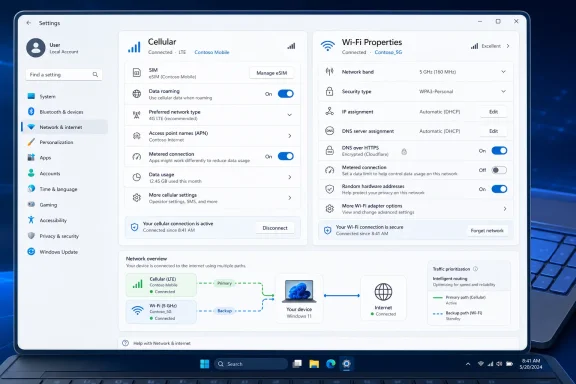
Microsoft has been moving those controls into Settings for years, but Windows 11 is where the migration becomes a product philosophy rather than a cosmetic refresh. Wi-Fi properties now show connection identity, protocol details, security type, network band, IP assignment, DNS configuration, metered status, and privacy options in a form that ordinary users can at least parse. Cellular settings similarly expose SIM selection, roaming, APN configuration, metered behavior, and automatic connection policies without requiring the user to know what a modem initialization string is.
The result is a better front door, not a finished house. Windows still carries multiple generations of networking architecture beneath the interface. The difference is that Microsoft increasingly expects the Settings app to be the primary place where users make decisions that used to belong to administrators, OEM utilities, or carrier software.
That means Windows has to understand SIMs and eSIMs, carrier profiles, roaming policies, APNs, data caps, metered behavior, and automatic failover. It also has to present those controls without making the user feel as though they have wandered into a carrier provisioning console. The modern cellular page is Microsoft’s attempt to make mobile broadband boring, which is exactly what it should be.
But “boring” does not mean unimportant. A laptop that silently roams onto an expensive data network can create a real bill. A device that treats cellular as unmetered can burn through a data plan with updates, sync jobs, cloud backups, telemetry, and app refreshes before the user understands what happened. Conversely, a device that refuses to use cellular automatically can leave a mobile worker stranded when Wi-Fi disappears.
The key design choice is whether Windows should keep the user connected by default. Microsoft’s answer is increasingly yes, with qualifications. The operating system is designed to prefer available connectivity, apply metered assumptions to cellular, and surface roaming and APN controls where they can be found. That is sensible for consumer devices and hybrid work laptops, but it also means IT departments must treat cellular policy as part of endpoint management rather than an exotic hardware feature.
This is where the modern Settings app does useful work. By placing metered behavior near Wi-Fi and cellular properties, Windows makes a hidden policy visible. A user tethering to a phone or using a limited LTE plan can make a rational choice without spelunking through legacy dialogs.
The problem is that metered behavior is still an abstraction. Users do not always know what Windows will defer, what it will still download, and which third-party applications will respect the signal. Administrators know this all too well: a metered connection may reduce traffic, but it is not a firewall, not a quota engine, and not a contract with every application on the system.
Microsoft’s challenge is that Windows is now both a consumer operating system and a cloud-managed endpoint platform. The same toggle must make sense to a traveler on airport Wi-Fi, a student using a hotspot, and a sysadmin trying to control update behavior for a fleet. That is a lot of responsibility for one switch.
That is a consumer-friendly privacy feature, and it belongs in the modern interface. But in managed environments, MAC addresses are still used for access control, captive portals, inventory systems, DHCP reservations, network admission control, and troubleshooting. A feature that protects a traveler in a coffee shop can confuse a university network, a hotel login system, or a corporate Wi-Fi deployment that expects devices to identify themselves consistently.
This is not an argument against MAC randomization. It is an argument for understanding that privacy features have operational side effects. Windows 11 improves the situation by making the setting visible per network rather than burying it in adapter lore. Users and administrators can see the setting, change it, and diagnose the weird class of problems where a device appears to be “new” every time it joins.
That visibility matters because Wi-Fi failures are rarely self-explanatory. A user sees “Connected, no internet.” An administrator sees DHCP leases, DNS failures, authentication logs, driver versions, group policy, captive portal behavior, and possibly a randomized identifier. The Settings app cannot solve every network problem, but it can at least put the relevant clues on the same page.
Encrypted DNS reflects a broader industry move toward protecting lookup traffic from casual observation or manipulation. For privacy-minded users, DNS over HTTPS and related technologies can reduce the amount of readable metadata exposed to local networks and intermediaries. For enterprises, however, DNS is also a control point for filtering, threat detection, split-horizon naming, and compliance logging.
So the same setting can be liberating or disruptive depending on context. A home user may reasonably want to choose a trusted resolver and encrypt queries. A corporate endpoint may need to use internal DNS to resolve private services, enforce policy, and detect malicious domains. Windows has to serve both cases without turning every Wi-Fi properties page into a lecture on recursive resolvers.
The Settings app’s job is therefore not just to provide toggles, but to make the consequences discoverable. If a user overrides DNS, chooses encrypted DNS, or sets a static configuration, that information needs to be visible during troubleshooting. Windows 11 is better than its predecessors here, but the boundary between empowering users and letting them quietly break name resolution remains thin.
This is not simply Microsoft failing to finish a migration. Windows networking is a compatibility museum attached to a living operating system. Enterprises still run line-of-business software that assumes specific network behaviors. Hardware vendors still ship drivers with advanced properties. IT scripts still call PowerShell, WMI, registry paths, and command-line tools that long predate Windows 11.
The modern Settings app is therefore a front end, not a full replacement. It handles the 80 percent case increasingly well: join a Wi-Fi network, inspect properties, mark a connection metered, configure DNS, manage cellular, toggle roaming, and forget a profile. For the remaining 20 percent, Windows still needs legacy depth.
That duality frustrates users because it makes the OS feel unfinished. But it also preserves the flexibility that makes Windows viable in hospitals, factories, schools, laboratories, government offices, and small businesses with strange infrastructure. The better critique is not that Microsoft has failed to delete the old tools. It is that Microsoft has not always made the handoff between modern and legacy tools feel intentional.
A user can reboot a router, forget and rejoin a network, toggle Wi-Fi, or switch to a hotspot. But when that does not work, the difference between a useful OS and an infuriating one is the availability of legible state. What network am I on? Is the address automatic or static? Which DNS servers am I using? Is this connection metered? Is the MAC address randomized? Am I on 2.4 GHz, 5 GHz, 6 GHz, or Wi-Fi 7 hardware? Is cellular roaming enabled?
Windows 11 has made real progress in presenting that state. The Wi-Fi properties page is no longer just a decorative panel; it is an operational snapshot. The cellular page is not merely a carrier indicator; it is where cost, availability, and policy intersect.
Still, Microsoft’s presentation often stops short of interpretation. The OS can show a user that DNS is manually configured, but it may not explain why that matters. It can show that cellular is metered, but not clearly describe which workloads will change behavior. It can show that random hardware addresses are enabled, but not predict that a captive portal might treat the machine differently.
For Windows enthusiasts and IT pros, that is acceptable because the clues are enough. For everyone else, the next frontier is not more toggles. It is better diagnosis.
That could be genuinely useful. Networking is full of hidden dependencies, and an assistant that correlates adapter state, event logs, driver status, DNS results, gateway reachability, and policy settings could save users and help desks enormous time. The danger is that AI troubleshooting becomes another layer of confident vagueness over systems that require exactness.
Network diagnosis is not a vibes-based activity. Either the gateway responds or it does not. Either DHCP assigned DNS servers or it did not. Either the device is using a randomized MAC address on this SSID or it is not. If Microsoft brings more AI into this surface, it must be grounded in deterministic facts from the machine, not generic advice scraped from the support canon.
The Settings app already contains many of those facts. That is what makes these networking pages strategically important. They are not just user interface panels; they are structured representations of network state. If Windows is going to explain itself better, these are the facts it will have to explain.
The answer depends on the organization. A software company with remote-first employees may welcome user control and encrypted DNS on unmanaged networks. A hospital may need rigid network identity and tightly governed resolver behavior. A school may care about filtering and captive portals. A logistics company may care about cellular failover and roaming cost.
Windows 11’s consumer-friendly interface does not remove the need for management. It raises expectations. If a setting is visible to the user, administrators need to know whether it can be configured, audited, restricted, or reset. The gap between what Settings exposes and what management tools can enforce is where support tickets multiply.
This is why Microsoft’s documentation and management story matter as much as the interface. A toggle that looks simple in Settings may map to registry values, MDM policies, driver capabilities, or carrier provisioning. IT pros do not just need a clean UI; they need predictable control behind it.
A laptop may move from home fiber to phone tethering to office Wi-Fi to airplane Wi-Fi to hotel Ethernet over the course of a single trip. Each environment has different cost, privacy, authentication, and performance characteristics. Windows cannot treat “connected” as a binary state anymore.
The Wi-Fi and cellular properties pages are Microsoft’s attempt to turn that complexity into a user-manageable surface. They tell the user not merely whether the PC is online, but what kind of online it is. That distinction is becoming more important as applications assume persistent connectivity, cloud storage runs in the background, and operating system updates become larger and more frequent.
The irony is that Microsoft’s cloud-first strategy makes local network clarity more important, not less. When everything depends on sync, identity, updates, web apps, endpoint management, and remote services, the quality of the network path becomes central to the Windows experience. The network is no longer a peripheral feature. It is the condition under which the PC functions.
That is a good thing, provided Microsoft keeps improving the explanations. A modern PC user should be able to see when a connection may cost money, when a privacy feature changes network identity, and when manual DNS settings could alter browsing or enterprise access. The alternative is a machine that makes network decisions invisibly and leaves users to debug the consequences.
The remaining weakness is coherence. Some networking tasks are elegant in Settings, some still fall back to legacy surfaces, and some are best handled by command-line tools. Power users can live with that. Normal users experience it as a maze with better wallpaper.
Microsoft’s job now is not simply to move more pages. It is to make Windows networking feel like one system, even if the underlying stack remains a federation of old and new components. That means clearer language, better diagnostics, stronger policy mapping, and fewer moments where a user has to guess which generation of Windows they are currently configuring.
For Windows enthusiasts, the gain is immediate. The information needed for diagnosis is closer to the surface. For administrators, the gain is conditional. A visible setting is useful only if it can be governed at scale. For casual users, the gain may be invisible until something goes wrong, which is exactly when a better Settings page earns its keep.
This is the right direction for Windows 11, but it comes with expectations Microsoft has not fully met. If Settings is now the canonical home for networking, it must be more than a prettier Control Panel. It must become the place where Windows explains the operational meaning of its own choices.
 Microsoft’s Network Stack Is No Longer Hiding in the Basement
For decades, Windows networking was a two-layer experience. Casual users clicked the taskbar icon, selected a network, and hoped for the best; everyone else descended into Control Panel, adapter properties, IPv4 dialogs, driver tabs, and the occasional command prompt ritual involving ipconfig, netsh, and prayer. Windows 11 does not eliminate that inheritance, but it does make a serious attempt to pull the day-to-day controls into one visible place.That is why a pair of Field Guide screenshots matters more than their file names suggest. A cellular settings page and a Wi-Fi properties page are not headline features in the way Copilot, Recall, or a new Start menu controversy might be. But they show the operating system’s practical center of gravity: the screen where a user discovers why the laptop is online, offline, metered, roaming, randomized, throttled, or quietly using the wrong DNS server.
Microsoft has been moving those controls into Settings for years, but Windows 11 is where the migration becomes a product philosophy rather than a cosmetic refresh. Wi-Fi properties now show connection identity, protocol details, security type, network band, IP assignment, DNS configuration, metered status, and privacy options in a form that ordinary users can at least parse. Cellular settings similarly expose SIM selection, roaming, APN configuration, metered behavior, and automatic connection policies without requiring the user to know what a modem initialization string is.
The result is a better front door, not a finished house. Windows still carries multiple generations of networking architecture beneath the interface. The difference is that Microsoft increasingly expects the Settings app to be the primary place where users make decisions that used to belong to administrators, OEM utilities, or carrier software.
The PC Is Learning Phone Habits, and That Changes the Contract
Cellular networking in Windows has always occupied an awkward place. It is essential for certain tablets, field laptops, industrial devices, emergency-response systems, and executive travel machines, yet invisible to the majority of desktop users. In Windows 11, cellular support feels less like an add-on and more like a concession that PCs now operate in the same connectivity world as phones.That means Windows has to understand SIMs and eSIMs, carrier profiles, roaming policies, APNs, data caps, metered behavior, and automatic failover. It also has to present those controls without making the user feel as though they have wandered into a carrier provisioning console. The modern cellular page is Microsoft’s attempt to make mobile broadband boring, which is exactly what it should be.
But “boring” does not mean unimportant. A laptop that silently roams onto an expensive data network can create a real bill. A device that treats cellular as unmetered can burn through a data plan with updates, sync jobs, cloud backups, telemetry, and app refreshes before the user understands what happened. Conversely, a device that refuses to use cellular automatically can leave a mobile worker stranded when Wi-Fi disappears.
The key design choice is whether Windows should keep the user connected by default. Microsoft’s answer is increasingly yes, with qualifications. The operating system is designed to prefer available connectivity, apply metered assumptions to cellular, and surface roaming and APN controls where they can be found. That is sensible for consumer devices and hybrid work laptops, but it also means IT departments must treat cellular policy as part of endpoint management rather than an exotic hardware feature.
Metered Connections Became a Policy Lever, Not a Checkbox
The humble metered connection toggle is one of the most consequential networking controls in Windows 11. On paper, it simply tells the operating system that a connection has data limits. In practice, it influences Windows Update behavior, app background activity, OneDrive synchronization, Store downloads, and the general appetite of the machine.This is where the modern Settings app does useful work. By placing metered behavior near Wi-Fi and cellular properties, Windows makes a hidden policy visible. A user tethering to a phone or using a limited LTE plan can make a rational choice without spelunking through legacy dialogs.
The problem is that metered behavior is still an abstraction. Users do not always know what Windows will defer, what it will still download, and which third-party applications will respect the signal. Administrators know this all too well: a metered connection may reduce traffic, but it is not a firewall, not a quota engine, and not a contract with every application on the system.
Microsoft’s challenge is that Windows is now both a consumer operating system and a cloud-managed endpoint platform. The same toggle must make sense to a traveler on airport Wi-Fi, a student using a hotspot, and a sysadmin trying to control update behavior for a fleet. That is a lot of responsibility for one switch.
Wi-Fi Properties Are Where Privacy Meets Troubleshooting
The Wi-Fi properties page is one of the most revealing screens in Windows 11 because it combines two instincts that are not always compatible: privacy protection and network predictability. Random hardware addresses are a good example. By rotating or masking the device’s MAC address, Windows can reduce passive tracking across Wi-Fi networks, especially in public spaces.That is a consumer-friendly privacy feature, and it belongs in the modern interface. But in managed environments, MAC addresses are still used for access control, captive portals, inventory systems, DHCP reservations, network admission control, and troubleshooting. A feature that protects a traveler in a coffee shop can confuse a university network, a hotel login system, or a corporate Wi-Fi deployment that expects devices to identify themselves consistently.
This is not an argument against MAC randomization. It is an argument for understanding that privacy features have operational side effects. Windows 11 improves the situation by making the setting visible per network rather than burying it in adapter lore. Users and administrators can see the setting, change it, and diagnose the weird class of problems where a device appears to be “new” every time it joins.
That visibility matters because Wi-Fi failures are rarely self-explanatory. A user sees “Connected, no internet.” An administrator sees DHCP leases, DNS failures, authentication logs, driver versions, group policy, captive portal behavior, and possibly a randomized identifier. The Settings app cannot solve every network problem, but it can at least put the relevant clues on the same page.
DNS Has Become a User-Facing Security Decision
DNS configuration used to be the kind of thing users touched only when following a forum post, a help-desk script, or a gaming optimization guide of dubious quality. Windows 11 changes that by exposing DNS server assignment and encrypted DNS options in the mainstream Settings flow. That is a major shift, because DNS is no longer treated merely as plumbing.Encrypted DNS reflects a broader industry move toward protecting lookup traffic from casual observation or manipulation. For privacy-minded users, DNS over HTTPS and related technologies can reduce the amount of readable metadata exposed to local networks and intermediaries. For enterprises, however, DNS is also a control point for filtering, threat detection, split-horizon naming, and compliance logging.
So the same setting can be liberating or disruptive depending on context. A home user may reasonably want to choose a trusted resolver and encrypt queries. A corporate endpoint may need to use internal DNS to resolve private services, enforce policy, and detect malicious domains. Windows has to serve both cases without turning every Wi-Fi properties page into a lecture on recursive resolvers.
The Settings app’s job is therefore not just to provide toggles, but to make the consequences discoverable. If a user overrides DNS, chooses encrypted DNS, or sets a static configuration, that information needs to be visible during troubleshooting. Windows 11 is better than its predecessors here, but the boundary between empowering users and letting them quietly break name resolution remains thin.
The Control Panel Is Not Gone Because the Old World Is Not Gone
Every few years, Microsoft moves another chunk of Windows configuration into Settings, and every few years someone declares the Control Panel nearly dead. Networking is a reminder that the old world persists because the old world still does things the new one does not. Adapter drivers, advanced protocol bindings, legacy VPN components, certificate behaviors, and low-level troubleshooting all have histories longer than the Settings app.This is not simply Microsoft failing to finish a migration. Windows networking is a compatibility museum attached to a living operating system. Enterprises still run line-of-business software that assumes specific network behaviors. Hardware vendors still ship drivers with advanced properties. IT scripts still call PowerShell, WMI, registry paths, and command-line tools that long predate Windows 11.
The modern Settings app is therefore a front end, not a full replacement. It handles the 80 percent case increasingly well: join a Wi-Fi network, inspect properties, mark a connection metered, configure DNS, manage cellular, toggle roaming, and forget a profile. For the remaining 20 percent, Windows still needs legacy depth.
That duality frustrates users because it makes the OS feel unfinished. But it also preserves the flexibility that makes Windows viable in hospitals, factories, schools, laboratories, government offices, and small businesses with strange infrastructure. The better critique is not that Microsoft has failed to delete the old tools. It is that Microsoft has not always made the handoff between modern and legacy tools feel intentional.
The Real Audience Is the Person Diagnosing the Second Failure
The first failure is easy to describe: the internet does not work. The second failure is harder: the interface does not explain why. Windows 11’s networking settings matter because they are increasingly designed for the moment after the obvious fix has failed.A user can reboot a router, forget and rejoin a network, toggle Wi-Fi, or switch to a hotspot. But when that does not work, the difference between a useful OS and an infuriating one is the availability of legible state. What network am I on? Is the address automatic or static? Which DNS servers am I using? Is this connection metered? Is the MAC address randomized? Am I on 2.4 GHz, 5 GHz, 6 GHz, or Wi-Fi 7 hardware? Is cellular roaming enabled?
Windows 11 has made real progress in presenting that state. The Wi-Fi properties page is no longer just a decorative panel; it is an operational snapshot. The cellular page is not merely a carrier indicator; it is where cost, availability, and policy intersect.
Still, Microsoft’s presentation often stops short of interpretation. The OS can show a user that DNS is manually configured, but it may not explain why that matters. It can show that cellular is metered, but not clearly describe which workloads will change behavior. It can show that random hardware addresses are enabled, but not predict that a captive portal might treat the machine differently.
For Windows enthusiasts and IT pros, that is acceptable because the clues are enough. For everyone else, the next frontier is not more toggles. It is better diagnosis.
Copilot Will Be Tempting, but Networking Needs Determinism
It is impossible to discuss Windows in 2026 without acknowledging Microsoft’s AI ambitions. A natural next step would be for Copilot-style assistance to explain networking problems in plain English: your DNS server is unreachable, your Wi-Fi profile is using a randomized MAC address, your cellular connection is blocked by roaming policy, or your VPN is preventing local network access.That could be genuinely useful. Networking is full of hidden dependencies, and an assistant that correlates adapter state, event logs, driver status, DNS results, gateway reachability, and policy settings could save users and help desks enormous time. The danger is that AI troubleshooting becomes another layer of confident vagueness over systems that require exactness.
Network diagnosis is not a vibes-based activity. Either the gateway responds or it does not. Either DHCP assigned DNS servers or it did not. Either the device is using a randomized MAC address on this SSID or it is not. If Microsoft brings more AI into this surface, it must be grounded in deterministic facts from the machine, not generic advice scraped from the support canon.
The Settings app already contains many of those facts. That is what makes these networking pages strategically important. They are not just user interface panels; they are structured representations of network state. If Windows is going to explain itself better, these are the facts it will have to explain.
Enterprise IT Sees a Control Surface, Not a Convenience Feature
For home users, the modernization of Wi-Fi and cellular settings is mainly about convenience. For enterprise IT, it is about governance. Every visible setting is also a potential policy question: should users be allowed to change DNS, enable encrypted DNS, randomize MAC addresses, use cellular roaming, mark connections as metered, or share connectivity through mobile hotspot?The answer depends on the organization. A software company with remote-first employees may welcome user control and encrypted DNS on unmanaged networks. A hospital may need rigid network identity and tightly governed resolver behavior. A school may care about filtering and captive portals. A logistics company may care about cellular failover and roaming cost.
Windows 11’s consumer-friendly interface does not remove the need for management. It raises expectations. If a setting is visible to the user, administrators need to know whether it can be configured, audited, restricted, or reset. The gap between what Settings exposes and what management tools can enforce is where support tickets multiply.
This is why Microsoft’s documentation and management story matter as much as the interface. A toggle that looks simple in Settings may map to registry values, MDM policies, driver capabilities, or carrier provisioning. IT pros do not just need a clean UI; they need predictable control behind it.
The Settings App Is Winning Because the Network Has Become Personal
The old Windows networking model assumed that networks were places: the office LAN, the home router, the hotel Wi-Fi, the VPN. The modern model assumes that networks are conditions: trusted, metered, public, cellular, encrypted, randomized, managed, captive, roaming, constrained. That is a profound change.A laptop may move from home fiber to phone tethering to office Wi-Fi to airplane Wi-Fi to hotel Ethernet over the course of a single trip. Each environment has different cost, privacy, authentication, and performance characteristics. Windows cannot treat “connected” as a binary state anymore.
The Wi-Fi and cellular properties pages are Microsoft’s attempt to turn that complexity into a user-manageable surface. They tell the user not merely whether the PC is online, but what kind of online it is. That distinction is becoming more important as applications assume persistent connectivity, cloud storage runs in the background, and operating system updates become larger and more frequent.
The irony is that Microsoft’s cloud-first strategy makes local network clarity more important, not less. When everything depends on sync, identity, updates, web apps, endpoint management, and remote services, the quality of the network path becomes central to the Windows experience. The network is no longer a peripheral feature. It is the condition under which the PC functions.
The Small Screens Tell the Bigger Windows 11 Story
The Thurrott Field Guide entries are practical documentation, but they point to a broader Windows 11 reality. Microsoft is not merely rearranging settings; it is redefining which technical concepts ordinary users are expected to understand. Metered connections, randomized hardware addresses, cellular roaming, APNs, DNS assignment, and encrypted lookups are no longer specialist topics hiding behind acronyms. They are part of the everyday operating system.That is a good thing, provided Microsoft keeps improving the explanations. A modern PC user should be able to see when a connection may cost money, when a privacy feature changes network identity, and when manual DNS settings could alter browsing or enterprise access. The alternative is a machine that makes network decisions invisibly and leaves users to debug the consequences.
The remaining weakness is coherence. Some networking tasks are elegant in Settings, some still fall back to legacy surfaces, and some are best handled by command-line tools. Power users can live with that. Normal users experience it as a maze with better wallpaper.
Microsoft’s job now is not simply to move more pages. It is to make Windows networking feel like one system, even if the underlying stack remains a federation of old and new components. That means clearer language, better diagnostics, stronger policy mapping, and fewer moments where a user has to guess which generation of Windows they are currently configuring.
The Practical Wins Are Real, but So Are the Edges
The best way to read these Windows 11 networking updates is neither as a triumph nor as a complaint. They are evidence of a platform slowly becoming more honest about the complexity it already contains. The interface is better because it surfaces more of the state that matters; it is still imperfect because networking itself has become more complicated.For Windows enthusiasts, the gain is immediate. The information needed for diagnosis is closer to the surface. For administrators, the gain is conditional. A visible setting is useful only if it can be governed at scale. For casual users, the gain may be invisible until something goes wrong, which is exactly when a better Settings page earns its keep.
This is the right direction for Windows 11, but it comes with expectations Microsoft has not fully met. If Settings is now the canonical home for networking, it must be more than a prettier Control Panel. It must become the place where Windows explains the operational meaning of its own choices.
The Windows 11 Network Map Is Finally Worth Reading
The concrete story from these screenshots is simple: Windows 11 is putting more of the network’s truth in front of the user, and that is overdue. The larger story is that this truth is increasingly complicated, because the PC now lives across Wi-Fi, cellular, hotspots, VPNs, encrypted DNS, managed identities, and privacy-preserving address behavior.- Windows 11’s modern Settings app now handles the everyday networking tasks that previously sent users into legacy configuration panels.
- Cellular connectivity is no longer an edge case for Windows tablets; it is part of the hybrid-work PC model and needs real cost and roaming controls.
- Metered connection behavior is one of the most important practical settings for users on hotspots, LTE, 5G, or constrained broadband.
- Wi-Fi privacy features such as random hardware addresses are valuable, but they can complicate captive portals, access control, and enterprise troubleshooting.
- DNS settings have become a security and policy decision, not just a technical afterthought.
- The next big improvement should be interpretation, not more toggles: Windows needs to explain what its network state means when connectivity fails.
References
- Primary source: thurrott.com
Published: 2026-06-23T22:10:10.424497
cellular-06 - Thurrott.com
 www.thurrott.com
- Official source: support.microsoft.com
Cellular settings in Windows - Microsoft Support
Learn how to find cellular settings on your Windows PC and change them if you need to.support.microsoft.com - Official source: learn.microsoft.com
Reference for Windows 11 settings - Windows apps | Microsoft Learn
This article provides reference information for accessing settings values on devices running Windows 11.learn.microsoft.com - Related coverage: windowscentral.com
How to manage network adapter settings on Windows 11 | Windows Central
In this guide, I will teach you the steps to manage Ethernet and Wi-Fi network adapters on Windows 11 using the Settings app.www.windowscentral.com - Related coverage: howtogeek.com
How to Set Up a Metered Connection on Windows 11
Apply a data cap to your internet connections. www.howtogeek.com
- Official source: microsoft.com
Windows 11 Specs and System Requirements | Microsoft Windows
View Windows 11 specs, system requirements, and features from Microsoft. Learn about the device specifications, versions, and languages available for Windows 11.www.microsoft.com
- Related coverage: lehman.edu