
Microsoft has shipped PowerToys 0.100.1 for Windows, a patch release following version 0.100.0 that fixes broken behavior in Keyboard Manager, Power Display, Command Palette, PowerToys Run, Shortcut Guide, Quick Access, Color Picker, and ZoomIt. The update is small on paper and large in practice. It is also a reminder that PowerToys has become important enough that a “minor” regression can now disrupt daily workflows for people who treat Windows as something to be tuned, bent, and automated rather than merely accepted.
PowerToys began life as a playground for Windows enthusiasts, and that heritage still clings to it. The name suggests optional trinkets, the sort of things you install on a weekend machine because you enjoy fiddling. But the modern PowerToys suite is no longer just a collection of novelty helpers.
For many Windows users, it has become the missing control surface for the operating system. FancyZones fills gaps in window management. Keyboard Manager rewires muscle memory. PowerToys Run and Command Palette compete with Start, search, and terminal habits. Power Display turns monitor controls from a physical nuisance into a software action.
That is why version 0.100.1 matters. A small update that fixes broken behavior in niche utilities would normally be a footnote. A small update that repairs keyboard remapping and monitor wake behavior is something else: it is a maintenance release for the unofficial power-user layer Microsoft now ships alongside Windows.
The irony is that PowerToys’ usefulness makes its fragility more visible. If a wallpaper tool crashes, users shrug. If a remapped key sends the wrong kind of input event, text editing can become unpredictable. If a monitor-control utility cannot wake a display, the feature stops being a convenience and starts becoming another thing to troubleshoot.
That avoidance is telling. PowerToys is simultaneously polished enough to be recommended widely and experimental enough to carry the expectations of an open-source project. It ships through GitHub and the Microsoft Store. It has a public issue tracker and community contributors. It is a Microsoft product, but not quite a Windows component.
That hybrid identity gives PowerToys its strength. The team can move faster than Windows itself, add utilities that might never survive the politics of becoming first-class OS features, and respond to user reports with a cadence closer to developer tooling than consumer platform software. But it also means that regressions land closer to users.
Version 0.100.1 is the bill coming due after an ambitious update. The patch does not introduce a flagship feature or a new UI philosophy. It cleans up the behaviors that made 0.100.0 feel less dependable than the suite’s most loyal users need it to be.
That kind of bug cuts straight to the risk of PowerToys. Keyboard Manager exists because Windows users often need more control than the operating system provides by default. They want to neutralize a key they hit accidentally, bring a missing key to a compact keyboard, or make one machine feel like another. Once those remaps become part of daily muscle memory, they stop feeling optional.
Input remapping is also unforgiving. A monitor brightness slider can misbehave and annoy you. A launcher can fail and send you back to Start. A keyboard remapper that sends the wrong event can alter text, trigger shortcuts, or create subtle confusion in any application that interprets keyboard input differently.
This is where the “power user” label understates the problem. The people most likely to use Keyboard Manager are also the people most likely to have highly optimized workflows. Developers, writers, spreadsheet jockeys, sysadmins, gamers, and accessibility-minded users all rely on predictable input. When a key does something slightly different from what the user intended, the machine feels untrustworthy.
Microsoft’s fix is therefore more than a bug squash. It is a reaffirmation that PowerToys cannot treat low-level behavior as a side effect. Once the suite touches input, windows, monitors, and launch surfaces, it is operating in the same trust zone as the shell.
That sounds technical until you picture the user. They have an external monitor with awkward buttons hidden under the bezel or around the back. They are using a laptop dock, perhaps with two or three screens. They want to adjust brightness, wake a display, or avoid fumbling through a monitor’s on-screen menu designed by someone who has apparently never used a monitor in the dark.
Power Display solves a very Windows problem: hardware support exists, standards exist, but the comfortable everyday control plane is missing or inconsistent. The utility gives users software flyouts for display management that the operating system itself has not fully normalized across monitor vendors and setups.
That is why the wake-from-standby bug stung. It broke the emotional contract of the feature. The promise of Power Display is that users should not have to reach behind the monitor. If the software “On” control cannot wake the panel, the user is back to poking at plastic buttons and wondering whether the display, cable, GPU, dock, driver, or Windows itself is to blame.
The dual-GPU laptop fix points to an even broader issue. Modern Windows machines are messy. Internal panels may be routed through integrated graphics or discrete GPUs. External monitors may hang off USB-C docks, Thunderbolt chains, HDMI ports, DisplayPort adapters, or vendor utilities. PowerToys sits above that complexity and tries to make it feel simple, which means its failures tend to expose just how complicated the stack underneath has become.
These are not life-or-death bugs. They are polish bugs, state bugs, and trust bugs. They matter because Command Palette is not merely another launcher. Microsoft is positioning it as an extensible command surface, a place where installed extensions, system actions, search-like behavior, and docked controls can converge.
That ambition makes details matter. If a dock item shows question marks after restart, the user is reminded that the feature is still young. If a Hibernate command uses the Sleep icon, it blurs a distinction that matters to anyone managing power states. If pinning UI appears on displays where the dock is not enabled, the product feels less aware of the user’s configuration.
The broader tension is that Command Palette overlaps with territory Windows already claims. The Start menu launches apps. Windows Search finds files and settings. The taskbar pins what matters. The system tray exposes background tools. PowerToys’ Command Palette asks users to invest in a parallel interaction model, one closer to developer command palettes in editors like Visual Studio Code.
That model can be excellent, but only if it feels fast, coherent, and dependable. A command surface becomes habit-forming when it rewards trust. It becomes ignored when it looks like a science project.
Need a better shortcut guide? Ship it in PowerToys. Need a more capable launcher? Build Command Palette. Need monitor controls that vendors have not made pleasant? Add Power Display. Need window tiling that advanced users actually want? FancyZones can evolve without waiting for a full shell redesign.
That fast lane comes with a cost. PowerToys features can feel native without carrying the same servicing expectations as native Windows features. They can become critical to a user’s workflow without being managed like core OS dependencies. The result is a slightly ambiguous product category: official, useful, public, fast-moving, and still somehow optional.
For enthusiasts, that ambiguity is part of the appeal. PowerToys has always felt like Windows with the guardrails lowered. For enterprise administrators, it is more complicated. Every utility that hooks input, manages windows, launches commands, or touches display behavior is another moving part to understand, package, allow, block, or support.
The 0.100.1 patch is a healthy sign in that context. It shows the project responding quickly to incoming reports after a major update. But it also underscores that PowerToys is no longer a toy chest. It is a living layer of Windows functionality, and its release quality now has consequences beyond hobbyist tinkering.
That visibility matters. Windows users are accustomed to opaque updates, especially when the operating system itself changes behavior without much plain-English explanation. PowerToys is different. Its GitHub-centered workflow lets users see the sausage being made, which can be reassuring even when the sausage briefly arrives undercooked.
There is a practical advantage too. PowerToys’ user base is unusually good at filing the sort of precise bug reports that matter. These are people who can say not just “my keyboard is weird,” but “modifier keys remapped to non-modifier keys are being delivered as system-key events.” That shortens the path between complaint and fix.
But transparency is not a substitute for stability. Open issue trackers can demonstrate responsiveness; they cannot undo the moment when a workflow breaks. The best version of PowerToys is one where the community feedback loop catches edge cases quickly without making users feel like unpaid QA for features they already rely on.
Quick Access received a fix for flyout crashes caused by unhandled XAML exceptions during launch or page navigation. Shortcut Guide received crash fixes, improved number-key rendering in shortcut manifests, and updated bundled shortcut manifests so number keys render correctly across apps. ZoomIt received a fix for a race condition in audio initialization for video recording.
Read as a list, these are ordinary maintenance notes. Read as a map, they show PowerToys sprawled across the desktop experience. It touches color sampling, app launching, developer workspace discovery, shortcut education, UI frameworks, display controls, keyboard hooks, and screen recording.
That breadth is precisely why the suite is beloved. It is also why regressions are inevitable. PowerToys is not one app with one purpose; it is a federation of small tools operating near the seams of Windows. Seams are where users feel power, but they are also where bugs breed.
The best argument for PowerToys is that Microsoft is willing to improve those seams at all. The best argument for caution is that every seam-level enhancement carries the risk of snagging on real hardware, real apps, and real workflows.
They want keyboard behavior that matches their hands, not the hardware vendor’s layout. They want windows to land where they belong. They want monitors to behave without spelunking through OSD menus. They want launchers that respect power-user speed. They want shortcut discovery that does not require memorizing the entire OS by folklore.
PowerToys succeeds because it treats these wants as legitimate. It does not tell users to adapt to Windows; it lets Windows adapt to users. That is a subtle but important inversion for a platform that must serve everyone from home users to regulated enterprises.
The challenge is that customization raises the support burden. The more users can bend the system, the more ways there are for the system to surprise them. Microsoft’s job is not merely to provide toggles but to make the toggles predictable, reversible, and legible.
Version 0.100.1 is a maintenance release in service of that predictability. It is not glamorous. It is exactly the kind of release PowerToys needs more often if Microsoft wants the suite to keep expanding without eroding trust.
The Keyboard Manager fix is the clearest example. If a user remaps keys and then sees unexpected behavior in Office, a browser, a terminal, or a remote session, the problem may not look like PowerToys at first. It may look like a broken app, a stuck key, a bad keyboard, or user error. That ambiguity costs time.
Power Display presents a different support angle. In a hybrid office or hot-desk environment, software monitor controls are attractive. They can reduce friction for people moving between docks and displays. But display power behavior is notoriously dependent on hardware, firmware, graphics drivers, and cabling, so administrators should expect uneven results across fleets.
This does not mean organizations should ban PowerToys reflexively. For technical teams, developers, support engineers, and power users, the productivity gains can be real. But PowerToys deserves the same treatment as other workflow-shaping software: version awareness, update testing where appropriate, and clear guidance about which utilities are supported internally.
The worst policy is pretending it does not matter. If users install PowerToys because it solves problems Windows has not solved for them, IT eventually inherits the support surface whether it approved the tool or not.
That matters because the 0.100.0 release was ambitious. New Shortcut Guide work, Command Palette expansion, Extension Gallery support, Dock improvements, and Power Display changes are not trivial. When a project expands that many fronts at once, regressions are not surprising.
The question is whether the team responds before users lose faith. In this case, the answer appears to be yes. The release addresses specific pain points rather than hiding behind vague stability language, and it fixes problems in utilities that are central to why people install PowerToys in the first place.
There is also a branding lesson here. PowerToys does not need every release to be a headline-grabbing feature dump. As the suite matures, a boring patch can be more important than a flashy addition. Stability is now a feature.
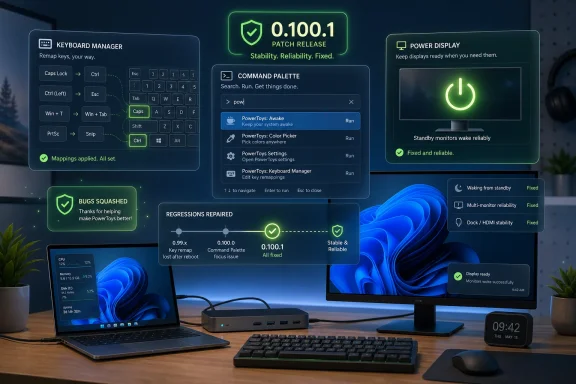 PowerToys Has Outgrown the Cute Utility Drawer
PowerToys began life as a playground for Windows enthusiasts, and that heritage still clings to it. The name suggests optional trinkets, the sort of things you install on a weekend machine because you enjoy fiddling. But the modern PowerToys suite is no longer just a collection of novelty helpers.For many Windows users, it has become the missing control surface for the operating system. FancyZones fills gaps in window management. Keyboard Manager rewires muscle memory. PowerToys Run and Command Palette compete with Start, search, and terminal habits. Power Display turns monitor controls from a physical nuisance into a software action.
That is why version 0.100.1 matters. A small update that fixes broken behavior in niche utilities would normally be a footnote. A small update that repairs keyboard remapping and monitor wake behavior is something else: it is a maintenance release for the unofficial power-user layer Microsoft now ships alongside Windows.
The irony is that PowerToys’ usefulness makes its fragility more visible. If a wallpaper tool crashes, users shrug. If a remapped key sends the wrong kind of input event, text editing can become unpredictable. If a monitor-control utility cannot wake a display, the feature stops being a convenience and starts becoming another thing to troubleshoot.
Version 0.100 Was a Milestone Without the Comfort of 1.0
The larger story begins with PowerToys 0.100.0, not 0.100.1. Microsoft used the 0.100 release to deliver a substantial wave of improvements: a redesigned Shortcut Guide, major Command Palette work, a new Extension Gallery, multi-monitor Dock support, and more improvements around Power Display. It was the sort of release that looked like a maturity marker, even if the version number carefully avoided the symbolic gravity of 1.0.That avoidance is telling. PowerToys is simultaneously polished enough to be recommended widely and experimental enough to carry the expectations of an open-source project. It ships through GitHub and the Microsoft Store. It has a public issue tracker and community contributors. It is a Microsoft product, but not quite a Windows component.
That hybrid identity gives PowerToys its strength. The team can move faster than Windows itself, add utilities that might never survive the politics of becoming first-class OS features, and respond to user reports with a cadence closer to developer tooling than consumer platform software. But it also means that regressions land closer to users.
Version 0.100.1 is the bill coming due after an ambitious update. The patch does not introduce a flagship feature or a new UI philosophy. It cleans up the behaviors that made 0.100.0 feel less dependable than the suite’s most loyal users need it to be.
Keyboard Manager Shows Why Input Bugs Are Never Small
The most alarming fix in 0.100.1 is in Keyboard Manager, where Microsoft corrected a bug involving modifier keys remapped to non-modifier keys. In plain English, a remapping such as Alt to Backspace could be delivered as a system-key event, producing unexpected behavior in applications. One reported consequence was deleting whole words instead of individual characters.That kind of bug cuts straight to the risk of PowerToys. Keyboard Manager exists because Windows users often need more control than the operating system provides by default. They want to neutralize a key they hit accidentally, bring a missing key to a compact keyboard, or make one machine feel like another. Once those remaps become part of daily muscle memory, they stop feeling optional.
Input remapping is also unforgiving. A monitor brightness slider can misbehave and annoy you. A launcher can fail and send you back to Start. A keyboard remapper that sends the wrong event can alter text, trigger shortcuts, or create subtle confusion in any application that interprets keyboard input differently.
This is where the “power user” label understates the problem. The people most likely to use Keyboard Manager are also the people most likely to have highly optimized workflows. Developers, writers, spreadsheet jockeys, sysadmins, gamers, and accessibility-minded users all rely on predictable input. When a key does something slightly different from what the user intended, the machine feels untrustworthy.
Microsoft’s fix is therefore more than a bug squash. It is a reaffirmation that PowerToys cannot treat low-level behavior as a side effect. Once the suite touches input, windows, monitors, and launch surfaces, it is operating in the same trust zone as the shell.
Power Display Is the Kind of Feature Windows Should Have Had Already
The Power Display fix is the most relatable one in the release. Microsoft corrected a bug where selecting “On” in the monitor power-state control did not wake a monitor from standby. It also fixed built-in display detection and brightness control on dual-GPU laptops where the internal panel is driven by the discrete GPU.That sounds technical until you picture the user. They have an external monitor with awkward buttons hidden under the bezel or around the back. They are using a laptop dock, perhaps with two or three screens. They want to adjust brightness, wake a display, or avoid fumbling through a monitor’s on-screen menu designed by someone who has apparently never used a monitor in the dark.
Power Display solves a very Windows problem: hardware support exists, standards exist, but the comfortable everyday control plane is missing or inconsistent. The utility gives users software flyouts for display management that the operating system itself has not fully normalized across monitor vendors and setups.
That is why the wake-from-standby bug stung. It broke the emotional contract of the feature. The promise of Power Display is that users should not have to reach behind the monitor. If the software “On” control cannot wake the panel, the user is back to poking at plastic buttons and wondering whether the display, cable, GPU, dock, driver, or Windows itself is to blame.
The dual-GPU laptop fix points to an even broader issue. Modern Windows machines are messy. Internal panels may be routed through integrated graphics or discrete GPUs. External monitors may hang off USB-C docks, Thunderbolt chains, HDMI ports, DisplayPort adapters, or vendor utilities. PowerToys sits above that complexity and tries to make it feel simple, which means its failures tend to expose just how complicated the stack underneath has become.
Command Palette Is Becoming a Second Shell
The Command Palette fixes in 0.100.1 are less dramatic individually but important collectively. Microsoft fixed Run history initialization in AOT builds, corrected a Performance Monitor dock item that could display placeholder question marks after restart, changed the Hibernate command to use the correct icon rather than the Sleep icon, and limited the “pin to dock” dialog to displays where the dock is enabled.These are not life-or-death bugs. They are polish bugs, state bugs, and trust bugs. They matter because Command Palette is not merely another launcher. Microsoft is positioning it as an extensible command surface, a place where installed extensions, system actions, search-like behavior, and docked controls can converge.
That ambition makes details matter. If a dock item shows question marks after restart, the user is reminded that the feature is still young. If a Hibernate command uses the Sleep icon, it blurs a distinction that matters to anyone managing power states. If pinning UI appears on displays where the dock is not enabled, the product feels less aware of the user’s configuration.
The broader tension is that Command Palette overlaps with territory Windows already claims. The Start menu launches apps. Windows Search finds files and settings. The taskbar pins what matters. The system tray exposes background tools. PowerToys’ Command Palette asks users to invest in a parallel interaction model, one closer to developer command palettes in editors like Visual Studio Code.
That model can be excellent, but only if it feels fast, coherent, and dependable. A command surface becomes habit-forming when it rewards trust. It becomes ignored when it looks like a science project.
The Suite Is Turning Into Microsoft’s Fast Lane for Windows Ideas
PowerToys has become an interesting workaround for Microsoft’s own Windows problem. Windows is too large, too widely deployed, and too politically constrained to absorb every good idea quickly. PowerToys gives Microsoft a faster lane.Need a better shortcut guide? Ship it in PowerToys. Need a more capable launcher? Build Command Palette. Need monitor controls that vendors have not made pleasant? Add Power Display. Need window tiling that advanced users actually want? FancyZones can evolve without waiting for a full shell redesign.
That fast lane comes with a cost. PowerToys features can feel native without carrying the same servicing expectations as native Windows features. They can become critical to a user’s workflow without being managed like core OS dependencies. The result is a slightly ambiguous product category: official, useful, public, fast-moving, and still somehow optional.
For enthusiasts, that ambiguity is part of the appeal. PowerToys has always felt like Windows with the guardrails lowered. For enterprise administrators, it is more complicated. Every utility that hooks input, manages windows, launches commands, or touches display behavior is another moving part to understand, package, allow, block, or support.
The 0.100.1 patch is a healthy sign in that context. It shows the project responding quickly to incoming reports after a major update. But it also underscores that PowerToys is no longer a toy chest. It is a living layer of Windows functionality, and its release quality now has consequences beyond hobbyist tinkering.
The Open-Source Feedback Loop Is Doing Real Work
One reason PowerToys can recover quickly from regressions is its public development model. Bugs are logged, discussed, fixed, and credited in the open. The 0.100.1 changelog names individual fixes and contributors across utilities, making the maintenance work visible rather than hiding it behind a generic “stability improvements” line.That visibility matters. Windows users are accustomed to opaque updates, especially when the operating system itself changes behavior without much plain-English explanation. PowerToys is different. Its GitHub-centered workflow lets users see the sausage being made, which can be reassuring even when the sausage briefly arrives undercooked.
There is a practical advantage too. PowerToys’ user base is unusually good at filing the sort of precise bug reports that matter. These are people who can say not just “my keyboard is weird,” but “modifier keys remapped to non-modifier keys are being delivered as system-key events.” That shortens the path between complaint and fix.
But transparency is not a substitute for stability. Open issue trackers can demonstrate responsiveness; they cannot undo the moment when a workflow breaks. The best version of PowerToys is one where the community feedback loop catches edge cases quickly without making users feel like unpaid QA for features they already rely on.
The Small Fixes Tell the Real Story
Beyond Keyboard Manager, Power Display, and Command Palette, version 0.100.1 includes a scatter of repairs that show how broad the suite has become. Color Picker received a fix for a bug where its main window could appear inside the zoomed-in picker view. PowerToys Run regained proper Visual Studio Code Workspaces discovery after VS Code moved recently opened workspace data to shared storage.Quick Access received a fix for flyout crashes caused by unhandled XAML exceptions during launch or page navigation. Shortcut Guide received crash fixes, improved number-key rendering in shortcut manifests, and updated bundled shortcut manifests so number keys render correctly across apps. ZoomIt received a fix for a race condition in audio initialization for video recording.
Read as a list, these are ordinary maintenance notes. Read as a map, they show PowerToys sprawled across the desktop experience. It touches color sampling, app launching, developer workspace discovery, shortcut education, UI frameworks, display controls, keyboard hooks, and screen recording.
That breadth is precisely why the suite is beloved. It is also why regressions are inevitable. PowerToys is not one app with one purpose; it is a federation of small tools operating near the seams of Windows. Seams are where users feel power, but they are also where bugs breed.
The best argument for PowerToys is that Microsoft is willing to improve those seams at all. The best argument for caution is that every seam-level enhancement carries the risk of snagging on real hardware, real apps, and real workflows.
Windows Users Keep Asking for the Same Thing: Control
The popularity of PowerToys says something uncomfortable about Windows. Users do not just want new features. They want control over annoyances that have persisted for years.They want keyboard behavior that matches their hands, not the hardware vendor’s layout. They want windows to land where they belong. They want monitors to behave without spelunking through OSD menus. They want launchers that respect power-user speed. They want shortcut discovery that does not require memorizing the entire OS by folklore.
PowerToys succeeds because it treats these wants as legitimate. It does not tell users to adapt to Windows; it lets Windows adapt to users. That is a subtle but important inversion for a platform that must serve everyone from home users to regulated enterprises.
The challenge is that customization raises the support burden. The more users can bend the system, the more ways there are for the system to surprise them. Microsoft’s job is not merely to provide toggles but to make the toggles predictable, reversible, and legible.
Version 0.100.1 is a maintenance release in service of that predictability. It is not glamorous. It is exactly the kind of release PowerToys needs more often if Microsoft wants the suite to keep expanding without eroding trust.
Administrators Should Treat PowerToys as Useful Software, Not Desktop Glitter
For IT departments, PowerToys occupies a strange position. It is Microsoft-branded and genuinely useful, but it is not a default Windows component. It can improve productivity, but it can also alter behavior in ways help desks must understand.The Keyboard Manager fix is the clearest example. If a user remaps keys and then sees unexpected behavior in Office, a browser, a terminal, or a remote session, the problem may not look like PowerToys at first. It may look like a broken app, a stuck key, a bad keyboard, or user error. That ambiguity costs time.
Power Display presents a different support angle. In a hybrid office or hot-desk environment, software monitor controls are attractive. They can reduce friction for people moving between docks and displays. But display power behavior is notoriously dependent on hardware, firmware, graphics drivers, and cabling, so administrators should expect uneven results across fleets.
This does not mean organizations should ban PowerToys reflexively. For technical teams, developers, support engineers, and power users, the productivity gains can be real. But PowerToys deserves the same treatment as other workflow-shaping software: version awareness, update testing where appropriate, and clear guidance about which utilities are supported internally.
The worst policy is pretending it does not matter. If users install PowerToys because it solves problems Windows has not solved for them, IT eventually inherits the support surface whether it approved the tool or not.
The Patch Notes Microsoft Should Be Happy to Publish
There is a temptation to treat bug-fix releases as embarrassing. In reality, PowerToys 0.100.1 is the kind of patch Microsoft should want users to notice. It suggests a project that is still moving, still listening, and still willing to clean up after itself quickly.That matters because the 0.100.0 release was ambitious. New Shortcut Guide work, Command Palette expansion, Extension Gallery support, Dock improvements, and Power Display changes are not trivial. When a project expands that many fronts at once, regressions are not surprising.
The question is whether the team responds before users lose faith. In this case, the answer appears to be yes. The release addresses specific pain points rather than hiding behind vague stability language, and it fixes problems in utilities that are central to why people install PowerToys in the first place.
There is also a branding lesson here. PowerToys does not need every release to be a headline-grabbing feature dump. As the suite matures, a boring patch can be more important than a flashy addition. Stability is now a feature.
The 0.100.1 Lesson Is Written in the Broken Shortcuts
PowerToys 0.100.1 is best understood as a confidence repair after a major release, not as a routine housekeeping update. The concrete lessons are simple, and they point toward a more mature future for the suite.- PowerToys 0.100.1 fixes regressions introduced or exposed around the larger 0.100.0 release rather than adding another wave of new features.
- Keyboard Manager users should update promptly if they rely on modifier-key remaps, because the fixed input-event behavior could affect everyday editing and shortcuts.
- Power Display users should update if monitor wake controls or brightness handling failed after the previous release, especially on more complex multi-monitor or dual-GPU setups.
- Command Palette remains one of the most strategically important PowerToys utilities, but its dock, history, and command-polish fixes show that it is still maturing.
- The release reinforces that PowerToys should be treated as productivity infrastructure by serious users and IT teams, not as a harmless bundle of desktop extras.
- Microsoft’s public changelog and GitHub-driven workflow remain one of PowerToys’ strengths, but quick fixes only matter if users keep the suite current.
References
- Primary source: Windows Central
Published: Wed, 24 Jun 2026 14:58:34 GMT
Loading…
www.windowscentral.com - Related coverage: pcworld.com
Microsoft PowerToys turns 20 and gets its best feature update yet | PCWorld
PowerToys is turning 20 and is getting a major update from Microsoft. It includes handy new features, a performance boost and many other improvements. All the details.www.pcworld.com - Official source: github.com
GitHub - microsoft/PowerToys: Microsoft PowerToys is a collection of utilities that supercharge productivity and customization on Windows · GitHub
Microsoft PowerToys is a collection of utilities that supercharge productivity and customization on Windows - microsoft/PowerToys github.com
- Related coverage: gigazine.net
Microsoft公式ツール集「PowerToys」のショートカットキー一覧機能が刷新される&コマンドパレットの拡張機能ギャラリーも登場 - GIGAZINE
Microsoft公式のWindows向け小技ツール集「PowerToys」のバージョン0.100が2026年6月9日にリリースされました。ショートカット一覧機能が刷新されたほか、コマンドパレットの拡張機能ギャラリーが追加されています。gigazine.net - Related coverage: alternativeto.net
Loading…
alternativeto.net - Related coverage: gitclear.com
Loading…
www.gitclear.com
- Official source: devblogs.microsoft.com
Loading…
devblogs.microsoft.com