
Microsoft began rolling out June 2026 Windows Insider updates for Windows 11’s built-in apps, including Calculator, Camera, Clock, Media Player, Notepad, Paint, Photos, and Sound Recorder, first in Experimental channels and later to Beta and Release Preview users. The headline is not that any one app has been transformed. It is that Microsoft is finally treating the inbox app layer as part of the operating system’s quality bar rather than as a collection of afterthoughts. For Windows users, that matters more than another splashy Copilot demo.
Windows has always lived or died by the little things. The Start menu gets the arguments, the taskbar gets the nostalgia, and Windows Update gets the blame, but the day-to-day texture of the OS is often defined by the apps that open without ceremony: Calculator, Notepad, Paint, Photos, Camera, Clock, Media Player, and whatever audio recorder Microsoft has decided to ship this decade.
That is why PCWorld’s report on these quiet Windows 11 app updates lands differently from a normal Insider changelog. None of the changes screams for a keynote. But taken together, they suggest Microsoft is doing something Windows 11 badly needs: sanding down the edges that make a modern OS feel less polished than it should.
This is not the return of the old Windows accessory golden age, if such a thing ever existed. It is a more pragmatic project. Microsoft is fixing inaccurate calculations, broken contrast behavior, camera controls that do not respect hardware capability, Photos crashes, Media Player caption settings, and Sound Recorder annoyances that should never have survived this long.
There is a lesson here for Redmond: users notice when the OS becomes more reliable in small places. They may not write thank-you notes for a fixed waveform display or a better QR-code fallback, but they do stop accumulating reasons to distrust the platform.
That matters because Calculator occupies a privileged role in Windows. Users do not open it expecting creativity, cloud services, AI assistance, or personalization. They expect arithmetic, consistency, and zero drama. If Microsoft cannot make that experience boring, it undermines confidence in the whole idea of Windows as a dependable productivity environment.
The accessibility fixes are just as important. Text in high-contrast themes now displays correctly, and right-to-left languages such as Arabic and Hebrew get properly oriented graph, keypad, equation, and scroll controls. These are not glamorous changes, but they are the difference between “Windows supports accessibility and localization” as a marketing line and Windows actually behaving properly for the people who rely on those settings.
The launch fix after upgrades from older versions is another classic Windows maintenance story. Old settings can outlive the app versions that created them, and when they do, the result is a user-facing failure that feels mysterious. Microsoft’s move here is less about Calculator than about the burden of Windows’ long memory.
Each fix sounds small until you imagine the user affected by it. A student recording a lecture over Bluetooth wants visual confirmation that audio is being captured. A journalist recording an interview does not want markers silently lost. A support worker deleting a batch of old recordings does not want a bogus “file does not exist” error because the app could not keep up with fast keyboard input.
The memory leak fix is the one administrators should notice. A recorder app is not normally the center of an enterprise software estate, but memory leaks in inbox apps are emblematic of a larger problem: Windows is full of components that may not be strategically important but still consume trust, resources, and help desk time when they misbehave.
This is the unsexy discipline of operating-system maintenance. Microsoft has spent years asking users to accept Windows 11 as a continually improving service. That promise only works if the improvements are not confined to the most marketable surfaces.
That is more than a convenience tweak. Windows PCs are no longer a monoculture of predictable hardware. Laptops, tablets, convertibles, external webcams, wide-angle sensors, and AI-enhanced camera stacks all coexist under the same operating-system brand. The built-in Camera app has to behave as a translation layer between that messy hardware reality and a user who just wants to frame their face properly.
The update also resolves a problem that blocked the front-facing camera on some wide-angle devices and exposes video resolutions that had previously been hidden, with warnings rather than silent removal. That is a healthier design philosophy. Users can make informed choices; the app does not need to pretend unsupported-looking options do not exist.
The QR-code fallback is another small but smart piece of design. If a scanned QR code points to something with no matching app, Windows now copies the link to the clipboard and notifies the user while still offering a Store search. That is the sort of detail that respects the user’s task instead of forcing the user into Microsoft’s preferred funnel.
On one hand, watermarking is an admission that AI-edited media needs provenance cues. Microsoft wants Windows to participate in a world where generated and altered images are ordinary, but it also knows that ordinary users, workplaces, schools, and publishers need a way to signal how an image was made. A visible watermark is blunt, but blunt tools sometimes work.
On the other hand, leaving it off by default weakens the civic value of the feature. Microsoft can say it has given users a disclosure mechanism, but the people most likely to misuse generated images are also the least likely to turn on a watermark voluntarily. The feature is therefore less a guardrail than a courtesy for users who already care about labeling their work.
The rest of the Photos update is more operational and, arguably, more important. Tiny images and pixel art now zoom more cleanly instead of turning into blur. Detected text in images can be navigated and selected with the keyboard. A crash during text recognition has been fixed, and keyboard navigation no longer wastes tab stops on hidden controls.
Those changes are less visible than AI watermarking, but they make Photos feel more like a serious default viewer and less like a shell for whatever Microsoft’s current image strategy happens to be. Windows users have long complained that the Photos app is slower and more intrusive than it needs to be. Better small-image handling, keyboard access, and crash recovery are moves in the right direction.
This update is not one big leap; it is a cleanup pass. Adjustable eraser transparency gives users finer editing control. Stamp-style brushes should show fewer color shifts and artifacts. Rotated JPEGs now save in place instead of unexpectedly prompting “Save As.” Damaged images produce a clear error rather than crashing the app.
The classic selection behavior restoration is a small act of respect for muscle memory. Hiding the selection outline while moving, resizing, or rotating mirrors the old Paint behavior. That matters because Paint is not just another app; it is one of Windows’ oldest tactile memories. Modernizing it without making it feel alien is the entire challenge.
Notepad’s update is similarly modest but important. Improved launch performance is the sort of phrase that should be pinned to every Windows app roadmap. Notepad exists because users need a text window now, not after a framework finishes introducing itself.
The fixes around incorrectly displayed plain-text files, lingering spell-check underlines, Find/Replace helper tips, indentation inheritance, a Visual Studio paste crash, and Ctrl+A conflicts on Spanish and Portuguese keyboard layouts all point to the same truth. Notepad is no longer just a bare text box, but it cannot afford to become a fussy editor. Every added feature must be measured against the original promise: instant, predictable text.
For a media app, clarity often matters more than capability. Users can forgive a missing codec if the app explains what happened and what to do next. They are less forgiving when a file silently fails or a library looks empty because indexing is still happening somewhere in the background.
Clock is more feature-rich than expected. Timers can keep counting after they hit zero, alarms gain a 15-minute snooze option, Focus Sessions can be used without setting a daily goal, and the Countdown Widget supports three simultaneous countdowns. World Clock comparison behavior and location naming have also been cleaned up, including fixes for oddities like polar-region sun and moon icons and Newfoundland’s time zone.
The Clock changes are easy to dismiss until you remember how often Windows utility apps are used in professional routines. Timers, alarms, focus sessions, and time-zone comparisons all sit inside real workflows. A sysadmin coordinating a maintenance window, a remote worker timing a presentation, or a parent keeping track of school pickup does not think of Clock as a “feature.” They think of it as infrastructure.
This is where Microsoft’s modern app release notes matter. By giving inbox apps their own visible update trail in the Windows Insider documentation flow, Microsoft is acknowledging that these apps are not static accessories. They are continuously shipped components with their own defects, regressions, and user expectations.
For enthusiasts, that is annoying. For administrators, it is a fleet-management variable. For support teams, it can turn a simple instruction like “open Photos and choose this setting” into a compatibility check. The more Microsoft improves inbox apps independently, the more it must help users and IT departments understand which version is actually present.
The June app updates appear to have moved from Experimental channels to Beta and Release Preview for many of the same app versions, which suggests Microsoft sees them as relatively mature. But Insider availability is still not general availability, and Windows app rollouts can be staggered by Store delivery, region, account state, and feature flags. The safest assumption is that these improvements are coming, not that every Windows 11 machine already has them.
This is the new Windows cadence in its purest form. The OS is not one thing delivered once a year. It is a base platform, a servicing pipeline, a Store app collection, cloud-connected features, feature flags, and hardware-specific enablement. That model lets Microsoft move faster, but it also makes Windows harder to explain.
The upside is that long-standing irritations can be fixed without ceremony. The downside is that the Windows experience becomes less deterministic. A user may read that Camera has a smarter zoom slider and then find that their device, channel, or app version does not yet show it.
But it would be too generous to call this a full course correction. The same Windows 11 era that gives users better Paint brushes and Calculator fixes also pushes Microsoft account prompts, cloud hooks, Copilot branding, and design churn that many users never asked for. The inbox app improvements reduce friction; they do not resolve the deeper tension over who Windows is being optimized for.
The Photos watermark setting is a perfect example. It is genuinely useful, but it also exists because Microsoft is embedding AI capabilities into user-facing workflows faster than the norms around disclosure have settled. The feature is both a fix and a symptom.
Likewise, Media Player’s improved codec messaging is welcome, but it does not erase years of confusion around Microsoft’s media strategy. Paint’s revival is fun and useful, but its AI panel cleanup reminds us that even beloved legacy apps are now vehicles for broader platform bets. The maintenance is real; so is the agenda.
That is not necessarily bad. Operating systems have always carried vendor strategy inside default apps. The difference now is that the strategy changes faster, updates arrive more quietly, and users often discover changes after the fact.
This is the work Windows 11 needs more of. The operating system is mature enough that major interface overhauls often create as many complaints as compliments. What users increasingly want is for the existing pieces to behave better, launch faster, explain themselves more clearly, and respect accessibility, localization, and hardware variation.
For IT pros, these app updates are worth tracking precisely because they are not dramatic. Quiet changes to default apps can affect training material, support scripts, accessibility accommodations, and user expectations. A small Camera change may matter to conference-room devices. A Notepad keyboard-layout fix may matter to multilingual teams. A Photos OCR crash fix may matter to anyone using Windows as a document triage tool.
For Windows enthusiasts, the update is also a useful reminder that “built-in” does not mean “finished.” The inbox app layer is now a living part of Windows. That can be messy, but it also means old annoyances are not necessarily permanent.
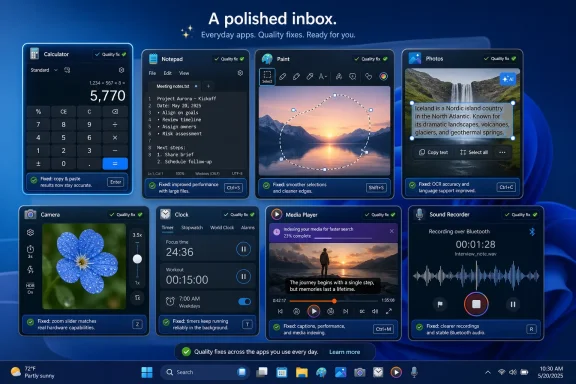 Microsoft Finds the Story in the Apps Everyone Forgot
Windows has always lived or died by the little things. The Start menu gets the arguments, the taskbar gets the nostalgia, and Windows Update gets the blame, but the day-to-day texture of the OS is often defined by the apps that open without ceremony: Calculator, Notepad, Paint, Photos, Camera, Clock, Media Player, and whatever audio recorder Microsoft has decided to ship this decade.That is why PCWorld’s report on these quiet Windows 11 app updates lands differently from a normal Insider changelog. None of the changes screams for a keynote. But taken together, they suggest Microsoft is doing something Windows 11 badly needs: sanding down the edges that make a modern OS feel less polished than it should.
This is not the return of the old Windows accessory golden age, if such a thing ever existed. It is a more pragmatic project. Microsoft is fixing inaccurate calculations, broken contrast behavior, camera controls that do not respect hardware capability, Photos crashes, Media Player caption settings, and Sound Recorder annoyances that should never have survived this long.
There is a lesson here for Redmond: users notice when the OS becomes more reliable in small places. They may not write thank-you notes for a fixed waveform display or a better QR-code fallback, but they do stop accumulating reasons to distrust the platform.
Calculator Is a Small App With an Outsized Trust Problem
The Calculator update is a useful place to start because it exposes the stakes in miniature. A bug where a square-root calculation that should resolve to zero instead leaves a microscopic residual value is not the sort of issue that ruins most people’s day. But it is exactly the sort of thing that makes a utility app feel less like a tool and more like a guess.That matters because Calculator occupies a privileged role in Windows. Users do not open it expecting creativity, cloud services, AI assistance, or personalization. They expect arithmetic, consistency, and zero drama. If Microsoft cannot make that experience boring, it undermines confidence in the whole idea of Windows as a dependable productivity environment.
The accessibility fixes are just as important. Text in high-contrast themes now displays correctly, and right-to-left languages such as Arabic and Hebrew get properly oriented graph, keypad, equation, and scroll controls. These are not glamorous changes, but they are the difference between “Windows supports accessibility and localization” as a marketing line and Windows actually behaving properly for the people who rely on those settings.
The launch fix after upgrades from older versions is another classic Windows maintenance story. Old settings can outlive the app versions that created them, and when they do, the result is a user-facing failure that feels mysterious. Microsoft’s move here is less about Calculator than about the burden of Windows’ long memory.
Sound Recorder Shows Why Small Bugs Feel Big
Sound Recorder’s update is even more revealing because it deals in irritations rather than marquee features. The live waveform now displays correctly when recording through Bluetooth microphones. A useless horizontal scrollbar no longer appears unless the user has zoomed in. The Mark button no longer looks disabled until hover. WAV recordings no longer expose markers that the format cannot preserve.Each fix sounds small until you imagine the user affected by it. A student recording a lecture over Bluetooth wants visual confirmation that audio is being captured. A journalist recording an interview does not want markers silently lost. A support worker deleting a batch of old recordings does not want a bogus “file does not exist” error because the app could not keep up with fast keyboard input.
The memory leak fix is the one administrators should notice. A recorder app is not normally the center of an enterprise software estate, but memory leaks in inbox apps are emblematic of a larger problem: Windows is full of components that may not be strategically important but still consume trust, resources, and help desk time when they misbehave.
This is the unsexy discipline of operating-system maintenance. Microsoft has spent years asking users to accept Windows 11 as a continually improving service. That promise only works if the improvements are not confined to the most marketable surfaces.
Camera Becomes a Better Citizen of Real Hardware
The Camera app changes are practical in the way webcam fixes usually are: they solve problems people discover five minutes before a call. The new or improved zoom slider works on more recent cameras, respects system zoom settings, and reflects changes immediately. Microsoft also fixed cases where the slider exposed only three zoom steps on devices that supported finer increments.That is more than a convenience tweak. Windows PCs are no longer a monoculture of predictable hardware. Laptops, tablets, convertibles, external webcams, wide-angle sensors, and AI-enhanced camera stacks all coexist under the same operating-system brand. The built-in Camera app has to behave as a translation layer between that messy hardware reality and a user who just wants to frame their face properly.
The update also resolves a problem that blocked the front-facing camera on some wide-angle devices and exposes video resolutions that had previously been hidden, with warnings rather than silent removal. That is a healthier design philosophy. Users can make informed choices; the app does not need to pretend unsupported-looking options do not exist.
The QR-code fallback is another small but smart piece of design. If a scanned QR code points to something with no matching app, Windows now copies the link to the clipboard and notifies the user while still offering a Store search. That is the sort of detail that respects the user’s task instead of forcing the user into Microsoft’s preferred funnel.
Photos Makes AI Disclosure Optional, Which Is Both Useful and Awkward
Photos gets the update most likely to attract attention: visible Copilot watermarking for AI-generated or AI-edited images. The setting can be configured as Never, Always, or Ask Every Time, with confirmation when saving, and it is off by default. That combination tells us a lot about Microsoft’s balancing act.On one hand, watermarking is an admission that AI-edited media needs provenance cues. Microsoft wants Windows to participate in a world where generated and altered images are ordinary, but it also knows that ordinary users, workplaces, schools, and publishers need a way to signal how an image was made. A visible watermark is blunt, but blunt tools sometimes work.
On the other hand, leaving it off by default weakens the civic value of the feature. Microsoft can say it has given users a disclosure mechanism, but the people most likely to misuse generated images are also the least likely to turn on a watermark voluntarily. The feature is therefore less a guardrail than a courtesy for users who already care about labeling their work.
The rest of the Photos update is more operational and, arguably, more important. Tiny images and pixel art now zoom more cleanly instead of turning into blur. Detected text in images can be navigated and selected with the keyboard. A crash during text recognition has been fixed, and keyboard navigation no longer wastes tab stops on hidden controls.
Those changes are less visible than AI watermarking, but they make Photos feel more like a serious default viewer and less like a shell for whatever Microsoft’s current image strategy happens to be. Windows users have long complained that the Photos app is slower and more intrusive than it needs to be. Better small-image handling, keyboard access, and crash recovery are moves in the right direction.
Paint and Notepad Keep Becoming Real Modern Apps
Paint’s June update continues one of the stranger late-career revivals in Windows history. Once the punchline of basic image editing, Paint has gradually become a surprisingly capable lightweight editor, with layers, AI-adjacent features, and modern UI work layered on top of the familiar canvas metaphor.This update is not one big leap; it is a cleanup pass. Adjustable eraser transparency gives users finer editing control. Stamp-style brushes should show fewer color shifts and artifacts. Rotated JPEGs now save in place instead of unexpectedly prompting “Save As.” Damaged images produce a clear error rather than crashing the app.
The classic selection behavior restoration is a small act of respect for muscle memory. Hiding the selection outline while moving, resizing, or rotating mirrors the old Paint behavior. That matters because Paint is not just another app; it is one of Windows’ oldest tactile memories. Modernizing it without making it feel alien is the entire challenge.
Notepad’s update is similarly modest but important. Improved launch performance is the sort of phrase that should be pinned to every Windows app roadmap. Notepad exists because users need a text window now, not after a framework finishes introducing itself.
The fixes around incorrectly displayed plain-text files, lingering spell-check underlines, Find/Replace helper tips, indentation inheritance, a Visual Studio paste crash, and Ctrl+A conflicts on Spanish and Portuguese keyboard layouts all point to the same truth. Notepad is no longer just a bare text box, but it cannot afford to become a fussy editor. Every added feature must be measured against the original promise: instant, predictable text.
Media Player and Clock Reveal the New Maintenance Model
Media Player’s update is another case where Microsoft is not trying to win hearts so much as reduce friction. Caption customization now ties into Windows caption settings, with a quick path to those controls. A new indexing banner explains why media library items may not appear yet. File recognition improves, missing-codec messaging gets clearer, and playlists can no longer be saved without names.For a media app, clarity often matters more than capability. Users can forgive a missing codec if the app explains what happened and what to do next. They are less forgiving when a file silently fails or a library looks empty because indexing is still happening somewhere in the background.
Clock is more feature-rich than expected. Timers can keep counting after they hit zero, alarms gain a 15-minute snooze option, Focus Sessions can be used without setting a daily goal, and the Countdown Widget supports three simultaneous countdowns. World Clock comparison behavior and location naming have also been cleaned up, including fixes for oddities like polar-region sun and moon icons and Newfoundland’s time zone.
The Clock changes are easy to dismiss until you remember how often Windows utility apps are used in professional routines. Timers, alarms, focus sessions, and time-zone comparisons all sit inside real workflows. A sysadmin coordinating a maintenance window, a remote worker timing a presentation, or a parent keeping track of school pickup does not think of Clock as a “feature.” They think of it as infrastructure.
This is where Microsoft’s modern app release notes matter. By giving inbox apps their own visible update trail in the Windows Insider documentation flow, Microsoft is acknowledging that these apps are not static accessories. They are continuously shipped components with their own defects, regressions, and user expectations.
The Store-App Operating System Has Finally Arrived
Windows 11’s built-in apps live in an awkward place. They feel like part of the operating system, but many of them update like Store apps. That split has advantages: Microsoft can patch Photos, Paint, or Sound Recorder without waiting for a full OS feature release. It also has drawbacks: two Windows 11 PCs on the same OS build may still have materially different inbox app versions.For enthusiasts, that is annoying. For administrators, it is a fleet-management variable. For support teams, it can turn a simple instruction like “open Photos and choose this setting” into a compatibility check. The more Microsoft improves inbox apps independently, the more it must help users and IT departments understand which version is actually present.
The June app updates appear to have moved from Experimental channels to Beta and Release Preview for many of the same app versions, which suggests Microsoft sees them as relatively mature. But Insider availability is still not general availability, and Windows app rollouts can be staggered by Store delivery, region, account state, and feature flags. The safest assumption is that these improvements are coming, not that every Windows 11 machine already has them.
This is the new Windows cadence in its purest form. The OS is not one thing delivered once a year. It is a base platform, a servicing pipeline, a Store app collection, cloud-connected features, feature flags, and hardware-specific enablement. That model lets Microsoft move faster, but it also makes Windows harder to explain.
The upside is that long-standing irritations can be fixed without ceremony. The downside is that the Windows experience becomes less deterministic. A user may read that Camera has a smarter zoom slider and then find that their device, channel, or app version does not yet show it.
Quiet Fixes Are Not a Substitute for Coherence
There is a temptation to treat this batch of updates as evidence that Microsoft has rediscovered restraint. After years of aggressive Windows 11 promotion around AI, widgets, accounts, cloud integration, and recommendations, here comes a set of practical fixes that simply make the default apps better. That is encouraging.But it would be too generous to call this a full course correction. The same Windows 11 era that gives users better Paint brushes and Calculator fixes also pushes Microsoft account prompts, cloud hooks, Copilot branding, and design churn that many users never asked for. The inbox app improvements reduce friction; they do not resolve the deeper tension over who Windows is being optimized for.
The Photos watermark setting is a perfect example. It is genuinely useful, but it also exists because Microsoft is embedding AI capabilities into user-facing workflows faster than the norms around disclosure have settled. The feature is both a fix and a symptom.
Likewise, Media Player’s improved codec messaging is welcome, but it does not erase years of confusion around Microsoft’s media strategy. Paint’s revival is fun and useful, but its AI panel cleanup reminds us that even beloved legacy apps are now vehicles for broader platform bets. The maintenance is real; so is the agenda.
That is not necessarily bad. Operating systems have always carried vendor strategy inside default apps. The difference now is that the strategy changes faster, updates arrive more quietly, and users often discover changes after the fact.
The Real Win Is Fewer Moments Where Windows Gets in the Way
The strongest case for these updates is not that Microsoft added features. It is that Microsoft removed little moments of resistance. A calculator result that makes sense. A camera zoom slider that reflects real hardware. A recorder that does not leak memory or pretend a WAV file can save markers. A media player that explains indexing. A Photos app that does not crash while recognizing text.This is the work Windows 11 needs more of. The operating system is mature enough that major interface overhauls often create as many complaints as compliments. What users increasingly want is for the existing pieces to behave better, launch faster, explain themselves more clearly, and respect accessibility, localization, and hardware variation.
For IT pros, these app updates are worth tracking precisely because they are not dramatic. Quiet changes to default apps can affect training material, support scripts, accessibility accommodations, and user expectations. A small Camera change may matter to conference-room devices. A Notepad keyboard-layout fix may matter to multilingual teams. A Photos OCR crash fix may matter to anyone using Windows as a document triage tool.
For Windows enthusiasts, the update is also a useful reminder that “built-in” does not mean “finished.” The inbox app layer is now a living part of Windows. That can be messy, but it also means old annoyances are not necessarily permanent.
June’s Inbox-App Sweep Leaves a Clearer Map of Windows 11’s Priorities
Microsoft’s June 2026 app updates are not a revolution, but they give users and admins several concrete signals about where Windows 11 maintenance is headed.- Microsoft is treating inbox apps as continuously serviced Windows components rather than static accessories that only change during major OS releases.
- The most valuable fixes are practical ones, including Calculator accuracy, Sound Recorder reliability, Camera hardware behavior, Photos keyboard access, and Media Player error clarity.
- Accessibility and localization are not side notes in this update, with high-contrast, screen-reader, right-to-left layout, keyboard-navigation, and regional time fixes spread across multiple apps.
- AI remains part of the default-app story, but Photos watermarking shows Microsoft is at least beginning to expose user-facing controls around AI-edited output.
- The Store-style delivery model gives Microsoft speed, but it also means app version drift will remain a real support issue for Windows 11 fleets.
- The update’s importance lies less in any single feature than in the cumulative effect of making common Windows tools feel less brittle.
References
- Primary source: PCWorld
Published: Fri, 26 Jun 2026 15:28:00 GMT
Loading…
www.pcworld.com - Related coverage: windowscentral.com
Windows 11's built-in apps are about to get a boost — here's what's already in testing | Windows Central
Calculator, Camera, Clock, Media Player, Paint, Photos, and Sound Recorder all have new features and improvements on the way.www.windowscentral.com - Official source: blogs.windows.com
Loading…
blogs.windows.com - Related coverage: berrall.com
Microsoft reveals Windows 11’s Media Player isn’t dead, but Legacy still opens videos instantly - Peer Networks UK
Wales & West leading provider of PC repairs & IT support for home & business. Peer Networks delivers prompt, no fuss, PC repair services to customers.www.berrall.com
- Related coverage: windowslatest.com
I tested Windows 11 June 2026 Updates: Here's everything new, improved, and fixed
Windows 11 June 2026 Patch Tuesday update brings Low Latency Profile, Shared Audio, Multi-App Camera, NPU tracking, and Secure Boot updates. www.windowslatest.com
- Related coverage: computerworld.com
Loading…
www.computerworld.com
- Official source: microsoft.com
Loading…
www.microsoft.com - Related coverage: windowsforum.com
Windows 11 June 2026 Insider Updates Improve Calculator, Photos, Paint & More | Windows Forum
Microsoft is testing June 2026 updates for seven Windows 11 in-box apps — Calculator, Camera, Clock, Media Player, Paint, Photos, and Sound Recorder — in...windowsforum.com - Related coverage: thurrott.com
Windows Insiders Are Getting Big Windows 11 In-Box App Updates - Thurrott.com
Microsoft is now documenting the Windows 11 in-box app updates it's making through the Windows Insider Program and there are some big changes.www.thurrott.com - Related coverage: techradar.com
Windows 11's June update is here — these are the 3 most important features, including a huge move to make apps and menus load much faster | TechRadar
Low Latency Profile, shared audio, and a boost for searchwww.techradar.com