

Virtualization-Based Security in Windows 11 can be disabled by turning off Memory Integrity, disabling VBS policy or registry settings, preventing the Windows hypervisor from launching, removing virtualization-dependent Windows features, and, in stubborn cases, disabling CPU virtualization in UEFI firmware. The important word is can, because VBS is not a single switch so much as a stack of related protections, boot settings, policies, and hardware capabilities. That is why one user toggles Memory Integrity off and sees “Not enabled” after a reboot, while another follows the same advice and finds VBS still running. The real lesson is that disabling VBS is less a tweak than a decision to trade one layer of Windows 11’s security model for performance, compatibility, or control.
VBS exists because Microsoft no longer trusts the traditional Windows kernel to be the final line of defense. Instead, Windows uses hardware virtualization to create a protected memory region that is isolated from the main operating system. Security features can then run inside that guarded space, where malware that compromises the normal kernel has a much harder time tampering with them.
The most visible consumer-facing piece of this is Memory Integrity, also known as Hypervisor-Protected Code Integrity, or HVCI. It is the setting exposed through Windows Security under Core isolation, and it helps block untrusted or vulnerable kernel-mode code from loading. That matters because bad drivers remain one of the messiest ways attackers, anti-cheat systems, hardware utilities, and poorly maintained software collide with Windows internals.
But VBS is not just Memory Integrity. Credential Guard, Windows Defender Application Guard, Hyper-V, Windows Sandbox, Virtual Machine Platform, and some enterprise policies can all touch the same underlying virtualization machinery. That is why “disable VBS” guides often look like a pile of unrelated fixes: they are attacking different doors into the same protected room.
For enthusiasts, this design can feel hostile. For administrators, it is the point. If a protection is valuable only until the first installer, benchmark script, or local admin account flips it off, it is not much of a protection in the enterprise. Microsoft’s security posture in Windows 11 assumes that the operating system should be able to keep some promises even when the rest of the machine is messy.
The number that gets repeated most often is a performance drop somewhere in the single digits to low teens. That range is plausible, but it is not universal. The hit depends on the CPU generation, firmware configuration, graphics bottleneck, game engine, storage path, driver stack, Windows build, and whether the system is already constrained somewhere else.
On a modern desktop with a strong GPU, a game running at high resolution may barely move because the graphics card is the limiting factor. On a CPU-bound esports title chasing extremely high frame rates, the same security stack may be more noticeable. On older laptops and handheld gaming PCs, the overhead can feel larger because there is less thermal and CPU headroom to hide it.
The mistake is treating VBS as the villain in every frame-time graph. Windows 11 performance problems can also come from driver regressions, firmware bugs, background overlays, anti-cheat software, RGB utilities, storage encryption, power profiles, and plain old Windows Update weirdness. Disabling VBS may help, but it should be tested as a controlled change rather than performed as ritual.
If it says
This check matters because Windows has several similarly named settings. A machine can have CPU virtualization enabled in firmware while VBS is not running. A machine can have Hyper-V components installed while Memory Integrity is off. A machine can also report VBS as running even after you disable the obvious toggle, because another policy or Windows feature is still pulling the hypervisor into the boot path.
After every method below, reboot before checking again. VBS is tied to early boot behavior, so a setting that looks changed inside Windows may not be reflected in System Information until the next startup.
For many home users, that is enough. Memory Integrity is often the visible feature keeping VBS active, and disabling it removes the most common consumer-facing reason for the hypervisor-protected code integrity stack to run. After the reboot, return to System Information and check whether
If Windows refuses to let you turn Memory Integrity off, the problem may be policy, device management, or a work/school configuration. If the toggle is missing, greyed out, or replaced by a message saying the setting is managed by your organization, do not fight the machine blindly. That usually means a local or mobile device management policy is in charge.
This is also where driver compatibility enters the picture. Memory Integrity is often discussed as though it exists only to cost frames per second, but it also blocks classes of driver behavior that Microsoft considers unsafe. If turning it off fixes an old utility, capture card, anti-cheat package, or hardware monitor, that may be useful information — but it is also evidence that the software was depending on kernel access Windows is trying to discourage.
Open
Windows 11 Home does not include the Group Policy Editor in the normal supported way. There are unofficial workarounds that attempt to enable it, but using those to modify security policy on a consumer PC is an unnecessary detour. If you are on Home, use Windows Security, Registry Editor, Windows features, and boot configuration instead.
On managed PCs, this setting may be overwritten after reboot or after the next policy refresh. That is not a bug. If Intune, Group Policy, or another management layer requires VBS, the local machine is not the final authority. The correct answer on a work or school PC is to ask the administrator, not to keep escalating through hacks until the device falls out of compliance.
The procedure is straightforward but unforgiving. Open Registry Editor as an administrator, navigate to the DeviceGuard key, create
Some systems also have scenario-specific subkeys under DeviceGuard, including entries related to Hypervisor-Enforced Code Integrity. That is one reason registry-only guides can be inconsistent: they may set the top-level VBS value while leaving a scenario, policy, or boot condition intact elsewhere.
The registry is best understood as one layer in the stack, not the master key. If VBS remains running after this change, do not assume the edit failed. Assume something else is still asking Windows to launch the hypervisor or enforce a virtualization-backed security service.
This works because VBS depends on the Windows hypervisor. If the hypervisor does not launch, VBS cannot run in its usual form. That makes the command powerful, but it also makes it blunt.
The side effect is that other hypervisor-dependent features may stop working. Windows Subsystem for Linux 2, Windows Sandbox, Hyper-V virtual machines, parts of Android or container workflows, some emulator configurations, and security features that expect virtualization support can all be affected. If your PC doubles as a dev box, lab machine, malware-analysis VM host, or Android emulator system, this command may solve one problem by creating three others.
There is a clean logic to trying this after the Windows Security and policy approaches. The toggle says, “Do not use this protection.” The policy says, “Do not configure this protection.” BCDEdit says, “Do not start the machinery that makes this class of protection possible.” That is why it often succeeds where prettier settings do not.
Unchecking those features and rebooting can help remove the remaining reasons Windows has to initialize virtualization services. This is especially relevant for people who previously installed WSL2, Docker Desktop, Android emulators, Hyper-V labs, or sandboxing tools and later forgot those dependencies existed.
The catch is obvious: disabling these features disables the workflows that require them. WSL2 may fall back poorly or stop working. Hyper-V VMs will not start. Sandbox will disappear. Docker configurations that rely on the Windows virtualization stack may need reconfiguration.
This is where users should stop and decide what the machine is for. A dedicated gaming desktop can afford to be ruthless. A workstation that runs containers by day and games by night may need separate boot entries, different profiles, or simply an acceptance that a few percentage points of performance are the cost of keeping the machine versatile.
Disabling that setting prevents Windows from using hardware virtualization in the first place. It is effective because it removes the hardware foundation VBS needs. It is also the least elegant solution because it affects the entire machine, not just one Windows security feature.
Once firmware virtualization is off, virtual machines, WSL2, many emulators, some security products, and development tools that depend on virtualization will fail or degrade. On some systems, firmware menus also expose related settings such as VT-d or IOMMU; changing these without understanding the platform can create confusing side effects for device assignment, virtualization, and security.
This option should be reserved for machines with a narrow purpose: gaming rigs, benchmark systems, older PCs fighting compatibility problems, or lab boxes where the user explicitly wants the hypervisor gone. It is not a great default for a general-purpose Windows 11 laptop in 2026.
The reliable loop is simple: change one thing, reboot, open System Information, and check the VBS row. If it still says
That last instruction is important. Many users keep disabling features after they have already accomplished the goal, and then discover later that WSL, Sandbox, Docker, Hyper-V, or a credential-protection feature no longer works. Minimal change is not just safer; it makes troubleshooting reversible.
It is also wise to record what you changed. A text file with the date, the setting, and the command used is enough. Three months later, when a Windows feature update re-enables something or a new app needs the hypervisor, you will not have to reverse-engineer your own tweaks.
That is why performance-sensitive users should recheck System Information after major Windows updates, BIOS updates, clean GPU driver installations, and enabling features like WSL, Sandbox, Hyper-V, or Application Guard. If a sudden performance drop follows one of those events, VBS should be on the diagnostic list.
Enterprise devices are more predictable but less negotiable. If a policy mandates VBS, local changes may work briefly, fail immediately, or be reversed silently. Administrators generally prefer that outcome because it preserves the security baseline; users generally hate it because it makes the PC feel like it is ignoring them.
The tension is not going away. Microsoft’s trajectory is toward more hardware-backed isolation, not less. The consumer interface may change, but the security model underneath Windows 11 is increasingly built around virtualization as a normal part of the operating system.
But it does mean the system has given up one of the more modern defenses against attacks that abuse privileged code. The risk is highest on machines that store sensitive data, use administrator accounts casually, install unsigned or obscure drivers, run pirated software, handle work credentials, or browse and download aggressively. In other words, the risk rises exactly on the kinds of PCs where users often want maximum flexibility.
For a dedicated gaming machine with no work data, no saved browser passwords of consequence, and a disciplined owner, the trade may be acceptable. For a laptop that signs into corporate resources, stores tax documents, syncs cloud drives, and travels through hostile networks, disabling VBS to gain a marginal performance improvement is harder to justify.
This is the part many tuning guides underplay. Performance is easy to benchmark; avoided compromise is not. A security feature looks like overhead every day until the day it blocks something you never see.
Open System Information first. Turn off Memory Integrity. Reboot and check again. If VBS remains running, use Group Policy on supported editions or the DeviceGuard registry value. Reboot and check again. If it still persists, disable hypervisor launch with BCDEdit and remove virtualization-dependent Windows features you do not use. Reboot and check again. Only then consider firmware virtualization.
This sequence respects both sides of the issue. It gives gamers and performance-sensitive users a real route to a leaner Windows configuration, while avoiding needless damage to development, virtualization, and security workflows. It also acknowledges that Windows 11 is not a single-control-panel operating system anymore; it is a layered platform where settings, policies, boot configuration, firmware, and cloud management can all have a vote.
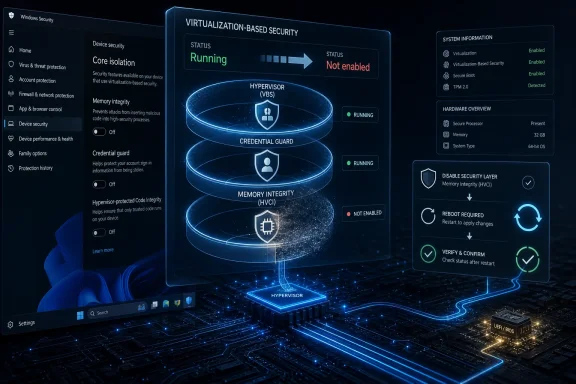 Microsoft Built VBS to Be Harder to Escape Than a Settings Toggle
VBS exists because Microsoft no longer trusts the traditional Windows kernel to be the final line of defense. Instead, Windows uses hardware virtualization to create a protected memory region that is isolated from the main operating system. Security features can then run inside that guarded space, where malware that compromises the normal kernel has a much harder time tampering with them.The most visible consumer-facing piece of this is Memory Integrity, also known as Hypervisor-Protected Code Integrity, or HVCI. It is the setting exposed through Windows Security under Core isolation, and it helps block untrusted or vulnerable kernel-mode code from loading. That matters because bad drivers remain one of the messiest ways attackers, anti-cheat systems, hardware utilities, and poorly maintained software collide with Windows internals.
But VBS is not just Memory Integrity. Credential Guard, Windows Defender Application Guard, Hyper-V, Windows Sandbox, Virtual Machine Platform, and some enterprise policies can all touch the same underlying virtualization machinery. That is why “disable VBS” guides often look like a pile of unrelated fixes: they are attacking different doors into the same protected room.
For enthusiasts, this design can feel hostile. For administrators, it is the point. If a protection is valuable only until the first installer, benchmark script, or local admin account flips it off, it is not much of a protection in the enterprise. Microsoft’s security posture in Windows 11 assumes that the operating system should be able to keep some promises even when the rest of the machine is messy.
The Performance Debate Is Real, but It Is Often Oversold
The case for disabling VBS usually begins with performance, especially gaming performance. That is not imaginary. VBS and Memory Integrity can impose overhead because Windows is doing more work around code integrity, virtualization boundaries, and kernel protections than it would on a leaner configuration.The number that gets repeated most often is a performance drop somewhere in the single digits to low teens. That range is plausible, but it is not universal. The hit depends on the CPU generation, firmware configuration, graphics bottleneck, game engine, storage path, driver stack, Windows build, and whether the system is already constrained somewhere else.
On a modern desktop with a strong GPU, a game running at high resolution may barely move because the graphics card is the limiting factor. On a CPU-bound esports title chasing extremely high frame rates, the same security stack may be more noticeable. On older laptops and handheld gaming PCs, the overhead can feel larger because there is less thermal and CPU headroom to hide it.
The mistake is treating VBS as the villain in every frame-time graph. Windows 11 performance problems can also come from driver regressions, firmware bugs, background overlays, anti-cheat software, RGB utilities, storage encryption, power profiles, and plain old Windows Update weirdness. Disabling VBS may help, but it should be tested as a controlled change rather than performed as ritual.
First, Prove VBS Is Actually Running
Before changing anything, check the current state. Press Start, typeSystem Information, and open the app. In the default System Summary view, scroll down to the row named Virtualization-based security.If it says
Running, VBS is active. If it says Not enabled, then VBS is already off, and your performance or compatibility issue is coming from somewhere else. You may also see supporting rows that describe which VBS services are configured or running, which can provide clues about whether Memory Integrity, Credential Guard, or another component is involved.This check matters because Windows has several similarly named settings. A machine can have CPU virtualization enabled in firmware while VBS is not running. A machine can have Hyper-V components installed while Memory Integrity is off. A machine can also report VBS as running even after you disable the obvious toggle, because another policy or Windows feature is still pulling the hypervisor into the boot path.
After every method below, reboot before checking again. VBS is tied to early boot behavior, so a setting that looks changed inside Windows may not be reflected in System Information until the next startup.
The Cleanest First Move Is Turning Off Memory Integrity
The least invasive way to start is through Windows Security. Search forCore isolation from the Start menu and open the result. Under Core isolation details, turn Memory Integrity off, accept the prompt, and restart the PC.For many home users, that is enough. Memory Integrity is often the visible feature keeping VBS active, and disabling it removes the most common consumer-facing reason for the hypervisor-protected code integrity stack to run. After the reboot, return to System Information and check whether
Virtualization-based security has changed to Not enabled.If Windows refuses to let you turn Memory Integrity off, the problem may be policy, device management, or a work/school configuration. If the toggle is missing, greyed out, or replaced by a message saying the setting is managed by your organization, do not fight the machine blindly. That usually means a local or mobile device management policy is in charge.
This is also where driver compatibility enters the picture. Memory Integrity is often discussed as though it exists only to cost frames per second, but it also blocks classes of driver behavior that Microsoft considers unsafe. If turning it off fixes an old utility, capture card, anti-cheat package, or hardware monitor, that may be useful information — but it is also evidence that the software was depending on kernel access Windows is trying to discourage.
Group Policy Is the Enterprise Switch Hiding in Plain Sight
On Windows 11 Pro, Enterprise, and Education, the Local Group Policy Editor gives you a more explicit VBS control. PressWin + R, type gpedit.msc, and open it. Navigate to Computer Configuration > Administrative Templates > System > Device Guard.Open
Turn On Virtualization Based Security, set it to Disabled, apply the change, and reboot. This policy is more direct than the Windows Security toggle because it speaks in the language Windows administrators use to configure VBS across fleets.Windows 11 Home does not include the Group Policy Editor in the normal supported way. There are unofficial workarounds that attempt to enable it, but using those to modify security policy on a consumer PC is an unnecessary detour. If you are on Home, use Windows Security, Registry Editor, Windows features, and boot configuration instead.
On managed PCs, this setting may be overwritten after reboot or after the next policy refresh. That is not a bug. If Intune, Group Policy, or another management layer requires VBS, the local machine is not the final authority. The correct answer on a work or school PC is to ask the administrator, not to keep escalating through hacks until the device falls out of compliance.
The Registry Method Works, but It Should Not Be Your First Instinct
The registry path most commonly associated with VBS isHKEY_LOCAL_MACHINE\System\CurrentControlSet\Control\DeviceGuard. Inside that key, the EnableVirtualizationBasedSecurity DWORD controls whether VBS is enabled through that configuration path. Setting it to 0 and rebooting can disable VBS on systems where policy and other features are not forcing it back on.The procedure is straightforward but unforgiving. Open Registry Editor as an administrator, navigate to the DeviceGuard key, create
EnableVirtualizationBasedSecurity as a DWORD (32-bit) Value if it does not exist, set it to 0, close Registry Editor, and restart. If you are not comfortable restoring registry changes, export the key before editing it.Some systems also have scenario-specific subkeys under DeviceGuard, including entries related to Hypervisor-Enforced Code Integrity. That is one reason registry-only guides can be inconsistent: they may set the top-level VBS value while leaving a scenario, policy, or boot condition intact elsewhere.
The registry is best understood as one layer in the stack, not the master key. If VBS remains running after this change, do not assume the edit failed. Assume something else is still asking Windows to launch the hypervisor or enforce a virtualization-backed security service.
BCDEdit Cuts Deeper Because It Changes the Boot Assumption
The command most often used by gamers and virtualization tinkerers isbcdedit /set hypervisorlaunchtype off. Run it from an elevated Command Prompt or Windows Terminal session, then reboot. To reverse it later, run bcdedit /set hypervisorlaunchtype auto and reboot again.This works because VBS depends on the Windows hypervisor. If the hypervisor does not launch, VBS cannot run in its usual form. That makes the command powerful, but it also makes it blunt.
The side effect is that other hypervisor-dependent features may stop working. Windows Subsystem for Linux 2, Windows Sandbox, Hyper-V virtual machines, parts of Android or container workflows, some emulator configurations, and security features that expect virtualization support can all be affected. If your PC doubles as a dev box, lab machine, malware-analysis VM host, or Android emulator system, this command may solve one problem by creating three others.
There is a clean logic to trying this after the Windows Security and policy approaches. The toggle says, “Do not use this protection.” The policy says, “Do not configure this protection.” BCDEdit says, “Do not start the machinery that makes this class of protection possible.” That is why it often succeeds where prettier settings do not.
Windows Features Can Keep the Hypervisor in the Room
Even if Memory Integrity is off, Windows components can continue to rely on the virtualization platform. Open Start, search forTurn Windows features on or off, and inspect the list. Features such as Virtual Machine Platform, Windows Hypervisor Platform, Hyper-V, Windows Sandbox, and Microsoft Defender Application Guard are the usual suspects, depending on edition and configuration.Unchecking those features and rebooting can help remove the remaining reasons Windows has to initialize virtualization services. This is especially relevant for people who previously installed WSL2, Docker Desktop, Android emulators, Hyper-V labs, or sandboxing tools and later forgot those dependencies existed.
The catch is obvious: disabling these features disables the workflows that require them. WSL2 may fall back poorly or stop working. Hyper-V VMs will not start. Sandbox will disappear. Docker configurations that rely on the Windows virtualization stack may need reconfiguration.
This is where users should stop and decide what the machine is for. A dedicated gaming desktop can afford to be ruthless. A workstation that runs containers by day and games by night may need separate boot entries, different profiles, or simply an acceptance that a few percentage points of performance are the cost of keeping the machine versatile.
Firmware Virtualization Is the Nuclear Option
If Windows keeps reporting VBS as running after software-level changes, the final consumer-accessible move is disabling CPU virtualization in UEFI or BIOS. Reboot into firmware setup — commonly withDel, F2, or F10, depending on the system — and look for the CPU virtualization setting. On Intel systems it is usually labeled Intel Virtualization Technology or VT-x; on AMD systems it is often SVM Mode.Disabling that setting prevents Windows from using hardware virtualization in the first place. It is effective because it removes the hardware foundation VBS needs. It is also the least elegant solution because it affects the entire machine, not just one Windows security feature.
Once firmware virtualization is off, virtual machines, WSL2, many emulators, some security products, and development tools that depend on virtualization will fail or degrade. On some systems, firmware menus also expose related settings such as VT-d or IOMMU; changing these without understanding the platform can create confusing side effects for device assignment, virtualization, and security.
This option should be reserved for machines with a narrow purpose: gaming rigs, benchmark systems, older PCs fighting compatibility problems, or lab boxes where the user explicitly wants the hypervisor gone. It is not a great default for a general-purpose Windows 11 laptop in 2026.
The Reboot Is Not a Formality
A recurring frustration with VBS is that Windows may let you change a setting immediately but only apply the consequence at boot. That is because the protected environment is established early. You cannot fully judge success by looking at a toggle immediately after clicking it.The reliable loop is simple: change one thing, reboot, open System Information, and check the VBS row. If it still says
Running, move to the next layer. If it says Not enabled, stop making changes.That last instruction is important. Many users keep disabling features after they have already accomplished the goal, and then discover later that WSL, Sandbox, Docker, Hyper-V, or a credential-protection feature no longer works. Minimal change is not just safer; it makes troubleshooting reversible.
It is also wise to record what you changed. A text file with the date, the setting, and the command used is enough. Three months later, when a Windows feature update re-enables something or a new app needs the hypervisor, you will not have to reverse-engineer your own tweaks.
Windows Update Can Undo Your Victory
Major Windows updates can alter security defaults, re-evaluate hardware eligibility, reinstall optional components, or reapply policies. A feature update may not maliciously “turn VBS back on,” but the effect can feel the same if the machine reboots into a configuration where virtualization-backed protections are active again.That is why performance-sensitive users should recheck System Information after major Windows updates, BIOS updates, clean GPU driver installations, and enabling features like WSL, Sandbox, Hyper-V, or Application Guard. If a sudden performance drop follows one of those events, VBS should be on the diagnostic list.
Enterprise devices are more predictable but less negotiable. If a policy mandates VBS, local changes may work briefly, fail immediately, or be reversed silently. Administrators generally prefer that outcome because it preserves the security baseline; users generally hate it because it makes the PC feel like it is ignoring them.
The tension is not going away. Microsoft’s trajectory is toward more hardware-backed isolation, not less. The consumer interface may change, but the security model underneath Windows 11 is increasingly built around virtualization as a normal part of the operating system.
The Security Cost Is Not Theoretical
Disabling VBS removes a layer of protection that is specifically designed to make kernel compromise harder. That does not mean the PC becomes defenseless. Microsoft Defender, Smart App Control where available, driver blocklists, Secure Boot, browser sandboxing, exploit mitigations, and account protections still matter.But it does mean the system has given up one of the more modern defenses against attacks that abuse privileged code. The risk is highest on machines that store sensitive data, use administrator accounts casually, install unsigned or obscure drivers, run pirated software, handle work credentials, or browse and download aggressively. In other words, the risk rises exactly on the kinds of PCs where users often want maximum flexibility.
For a dedicated gaming machine with no work data, no saved browser passwords of consequence, and a disciplined owner, the trade may be acceptable. For a laptop that signs into corporate resources, stores tax documents, syncs cloud drives, and travels through hostile networks, disabling VBS to gain a marginal performance improvement is harder to justify.
This is the part many tuning guides underplay. Performance is easy to benchmark; avoided compromise is not. A security feature looks like overhead every day until the day it blocks something you never see.
The Right Way to Disable VBS Is to Stop When the Machine Says It Is Off
The practical path is layered. Start with the least invasive switch, verify, and only then escalate. Do not begin in firmware unless you already know you want virtualization gone system-wide.Open System Information first. Turn off Memory Integrity. Reboot and check again. If VBS remains running, use Group Policy on supported editions or the DeviceGuard registry value. Reboot and check again. If it still persists, disable hypervisor launch with BCDEdit and remove virtualization-dependent Windows features you do not use. Reboot and check again. Only then consider firmware virtualization.
This sequence respects both sides of the issue. It gives gamers and performance-sensitive users a real route to a leaner Windows configuration, while avoiding needless damage to development, virtualization, and security workflows. It also acknowledges that Windows 11 is not a single-control-panel operating system anymore; it is a layered platform where settings, policies, boot configuration, firmware, and cloud management can all have a vote.
The Sensible VBS Exit Plan for Windows 11 Power Users
If there is a responsible way to disable VBS, it is to treat the change as a configuration profile rather than a magic performance hack. Make the smallest change that works, measure the effect, and keep enough notes to reverse it later. The goal is not to win an argument with Windows; it is to make the PC fit its job.- Check
System Informationbefore and after every change, because theVirtualization-based securityrow is the clearest consumer-visible confirmation. - Turn off Memory Integrity first, because it is the least invasive fix and often the only one needed on unmanaged home PCs.
- Use Group Policy or the DeviceGuard registry value when the Windows Security toggle is not enough, but expect managed work or school PCs to override local changes.
- Use
bcdedit /set hypervisorlaunchtype offonly when you understand that WSL2, Hyper-V, Windows Sandbox, and related tools may stop working. - Disable virtualization in UEFI only as a last resort, because it removes hardware virtualization for the entire machine rather than just disabling one Windows feature.
- Recheck VBS after major Windows updates or after enabling virtualization-based features, because the configuration can change as Windows evolves.
References
- Primary source: Guiding Tech
Published: 2026-06-27T06:39:22.097212
Loading…
www.guidingtech.com - Official source: learn.microsoft.com
Loading…
learn.microsoft.com - Official source: support.microsoft.com
Loading…
support.microsoft.com - Related coverage: tomshardware.com
Benchmarked: Do Windows 11’s Security Features Really Hobble Gaming Performance? | Tom's Hardware
How much do they hurt, and how to opt out.www.tomshardware.com - Related coverage: techtarget.com
Loading…
www.techtarget.com - Related coverage: techbiva.com
Loading…
techbiva.com
- Official source: answers.microsoft.com
Loading…
answers.microsoft.com - Related coverage: dir.md
Loading…
dir.md - Related coverage: techradar.com
Microsoft still has an uphill battle against Valve's SteamOS — Windows 11's Xbox mode saves on RAM usage, but apparently doesn't help with gaming performance | TechRadar
And it still hasn't fully rolled out yet...www.techradar.com - Related coverage: windowscentral.com
Loading…
www.windowscentral.com - Official source: microsoft.com
Loading…
www.microsoft.com - Related coverage: cdn.graphon.com
Loading…
cdn.graphon.com