
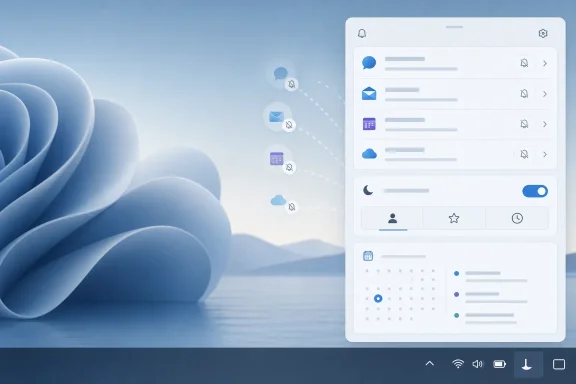
Windows 11’s Notification Center, highlighted in Paul Thurrott’s June 27, 2026 Windows 11 Field Guide material, is the flyout opened from the taskbar clock that combines missed app alerts with calendar-adjacent glanceability and Microsoft’s modern Do Not Disturb controls. It looks like a small corner of the shell, but it has become one of the clearest examples of Windows 11’s larger design wager: fewer visible controls, more hidden state, and a heavier dependence on Settings to explain what the desktop no longer says out loud.
That tradeoff is not automatically bad. The old Windows 10 Action Center was part notification drawer, part quick-settings panel, part junk drawer, and part branding exercise. Windows 11 made a cleaner cut, splitting Quick Settings from notifications and giving alerts a quieter home. But after nearly five years of Windows 11, the Notification Center still feels like a design that solved one problem by creating another: it reduced clutter while making notification behavior harder to reason about.
The Windows taskbar clock used to be humble. You clicked it for a calendar, maybe a clock, and not much else. In Windows 11, that small target at the right edge of the taskbar is now a gateway into missed notifications, calendar context, and a set of silence rules that can decide whether your workday feels calm or strangely broken.
The move is emblematic of Windows 11’s shell philosophy. Microsoft did not simply redesign old controls; it redistributed them. Quick Settings moved to the network, volume, and battery cluster. Notifications moved to the time and date. The old Action Center concept was dismantled and reassembled into separate, more focused surfaces.
On paper, this is sensible. A laptop user who wants Wi-Fi, Bluetooth, brightness, and volume does not necessarily want a stack of Teams messages and app nags. A user checking missed alerts does not necessarily need airplane mode and accessibility toggles. Separation makes the interface calmer.
The catch is that calm interfaces often hide causality. When a notification does not appear, users need to know whether the app failed, Windows suppressed it, Do Not Disturb caught it, the app is disabled in Settings, the notification was routed silently to the center, or a management policy removed the center entirely. Windows 11’s cleaner model does not always make that chain visible.
Windows 11’s split was Microsoft admitting that the Action Center had become too broad a container. Quick Settings became a modern control strip. Notifications became their own flyout. The calendar stayed attached to the clock, though in a diminished role compared with what some Windows 10 users expected.
That split made Windows 11 feel lighter, but it also made the notification system feel less like a command center and more like a mailbox. Notifications arrive, stack, expire, and wait. The user can triage them, but the central metaphor is no longer “control the system from here.” It is “review what the system decided to keep.”
That distinction matters. In Windows 10, Action Center was visibly part of system management. In Windows 11, Notification Center is closer to an inbox governed by rules that live elsewhere. It is a better-looking design, but not always a more transparent one.
But Do Not Disturb also changes the meaning of “notifications are not working.” In many cases, notifications are working exactly as configured. They are simply being routed away from banners and sounds into the Notification Center. From the user’s perspective, however, the distinction can feel academic. The promised interruption did not happen.
This is where Windows 11’s notification design becomes a support problem. Microsoft’s own troubleshooting guidance points users toward Settings, System, Notifications, and the Do Not Disturb toggle when alerts do not appear. That is correct, but it also reveals the weakness of the interface: the place where users discover the symptom is not always the place where they can understand the cause.
A well-designed silence mode should be obvious when it is active. Windows 11 has improved over time, but its notification state can still feel too implicit. The system may be quiet because the user asked for quiet, because Windows inferred quiet, because a scheduled rule applied, because an app lacks permission, or because policy intervened. Those are different stories with the same visible outcome.
That is why Microsoft exposes policy controls for removing Notifications and Action Center. In managed environments, IT can disable the surface, and Windows treats the calendar flyout as part of that same shell experience. This is not just cosmetic. If the notification center is removed, users may still see transient notifications when they appear, but they lose the ability to review missed ones later.
That creates a real administrative tradeoff. Locking down noisy surfaces can reduce distraction and support variance, but it can also remove a useful audit trail for the user. A missed prompt that disappears into nowhere is worse than a prompt that never appeared. In enterprise Windows, where a notification goes can be as important as whether it fires.
The point is not that every organization should leave Notification Center enabled. Some kiosks, shared devices, classrooms, and task-specific workstations benefit from a stripped-down shell. But administrators should treat the setting as a communications decision, not merely a desktop-cleanup option.
That final mile has become more complicated as desktop apps, Progressive Web Apps, Store apps, Electron clients, browsers, Teams, Outlook, and background services all compete for attention. Users do not experience those categories separately. They experience “my notification did not show up.”
This is one reason Windows notification reliability is judged less by API design than by user confidence. If users believe notifications are arbitrary, they stop trusting them for time-sensitive work. If they are too loud, users disable them globally. If they are too quiet, apps build their own in-app badges and popups, recreating the mess the OS was supposed to prevent.
Microsoft’s challenge is not merely to deliver notifications. It is to preserve confidence that Windows is applying the user’s intent consistently. That is a much higher bar than drawing a clean flyout.
For a long time, Microsoft’s consumer shell strategy treated attention as available inventory. Widgets, search highlights, account prompts, Edge recommendations, OneDrive nags, Game Pass surfaces, Copilot entry points, and app notifications all wanted a piece of the user’s peripheral vision. The problem was not any one feature. It was the cumulative tax.
Notification Center exists inside that attention economy. It can be a relief valve, collecting interruptions so they do not all become banners. But it can also become another place where Windows asks the user to sort through the residue of Microsoft’s engagement ambitions.
The best version of Notification Center is boring. It stores what mattered, suppresses what did not, and makes silence understandable. The worst version is a junk drawer with better animation.
This coupling has consequences. Microsoft’s own troubleshooting material notes that if Notifications and Action Center are disabled by policy, the taskbar calendar may not open in the expected way because the calendar is part of that shell surface. That is logical from an engineering standpoint and surprising from a user standpoint.
Most users do not think of “calendar flyout” and “notification center” as the same administrative object. They think of the calendar as a clock feature. When a policy or shell setting affects both, Windows exposes the architecture underneath the design.
That is the recurring Windows 11 tension. The surface says simple. The implementation says layered. Power users and administrators can cope with that. Ordinary users often just see a button that stopped behaving as expected.
Windows has a harder job because the PC is not just a personal device. It is a work terminal, gaming rig, shared family computer, managed endpoint, development machine, meeting console, and security boundary. The same notification behavior that makes sense on a phone can be disastrous during a screen-shared presentation or while running a full-screen game.
Do Not Disturb, priority notifications, app-by-app controls, lock-screen settings, and automatic rules are Microsoft’s answer to that complexity. The problem is that complexity does not disappear when the interface gets cleaner. It moves into Settings, policy, and troubleshooting documents.
This is why Windows 11’s Notification Center feels both modern and unfinished. It has the shape of a contemporary notification system, but not always the explanatory power one expects from a mature desktop OS.
That shift is important. Quiet is no longer an absence of features; it is a feature. A PC that interrupts less feels faster, more professional, and more trustworthy. A notification system that respects attention becomes part of the operating system’s quality story.
Microsoft appears to understand this unevenly. Some recent design decisions move toward restraint. Other parts of Windows still behave like every surface must justify itself through engagement. Notification Center sits between those instincts.
If Microsoft wants users to trust Windows notifications, it needs to make the system feel less like a marketing channel and more like infrastructure. Alerts should be rare enough to matter, persistent enough to review, and explainable enough to troubleshoot without spelunking through five settings pages.
That tradeoff is not automatically bad. The old Windows 10 Action Center was part notification drawer, part quick-settings panel, part junk drawer, and part branding exercise. Windows 11 made a cleaner cut, splitting Quick Settings from notifications and giving alerts a quieter home. But after nearly five years of Windows 11, the Notification Center still feels like a design that solved one problem by creating another: it reduced clutter while making notification behavior harder to reason about.
 Microsoft Turned the Corner Clock Into a Control Surface
The Windows taskbar clock used to be humble. You clicked it for a calendar, maybe a clock, and not much else. In Windows 11, that small target at the right edge of the taskbar is now a gateway into missed notifications, calendar context, and a set of silence rules that can decide whether your workday feels calm or strangely broken.The move is emblematic of Windows 11’s shell philosophy. Microsoft did not simply redesign old controls; it redistributed them. Quick Settings moved to the network, volume, and battery cluster. Notifications moved to the time and date. The old Action Center concept was dismantled and reassembled into separate, more focused surfaces.
On paper, this is sensible. A laptop user who wants Wi-Fi, Bluetooth, brightness, and volume does not necessarily want a stack of Teams messages and app nags. A user checking missed alerts does not necessarily need airplane mode and accessibility toggles. Separation makes the interface calmer.
The catch is that calm interfaces often hide causality. When a notification does not appear, users need to know whether the app failed, Windows suppressed it, Do Not Disturb caught it, the app is disabled in Settings, the notification was routed silently to the center, or a management policy removed the center entirely. Windows 11’s cleaner model does not always make that chain visible.
The Death of Action Center Was a Design Statement
Windows 10’s Action Center was never elegant, but it was obvious. It placed notifications and quick actions in one right-side pane, a design that was familiar to anyone who had used a phone or tablet. It was also overstuffed, especially as Microsoft kept adding new toggles, app alerts, and cloud-connected prompts.Windows 11’s split was Microsoft admitting that the Action Center had become too broad a container. Quick Settings became a modern control strip. Notifications became their own flyout. The calendar stayed attached to the clock, though in a diminished role compared with what some Windows 10 users expected.
That split made Windows 11 feel lighter, but it also made the notification system feel less like a command center and more like a mailbox. Notifications arrive, stack, expire, and wait. The user can triage them, but the central metaphor is no longer “control the system from here.” It is “review what the system decided to keep.”
That distinction matters. In Windows 10, Action Center was visibly part of system management. In Windows 11, Notification Center is closer to an inbox governed by rules that live elsewhere. It is a better-looking design, but not always a more transparent one.
Do Not Disturb Became the Feature That Explains the Friction
Microsoft’s modern Do Not Disturb model is the right idea. Users should be able to suppress interruptions during games, presentations, full-screen work, scheduled quiet periods, or the first hour after a feature update. A modern operating system should not treat every app alert as equally urgent.But Do Not Disturb also changes the meaning of “notifications are not working.” In many cases, notifications are working exactly as configured. They are simply being routed away from banners and sounds into the Notification Center. From the user’s perspective, however, the distinction can feel academic. The promised interruption did not happen.
This is where Windows 11’s notification design becomes a support problem. Microsoft’s own troubleshooting guidance points users toward Settings, System, Notifications, and the Do Not Disturb toggle when alerts do not appear. That is correct, but it also reveals the weakness of the interface: the place where users discover the symptom is not always the place where they can understand the cause.
A well-designed silence mode should be obvious when it is active. Windows 11 has improved over time, but its notification state can still feel too implicit. The system may be quiet because the user asked for quiet, because Windows inferred quiet, because a scheduled rule applied, because an app lacks permission, or because policy intervened. Those are different stories with the same visible outcome.
The Notification Center Is Also a Policy Boundary
For home users, Notification Center is a convenience feature. For administrators, it is a governance surface. Notifications can carry security prompts, update deadlines, management nudges, authentication requests, app messages, and support communications. The same mechanism that annoys a consumer with a weather badge may be the mechanism that tells an employee to reboot before a compliance window closes.That is why Microsoft exposes policy controls for removing Notifications and Action Center. In managed environments, IT can disable the surface, and Windows treats the calendar flyout as part of that same shell experience. This is not just cosmetic. If the notification center is removed, users may still see transient notifications when they appear, but they lose the ability to review missed ones later.
That creates a real administrative tradeoff. Locking down noisy surfaces can reduce distraction and support variance, but it can also remove a useful audit trail for the user. A missed prompt that disappears into nowhere is worse than a prompt that never appeared. In enterprise Windows, where a notification goes can be as important as whether it fires.
The point is not that every organization should leave Notification Center enabled. Some kiosks, shared devices, classrooms, and task-specific workstations benefit from a stripped-down shell. But administrators should treat the setting as a communications decision, not merely a desktop-cleanup option.
App Developers Still Depend on a User Trust Layer They Do Not Control
For developers, Windows notifications sit at an uncomfortable intersection. An app can do the right thing, use the platform notification system, and still have its message buried by user settings, focus rules, browser permissions, app-level toggles, or Windows policy. The developer owns the payload, but Microsoft owns the final mile.That final mile has become more complicated as desktop apps, Progressive Web Apps, Store apps, Electron clients, browsers, Teams, Outlook, and background services all compete for attention. Users do not experience those categories separately. They experience “my notification did not show up.”
This is one reason Windows notification reliability is judged less by API design than by user confidence. If users believe notifications are arbitrary, they stop trusting them for time-sensitive work. If they are too loud, users disable them globally. If they are too quiet, apps build their own in-app badges and popups, recreating the mess the OS was supposed to prevent.
Microsoft’s challenge is not merely to deliver notifications. It is to preserve confidence that Windows is applying the user’s intent consistently. That is a much higher bar than drawing a clean flyout.
Widgets Show Microsoft Knows the Desktop Got Too Loud
The broader Windows 11 story in 2026 is not just about Notification Center. Microsoft has also been quieting Widgets, reducing unexpected alerts, dialing back taskbar badging, and making some experiences less aggressive by default in Insider builds. That matters because it suggests Microsoft has internalized a lesson users have been shouting for years: the Windows desktop became too needy.For a long time, Microsoft’s consumer shell strategy treated attention as available inventory. Widgets, search highlights, account prompts, Edge recommendations, OneDrive nags, Game Pass surfaces, Copilot entry points, and app notifications all wanted a piece of the user’s peripheral vision. The problem was not any one feature. It was the cumulative tax.
Notification Center exists inside that attention economy. It can be a relief valve, collecting interruptions so they do not all become banners. But it can also become another place where Windows asks the user to sort through the residue of Microsoft’s engagement ambitions.
The best version of Notification Center is boring. It stores what mattered, suppresses what did not, and makes silence understandable. The worst version is a junk drawer with better animation.
Calendar Integration Remains the Odd Compromise
The calendar piece of Windows 11’s clock flyout has always felt like a compromise between heritage and minimalism. Users expect the clock to open a calendar because Windows has trained them to expect it. But Windows 11’s calendar experience is not the full productivity surface some users want, nor is it completely separate from notifications.This coupling has consequences. Microsoft’s own troubleshooting material notes that if Notifications and Action Center are disabled by policy, the taskbar calendar may not open in the expected way because the calendar is part of that shell surface. That is logical from an engineering standpoint and surprising from a user standpoint.
Most users do not think of “calendar flyout” and “notification center” as the same administrative object. They think of the calendar as a clock feature. When a policy or shell setting affects both, Windows exposes the architecture underneath the design.
That is the recurring Windows 11 tension. The surface says simple. The implementation says layered. Power users and administrators can cope with that. Ordinary users often just see a button that stopped behaving as expected.
The Real Competition Is the Phone
Windows notifications are not judged only against old versions of Windows. They are judged against iOS and Android, where notification centers have become central to the operating system experience. Phones are not perfect here — many users are drowning in mobile alerts — but the notification drawer is a first-class surface with years of behavioral expectation behind it.Windows has a harder job because the PC is not just a personal device. It is a work terminal, gaming rig, shared family computer, managed endpoint, development machine, meeting console, and security boundary. The same notification behavior that makes sense on a phone can be disastrous during a screen-shared presentation or while running a full-screen game.
Do Not Disturb, priority notifications, app-by-app controls, lock-screen settings, and automatic rules are Microsoft’s answer to that complexity. The problem is that complexity does not disappear when the interface gets cleaner. It moves into Settings, policy, and troubleshooting documents.
This is why Windows 11’s Notification Center feels both modern and unfinished. It has the shape of a contemporary notification system, but not always the explanatory power one expects from a mature desktop OS.
The Quiet Desktop Is Now a Competitive Feature
For years, Windows power users optimized for performance, compatibility, and control. Increasingly, they also optimize for quiet. A clean install is judged not only by frame rates or boot time, but by how many prompts, badges, recommendations, and background solicitations appear before the user has done anything.That shift is important. Quiet is no longer an absence of features; it is a feature. A PC that interrupts less feels faster, more professional, and more trustworthy. A notification system that respects attention becomes part of the operating system’s quality story.
Microsoft appears to understand this unevenly. Some recent design decisions move toward restraint. Other parts of Windows still behave like every surface must justify itself through engagement. Notification Center sits between those instincts.
If Microsoft wants users to trust Windows notifications, it needs to make the system feel less like a marketing channel and more like infrastructure. Alerts should be rare enough to matter, persistent enough to review, and explainable enough to troubleshoot without spelunking through five settings pages.
The Small Flyout Carries a Large Windows 11 Lesson
The concrete lessons from Notification Center are less about one flyout than about the kind of operating system Windows 11 is becoming. Microsoft has made the desktop calmer, but it has not always made it clearer.- Windows 11 separates Quick Settings from notifications, which reduces visual clutter but also moves important controls into different taskbar targets.
- Do Not Disturb is often the first setting to check when notifications appear to be broken, because alerts may be silently routed instead of visibly blocked.
- App-level notification controls matter as much as the global toggle, especially when only one program seems unreliable.
- Enterprise policies can remove Notification Center and affect the taskbar calendar experience, so administrators should treat that choice as a communications-policy decision.
- The best troubleshooting path starts by distinguishing between notifications that never arrive, notifications that arrive silently, and notifications that are visible only inside the center.
- Microsoft’s broader effort to quiet Widgets and reduce taskbar noise suggests the company knows Windows 11’s attention model still needs restraint.
References
- Primary source: thurrott.com
Published: 2026-06-28T02:32:08.362139
notification-center - Thurrott.com
 www.thurrott.com
- Official source: support.microsoft.com
Notifications and Do Not Disturb in Windows | Microsoft Support
Learn how to manage and configure notifications in Windows, including using the "Do Not Disturb" feature to silence alerts and stay focused. Discover how to activate "Do Not Disturb" from the Notification Center and use shortcuts to enhance productivity.support.microsoft.com - Related coverage: fullcirclecomputing.com
Windows 10 Quick Reference
Handy Windows 10 “cheat sheet†with commonly used shortcuts, tips, and tricks.www.fullcirclecomputing.com
- Related coverage: publichealth.hsc.wvu.edu
</rdf:Alt> </dc:title> <dc:description> <rdf:Alt> <rdf:li xml:lang="x-default"/> </rdf:Alt> </dc:description> <dc:creator> <rdf:Seq> <rdf:li>Klishis
</rdf:Alt> </dc:description> <dc:creator> <rdf:Seq> <rdf:li>Klishis, Michellepublichealth.hsc.wvu.edu
