

Admins and power users testing Windows 11 Insider Beta build 26220.8680 should generally keep Widgets enabled for pilots and flexible user groups, keep Microsoft’s quieter defaults in place, and disable Widgets only on tightly managed, shared, classroom, kiosk-adjacent, or distraction-sensitive devices. Do not partially re-enable signals fleet-wide unless a pilot shows that specific users actually rely on them.
The practical recommendation is simple: keep Widgets on where personalization is acceptable, tune badges only for users who want them, and standardize Widgets off where support predictability matters more than a glanceable dashboard.
Microsoft’s reported change in this Insider build is narrower than some early commentary makes it sound. The supported facts are:
For admins, the main operational issue is that engagement-based quieting can produce different user experiences over time. Support implication: two users on the same build may report different Widgets behavior, so help desk documentation should verify the user’s actual settings and profile history instead of assuming one fixed visual state.
WindowsForum’s recent Insider coverage shows why this matters. Forum reports around Beta Channel builds such as 26120.5742, 26120.4741, 26120.4230, and 26120.3941 have repeatedly focused on the same admin-facing pattern: Microsoft is using Insider releases to adjust Settings, Start, File Explorer, input, accessibility, taskbar, and system behavior before broad release. The Widgets change in build 26220.8680 fits that pattern. It is not just a cosmetic tweak; it is another preview signal that Microsoft is tuning default Windows behavior before it reaches more users.
This is the cleanest decision model: keep it where users own their workflow, tune it where users benefit from the board, and disable it where the desktop is part of a controlled operating environment.
For pilot machines, verify:
WindowsForum’s user-report summaries around recent Beta builds are useful here because they tend to capture the upgrade reality rather than a pristine lab-only view. Reports on builds such as 26120.5742 and 26120.4230 emphasize fixes, known issues, Settings changes, input behavior, File Explorer adjustments, and taskbar-related details. That is the same kind of evidence admins should collect internally for Widgets: not whether the feature exists, but how it behaves after the build lands on real machines.
This is most appropriate for:
It also fits the pattern WindowsForum readers have seen across recent Insider builds. The forum’s Beta Channel coverage of builds such as 26120.4741 and 26200.5702 has highlighted Microsoft’s steady delivery of smaller system enhancements rather than one-off, isolated changes. Widgets should be treated the same way: not as a single dramatic launch, but as a Windows surface Microsoft continues to tune.
Good candidates for badge tuning:
Disable Widgets where:
For strict environments, “Microsoft made it quieter” is not enough. Quiet still means present. If the policy standard is a controlled desktop, disable the feature rather than trying to explain adaptive behavior to every support tier.
Do not overstate the change. It does not prove Microsoft has abandoned lock-screen widgets, and it does not mean every organization should accept dynamic lock-screen content. It only means the default is narrower.
For operations, test this on:
Use three groups:
The thread running through those reports is not that every build changes the same feature. It is that Insider builds often reshape everyday Windows behavior in small, user-visible ways. Settings moves, input fixes, File Explorer behavior, taskbar details, Start menu changes, and accessibility updates all affect the support experience even when they are not headline features.
Widgets in build 26220.8680 belongs in that same category. The change is small enough to miss in a broad release summary, but visible enough to create tickets when users notice taskbar badges, lock-screen content, or inconsistent behavior across profiles.
That is why admins should not treat this as a yes-or-no consumer preference. Treat it as an endpoint standard with three possible states: enabled with Microsoft defaults, enabled with badges tuned, or disabled for controlled devices.
Build 26220.8680 does not make Widgets disappear. It makes the feature less aggressive by default while leaving admins with the same core decision: whether a Microsoft-managed glance surface belongs on the desktops they support.
The practical recommendation is simple: keep Widgets on where personalization is acceptable, tune badges only for users who want them, and standardize Widgets off where support predictability matters more than a glanceable dashboard.
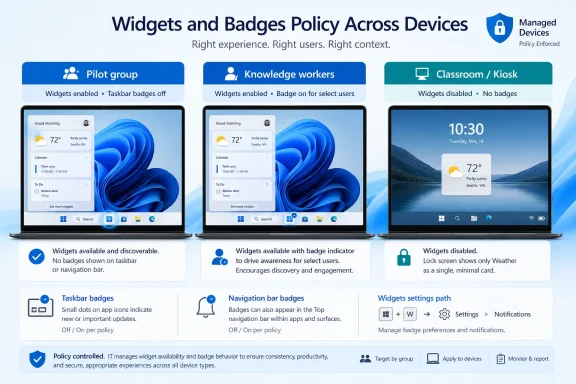 What Microsoft Changed, and What That Means
Microsoft’s reported change in this Insider build is narrower than some early commentary makes it sound. The supported facts are:- Widgets taskbar badging is off by default.
- Some Widgets notification behavior is quieted based on engagement.
- Users still have controls for Widgets badging.
- Navigation-bar badges inside Widgets can be disabled separately.
- On the lock screen, Weather is the only default widget.
For admins, the main operational issue is that engagement-based quieting can produce different user experiences over time. Support implication: two users on the same build may report different Widgets behavior, so help desk documentation should verify the user’s actual settings and profile history instead of assuming one fixed visual state.
WindowsForum’s recent Insider coverage shows why this matters. Forum reports around Beta Channel builds such as 26120.5742, 26120.4741, 26120.4230, and 26120.3941 have repeatedly focused on the same admin-facing pattern: Microsoft is using Insider releases to adjust Settings, Start, File Explorer, input, accessibility, taskbar, and system behavior before broad release. The Widgets change in build 26220.8680 fits that pattern. It is not just a cosmetic tweak; it is another preview signal that Microsoft is tuning default Windows behavior before it reaches more users.
The Settings Path Readers Actually Need
For an individual PC, do not just “open Widgets settings.” Use the visible UI path and check the specific controls.- Select the Widgets button on the taskbar, or press Windows key + W.
- In the Widgets board, select Settings.
- Go to Notifications.
- Review Show notification badges on the taskbar.
- Review Show announcements on the taskbar if present for that account/build state.
- In the Widgets board settings area, also review the control for navigation bar badges and turn it off if you want fewer badge indicators inside the Widgets experience.
- Users can turn taskbar notification badges for Widgets on or off.
- Users can disable navigation-bar badges separately.
- Users may be able to change other Widgets board preferences depending on account state, build availability, and Microsoft’s controlled feature rollout.
- Taskbar badging starts off by default.
- Some Widgets attention behavior is quieted based on engagement.
- Weather is the only default lock-screen widget.
Recommended Stance by Environment
| Environment type | Recommended stance | Why |
|---|---|---|
| Enthusiast PCs and IT test machines | Keep Widgets on | Best place to observe Microsoft’s new defaults without disrupting production users. |
| General knowledge workers | Keep Widgets on, leave badges quiet | Preserves a useful glance surface while reducing taskbar noise. |
| Power users who actively use Widgets | Keep Widgets on, allow selected badges | Let users re-enable signals only if they find value in the board. |
| Developers, analysts, and technical staff | Pilot both quiet and badge-enabled configurations | These groups may tolerate or value a glanceable surface, but complaints should be measured. |
| Executives and high-visibility laptops | Keep quiet defaults; verify lock screen | Avoid unexpected badge or lock-screen surprises in meetings and travel scenarios. |
| Classrooms, labs, shared workstations | Disable Widgets or heavily restrict it | Predictability matters more than personalization. |
| Call centers, frontline devices, kiosk-adjacent PCs | Disable Widgets | Reduces support variance and nonessential UI surfaces. |
| Regulated or tightly standardized desktops | Disable Widgets | Uniformity, documentation, and policy consistency outweigh the feature’s value. |
| Mixed fleets | Keep for user-owned/assigned PCs; disable for shared or controlled endpoints | Matches the feature to the device role instead of applying one blanket rule. |
What to Verify on Existing Profiles
A clean test account is useful, but it is not enough. Most real support tickets come from existing profiles that have accumulated Windows settings, Microsoft account state, feature flags, prior Widgets use, and user preferences.For pilot machines, verify:
- Whether the Widgets button is present on the taskbar.
- Whether taskbar badges appear after the build is installed.
- Whether the user can find Widgets > Settings > Notifications.
- Whether Show notification badges on the taskbar is off.
- Whether navigation-bar badges inside the Widgets board are enabled or disabled.
- Whether Weather is the only default lock-screen widget.
- Whether the behavior differs between an existing profile and a new local or Entra-joined test profile.
- Whether users who previously opened Widgets often see different behavior from users who ignored it.
WindowsForum’s user-report summaries around recent Beta builds are useful here because they tend to capture the upgrade reality rather than a pristine lab-only view. Reports on builds such as 26120.5742 and 26120.4230 emphasize fixes, known issues, Settings changes, input behavior, File Explorer adjustments, and taskbar-related details. That is the same kind of evidence admins should collect internally for Widgets: not whether the feature exists, but how it behaves after the build lands on real machines.
What Tickets to Watch For
If you pilot this build, expect the following support symptoms rather than abstract “Widgets feedback”:- “Why did the weather/widget icon change?”
- “Why does one user see Widgets badges and another does not?”
- “Why is there still content on the lock screen?”
- “Why did a badge disappear after I stopped using Widgets?”
- “How do I turn off the red-dot style notifications?”
- “How do I stop badges inside the Widgets panel?”
- “Why did my previous Widgets behavior not match a new test account?”
- “Can we remove Widgets from shared PCs?”
- Confirm whether the device is in a group where Widgets is allowed.
- Open Widgets with Windows key + W.
- Go to Settings > Notifications.
- Check Show notification badges on the taskbar.
- Check the navigation-bar badge setting.
- If the device is shared or policy-controlled, apply the organization’s standard instead of tuning per user.
Keep Widgets On When User Choice Is Acceptable
The case for keeping Widgets on is stronger in this build than it was when the feature felt more eager to demand attention. If taskbar badging starts off and the board is less likely to interrupt people who do not engage with it, many organizations can leave Widgets available without making it a daily help desk topic.This is most appropriate for:
- Assigned laptops.
- IT pilot groups.
- Enthusiast users.
- Developers and analysts.
- Staff who use weather, watchlists, traffic, news, or quick glance cards.
- Environments where Windows personalization is allowed within reason.
- Leave Widgets enabled.
- Keep taskbar notification badges off unless the user asks for them.
- Disable navigation-bar badges if they create clutter.
- Verify the lock screen after upgrade.
- Document how users can change the settings themselves.
It also fits the pattern WindowsForum readers have seen across recent Insider builds. The forum’s Beta Channel coverage of builds such as 26120.4741 and 26200.5702 has highlighted Microsoft’s steady delivery of smaller system enhancements rather than one-off, isolated changes. Widgets should be treated the same way: not as a single dramatic launch, but as a Windows surface Microsoft continues to tune.
Tune Badges Only for Users Who Actually Use Widgets
Partial re-enablement makes sense only when a user or role benefits from Widgets. Do not turn badges back on across the organization simply because the control exists.Good candidates for badge tuning:
- Power users who intentionally open Widgets.
- Users who rely on a specific glance card.
- IT testers comparing old and new behavior.
- Users who ask for more visible status indicators after the quiet default appears.
- Shared PCs.
- Classroom devices.
- Frontline workstations.
- Users who already complain about taskbar clutter.
- Any device where the desktop is supposed to look the same for every sign-in.
Disable Widgets Where Predictability Matters
There are still environments where the right answer is to disable Widgets. A quieter default does not solve every admin concern, because the issue is not only noise. It is also consistency.Disable Widgets where:
- The device is shared by many users.
- The device is used in a classroom, lab, call center, reception area, or kiosk-adjacent role.
- The desktop is part of a regulated or highly standardized workflow.
- The organization minimizes nonessential dynamic content.
- Help desk scripts require one predictable state.
- The user population does not benefit from personalization.
- Lock-screen or taskbar changes regularly generate tickets.
For strict environments, “Microsoft made it quieter” is not enough. Quiet still means present. If the policy standard is a controlled desktop, disable the feature rather than trying to explain adaptive behavior to every support tier.
The Lock Screen: Keep the Claim Narrow
The verified lock-screen fact is that Weather is the only default widget in this build. That matters operationally because admins can test one default dynamic item instead of a broader set of lock-screen widgets.Do not overstate the change. It does not prove Microsoft has abandoned lock-screen widgets, and it does not mean every organization should accept dynamic lock-screen content. It only means the default is narrower.
For operations, test this on:
- Conference-room PCs.
- Executive laptops.
- Shared workstations.
- Classroom devices.
- Reception or front-desk systems.
- Devices visible to customers or visitors.
Pilot Plan for IT
A useful pilot should measure visible behavior, not opinions about whether Widgets is “good” or “bad.”Use three groups:
- Default group
Widgets enabled, Microsoft’s new defaults left untouched. - Quiet group
Widgets enabled, taskbar badges off, navigation-bar badges off. - Disabled group
Widgets disabled or suppressed according to the organization’s normal management approach.
- One IT admin or endpoint engineer.
- One help desk technician.
- One technically confident end user.
- One typical knowledge worker.
- One user with a long-lived existing profile.
- One clean test profile.
- One shared-device scenario if your organization supports shared PCs.
- Badge visibility on the taskbar.
- Badge visibility inside the Widgets navigation area.
- Any taskbar announcement behavior.
- User confusion after upgrade.
- Lock-screen appearance.
- Whether the behavior changes after the user ignores or opens Widgets.
- Whether help desk can resolve the issue using a short script.
- Whether the experience differs between existing and new profiles.
Separate Microsoft’s Facts from Admin Interpretation
Microsoft’s side of the change, as reflected in the reported build behavior, is:- Widgets taskbar badging is off by default.
- Users can manage Widgets badge settings.
- Navigation-bar badges can be disabled separately.
- Some behavior is quieted based on engagement.
- Weather is the only default lock-screen widget.
- This makes Widgets less disruptive for many users.
- It does not make Widgets irrelevant.
- Engagement-based behavior can create different experiences across users.
- Existing profiles need real-world testing.
- Shared and standardized devices may still be better served by disabling Widgets.
- Flexible user groups can probably keep Widgets enabled with badges quiet.
How This Fits Recent WindowsForum Insider Reports
WindowsForum’s recent user-report summaries around Windows 11 Beta and Insider builds provide useful context. Reports on build 26120.5742 described a Beta Channel release for Windows 11 version 24H2 with Settings, accessibility, Chinese IME, Control Panel, File Explorer, input, Start menu, Task Manager, Time and Language, live captions, Xbox controller behavior, fixes, and known issues. Reports on build 26120.4741 framed that release as a collection of new features and enhancements. Build 26200.5702 was similarly presented as a package of new features and system enhancements, while build 26120.4230 focused on new features and fixes for Beta users. Build 26120.3941 was reported as another Beta build with new features, fixes, and known issues.The thread running through those reports is not that every build changes the same feature. It is that Insider builds often reshape everyday Windows behavior in small, user-visible ways. Settings moves, input fixes, File Explorer behavior, taskbar details, Start menu changes, and accessibility updates all affect the support experience even when they are not headline features.
Widgets in build 26220.8680 belongs in that same category. The change is small enough to miss in a broad release summary, but visible enough to create tickets when users notice taskbar badges, lock-screen content, or inconsistent behavior across profiles.
That is why admins should not treat this as a yes-or-no consumer preference. Treat it as an endpoint standard with three possible states: enabled with Microsoft defaults, enabled with badges tuned, or disabled for controlled devices.
Frequently Asked Questions
Should organizations keep Widgets on or disable it?
Most organizations should keep Widgets on for pilots and normal assigned-user devices, leave the quieter defaults in place, and disable Widgets on shared, classroom, kiosk-adjacent, frontline, or tightly standardized systems.Should admins re-enable Widgets badges?
Not by default. Re-enable badges only for users or roles that actually use Widgets and ask for more visible signals. For everyone else, leave taskbar badging off.Where are the Widgets notification settings?
Open the Widgets board from the taskbar or press Windows key + W, then go to Settings > Notifications. Review Show notification badges on the taskbar and any available control for taskbar announcements. Also check the Widgets board setting for navigation-bar badges if you want to reduce badge indicators inside the board.What is user-configurable?
Users can manage Widgets taskbar badge behavior and can disable navigation-bar badges separately. Exact control availability may vary depending on build state, rollout status, account state, and policy.What is Microsoft-defaulted in this build?
Taskbar badging is off by default, some Widgets behavior is quieted based on engagement, and Weather is the only default lock-screen widget.Why can two users see different Widgets behavior?
Because Microsoft’s quieting can be based on engagement. A user who ignores Widgets may see a quieter experience over time, while a user who opens and uses Widgets may see a different state.Is this a security issue?
Based on the verified facts discussed here, no new security issue is established. The admin concern is governance, consistency, distraction, and support predictability.Should the lock-screen Weather widget be removed?
Only if your device role or policy requires no dynamic lock-screen content. The verified change is that Weather is the only default widget, so test whether that is acceptable for your environment.What should help desk teams document?
Document the exact path: Widgets > Settings > Notifications > Show notification badges on the taskbar, plus the separate navigation-bar badge control. Also document whether Widgets is allowed, tuned, or disabled for each device group.Should this be deployed as a universal policy?
No. Use a role-based standard. Keep Widgets available where personalization is acceptable, tune badges for users who benefit from them, and disable Widgets where predictability matters.Bottom Line
The right default for most pilots is: Widgets on, taskbar badges off, navigation-bar badges off if they create clutter, and lock-screen Weather verified against the device role. The right default for shared or tightly controlled devices is still: disable Widgets.Build 26220.8680 does not make Widgets disappear. It makes the feature less aggressive by default while leaving admins with the same core decision: whether a Microsoft-managed glance surface belongs on the desktops they support.
References
- Primary source: blogs.windows.com
Announcing Windows 11 Insider Preview Build 26220.6682 (Dev Channel)
Hello Windows Insiders, today we are releasing Windows 11 Insider Preview Build 26220.6682 (KB5065782) to the Dev Channel for Windows Insiders on Windows 11, version 25H2. Changes in Dev Channel buiblogs.windows.com - Primary source: WindowsForum
Loading…
windowsforum.com