

Microsoft confirmed in June 2026 that Windows 11 still supports Hibernate even though the option is often hidden from the Start menu power controls, with the feature remaining available through power settings and command-line configuration on compatible PCs. That answer settles the narrow mystery but not the larger shift. Hibernate has not been killed; it has been demoted. And that demotion says a great deal about how Microsoft now thinks a Windows laptop should behave.
For longtime Windows users, Hibernate was one of those unglamorous features that made the operating system feel practical rather than elegant. It preserved a messy desktop, consumed effectively no battery, and survived the indignities of travel bags, drained cells, and unplugged desktops. In the era of SSDs, Modern Standby, instant-on expectations, and background maintenance, Microsoft has pushed Sleep into the foreground and left Hibernate as the tool you go looking for when the default experience fails you.
The CNET report that prompted the latest round of Hibernate nostalgia gets the important bit right: the feature is still there. Microsoft says it has no plans to remove support for Hibernate, and Windows still exposes the underlying controls through the older Power Options interface and the
That distinction matters because Windows has always been a layered operating system. The old plumbing often survives long after the modern surface stops advertising it. Control Panel applets, command-line switches, registry-backed policy settings, and OEM-specific power profiles all coexist with the polished Settings app, producing the odd Windows experience of a feature being simultaneously supported, hidden, deprecated in spirit, and indispensable to some users.
Hibernate’s current status fits that pattern perfectly. On many Windows 11 systems, the Start menu’s power button will happily offer Sleep, Shut down, and Restart while omitting Hibernate. Users who remember the older menu may read that as removal, especially because Windows Search and the Settings app do not always make the path obvious. In reality, the option can often be restored by enabling hibernation and checking the Hibernate entry under the “Choose what the power buttons do” settings.
The editorial signal is still unmistakable. Microsoft is not merely failing to promote Hibernate; it is choosing another default behavior. The company’s message is that most people should close the lid, let the machine sleep, and expect it to resume quickly while Windows handles enough background work to keep the device current.
That is a defensible product decision. It is also a decision that exposes a familiar Windows tension: the ideal Microsoft laptop and the laptop sitting in a real user’s backpack are often not the same machine.
Hibernate belongs to an older mental model. You made a deliberate decision to suspend your session to disk, accepted a slower resume, and gained near-zero power draw in return. That trade made enormous sense when laptops had spinning hard drives, batteries were less forgiving, and Windows boot times could still be measured with a degree of impatience usually reserved for airport security lines.
But modern hardware changed the bargain. SSDs made boot and resume faster. Firmware improved. Low-power processor states became more capable. Microsoft’s Modern Standby push tried to make Windows systems behave more like phones and tablets: not fully awake, not fully off, but ready to return with minimal friction.
That ambition has always been unevenly realized. On the best hardware, Sleep is almost invisible. The lid opens, the display lights, Wi-Fi reconnects, and Windows Hello makes the whole thing feel immediate. On worse hardware or poorly tuned systems, Sleep becomes an energy leak with a keyboard attached. The machine gets warm in a bag, battery life drops mysteriously overnight, or a device wakes when nobody asked it to.
Hibernate remains attractive precisely because it is less clever. It writes the system state to storage and powers down. It does not need to negotiate a delicate truce among firmware, drivers, radios, timers, and background tasks. It is slower and heavier, but it is also more final.
That finality is why power users still defend it. Hibernate is not elegant, but it is predictable. In Windows power management, predictability is often worth more than elegance.
Microsoft’s answer is more nuanced than a dismissal. The company acknowledges that Hibernate requires writing data to the SSD and that writes contribute to wear. It also says Windows reduces that impact by saving only the portion of memory in use and compressing the data before writing it to disk.
That mitigation matters. The worst mental model is the simplistic one: “32GB of RAM means every Hibernate event writes 32GB.” In typical workloads, the actual write can be substantially smaller. Windows is not blindly dumping a full physical-memory image every time a user clicks Hibernate.
Still, SSD wear is not imaginary. Enterprise administrators understand this instinctively because write amplification, endurance ratings, and replacement cycles are not abstract when multiplied across fleets. Consumer SSDs are also far more durable than early flash-era anxiety suggested, but “more durable than feared” is not the same as “immune to all write patterns.”
The more honest conclusion is that SSD wear is probably not the main reason ordinary users should avoid Hibernate. For most people, the difference will be lost in the noise of browser caches, game downloads, Windows updates, cloud sync clients, and everyday application churn. A user who hibernates once a day is unlikely to kill a modern SSD by doing so.
But it is easy to see why Microsoft would avoid making Hibernate the highly visible default. If Sleep delivers a faster and more connected experience for most devices, and Hibernate introduces storage writes, slower resumes, and another branch of support complexity, the product-management answer is obvious. You do not have to remove the feature. You just stop putting it in the prime retail space.
That creates a confusing split. Users may be told Hibernate is hidden or disabled while the system still uses a hibernation file for Fast Startup. Administrators may find that
This is one of those Windows design choices that makes sense deep in the platform and feels absurd at the surface. “Hibernate” can refer to a visible power-menu choice, a system sleep state, a disk file, a Fast Startup dependency, or a target for lid and power-button actions. One word spans several behaviors.
For IT pros, that ambiguity is not just semantic. If a system is not applying updates cleanly, not reinitializing drivers after shutdown, or behaving differently after Restart than after Shut down, Fast Startup often enters the investigation. If Hibernate is missing from the UI,
This is why the CNET report lands with more force than a simple how-to. It surfaces a broader problem: Windows power management is too important to be split between a modern Settings surface, legacy Control Panel pages, OEM utilities, firmware tables, Group Policy, and command-line diagnostics. Hibernate is not hard to understand. Windows’ presentation of Hibernate is.
The old Control Panel model was ugly but explicit. It exposed lid behavior, power-button behavior, sleep timers, advanced plan settings, wake timers, hybrid sleep, PCI Express link-state management, and processor power controls in one sprawling hierarchy. Nobody would call it beautiful. But administrators and enthusiasts could usually find the lever they needed.
Windows 11 often routes users through cleaner pages that answer simpler questions: when should the screen turn off, when should the device sleep, and what power mode should the system favor? That covers a huge percentage of consumer needs. It does not cover the user who wants the Start menu to include Hibernate, or the admin trying to standardize behavior across laptops that ship with different firmware capabilities.
The result is an odd inversion. Microsoft has hidden complexity from normal users but has not eliminated the complexity. The complexity merely reappears when something goes wrong, usually through a support article, a forum post, or an elevated terminal command.
This is the Windows enthusiast’s recurring complaint in miniature. The operating system still contains powerful tools, but the visible product increasingly assumes those tools are edge cases. Sometimes they are. Sometimes they are the difference between a laptop that works on a three-day trip and a laptop that arrives dead in a backpack.
Hibernate earns its keep in less ideal scenarios. A traveler leaving a laptop unused for several days may care more about battery preservation than instant resume. A desktop user in an area with unreliable power may want session persistence without keeping the machine energized. A developer with a complicated workspace may prefer a slower return over rebuilding a dozen terminals, browser windows, and local services after a shutdown.
There is also a psychological advantage. Sleep asks the user to trust the system. Hibernate gives the user a stronger sense that the machine is actually off. Whether that feeling is technically precise matters less than whether the outcome is reliable.
The most interesting users are those who combine both states. They let the PC sleep for short breaks and hibernate after a longer idle period, or they map the power button to Hibernate while leaving lid-close behavior set to Sleep. That hybrid workflow reflects reality better than any single default: sometimes you want speed, sometimes you want certainty.
Windows can support that nuance. The question is whether Microsoft’s interface should make the nuance easier to discover. Right now, the answer feels too dependent on whether a user already knows the old path.
Sleep can enable useful maintenance windows and faster employee workflows. It can also complicate fleet behavior if devices wake unpredictably or fail to wake cleanly. Hibernate can preserve sessions and reduce power use, but it may interfere with expectations around update installation or remote reachability. Shut down can be clean but disruptive. Restart remains the one action administrators still plead with users to perform when Windows has been half-awake for too long.
Security teams also have reason to care. Different power states imply different assumptions about memory, device access, pre-boot authentication, and the physical custody of a machine. The right answer depends on encryption configuration, threat model, hardware, and compliance requirements. A blanket consumer default does not settle those trade-offs.
The key point is that Microsoft’s preference for Sleep should not be mistaken for an enterprise best practice in every environment. It is a default optimized for broad user experience. Administrators still need to decide what behavior they want, enforce it through policy or provisioning, and document it clearly enough that users do not improvise.
That documentation should include the boring details: what closing the lid does, what pressing the power button does, when the system hibernates automatically, and whether Hibernate appears in the Start menu. The support burden often comes not from the policy itself but from the mismatch between what users expect and what the device actually does.
The better fix is contextual clarity. If Hibernate is available but hidden, Windows should make that state easier to understand. If it is unavailable because of firmware, virtualization, Modern Standby behavior, hiberfile configuration, or administrative policy, Windows should say so in plain language. If enabling Hibernate affects Fast Startup or disk usage, the interface should explain the trade rather than leaving users to triangulate it from forum lore.
Microsoft has already done versions of this elsewhere. Windows Security can explain when a setting is managed by an administrator. Storage settings can show where space is being used. Update pages can distinguish pending restart states. Power management deserves the same treatment because its failures are so visible.
A modern power settings page could show the supported sleep states, the current menu options, and the configured behavior for lid close and power button in one place. It could include Hibernate as an advanced but discoverable option, not a scavenger hunt through legacy UI. That would respect both Microsoft’s preferred default and the user’s right to choose a different trade-off.
The irony is that Hibernate’s continued presence proves Windows is still flexible enough to serve many workflows. The weakness is not capability. The weakness is discoverability.
If your laptop drains in a bag, sits unused for long stretches, or needs to preserve a session through a complete power loss, Hibernate remains useful. The SSD wear concern should be understood but not exaggerated. On a modern system with typical use, Hibernate is more likely to be a workflow choice than a drive-killer.
Users who want it should check whether the system supports it, enable hibernation if necessary, and add the option back to the power menu through the classic power-button settings. Administrators should treat it as a managed behavior rather than a user-by-user discovery project. The worst outcome is not choosing Sleep or Hibernate. The worst outcome is letting each device surprise its owner.
This is where Windows’ heritage is both a blessing and a curse. The feature survives because Microsoft rarely removes old machinery quickly. The confusion survives because the machinery is scattered across decades of interface philosophy.
Here is the concrete read of the situation:
For longtime Windows users, Hibernate was one of those unglamorous features that made the operating system feel practical rather than elegant. It preserved a messy desktop, consumed effectively no battery, and survived the indignities of travel bags, drained cells, and unplugged desktops. In the era of SSDs, Modern Standby, instant-on expectations, and background maintenance, Microsoft has pushed Sleep into the foreground and left Hibernate as the tool you go looking for when the default experience fails you.
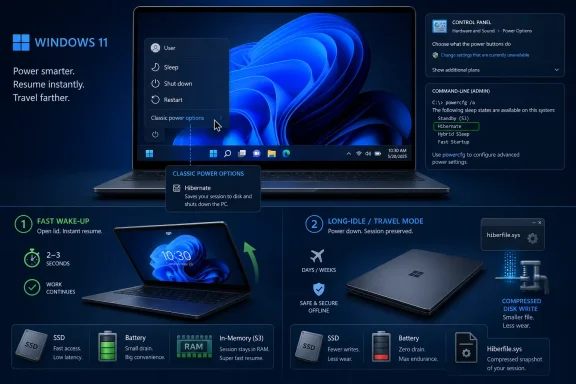 Microsoft Didn’t Remove Hibernate; It Removed the Invitation
The CNET report that prompted the latest round of Hibernate nostalgia gets the important bit right: the feature is still there. Microsoft says it has no plans to remove support for Hibernate, and Windows still exposes the underlying controls through the older Power Options interface and the powercfg command-line utility. The disappearance many users notice is not a vanishing binary. It is a vanishing affordance.That distinction matters because Windows has always been a layered operating system. The old plumbing often survives long after the modern surface stops advertising it. Control Panel applets, command-line switches, registry-backed policy settings, and OEM-specific power profiles all coexist with the polished Settings app, producing the odd Windows experience of a feature being simultaneously supported, hidden, deprecated in spirit, and indispensable to some users.
Hibernate’s current status fits that pattern perfectly. On many Windows 11 systems, the Start menu’s power button will happily offer Sleep, Shut down, and Restart while omitting Hibernate. Users who remember the older menu may read that as removal, especially because Windows Search and the Settings app do not always make the path obvious. In reality, the option can often be restored by enabling hibernation and checking the Hibernate entry under the “Choose what the power buttons do” settings.
The editorial signal is still unmistakable. Microsoft is not merely failing to promote Hibernate; it is choosing another default behavior. The company’s message is that most people should close the lid, let the machine sleep, and expect it to resume quickly while Windows handles enough background work to keep the device current.
That is a defensible product decision. It is also a decision that exposes a familiar Windows tension: the ideal Microsoft laptop and the laptop sitting in a real user’s backpack are often not the same machine.
Sleep Became the Default Because Windows Wants to Behave Like a Phone
The modern Windows power model is built around immediacy. A contemporary laptop is expected to wake fast, stay connected enough to handle maintenance, and feel less like a cold-starting PC than a large glass-and-keyboard appliance. In that world, Sleep is not just a power state. It is a user-experience strategy.Hibernate belongs to an older mental model. You made a deliberate decision to suspend your session to disk, accepted a slower resume, and gained near-zero power draw in return. That trade made enormous sense when laptops had spinning hard drives, batteries were less forgiving, and Windows boot times could still be measured with a degree of impatience usually reserved for airport security lines.
But modern hardware changed the bargain. SSDs made boot and resume faster. Firmware improved. Low-power processor states became more capable. Microsoft’s Modern Standby push tried to make Windows systems behave more like phones and tablets: not fully awake, not fully off, but ready to return with minimal friction.
That ambition has always been unevenly realized. On the best hardware, Sleep is almost invisible. The lid opens, the display lights, Wi-Fi reconnects, and Windows Hello makes the whole thing feel immediate. On worse hardware or poorly tuned systems, Sleep becomes an energy leak with a keyboard attached. The machine gets warm in a bag, battery life drops mysteriously overnight, or a device wakes when nobody asked it to.
Hibernate remains attractive precisely because it is less clever. It writes the system state to storage and powers down. It does not need to negotiate a delicate truce among firmware, drivers, radios, timers, and background tasks. It is slower and heavier, but it is also more final.
That finality is why power users still defend it. Hibernate is not elegant, but it is predictable. In Windows power management, predictability is often worth more than elegance.
The SSD Wear Argument Is Real, but Easy to Overstate
The CNET piece highlights a theory raised by XDA: that Hibernate’s reduced prominence may be partly related to SSD wear. The concern is technically grounded. Hibernate writes memory state to a file on the system drive, and NAND flash cells do have finite write endurance. A machine with lots of RAM that hibernates frequently can, in principle, write meaningful amounts of data over time.Microsoft’s answer is more nuanced than a dismissal. The company acknowledges that Hibernate requires writing data to the SSD and that writes contribute to wear. It also says Windows reduces that impact by saving only the portion of memory in use and compressing the data before writing it to disk.
That mitigation matters. The worst mental model is the simplistic one: “32GB of RAM means every Hibernate event writes 32GB.” In typical workloads, the actual write can be substantially smaller. Windows is not blindly dumping a full physical-memory image every time a user clicks Hibernate.
Still, SSD wear is not imaginary. Enterprise administrators understand this instinctively because write amplification, endurance ratings, and replacement cycles are not abstract when multiplied across fleets. Consumer SSDs are also far more durable than early flash-era anxiety suggested, but “more durable than feared” is not the same as “immune to all write patterns.”
The more honest conclusion is that SSD wear is probably not the main reason ordinary users should avoid Hibernate. For most people, the difference will be lost in the noise of browser caches, game downloads, Windows updates, cloud sync clients, and everyday application churn. A user who hibernates once a day is unlikely to kill a modern SSD by doing so.
But it is easy to see why Microsoft would avoid making Hibernate the highly visible default. If Sleep delivers a faster and more connected experience for most devices, and Hibernate introduces storage writes, slower resumes, and another branch of support complexity, the product-management answer is obvious. You do not have to remove the feature. You just stop putting it in the prime retail space.
Fast Startup Made the Story Even Messier
Hibernate’s identity became harder to explain once Windows began using hibernation technology for Fast Startup. Since Windows 8, a default shutdown on many systems has not been a completely cold shutdown in the old sense. Windows can save part of the system session to disk so the next boot is quicker, borrowing from the same family of mechanisms that make Hibernate possible.That creates a confusing split. Users may be told Hibernate is hidden or disabled while the system still uses a hibernation file for Fast Startup. Administrators may find that
hiberfil.sys exists even when the user-facing Hibernate option is absent. Troubleshooting guides then tell people to enable or disable hibernation, adjust the hiberfile type, or turn off Fast Startup, often without explaining that these knobs overlap.This is one of those Windows design choices that makes sense deep in the platform and feels absurd at the surface. “Hibernate” can refer to a visible power-menu choice, a system sleep state, a disk file, a Fast Startup dependency, or a target for lid and power-button actions. One word spans several behaviors.
For IT pros, that ambiguity is not just semantic. If a system is not applying updates cleanly, not reinitializing drivers after shutdown, or behaving differently after Restart than after Shut down, Fast Startup often enters the investigation. If Hibernate is missing from the UI,
powercfg /a may still reveal what sleep states firmware and Windows believe are available. The friendly power menu is the least complete source of truth.This is why the CNET report lands with more force than a simple how-to. It surfaces a broader problem: Windows power management is too important to be split between a modern Settings surface, legacy Control Panel pages, OEM utilities, firmware tables, Group Policy, and command-line diagnostics. Hibernate is not hard to understand. Windows’ presentation of Hibernate is.
The Missing Menu Item Is a Symptom of Settings App Minimalism
Windows 11’s Settings app has improved over time, but power management remains an area where simplification can feel like concealment. Microsoft wants the everyday user to see fewer choices and make fewer decisions. That is good interface design when the default is reliable. It becomes patronizing when the default does not fit the user’s hardware or workflow.The old Control Panel model was ugly but explicit. It exposed lid behavior, power-button behavior, sleep timers, advanced plan settings, wake timers, hybrid sleep, PCI Express link-state management, and processor power controls in one sprawling hierarchy. Nobody would call it beautiful. But administrators and enthusiasts could usually find the lever they needed.
Windows 11 often routes users through cleaner pages that answer simpler questions: when should the screen turn off, when should the device sleep, and what power mode should the system favor? That covers a huge percentage of consumer needs. It does not cover the user who wants the Start menu to include Hibernate, or the admin trying to standardize behavior across laptops that ship with different firmware capabilities.
The result is an odd inversion. Microsoft has hidden complexity from normal users but has not eliminated the complexity. The complexity merely reappears when something goes wrong, usually through a support article, a forum post, or an elevated terminal command.
This is the Windows enthusiast’s recurring complaint in miniature. The operating system still contains powerful tools, but the visible product increasingly assumes those tools are edge cases. Sometimes they are. Sometimes they are the difference between a laptop that works on a three-day trip and a laptop that arrives dead in a backpack.
Hibernate Still Solves Problems Sleep Was Supposed to Make Obsolete
Sleep is the right default for many users because speed matters. Nobody wants to wait through a full restore if they are opening a laptop between meetings. When Sleep works correctly, it is the most natural behavior a portable PC can offer.Hibernate earns its keep in less ideal scenarios. A traveler leaving a laptop unused for several days may care more about battery preservation than instant resume. A desktop user in an area with unreliable power may want session persistence without keeping the machine energized. A developer with a complicated workspace may prefer a slower return over rebuilding a dozen terminals, browser windows, and local services after a shutdown.
There is also a psychological advantage. Sleep asks the user to trust the system. Hibernate gives the user a stronger sense that the machine is actually off. Whether that feeling is technically precise matters less than whether the outcome is reliable.
The most interesting users are those who combine both states. They let the PC sleep for short breaks and hibernate after a longer idle period, or they map the power button to Hibernate while leaving lid-close behavior set to Sleep. That hybrid workflow reflects reality better than any single default: sometimes you want speed, sometimes you want certainty.
Windows can support that nuance. The question is whether Microsoft’s interface should make the nuance easier to discover. Right now, the answer feels too dependent on whether a user already knows the old path.
Enterprise IT Sees a Policy Problem, Not a Nostalgia Problem
For consumers, Hibernate’s disappearance from the menu is an annoyance. For managed environments, it is a policy question. Power states affect patching, encryption, remote management, help desk scripts, battery degradation, and user behavior. They are not merely preferences.Sleep can enable useful maintenance windows and faster employee workflows. It can also complicate fleet behavior if devices wake unpredictably or fail to wake cleanly. Hibernate can preserve sessions and reduce power use, but it may interfere with expectations around update installation or remote reachability. Shut down can be clean but disruptive. Restart remains the one action administrators still plead with users to perform when Windows has been half-awake for too long.
Security teams also have reason to care. Different power states imply different assumptions about memory, device access, pre-boot authentication, and the physical custody of a machine. The right answer depends on encryption configuration, threat model, hardware, and compliance requirements. A blanket consumer default does not settle those trade-offs.
The key point is that Microsoft’s preference for Sleep should not be mistaken for an enterprise best practice in every environment. It is a default optimized for broad user experience. Administrators still need to decide what behavior they want, enforce it through policy or provisioning, and document it clearly enough that users do not improvise.
That documentation should include the boring details: what closing the lid does, what pressing the power button does, when the system hibernates automatically, and whether Hibernate appears in the Start menu. The support burden often comes not from the policy itself but from the mismatch between what users expect and what the device actually does.
The Right Fix Is Not to Bring Back Every Old Button
It would be easy to turn this into a simple demand: put Hibernate back in the Start menu for everyone. That would satisfy a certain muscle memory, but it would not necessarily be the best default for 2026 hardware. More choices are not automatically better choices.The better fix is contextual clarity. If Hibernate is available but hidden, Windows should make that state easier to understand. If it is unavailable because of firmware, virtualization, Modern Standby behavior, hiberfile configuration, or administrative policy, Windows should say so in plain language. If enabling Hibernate affects Fast Startup or disk usage, the interface should explain the trade rather than leaving users to triangulate it from forum lore.
Microsoft has already done versions of this elsewhere. Windows Security can explain when a setting is managed by an administrator. Storage settings can show where space is being used. Update pages can distinguish pending restart states. Power management deserves the same treatment because its failures are so visible.
A modern power settings page could show the supported sleep states, the current menu options, and the configured behavior for lid close and power button in one place. It could include Hibernate as an advanced but discoverable option, not a scavenger hunt through legacy UI. That would respect both Microsoft’s preferred default and the user’s right to choose a different trade-off.
The irony is that Hibernate’s continued presence proves Windows is still flexible enough to serve many workflows. The weakness is not capability. The weakness is discoverability.
The Old Power State Still Has a Job Description
The practical advice is straightforward. If Sleep works well on your laptop, there is no urgent reason to resurrect Hibernate out of nostalgia. The faster resume, better wake support, and compatibility with background maintenance are real advantages. Microsoft is not wrong to prioritize them.If your laptop drains in a bag, sits unused for long stretches, or needs to preserve a session through a complete power loss, Hibernate remains useful. The SSD wear concern should be understood but not exaggerated. On a modern system with typical use, Hibernate is more likely to be a workflow choice than a drive-killer.
Users who want it should check whether the system supports it, enable hibernation if necessary, and add the option back to the power menu through the classic power-button settings. Administrators should treat it as a managed behavior rather than a user-by-user discovery project. The worst outcome is not choosing Sleep or Hibernate. The worst outcome is letting each device surprise its owner.
This is where Windows’ heritage is both a blessing and a curse. The feature survives because Microsoft rarely removes old machinery quickly. The confusion survives because the machinery is scattered across decades of interface philosophy.
A Hidden Hibernate Button Tells the Whole Windows 11 Story
The Hibernate debate is small enough to seem quaint, but it captures a larger Windows 11 pattern: Microsoft is trying to make the PC feel simpler while preserving the complicated substrate that makes Windows valuable. That balancing act works only when users can find the escape hatches. Hibernate is one of those escape hatches.Here is the concrete read of the situation:
- Microsoft says Hibernate remains supported in Windows and that it has no current plan to remove the feature.
- Windows 11 often prioritizes Sleep in the visible power menu because it resumes faster and better supports wake-related behavior.
- Hibernate still writes system state to storage, but Windows reduces the write burden by saving used memory and compressing it.
- SSD wear is a legitimate technical consideration, but it is unlikely to be a practical crisis for most ordinary Hibernate users.
- The feature remains especially useful for long idle periods, travel, desktops vulnerable to power loss, and users who value session preservation over instant resume.
- The real failure is discoverability, because Windows hides a still-useful power state behind legacy settings and command-line tools.
References
- Primary source: CNET
Published: Tue, 30 Jun 2026 18:42:00 GMT
Loading…
www.cnet.com - Official source: learn.microsoft.com
Powercfg command-line options | Microsoft Learn
You can use the powercfg.exe tool to control power schemes (also named power plans) to use the available sleep states, to control the power states of individual devices, and to analyze the system for common energy-efficiency and battery-life problems.learn.microsoft.com - Official source: support.microsoft.com
Loading…
support.microsoft.com - Official source: techcommunity.microsoft.com
Loading…
techcommunity.microsoft.com - Related coverage: windowscentral.com
Loading…
www.windowscentral.com - Related coverage: pcworld.com
Loading…
www.pcworld.com