

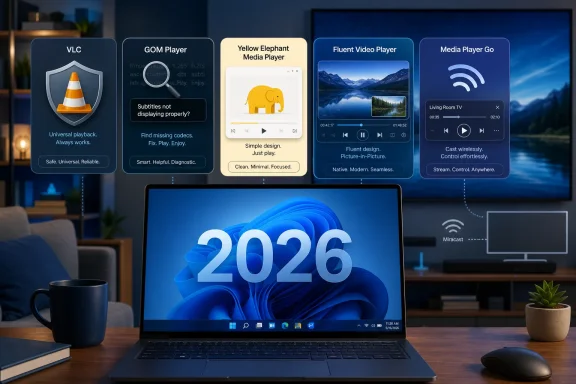
Windows users looking for a free media player in 2026 still have five practical choices worth considering: VLC Media Player, GOM Player, Media Player by Yellow Elephant Productions, Fluent Video Player, and Media Player Go, each aimed at a different balance of format support, simplicity, polish, and convenience. The obvious headline is that VLC remains the safest default, but the more interesting story is how fragmented the “free player” category has become. Windows already includes competent built-in playback, yet users still go hunting because codecs, subtitles, casting, Blu-ray discs, and oddball downloads remain messy. The best player is no longer just the one that opens the most files; it is the one that fails least painfully in the workflow you actually have.
VLC Media Player has survived so many Windows generations because it solves the one problem that never quite disappears: somebody sends you a file, and Windows shrugs. MP4, MKV, AVI, FLAC, DVD structures, half-broken downloads, phone recordings, surveillance exports, and ancient archive clips all have a way of surfacing when you least want to troubleshoot them. VLC’s reputation was built on making those moments unremarkable.
That matters more than interface polish. VLC’s UI can still feel like a tool from another desktop era, with menus that expose decades of accumulated capability rather than a curated modern experience. But there is a reason sysadmins, hobbyists, teachers, editors, and family tech-support volunteers keep installing it: it is predictable, ad-free, cross-platform, and tolerant of weird media.
Its built-in conversion and streaming features are also easy to underestimate. Most users open VLC as a player, then eventually discover it can transcode a file, capture a stream, adjust subtitles, normalize audio, or inspect codec details. It is not always the prettiest way to do those things, but it is often the fastest way to do them without installing three more utilities.
For most Windows users, VLC remains the best free media player precisely because it does not try to become a storefront, a cloud service, or a lifestyle app. It is software in the old sense: install it, point it at a file, and expect it to work. In a Windows ecosystem increasingly shaped by subscriptions, prompts, and account-linked services, that restraint has become part of its appeal.
GOM Player’s pitch is aimed squarely at this pain point. Instead of merely telling users a file cannot be played, it tries to identify missing codecs and help locate what is needed. That approach is useful for people who do not want to learn container formats, video profiles, or why one “MP4” is not necessarily like another.
The tradeoff is trust and tolerance. A player that offers online codec discovery and upgrade prompts can be helpful, but it also asks users to pay attention during installation and use. Occasional ads or paid-version nudges may not bother casual users, but they do change the emotional contract compared with VLC’s cleaner stance.
Still, GOM Player deserves its place in a Windows shortlist because subtitles, speed controls, and codec handling are not niche features anymore. Foreign-language streaming, downloaded lectures, fan-subbed media, training videos, and personal archives all make subtitle management a daily requirement for many users. GOM’s strength is not that it beats VLC at being universal; it is that it can feel more guided when something goes wrong.
This is where VLC’s greatest strength becomes a weakness for some users. A menu full of audio filters, capture devices, network streams, subtitle offsets, playback modules, and codec information is reassuring to an IT pro. To a casual Windows user, it can look like an aircraft cockpit.
A simpler player makes sense on shared family PCs, student laptops, secondary machines, and living-room desktops where the goal is playback rather than tinkering. If the app supports the formats people commonly encounter and does not bury the basic controls, it has already done most of the job. The absence of advanced settings is not automatically a flaw; it is only a flaw when the user actually needs them.
The risk with lightweight Store-style players is longevity. Windows enthusiasts have seen too many small apps appear, charm users with a clean interface, then stagnate or vanish. That does not make them unsafe or useless, but it does mean users should treat them differently from long-running projects like VLC. A simple player can be the right choice, but it should not be the only tool in the drawer if you routinely handle strange files.
That is why picture-in-picture support has become more than a novelty. A floating video window is useful for lectures, meetings, sports streams, coding tutorials, recipes, security camera clips, and background entertainment. When a player handles that gracefully, it can feel better integrated into the rhythms of modern Windows than a more powerful app with an older interface.
Fluent Video Player’s limitation is also clear: it is focused primarily on video. That is not a fatal weakness, but it puts the app in a narrower lane than VLC or GOM. If your media life includes FLAC collections, disc playback, conversion, network streams, or damaged files, a sleek video-first app may not be enough.
But the rise of players like this shows where user expectations have moved. The old media-player contest was about how many formats an app could decode. The newer contest is about how little friction it adds to the desktop. For many users, especially those who mainly watch common video files, elegance and speed may matter more than exhaustive capability.
Miracast support is especially relevant for users who treat a laptop as a portable media hub. A file on the PC can become a living-room video without moving it to a USB drive, uploading it to a cloud service, or relying on a smart TV app with questionable format support. That is not always as seamless as vendor demos imply, but when it works, it is exactly the kind of feature that makes a free player feel modern.
The volume boost and speed adjustment features also reflect real-world use. Laptop speakers are often weak, dialogue mixing is often terrible, and educational videos are often too slow. A player that exposes those controls clearly can be more useful than one that technically offers them behind deeper menus.
Media Player Go is not the obvious pick for the user with a folder full of obscure formats or a need for deep troubleshooting. It is the pick for someone who wants a flexible everyday player that understands how people actually consume media on Windows: sometimes full-screen, sometimes floating, sometimes cast to another display, and often adjusted on the fly.
That distinction matters because media players sit close to sensitive user behavior. They open files from unknown sources, parse complex containers, and may reach online services for subtitles, metadata, codecs, or updates. A good player is not just one that supports a long list of formats; it is one you trust not to turn playback into a security or privacy gamble.
This is where Windows users should be more conservative than many download lists imply. The safest route is to install from official project sites or the Microsoft Store, avoid repackaged installers, and be skeptical of codec bundles that promise universal compatibility. The history of Windows media utilities is littered with adware, bundleware, and “helper” components that solve one problem by creating three more.
The Dailyhunt list that prompted this discussion is useful because it captures five players that map to five user types. But the ranking should not be read as a simple ladder from best to worst. It is more accurate to treat the category as a set of tradeoffs: universality, guidance, simplicity, modern design, and device integration.
But “get by” is not the same as “stop needing alternatives.” Windows licensing, codec support, regional media quirks, subtitle needs, and disc playback all complicate the picture. HEVC support, in particular, has long been a source of user confusion because a file can be common in the real world while still requiring additional components on a given PC.
There is also a cultural reason third-party players persist. Windows users like control. They like being able to choose the app that owns a file type, tweak playback speed, override subtitle behavior, inspect media information, and avoid being steered into a Microsoft account-linked experience. A third-party player is not merely a workaround; it is a small assertion that the PC remains a general-purpose machine.
That is why the free-player market keeps renewing itself. Microsoft can make the default app nicer, but it cannot anticipate every edge case or satisfy every preference. The Windows ecosystem’s strength has always been that someone else can fill the gap.
If the worst outcome is not knowing why something failed, GOM Player may be more comfortable. Its codec-finder approach and subtitle tools are designed for users who want assistance rather than a silent error. The compromise is that you should be more alert to prompts, installers, and upgrade messages.
If the worst outcome is clutter, Media Player by Yellow Elephant Productions is the more appealing option. It fits users who value a clean interface and broad enough compatibility over deep configurability. That is a legitimate preference, especially on machines used by people who do not want a tutorial in media architecture every time they double-click a file.
If the worst outcome is an app that feels out of place on Windows 11, Fluent Video Player has the advantage. It is the aesthetic pick, especially for people who primarily watch video and want picture-in-picture without the baggage of a full media toolkit. If the worst outcome is being stuck at the desk, Media Player Go’s casting and mini-player features make it the more flexible everyday companion.
This mirrors how professionals use browsers, terminals, editors, and file tools. One app rarely wins every scenario. The mature Windows setup is not about finding a single perfect player; it is about building a small toolkit that covers common files, strange files, subtitles, casting, and troubleshooting without bloating the system.
The only caution is default-app sprawl. Windows can become irritating when every player competes for file associations. Pick one default for common formats, then open alternatives manually when needed. That preserves convenience without turning every media file into a small negotiation with the operating system.
For most users, the cleanest setup is VLC plus one modern player. VLC handles the weird stuff. The modern player handles the daily stuff. Anything beyond that should solve a specific need, not merely satisfy the urge to collect utilities.
A movie file, a music library, a lecture recording, a subtitle-heavy foreign film, a cast-to-TV session, and a damaged download all ask different things of software. The old dream of one player to rule them all remains attractive, but everyday computing keeps producing exceptions. Free players thrive in those exceptions.
The shortlist is therefore less a hierarchy than a map. VLC is the generalist. GOM Player is the troubleshooter. Media Player is the simplifier. Fluent Video Player is the Windows-native minimalist. Media Player Go is the convenience layer for multitasking and casting.
That map is useful because it shifts the question from “Which player is best?” to “Which annoyance am I trying to remove?” Once framed that way, the answer becomes much easier.
 VLC Still Wins Because the Boring Answer Is Usually the Right One
VLC Media Player has survived so many Windows generations because it solves the one problem that never quite disappears: somebody sends you a file, and Windows shrugs. MP4, MKV, AVI, FLAC, DVD structures, half-broken downloads, phone recordings, surveillance exports, and ancient archive clips all have a way of surfacing when you least want to troubleshoot them. VLC’s reputation was built on making those moments unremarkable.That matters more than interface polish. VLC’s UI can still feel like a tool from another desktop era, with menus that expose decades of accumulated capability rather than a curated modern experience. But there is a reason sysadmins, hobbyists, teachers, editors, and family tech-support volunteers keep installing it: it is predictable, ad-free, cross-platform, and tolerant of weird media.
Its built-in conversion and streaming features are also easy to underestimate. Most users open VLC as a player, then eventually discover it can transcode a file, capture a stream, adjust subtitles, normalize audio, or inspect codec details. It is not always the prettiest way to do those things, but it is often the fastest way to do them without installing three more utilities.
For most Windows users, VLC remains the best free media player precisely because it does not try to become a storefront, a cloud service, or a lifestyle app. It is software in the old sense: install it, point it at a file, and expect it to work. In a Windows ecosystem increasingly shaped by subscriptions, prompts, and account-linked services, that restraint has become part of its appeal.
The Codec Problem Never Really Went Away
The modern Windows media story is supposed to be simpler than the XP-era codec-pack chaos. In practice, it is only simpler until you meet an HEVC file, a badly muxed MKV, an old camcorder format, an external subtitle track with broken timing, or a file exported from professional software with assumptions your PC does not share. That is the gap free media players continue to fill.GOM Player’s pitch is aimed squarely at this pain point. Instead of merely telling users a file cannot be played, it tries to identify missing codecs and help locate what is needed. That approach is useful for people who do not want to learn container formats, video profiles, or why one “MP4” is not necessarily like another.
The tradeoff is trust and tolerance. A player that offers online codec discovery and upgrade prompts can be helpful, but it also asks users to pay attention during installation and use. Occasional ads or paid-version nudges may not bother casual users, but they do change the emotional contract compared with VLC’s cleaner stance.
Still, GOM Player deserves its place in a Windows shortlist because subtitles, speed controls, and codec handling are not niche features anymore. Foreign-language streaming, downloaded lectures, fan-subbed media, training videos, and personal archives all make subtitle management a daily requirement for many users. GOM’s strength is not that it beats VLC at being universal; it is that it can feel more guided when something goes wrong.
Simplicity Is a Feature, Not a Defect
Media Player by Yellow Elephant Productions represents a different bet: that many people do not want the Swiss Army knife. They want a clean, modern player that opens a file and gets out of the way. Support for a broad range of formats is still important, but the appeal is psychological as much as technical.This is where VLC’s greatest strength becomes a weakness for some users. A menu full of audio filters, capture devices, network streams, subtitle offsets, playback modules, and codec information is reassuring to an IT pro. To a casual Windows user, it can look like an aircraft cockpit.
A simpler player makes sense on shared family PCs, student laptops, secondary machines, and living-room desktops where the goal is playback rather than tinkering. If the app supports the formats people commonly encounter and does not bury the basic controls, it has already done most of the job. The absence of advanced settings is not automatically a flaw; it is only a flaw when the user actually needs them.
The risk with lightweight Store-style players is longevity. Windows enthusiasts have seen too many small apps appear, charm users with a clean interface, then stagnate or vanish. That does not make them unsafe or useless, but it does mean users should treat them differently from long-running projects like VLC. A simple player can be the right choice, but it should not be the only tool in the drawer if you routinely handle strange files.
Windows 11 Changed the Aesthetic Expectations
Fluent Video Player speaks to a truth Microsoft itself helped create: Windows users now expect apps to look like they belong on Windows 10 and Windows 11. Fluent design, compact controls, picture-in-picture behavior, and a lightweight footprint matter because media playback increasingly happens alongside work rather than instead of it. The PC is no longer just a screen for watching a movie; it is a multitasking surface.That is why picture-in-picture support has become more than a novelty. A floating video window is useful for lectures, meetings, sports streams, coding tutorials, recipes, security camera clips, and background entertainment. When a player handles that gracefully, it can feel better integrated into the rhythms of modern Windows than a more powerful app with an older interface.
Fluent Video Player’s limitation is also clear: it is focused primarily on video. That is not a fatal weakness, but it puts the app in a narrower lane than VLC or GOM. If your media life includes FLAC collections, disc playback, conversion, network streams, or damaged files, a sleek video-first app may not be enough.
But the rise of players like this shows where user expectations have moved. The old media-player contest was about how many formats an app could decode. The newer contest is about how little friction it adds to the desktop. For many users, especially those who mainly watch common video files, elegance and speed may matter more than exhaustive capability.
Casting Turns the Local Player Into a Living-Room Tool
Media Player Go’s value proposition is convenience. Mini-player modes, speed controls, volume boost, and Miracast casting are not exotic, but together they make the app feel less like a bare playback window and more like a bridge between the PC and the rest of the home. That matters because Windows media habits are no longer confined to the desk.Miracast support is especially relevant for users who treat a laptop as a portable media hub. A file on the PC can become a living-room video without moving it to a USB drive, uploading it to a cloud service, or relying on a smart TV app with questionable format support. That is not always as seamless as vendor demos imply, but when it works, it is exactly the kind of feature that makes a free player feel modern.
The volume boost and speed adjustment features also reflect real-world use. Laptop speakers are often weak, dialogue mixing is often terrible, and educational videos are often too slow. A player that exposes those controls clearly can be more useful than one that technically offers them behind deeper menus.
Media Player Go is not the obvious pick for the user with a folder full of obscure formats or a need for deep troubleshooting. It is the pick for someone who wants a flexible everyday player that understands how people actually consume media on Windows: sometimes full-screen, sometimes floating, sometimes cast to another display, and often adjusted on the fly.
Free Does Not Always Mean Frictionless
The phrase “free media player” hides several different software models. VLC is free in the open-source, community-driven sense. GOM Player is free in a more commercial sense, with premium paths and advertising pressure around the edges. Microsoft Store apps may be free but depend heavily on developer maintenance, Store policies, and the economics of small-app publishing.That distinction matters because media players sit close to sensitive user behavior. They open files from unknown sources, parse complex containers, and may reach online services for subtitles, metadata, codecs, or updates. A good player is not just one that supports a long list of formats; it is one you trust not to turn playback into a security or privacy gamble.
This is where Windows users should be more conservative than many download lists imply. The safest route is to install from official project sites or the Microsoft Store, avoid repackaged installers, and be skeptical of codec bundles that promise universal compatibility. The history of Windows media utilities is littered with adware, bundleware, and “helper” components that solve one problem by creating three more.
The Dailyhunt list that prompted this discussion is useful because it captures five players that map to five user types. But the ranking should not be read as a simple ladder from best to worst. It is more accurate to treat the category as a set of tradeoffs: universality, guidance, simplicity, modern design, and device integration.
The Built-In Windows Player Is Better, but Not Enough
It is worth acknowledging the awkward fact that Windows itself is no longer hopeless at media playback. Microsoft’s built-in Media Player has improved from the era when users reflexively installed alternatives before opening their first video. For ordinary music files and mainstream video formats, many people can get by without adding anything.But “get by” is not the same as “stop needing alternatives.” Windows licensing, codec support, regional media quirks, subtitle needs, and disc playback all complicate the picture. HEVC support, in particular, has long been a source of user confusion because a file can be common in the real world while still requiring additional components on a given PC.
There is also a cultural reason third-party players persist. Windows users like control. They like being able to choose the app that owns a file type, tweak playback speed, override subtitle behavior, inspect media information, and avoid being steered into a Microsoft account-linked experience. A third-party player is not merely a workaround; it is a small assertion that the PC remains a general-purpose machine.
That is why the free-player market keeps renewing itself. Microsoft can make the default app nicer, but it cannot anticipate every edge case or satisfy every preference. The Windows ecosystem’s strength has always been that someone else can fill the gap.
The Right Choice Depends on the Failure You Want to Avoid
For a practical recommendation, start with the failure mode that annoys you most. If the worst outcome is a file refusing to open, install VLC first. Its breadth, maturity, and lack of ads make it the closest thing Windows has to a universal fallback.If the worst outcome is not knowing why something failed, GOM Player may be more comfortable. Its codec-finder approach and subtitle tools are designed for users who want assistance rather than a silent error. The compromise is that you should be more alert to prompts, installers, and upgrade messages.
If the worst outcome is clutter, Media Player by Yellow Elephant Productions is the more appealing option. It fits users who value a clean interface and broad enough compatibility over deep configurability. That is a legitimate preference, especially on machines used by people who do not want a tutorial in media architecture every time they double-click a file.
If the worst outcome is an app that feels out of place on Windows 11, Fluent Video Player has the advantage. It is the aesthetic pick, especially for people who primarily watch video and want picture-in-picture without the baggage of a full media toolkit. If the worst outcome is being stuck at the desk, Media Player Go’s casting and mini-player features make it the more flexible everyday companion.
Power Users Should Keep More Than One Player Installed
There is no shame in using multiple players. In fact, for Windows enthusiasts and IT pros, it is often the sane approach. VLC can be the emergency opener, a modern Store app can be the daily player, and a codec-guided player can be reserved for files that need extra hand-holding.This mirrors how professionals use browsers, terminals, editors, and file tools. One app rarely wins every scenario. The mature Windows setup is not about finding a single perfect player; it is about building a small toolkit that covers common files, strange files, subtitles, casting, and troubleshooting without bloating the system.
The only caution is default-app sprawl. Windows can become irritating when every player competes for file associations. Pick one default for common formats, then open alternatives manually when needed. That preserves convenience without turning every media file into a small negotiation with the operating system.
For most users, the cleanest setup is VLC plus one modern player. VLC handles the weird stuff. The modern player handles the daily stuff. Anything beyond that should solve a specific need, not merely satisfy the urge to collect utilities.
The Five-Player Shortlist Says More About Windows Than About Video
The most revealing thing about this list is not that VLC still wins. It is that a 2026 Windows PC can still justify five different free media players without the category feeling redundant. Each one exists because Windows media playback is not one job; it is several jobs pretending to be one.A movie file, a music library, a lecture recording, a subtitle-heavy foreign film, a cast-to-TV session, and a damaged download all ask different things of software. The old dream of one player to rule them all remains attractive, but everyday computing keeps producing exceptions. Free players thrive in those exceptions.
The shortlist is therefore less a hierarchy than a map. VLC is the generalist. GOM Player is the troubleshooter. Media Player is the simplifier. Fluent Video Player is the Windows-native minimalist. Media Player Go is the convenience layer for multitasking and casting.
That map is useful because it shifts the question from “Which player is best?” to “Which annoyance am I trying to remove?” Once framed that way, the answer becomes much easier.
The Sensible Windows Setup Is a Small, Trusted Toolkit
A good media-player choice should reduce decisions, not create new ones. The practical answer for most Windows users is to install VLC as the dependable fallback and then add one lighter or more modern player only if it fits a daily habit. More apps than that should be justified by a real need, not a download-list impulse.- VLC Media Player remains the safest first recommendation because it is free, open-source, ad-free, and unusually capable with obscure or damaged media files.
- GOM Player is most useful for users who want help with missing codecs and subtitle handling, but its commercial prompts make installer hygiene more important.
- Media Player by Yellow Elephant Productions is best understood as a simplicity-first option for casual playback rather than a replacement for a full technical toolkit.
- Fluent Video Player makes the strongest case for users who care about a modern Windows 10 and Windows 11 interface and picture-in-picture playback.
- Media Player Go is the most convenient pick for users who want casting, mini-player behavior, volume boost, and speed controls in one approachable package.
- The best Windows setup may be two players, not one: a universal fallback for difficult files and a cleaner daily player for ordinary viewing.
References
- Primary source: Dailyhunt
Published: 2026-06-30T06:20:09.078504
Loading…
m.dailyhunt.in - Related coverage: techadvisor.com
Loading…
www.techadvisor.com - Related coverage: allthings.how
Loading…
allthings.how - Related coverage: windowscentral.com
Loading…
www.windowscentral.com - Related coverage: howtogeek.com
Loading…
www.howtogeek.com - Related coverage: techrounder.com
Loading…
www.techrounder.com