

Chrome’s spell checker is easy to take for granted—until the familiar red underline disappears from an important email, forum post, or web form. The good news is that most Chrome spell check failures are not caused by a damaged browser installation. They usually come down to a disabled language, the wrong spelling mode, an interfering extension, a site-specific editor limitation, or a policy imposed by a work or school administrator.
The fastest repair is to confirm Chrome’s own spell-check controls first, then test whether the issue follows the browser, the active profile, a specific website, or the operating system keyboard. That approach prevents the common mistake of resetting Chrome or reinstalling it before identifying the actual point of failure.
“Spell check is not working” can describe several different problems, and each has a different fix.
Chrome may be failing to:
If misspellings are highlighted on one site but not another, Chrome itself is probably functioning. The affected site may use a custom text editor or a field that deliberately disables browser spell checking. In that case, changing Chrome settings may not solve the problem.
That address opens Chrome’s language and spelling settings without navigating through multiple menus.
Under Use spell check for, verify that the language used for writing is enabled. This is especially important for users who regularly switch among English variants or write in more than one language.
For example, a person writing in US English may see unusual results if only English (United Kingdom) is active. The same issue can affect users writing in French, Spanish, German, Portuguese, or multilingual combinations.
A practical repair sequence is:
This is the best default choice for users who prioritize privacy, work with confidential material, or use a computer behind restrictive corporate network controls. It is also the more dependable option if a firewall, filtering service, proxy, or security product interferes with Chrome’s online services.
Basic spell check can still provide useful typo detection and suggestions, but it may be less flexible with context-sensitive corrections, names, modern terminology, and unusual phrasing.
That can be helpful for users who want stronger spelling assistance, particularly when writing longer posts, emails, messages, or documents in browser-based editors. However, the privacy trade-off is significant enough that it should be a deliberate choice rather than a troubleshooting step applied blindly.
To switch modes:
However, switching modes is not a permanent fix for every failure. If one mode works and the other does not, the underlying issue may involve an organization’s browser policy, an internet filtering tool, or a network connection that blocks the enhanced service.
This is common in:
In that situation, check whether the site has an internal proofreading setting, its own writing assistant, or a browser compatibility issue. Chrome spell check may not be available in that specific editor by design.
Potential culprits include:
Be careful with the conclusion, though. Extensions can be explicitly allowed to run in Incognito. If an extension still has Incognito access, disable that access before treating the test as clean.
Removing an extension is preferable to merely disabling it if it is no longer needed, unsupported, or has broad permission to read and modify website data.
To check for an update:
An update may resolve a spell-check failure caused by an outdated build, a broken component, or a conflict with a recently changed website.
After changing spelling settings or installing an update:
They are especially relevant when spell-check problems appear across Chrome, Microsoft apps, browsers, and native Windows text fields.
On Windows 11:
Do not assume that a keyboard layout alone means a complete spelling dictionary is installed. Keyboard layout, display language, input language, and proofreading support are related but separate components.
To review those settings:
A Mac application can also have its own spelling controls. If Chrome is the only affected app, prioritize Chrome’s settings, extensions, and profile diagnostics. If spelling is broken across multiple applications, macOS keyboard settings become more likely to be part of the issue.
That means the desktop Chrome path—Settings > Languages > Spell check—is not the primary repair route on Android, iPhone, or iPad.
Common settings to enable include:
If spell checking disappears in Chrome but not in another app, try switching temporarily to the default keyboard. If the problem vanishes, the active keyboard app is the likely cause.
First, open Chrome’s Languages settings and confirm that spell check and the relevant language are enabled. Then review the Chromebook input configuration.
For touchscreen Chromebooks and the on-screen keyboard, input-method settings may include automatic correction, auto-capitalization, glide typing, and personal dictionary controls. A mismatch between the keyboard language and the language being typed can produce inaccurate corrections or make it appear as though spell check has stopped.
To see whether Chrome is managed, enter:
To review applied policies, enter:
Relevant policies can include:
If a policy is marked as enforced, the solution is administrative. An IT administrator must change the policy or explain why it is required.
A reset is valuable because it removes many hidden configuration conflicts at once. But it should not be the first step, since it can disrupt startup pages, pinned tabs, search settings, extension workflows, and other browser preferences.
A new profile helps distinguish between:
Avoid instructions that tell you to:
When reinstalling Chrome, download it only from Google’s official Chrome download page. Remove the existing installation through the operating system first, then install the current version and test spell check before restoring extensions.
The fastest repair is to confirm Chrome’s own spell-check controls first, then test whether the issue follows the browser, the active profile, a specific website, or the operating system keyboard. That approach prevents the common mistake of resetting Chrome or reinstalling it before identifying the actual point of failure.
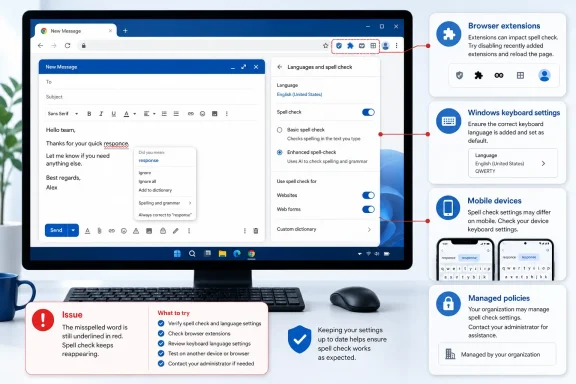 Start by Identifying What Has Actually Stopped Working
“Spell check is not working” can describe several different problems, and each has a different fix.Chrome may be failing to:
- Underline an obviously misspelled word
- Offer correction suggestions after right-clicking a misspelled word
- Check one language while checking another correctly
- Provide useful suggestions for names, technical terms, or mixed-language writing
- Work only in a particular site, editor, or web app
- Work in a normal window but not in Incognito mode—or the reverse
- Work on desktop Chrome but not on Android, iPhone, or iPad
definately or recieve in a basic text field. A webmail compose window, a comment field, or a simple online note editor can work well for this test.If misspellings are highlighted on one site but not another, Chrome itself is probably functioning. The affected site may use a custom text editor or a field that deliberately disables browser spell checking. In that case, changing Chrome settings may not solve the problem.
Turn Chrome Spell Check Back On
On Windows, macOS, Linux, and ChromeOS, Chrome includes its own spell-check controls. Begin here even if spell check was working recently, because browser updates, profile changes, language changes, and managed settings can all alter the active configuration.- Open Google Chrome.
- Select the three-dot More menu.
- Choose Settings.
- Open Languages.
- Find the Spell check section.
- Turn on Check for spelling errors when you type text on web pages.
chrome://settings/languagesThat address opens Chrome’s language and spelling settings without navigating through multiple menus.
Confirm That the Correct Language Is Enabled
The master spell-check switch is only part of the configuration. Chrome can also enable or disable spell check for individual languages.Under Use spell check for, verify that the language used for writing is enabled. This is especially important for users who regularly switch among English variants or write in more than one language.
For example, a person writing in US English may see unusual results if only English (United Kingdom) is active. The same issue can affect users writing in French, Spanish, German, Portuguese, or multilingual combinations.
A practical repair sequence is:
- Turn off spell check for the affected language.
- Restart Chrome.
- Return to Languages.
- Turn spell check back on for that language.
- Test again in a standard text box.
Choose Between Basic and Enhanced Spell Check
Chrome offers two approaches to spell checking: Basic spell check and Enhanced spell check. Selecting the right one can restore suggestions, improve results, or resolve a network-related problem.Basic Spell Check
Basic spell check uses a local dictionary stored on the device. Text entered into browser fields is not sent to Google as part of the basic spelling service.This is the best default choice for users who prioritize privacy, work with confidential material, or use a computer behind restrictive corporate network controls. It is also the more dependable option if a firewall, filtering service, proxy, or security product interferes with Chrome’s online services.
Basic spell check can still provide useful typo detection and suggestions, but it may be less flexible with context-sensitive corrections, names, modern terminology, and unusual phrasing.
Enhanced Spell Check
Enhanced spell check uses a Google web service to provide more advanced spelling suggestions. Chrome sends text typed into browser text fields to Google so that the service can analyze it and return improved recommendations.That can be helpful for users who want stronger spelling assistance, particularly when writing longer posts, emails, messages, or documents in browser-based editors. However, the privacy trade-off is significant enough that it should be a deliberate choice rather than a troubleshooting step applied blindly.
To switch modes:
- Open Chrome Settings.
- Select Languages.
- Open Spell check.
- Choose Basic spell check or Enhanced spell check.
- Retest in a web text field.
Why Switching Modes Can Fix the Problem
Changing modes forces Chrome to reinitialize the selected spell-check path. It can help when Chrome appears stuck, when suggestion quality changes unexpectedly, or when Enhanced spell check is blocked by network policy.However, switching modes is not a permanent fix for every failure. If one mode works and the other does not, the underlying issue may involve an organization’s browser policy, an internet filtering tool, or a network connection that blocks the enhanced service.
Check Whether the Website Is Blocking Spell Check
Chrome cannot override every web editor. Websites can control how their input fields behave, and some intentionally suppress browser spelling indicators.This is common in:
- Password fields
- Search fields
- Code editors
- Terminal-style interfaces
- Financial or medical data-entry systems
- Rich-text editors built with custom frameworks
- Online forms that disable browser proofreading
- Certain chat, support, and ticketing platforms
Test in More Than One Place
Use a simple diagnostic pattern:- Open a normal website with a plain comment or message field.
- Type a known misspelling.
- Open the problem website.
- Type the same misspelling into the affected field.
- Compare the behavior.
In that situation, check whether the site has an internal proofreading setting, its own writing assistant, or a browser compatibility issue. Chrome spell check may not be available in that specific editor by design.
Disable Extensions That Interfere With Typing
Extensions are one of the most common reasons Chrome spell check stops working or behaves inconsistently. Tools that modify pages, intercept keystrokes, replace text, add grammar suggestions, remove trackers, or enhance privacy can affect the browser’s native spelling behavior.Potential culprits include:
- Grammar and writing assistants
- AI drafting extensions
- Privacy and tracker-blocking tools
- Password managers with form overlays
- Translation tools
- Keyboard shortcut utilities
- Accessibility extensions
- Web editor enhancements
- Corporate browser security extensions
Use Incognito Mode as a Fast Test
Incognito mode is useful because extensions are normally disabled there by default.- Open the three-dot More menu.
- Select New Incognito window.
- On Windows, Linux, or ChromeOS, press Ctrl + Shift + N.
- On macOS, press Command + Shift + N.
- Visit a simple site with a text field.
- Type a known misspelling.
Be careful with the conclusion, though. Extensions can be explicitly allowed to run in Incognito. If an extension still has Incognito access, disable that access before treating the test as clean.
Find the Conflicting Extension
To investigate:- Open Chrome’s More menu.
- Select Extensions.
- Choose Manage extensions.
- Turn off extensions one at a time.
- Test spell check after each change.
Removing an extension is preferable to merely disabling it if it is no longer needed, unsupported, or has broad permission to read and modify website data.
Update Chrome Before Resetting Anything
Chrome updates are not only security patches. They also contain fixes for browser features, language components, extension compatibility, and web platform behavior.To check for an update:
- Open the three-dot More menu.
- Select Help.
- Choose About Google Chrome.
- Allow Chrome to check for updates.
- Select Relaunch if an update is installed.
chrome://settings/helpAn update may resolve a spell-check failure caused by an outdated build, a broken component, or a conflict with a recently changed website.
Restart More Thoroughly Than Closing a Tab
Closing a single Chrome window may not stop every Chrome process. Background apps and lingering windows can keep the browser session alive.After changing spelling settings or installing an update:
- Close all Chrome windows.
- Check that Chrome is no longer running.
- Reopen Chrome.
- Test spell check again.
Repair Windows Typing and Language Settings
Chrome’s basic browser spell checker uses its own local dictionary, but Windows typing and language settings still matter. They can affect how other applications handle spelling, text suggestions, keyboard languages, and the overall input environment.They are especially relevant when spell-check problems appear across Chrome, Microsoft apps, browsers, and native Windows text fields.
Windows 11 Spelling Options
On Windows 11:- Open Start.
- Select Settings.
- Choose Time & language.
- Open Typing.
- Under Spelling, enable:
- Autocorrect misspelled words
- Highlight misspelled words
Windows 10 Spelling Options
On Windows 10, the route is slightly different:- Open Start.
- Select Settings.
- Choose Devices.
- Open Typing.
- Enable Autocorrect misspelled words and Highlight misspelled words.
Install the Language You Actually Use
If Chrome fails only for a particular language, verify that Windows has the appropriate language resources installed.On Windows 11:
- Open Settings.
- Go to Time & language.
- Select Language & region.
- Under Preferred languages, choose Add a language.
- Select the required language.
- Install the available language features.
Do not assume that a keyboard layout alone means a complete spelling dictionary is installed. Keyboard layout, display language, input language, and proofreading support are related but separate components.
Check macOS Keyboard Spelling Controls
On a Mac, Chrome’s own desktop spell-check settings remain the first place to look. But macOS also has keyboard-level spelling and autocorrection controls that can affect the typing experience in many apps.To review those settings:
- Open System Settings.
- Select Keyboard.
- Find Text Input.
- Select Edit.
- Turn on Correct spelling automatically.
- Select the appropriate language from the Spelling menu.
A Mac application can also have its own spelling controls. If Chrome is the only affected app, prioritize Chrome’s settings, extensions, and profile diagnostics. If spelling is broken across multiple applications, macOS keyboard settings become more likely to be part of the issue.
Fix Chrome Spell Check on Android, iPhone, and iPad
Chrome on mobile platforms does not work like desktop Chrome. The browser relies heavily on the phone or tablet’s keyboard and operating system spelling features.That means the desktop Chrome path—Settings > Languages > Spell check—is not the primary repair route on Android, iPhone, or iPad.
Android: Check Gboard or the Active Keyboard
On Android, the exact settings depend on the keyboard application. For devices using Gboard, open the keyboard and look for its settings, then review Text correction options.Common settings to enable include:
- Auto-correction
- Spell check
- Show suggestion strip
- Next-word suggestions
- Personalized suggestions, where appropriate
If spell checking disappears in Chrome but not in another app, try switching temporarily to the default keyboard. If the problem vanishes, the active keyboard app is the likely cause.
iPhone and iPad: Use iOS Keyboard Settings
On iPhone and iPad, spell correction is governed by iOS keyboard settings.- Open Settings.
- Select General.
- Tap Keyboard.
- Enable Auto-Correction.
- Touch and hold the emoji or globe key on the keyboard.
- Choose Keyboard Settings.
- Turn on Predictive or Predictive Text.
Chromebook: Verify Both Chrome and ChromeOS Input Settings
Chromebooks require a two-layer check: Chrome browser spell-check settings and ChromeOS keyboard or input configuration.First, open Chrome’s Languages settings and confirm that spell check and the relevant language are enabled. Then review the Chromebook input configuration.
- Select the time in the lower-right corner.
- Open Settings.
- Under Device, open Keyboard and inputs or the equivalent keyboard settings area.
- Confirm that the intended input method and keyboard language are active.
For touchscreen Chromebooks and the on-screen keyboard, input-method settings may include automatic correction, auto-capitalization, glide typing, and personal dictionary controls. A mismatch between the keyboard language and the language being typed can produce inaccurate corrections or make it appear as though spell check has stopped.
Investigate Managed Profiles and Enterprise Policies
A work or school Chrome profile can override personal spell-check choices. This is common on company-owned Windows PCs, managed Macs, Chromebooks, and browsers signed into an organization-controlled account.To see whether Chrome is managed, enter:
chrome://managementTo review applied policies, enter:
chrome://policyRelevant policies can include:
SpellcheckEnabledSpellcheckLanguageSpellcheckLanguageBlocklistSpellCheckServiceEnabled
What Not to Do on a Managed Device
Do not attempt registry edits, unofficial policy removers, browser flags, or profile modifications to bypass an organization’s controls. Those actions can violate workplace policy, create support problems, and compromise security controls.If a policy is marked as enforced, the solution is administrative. An IT administrator must change the policy or explain why it is required.
Reset Chrome Only After Testing Settings and Extensions
If Chrome spell check remains broken after checking languages, switching modes, updating Chrome, and disabling extensions, reset Chrome’s settings.- Open Settings.
- Select Reset settings.
- Choose Restore settings to their original defaults.
- Select Reset settings.
A reset is valuable because it removes many hidden configuration conflicts at once. But it should not be the first step, since it can disrupt startup pages, pinned tabs, search settings, extension workflows, and other browser preferences.
Consider a New Chrome Profile
If reset does not help—or if the issue affects only one signed-in Chrome profile—create a fresh browser profile and test there.A new profile helps distinguish between:
- A browser-wide problem
- A corrupt or misconfigured Chrome profile
- Extension interference tied to one profile
- Sync-related settings that keep returning
- Managed-account policies
Avoid Outdated Flag and Registry “Fixes”
Many old Chrome troubleshooting guides point to obsolete menu labels, hidden experimental flags, or unsupported registry changes. These are often copied from much older versions of Chrome and can create more problems than they solve.Avoid instructions that tell you to:
- Enable an old automatic spelling correction flag
- Search
chrome://flagsfor legacy spell-check experiments - Use outdated Advanced > Languages menu paths as the only method
- Modify unexplained Chrome preference files
- Apply registry edits from random forums
- Reinstall Chrome before checking languages, extensions, and policies
When reinstalling Chrome, download it only from Google’s official Chrome download page. Remove the existing installation through the operating system first, then install the current version and test spell check before restoring extensions.
The Most Reliable Chrome Spell Check Recovery Order
For most Windows users, the following order produces the quickest result with the least disruption:- Test a misspelled word on more than one website.
- Enable Chrome’s spell-check master switch.
- Enable the correct language under Chrome’s spell-check languages.
- Switch between Basic and Enhanced spell check.
- Test in an Incognito window.
- Disable extensions, especially writing and privacy tools.
- Update and relaunch Chrome.
- Check Windows typing and language settings.
- Review
chrome://policyif the device is managed. - Reset Chrome settings.
- Test in a new Chrome profile.
- Reinstall Chrome only as a last resort.