

Microsoft Word rarely fails all at once. More often, it becomes gradually less predictable: new documents inherit the wrong font, margins change without warning, familiar Ribbon commands disappear, an add-in slows startup, or Word crashes before a document even opens. The good news is that resetting Microsoft Word to default settings can resolve many of these problems without deleting personal documents or immediately reinstalling Microsoft 365.
A Word reset is not one single action. Word stores its behavior across several places, including the Normal.dotm global template, Ribbon customizations, add-ins, Windows Registry settings, startup folders, and Office installation files.
That distinction matters. Resetting the wrong component can remove useful customizations while doing nothing to fix the actual issue.
For most people, the safest way to reset Microsoft Word to default settings is to work from the least disruptive option to the most aggressive:
The practical lesson is simple: do not treat a Word reset as an operating system reset. It is a targeted troubleshooting process.
A document saved in Documents, Desktop, OneDrive, SharePoint, an external drive, or a network location is normally unaffected by these procedures. The largest risk is not document deletion; it is losing custom Word behavior stored in templates or preferences.
The most important rule is to rename files instead of deleting them. A renamed template or backed-up Registry key gives you a way back if the reset does not help.
A fast way to reach that folder is to press
On current versions of Word for Mac, the usual template location is:
The
In Word for Windows:
This sequence is safer than reinstalling Office first. A reinstall can consume time and still leave behind the damaged template, Registry setting, add-in, or user profile that caused the problem.
The Normal template controls the default appearance of new blank documents. It can contain custom styles, fonts, paragraph spacing, page margins, AutoText, macros, and other settings that affect Word every time it starts.
If
This reset can correct:
If the fresh template fixes Word, keep the old file for a while. You may be able to recover needed styles, AutoText entries, or macros later. If the fresh template does not help, close Word, remove the newly created
Rename:
to:
Reopen Word and create a new blank document. Word should build a new Normal template automatically.
Mac users should be especially careful not to open the template by double-clicking it in Finder when trying to edit it. Word may treat that action as a request to create a new document based on the template rather than open the template itself for editing.
An add-in or organization-managed policy can also restore an unwanted font after Word starts. In that case, the problem is not simply a font setting.
To restore the Word Ribbon in Windows:
A Ribbon reset does not affect the content of Word documents, default page layout, personal templates, or cloud storage. It targets the command interface only.
To review disabled components:
Press
Word Safe Mode starts with restrictions designed to reduce the influence of add-ins, extensions, customizations, and certain user settings.
If Word runs normally in Safe Mode but crashes, freezes, or misbehaves in normal mode, the problem is likely connected to one of these:
Use the
The command:
starts Word without automatically loading global templates and add-ins. It also prevents Word from reading or modifying certain settings files during the session.
This makes
To test COM add-ins:
Testing one add-in at a time is important. Disabling all add-ins at once may restore stability, but it does not reveal the actual cause. Re-enable known-good add-ins only after confirming that Word remains stable.
In Word, go to:
Check the listed Startup location. Move nonessential third-party files to a temporary folder, restart Word, and test again.
On Windows, Word may also use a user startup folder under:
A corporate environment may intentionally load templates from network locations. Do not remove organization-managed templates unless the IT administrator has approved the change.
Registry resets are appropriate only after testing templates and add-ins. They are not the correct first response to a wrong font or one malformed document.
Resetting the Data key can clear the recent-file list and restore many user-configured settings. It will not delete Word documents.
Export it first, then delete only the Options key and restart Word.
Avoid deleting the entire
Registry editing carries real risk. If an account is managed by an employer, school, or organization, policies may reapply settings automatically after Word restarts. In that situation, recurring preferences may be intentional administrative configuration rather than corruption.
On Windows:
Online Repair is more comprehensive. It is the better option when Quick Repair fails, Word will not start, or multiple Office programs show the same symptoms.
Neither option should be assumed to fully reset all Word settings. A repair focuses on Office installation files. It may leave behind
Consider reinstalling only after:
A reinstall may not remove all user-level Word configuration. That is why a troublesome template or preference can survive a reinstall and recreate the same issue afterward.
After testing a fresh
Look for Word preference files, commonly including:
Move the file to the Desktop rather than deleting it. Then reopen Word and test.
If the problem remains, quit Word and restore the file. Preference structures can vary across Word releases and macOS versions, so this method should be treated as a controlled test rather than a blanket cleanup procedure.
If Word remains unstable after a clean Normal template and preference test, remove or update third-party add-ins, test from a new macOS user account, and only then consider reinstalling Microsoft 365 for Mac.
Instead:
Do not simply disable the save prompt and assume the issue is solved. Investigate auto-running macros, startup templates, and recently installed add-ins. A recurring modification can also be a warning sign that the template is being altered by something outside normal Word use.
The safest strategy is to begin with diagnosis, preserve backups, and make one change at a time. Rename
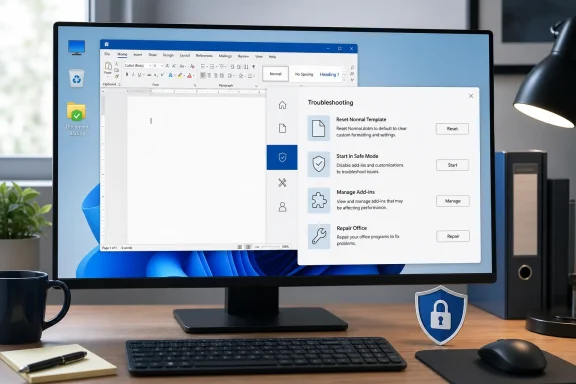 Overview: Word Does Not Have One “Factory Reset” Button
A Word reset is not one single action. Word stores its behavior across several places, including the Normal.dotm global template, Ribbon customizations, add-ins, Windows Registry settings, startup folders, and Office installation files.That distinction matters. Resetting the wrong component can remove useful customizations while doing nothing to fix the actual issue.
For most people, the safest way to reset Microsoft Word to default settings is to work from the least disruptive option to the most aggressive:
- Test Word in Safe Mode.
- Disable add-ins and startup templates.
- Rename
Normal.dotm. - Reset the Ribbon and Quick Access Toolbar.
- Reset selected Word Registry keys on Windows.
- Repair Microsoft 365 or Office.
- Reinstall only as a final measure.
What Resetting Microsoft Word Actually Changes
The term reset can describe several different tasks. Some restore only formatting defaults. Others rebuild Word’s settings. A repair fixes damaged application files but may leave many Word preferences untouched.| Reset method | What it can fix | What it normally does not affect |
|---|---|---|
Rename Normal.dotm | Default styles, formatting, margins, AutoText, macros stored in Normal | Saved documents and cloud files |
| Reset Ribbon | Customized Ribbon tabs and Quick Access Toolbar commands | Document content and most Word Options |
| Disable add-ins | Startup crashes, slow performance, missing commands | Existing formatting in documents |
| Reset Word Registry keys | Many Word Options and user-level settings | Documents and Microsoft account data |
| Office Repair | Missing or damaged Office program files | Personal Word documents |
| Reinstall Office | Application files and core program installation | Templates, settings, and user data that remain behind |
A document saved in Documents, Desktop, OneDrive, SharePoint, an external drive, or a network location is normally unaffected by these procedures. The largest risk is not document deletion; it is losing custom Word behavior stored in templates or preferences.
Before Resetting Word: Protect the Settings That Matter
Before changing anything, save all open documents and fully close Word. On Windows, close Outlook as well if it is using Word-based editing features or loaded Word add-ins.The most important rule is to rename files instead of deleting them. A renamed template or backed-up Registry key gives you a way back if the reset does not help.
Create a Small Backup Set
Copy or export the following items if they are important to your workflow:Normal.dotm- Custom
.dotxand.dotmtemplates - Macro-enabled templates and VBA modules
- AutoText entries
- Custom building blocks
- Ribbon and Quick Access Toolbar customizations
- Custom dictionaries
- AutoCorrect entries
- Any corporate or departmental templates
C:\Users\<your-user-name>\AppData\Roaming\Microsoft\TemplatesA fast way to reach that folder is to press
Windows + R, enter the following command, and press Enter:%appdata%\Microsoft\TemplatesOn current versions of Word for Mac, the usual template location is:
~/Library/Group Containers/UBF8T346G9.Office/User Content/TemplatesThe
Library folder is hidden in Finder by default. Use Go > Go to Folder and paste the path.Export Ribbon Customizations First
If you have built a carefully customized Ribbon, do not reset it without exporting the configuration.In Word for Windows:
- Open Word.
- Go to File > Options > Customize Ribbon.
- Select Import/Export.
- Choose Export all customizations.
- Save the exported
.exportedUIfile somewhere easy to find.
Start With Diagnosis, Not Destruction
A full reset is unnecessary when the issue has a narrow cause. A single corrupted document, broken printer driver, or incompatible add-in cannot always be fixed by replacingNormal.dotm.Match the Symptom to the First Fix
| Problem | Best first action |
|---|---|
| New blank documents use strange fonts or spacing | Rename Normal.dotm |
| New documents have incorrect margins or styles | Rename Normal.dotm or reset that one default |
| Ribbon tabs or buttons are missing | Reset Ribbon customizations |
| Word opens in Safe Mode but not normally | Disable add-ins and startup templates |
| Word crashes on launch | Test Safe Mode, then inspect templates and add-ins |
| Word Options behave incorrectly | Reset the Word Data key, then the Options key if necessary |
| Word will not launch at all | Office Repair after template and add-in tests |
| One file is damaged | Use Open and Repair, not a full Word reset |
| Word freezes only while printing | Test with a different default printer or driver |
Reset Microsoft Word Formatting With Normal.dotm
For most formatting problems, Normal.dotm is the first place to look.The Normal template controls the default appearance of new blank documents. It can contain custom styles, fonts, paragraph spacing, page margins, AutoText, macros, and other settings that affect Word every time it starts.
If
Normal.dotm becomes corrupted or accumulates unwanted changes, Word can appear “broken” even though the application itself is fine.Reset Normal.dotm on Windows
- Close Word, Outlook, and other Microsoft 365 applications.
- Press
Windows + R. - Enter:
%appdata%\Microsoft\Templates - Find
Normal.dotm. - Rename it to something clear, such as:
Normal-backup.dotm - Start Word.
- Create a new blank document and test the issue.
Normal.dotm, it automatically creates a fresh replacement using its default settings.This reset can correct:
- Unexpected default fonts
- Incorrect paragraph spacing
- Unusual margins in new blank documents
- Broken or altered styles
- AutoText problems
- Macros stored directly in the Normal template
- Some custom toolbar behavior from older Word configurations
Why Renaming Is Better Than Deleting
DeletingNormal.dotm permanently removes potentially valuable content. Renaming it preserves an escape route.If the fresh template fixes Word, keep the old file for a while. You may be able to recover needed styles, AutoText entries, or macros later. If the fresh template does not help, close Word, remove the newly created
Normal.dotm, and restore the original filename.Reset Normal.dotm on Mac
On macOS, quit Word first. Then open Finder and choose Go > Go to Folder. Enter:~/Library/Group Containers/UBF8T346G9.Office/User Content/TemplatesRename:
Normal.dotmto:
Normal-backup.dotmReopen Word and create a new blank document. Word should build a new Normal template automatically.
Mac users should be especially careful not to open the template by double-clicking it in Finder when trying to edit it. Word may treat that action as a request to create a new document based on the template rather than open the template itself for editing.
Reset Only the Default Font, Margins, or Spacing
A complete Normal template reset is efficient when several settings are wrong. But if only one preference changed, reset that setting directly and preserve the rest of the template.Restore the Default Font in Word for Windows
- Open a blank document.
- Go to Home.
- Select the small dialog launcher in the lower-right corner of the Font group, or press
Ctrl + D. - Choose the preferred font, style, and size.
- Select Set As Default.
- Choose All documents based on the Normal template.
- Confirm with OK.
Normal.dotm properties. Make sure it is not marked Read-only and that the Windows account has permission to write to the Templates folder.An add-in or organization-managed policy can also restore an unwanted font after Word starts. In that case, the problem is not simply a font setting.
Restore Default Margins
- Open a blank document.
- Select Layout > Margins.
- Choose Normal, or select Custom Margins.
- Set the desired values.
- Choose Set As Default.
- Confirm that the change should apply to new documents based on
Normal.dotm.
Restore Paragraph and Line Spacing
- Open a new blank document.
- Go to Home > Line and Paragraph Spacing.
- Select Line Spacing Options.
- Set the preferred line spacing and spacing before or after paragraphs.
- Select Set As Default.
- Apply the change to documents based on the Normal template.
Reset the Ribbon and Quick Access Toolbar
Missing commands do not always indicate a damaged Word installation. The Ribbon may simply be customized, minimized, modified by an add-in, or reset by an imported configuration.To restore the Word Ribbon in Windows:
- Open Word.
- Select File > Options > Customize Ribbon.
- Choose Reset.
- Select Reset all customizations.
- Confirm the reset.
A Ribbon reset does not affect the content of Word documents, default page layout, personal templates, or cloud storage. It targets the command interface only.
Check for Disabled Items
Word can disable an add-in after detecting that it contributed to an unstable startup or crash. This can make a previously available command disappear.To review disabled components:
- Go to File > Options > Add-Ins.
- In the Manage list, select Disabled Items.
- Select Go.
- Review the entries before enabling anything.
Use Safe Mode to Find Add-In and Template Problems
Office Safe Mode is one of the most useful diagnostic tools for Word startup problems.Press
Windows + R, enter the following command, and select OK:winword /safeWord Safe Mode starts with restrictions designed to reduce the influence of add-ins, extensions, customizations, and certain user settings.
If Word runs normally in Safe Mode but crashes, freezes, or misbehaves in normal mode, the problem is likely connected to one of these:
- A COM add-in
- A Word add-in
- A global template
- A startup file
- A damaged user configuration
- A Ribbon or command customization
Use the /a Startup Switch for a Stronger Test
The command:winword /astarts Word without automatically loading global templates and add-ins. It also prevents Word from reading or modifying certain settings files during the session.
This makes
/a particularly useful when a normal Safe Mode test is inconclusive. If Word works with /a, focus attention on:Normal.dotm- Startup-folder templates
- COM add-ins
- Word add-ins
- Registry configuration
- Other global templates loaded by Word
/a with a reset. It helps isolate the source of the problem; it does not permanently restore settings by itself.Disable Add-Ins One at a Time
Add-ins are a common source of Word instability because they insert features directly into Word’s startup process, menus, document handling, or formatting behavior.To test COM add-ins:
- Open Word, preferably in Safe Mode if normal startup is unreliable.
- Go to File > Options > Add-Ins.
- At the bottom of the window, choose COM Add-ins from the Manage menu.
- Select Go.
- Clear the checkbox for one add-in.
- Restart Word normally and test.
- Repeat until the problematic add-in is identified.
Testing one add-in at a time is important. Disabling all add-ins at once may restore stability, but it does not reveal the actual cause. Re-enable known-good add-ins only after confirming that Word remains stable.
Inspect Startup Folders
Word can automatically load templates and add-ins from startup folders. These may include.dot, .dotm, .dotx, and .wll files.In Word, go to:
File > Options > Advanced > File LocationsCheck the listed Startup location. Move nonessential third-party files to a temporary folder, restart Word, and test again.
On Windows, Word may also use a user startup folder under:
%appdata%\Microsoft\Word\StartupA corporate environment may intentionally load templates from network locations. Do not remove organization-managed templates unless the IT administrator has approved the change.
Reset Word Registry Settings on Windows
The Windows Registry stores many Word settings. This makes it a powerful but higher-risk reset option.Registry resets are appropriate only after testing templates and add-ins. They are not the correct first response to a wrong font or one malformed document.
Reset the Word Data Key
The Data key stores many frequently used Word settings. Deleting it forces Word to rebuild the key using defaults at the next startup.- Close all Office applications.
- Press
Windows + R. - Enter:
regedit - Navigate to:
HKEY_CURRENT_USER\Software\Microsoft\Office\16.0\Word\Data - Right-click Data and choose Export.
- Save the backup
.regfile. - Right-click Data, choose Delete, and confirm.
- Close Registry Editor.
- Start Word and test.
16.0 branch is used by current Microsoft 365 desktop apps and several modern perpetual Office releases. Older Word versions use different version-number branches.Resetting the Data key can clear the recent-file list and restore many user-configured settings. It will not delete Word documents.
Reset the Word Options Key Only if Necessary
If resetting the Data key does not resolve the problem, the Options key is another targeted step:HKEY_CURRENT_USER\Software\Microsoft\Office\16.0\Word\OptionsExport it first, then delete only the Options key and restart Word.
Avoid deleting the entire
Office branch or making broad Registry changes. That can affect other Microsoft 365 applications and makes troubleshooting harder.Registry editing carries real risk. If an account is managed by an employer, school, or organization, policies may reapply settings automatically after Word restarts. In that situation, recurring preferences may be intentional administrative configuration rather than corruption.
Repair Microsoft 365 or Office
An Office repair is appropriate when Word fails to launch, repeatedly crashes, shows signs of missing program files, or continues failing after template, add-in, and Registry troubleshooting.On Windows:
- Open Settings > Apps > Installed apps.
- Find Microsoft 365 or the installed Office product.
- Select the menu button beside it.
- Choose Modify.
- Select Quick Repair first.
- If needed, repeat the process and select Online Repair.
Quick Repair vs. Online Repair
Quick Repair is faster and is useful for minor issues. It checks and replaces damaged Office files without requiring the more extensive reinstall process.Online Repair is more comprehensive. It is the better option when Quick Repair fails, Word will not start, or multiple Office programs show the same symptoms.
Neither option should be assumed to fully reset all Word settings. A repair focuses on Office installation files. It may leave behind
Normal.dotm, add-ins, user preferences, and Registry data—the same components that often cause Word-specific problems.When Reinstalling Word Makes Sense
Reinstalling Microsoft 365 or Word is a last resort, not the default reset method.Consider reinstalling only after:
Normal.dotmhas been tested or replaced- Add-ins and startup templates have been isolated
- Word Safe Mode has been tested
- Office Repair has failed
- Registry resets have been considered on Windows
- The problem occurs across multiple Word documents and user sessions
A reinstall may not remove all user-level Word configuration. That is why a troublesome template or preference can survive a reinstall and recreate the same issue afterward.
Resetting Word on Mac Beyond Normal.dotm
Word for Mac does not use the Windows Registry. Its settings are distributed among templates, preferences, containers, add-ins, and user-level files.After testing a fresh
Normal.dotm, a preference reset can help with persistent behavior such as unexpected startup settings, interface problems, or recurring crashes.Reset Mac Preferences Carefully
Quit Word and all Microsoft 365 apps first. Then use Finder’s Go > Go to Folder function and inspect:~/Library/PreferencesLook for Word preference files, commonly including:
com.microsoft.Word.plistMove the file to the Desktop rather than deleting it. Then reopen Word and test.
If the problem remains, quit Word and restore the file. Preference structures can vary across Word releases and macOS versions, so this method should be treated as a controlled test rather than a blanket cleanup procedure.
If Word remains unstable after a clean Normal template and preference test, remove or update third-party add-ins, test from a new macOS user account, and only then consider reinstalling Microsoft 365 for Mac.
Do Not Reset Word for a Single Corrupted Document
A full Word reset is excessive if only one document refuses to open or crashes Word.Instead:
- Open Word without opening the affected file.
- Go to File > Open > Browse.
- Select the damaged document.
- Select the arrow beside Open.
- Choose Open and Repair.
- Open a copy of the file rather than the original.
- Insert the damaged document’s text into a fresh blank document.
- Open it in Word for the web.
- Restore an earlier OneDrive or SharePoint version.
- Copy the content into a new file in smaller sections.
- Remove the final paragraph mark if corruption appears concentrated at the end of the document.
Common Problems After a Word Reset
Word Keeps Recreating Bad Formatting
If new documents continue to use unwanted formatting after replacingNormal.dotm, inspect:- Custom templates attached to documents
- Startup-folder templates
- Add-ins
- Organization-managed templates
- Roaming profiles
- Cloud-synchronized template folders
Word Keeps Asking to Save Normal.dotm
This can indicate that an add-in, macro, or template is modifying the global template during each session.Do not simply disable the save prompt and assume the issue is solved. Investigate auto-running macros, startup templates, and recently installed add-ins. A recurring modification can also be a warning sign that the template is being altered by something outside normal Word use.
Word Works Only in Safe Mode
This strongly suggests an add-in, extension, template, or customization problem. Disable add-ins one at a time, inspect startup folders, and test withwinword /a before escalating to repair or reinstall steps.Default Font Will Not Stay Changed
Confirm that:Normal.dotmis not read-only- The account can write to the Templates folder
- No add-in resets the font
- No organization policy enforces a particular template or style
- The document is actually based on the Normal template
Conclusion
Resetting Microsoft Word to default settings is most effective when it is targeted. A damagedNormal.dotm can explain strange fonts, margins, styles, AutoText, and blank-document behavior. A broken add-in can explain crashes and slow startup. A corrupted Registry key can affect Word Options, while Office Repair addresses damaged program files rather than templates or personal preferences.The safest strategy is to begin with diagnosis, preserve backups, and make one change at a time. Rename
Normal.dotm rather than deleting it, export Ribbon customizations before resetting them, isolate add-ins instead of removing them blindly, and back up Registry keys before altering them. That disciplined approach restores Word’s default behavior while protecting the documents, templates, macros, and customizations that matter most.References
- Primary source: Tycoonstory Media
Published: 2026-07-23T21:11:39+00:00
How to Reset Microsoft Word to Default Settings (2026)
How to reset Microsoft Word to default settings on Windows and Mac. Fix formatting, templates, Ribbon, add-ins, and crashes without losing files.www.tycoonstory.com - Official source: support.microsoft.com
Change the Normal template (Normal.dotm ) | Microsoft Support
Choose a different default template when creating new documents.support.microsoft.com