

Five hundred privacy tips is more than a publishing milestone—it is a reminder that protecting personal data is no longer a niche concern reserved for IT departments and security professionals. The modern Windows user lives in a constant stream of account prompts, software updates, AI features, cloud sync settings, browser permissions, phishing attempts, smart devices, and data-hungry apps. Privacy is not a single switch in Settings; it is the result of dozens of small, repeatable decisions that determine how much information is exposed, where it travels, and who can use it.
The National Law Review’s 500th Privacy Tip appropriately frames privacy as a practical cybersecurity issue. That is the right lens. A stolen password can become a stolen identity. An unpatched app can become an entry point into a home network. A seemingly harmless quiz, browser extension, or document-sharing link can reveal more about a person than they intended to disclose.
For Windows users, the essential lesson is simple: privacy and security reinforce one another. A strong privacy posture reduces the available information criminals, advertisers, data brokers, and malicious software can collect. A strong security posture makes it harder for someone else to access the data already stored in Windows, Microsoft accounts, browsers, cloud drives, and connected devices.
The early internet encouraged a casual view of personal data. People reused passwords, posted birthdays and locations publicly, installed free utilities without reading prompts, and treated email as inherently trustworthy. Much of that behavior made sense in an era when online services were simpler and digital identity had less financial value.
That environment has changed dramatically. A person’s email address, phone number, browsing activity, purchase history, location data, account credentials, device fingerprints, and social connections can all be valuable. Some data is collected for legitimate service functionality. Other information is used for targeted advertising, profiling, analytics, or sold through a wider commercial data ecosystem.
The threat landscape has also broadened. Privacy failures do not always begin with an obvious hack. They can begin with:
A better approach is to think in layers. Each layer should reduce the impact of a mistake, a breach, or a targeted scam.
Email is the master key to digital life because it receives password-reset links, purchase receipts, security alerts, tax records, family communications, and account-verification messages. If an attacker controls email, they may be able to take over many other accounts in minutes.
Password reuse remains one of the most damaging habits in personal cybersecurity. When one website suffers a breach, attackers often try the exposed email-and-password combination at major email, shopping, gaming, and financial services. This technique is effective because people naturally reuse passwords to make them easier to remember.
A reputable password manager changes the equation. It can generate and store a distinct password for every account, reducing the need to memorize dozens of complex strings.
For Windows users, the practical rule is straightforward:
Not all MFA options provide identical protection. Text-message codes are better than no MFA, but they can be vulnerable to phone-number takeover attacks and phishing. Authenticator apps, security keys, and passkeys generally offer stronger protection.
Passkeys deserve particular attention. They can allow users to sign in with a device PIN, fingerprint, or facial recognition rather than typing a password. Because a passkey is tied to the legitimate site or service, it is much more resistant to traditional credential-phishing attacks.
Prioritize MFA for:
Avoid security questions whose answers can be found through public records or social media. A hometown, mother’s maiden name, favorite team, or pet name may be easy for an attacker to research.
Store backup codes somewhere secure and offline when possible. They are valuable because they can restore access when a phone is lost, but that also means they can be abused if left exposed.
It is tempting to postpone updates when a restart is inconvenient. However, many security fixes address flaws that have already been discovered and may be actively targeted. Delayed patching extends the window in which known weaknesses remain available to attackers.
On a Windows PC, keep these components current:
Key features to verify include:
Depending on the Windows edition and hardware, this may appear as Device Encryption or BitLocker. Before enabling or managing encryption, ensure recovery information is securely stored and accessible. A lost recovery key can turn an otherwise healthy PC into an inaccessible one.
Encryption is especially important for:
Where practical, use a standard account for routine browsing, email, office work, and entertainment. Keep a separate administrator account for software installation and system changes. This is not a magic shield, but it reduces the chance that a single careless click gains complete control of the system.
Install extensions only when they have a clear purpose. A wallpaper extension, coupon finder, “PDF helper,” search tool, or unknown AI assistant can create more risk than value.
A useful extension audit looks like this:
Adopt a default-deny mindset. Grant permissions only when a feature clearly requires them, and remove permissions from sites once the task is complete.
In particular, be cautious with:
They do not make users anonymous to websites, internet providers, employers, schools, or network administrators. They also do not protect against phishing, malware, or dangerous downloads.
Private browsing is best viewed as a local cleanup feature, not a full anonymity system.
Data minimization reduces the consequences of future breaches, leaks, marketing misuse, and account compromise.
When a service requires a phone number, consider whether it is genuinely necessary. When an app wants permission to access every photo, precise location, microphone, contacts, and local network, assess whether those permissions are proportional to its function.
Be particularly cautious with free services. “Free” can mean the product is supported by advertising, behavioral profiling, data collection, or a business model that is not obvious from the installation screen.
For OneDrive, Google Drive, Dropbox, and similar services, distinguish between these options:
Regularly review:
AI has made low-quality scam messages less obvious. Better grammar does not make a message legitimate. A polished voice clone, convincing logo, and realistic-looking webpage can still be part of a fraud attempt.
Be wary when a message asks for:
Microsoft, banks, and legitimate security companies do not cold-call consumers to demand remote access to a PC because of a discovered virus. A pop-up with a phone number is not proof of a Windows problem.
If remote access was granted by mistake:
An insecure router can undermine otherwise careful device protection.
Use public Wi-Fi with sensible limits:
A useful backup strategy includes more than one copy. Keep important data in separate locations, and make sure at least one backup cannot be easily modified or deleted by a compromised Windows account.
The goal is not maximum friction. It is high-value friction at high-risk moments.
Before trusting a privacy product, assess:
The best strategy is one that people can sustain. A password manager used consistently is better than an elaborate password system abandoned after a week. MFA enabled on critical accounts is better than an ideal plan that never gets configured.
They do need to treat digital information as valuable, protect the accounts that control their identity, keep Windows and connected devices updated, limit unnecessary data sharing, and remain skeptical of unexpected requests.
The strongest privacy habit is not fear. It is informed routine. When secure defaults, thoughtful permissions, unique credentials, MFA, timely updates, cautious sharing, and regular backups become ordinary behavior, the digital world becomes far less like the Wild West—and much more manageable.
The National Law Review’s 500th Privacy Tip appropriately frames privacy as a practical cybersecurity issue. That is the right lens. A stolen password can become a stolen identity. An unpatched app can become an entry point into a home network. A seemingly harmless quiz, browser extension, or document-sharing link can reveal more about a person than they intended to disclose.
For Windows users, the essential lesson is simple: privacy and security reinforce one another. A strong privacy posture reduces the available information criminals, advertisers, data brokers, and malicious software can collect. A strong security posture makes it harder for someone else to access the data already stored in Windows, Microsoft accounts, browsers, cloud drives, and connected devices.
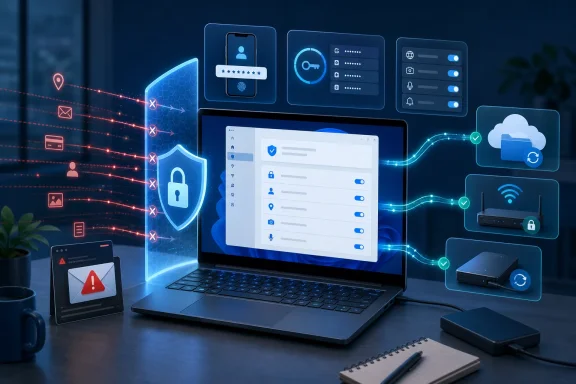 Background: Why Privacy Advice Has Become a Daily Necessity
The early internet encouraged a casual view of personal data. People reused passwords, posted birthdays and locations publicly, installed free utilities without reading prompts, and treated email as inherently trustworthy. Much of that behavior made sense in an era when online services were simpler and digital identity had less financial value.That environment has changed dramatically. A person’s email address, phone number, browsing activity, purchase history, location data, account credentials, device fingerprints, and social connections can all be valuable. Some data is collected for legitimate service functionality. Other information is used for targeted advertising, profiling, analytics, or sold through a wider commercial data ecosystem.
The threat landscape has also broadened. Privacy failures do not always begin with an obvious hack. They can begin with:
- An over-permissioned mobile app
- A cloud folder shared with “Anyone with the link”
- A browser extension that can read every webpage
- An old router using weak credentials
- A social-media post containing useful answers to security questions
- A fake support alert that persuades a user to install remote-access software
- An AI-generated phishing message that looks more polished than traditional scam email
Privacy Is a System, Not a Product
There is no single “privacy app” that can solve every problem. Antivirus software, VPN services, encrypted messaging apps, password managers, ad blockers, and identity-monitoring tools each have a role, but none can compensate for unsafe habits across accounts and devices.A better approach is to think in layers. Each layer should reduce the impact of a mistake, a breach, or a targeted scam.
The five practical privacy layers
- Identity protection
Secure the accounts that prove who you are online, especially email, financial accounts, Microsoft accounts, and mobile-carrier accounts. - Device protection
Keep Windows, browsers, firmware, apps, and security tools updated. Use device encryption and a proper screen lock. - Data minimization
Share less data by default. Remove unneeded permissions, accounts, apps, and old files. - Network protection
Secure home Wi-Fi, treat public networks carefully, and keep routers and connected devices under control. - Scam resistance
Slow down around unexpected messages, urgent requests, QR codes, pop-ups, calls, and account-recovery prompts.
Start With the Accounts That Can Reset Everything Else
For most people, the most important account is not a bank account or social network profile. It is email.Email is the master key to digital life because it receives password-reset links, purchase receipts, security alerts, tax records, family communications, and account-verification messages. If an attacker controls email, they may be able to take over many other accounts in minutes.
Use unique passwords without relying on memory
A strong password is not merely a password with capital letters, numbers, and symbols. What matters most is that it is long, unique, and not reused.Password reuse remains one of the most damaging habits in personal cybersecurity. When one website suffers a breach, attackers often try the exposed email-and-password combination at major email, shopping, gaming, and financial services. This technique is effective because people naturally reuse passwords to make them easier to remember.
A reputable password manager changes the equation. It can generate and store a distinct password for every account, reducing the need to memorize dozens of complex strings.
For Windows users, the practical rule is straightforward:
- Use a password manager or built-in browser password system only after securing it with a strong primary sign-in method.
- Generate a different password for every account.
- Replace reused passwords first, beginning with email, Microsoft, financial, healthcare, and shopping accounts.
- Never store a password list in an unprotected text file, spreadsheet, or email draft.
- Review saved passwords periodically and delete obsolete entries.
Turn on multifactor authentication everywhere it matters
Multifactor authentication, or MFA, adds a second barrier after the password. If someone obtains a password through a breach or phishing page, MFA can still stop account takeover.Not all MFA options provide identical protection. Text-message codes are better than no MFA, but they can be vulnerable to phone-number takeover attacks and phishing. Authenticator apps, security keys, and passkeys generally offer stronger protection.
Passkeys deserve particular attention. They can allow users to sign in with a device PIN, fingerprint, or facial recognition rather than typing a password. Because a passkey is tied to the legitimate site or service, it is much more resistant to traditional credential-phishing attacks.
Prioritize MFA for:
- Primary and recovery email addresses
- Microsoft accounts and Windows sign-in
- Online banking and payment services
- Mobile-carrier accounts
- Cloud storage
- Social media
- Password managers
- Work and school accounts
- Retailers that store payment information
Protect account recovery paths
Attackers know that a well-protected account may be easier to attack through recovery than through the front door. Review recovery email addresses, phone numbers, backup codes, security questions, and trusted devices.Avoid security questions whose answers can be found through public records or social media. A hometown, mother’s maiden name, favorite team, or pet name may be easy for an attacker to research.
Store backup codes somewhere secure and offline when possible. They are valuable because they can restore access when a phone is lost, but that also means they can be abused if left exposed.
Windows Privacy Starts With Security Basics
Windows includes meaningful privacy and security controls, but their effectiveness depends on how they are configured and maintained. A newly installed PC may be reasonably protected, yet years of app installs, browser add-ons, old user accounts, and changed settings can gradually create unnecessary exposure.Keep Windows and applications updated
Software updates are a privacy tool because they close vulnerabilities that can be exploited to steal data, install malware, or gain remote access.It is tempting to postpone updates when a restart is inconvenient. However, many security fixes address flaws that have already been discovered and may be actively targeted. Delayed patching extends the window in which known weaknesses remain available to attackers.
On a Windows PC, keep these components current:
- Windows security and quality updates
- Microsoft Edge or another primary browser
- Microsoft Defender security intelligence updates
- Office and productivity applications
- PDF readers
- Video-conferencing applications
- Hardware drivers and firmware from trusted manufacturers
- Router firmware and smart-home device software
Use Windows Security as an active control center
Microsoft Defender Antivirus and the broader Windows Security interface provide far more value than a passive “installed or not installed” check. Review its status periodically.Key features to verify include:
- Real-time protection
- Firewall status
- Account protection recommendations
- App and browser control
- Device security features
- Ransomware protection options
- Protection history alerts
Encrypt the device
A laptop can be lost in an airport, stolen from a car, misplaced at school, or borrowed by someone who should not have access to its files. Device encryption helps protect data at rest by making stored files unreadable without the proper sign-in credentials or recovery key.Depending on the Windows edition and hardware, this may appear as Device Encryption or BitLocker. Before enabling or managing encryption, ensure recovery information is securely stored and accessible. A lost recovery key can turn an otherwise healthy PC into an inaccessible one.
Encryption is especially important for:
- Laptops and tablets
- PCs containing tax documents or financial records
- Devices used for remote work
- Shared family computers with multiple user accounts
- Machines syncing cloud-storage folders locally
Separate daily activity from administrator privileges
Many Windows users operate through an administrator account every day. That is convenient, but it can increase risk if malicious software runs with broad permissions.Where practical, use a standard account for routine browsing, email, office work, and entertainment. Keep a separate administrator account for software installation and system changes. This is not a magic shield, but it reduces the chance that a single careless click gains complete control of the system.
Make Browser Privacy a First-Class Setting
The browser is where much of modern privacy is won or lost. It handles search, email, banking, shopping, social media, work portals, cloud storage, and increasingly AI tools. A secured Windows PC can still leak significant data through an over-permissioned browser profile.Review extensions ruthlessly
Browser extensions are powerful. They may be able to read and change data on websites, access browsing activity, inject scripts, alter search results, or interact with downloaded files.Install extensions only when they have a clear purpose. A wallpaper extension, coupon finder, “PDF helper,” search tool, or unknown AI assistant can create more risk than value.
A useful extension audit looks like this:
- Open the extensions page in every installed browser.
- Remove extensions you no longer use.
- Investigate extensions you do not remember installing.
- Review permissions for the few extensions you keep.
- Prefer established vendors and official stores.
- Avoid installing extensions from pop-ups or third-party download sites.
Control permissions site by site
Modern sites can request access to the microphone, camera, location, notifications, clipboard, downloads, and local files. Some requests are necessary for video calls or mapping. Others are not.Adopt a default-deny mindset. Grant permissions only when a feature clearly requires them, and remove permissions from sites once the task is complete.
In particular, be cautious with:
- Browser notifications
- Location access
- Camera and microphone access
- Permission to open external applications
- Clipboard access
- Automatic downloads
- Persistent pop-up permissions
Treat “private browsing” realistically
Private or Incognito modes are useful, but their privacy protections are often misunderstood. They primarily reduce the browsing history, cookies, and session data saved on the local device after the window is closed.They do not make users anonymous to websites, internet providers, employers, schools, or network administrators. They also do not protect against phishing, malware, or dangerous downloads.
Private browsing is best viewed as a local cleanup feature, not a full anonymity system.
Reduce the Data You Hand Over
Cybersecurity advice often focuses on defending data after it exists. Privacy-conscious users should also ask a more fundamental question: Does this service need this information at all?Data minimization reduces the consequences of future breaches, leaks, marketing misuse, and account compromise.
Share less when signing up
Not every website needs a full legal name, birth date, home address, mobile number, contacts list, or access to a social media account. If a field is optional, leave it blank unless there is a clear benefit.When a service requires a phone number, consider whether it is genuinely necessary. When an app wants permission to access every photo, precise location, microphone, contacts, and local network, assess whether those permissions are proportional to its function.
Be particularly cautious with free services. “Free” can mean the product is supported by advertising, behavioral profiling, data collection, or a business model that is not obvious from the installation screen.
Manage cloud sharing deliberately
Cloud storage is useful precisely because it makes files accessible from different devices. That convenience can become a privacy issue when links are overshared.For OneDrive, Google Drive, Dropbox, and similar services, distinguish between these options:
- Specific people
- People inside an organization
- Anyone with the link
- Editable access
- View-only access
- Links with expiration dates
Clean up old accounts and dormant apps
Old accounts can be forgotten gateways to personal data. A retailer, forum, fitness app, photo editor, or subscription service may still have a profile containing contact details, purchase history, or an old password.Regularly review:
- Accounts that have not been used in a year
- Old shopping profiles with saved payment methods
- Unused social platforms
- Trial subscriptions
- Apps with access to Microsoft, Google, Apple, or social accounts
- Legacy email forwarding rules
- Connected third-party services
Defend Against Phishing, the Privacy Threat That Adapts Fastest
Phishing remains one of the most effective attacks because it exploits urgency, trust, and distraction rather than technical weaknesses alone. The message may claim a package is delayed, a password is expiring, a payment failed, an account is locked, a tax refund awaits, or an executive needs immediate help.AI has made low-quality scam messages less obvious. Better grammar does not make a message legitimate. A polished voice clone, convincing logo, and realistic-looking webpage can still be part of a fraud attempt.
Build a pause-before-clicking habit
The most effective anti-phishing behavior is not memorizing every scam. It is creating a deliberate pause before responding to unexpected requests.Be wary when a message asks for:
- Passwords, MFA codes, recovery codes, or passkeys
- Gift cards, cryptocurrency, wire transfers, or unusual payment methods
- Remote access to a Windows PC
- Immediate action under threat of account closure
- A login through a link or QR code
- An attachment that claims to be an invoice, voicemail, tax document, or secure file
- Personal details “for verification”
Never give remote access to an unsolicited caller
Tech-support scams remain especially relevant to Windows users because attackers often display fake warnings that mention Windows, Microsoft Defender, malware, or a compromised IP address. They may ask the victim to install a remote-control tool and then use that access to steal files, view passwords, sell unnecessary services, or deploy malware.Microsoft, banks, and legitimate security companies do not cold-call consumers to demand remote access to a PC because of a discovered virus. A pop-up with a phone number is not proof of a Windows problem.
If remote access was granted by mistake:
- Disconnect the computer from the internet.
- Uninstall the remote-access application if possible.
- Run a full security scan.
- Change passwords from a known-clean device, beginning with email.
- Review financial accounts and contact relevant institutions if sensitive information was exposed.
- Consider professional assistance if the attacker had extensive access.
Secure the Home Network and Connected Devices
A router is more than a box that supplies Wi-Fi. It is the gateway between the internet and devices such as Windows PCs, phones, printers, TVs, cameras, game consoles, smart speakers, and appliances.An insecure router can undermine otherwise careful device protection.
Router essentials that should not be skipped
At minimum, home users should:- Change the router’s default administrator password.
- Use WPA3 Personal when available, or WPA2 Personal on compatible older hardware.
- Install router firmware updates.
- Disable remote administration unless it is genuinely needed.
- Use a strong, unique Wi-Fi password.
- Create a guest network for visitors and many smart-home devices.
- Review the list of connected devices periodically.
- Replace routers that no longer receive security updates.
Public Wi-Fi deserves measured caution
Public Wi-Fi is safer than it was in the early web era because encrypted websites and applications are now widespread. But public hotspots still create risks from fake network names, malicious captive portals, compromised devices, deceptive sites, and careless sharing.Use public Wi-Fi with sensible limits:
- Confirm the network name with the venue when possible.
- Avoid sensitive financial transactions if the situation feels uncertain.
- Keep Windows network discovery and file sharing disabled on public networks.
- Do not accept unexpected certificate warnings.
- Avoid automatically joining unknown networks.
- Use HTTPS sites and official applications.
- Log out of shared or sensitive services when finished.
Backups Are Privacy Protection, Too
Backups are often associated with hardware failure and ransomware, but they also protect privacy. If malware encrypts files, if a scammer deletes cloud content, if a device is lost, or if an account is compromised, a reliable backup can prevent a crisis from becoming a long-term data disaster.A useful backup strategy includes more than one copy. Keep important data in separate locations, and make sure at least one backup cannot be easily modified or deleted by a compromised Windows account.
What deserves backup priority
Focus on irreplaceable files first:- Personal photos and videos
- Tax records and legal documents
- Family archives
- Password-manager emergency materials
- School and work projects
- Financial records
- Important email exports where appropriate
The Risks of Privacy Advice: Where Simple Tips Can Mislead
Privacy tips are valuable, but users should resist turning them into simplistic rules.More security prompts are not always better
Overly frequent password changes can encourage predictable patterns. Excessive MFA prompts can lead users to approve notifications automatically. Too many browser extensions advertised as privacy tools can introduce their own tracking or security risks.The goal is not maximum friction. It is high-value friction at high-risk moments.
Privacy tools require trust
A password manager, VPN, cloud storage service, browser, identity-monitoring tool, or encrypted messaging app may handle sensitive data. Choosing a tool based only on marketing language can create a false sense of security.Before trusting a privacy product, assess:
- Its reputation and ownership
- Its update history
- Its business model
- Its privacy policy and data practices
- Its account-recovery approach
- Its platform support
- Whether it requires more permissions than necessary
Human factors cannot be ignored
The most technically sound plan will fail if it is too difficult for people to use. Family members may share devices, older adults may need accessible recovery methods, and workers may face conflicting demands from personal and workplace technology.The best strategy is one that people can sustain. A password manager used consistently is better than an elaborate password system abandoned after a week. MFA enabled on critical accounts is better than an ideal plan that never gets configured.
A Practical 30-Minute Privacy Reset for Windows Users
A 500-tip archive can feel overwhelming, but a meaningful improvement does not require implementing everything at once. The following short reset covers the most important steps.- Secure primary email
Change a reused password, enable MFA, and verify recovery methods. - Secure the Microsoft account
Review sign-in activity, MFA options, recovery information, and connected devices. - Run Windows Update
Install pending updates for Windows, browsers, and commonly used applications. - Review Windows Security
Confirm antivirus and firewall protection are active and investigate unresolved alerts. - Audit browser extensions
Remove anything unneeded, unfamiliar, or overly broad in its permissions. - Review cloud-sharing links
Remove “anyone with the link” access from files that no longer need it. - Update the router
Change the administrator password if it is still default, apply firmware updates, and check Wi-Fi encryption. - Delete dormant accounts or connected apps
Start with accounts that hold payment methods, personal documents, or old credentials. - Back up important files
Verify that photos, documents, and essential records exist in at least one additional location. - Commit to one phishing rule
Never log in through an unexpected link, QR code, popup, text, or email.
The Enduring Lesson of 500 Privacy Tips
A milestone of 500 privacy tips illustrates the scale of the modern challenge, but it also reveals something encouraging: privacy protection is built from manageable actions. Most people do not need to become cybersecurity experts, memorize technical standards, or purchase a stack of expensive software.They do need to treat digital information as valuable, protect the accounts that control their identity, keep Windows and connected devices updated, limit unnecessary data sharing, and remain skeptical of unexpected requests.
The strongest privacy habit is not fear. It is informed routine. When secure defaults, thoughtful permissions, unique credentials, MFA, timely updates, cautious sharing, and regular backups become ordinary behavior, the digital world becomes far less like the Wild West—and much more manageable.
References
- Primary source: The National Law Review
Published: 2026-07-23T18:24:46+00:00
Privacy Tip #500 – Wow—500 Privacy Tips! Here’s a Recap
A recap of the top ways to protect your privacy from a cybersecurity perspective: device patches, strong passwords, multi-factor authentication, limit public wifi usnatlawreview.com